10 ways to use tags in Microsoft Azure
What are Tags in Azure?
Tags are a pair of editable values in Microsoft Azure. These are in this pair-convention:
- Name : Value
We can define ourselves what the Name and Value actually are, if we stay within these limits:
- Name: maximum of 512 characters
- Value: maximum of 256 characters
- Half these values for storage accounts
- These characters are not supported:
<,>,%,&,\,?,/
An example of a resource in my environment using tags:
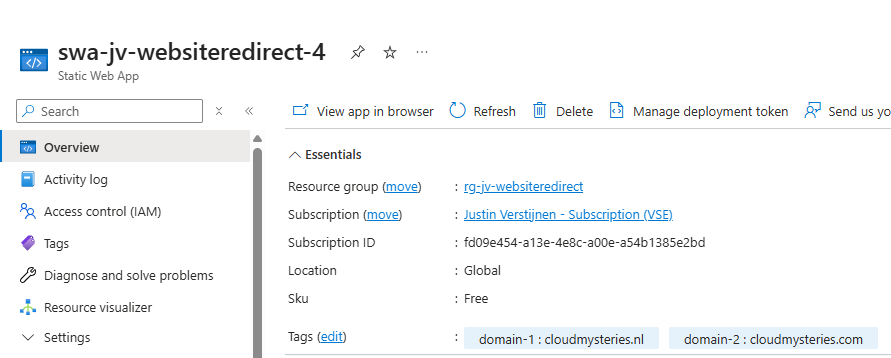
I marked two domains I use for a redirection to an other website. Therefore I have a nice overview over multiple resources.
You can only use 1 unique Name per resources. Multiple tags with the same name are not possible.
(Therefore I used domain-1 and domain-2).
Some advices before start using Tags
Before we go logging into our environment and tag everything we see, I will first give some advice which will be useful before starting
- Tags are stored plain text, so do not store sensitive data into tags
- Some roles can actually see tags, even without access to their assigned resource
- Reader
- Cost Management Reader
- You will need at least Contributor permissions to assign or remove tags to resources
- Tags will not flow from Subscription to Resource Groups or to resources. These tag lists are independently
- Think about what tags to actually use, make some documentation and keep those tags up-to-date
How to create tags in Azure?
You can add tags to a resource by opening it, and then click on “Tags”. Here we can define what tags to link to the resource. As you might use the same name/value for multiple resources, this will auto-suggest you for easy linking:
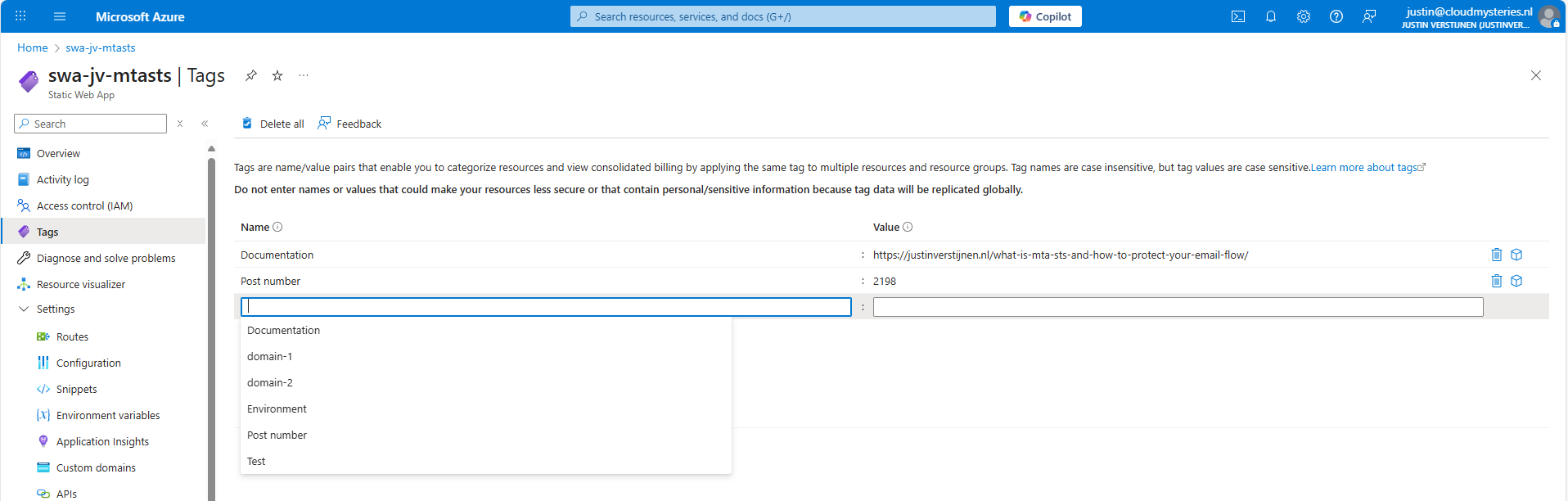
Check out this video where I demonstrate creating the tags from the example below, 1: Documentation
https://www.youtube.com/watch?v=sR4GdScNG7M
1: Documentation
Documentation of your environment is very important. Especially when configuring things, then to not touch it for sometimes months or years. Also when managing resources with multiple people in one company, using a tag to point to your documentation is very useful.
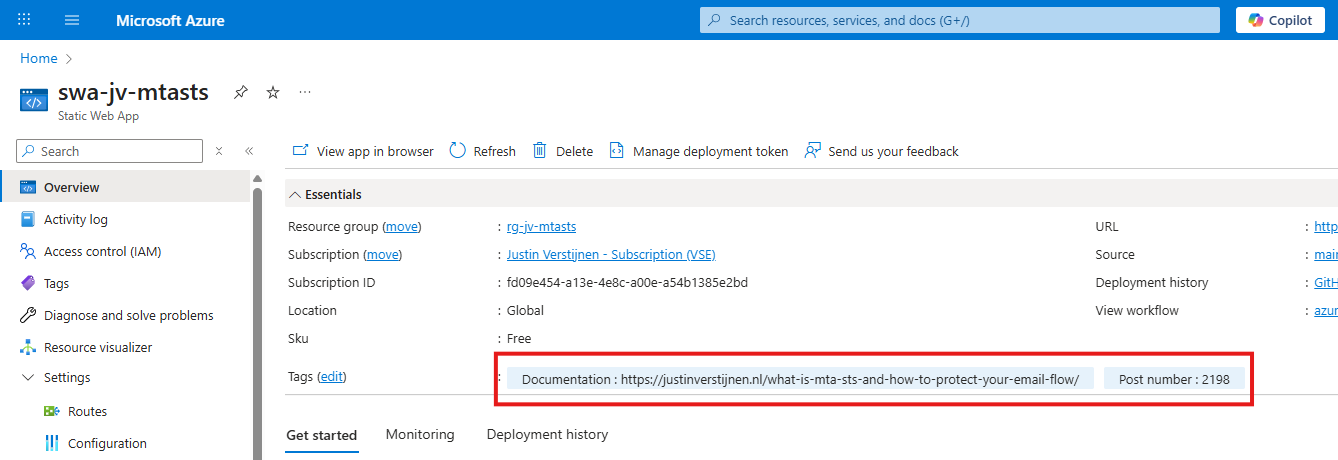
If you have a nice and numbered documentation-system, you can use the number and page number. Otherwise you can also use a whole link. This points out where the documentation of the resource can be found.
If using a Password management solution, you can also use direct links to your password entry. This way you make it yourself and other people easy to access a resource while still maintaining the security layer in your password management solution. As described, Reader access should not grant actual access to a resource.
2: Environment separation
You can use tags to mark different environments. This way every administrator would know instantly what the purpose of the resource is:
- Testing
- Acceptance (end-user testing)
- Production
- Production-Replica
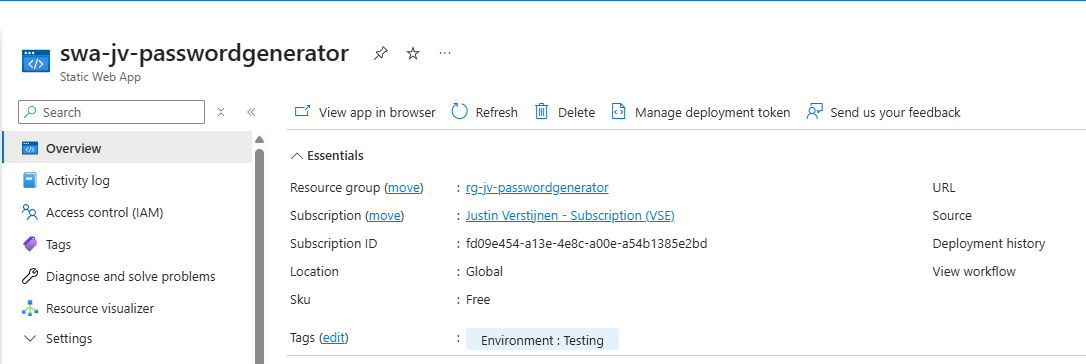
Here I marked a resource as a Testing resource as an example.
3: Responsable person or departments
In a shared responsibility model on an Azure environment, we would mostly use RBAC to lock down access to your resources. However, sometimes this is not possible. We could define the responsibility of a resource with tags, defining the person or department.
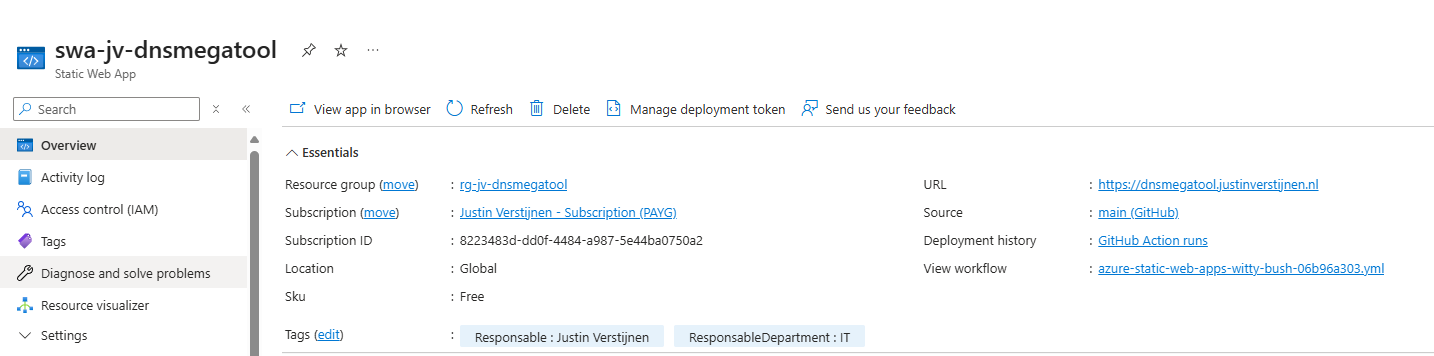
4: Lifecycle and retention
We could add tags to define the lifecycle and retention of the data of an resource. Here I have 3 examples of how this could be done:
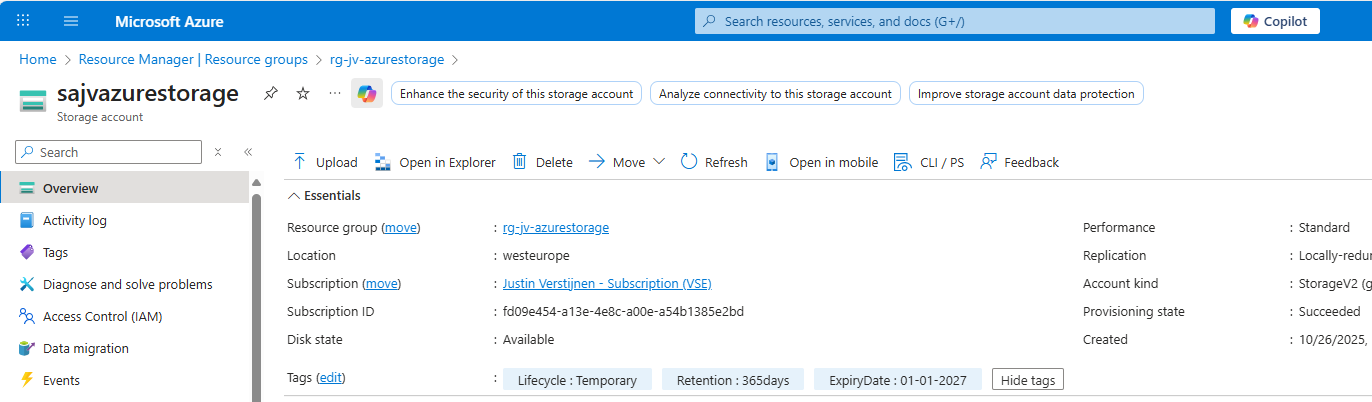
I created a tag Lifecycle, one for Retention in days and a Expiry date, after when the resource can be deleted permanently. Useful if storing some data temporarily after a migration.
5: Compliance
We could use the tags on an Azure resource to mark if they are compliant with industry accepted security frameworks. This could lookm like this:
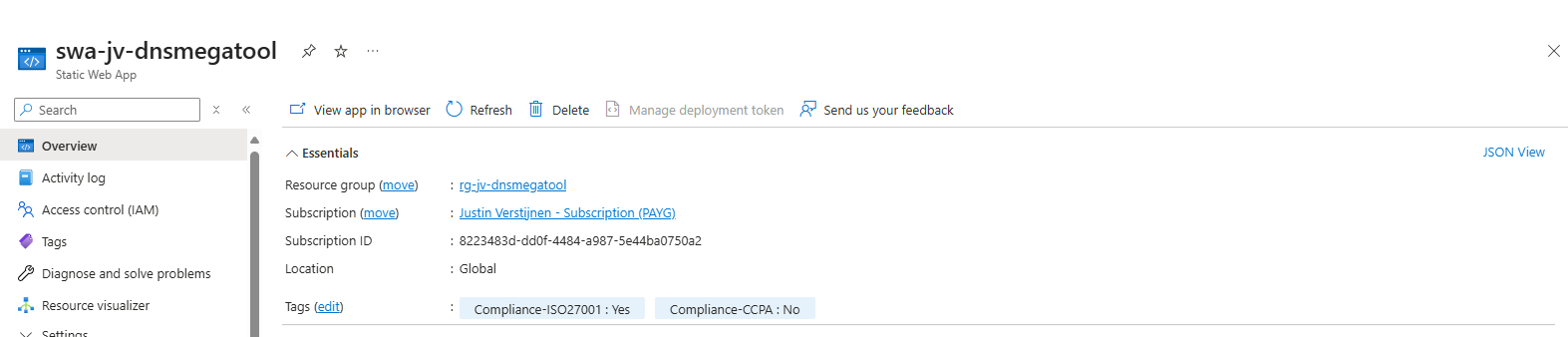
Compliance could be some customization, as every organization is different.
6: Purpose and Dependencies
You can add tags to define the role/purpose of the resource. For example, Role: Webserver or Role: AVD-ProfileStorage, like I have done below:
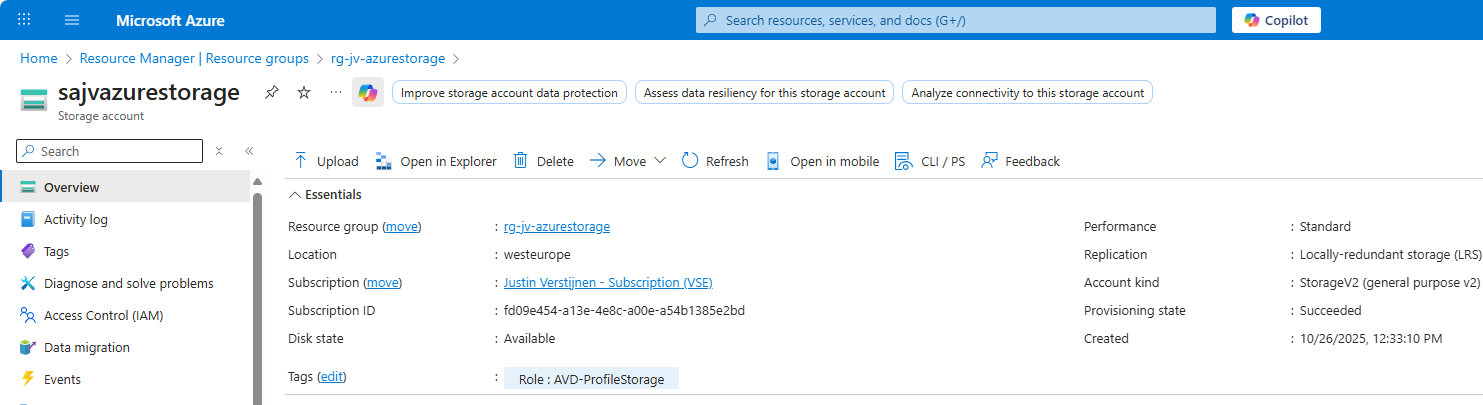
This way you can define dependencies of a solution in Azure. When having multiple dependencies, some good documentation is key.
7: Costs separation
You can make cost overviews within one or multiple subscriptions based on a tag. This make more separation possible, like multiple departments using one billing method or overviews for total costs of resources you have tagged with a purpose.
You can make these overviews by going to your subscription, then to “Cost Analysis” and then “Group By” -> Tags -> Your tag.
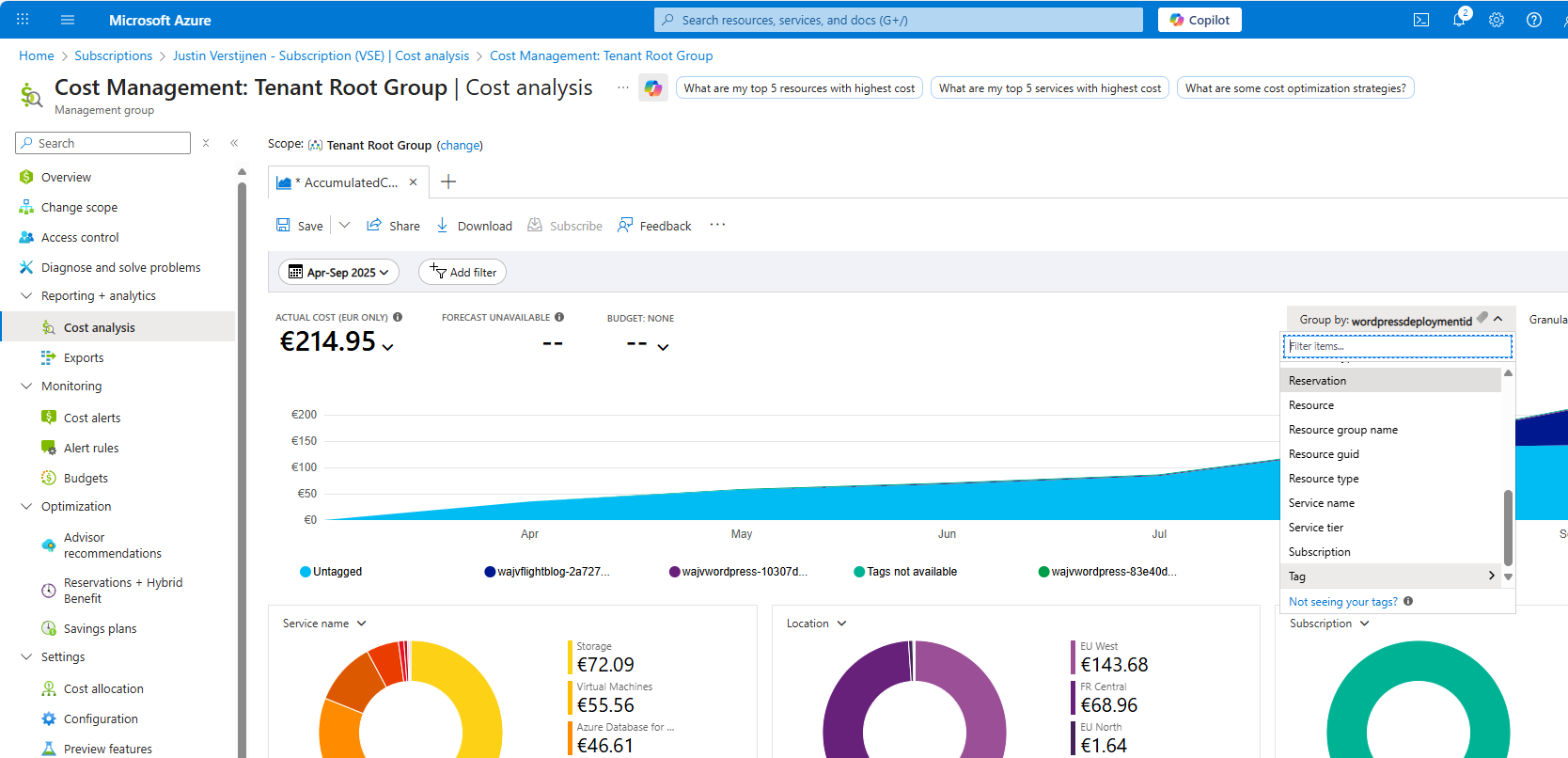
This way, I know exactly what resources with a particular tag was billed in the last period.
8: Maintenance hours and SLAs
Tags could be used excellently to define the maintenance hours and Restore Time Objective (RTO) of a resource. This way anyone in the environment will know exactly when changes can be done and how many data-loss is acceptable if errors occur.
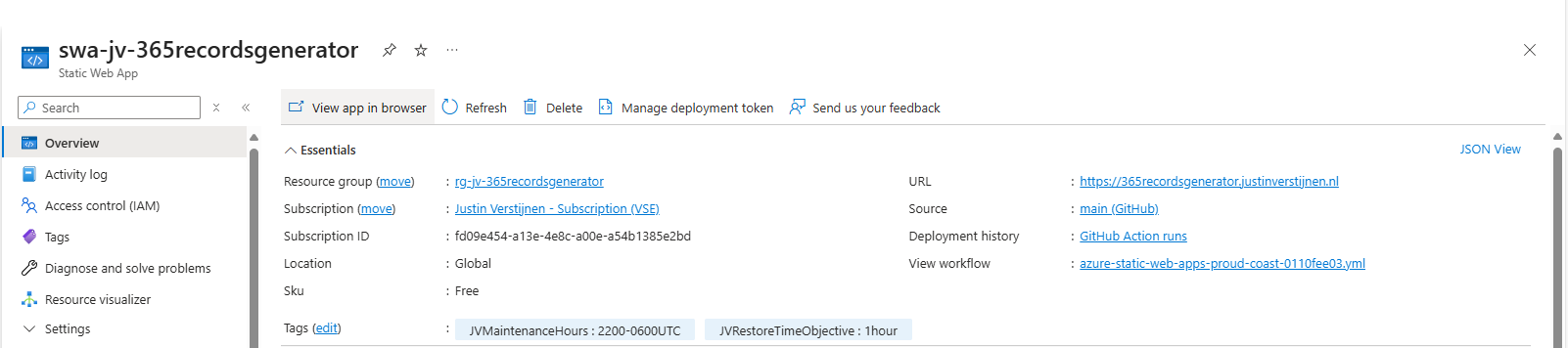
Here I have created 2 tags, defining the maintenance hours including the timezone and the Restore Time Objective.
9: Solution version
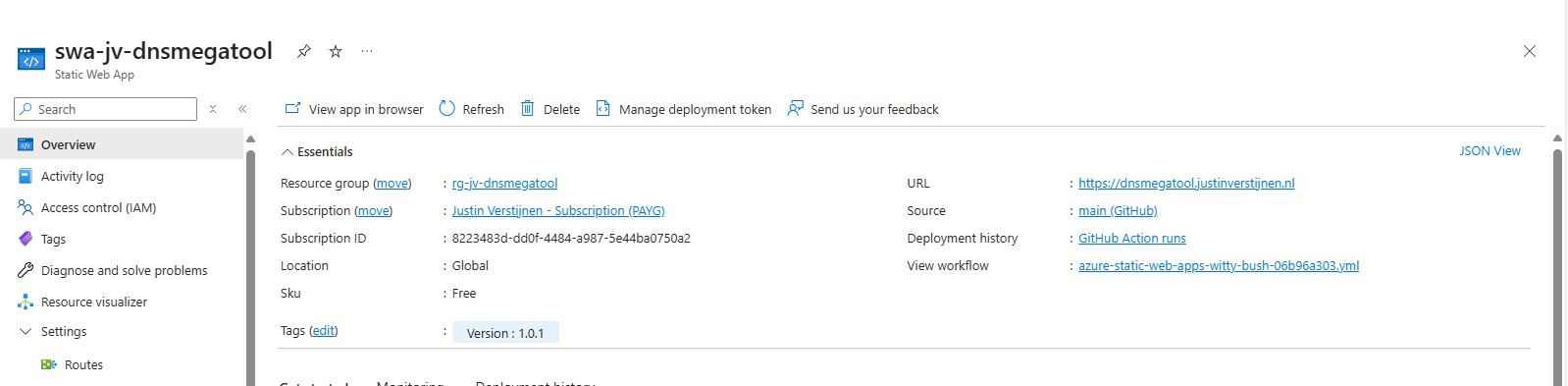
This will be very useful if you are deploying your infrastructure with IaC solutions like Terraform and Bicep. You can tag every resource of your solution with a version which you specify with a version number. If deploying a new version, all tags will be changed and will align to your documentation.
An example of this code can look like this:
# Variables
variable "version" {
  type        = string
  description = "Version number"
  default     = "1.0.1"
}

# Provider
provider "azurerm" {
  features {}
}

# Resource Group
resource "azurerm_resource_group" "rg" {
  name     = "rg-jv-dnsmegatool"
  location = "westeurope"

  tags = {
    Version = var.version
  }
}

# Static Web App
resource "azurerm_static_web_app" "swa" {
  name                = "swa-jv-dnsmegatool"
  resource_group_name = azurerm_resource_group.rg.name
  location            = azurerm_resource_group.rg.location
  sku_tier            = "Free"
  sku_size            = "Free"

  tags = {
    Version = var.version
  }
}
And the result in the Azure Portal:
10: Disaster Recovery-tier
We could categorize our resources into different tiers for our Disaster Recovery-plan. We could specify for example 3 levels:
- Level 1: Mission Critical
- Level 2: Important
- Level 3: Not important
This way we write our plan to in case of emergencies, we first restore Level 1 systems/resources. After they all are online, we could advance to Level 2 and then to Level 3.
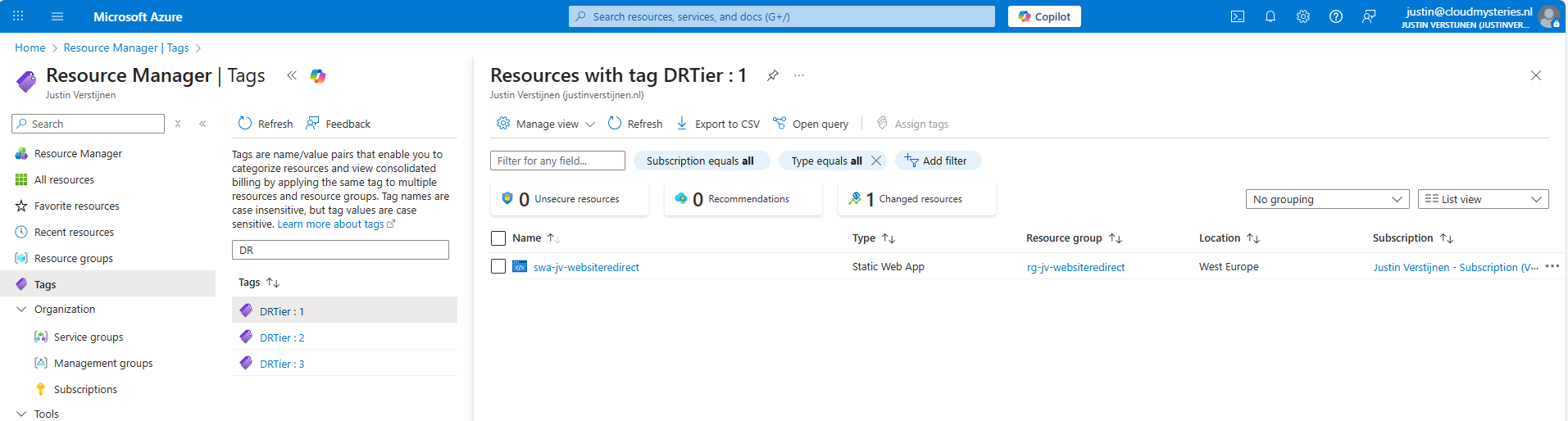
By searching for the tags, we can instantly view which resources we have to restore first according to our plan, and so on.
Bonus 1: Use renameable tags
In an earlier guide, I described how to use a renameable tag for resources in Azure:
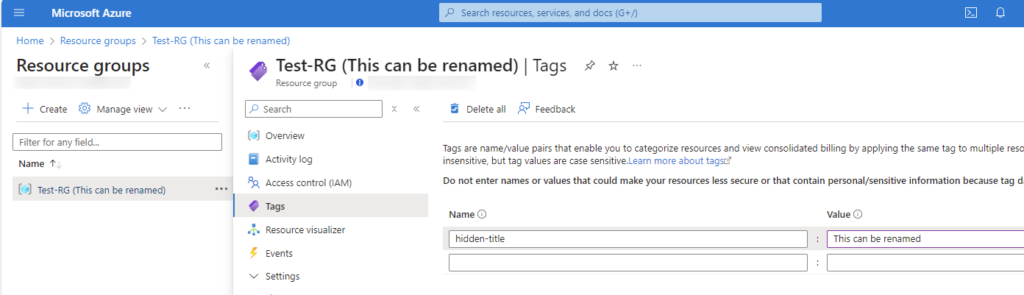
This could be useful if you want to make things a little more clear for other users, like a warning or a new name where the actual name cannot be changed unfortunately.
Check out this guide here: https://justinverstijnen.nl/renameable-name-tags-to-resource-groups-and-resources/
Summary
Tags in Microsoft Azure are a great addition to your environment and to make it perfect. It helps a way more when managing an environment with multiple persons or parties when tags are available or we could use some custom views based on tags. In bigger environments with multiple people managing a set of resources, Tags would be unmissable.
These sources helped me by writing and research for this post;
End of the page 🎉
You have reached the end of the page. You can navigate through other blog posts as well, share this post on X, LinkedIn and Reddit or return to the blog posts collection page. Thank you for visiting this post.
Support the blog
