All pages referring or tutorials for GitHub.
This is the multi-page printable view of this section. Click here to print.
GitHub
- Setup a GitHub Pages Blog
- Getting started with GitHub Pages
- Upload multiple Github repositories into a single Azure Static Web App
Setup a GitHub Pages Blog
In this post, I will dive deeper in to how to setup a blog page on GitHub Pages, with as primary example this website you are now visiting. Also I will dive deeper on how I make posts and how general maintenance is being done.
Introduction
In this post, I will dive deeper into this website you’re now visiting and my lesser known Flight blog. In the first quarter of 2026 I have migrated those websites from WordPress to GitHub Pages, because I wanted to have a more future-proof and open-source website with more options to customize. A great advantage of GitHub Pages is that open-source hosting is completely free, so this isn’t a barrier anymore.
I will dive into these topics:
- General overview of the different components
- Find a theme that suit your needs
- Setup a GitHub Repository and hosting
- Hosting images and media files on Azure Blob Storage
- Writing about topics in Markdown
- General post management
Overview of the website
As every website will and can be different, I will describe how my blogs are working. Sure thing is that they are all HTML based and we write in Markdown but for example my theme, Docsy, uses Hugo to generate HTML pages from the markdown text you write.
The components of my website are:
- GitHub Pages: This is the place where my website runs and is maintained using all built-in functions of GitHub, and some scripts and configuration files are hosted on their separate repositories to keep everything centralized and online
- Docsy: Docsy is the GitHub Pages theme I am currently using and delivers the foundation and functions (framework) of the website, where I have done some additions and customizations to make it more to my likings
- Hugo: Hugo is a document generator which converts your Markdown to static HTML pages in the theme you are using, lets say the engine of the theme
- Umami: This tool I use to analyze the traffic on my website. Basically a visitor counter with a lot of options I don’t use. This tool is much more privacy friendly than Google’s counterpart
- Azure Blob Storage: Azure Blob Storage is in use for hosting the images and other media files. For video’s, I am using Youtube with embedding as that video player is much better than browsers’ builtin player and saves a lot of storage.
In this diagram, I visualized the overall website and the different components. From Markdown article to Github Pages and generation to Website which is readable for the user. Also how different media files and different other files are injected into the website.
Step 1: Setup a GitHub Repository and hosting
The first step into hosting a blog website is to create a GitHub account if you don’t have an existing account and to create a repository to host your website. This is completely free with GitHub Pages, if you want to have your source code publicly available.
I already described this process in an earlier blog post, so for Step 1, I will refer to that guide to keep my content as much as up-to-date as possible.
Visit the Setup GitHub Pages tutorial
Step 2: Find a theme for GitHub Pages
Before you can further create a website, you need to select a GitHub Pages-compatible theme. This also decides which further actions must be taken. You can search this websites below on the different themes which are available. Some themes have more extra’s like built-in Table of Contents, or different shortcodes.
In my research on GitHub Pages, I was very happy with the Docsy theme. This catched my eye and has a lot of different options and features available by default. It’s also very lightweight and fast and clear, so I decided to pick that one. It’s available here:
Step 3: Create GitHub Action
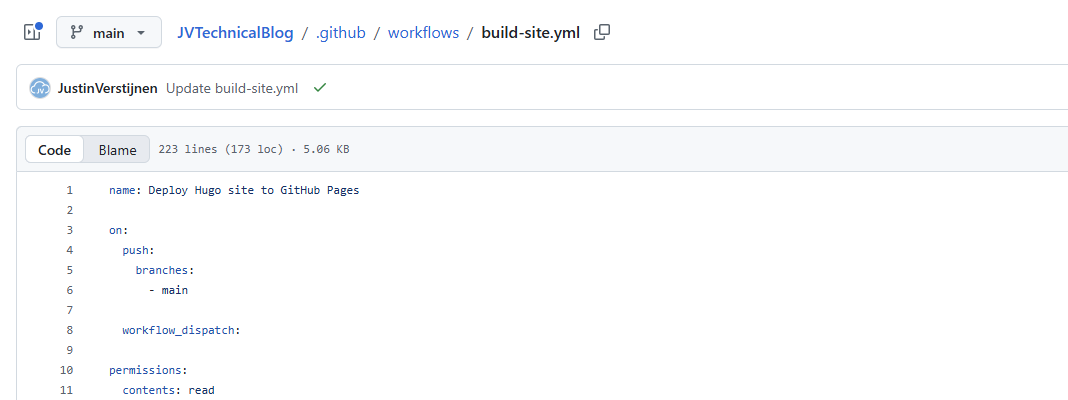
After we created a repository and have our domain name linked to the GitHub Pages instance and we have our theme ready, we can configure a GitHub Action to generate the website. This works by re-generating the website every time a commit is done to the repository. After the commit is done, a GitHub Action with the Hugo component will build the website, and then deployed to the GitHub Pages hosting slot.
To create your GitHub Action, copy the contents of this code and change the repository name on line 119:
https://gist.github.com/JustinVerstijnen/bf80883f2c03d3b6e1b8fd331da91c12
Then create a folder named .github, then create another folder workflows in it and then the file build-site.yml and paste the contents. You can create a new file in the web interface from the root and directly type/paste this: .github/workflows/build-site.yml
This automatically creates a GitHub Action in the repository which builds and deploys the current content into a website and places it into the hosting slot.
After creating this file, we must configure GitHub Pages to deploy with this GitHub Action instead of building the site directly. Head to Settings and then to Pages. This is where you also configured the custom domain name in the GitHub Pages setup.
Here select the Build and deployment method GitHub Actions to let the just created action build and deploy your site to the hosting slot. From now, every commit on the repository triggers the GitHub Action to build the site and only deploys the site if its correctly built.
Step 4: General maintenance and Post Management
After we have our repository correct, we can dive into how to manage the repository. While there are multiple ways of doing this, I will explain how I do these tasks.
Management tool
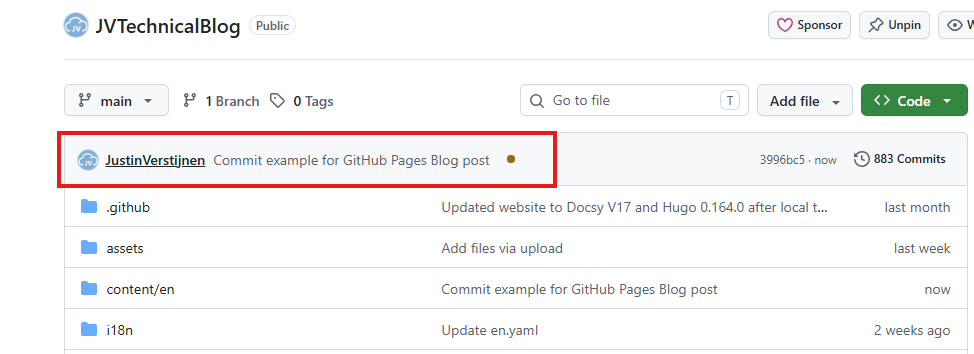
I have Visual Studio Code installed which is free, and I use the GitHub Repos extension. This is a cool way to have a code view, Markdown visual view and Git built in. We can also do our commits from Visual Studio Code, which looks like this:
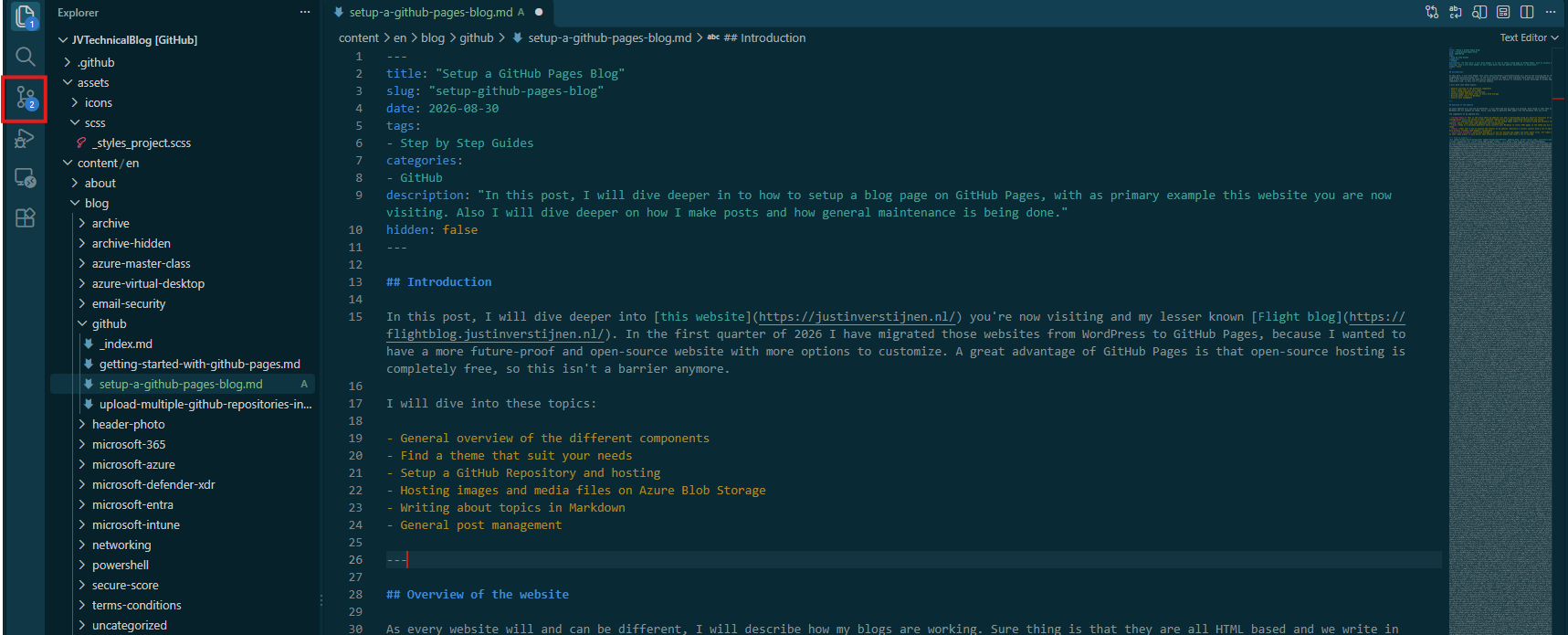
After changing files, we can commit the changes from the left on Source Control and commit the changes there:
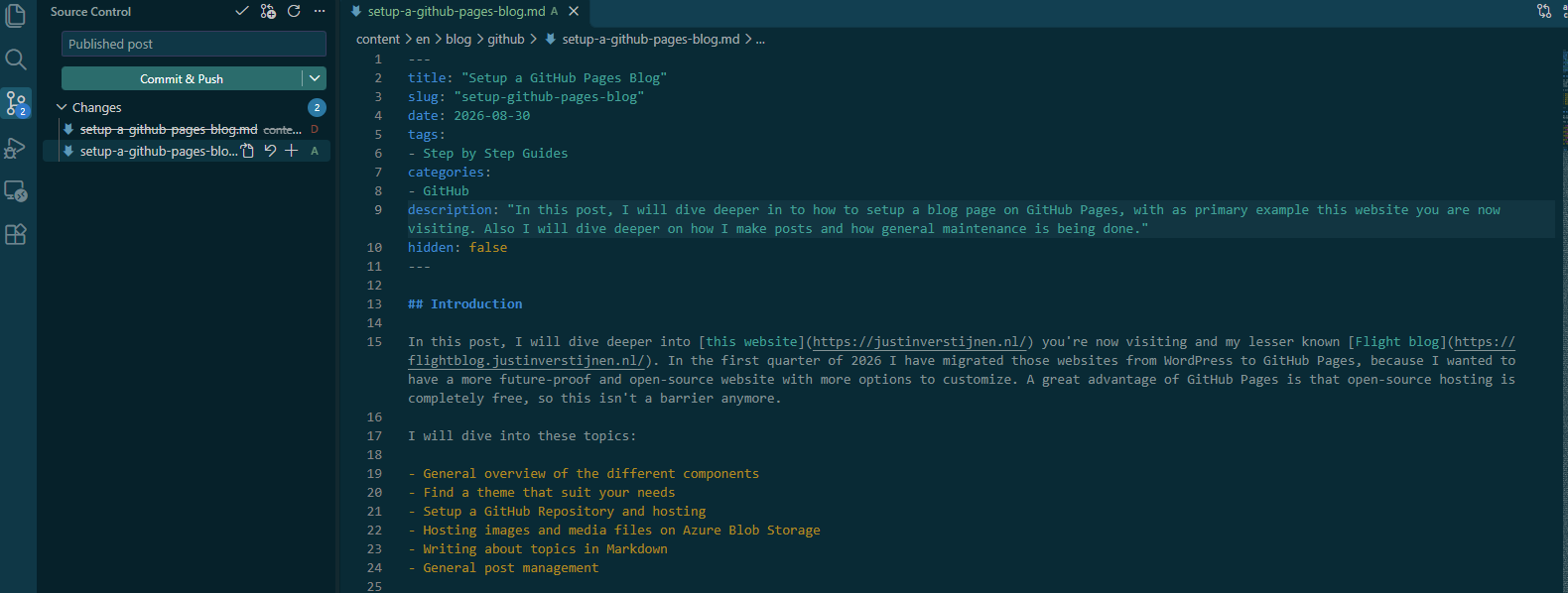
Here we commit the changes which is “saving the file” and put a custom commit message to it which is shown at the bottom of any Docsy site, like my website.

Posts location and folders
The posts and content are saved into the folder /content/en/blog. Here you can create folders for the categories, which also must have a _index.md file, stating the details of the folder. Here you can name the folder as shown on the site, including a weight number. This makes the order hardcoded, where a higher number is shown more on the bottom.
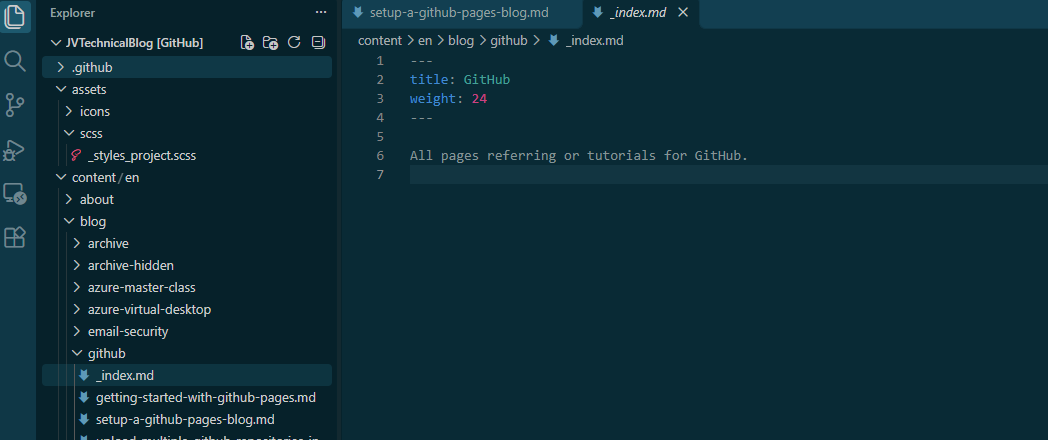
More parameters are available, which is called “Front matter”
Categories and Tags
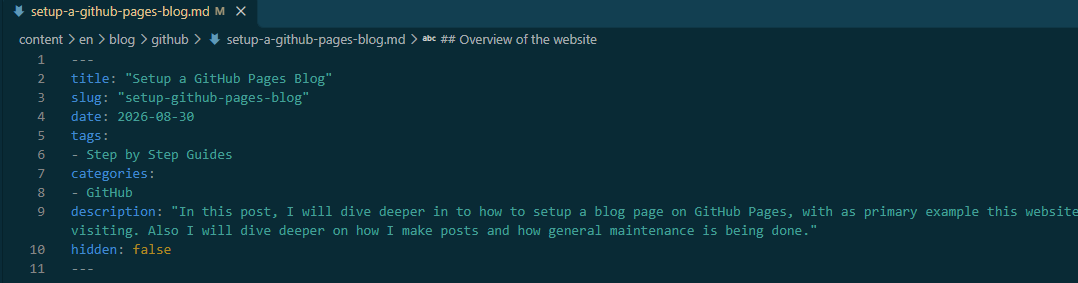
In the theme I use, Docsy, the Categories are different from the folders on the left. I just copied everything exactly to match both to each other. We can also use Tags on different posts which can be used for various different use cases. I don’t use them too much but use them to give a simple explaination of what to expect in the post.
The categories and tags are stated in the “Front matter” on the top of the post:
General maintenance
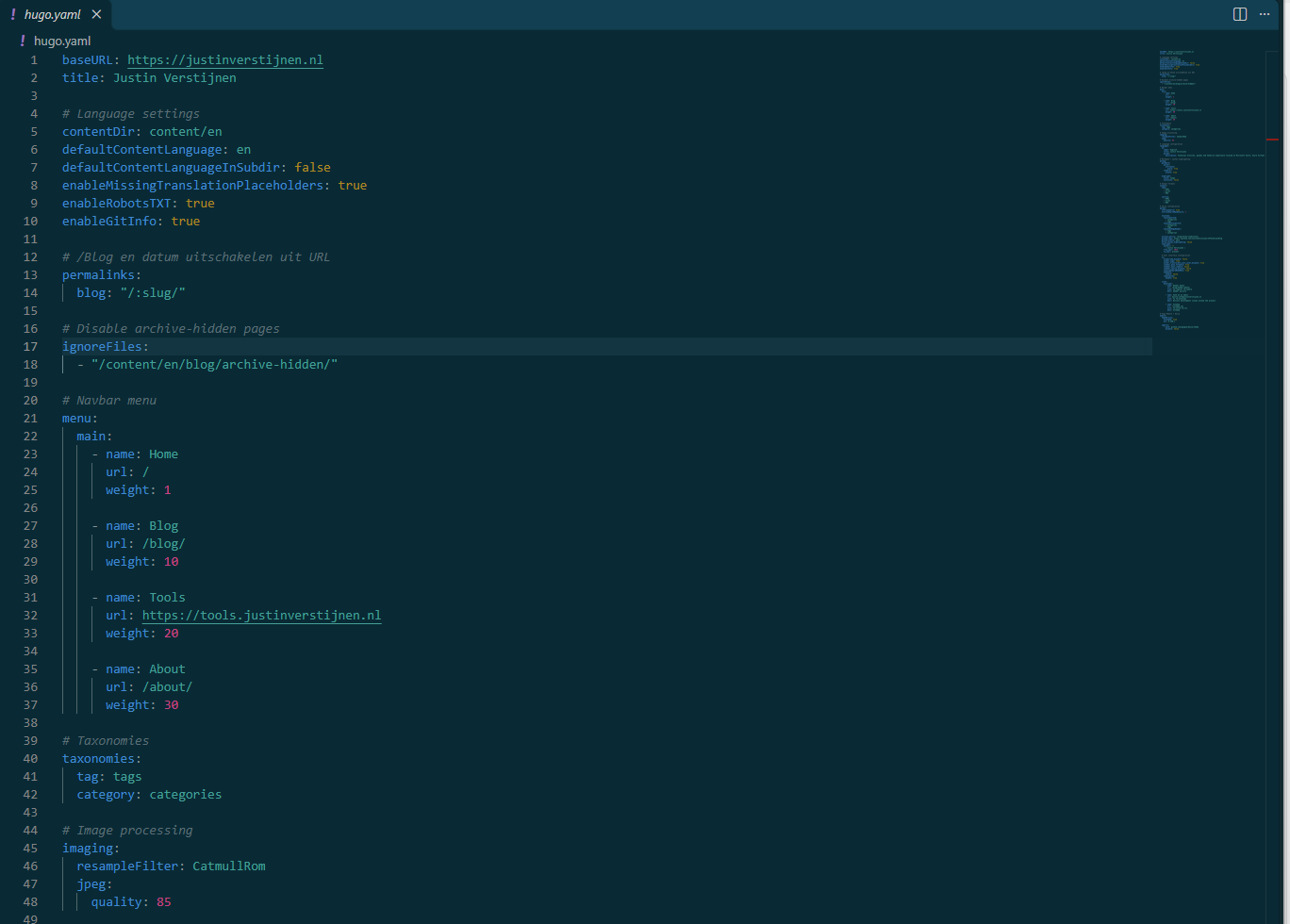
In Docsy, we have a full overview configuration file called hugo.yaml which contains a full configuration file of the website. Here you can set some variables like the name of the site, the GitHub repo, the menu items on top, what image quality is being used, which outputs are generated, like printable/printer-friendly versions of your posts and such.
Project layout
The full layout of the folders of my Docsy/Hugo project and explaination is here:
| Folder name | Folder description |
|---|---|
| .github | Folder for the project workflows. |
| .well-known | Folder for different website add-ons like security.txt. |
| assets | Folder containing different additional CSS and Logos. |
| content | Folder containing all categories and pages. |
| i18n | Folder containing translation-files. |
| layouts | Folder containing custom pages, shortcodes, layouts and suffixes. |
| public | Folder containing fallback assets needed for building the website. |
| resources | Folder containing resources needed for building the website. |
| static | Folder containing add-ons to the original CSS and Javascript. |
Step 5: Writing topics in Markdown
For GitHub Pages our content must be in the Markdown format. Markdown is a very popular and more easy to write version of HTML, where text is made up using syntaxes. I will show you an example:

This will be translated by GitHub Pages to this visually:

This is a switch in writing some content. You can use any tool which visualizes Markdown text and gives you access to the code. I am using my own Markdown Editor tool for this which can be found here:
This tool gives you a nice interface with some blocks and gives you directly access to the underlying code. I use this tool to write my guides and to automatically upload the images to Azure Blob Storage.
To actually learn Markdown syntaxes, you can use this website:
Step 6: Hosting media files on Azure Blob Storage
If you want to host your image files on Azure Blob Storage which is easy and relatively cheap, you can check out this guide I wrote earlier. This describes exactly the steps needed to host the files and make them publicly accessible.
Visit the Setup Azure Blob Storage tutorial
Of course, you are not limited to this option. Any publicly available repository will do the trick. Azure Blob Storage is a very cheap option and is easy to manage and setup. My advice is to not use the GitHub repository for hosting the images as the repository will grow very fast, and we are limited to 1GB of storage in the free tier, so we want to
My Azure Blob Storage account contains about 3.500 image files (1,2GB) and cost me around 50 cents a month.
Step 7: The conversion steps
For converting the older Wordpress pages I have wrote from founding the website till the day I have migrated are converted by AI to Markdown with the correct shortcodes. At the time, I had around 140 pages which is not-done to do fully by hand. I stared with some of the posts where I was the most proud of and contained the most different blocks, and when I found that AI converted them to my likings, I converted the rest. With a plugin in Wordpress I was able to export all image files from the Wordpress database and then uploaded to Azure Blob Storage.
This sounds really easy but think of 140 articles which are converted and then checked by hand, and corrected in much ways. I like the use of AI, use it where possible but me as a human must have the latest hand on such actions in my opinion. This process took me the most time.
Wordpress has a great Code editor option in the visual editor, this helped me significantly has all posts can be saved as text, then placed into the right folders and then converted to Markdown.
Summary
In this post, I gave a good understanding of the technical aspects of my website and the process I went through. I described the different components I use and how to configure everything.
Every project is different, and maybe this post will not fit your requirements for a fully 100% but I hope to give you a good understanding on where to start your GitHub Pages and blogging journey.
Thank you for visiting my website and I hope it was helpful.
Sources 📖
These sources helped me by writing and research for this post;
End of the page 🎉
You have reached the end of the page. You can navigate through other blog posts as well, share this post on X, LinkedIn and Reddit or return to the blog posts collection page. Thank you for visiting this post.
Support the blog

Getting started with GitHub Pages
With GitHub Pages, we can host some free websites for personal use. This is really great as we mostly already use GitHub to store our code and assets for websites. The website you see now is also hosted on GitHub Pages. In this guide, I will explain some of the advantages of GitHub Pages, and how to get started by using the service. Let’s dive into it!
Requirements
- A GitHub account (free)
- A domain name for your website, or you can use the default domain name of GitHub
youraccount.github.io
- A template website to upload to your domain name
- Some basic knowledge about websites and DNS
What is GitHub Pages?
GitHub Pages allows you to host a static website directly from a GitHub repository. This can be done without managing a server, infrastructure, or hosting provider. The only thing you do is create a repository, upload a website, and optionally connect it to a domain name of your choice. We can compare this to Azure Static Web Apps if you are familiar with that.
GitHub Pages supports static websites, which means it can only do frontend code like:
- HTML
- CSS
- JavaScript
- Markdown
You cannot host complex websites with PHP, APIs, Node.js, or Python, or other complex code. For that, I would advise using Azure or your own hosting service.
Step 1: Creating a repository
To start hosting a website on GitHub, we need to create a repository. This is a space where we place all code used for a certain solution, like frontend code and assets. This will be clear in a few minutes.
Open GitHub at https://github.com/ and log in to your account.
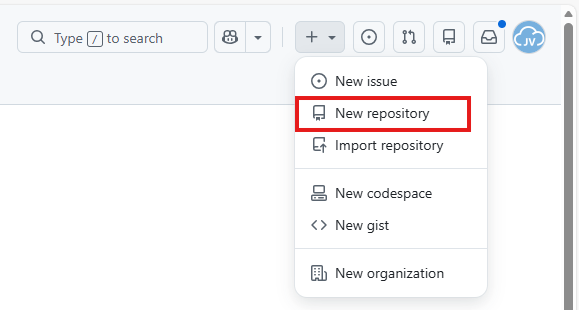
Now in the top-right corner, click on the “+” and create a new repository.
Now give the repository a name and description.

Now the creation of the repository is finished.
Step 2: Uploading the template site
I will create a template site with a Rick Roll meme on it, to make the guide a little bit fun. This is a very simple website with a GIF and sound which you can download and also use. You can also choose to run your own website code of course.
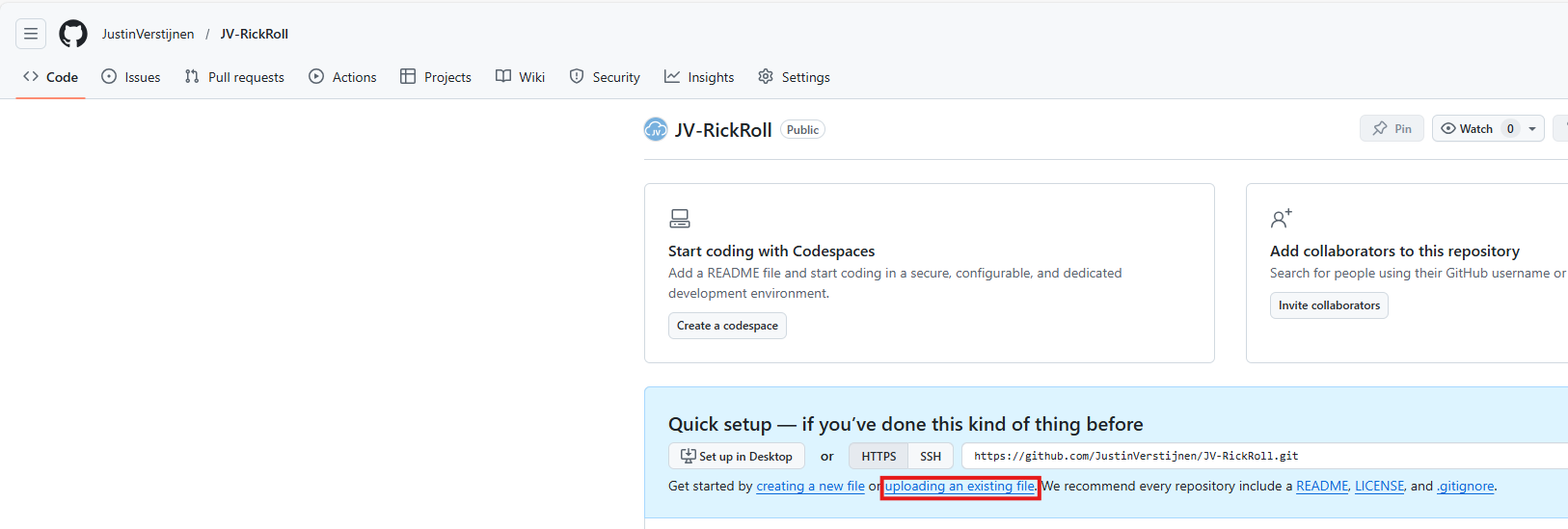
Now finish the repository creation wizard. Then click on uploading some files.
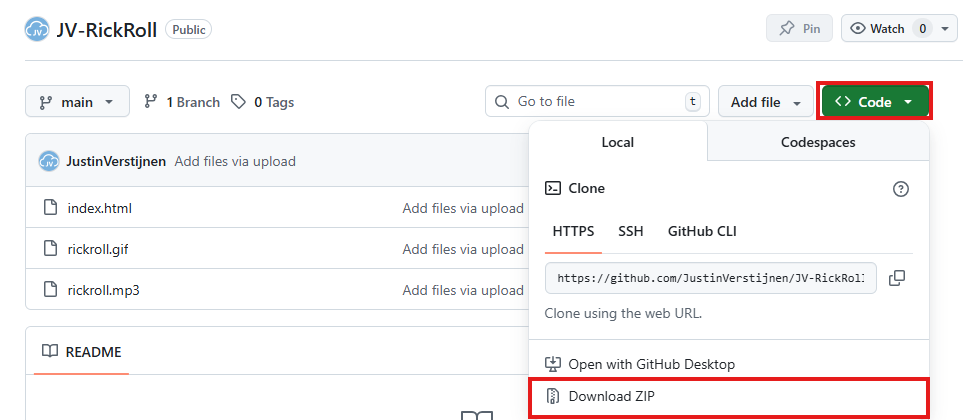
Download the files from my example repository:
Download template site from my GitHub
Click “Code” and then click “Download ZIP”.
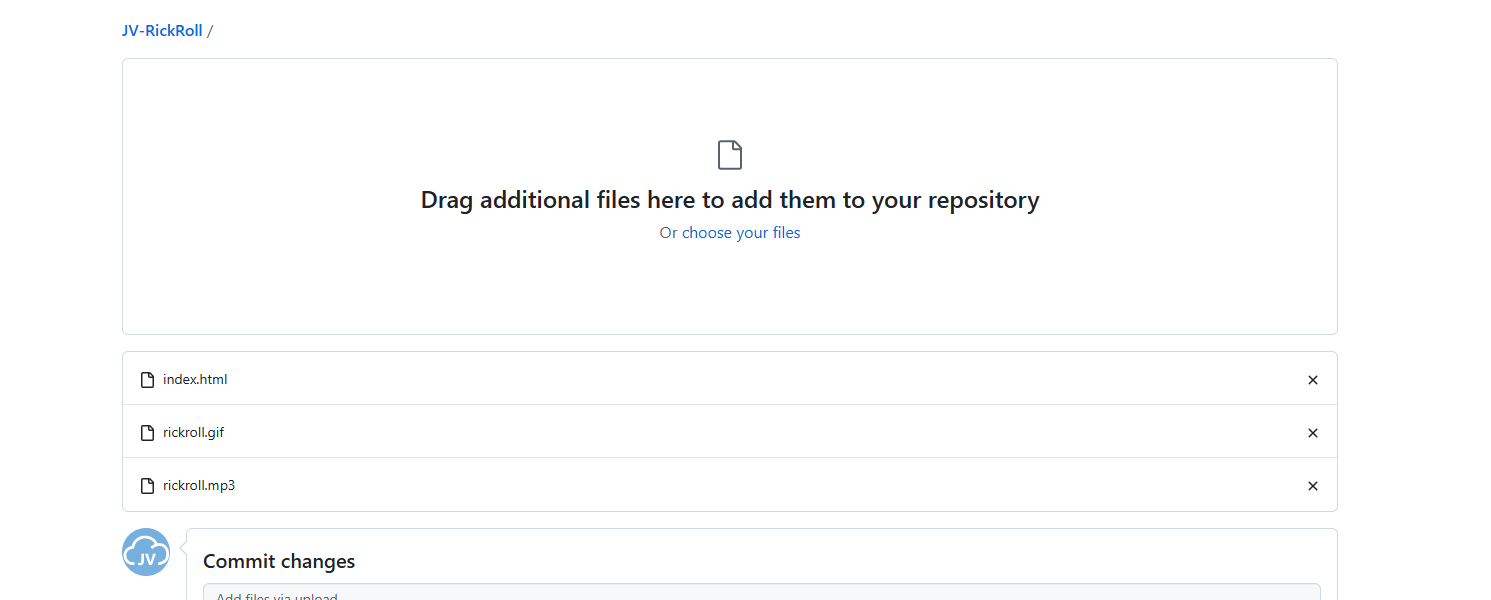
Then upload these files into your own repository.
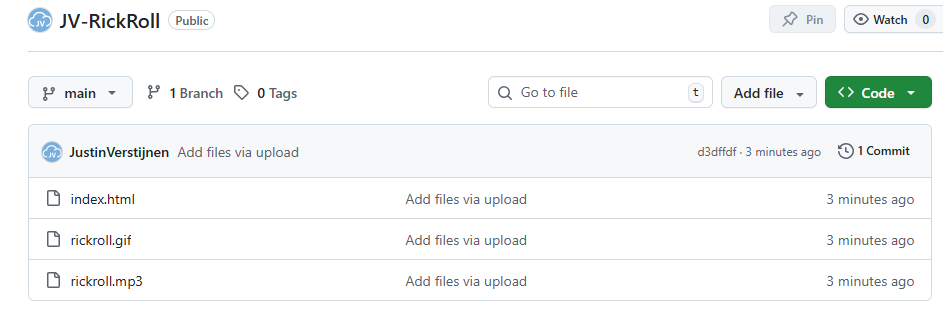
Your repository should have those three files in the root/main branch now:
Step 3: Enable GitHub Pages
Now we have prepared our repository to host a website, so we can enable the GitHub Pages service. In the repository, go to “Settings”:

Then go to “Pages”.
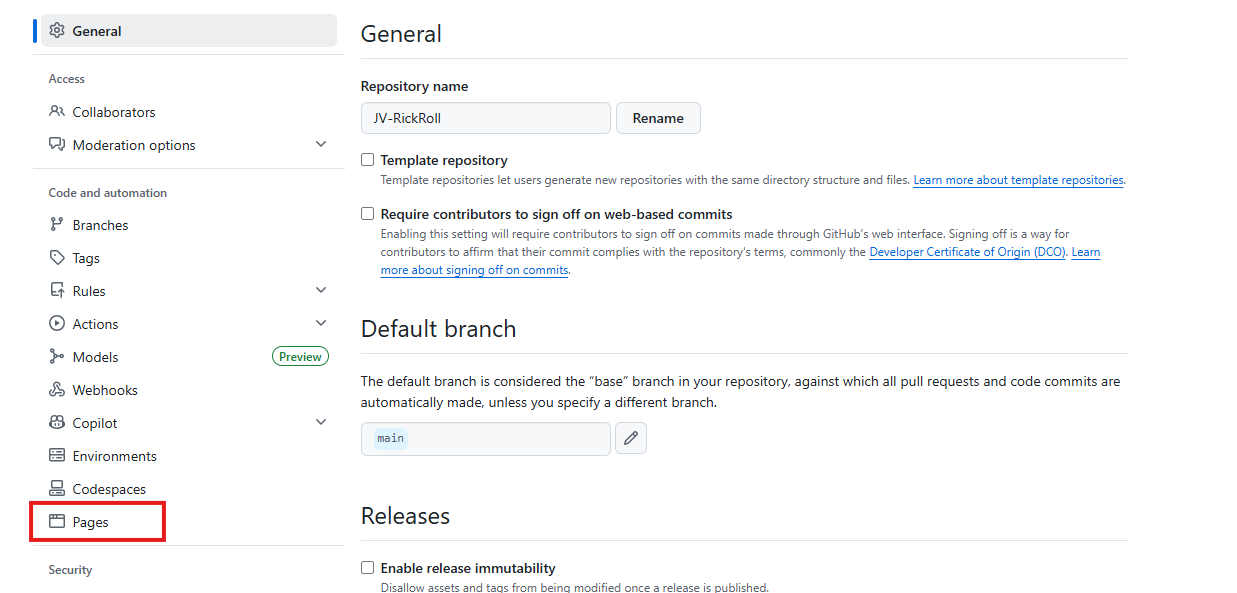
We can now build the website by selecting the branch main and finishing by clicking “Save”.
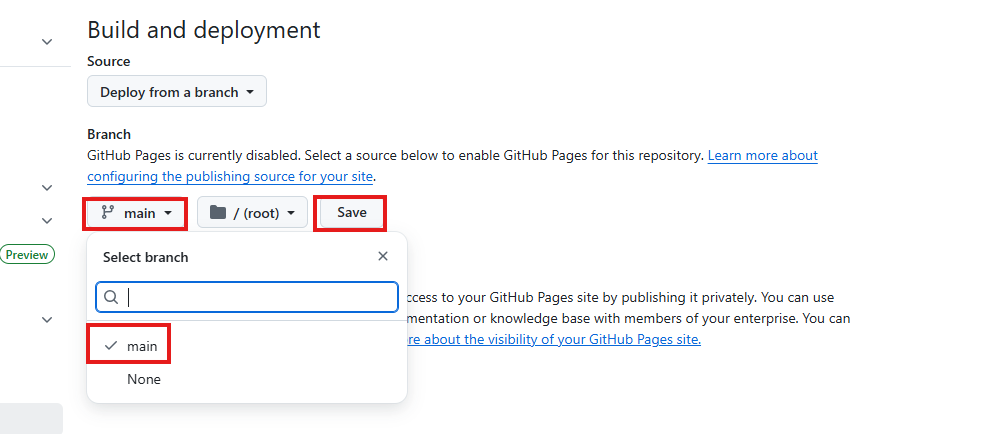
After waiting a few minutes, the website will be up and running with a github.io link. In the meantime, you can continue with Step 4.
Step 4: Linking a custom domain to your GitHub Page
In the meantime, the page will be built, and we can link a custom domain to our repository. You can choose to use the default github.io domain, but a custom domain is more scalable and more professional.
On the same blade where you ended Step 3, fill in your custom domain. This can be a normal domain or subdomain. In my case, I will use a subdomain.

Now we have to do a simple DNS change in our domain, linking this name to your GitHub so the whole world knows where to find your page. Head to the DNS hosting provider of your domain and create a CNAME record.
In my case, I created this CNAME record:
| Type record | Name | Destination |
|---|---|---|
| CNAME | rickroll | justinverstijnen.github.io. |
Make sure to end the destination with a trailing dot .. This is required because it is an external domain in the context of your own domain.

The TTL does not really matter. I stuck to the best practice of 60 minutes / 1 hour.
Save your DNS settings and wait for a few minutes. Heading back to GitHub, you will see this in the meantime:
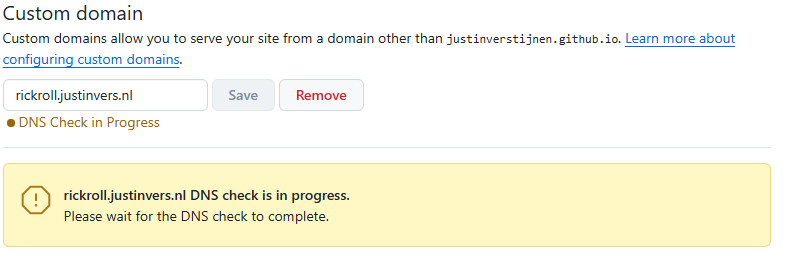
Keep this page open. Then after waiting some minutes, and possibly getting yourself a coffee, you will see a notification that the website is up and running and live:

Step 5: Enabling HTTPS
After the custom domain is successfully validated and configured, we need to enable HTTPS for a secure transfer of data to our site. Otherwise users can get this error when visiting the website:
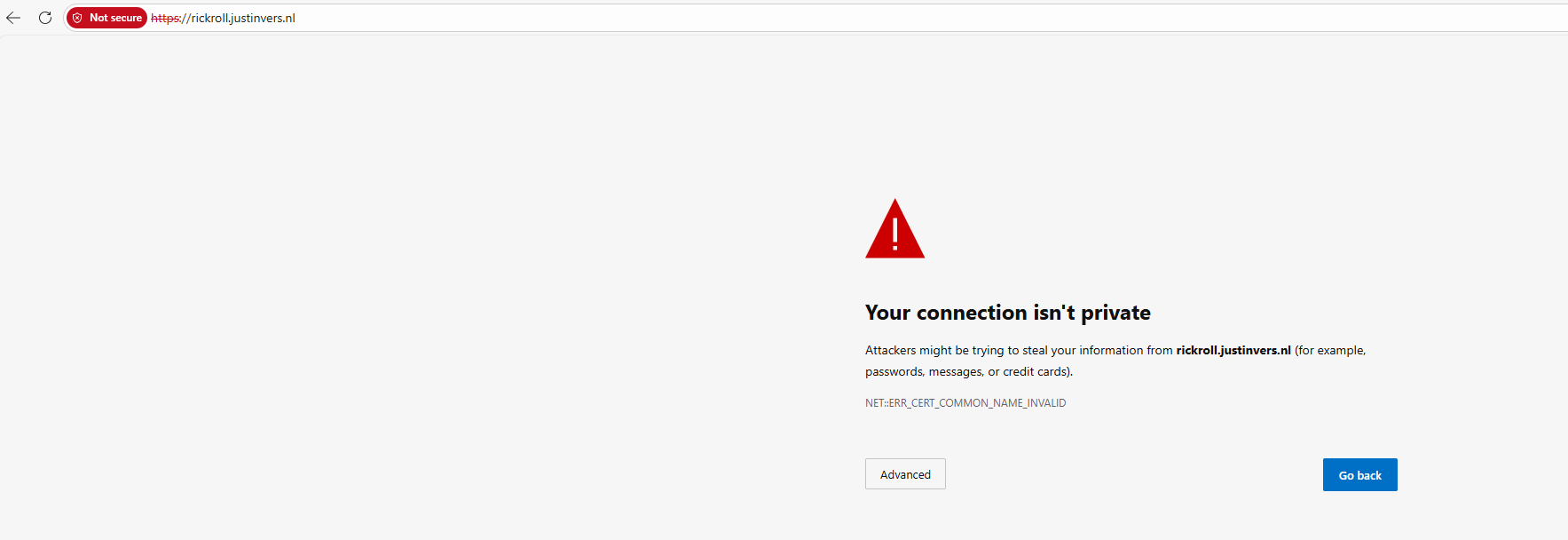
In the GitHub Pages blade, we have to wait for GitHub linking a certificate to your new website. I have seen cases where this takes a few minutes but also up to a few hours.

After this is done, we can check this checkmark on the GitHub Pages blade:
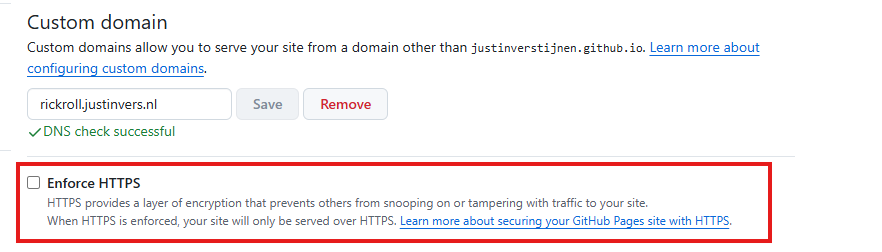

Now the site is fully up and running and secured. Yes, even if we are hosting a meme.
Step 6: Testing the page
After waiting for all the preparations to complete, we can finally test our page on the internet. Go to your custom domain in your favorite browser and test if everything works:
It looks like we are ready and done :).
Knowledge check
Knowledge check
This quiz needs JavaScript to show the questions and feedback.
This quiz needs JavaScript to show the questions and feedback.
Summary
GitHub Pages provides a simple and reliable way to host static websites for free. It integrates directly with Git, requires no server maintenance, and supports custom domains with HTTPS.
You can easily host documentation, portfolios, memes, and lightweight projects, and it offers a practical hosting solution without added complexity. If backend functionality is required, you will need to combine it with an external service or choose an alternative hosting platform, like Microsoft Azure or AWS.
Thank you for visiting my website and I hope it was helpful.
Sources 📖
These sources helped me by writing and research for this post;
End of the page 🎉
You have reached the end of the page. You can navigate through other blog posts as well, share this post on X, LinkedIn and Reddit or return to the blog posts collection page. Thank you for visiting this post.
Support the blog
Upload multiple Github repositories into a single Azure Static Web App
In the past few weeks, I have been busy on scaling up my tools and the backend hosting of the tools. For the last year, I used multiple Static Web Apps on Azure for this, but this took a lot of time administering and creating them. I thought about a better and more scalable manner of hosting tools, minimizing the amount of hosts needed, uniforming URLs and shortcodes with Azure Front Door (guide coming up) andlinking multiple GitHub repositories into one for central management.
In this guide, I will describe how I now host multiple Github applications/tools into one single Static Web App environment in Azure. This mostly captures the simple, single task, tools which can be found on my website:
- https://justinverstijnen.nl/tools or jvapp.nl if you need a shortcut.
Because I started with a single tool, then built another and another and another one, I needed a sort of scalable way of doing this. Each tool means doing the following stuff:
- Creating a repo
- Creating a static web app
- Creating a DNS record
In this guide, I will describe the steps I have taken to accomplish what I’ve built now. A single Static Web App instance with all my tools running.
The GitHub repository topology
To prepare for this setup, we need to have our GitHub repository topology right. I already had all my tools in place. Then I have built my repositories to be as the following diagram:
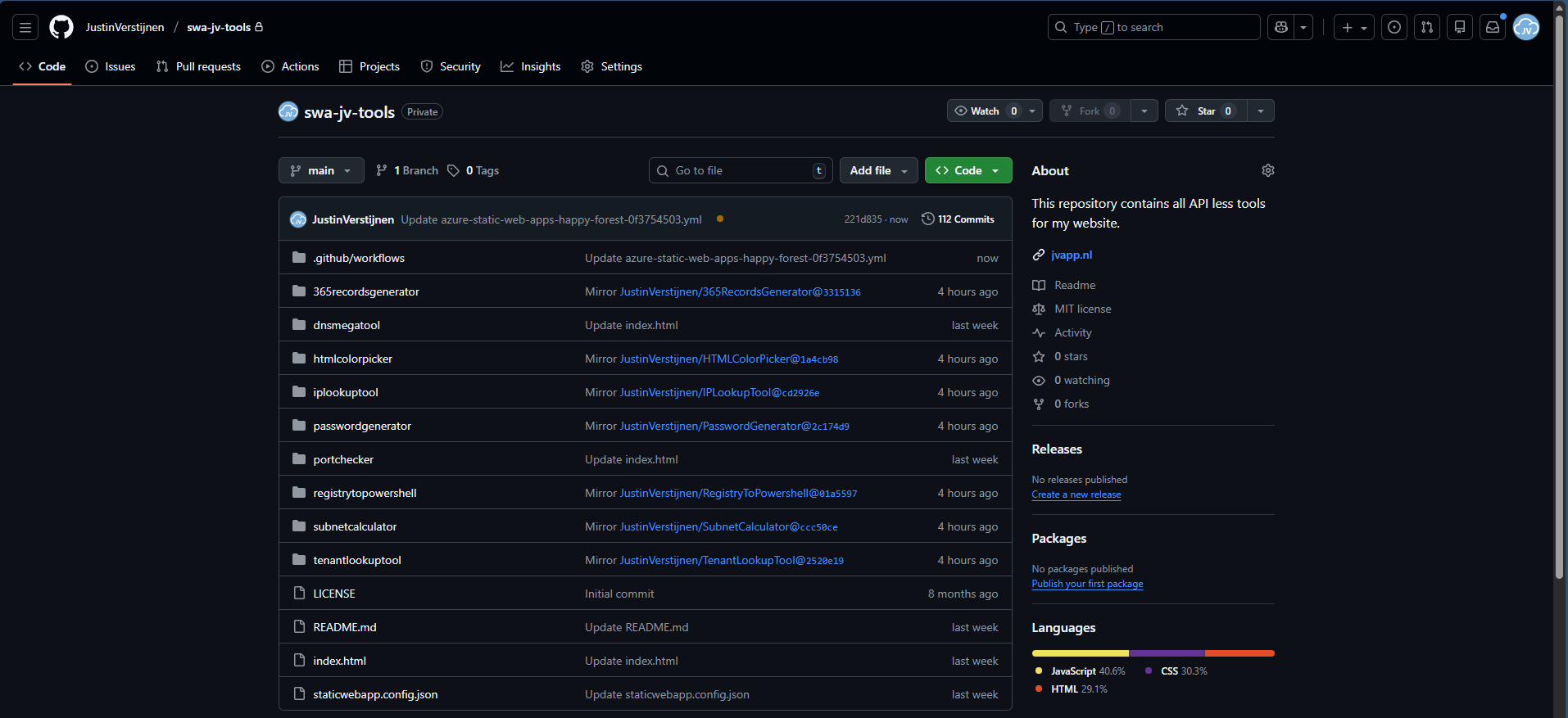
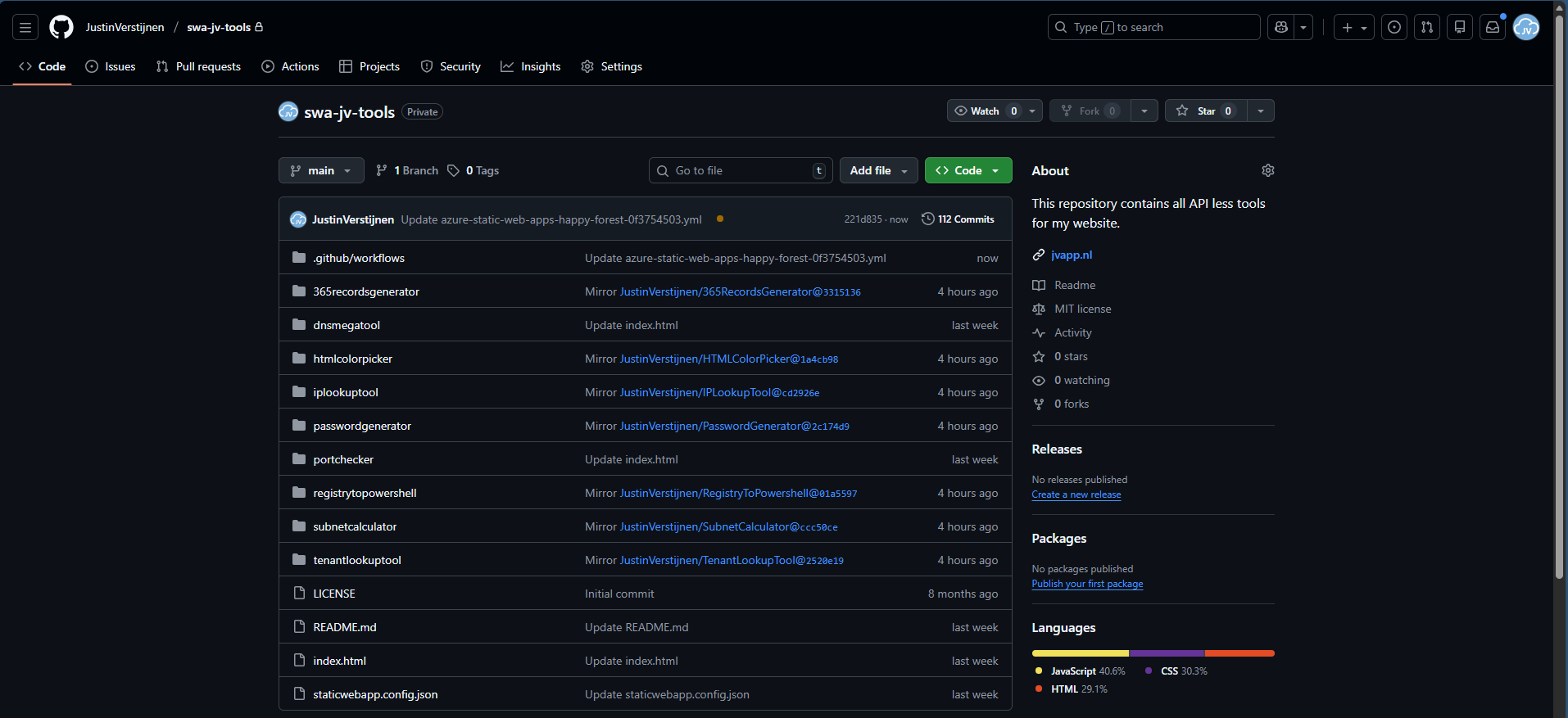
In every repository I have placed a new YML GitHub Action file, stating that the content of the repository must be mirrored to another repository, instead of pushing it to Azure. All of the repos at the top have this Action in place an they all mirror to the repository at the bottom: “swa-jv-tools” which is my collective repository. This is the only repository connected to Azure.
What are GitHub Actions?
GitHub Actions are automated scripts that can run every time a repository is updated or on schedule. It basically has a trigger, and then does an action. This can be mirroring the repository to another or to upload the complete repository to a Static Web App instance on Microsoft Azure.
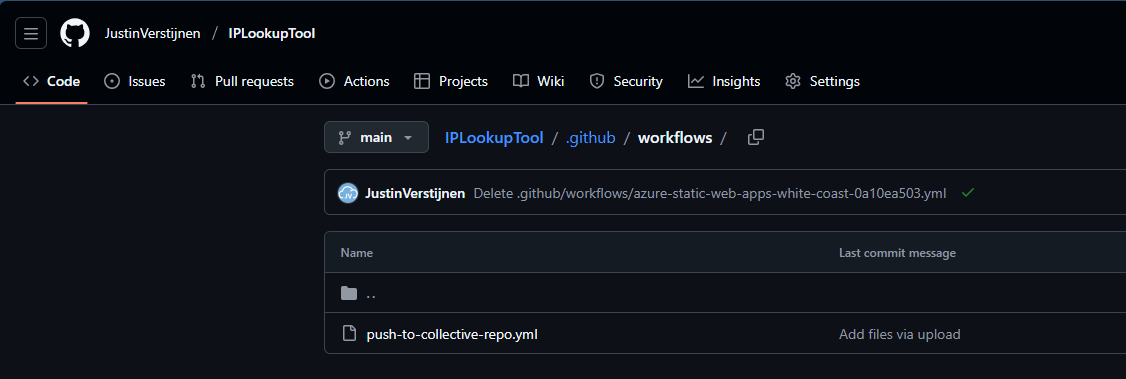
GitHub Actions are stored in your Repository under the .Github folder and then Workflows:
In this guide, I will show you how to create your first GitHub Action.
Step 1: Prepare your collective repository
To configure one Repository to act as a collective repository, we must first prepare our collective repository. The other repos must have access to write to their destination, which we will do with a Personal Access Token (PAT).
In Github, go to your Settings, and then scroll down to “Developer settings”.

Then on the left, select “Personal access tokens” and then “Fine-grained tokens”.

Click on the “Generate new token” button here to create a new token.
Fill in the details and select the Expiration date as you want.
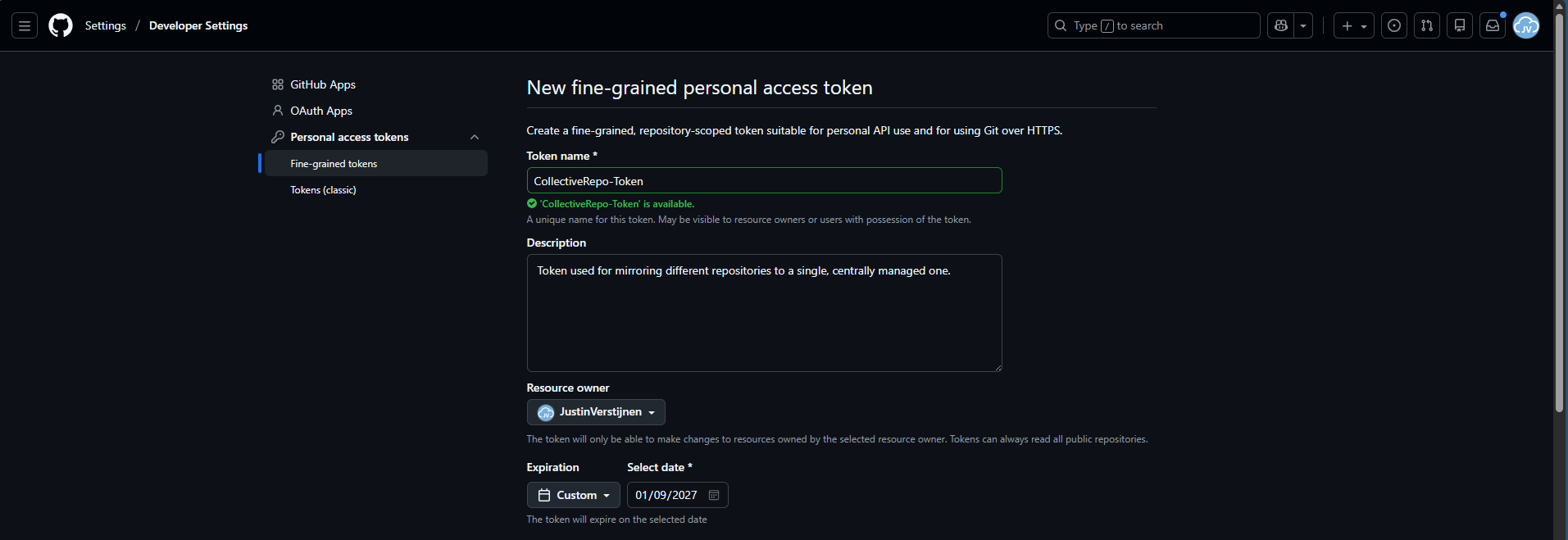
Then scroll down to “Repository access” and select “Only selected repositories”. We will create a token that only writes to a certain repository. We will select our destination repository only.

Under permissions, add the Actions permission and set the access scope to “Read and write”.
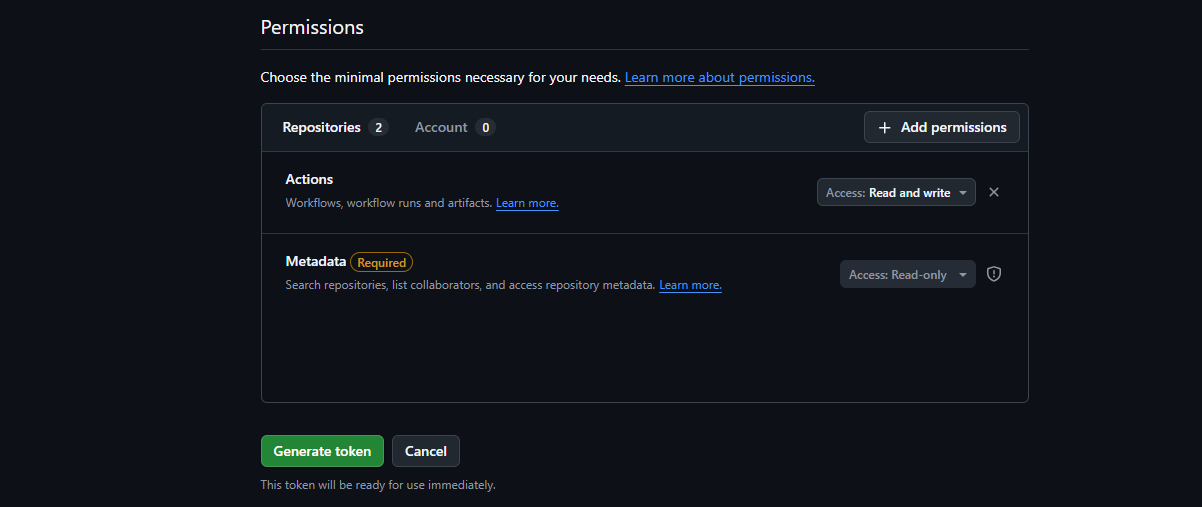
Then create your token and save this in sa safe place (like a password manager).
Step 2: Insert PAT into every source repository
Now that we have our secret/PAT created with permissions on the destination, we will have to give our source repos access by setting this secret.
For every source repository, perform these actions:
In your source repo, go to “Settings” and then “Secrets and variables” and click “Actions”.
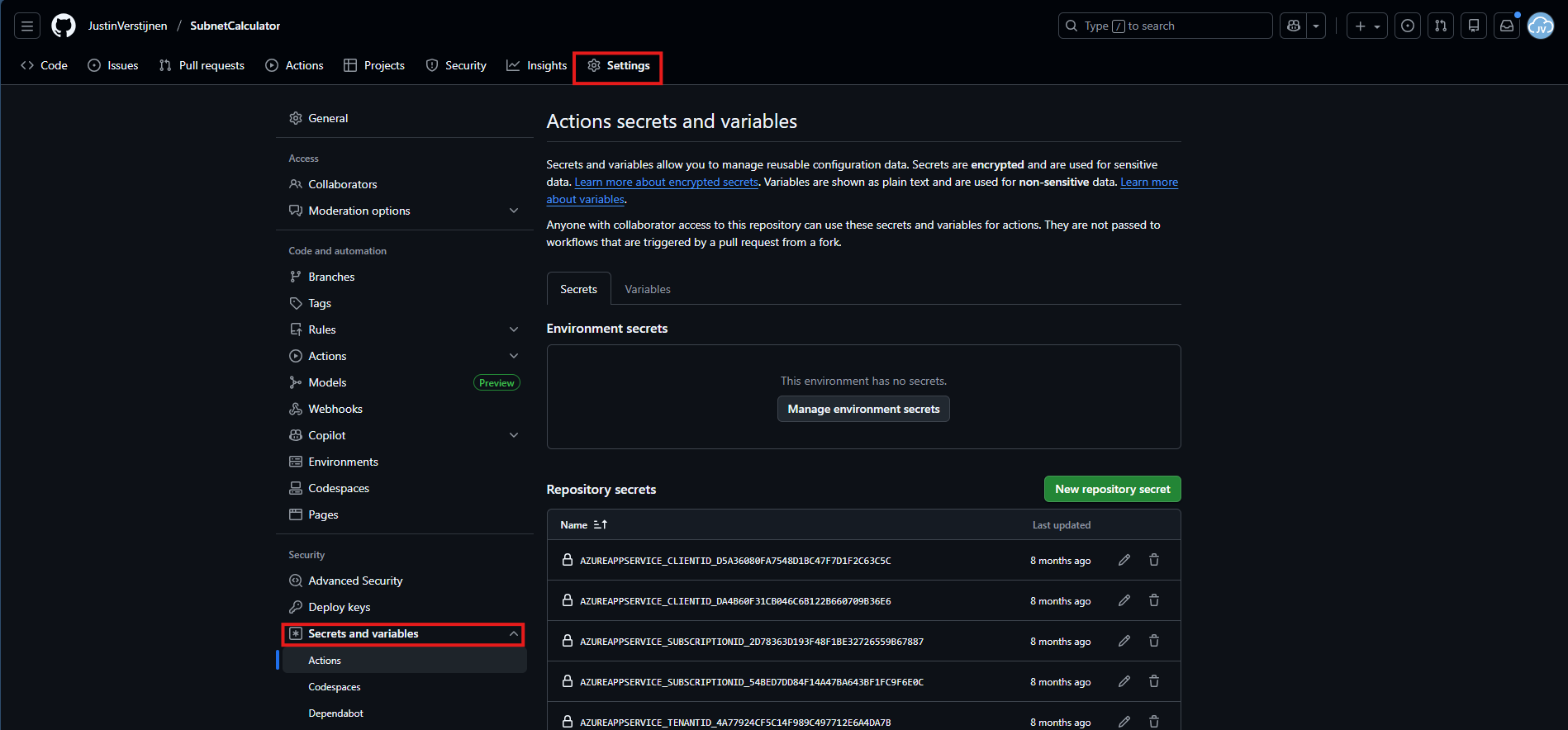
Create a new Repository secret here. I have named all secrets: “COLLECTIVE_TOOLS_REPO” but you can use your own name. It must be set later on in the Github Action in Step 3.
Paste the secret value you have copied during Step 1 and click “Add secret”.
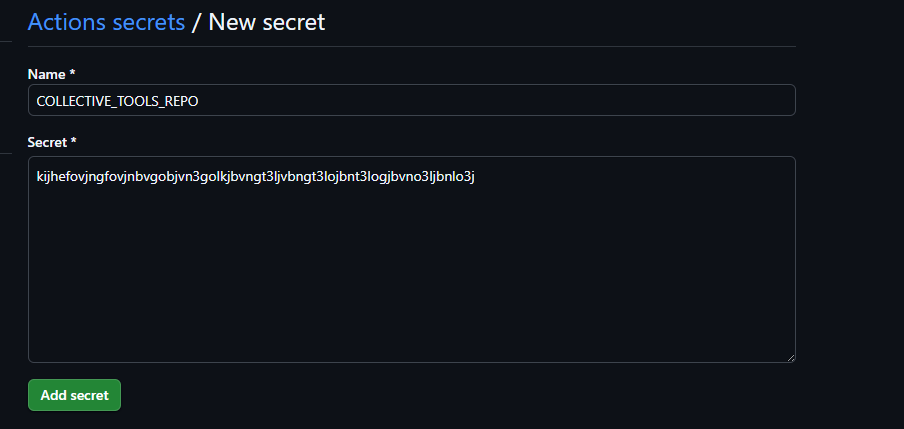
After this is done, go to Step 3.
Step 3: Insert GitHub Actions file
Now the Secret has been added to the repository, we can insert the GitHub Actions file into the repo. Go to the Code tab and create a new file:
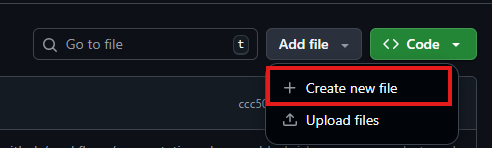
Type in:
- .github/workflows/your-desired-name.yml
Github automatically will put you in the subfolders while typing.
There paste the whole content of this code block:
YAML
name: Mirror repo A into subdirectory of repo B

on:
  push:
    branches:
      - main
  workflow_dispatch: {}

permissions:
  contents: read

jobs:
  mirror:
    runs-on: ubuntu-latest

    steps:
      - name: Checkout source repo (repo A)
        uses: actions/checkout@v4
        with:
          fetch-depth: 0

      - name: Checkout target repo (repo B)
        uses: actions/checkout@v4
        with:
          repository: JustinVerstijnen/swa-jv-toolspage
          token: ${{ secrets.COLLECTIVE_TOOLS_REPO }}
          path: target
          ref: main
          fetch-depth: 0

      - name: Sync repo A into subfolder in repo B (lowercase name)
        shell: bash
        run: |
          set -euo pipefail

          # Get name for organization in target repo
          REPO_NAME="${GITHUB_REPOSITORY##*/}"

          # Set lowercase
          REPO_NAME_LOWER="${REPO_NAME,,}"

          TARGET_DIR="target/${REPO_NAME_LOWER}"

          mkdir -p "$TARGET_DIR"

          rsync -a --delete \
            --exclude ".git/" \
            --exclude "target/" \
            --exclude ".github/" \
            ./ "$TARGET_DIR/"

      - name: Commit & push changes to repo B
        shell: bash
        run: |
          set -euo pipefail
          cd target

          if git status --porcelain | grep -q .; then
            git config user.name  "github-actions[bot]"
            git config user.email "github-actions[bot]@users.noreply.github.com"

            git add -A
            git commit -m "Mirror ${GITHUB_REPOSITORY}@${GITHUB_SHA}"
            git push origin HEAD:main
          else
            echo "No changes to push."
          fi
On line 25 and 26, paste the name of your own User/Repository and Secret name. These are just the values I used.
Save the file by commiting and the Action will run for the first time.
On the “Actions” tab, you can check the status:

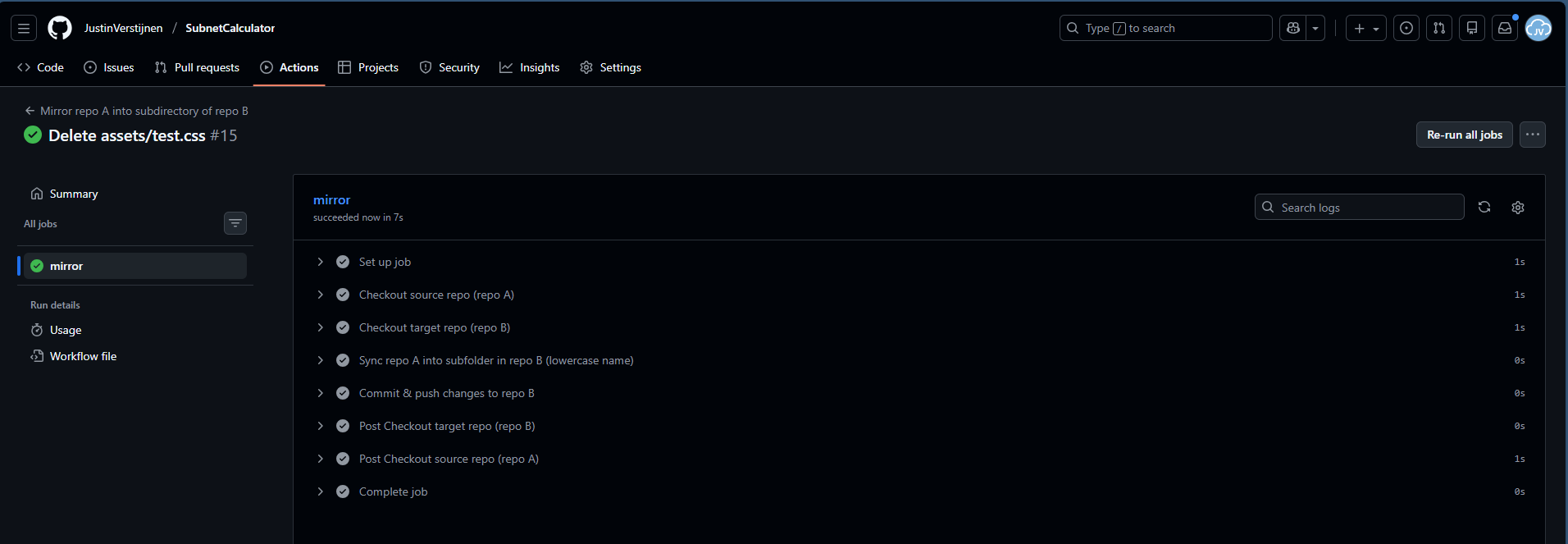
I created a file and deleted it to trigger the action.
You will now see that the folder is mirrored to the collective repository:

Step 4: Linking collective repository to Azure Static Web App
Now we have to head over to Microsoft Azure, to create a Static Web App:
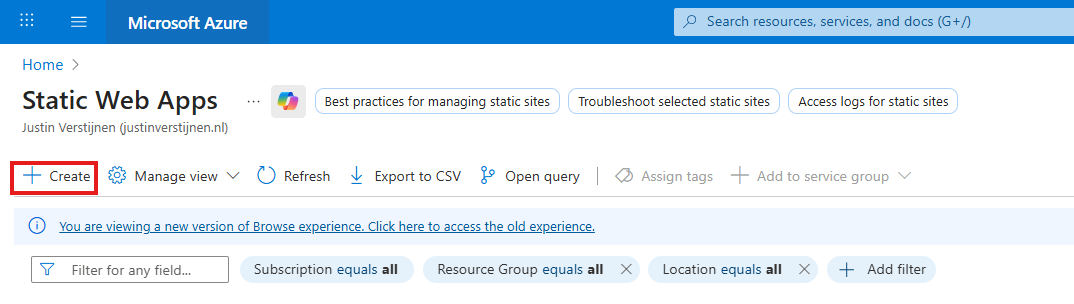
Place it in a resource group of your likings and give it a name:
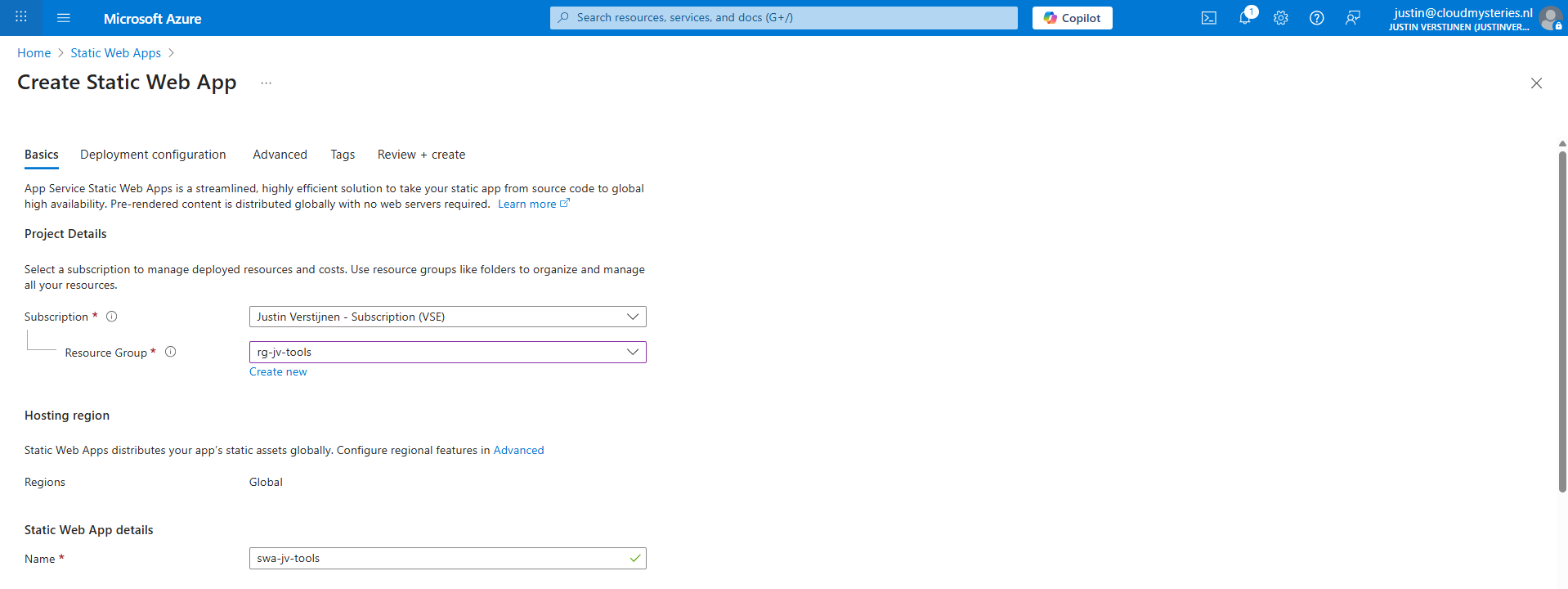
Scroll down to “Deployment details” and here we have to make a connection between GitHub and Azure which is basically logging in and giving permissions.
Then select the right GitHub repository from the list:
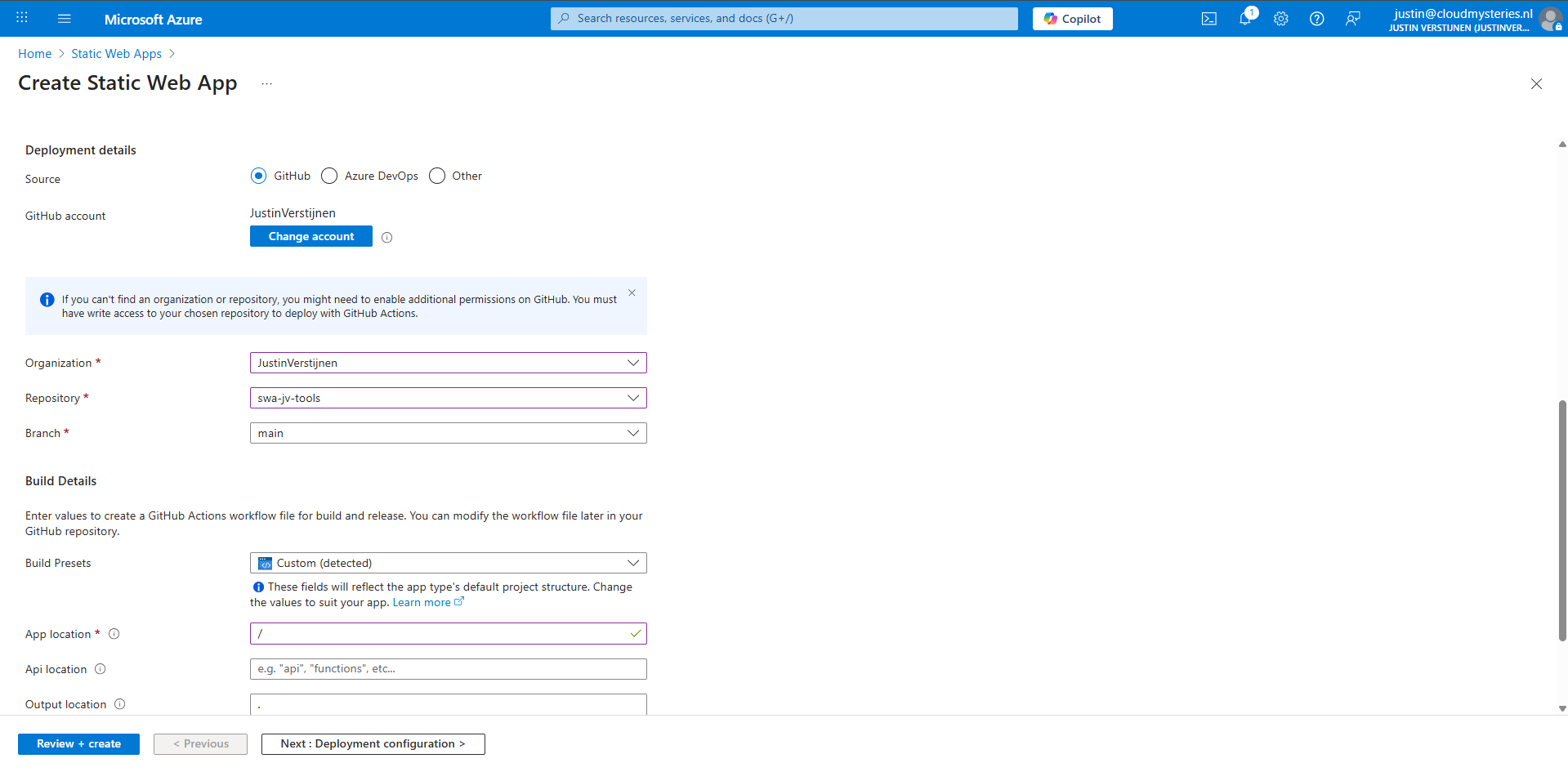
Then in the “Build details” section, I have set “/” as app location, telling Azure that all the required files start in the root of the repository.
Click “Review + create” to create the static web app and that will automatically create a new GitHub action that uploads everything from the repository into the new created Static Web App.

Step 5: Link custom domain name (optional)
An optional step but highly recommended is to add a custom domain name to the Static Web App. So your users can access your great stuff with a nice and whitelabeled URL instead of e.g. happy-bush-0a245ae03.6.azurestaticapps.net.
In the Static Web App go to “Custom Domains”.
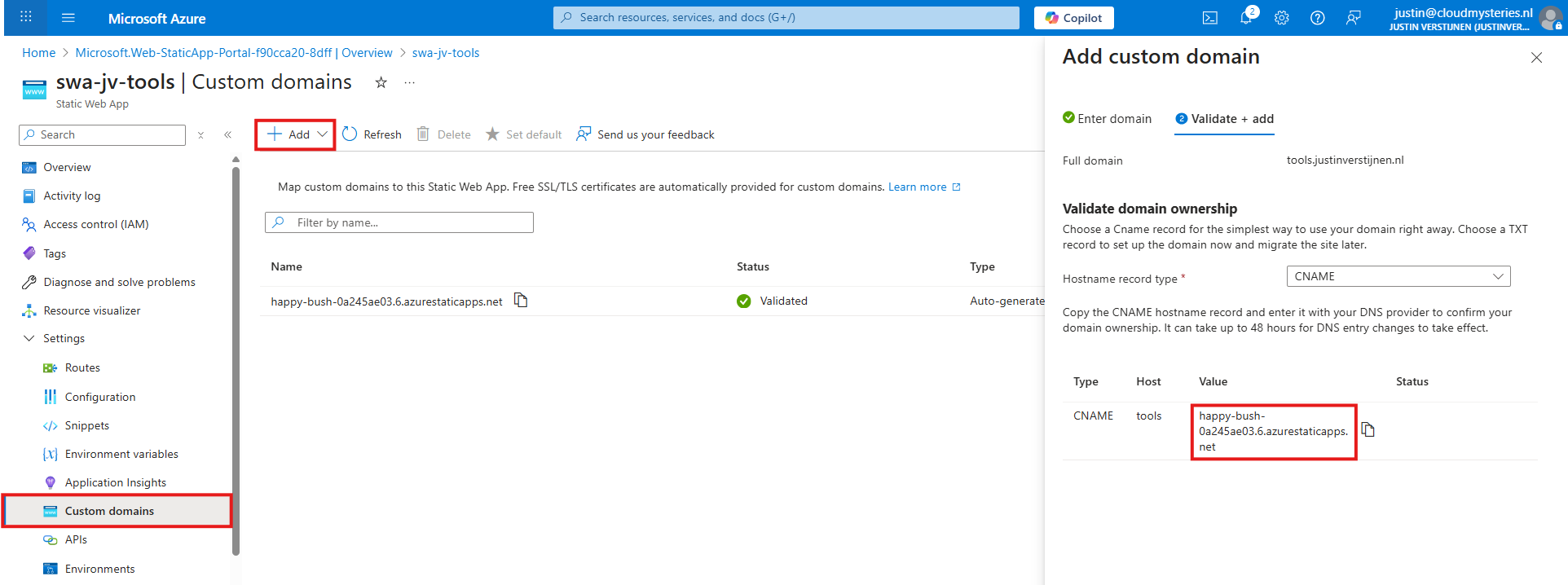
Click on “+ Add” to add a new custom domain you own, and copy the CNAME record. Then head to your DNS hosting company and create this CNAME record to send all traffic to the Static Web App:

Do not forget to add a trailing dot “.” at the end as this is an external hostname.
Then in Azure we can finish the domain verification and the link will now be active.
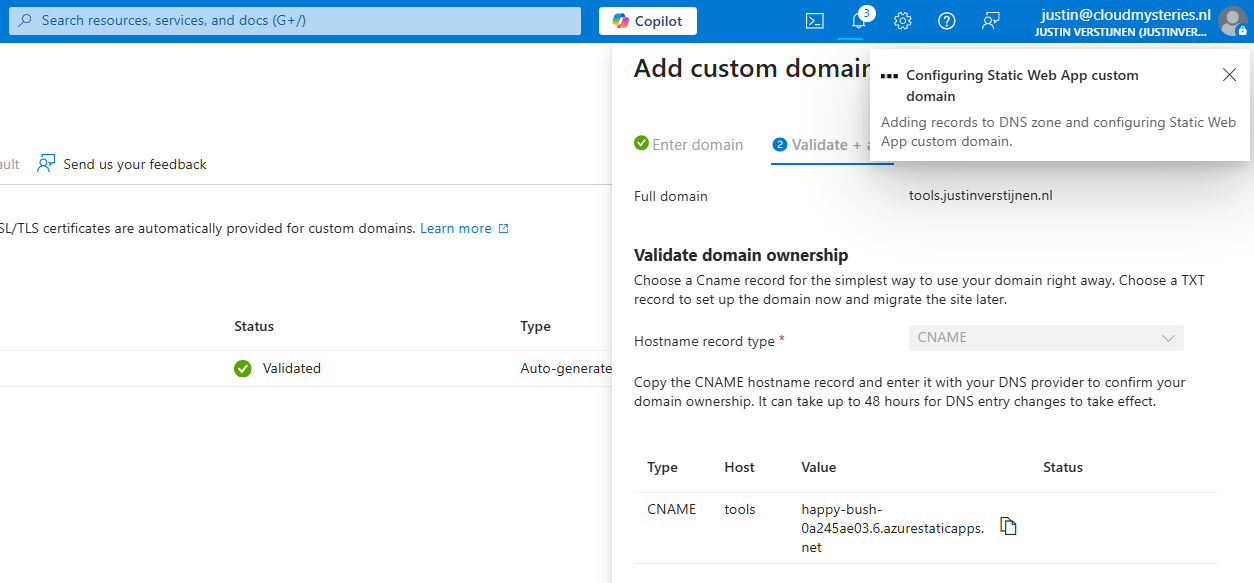
After this step, wait for around 15 minutes for Azure to process everything. It also takes a few minutes before Azure has added a SSL certificate to visit your web application without problems.
Summary
This new setup helps me utilizing Github and Azure Static Web Apps way better in a more scalable way. If I want to add different tools, I have to do less steps to accomplish this, while maintaining overview and a clean Azure environment.
Thank you for reading this post and I hope it was helpful.
Sources 📖
These sources helped me by writing and research for this post;
End of the page 🎉
You have reached the end of the page. You can navigate through other blog posts as well, share this post on X, LinkedIn and Reddit or return to the blog posts collection page. Thank you for visiting this post.
Support the blog