All pages referring or tutorials for Microsoft Entra.
This is the multi-page printable view of this section. Click here to print.
Microsoft Entra
- The art of Dynamic Groups in Microsoft Entra
- CWL Azure Red Team Certification - What I learned
- Get notifications when Entra ID break glass admins are used
- How to properly secure Break Glass Accounts in your Entra ID
- Disable AD synchronization for a single user in Microsoft Entra ID
- Remove Universal Print Devices/Connectors
- Solved - ADSync service stopped (Entra Connect Sync)
- Match AD users using Entra Connect Sync and MSGraph
- Implement Certificate-based authentication for Entra ID scripts
- Audit your Entra ID user role assignments
- Audit your privileged Entra ID applications
- How to solve DeletingCloudOnlyObjectNotAllowed error Entra Connect Sync
- Disable Active Directory synchronization in Microsoft Entra ID (company-wide)
- Dynamic group for access to Windows 365
The art of Dynamic Groups in Microsoft Entra
Dynamic Groups are really great for automating certain things. They are basically like groups like we know them for several years but they always required some sort of manual action or assignment. Dynamic Groups will help us eliminating this. I will give some examples how I implemented certain actions in production. I will also share the rules syntaxes which can be used directly into your environment and can be changed to your likings.
Dynamic Groups are really great for automating certain things. They are basically like groups like we know them for several years but they always required some sort of manual action or assignment. Dynamic Groups will help us eliminating this. I will give some examples how I implemented certain actions in production. I will also share the rules syntaxes which can be used directly into your environment and can be changed to your likings.
How to create a Dynamic Group
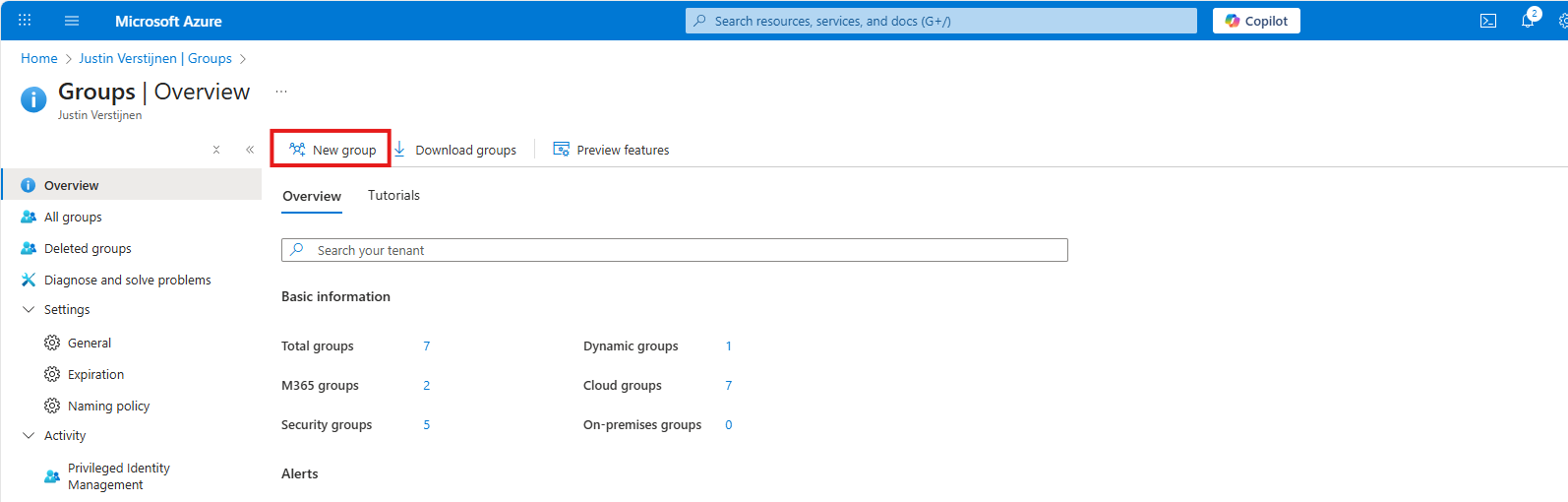
In Microsoft Entra, you can create a Dynamic Group by heading to “Groups” and then click “+ New group”:
Then click on the “Membership type”:
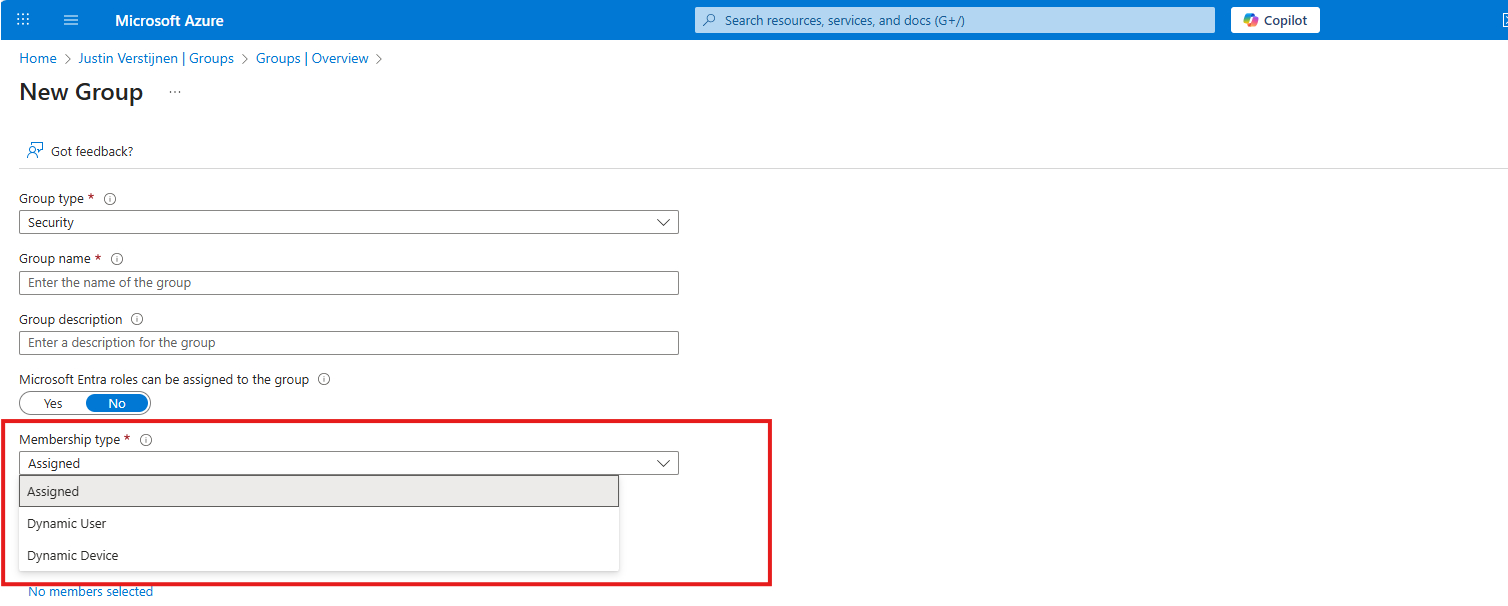
Here we can select 3 options:
- Assigned: Basically like traditional groups, manual assignment required
- Dynamic User: A dynamic group for Users
- Dynamic Device: A dynamic group for Devices
For creating and using Dynamic Groups, you need at least one Microsoft Entra P1 license (included from 365 Business Premium and up).
Rule syntaxes and membership check
To change the rules of the dynamic group, head to “Dynamic membership rules”:
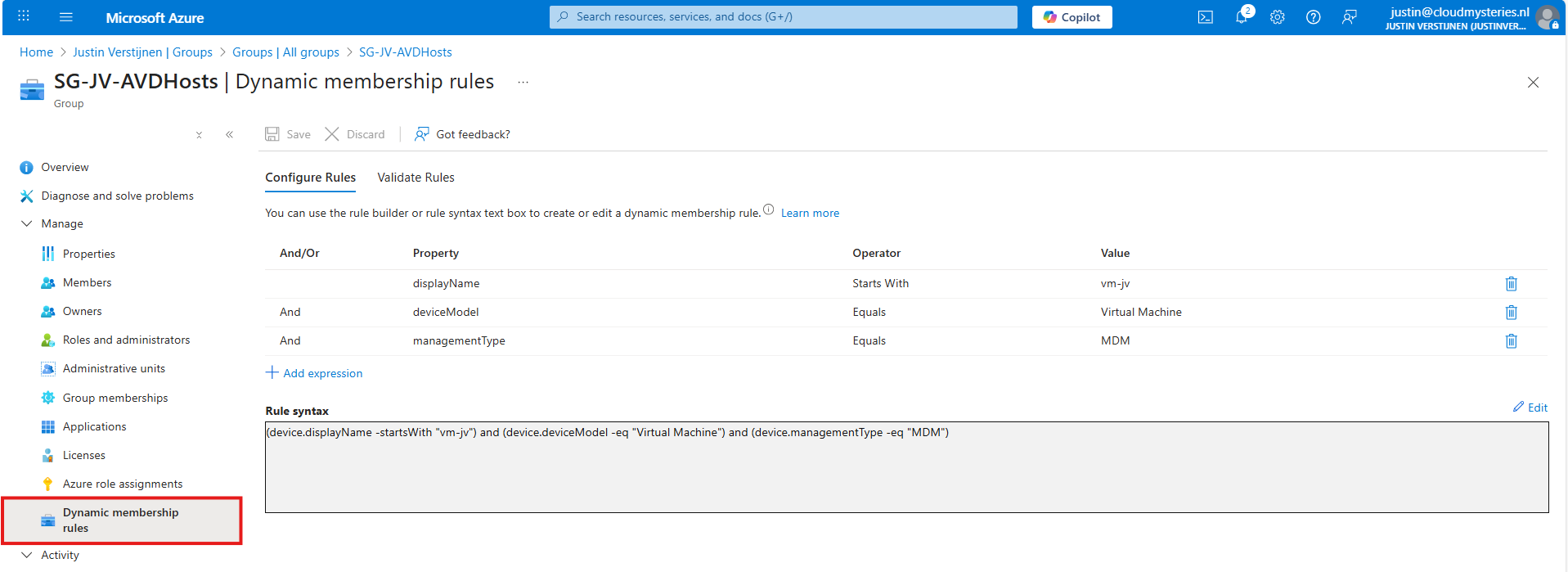
Here are 3 rules where a device must comply with to be added to the group:
- The displayname has to begin with “vm-jv”
- The device must be a Virtual Machine (rules out any physical device accidentaly being member)
- The device must be MDM/Intune managed
To check if a device we want to be menber actually is added to the group, we can use the “Validate rules” tool:
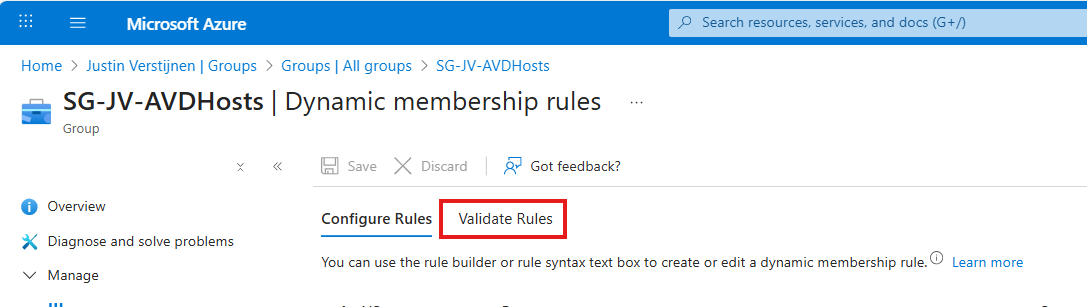
This is basically a Yes/No tool where you can add any device (or user) and check the membership:

This shows exactly which devices will be meber and which not. You can also click on “View details” to view the rules and appliance:
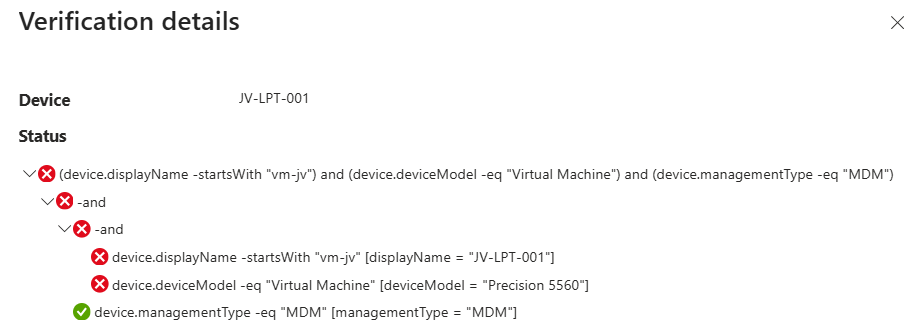
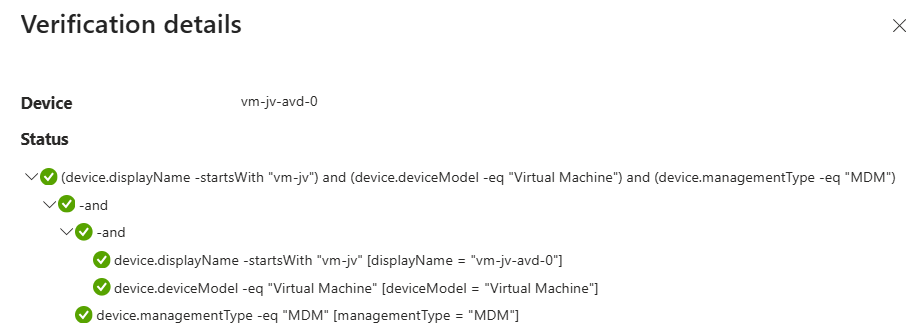
Really great overview of the rules and why a device will be member of the group.
Option 1: Azure Virtual Desktop hosts
I have done multiple Azure Virtual Desktop implementations that needed a group for all the hosts. This for policies and other settings/scripts and FSLogix settings. Creating a Dynamic Group instead of an assigned group helps you with automation and avoids a manual action when enrolling a new machine and potentially forgetting this step, and then asking yourself why some policies are not applying.
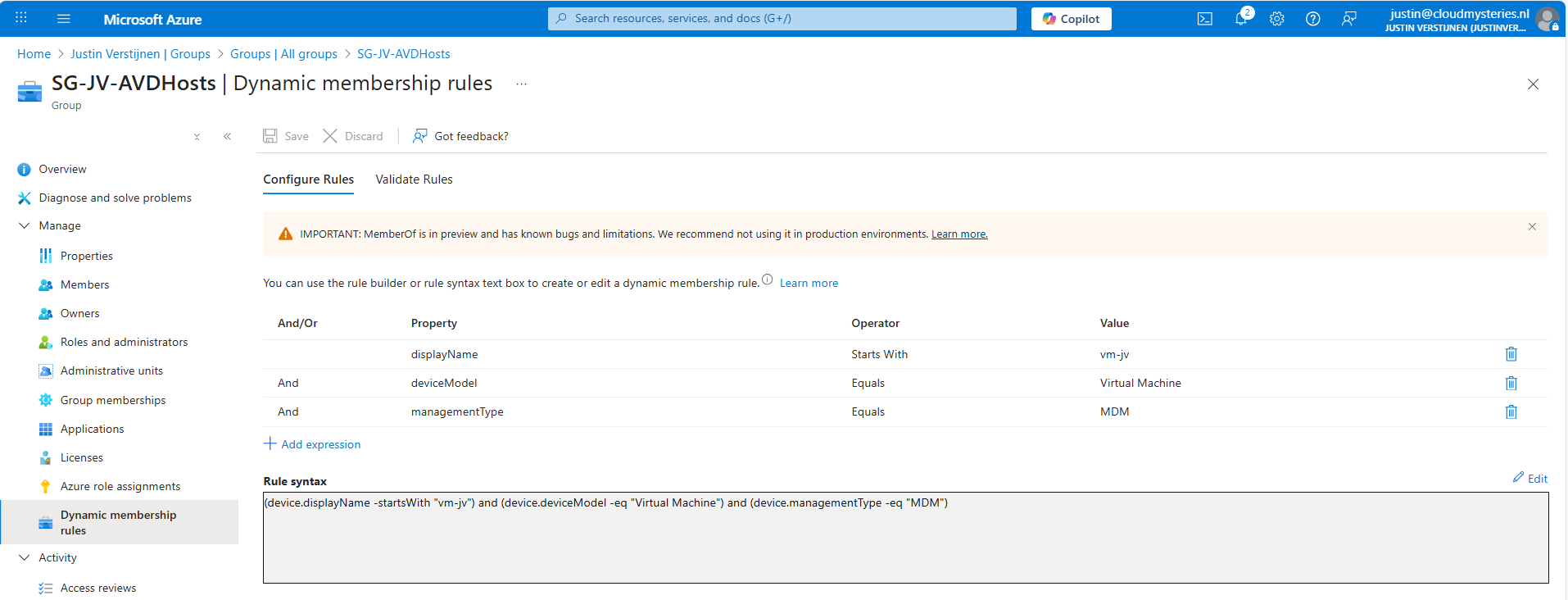
This rule syntax is built up in these 3 rules:
- The displayname has to begin with “vm-jv”
- The device must be a Virtual Machine (rules out any physical device accidentaly being member)
- The device must be MDM/Intune managed
To use it in your environment

Change the “displayname” property to the starting string of your AVD hosts.
JSON
(device.displayName -startsWith "vm-jv") and (device.deviceModel -eq "Virtual Machine") and (device.managementType -eq "MDM")Above rule syntax can be copied to your group.
Option 2: All enabled internal users (exclude guests and shared mailboxes)
This group will contain all active internal employees. Guests, shared mailboxes and disabled accounts are automatically excluded from this group.
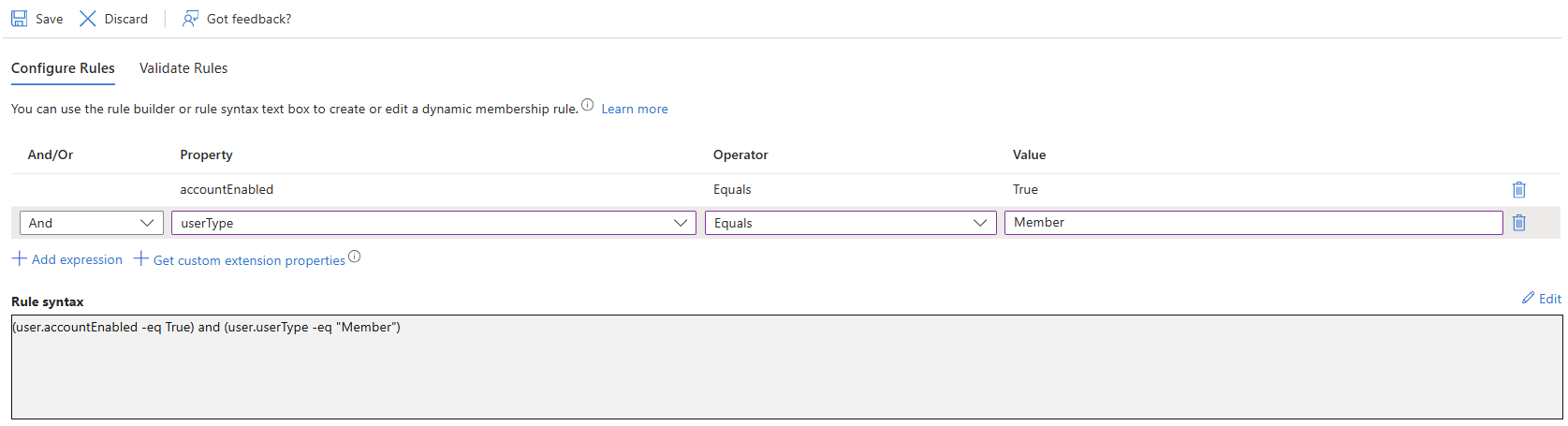
The rule syntax is built up in these rules:
- The account must be enabled
- The User-type must be “Member” (rules out shared mailboxes and guest accounts)
To use it in your environment
JSON
(user.accountEnabled -eq True) and (user.userType -eq "Member")Option 3: Specific domain name
In some cases, we need to have all accounts ending with a specific domain name in a group. We can do this with the options below:
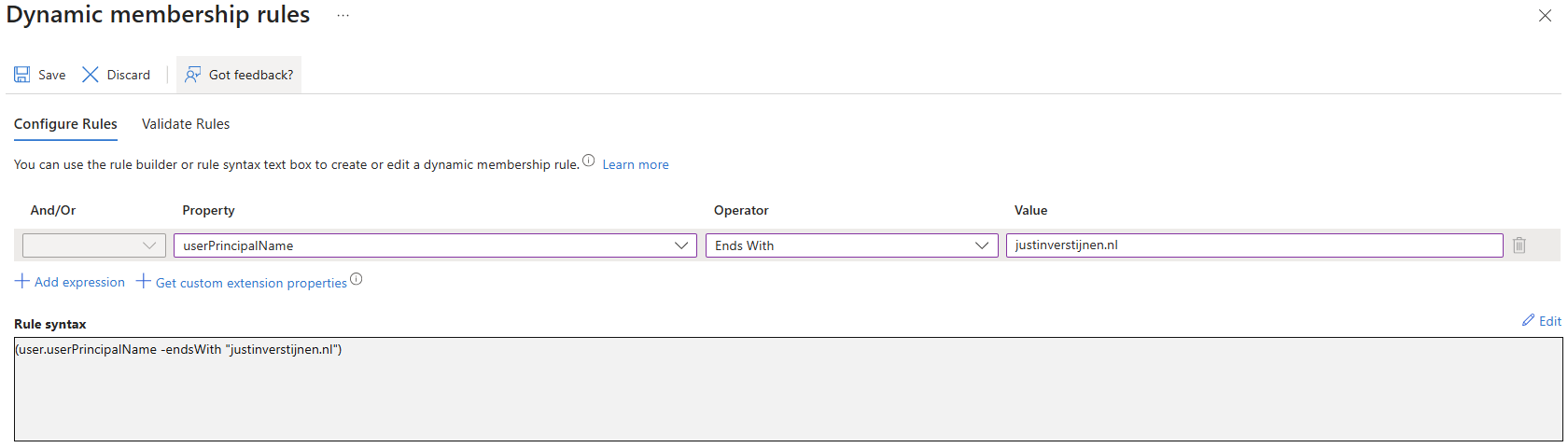
The rule syntax is built up in these rules:
- The User Principal Name (Username+domain) must end with the domain confgured
To use it in your environment
JSON
(user.userPrincipalName -endsWith "justinverstijnen.nl")Option 4: Department
We can also do group memberships based on the department of the user. This makes it possible to create different access packages on groups based on te department.
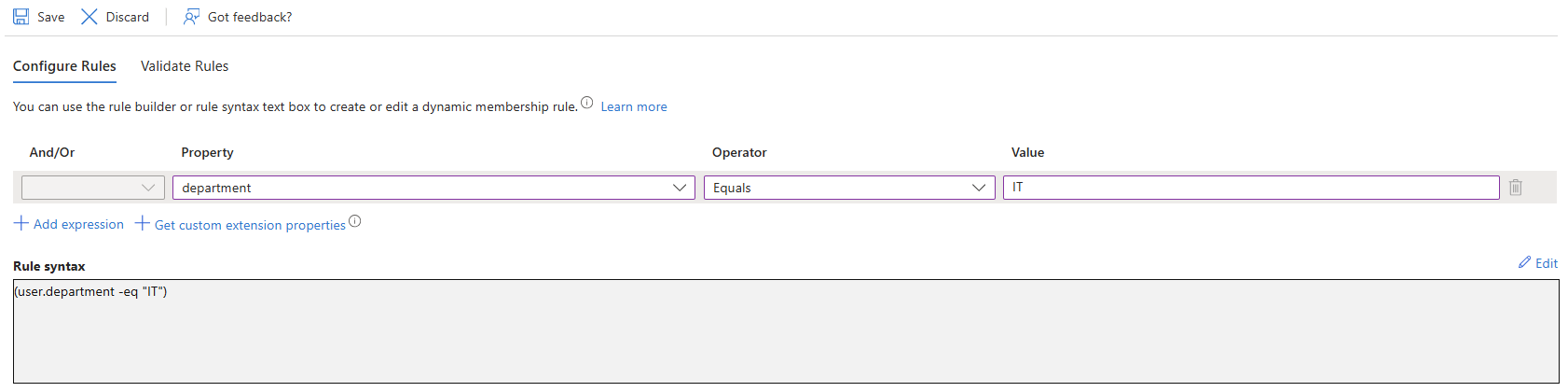
The rule syntax is built up in these rules:
- Department of the user must be “IT”
To use it in your environment
JSON
(user.department -eq "IT")Option 5: Synced using Entra Connect
We can also put all synchronized user accounts in a group if they are being synced using Entra Connect Sync.
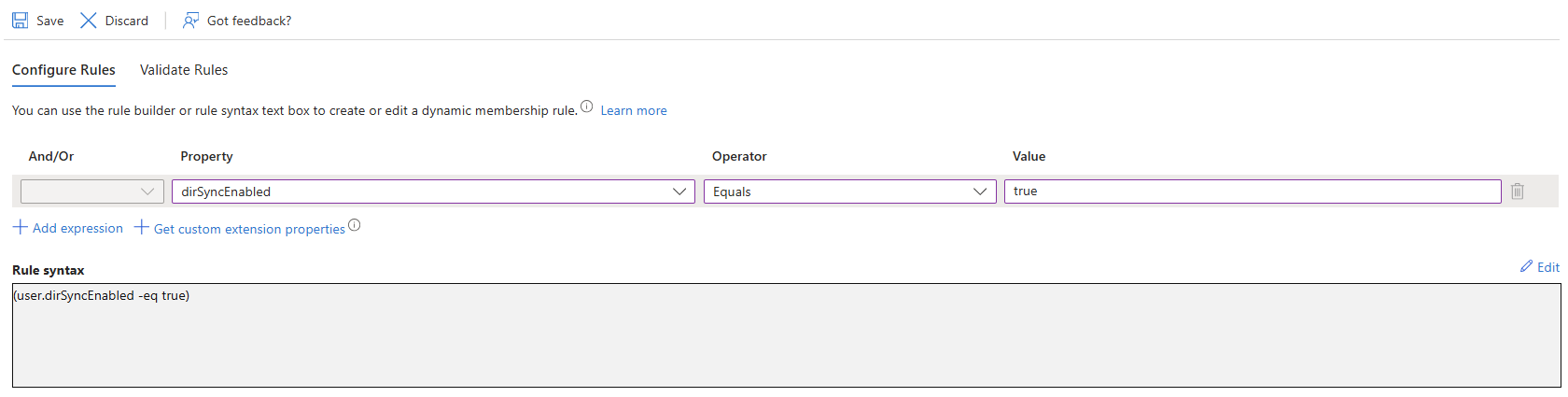
The rule syntax is built up in these rules:
- The dirSyncEnabled flag must be: true
To use it in your environment
JSON
(user.dirSyncEnabled -eq true)Option 6: Location or branch
We can create rules to only have members from certain locations. We can use different options for this as well:
- Country
- Postal code
- State
- Street address
- City
- Usage location (Country)
I know a case where a company has multiple branches and needed this for security controls and access to certain applications. In this way we could have all users from a specific branch in a group and apply policies and access to the application specific to that branch.
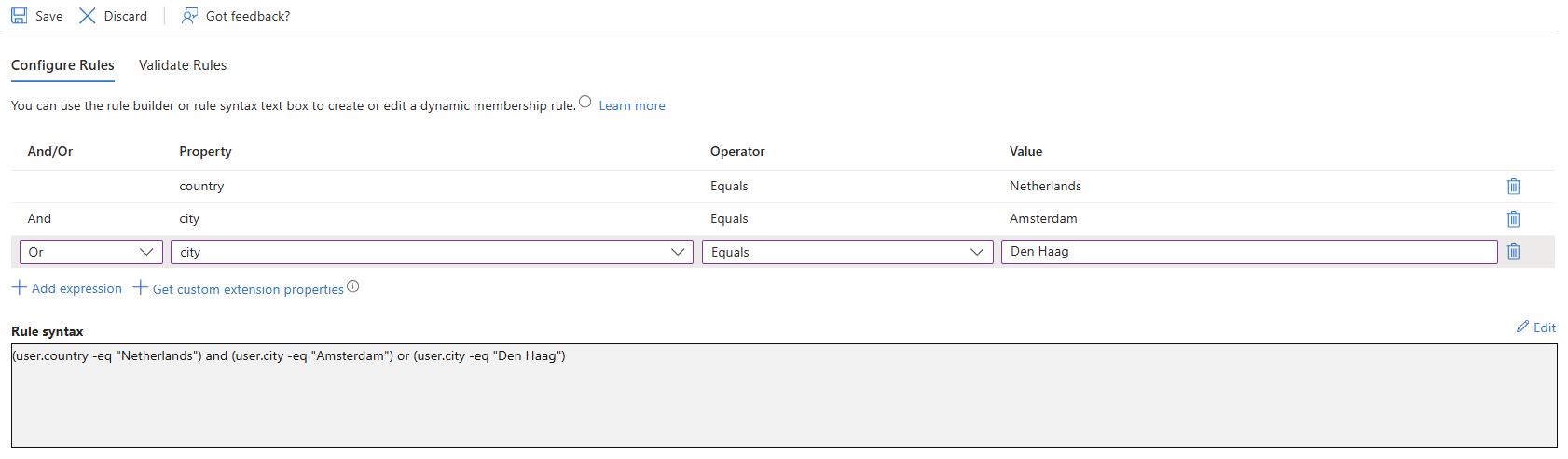
The rule syntax is built up in these rules:
JSON
(user.country -eq "Netherlands") and (user.city -eq "Amsterdam") or (user.city -eq "Den Haag")Option 7: Users time based (EmployeeHireDate)
We can also do group memberships based on the time they are hired. This is the field “Employee Hire Date”.
I don’t know an actual use case for this but it can be used for time-based group memberships for temporary workers.
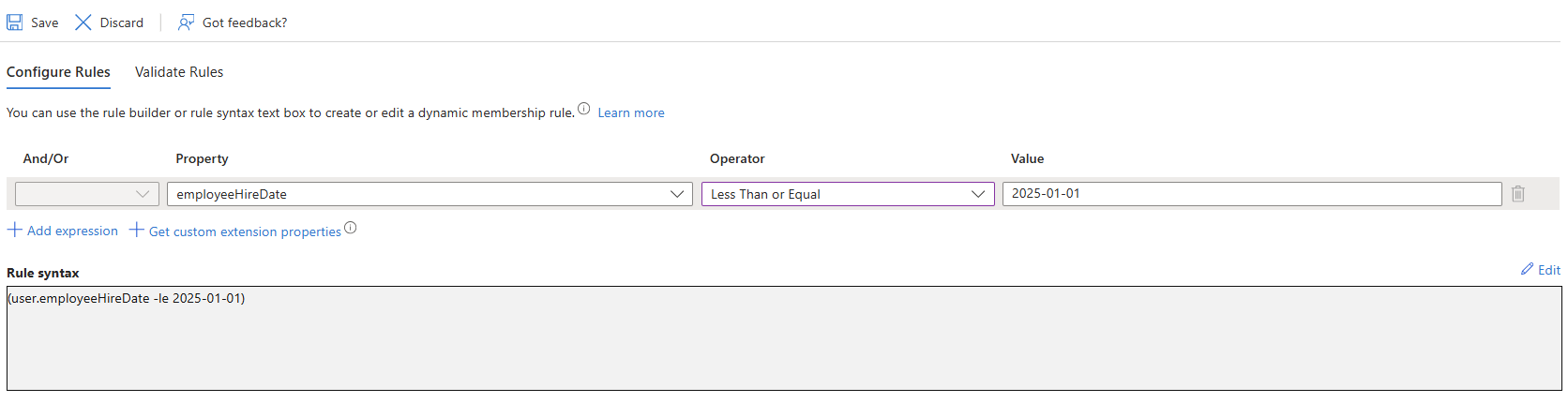
The rule syntax is built up in these rules:
- User is member if created January 1 2025 or later (greater means later in this context)
To use it in your environment
JSON
(user.employeeHireDate -ge 2025-01-01)Option 8: Based on OS
We can do memberships based on the OS of the device. In this example, I created a rule set to get Windows devices into a group and only if they have a version equal or higher than configured:
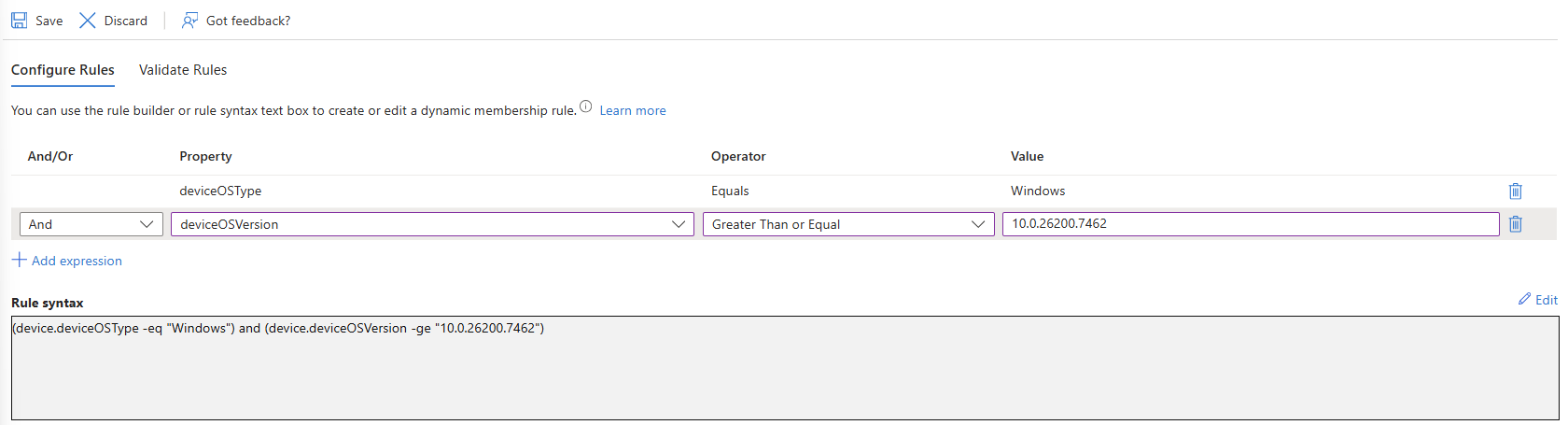
The rule syntax is built up in these rules:
- The OS must be Windows
- The version must be 10.0.26200.7462 or higher
To use it in your environment
JSON
(device.deviceOSType -eq "Windows") and (device.deviceOSVersion -ge "10.0.26200.7462")Option 9: Device Manufacturer
We can also filter on different device manufacturers to only be member. This is a great addition to the OS. Sometimes, we need to have all Windows devices but want to exclude other devices like Windows based scanners or Teams Rooms devices. In this case we can filter this out.
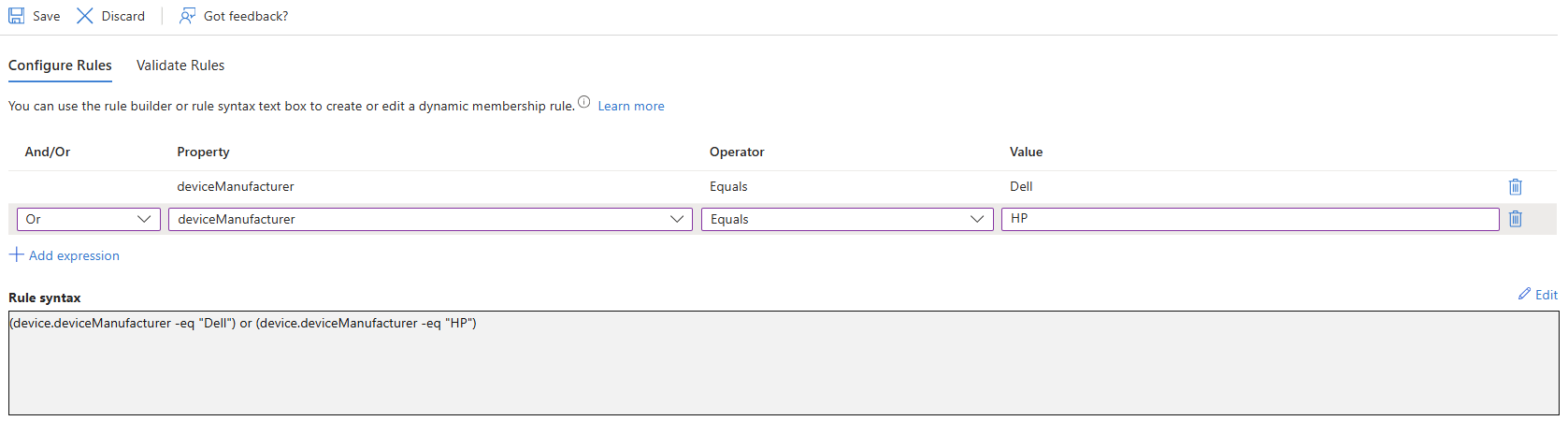
The rule syntax is built up in these rules:
- Manufacturer must be “Dell”
- OR Manufacturer must be “HP”
To use it in your environment
JSON
(device.deviceManufacturer -eq "Dell") or (device.deviceManufacturer -eq "HP")Option 10: User groups based on assigned license (Windows 365)
We can build a dynamic group query based on users’ assigned licenses. Instead of the friendly name of a license, we will use the Service Plan ID, which is a GUID:
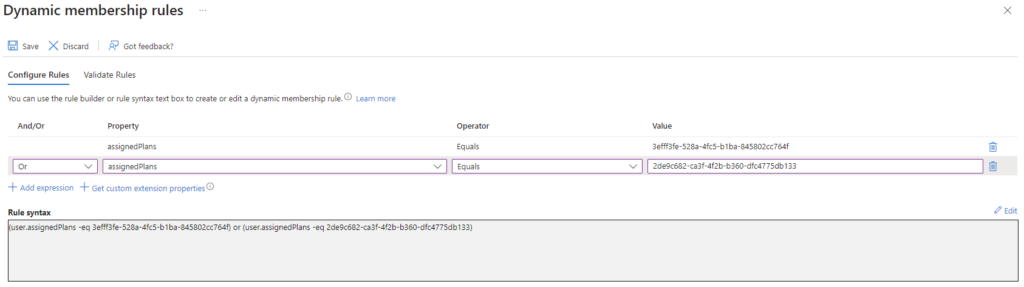
I have done this multiple times for Windows 365 environments, where we want a machine automatically to be deployed when a license is assigned. By default, after assigning a license, you have to assign the user to a group before a machine will deploy (Enrollment profile).
For more information about this setup, visit: https://justinverstijnen.nl/dynamic-group-for-access-to-windows-365/
Before you can make a query to find your service plans, you need to find the service plan id in your environment, you can find this by following these steps:
How to find Service Plan ID’s in my environment?
Now is the page of Microsoft filled with every single Service Plan ID available which is a mess. You can find all Service Plan ID’s in your environment easily with Azure AD Powershell. I will tell you how.
Log into Azure AD with Powershell:
POWERSHELL
Connect-AzureADWe can find all licenses and referring Service Plan ID’s which your environment is subscribed to by using the following command:
POWERSHELL
Get-AzureADSubscribedSku | Select-Object -ExpandProperty ServicePlansYou can also search all Service Plans referring to Windows 365 Cloud PC with the following commands (or different licenses by changing the search string):
POWERSHELL
$searchstring = "*CPC*"
Get-AzureADSubscribedSku | Select-Object -ExpandProperty ServicePlans | Where-Object {$_.ServicePlanName -like $searchstring} | Select-Object ServicePlanId, ServicePlanName
You will get a output like this with the Service Plan ID’s you need.
POWERSHELL
ServicePlanId ServicePlanName
------------- ---------------
3efff3fe-528a-4fc5-b1ba-845802cc764f CPC_2
2de9c682-ca3f-4f2b-b360-dfc4775db133 CPC_E_4C_16GB_128GBAs you can see, I did this for Windows 365, but you can perform this action with every license available in your environment.
POWERSHELL
(user.assignedPlans -any (assignedPlan.servicePlanId -eq "3efff3fe-528a-4fc5-b1ba-845802cc764f" -and assignedPlan.capabilityStatus -eq "Enabled"))And you can use multiple licenses by adding -OR rules:
POWERSHELL
(user.assignedPlans -any (assignedPlan.servicePlanId -eq "2de9c682-ca3f-4f2b-b360-dfc4775db133" -and assignedPlan.capabilityStatus -eq "Enabled")) -or (user.assignedPlans -any (assignedPlan.servicePlanId -eq "9ecf691d-8b82-46cb-b254-cd061b2c02fb" -and assignedPlan.capabilityStatus -eq "Enabled"))Summary
Dynamic Groups are an excellent way to automate some things in your Microsoft Entra tenant. The more we can automate, the better. I also hope I gave you a better idea of how those groups work and how they can increase value to your environment.
Thank you for visiting this website!
Sources 📖
These sources helped me by writing and research for this post;
End of the page 🎉
You have reached the end of the page. You can navigate through other blog posts as well, share this post on X, LinkedIn and Reddit or return to the blog posts collection page. Thank you for visiting this post.
Support the blog

CWL Azure Red Team Certification - What I learned
In the first half of 2026 I followed a paid course on Cyberwarfare.live. The CWL Certified Azure Red Team Specialist (AzRTS) course. On this page I will not dive deep into the topics themselves or step by step hacking but took some notes from what I have learned from doing the course.
“If you don’t test your infrastructure as an attacker, someone else will.”
The CWL Azure Red Team course
I started on the site cyberwarfare.live by purchasing the course. I found this very fun looking and interesting to use that information to further secure environments. Learn to attack environments also gains knowledge in how to defend yourself. During 2026 as the amount of cyberincidents explosively increases we need to keep our environments safe and I found this course to be very interesting gaining some extra knowledge to achieve this.
The full name of the course was: CWL Certified Azure Red Team Specialist (AzRTS).
Cyberwarfare offers some courses which you can buy or do free and they take advantage of giving you lab assessments that you have to take. In different scenarios you need to find certain information like which IP or account did the attackers use to breach your environment and check your input. All of this must be done through a honeypot Azure environment they deliver for you. You only can proceed if you submit the right information (called Flags) which makes it really fun and helpful.
This course gives you access to an environment with theory about the Microsoft Entra, Azure and Entra Connect Sync topics. Then it gives you guidance about how these services can be abused, giving you enough details on why you should stick with best practices, least privileges, zero trust and simply removing test configurations or permissions after testing is done.
You get demonstrations about 4 different attack approaches which are known to be abused in the industry.
After that you get your own lab environment, a Microsoft Entra tenant with Azure Subscription where you have to complete 16 objectives.
Certification subjects
The objectives of the certification are:
- Develop a strong understanding of Microsoft Azure cloud architecture from an offensive security perspective
- Gain practical knowledge of how attackers target core cloud services such as Microsoft Entra ID, Azure Resource Manager, and Microsoft 365
- Understand the Azure attack lifecycle, including initial access, privilege escalation, persistence, and lateral movement
- Identify and analyze security misconfigurations and weak access controls within Azure environments
- Learn techniques to simulate real-world red team attack scenarios in cloud infrastructures
- Perform identity-based attack techniques against Microsoft cloud identity services
- Understand how attackers pivot between on-premises infrastructure and cloud environments in hybrid setups
- Map cloud attack techniques to frameworks such as the MITRE ATT&CK Cloud Matrix
- Develop the ability to conduct structured cloud threat research and adversary emulation
- Gain hands-on experience through practical lab exercises simulating Azure attack scenarios
The overall key objective is to gain knowledge to defend your environmen from those attackers.
Key learning points
During and after completing this course, these were my key takeaways. While many of these points were already familiar, the course helped reinforce why they matter even more.
Watch your Service Principal and Managed Identity permissions and always apply least privileges + audit them periodically
When having a hybrid environment, apply hybrid security
Attacks and escalation happen due to these major factors
- Misconfigurations or non-removed testing configurations
- Failure to apply basic access controls
- Ease of use over security
- Untrained employees who don’t understand what they do
Read-only access is more deadly than it looks
OAuth apps are very sensitive for hacks and backdoors and mostly hiding in plain sight
Basic Endpoint and Server security software and rules are highly needed to block from running malicious software
Again, watch your Service Principal and Managed Identity permissions and always apply least privileges + audit them periodically
Attacker motives
Hacks happen very often, but what exactly are the motives of hacking other people?
- Stealing personal information
- Selling personal information
- Increase their reach by bulk sending phishing emails
- Loss of face for companies
1: Red Team Operations in Microsoft Entra ID
We have two types of applications in Microsoft Entra ID:
- App registrations : Application Instance
- Enterprise Application (Service Principals): Application Identity which has the permissions
If an App Registration is created using the Azure Portal, you also get a Service Principal. This is the identity who has the permissions and can exists in multiple tenants if configured to do so. Both the App Registration and Service Principal may represent the same app, they are two different objects in Entra ID.
An attack described
An attacker these days wants to target normal users. They doesn’t seem valuable but they really are. With a correct login with an user an attacker has read access to the whole tenant. This means it can enumerate different users, groups, applications, devices and roles which it can use to escalate its privileges. The ultimate goal is to breach into a Global Administrator account of an organization which can do a LOT of harm.
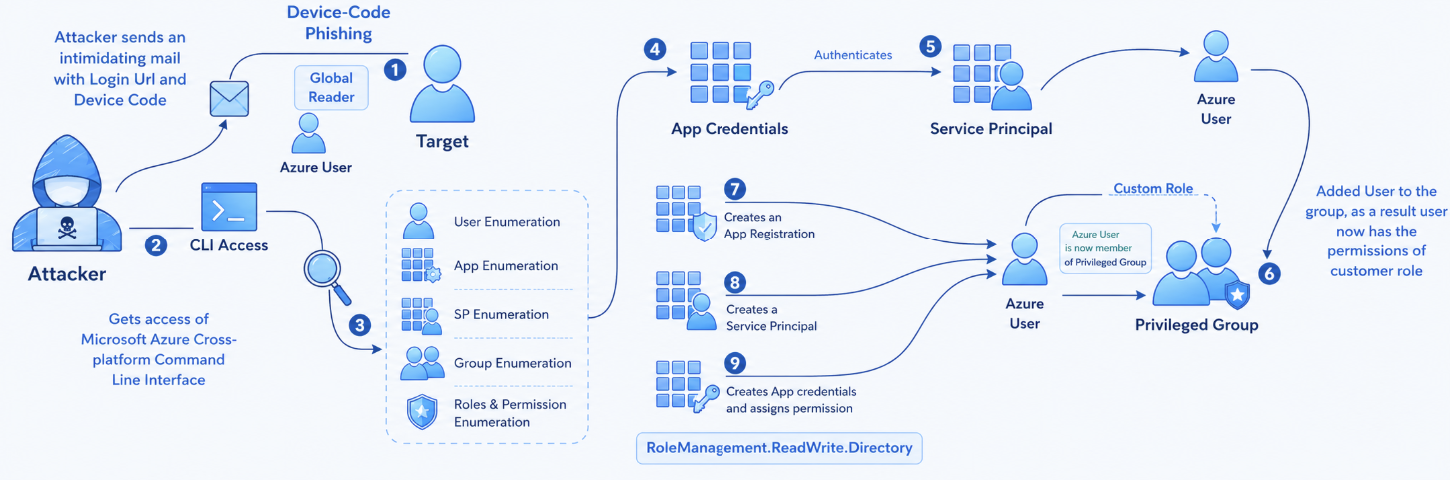
The fun fact is that administrator accounts are normally secured properly but normal users a lot less.
- Initial target: Employee
- Information about an employee
- Access method: Device Code, Credential Harvesting, Shoulder Surfing
- Target environment: Microsoft Entra ID
- Motive: Gaining access with an access token and perform lateral movement
- Enumeration: The attacker will inventory the environment for possible users, devices and service principals to breach/attack
- End goal: Gaining Global Administrator privileges
Attackers will mostly contact users by phone or email, and will push them at the needed action is high priority. This pushes the end user even more to do things they normally don’t and shouldn’t.
High Risk permissions
Attacker will inventory your environment and search for permissions which gives them a lot of power. These permissions can be:
- Global Administrator (user role) -> can do everything
- RoleManagement.ReadWrite.Directory (API permission) -> Can all assign roles to principals, even Global Administrator role making privilege escalation easy
- Global Reader -> Can read everything, so complete attack surface is visible to hacker in a few minutes
Conditional Access and Targets
High risk targets for attackers are users that are excluded from Conditional Access policies. These users doesn’t need further authentication like trusted locations, MFA or session/token limitations. They can just perform a password spray attack to try and breach into this account. Now they have the real gold in their hands.
Access tokens
Microsoft Azure uses Microsoft Entra ID as Identity Provider. This identity provider is basically a system that checks the users’ credentials and then assigns a token where the user can login to all authorized applications and resources. By default, this token is valid for 90 days.
Every principal which is being authenticated by Entra ID gets this token. We speak of principals every object that can get roles and scopes assigned:
- Users
- Groups
- Service Principals (App registration)
- Managed Identity
An access token looks like this and can be further defined with this tool:
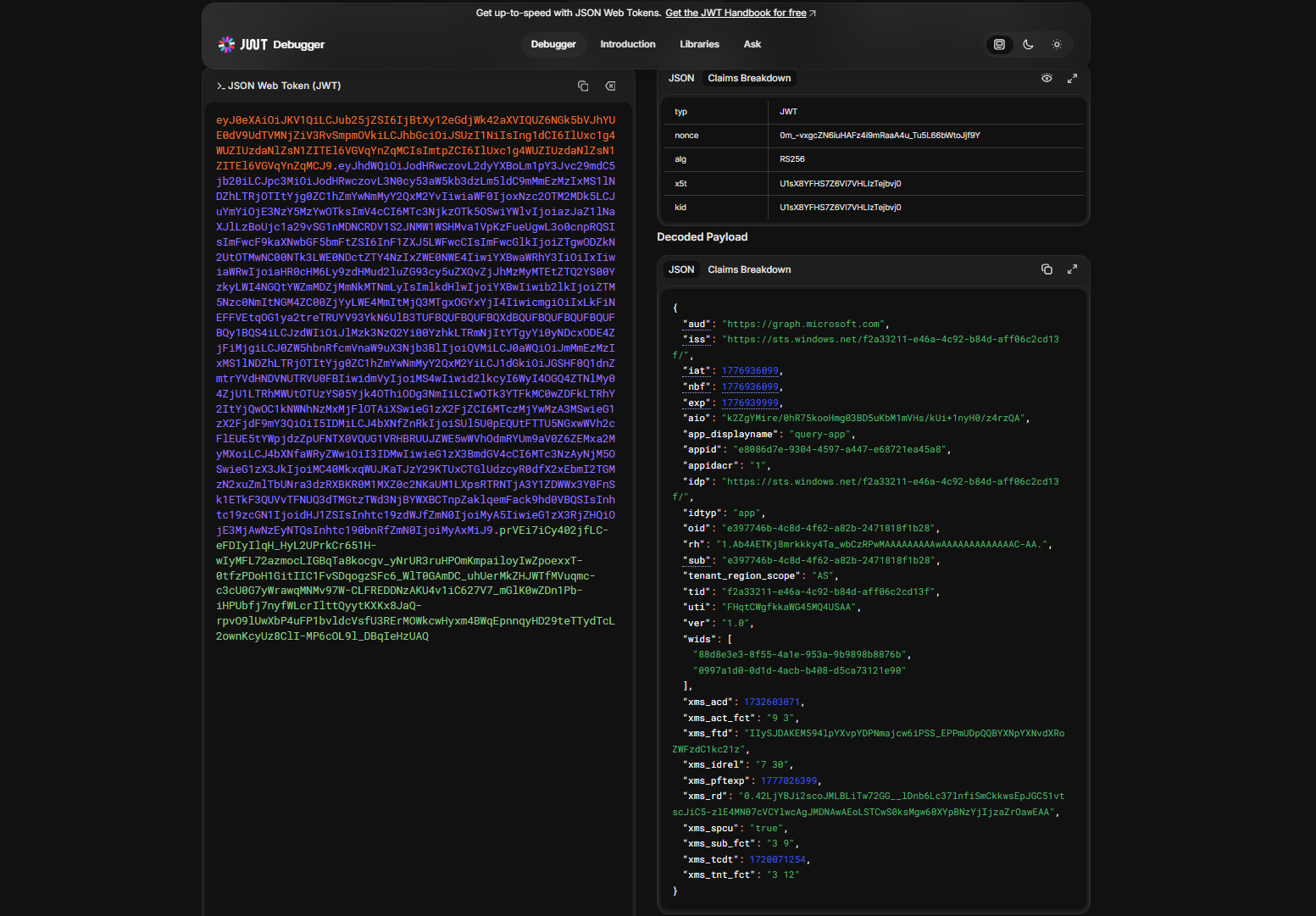
This token is then saved into the cache of the browser so the user does not have to reauthenticate for every resource or application.
Control plane and Data plane
Some resources in Azure needs security on both the control and data planes of the resource:
- Control plane : What users can access the resource, during what time windows and what are their privileges?
- Data plane : What users can access what data of the resources, during what time windows and what are their privileges? Dataplanes are also more vulnerable as secrets are a possibility, which are just longer passwords
2: Red Team Operations in Azure Resource Manager
Azure Resource Manager is the control plane of Microsoft Azure. Everything you do in the Portal, PowerShell and Azure CLI works with Azure Resource Manager by API calls. This makes viewing, creating and deleting resources pretty easy as the mechanism works the same across multiple platforms.
An attack on Azure Resource Manager can look like this:
- Initial target: Publicly exposed web app
- Information about the organization
- Access method: Public facing web portal
- Target environment: Microsoft Azure Resource Manager
- Motive: Gaining access to organizations cloud environment
- End goal: Data exfiltration (steal)
You see, we use newer cloud solutions but attack vectors still are using techniques like SQL injection.
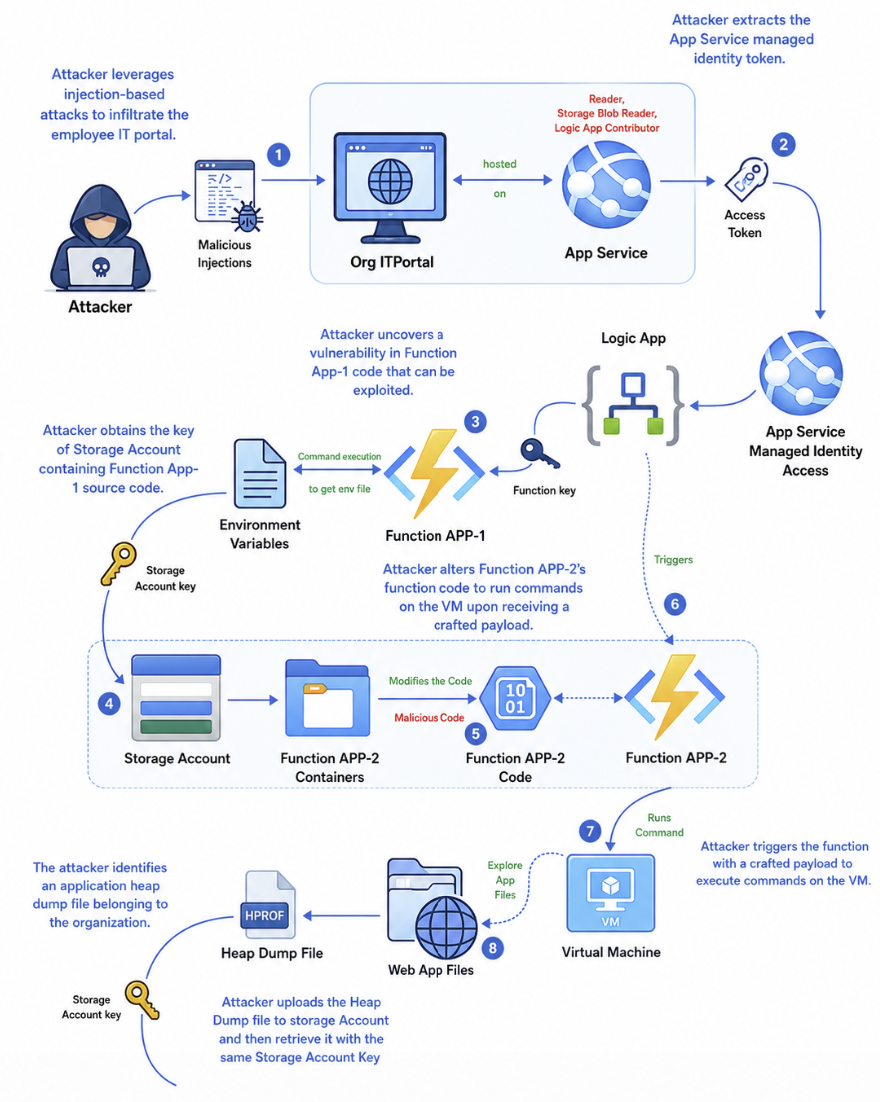
The MicroBurst PowerShell module
The MicroBurst PowerShell module can be used to execute assessments of your Microsoft Azure environment. This checks the security and possible attack surfaces like Web apps. You can find this here:
Managed Identities
Managed Identities are a great target for hackers as they have always have standing permissions. Managed Identities are used in links between Azure Resources, like a Logic App that needs permissions to turn on and off a virtual machine or a Logic App that needs permissions to a Storage Account. The actual identity used in these processes is a Managed Identity.
To learn more about Logic Apps and Managed Identities, check out this article
3: Red Team Operations in Microsoft 365
Attacks in Microsoft 365 are often performed by abusing OAuth 2.0 consent/grant flows. An attack flow for Microsoft 365 can look like this:
- Initial target: Employee of an organization
- Information about employees, organization details
- Access method: OAuth Consent Grant attack
- Target environment: Microsoft Entra ID and Microsoft 365
- Motive: Gaining access to organization
- End goal: Data exfiltration (steal)
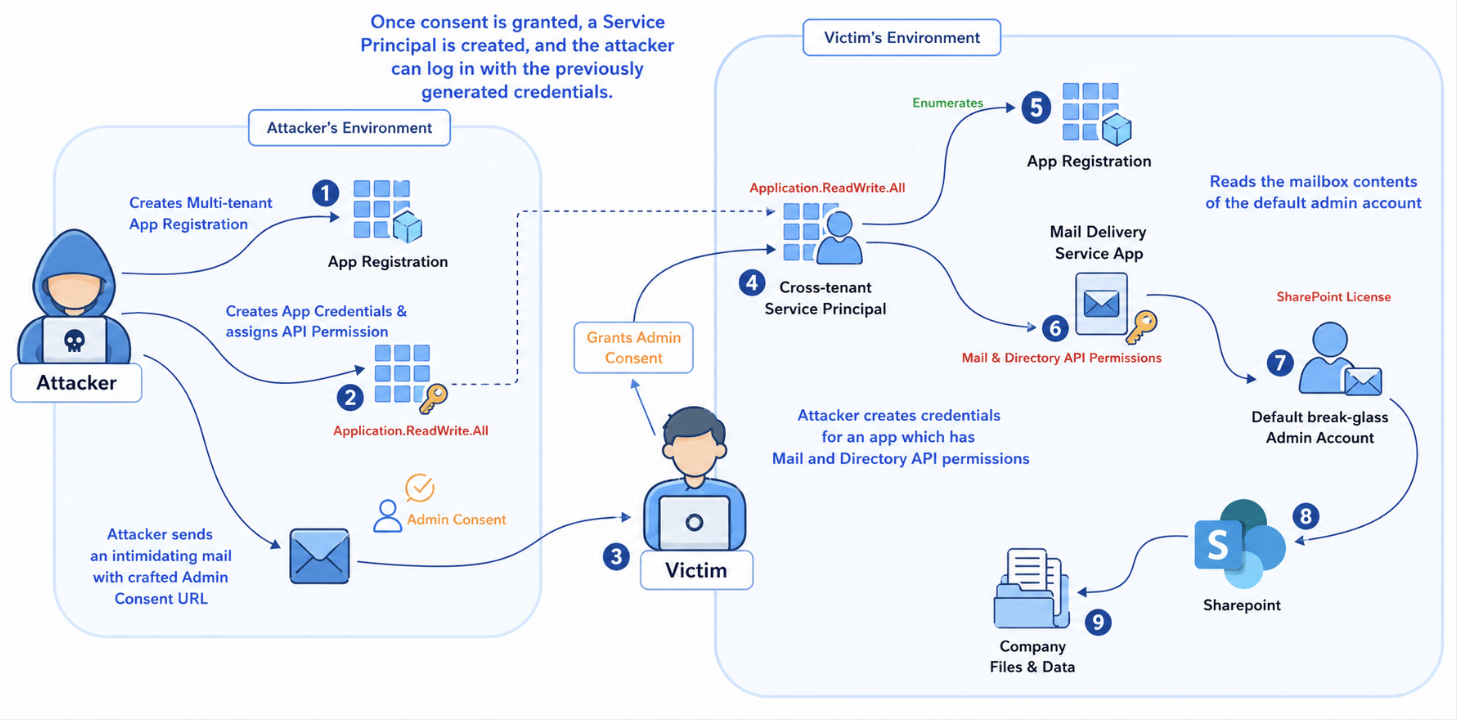
OAuth 2.0 consents and results
An OAuth 2.0 consent window looks like this:
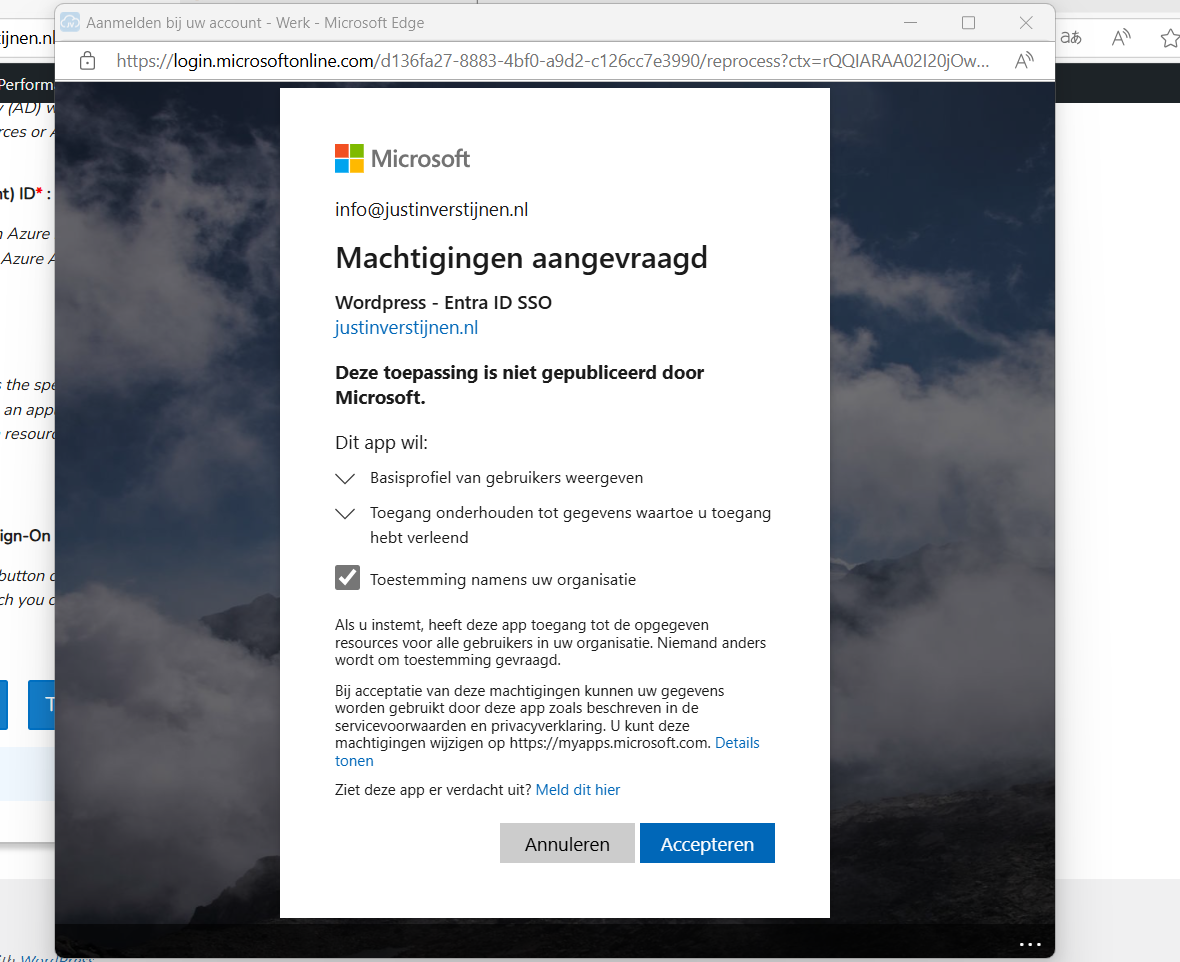
This is an consent request of an application to gain information about the user and organization where this is possible by default. We administrators often want to disable this for standard users because of this attack surface. Why these apps are also highly useable to the attackers is that they bypass the needs for credentials as the user gave permissions themselves. Attackers can create some malicious app in their tenant and creates them “multi-tenant”. This makes it possible to publish this app to multiple organizations like the victims.
When the victim accepts the application, an Service Principal is created in the victims tenant. This means we as the attacker have permissions in the victims tenant. The good part for us attackers is that these Service Principals are often hiding in plain sight as they are missed by administrators. Especially if we make the app good looking with a logo and such.
When an attacker assigns the right permissions to the OAuth 2.0 applications, it can escalate its privileges to higher permissions without the need of an administrator. Then it can target administrator accounts to have even more gold.
4: Primary Refresh Token attacks
Attacks on hybrid environments often happen and a breach of one of the systems can easily result in a breach of both.
- Initial target: Client device
- Access method: Pass the Primary Refresh Token
- Target environment: Active Directory and Microsoft Entra ID
- Motive: Gaining access to organizations’ Entra ID
- End goal: Access Entra ID resources
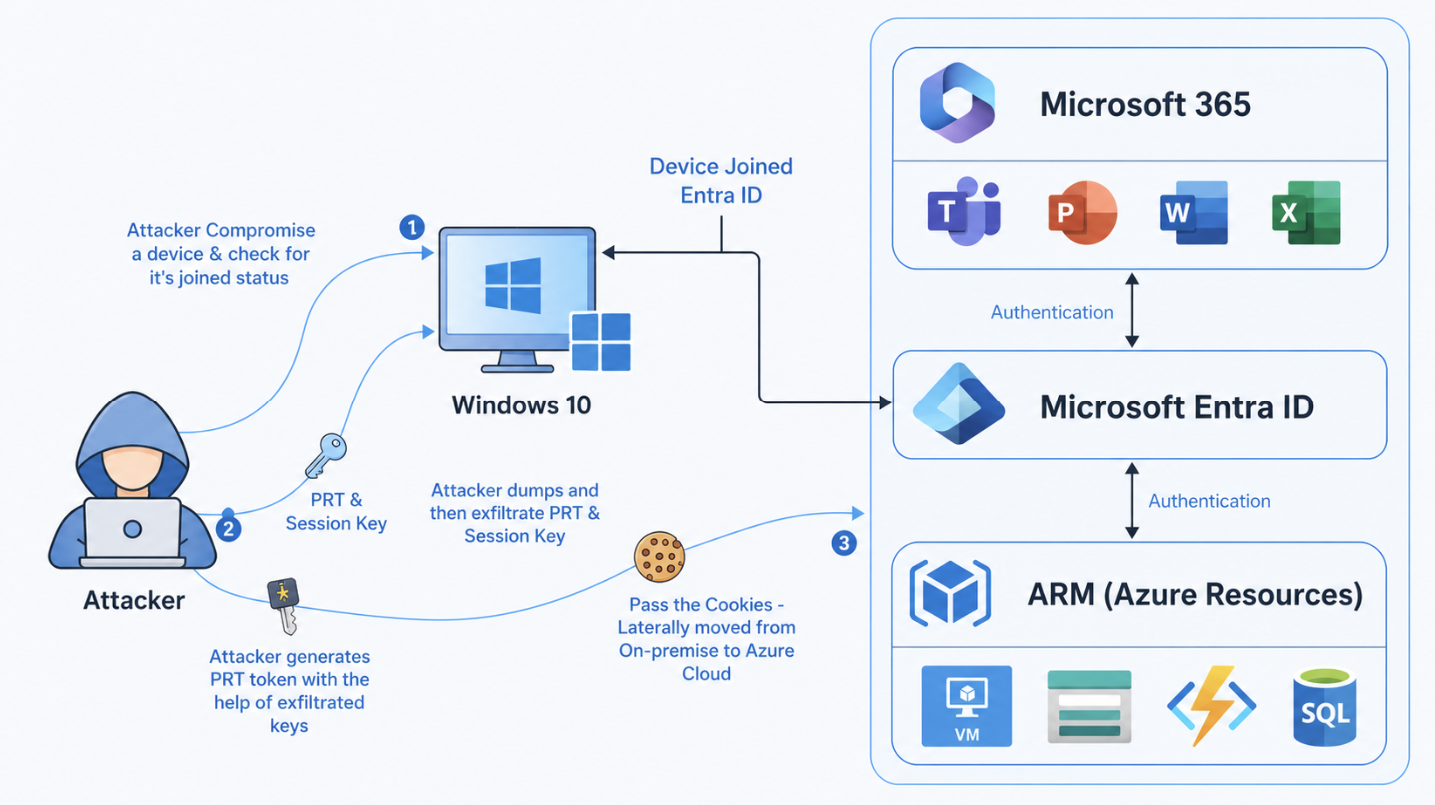
Attacks with the Primary Refresh Token has huge advantages for attackers. This bypasses:
- Password Authentication
- Multi Factor Authentication
- Conditional Access Policies
Primary Refresh Token (PRT)
To understand this attack, we need to first look at what a Primary Refresh Token is. This token is provided by Microsoft Entra ID to a device that allows it to do MFA. This PRT is device-bound and is given to the device after enrolling into Entra ID or Hybrid Entra join.
The PRT is different to an Access token, where the PRT is device bound till a new enrollment is the access token a provided token for a specific application. This PRT token is then used to tell Entra ID “Hey im this device, give me a new access token for Microsoft SharePoint”.
An session key is encrypted and linked to the Primary Refresh Token which can be seen as a private key to the PRT, the public key. By passing both of these keys, Entra ID will trust your login attempt. This session key is secured by the Trusted Platform Module (TPM) chip of your device.
Enumeration device
To get all the needed information, we can use this command on the compromised Windows device:
POWERSHELL
dsregcmd /statusThis tells us to what kind of identity service the computer is linked including more information like the tenant. Attackers will often use this command to search for this: AzureAdPrt : YES
Extract PRT
To extract PRT’s you can use the tool mimikatz, which you can find here:
This tool you can run on a Windows device and it extracts the PRT and session key which can be used on another device to pass this new token.
5: Entra Connect Password Hash Synchronization attacks
Attacks can also perform reverse attacks if having access to the Entra Connect server first.
- Initial target: Entra Connect server
- Access method: Password Hash Synchronization
- Target environment: Active Directory and Microsoft Entra ID
- Motive: Gaining access to organizations’ Entra ID
- End goal: Access Entra ID resources
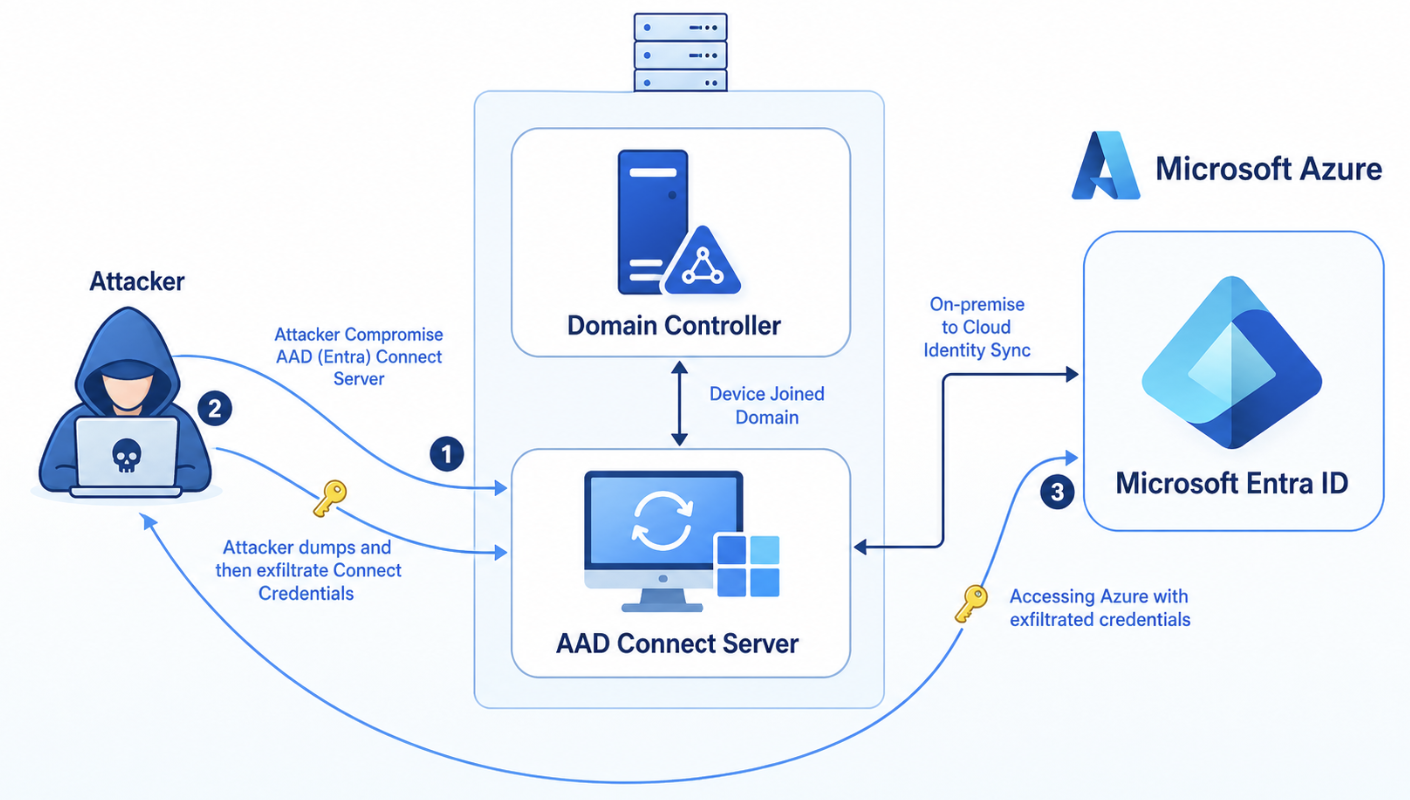
On the Entra Connect Server, the attacker can extract the connect credentials to use to authenticate to Microsoft Entra ID. This only works if the Password Hash Sync (PHS) option is selected in Entra Connect which is by default. The password are stored in an entrypted SQL instance on the Entra Connect server which can be extracted by administrators in plain text.
With this command you can view the complete configuration of the Entra Connect instance:
POWERSHELL
Get-ADSyncConnectorMy exam/lab experience
As we have to pass the exam/lab by actually breaching an environment, which was really fun by the way, we needed to think like an attacker like shown and demonstrated in the course. Because everyone has to learn like they describe in the course, I will not dive into the details of the course and the objectives themselves but give an overview of how I completed the breach from access to full blown access.
1. Initial access
Initial access to the lab is gained by a simulated device code flow misabuse. It works like, you retieve a code from your local Powershell window and paste that into a field simulating a phishing attack that always work.
Then I gained access to a user that had no roles and some small API permissions.
2. Enumeration
We start by checking for any leads by enumerating every object in the tenant. I did this using some commands and eventually found a high-privileged Service Principal with Global Administrator permissions. By enumerating every part of the tenant, these leads come into view which can be missed if a person or team daily manages a tenant.
We look for highly privileged roles and API permissions in this part.
3. Privilege escalation
The best part is, the user which is simulated to be phished is owner of this application/service principal so we can create a new client secret to gain access using that service principal. This is how easy this can get.
4. Signed in using Service Principal
Now I had a second PowerShell window with the Service Principal logged in, with Global Administrator permissions. This makes it very easy to create a new user and also assign that user this Global Administrator role. We can now login as a user and full privilege escalation is completed.
5. Azure Subscription
As we are now logged in using Global Administrator permissions in Entra ID, we can easily also get every Azure RBAC permission we want. Global Administrator can assign the User Access Administrator role to themselves, using this checkmark at the Entra ID properties:

Now we have gone from a simple user, to a Service Principal, to a newly created user with Global Administrator permissions to also extend that access into Azure Subscriptions.
While this sounds pretty cool, as I now did this around 2 times, this costed me around 5-6 hours but professional hackers will do this much faster.
Summary
In this post, I share my experiences of the CWL Certified Azure Red Team Specialist (AzRTS) training by cyberwarfare.live and the key lessons learned. By approaching Azure and Microsoft 365 environments from an attacker’s perspective, it becomes clear how misconfigurations, weak access controls failure to use least privileges and unaware users can lead to successful compromises. COmpromises who can cost companies a lot of money in terms of outage, employees not able to do work or loss of face and indirectly customers and work.
I hope I gave you a good understanding of my experience with this course and would recommend it to everyone interested.
Sources 📖
These sources helped me by writing and research for this post;
End of the page 🎉
You have reached the end of the page. You can navigate through other blog posts as well, share this post on X, LinkedIn and Reddit or return to the blog posts collection page. Thank you for visiting this post.
Support the blog
Get notifications when Entra ID break glass admins are used
As we want to secure our Break Glass Accounts as good as possible, we cloud want to get alerts when break glass admins are used to login. Maybe they are used on a daily basis, or are being attacked. When we configure notifications, we instantly know when the accounts are being used and can check why a login has taken place. In this guide we will configure this without Microsoft Sentinel. If you already have a Sentinel workspace, the recommended action is to configure it there and to configure a automation rule/playbook.
The alert solution described
The solution we will configure looks like this:
- Log Analytics Workspace
- Set diagnostic settings for Entra ID sign in logs to write to Log Analytics
- Set query to find successful or non-succesful sign in attempts (based on your needs)
- Set Azure Monitor alert to alert admins of the attempts taking place
- After all this we will test this to test if this works as excpected
Here we use all the features inside Azure only, and no 3rd party solutions.
Step 1: Configure Log Analytics Workspace
We will start configuring our Log Analytics Workspace in Azure. This can be simply described as database for logs and metrics. Using specific queries, we can pull data our of it to use in dashboards, workbooks and like we do now; Alert rules.
Login to the Azure Portal and search for “Log Analytics Workspace”:
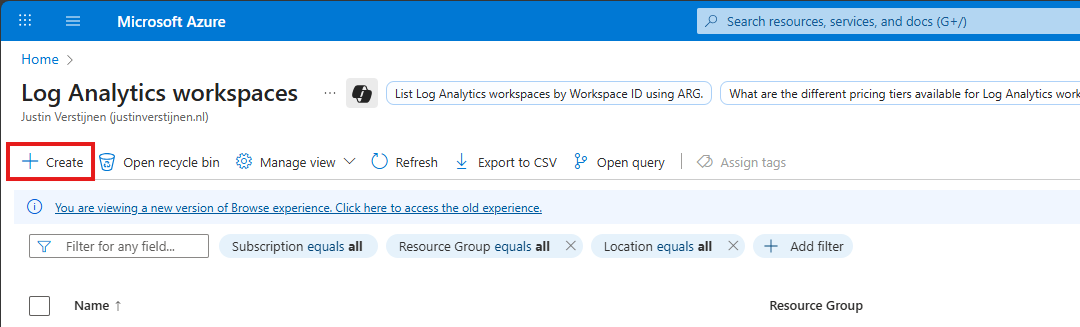
Click on “+ Create” to create a new workspace.
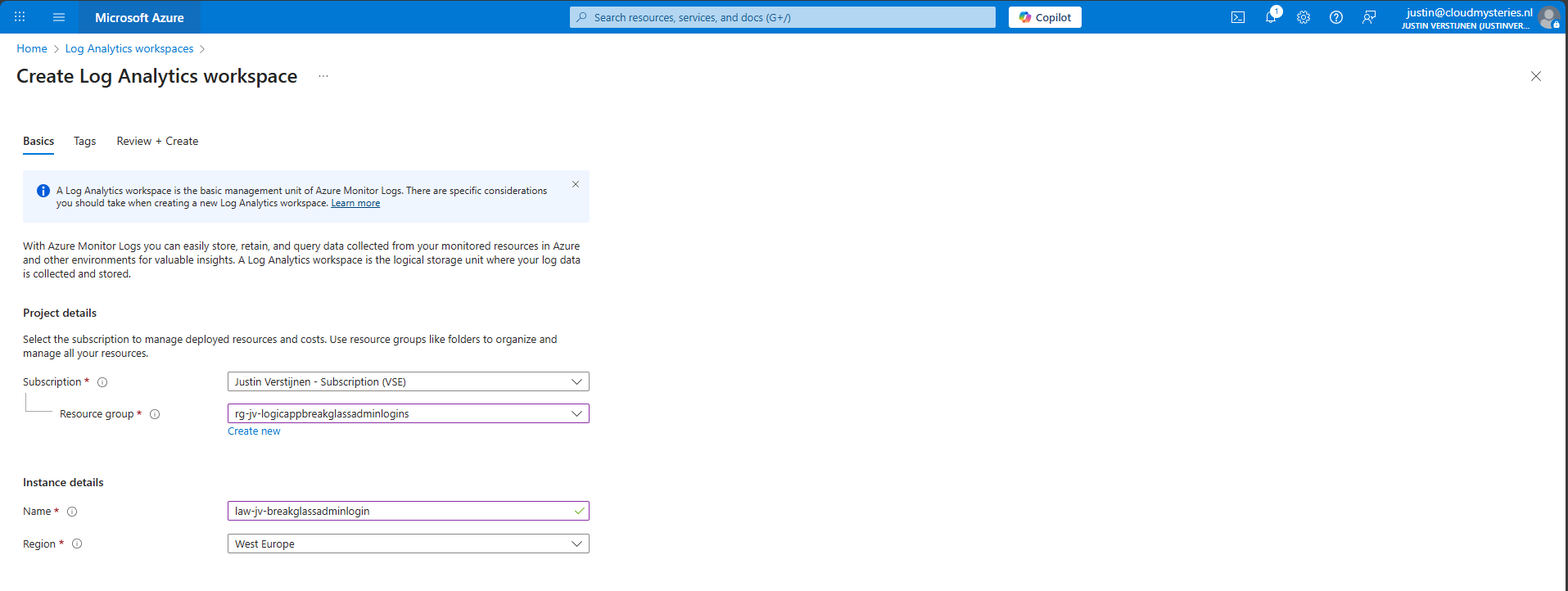
Select the desired resource group and give it a name and create the workspace.
After the workspace is configured, we can configure the data retention and daily cap of the Log Analytics Workspace. As ingesting a lot of data could be very expensive at the end of the month, you could configure some caps. Also, we will only ingest the data needed for this solution, and nothing more.
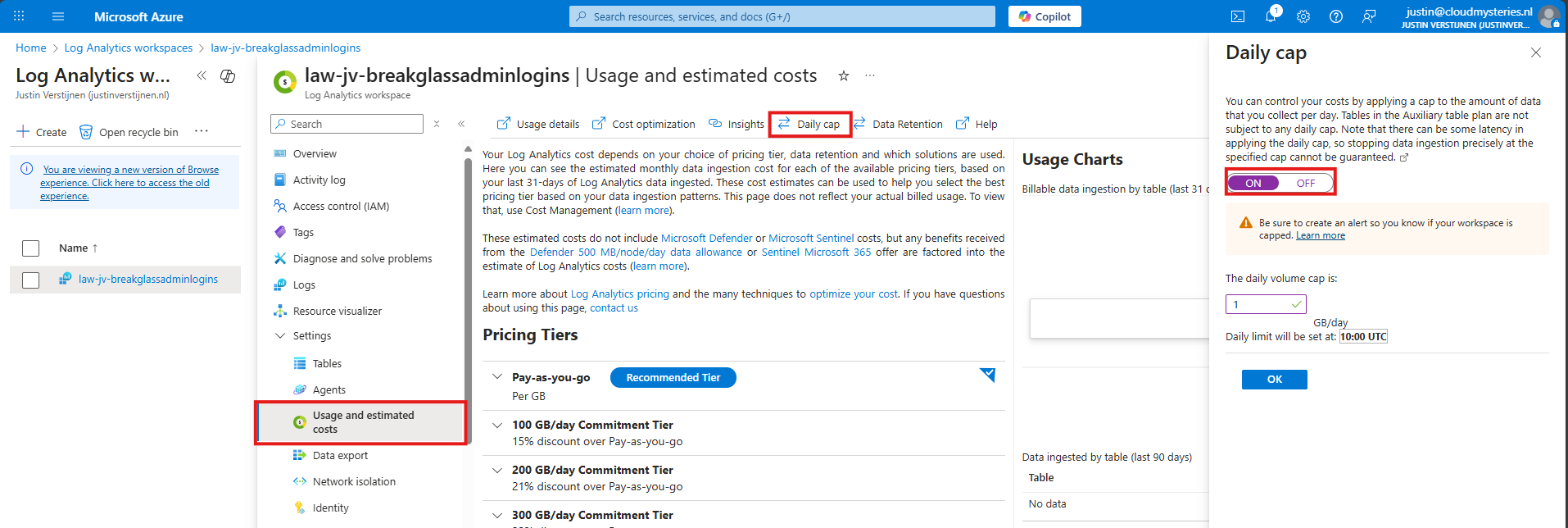
Here I have set the daily cap to 1 gigabyte max per day, which would be more than enough for this solution in my case. In bigger environments, you could set this to a higher value.
Step 2: Configure Sign in logs to Log Analytics
Now we need to configure the Sign in logs writing to our Log Analytics Workspace. We will do this through the Entra admin center: https://entra.microsoft.com.
Go to “Monitoring and Health” and then to “Diagnostic Settings”
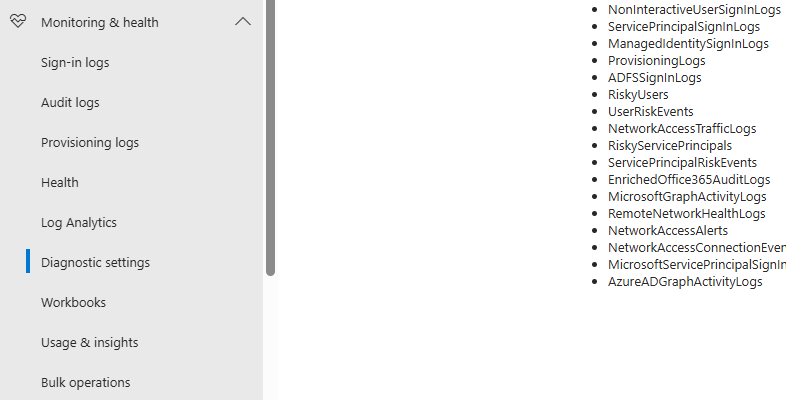
On there, click on “+ Add diagnostic setting”

On this page, give the connector a describing name, select SignInLogs on the left and on the right select “Send to Log Analytics workspace” and then select your just created workspace there.
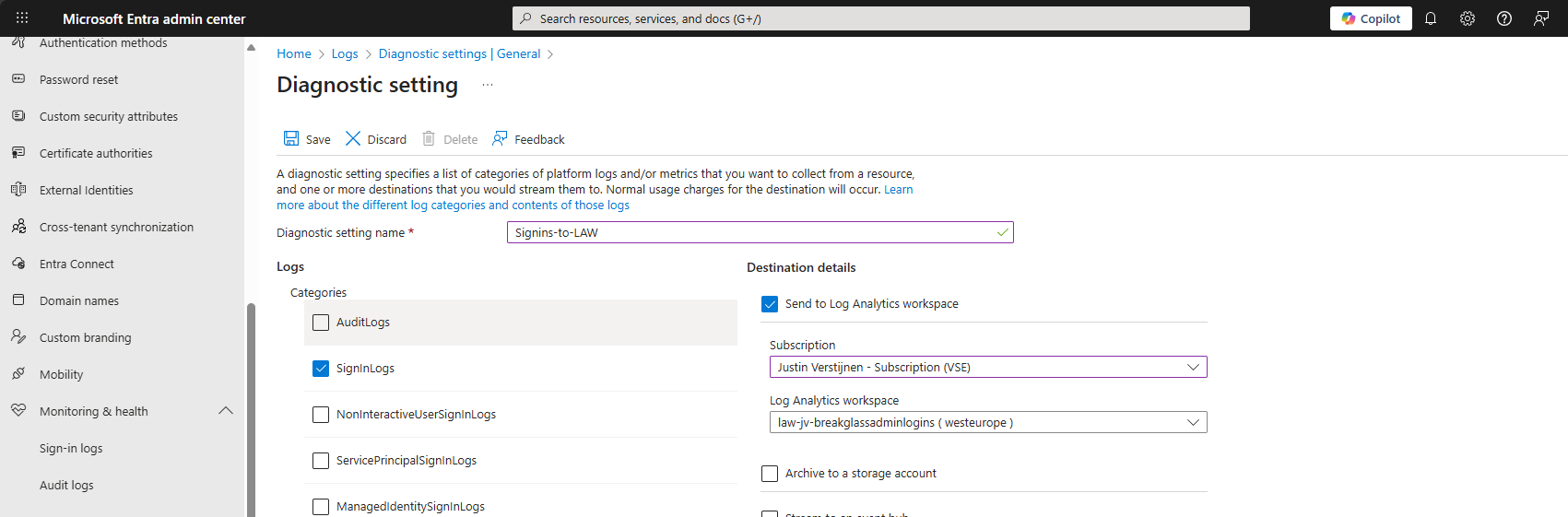
Then click the “Save” button to save this configuration. Now newly created sign in logs will be written to our Log Analytics workspace, so we can do further investigation.
Data ingestion notes
Quick note before diving into the log analytics workspace and checking the logs. When initially configuring this, it can take up to 20 minutes before data is written to the workspace.
And another note, sign in logs take up to 5-10 minutes before showing in the Portal and before written to Log Analytics.
Step 3: Configure the query
In this step we need to configure a query to search login attempts. We can do this by going to our Log Analytics Workspace in Azure, and the go to “Logs”.
We can select a predefined query, but I have some for you that are specific for this use case. You can always change the queries to your needs, these are for example what you could search for.
- To get all successful login attempts for one specific account:
KUSTO
SigninLogs
| where UserPrincipalName == "account@domain.com"
| where ResultType == 0
| project TimeGenerated, UserPrincipalName, IPAddress, Location, ResultType, ResultDescription, ConditionalAccessStatus, AuthenticationRequirement
| sort by TimeGenerated desc- To get all unsuccesful login attempts for one specific account:
KUSTO
SigninLogs
| where UserPrincipalName == "account@domain.com"
| where ResultType != 0
| project TimeGenerated, UserPrincipalName, IPAddress, Location, ResultType, ResultDescription, ConditionalAccessStatus, AuthenticationRequirement
| sort by TimeGenerated desc- To get all login attempts, successful and unsuccesful:
KUSTO
SigninLogs
| where UserPrincipalName == "account@domain.com"
| project TimeGenerated, UserPrincipalName, IPAddress, Location, ResultType, ResultDescription, ConditionalAccessStatus, AuthenticationRequirement
| sort by TimeGenerated desc
Now we know the queries, we can use this in Log Analytics and set the query type to KQL. Paste one of the queries above and change the username to get the results in your tenant:
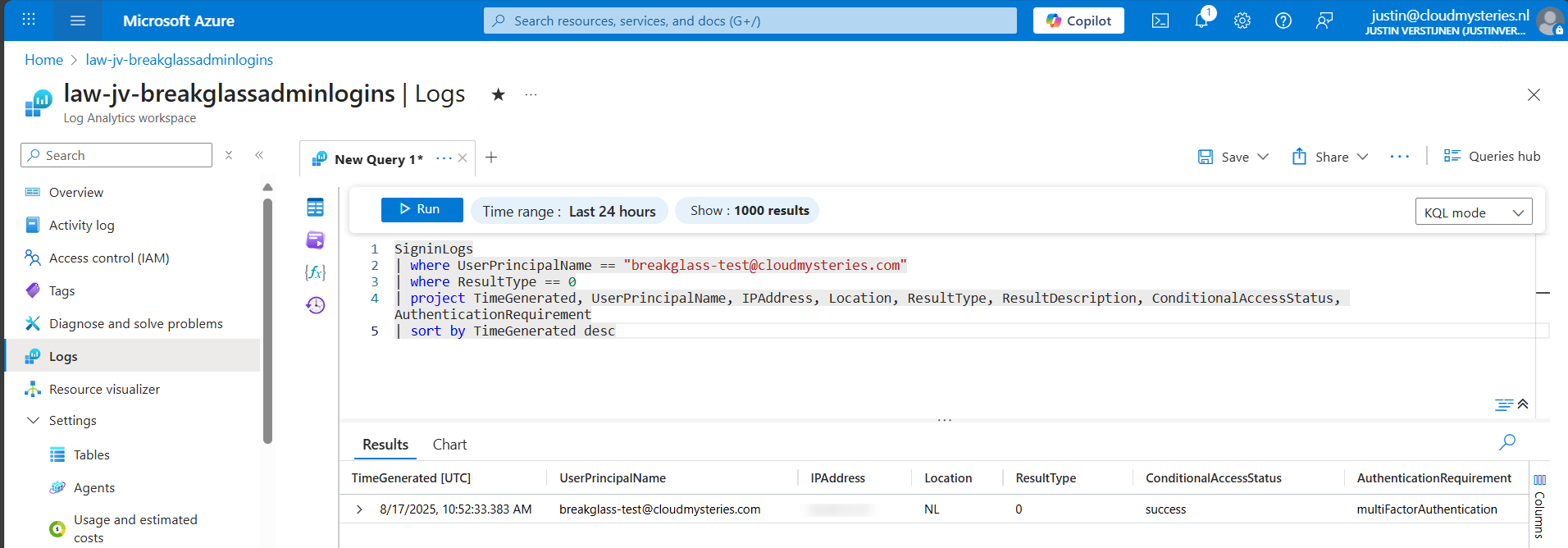
Now we have a successful login attempt of our testing account, and we can see more information like the source IP address, location, if Conditional Access was applied and the resulttype. Resulttype 0 means a successful login.
You could also use the other queries, but for this solution we need to use query one where we only search for successful attempts.
Step 4: Configure the Alert
Now that we have a successful query, we need to configure a alert rule. We can do this while still being in the Log Analytics query pane:
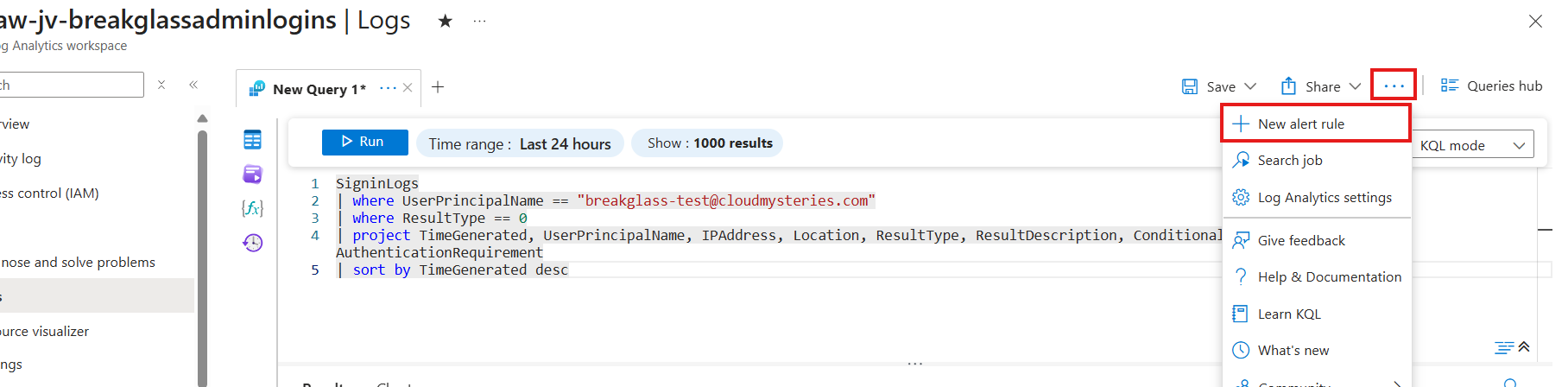
Click on the 3 dots and then on “+ New alert rule”. This creates an alert rule completely based on the query we have used.
On this page, scroll down to “Alert logic” and set the following settings:
- Operator: Greater than or equal to
- Threshold value: 1
- Frequency of evaluation: 5 minutes
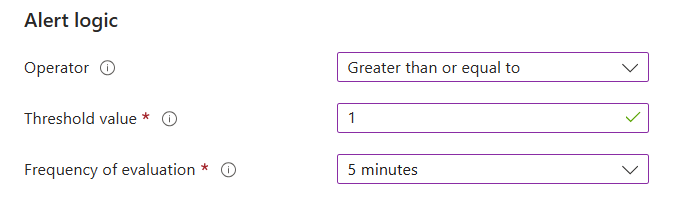
This means the alert is triggered if the query finds 1 or more successful attempts. You can customize this is needed.
Now go to the “Actions” tab. We now need to create an Action group, where we define what kind of notification to receive.
Create a action group if you don’t already have one.
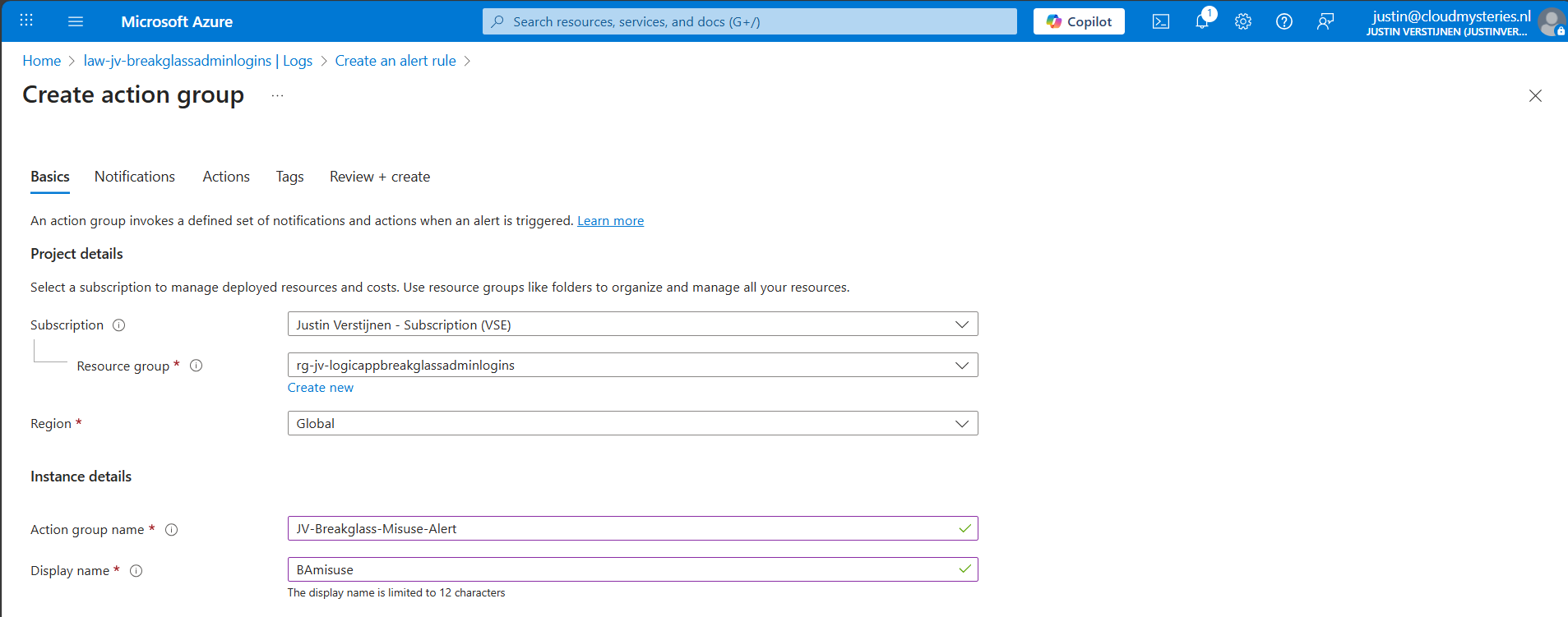
Give it a name and displayname. Good practice is to use a different action group for this alert, as you can define per action group what kind of notification and receivers you want to use.
Now go to the “Notifications” tab. Select “Email/SMS message/Push/Voice” and configure the alert. This is pretty straight forward.
I have configured Microsoft to call me when this alert is triggered:
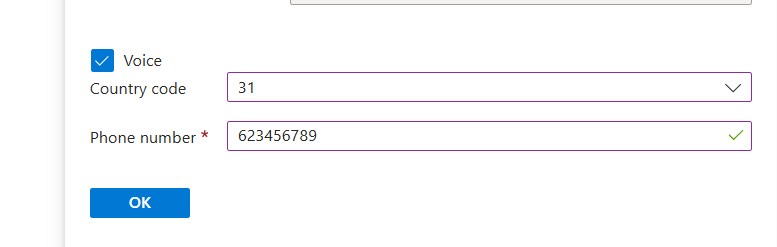
Advance to the next tab.
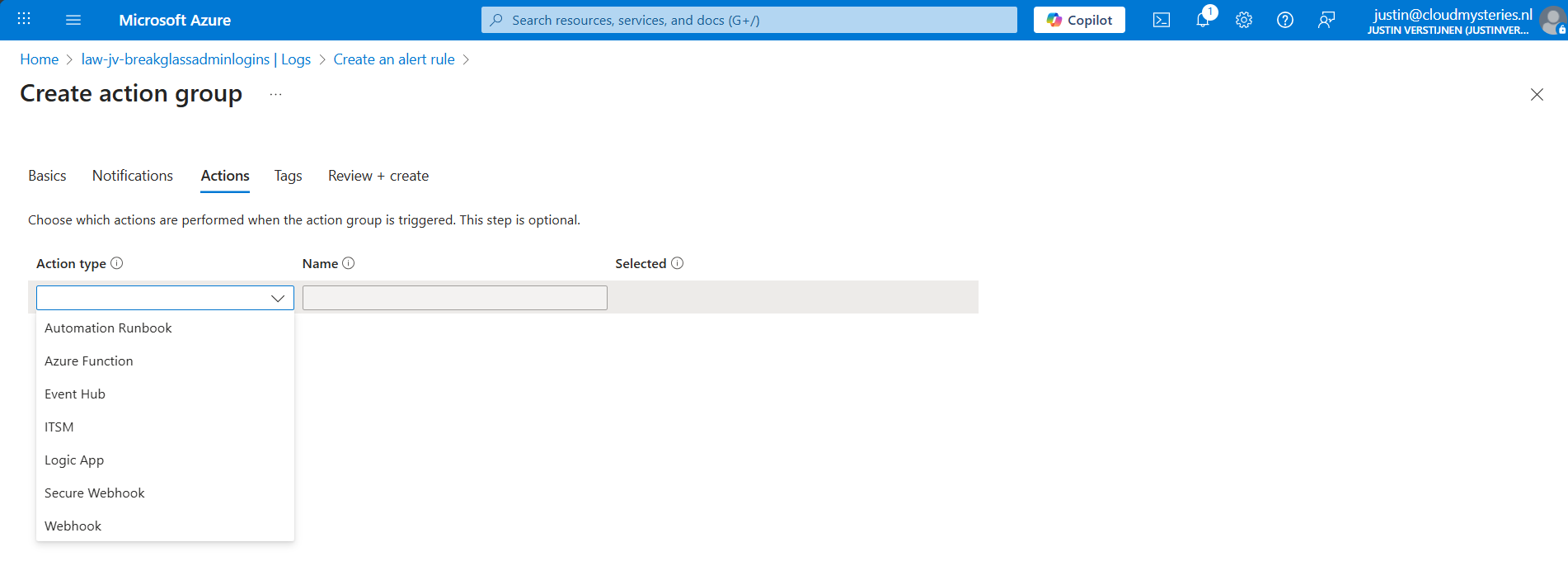
You could also run an automated action against this trigger. As this includes Webhook, you could get customized messages for example on your Microsoft Teams account.
Finish the creation of the Action group.
Step 5: Let’s test the solution
Now we have configured everything, we can test the working of this alert. Let’s prepare an InPrivate window to login to the account:
I have logged in seconds from 13:20:08 hours. Let’s wait till I receive the alerting phone call.
And at 13:27, 7 minutes later, I got an call from Microsoft that the alert was triggered:
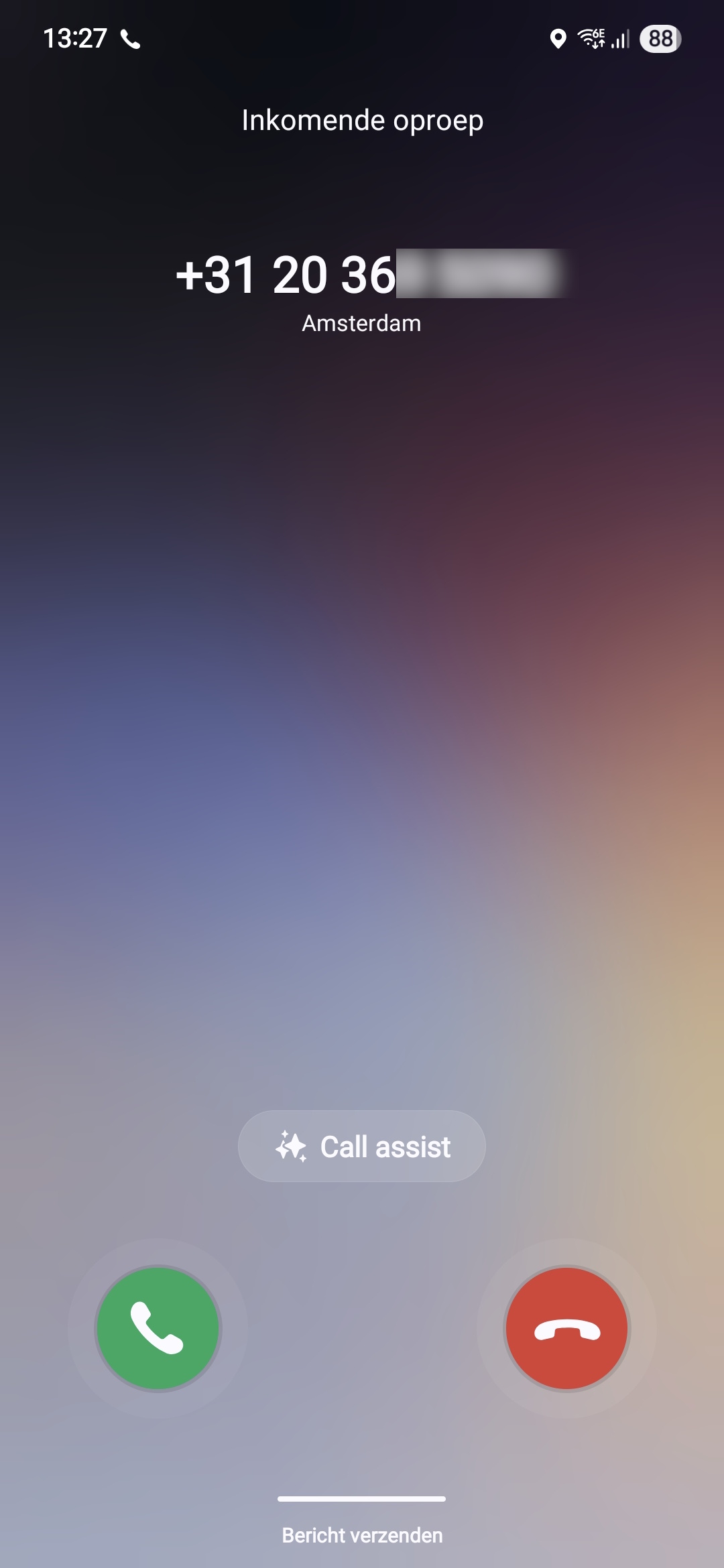
This way we will know in a very direct way our break glass account is possibly misused. We could also choose to only get messages from this or use the webhook option which will be less rigorous than getting a phone call. But hey, at least the option exists.
Summary
Monitoring the use of your Break Glass Admins is very important. Those accounts should be a last resort of managing Azure when nothing else and personal accounts doesn’t work. They should be tested at least twice a year and good monitoring like this on the accounts is preferred.
Thank you for reading this post and I hope it was helpful.
Sources 📖
These sources helped me by writing and research for this post;
End of the page 🎉
You have reached the end of the page. You can navigate through other blog posts as well, share this post on X, LinkedIn and Reddit or return to the blog posts collection page. Thank you for visiting this post.
Support the blog
How to properly secure Break Glass Accounts in your Entra ID
In our environment, we will do everything to secure it as much as possible. We give users only the permissions they need and only at given times, we enable Conditional Access to limit access to our data as much as possible. But we also create Break Glass administrator accounts as our last resort, a method to login if everything else doesn’t work. Security wise, this sounds against all rules but we prefer a account to login in emergency situations over a complete tenant lockout. To help you secure break glass administrator accounts, I have 10 generic industry-known guidelines for these accounts which you can implement relatively easy. These help you on top of all other security mechanisms (CA/MFA/PIM/Least privilege) securing, decreasing the chance of lockouts and decrease the value for possible attackers.
List of recommendations
The list of recommendations which I will describe further:
- Have at least 2 accounts
- Have the accounts cloud only -> not synced from Active Directory
- Use the .onmicrosoft.com domain and no license
- Exclude from all Conditional Access policies
- Do not use licenses on Administrator accounts
- Passwords must be at least 64 and max 256 characters
- Avoid “break glass admin” or any tip to a high privileged account
- Register FIDO2 key for the account
- Setup Monitoring for login alerts
- Test the accounts twice per year
1: Have at least 2 accounts with Global Administrator permissions
Very important to have at least 2 accounts (with a maximum of 4) with Global Administrator permissions. Most of the time, we will limit the amount of privileges but we need to have at least 2 accounts with those permissions.
- If one of the accounts won’t work, the other mostly will
2: Use cloud only accounts
For administrator accounts, it is recommended to use cloud only accounts. This way, any compomise in local or cloud accounts doesn’t mean the attack flows into the other direction.
If attackers manage to break into a active directory account, they will also get into your cloud environment which we want to limit.
3: Use .onmicrosoft.com domain only
For administrator accounts, and especially break glass administrator accounts, it is recommended to only use the .onmicrosoft.com domain. This domain is the ultimate fallback if something happens to your domain, or someone managed to make a (big) mistake in the DNS records. It can happen that user accounts fall back to the .onmicrosoft.com domain.
I have seen this happening in production, and so using the .onmicrosoft.com domain helps you gaining quicker access in case of emergency.
4: Exclude Break Glass administrator accounts from Conditional Access
To ensure Break Glass administrators are always permitted to login, ensure they are excluded from all blocking conditional access policies. If you make a sudden mistake in obe of the policies, and your Break glass administrator is included, there is no way to sign in anymore, and you’ll be lcoked out.
5: Do not use licenses on Administrator accounts
Do not use licenses on Administrator accounts. Using licenses potentially make them a bigger target in recoinassance stages of an attack, they are easier to find and the licenses expose services of M365 further.
6: Use strong and big passwords
A great recommendation is to use long and strong passwords. Strong passwords consists of all 4 possible character types:
- Lowercase characters
- Uppercase characters
- Numbers
- Special characters
Use anywhere between 64 and 256 characters passwords for break glass administrator accounts. Save those in a safe place like an encrypted password storage.
Tip: use my Password generator for generatng passwords: https://tools.justinverstijnen.nl/passwordgenerator/
7: Ensure proper naming
We have to name our break glass administrators well. During breaches, attackers will search for possible high-value targets to shift their attack to.
- Avoid terms like “admin”, “breakglass” or “emergency”, the attacker will instantly know where their gold is at
A good advice is to name break glass accounts to a person, a product you and your company likes or to a movie. Let you creativity be king on this one.
8: Register FIDO2 key for break glass adminstrators
You can also register FIDO2 keys for break glass administrators. These are a hardware key used as second factor which we can put in a safe or store somewhere else really safe. It must also be audited if anyone in the company gains access to the security key so everyone knows who, when and why it was last used.
9: Setup monitoring alerts for Break Glass administrators
As we don’t want break glass administrator accounts to be used on a daily basis and being actively attacked, you might want to setup alerts for people logging in to the account.
To setup notifications like phone calls, I have this guide for you: https://justinverstijnen.nl/get-notifications-when-entra-id-break-glass-admins-are-used
10: Test Break Glass administrator accounts twice per year
We create the break glass administrator accounts, but mostly never test them properly. It is important to test break glass accounts at least twice per year, and know exactly if they work properly and the correct roles and permissions are active.
To test this, login to the account and check if you still have the correct roles and that they are “Active”, instead of the PIM “Eligible”.
Summary
It is really important to have back-up/break glass accounts available in your environment. You’ll never know when someone makes a mistake or a account doesn’t work because of some outage or other problem. Maybe your account is brute-forced and locked out for 30 minutes.
I hope this guide was helpful and thank you for reading.
Sources 📖
These sources helped me by writing and research for this post;
End of the page 🎉
You have reached the end of the page. You can navigate through other blog posts as well, share this post on X, LinkedIn and Reddit or return to the blog posts collection page. Thank you for visiting this post.
Support the blog
Disable AD synchronization for a single user in Microsoft Entra ID
This guide describes how to disable Active Directory synchronization for a single user by transferring the user’s Source of Authority to Microsoft Entra ID. This allows you to manage individual users from the cloud while keeping Entra Connect Sync enabled for the rest of your organization.
The process described
Microsoft Entra Connect Sync is often used to synchronize users from your local Active Directory to Microsoft Entra ID. Normally, these synchronized users are managed from the local Active Directory and changes are then synchronized to the cloud.
Microsoft now also supports transferring the Source of Authority (SOA) of an individual user from Active Directory to Microsoft Entra ID. This makes it possible to make a single synchronized user cloud-managed while keeping Entra Connect Sync enabled for all other users.
In this guide, we will use Microsoft Graph PowerShell to check the current synchronization status, transfer the Source of Authority to the cloud and verify the result. After the transfer, changes from the local Active Directory are blocked for this specific user. This is helpful, as the normal process for stopping this synchronization results in the cloud user being deleted and you having to restore the user manually.
Requirements
- Microsoft Entra Connect Sync version 2.5.76.0 or newer is required
- You need at least the Hybrid Identity Administrator role to transfer the Source of Authority (SOA)
- The Microsoft Graph permission User-OnPremisesSyncBehavior.ReadWrite.All requires admin consent
- Make sure the user has completed a final synchronization before transferring the Source of Authority
Step 1. Installing and connecting the PowerShell modules
We first need to install the Microsoft Graph PowerShell modules, if you don’t already have them installed. Let’s open up PowerShell on your computer and run the commands below:
PowerShell
Install-Module Microsoft.Graph -Force
Install-Module Microsoft.Graph.Beta -Force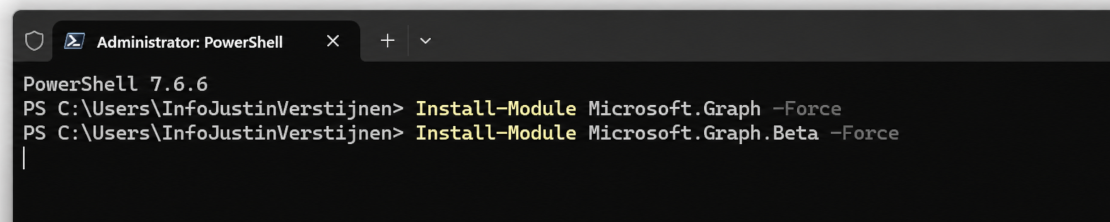
If you already have these modules installed, you can skip the step above.
Let’s connect to Microsoft Graph PowerShell using these required scopes, least privileges to read users and change the Source of Authority:
PowerShell
Connect-MgGraph -Scopes "User.Read.All","User-OnPremisesSyncBehavior.ReadWrite.All"If being asked to grant consent to the Microsoft Graph Command Line Tools, grant this as we need those permissions to perform the actions in the next steps. Admin consent is required for the User-OnPremisesSyncBehavior.ReadWrite.All permission.
After this has been completed, check if you are logged in correctly by using this command:
PowerShell
Get-MgContextThis should result in a list of details of your account, tenant and the granted scopes. We are now ready to perform the further steps.
Step 2. Preparing to disable the synchronization for the user
Before transferring the Source of Authority, make sure all current Active Directory changes for the user have been synchronized to Microsoft Entra ID. On your Microsoft Entra Connect Sync server, run:
PowerShell
Start-ADSyncSyncCycle -PolicyType DeltaWait for the synchronization cycle to complete before continuing. This should take up to 5 minutes.
Then can now select the user we want to convert. Run the line below on your own computer or management server and change the UserPrincipalName below to the user you want to make cloud-managed/cloud-only:
PowerShell
$UserPrincipalName = "testuser@justinverstijnen.nl"
This will create a variable which we can use in the further commands we are needed to run in the steps below.
Step 3. Check the current status
Now we have selected the correct user, let’s check the current Source of Authority using Microsoft Graph PowerShell:
PowerShell
Get-MgBetaUserOnPremiseSyncBehavior `
    -UserId $User.Id |
    Select-Object Id, IsCloudManaged
For a normal Active Directory synchronized user, IsCloudManaged should currently show False.
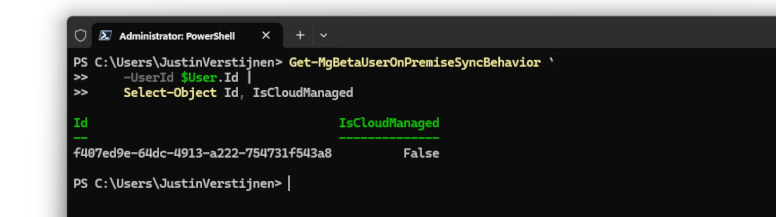
This means the local Active Directory is still the Source of Authority for this user and changes need to be made on-premises.
Step 4. Making the user cloud-only
Now we can transfer the Source of Authority for this specific user to Microsoft Entra ID, making it cloud only. Run the following command to perform this action:
PowerShell
Update-MgBetaUserOnPremiseSyncBehavior `
    -UserId $User.Id `
    -IsCloudManaged:$true
This changes IsCloudManaged to True for the selected user.
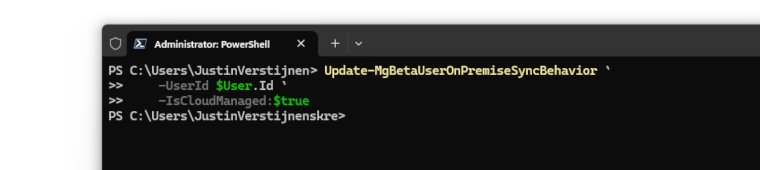
When IsCloudManaged is set to True, updates coming from the corresponding on-premises Active Directory object are blocked in Microsoft Entra ID. Entra Connect Sync can still continue synchronizing all other users normally.
This is the main difference compared to disabling directory synchronization company-wide: only the selected user is moved to cloud management.
Step 5. Verify the user
After performing the change, we want to make sure the Source of Authority was successfully transferred.
Run the following command again:
PowerShell
Get-MgBetaUserOnPremiseSyncBehavior `
    -UserId $User.Id |
    Select-Object Id, IsCloudManaged
IsCloudManaged should now show True. This means the user has now become cloud-only and Entra ID will block any on-premises changes to the user. The OnPremisesSyncEnabled parameter will become null.
Be aware
Do not remove the local Active Directory user before IsCloudManaged shows True. Always verify the Source of Authority first.
Step 6. Remove the local Active Directory user
If the user no longer requires access to on-premises resources, you can now remove the local Active Directory account if it’s not longer needed.
Microsoft Graph cannot manage your local Active Directory, so this part needs to be performed using the ActiveDirectory PowerShell module or by the GUI Active Directory Users and Computers (dsa.msc) on your Actibve Directory management server.
For example on how to perform it with PowerShell:
PowerShell
Remove-ADUser `
    -Identity "username" `
    -Confirm:$true
After removing the user, you can start another synchronization cycle on your Microsoft Entra Connect server:
PowerShell
Start-ADSyncSyncCycle -PolicyType DeltaBecause the Source of Authority for the user has now been transferred to the cloud, the Microsoft Entra ID user itself will remain available and not in deleted state.
Summary
In this post, I showed how to disable Active Directory synchronization for a single Microsoft Entra ID user without disabling Entra Connect Sync for the complete organization.
By transferring the user’s Source of Authority to Microsoft Entra ID, the user becomes cloud-managed and further changes from the local Active Directory are blocked for this specific object. Other users can continue to be synchronized through Entra Connect Sync normally. This gives us a much easier way to phase out the local Active Directory user-by-user instead of having to migrate the complete organization at once. After verifying that IsCloudManaged is set to True, users that no longer require any on-premises resources can also be removed from the local Active Directory without removing the Microsoft Entra ID user.
Some possible risks
- If the user is a member of groups that are still managed from your local Active Directory, removing the AD user can also remove those group memberships in Microsoft Entra ID
- Make sure required group memberships and permissions are transferred to cloud-managed groups before removing the local AD account
- If the user still requires access to on-premises resources, keep the local Active Directory object instead of deleting it, but the person will have 2 separate, non-synced accounts
Thank you for reading this post and I hope it was helpful!
Sources 📖
These sources helped me by writing and research for this post;
- https://learn.microsoft.com/en-us/entra/identity/hybrid/how-to-user-source-of-authority-configure
- https://learn.microsoft.com/en-us/entra/identity/hybrid/user-source-of-authority-overview
- https://learn.microsoft.com/en-us/entra/identity/hybrid/user-source-of-authority-guidance
- https://learn.microsoft.com/en-us/powershell/module/microsoft.graph.beta.users/get-mgbetauseronpremisesyncbehavior
- https://learn.microsoft.com/en-us/powershell/module/microsoft.graph.beta.users/update-mgbetauseronpremisesyncbehavior
End of the page 🎉
You have reached the end of the page. You can navigate through other blog posts as well, share this post on X, LinkedIn and Reddit or return to the blog posts collection page. Thank you for visiting this post.
Support the blog
Remove Universal Print Devices/Connectors
In this guide, I’ll show you how to remove Universal Print connectors using PowerShell, because this cannot be done from the Universal Print portal.
Introduction
In Universal Print, a connector is the link between your local print environment and Universal Print. Over time, you may end up with connectors that are no longer used. For example, after replacing a print server, changing your print setup, or cleaning up old test configurations. These connectors will store your devices in Entra ID, so over time this list will fill up with old devices and connectors.
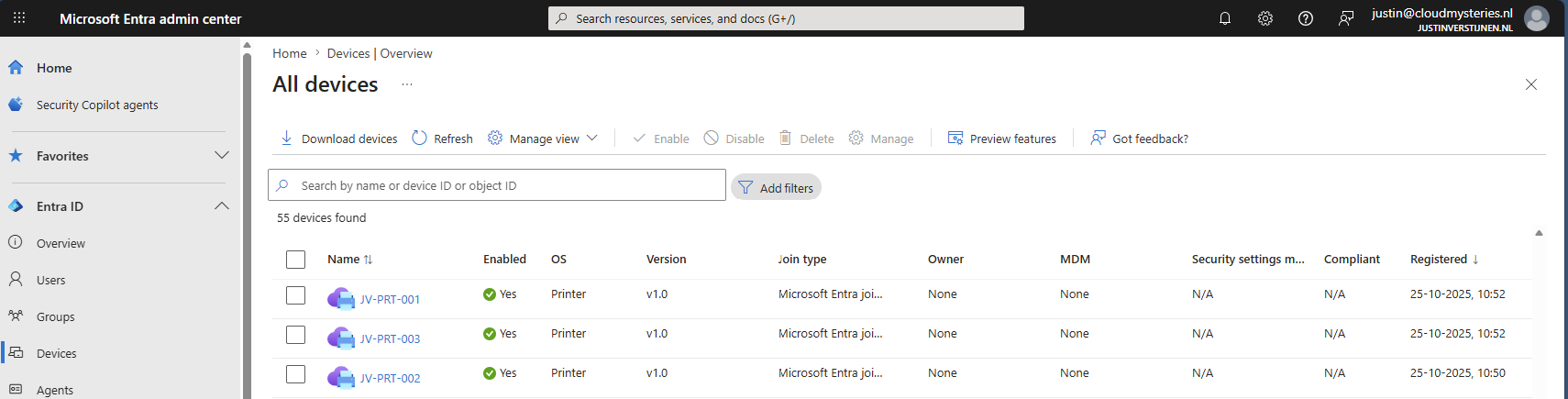
Universal Print portal does not provide an option to eventually remove connectors in the portal at https://aka.ms/UPPortal. So if you want to clean them up, you need to use PowerShell.
In this guide, I’ll walk you through the steps to remove a Universal Print connector.
Step 1: Install the Universal Print PowerShell module
First, we need to install the Universal Print PowerShell module. This module contains the cmdlets we need to manage Universal Print from PowerShell.
Open up your PowerShell window and execute this command to install this module:
PowerShell
Install-Module UniversalPrintManagement -Scope CurrentUserIf PowerShell asks you to trust the repository, confirm this if you trust the source.
The Module installation can take up to some minutes, in my case this was around 3 minutes to completely finish.
Step 2: Connect to Universal Print
Now that we have our module installed, we are ready to connect your PowerShell session to Universal Print. Run this command to connect to your Microsoft Entra tenant:
PowerShell
Connect-UPServiceA sign-in window will appear. Sign in with an account that has the required permissions to manage Universal Print in your tenant.
If the sign-in was succesful, you will not receive any further error messages and we are ready to go to the next step.
Step 3: Remove the connector
Before we can remove the connector, make sure you have the correct ConnectorId. You can find the ConnectorId in the Universal Print connector details in the Azure portal (https://aka.ms/UPPortal).
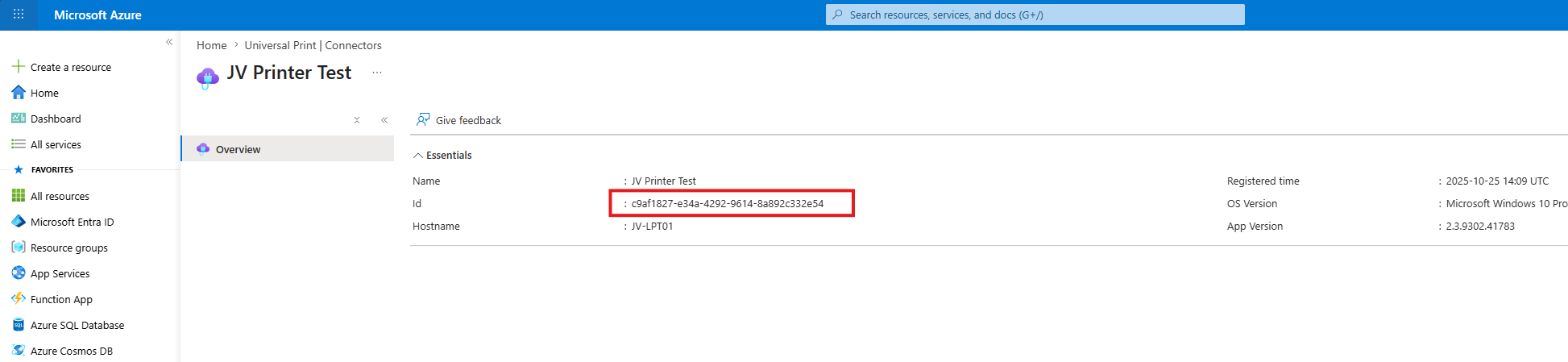
Copy this value as we will need this Id in our PowerShell command. Please double check if you have the right connector in case of multiple connectors.
Now remove the connector by running the command below. Replace the example ConnectorId with the ConnectorId of the connector you want to remove.
PowerShell
Remove-UPConnector -ConnectorId c9af1827-e34a-4292-9614-8a892c332e54
After running the command, the connector will be removed from the Universal Print portal:
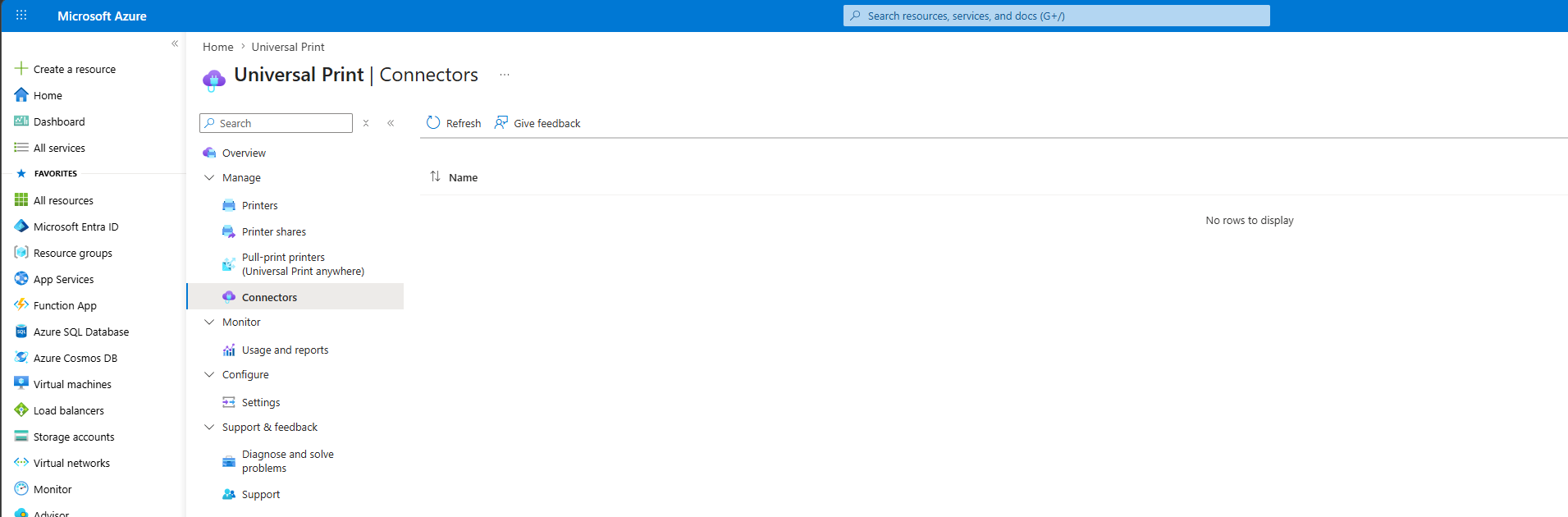
That’s it. Your unused Universal Print connector should now be removed!
Summary
Universal Print connectors cannot be removed from the Universal Print portal. If you want to clean up old or unused connectors, you need to remove them with PowerShell. In this guide we followed the relatively easy steps to achieve this goal.
The process is simple:
- Install the Universal Print PowerShell module.
- Connect to Universal Print.
- Find the correct ConnectorId.
- Remove the connector with the Remove-UPConnector command.
Thank you for reading this post and I hope it was helpful!
Sources 📖
These sources helped me by writing and research for this post;
End of the page 🎉
You have reached the end of the page. You can navigate through other blog posts as well, share this post on X, LinkedIn and Reddit or return to the blog posts collection page. Thank you for visiting this post.
Support the blog
Solved - ADSync service stopped (Entra Connect Sync)
This blog post helps you to make the ADSync service more stable by utilizing a script that checks the service regularly and starting it when needed.
Sometimes, the ADSync service stops without further notice. You will see that the service has been stopped in the Services panel:

In this guide I will explain how I solved this problem using a simple PowerShell script.
The Check ADSync script
The PowerShell script that fixes this problem is on my GitHub page:
The script simply checks if the service is running, if this is the case the script will be terminated. If the service is not running, the service will be started.
The problem and possible causes
The problem is caused after a server restart, then the service will not start itself automatically, even when this is selected in Windows. This is enabled by defaut by the installation wizard.
In the Event Log there will be these events:
- Event 7000: The Microsoft Azure AD Sync service failed to start due to the following error: The service did not start due to a logon failure.
- Event 7031: The Microsoft Azure AD Sync service terminated unexpectedly. It has done this 1 time(s). The following corrective action will be taken in 0 milliseconds: Restart the service.
The fun part is that it cannot login according to the Entra Connect Sync tool but after some minutes it does.
Running the script
We can run the script manually using the PowerShell ISE application.
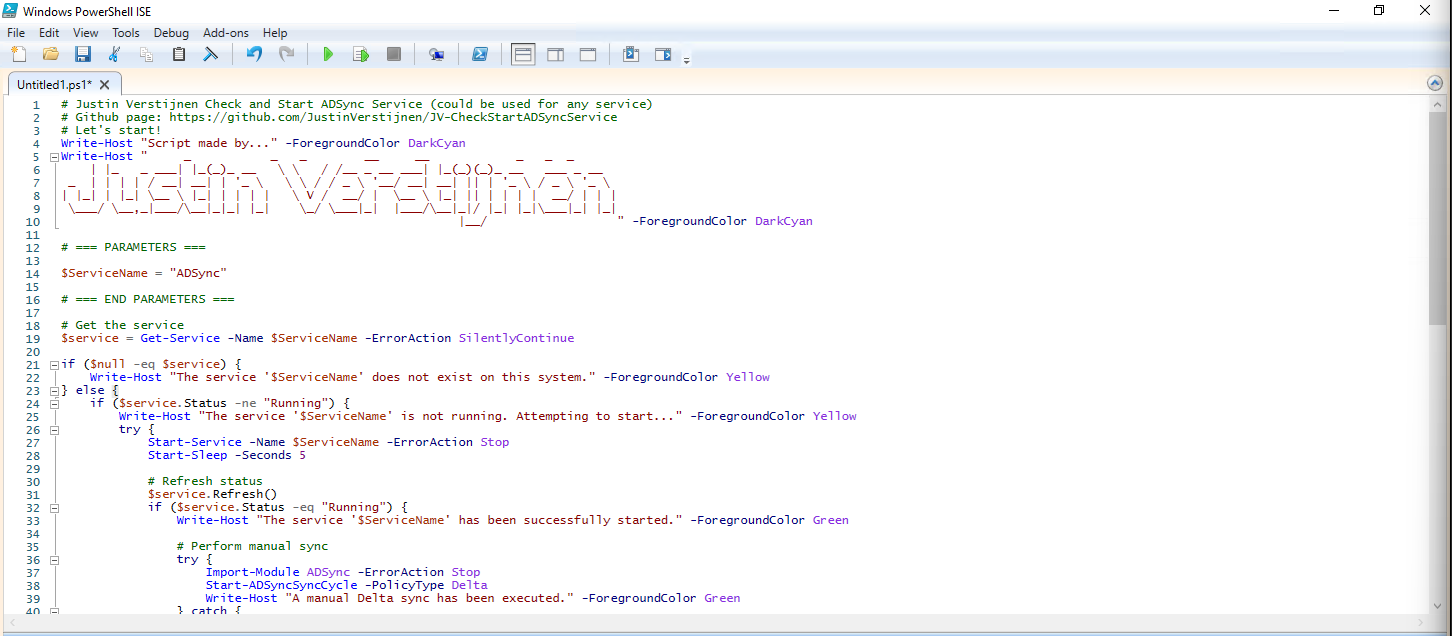
After running the script, the service does run:

Installing the clean script automatically
For installation with Task Scheduler I included an installation script that, by default, configures a task in the Windows Task Scheduler that runs it;
- Every first day of the month
- At hour 03:00
If these settings are great for you, you can leave them as-is.
The Installation script creates a folder in C:\ named “Scripts” if not already there and places the cleaning script there.
Installation
Click on the blue button above. You now are on the Github page of the script.
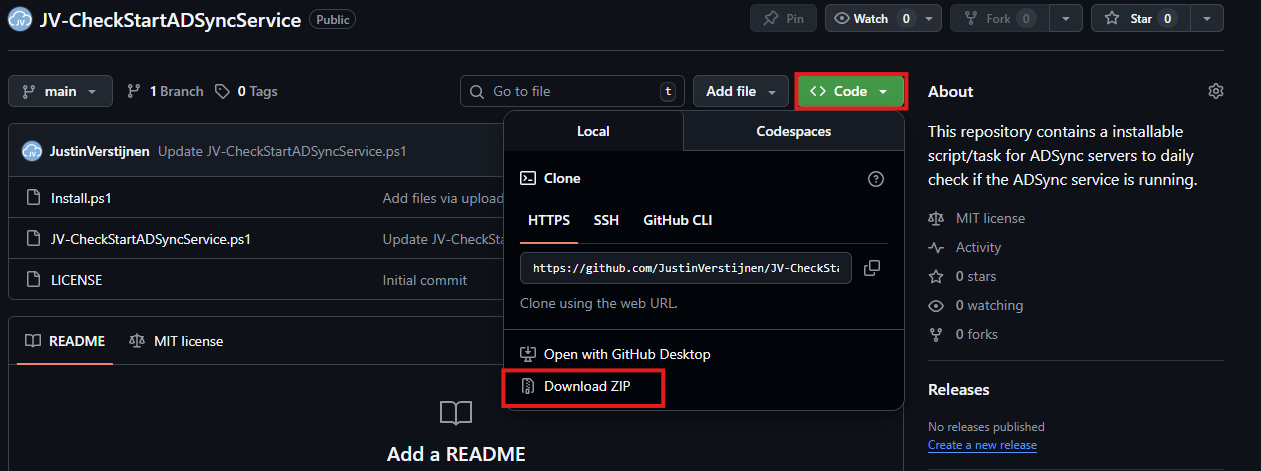
Click on “Code” and then “Download ZIP”.
Then place the files on the server where you want to install the script.
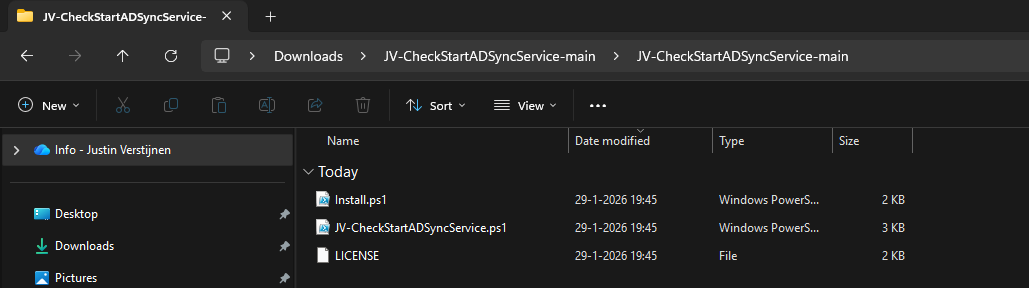
Open Powershell ISE as administrator.
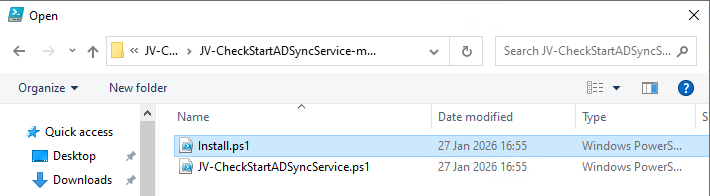
Now open the “Install” script.
Review it’s default settings and if you feel at home in PowerShell, review the rest of the script to understand what it does.
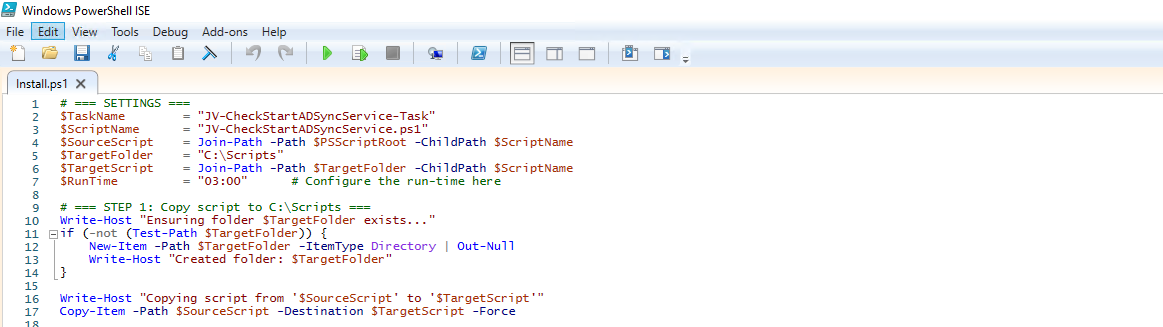
You can change the schedule very easily by changing the runtime: 0:00 till 23:59 and the day of month to specify the day number of the month (1-31).
After your schedule is ready, let’s ensure we temporarily bypass the Execution Policy by typing the command in the blue window below:
POWERSHELL
Set-ExecutionPolicy Unrestricted -Scope Process -ForceThis way the execution policy stays enabled but for this session only it’s been lowered. When you close the window, you have to type this again before be able to run scripts.
Execute the command, and when prompted to lower the policy, click Yes.
Now execute the Install script by clicking the green “Run” button:
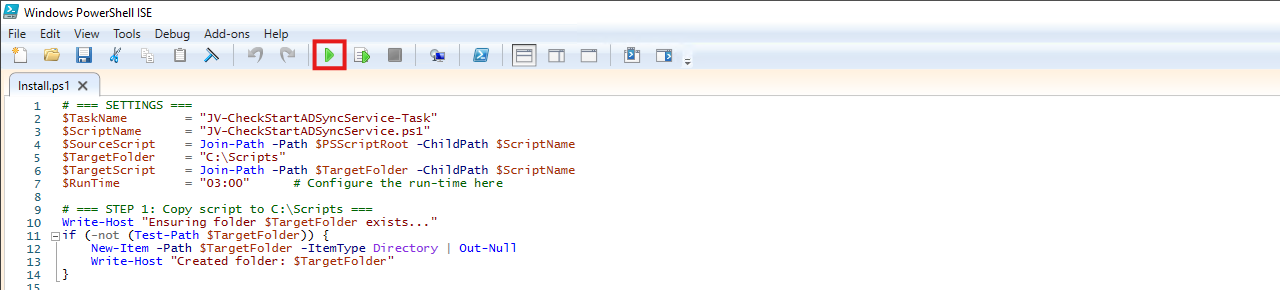
After executing the script, we get the message that the task has been created succesfully:

Let’s check this in the Windows Task Scheduler:
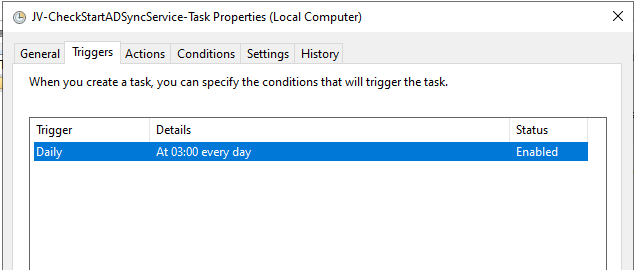
As you can see, the script is succesfully installed to Task Scheduler. This ensures it runs every first of the month at 03:00 (or at your own defined schedule). Also, the script has been placed in C:\Scripts for a good overview of the scripts of the system.
Summary
This simple script resolved me a lot of problems, checking the service automatically and starting it. A Entra Connect Sync not running is very stable. Users can get different types of errors, de-synchronisations and passwords that are not working.
Thank you for visiting this page and I hope it was helpful.
Sources 📖
These sources helped me by writing and research for this post;
End of the page 🎉
You have reached the end of the page. You can navigate through other blog posts as well, share this post on X, LinkedIn and Reddit or return to the blog posts collection page. Thank you for visiting this post.
Support the blog
Match AD users using Entra Connect Sync and MSGraph
Sometimes, it is necessary to match an existing local Active Directory (AD) user through Entra Connect with an existing Entra ID user (formerly known as Azure AD). This process ensures that the account in both environments is aligned and maintains the same underlying configurations and settings across systems.
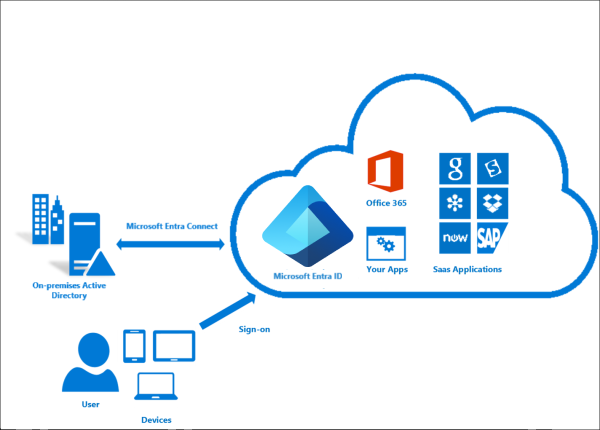
The difference between soft and hard matching
Most of the time the system itself will match the users automatically using soft-matching. Here the service will be matching users in both Entra ID and Active Directory by using known attributes like UserPrincipalName and ProxyAddresses.
In some cases, especially when you use different Active Directory and Entra ID domains, we need to give the final tip to Entra ID to match and AD user to an Entra ID users. We will tell Entra ID what the GUID of the on-premises user is by getting that value and encode it into Base64. Then we pass Entra ID this value so it understands what local user to link with what cloud user. This process is called “hard-matching”, as we have to do this by hand or by scripting.
The process described
The steps to hard-match an Entra ID and Active Directory user are in short:
- Determine the local and cloud user you want to match
- On the on-premises Active Directory, run the command “Get-ADUser *username*”
- Copy the GUID value
- Run the command “[Convert]::ToBase64String([guid]::New(”*GUID*").ToByteArray())" with *GUID* replaced by the GUID from step 3
- Copy the Base64 value
- Connect to Microsoft 365 by using “Connect-MSOLService”
- Run the command “Set-MsolUser -UserPrincipalName user@domain.com -ImmutableId *BASE64*
- Run a Entra Connect Sync
Step 1: Fetching Active Directory GUID
To merge an existing on-premises user and an existing cloud user into one unified user account under the hood, follow these steps:
Log in to your Active Directory management server
Open PowerShell.
Execute the following command:
POWERSHELL
Get-ADUser -Identity *username*Replace *username* by the username of the user you want to match.
The output of the command above will be something like this:
POWERSHELL
DistinguishedName : CN=administrator,OU=Users,DC=justinverstijnen,DC=nl
Enabled           : True
GivenName         : Administrator
Name              : administrator
ObjectClass       : user
ObjectGUID        : c97a6c98-ded8-472c-bfb6-87ed37d324f5
SamAccountName    : administrator
SID               : S-1-5-21-1534517208-3616448293-1356502261-1244
Surname           : Administrator
UserPrincipalName : administrator@justinverstijnen.nl
Copy the value of the ObjectGUID, in this case:
POWERSHELL
c97a6c98-ded8-472c-bfb6-87ed37d324f5Because Active Directory uses GUID for a unique identifier of the user and Entra ID uses a Base64 value for a unique identifier, we need to convert the GUID string to a Base64 string. We can do this very easy with Powershell too:
POWERSHELL
[Convert]::ToBase64String([guid]::New("c97a6c98-ded8-472c-bfb6-87ed37d324f5").ToByteArray())We get a value like this:
POWERSHELL
mGx6ydjeLEe/toftN9Mk9Q==Now we have the identifier Entra ID needs. We change the ID of the cloud user to this value. This way the system knows which on-premises user to sync with which cloud user.
Step 2: Logging into Entra ID with Microsoft Graph
To actually match the users, we need to login to Microsoft Graph in PowerShell, as we can there perform the actions. For installation instructions of the Microsoft Graph PowerShell module: https://www.powershellgallery.com/packages/Microsoft.Graph
Run the following command to login to Microsoft Entra ID with Microsoft Graph:
POWERSHELL
Connect-MgGraph -Scopes "User.ReadWrite.All"Login with your Microsoft Entra ID administrator account.
Step 3: Set the new Immutable ID in Microsoft Entra
After succesfully logging into Microsoft Graph, run the command to set a (new) Immutable ID for your cloud user:
POWERSHELL
Update-MgUser -UserId "administrator@justinverstijnen.nl" -OnPremisesImmutableId "mGx6ydjeLEe/toftN9Mk9Q=="Now the user is hard matched. You need to run a Entra Connect synchronization to finish the process.
Log in to the server with AD Connect/Entra Connect sync installed and run the command:
POWERSHELL
Start-ADSyncSyncCycle -PolicyType DeltaNow your on-premises user and cloud user have been matched!
Summary
Hardmatching users is relatively easy, but requires some steps that are good to know. After doing this around 3 times you will perform this completely on “auto-pilot”.
Sources 📖
These sources helped me by writing and research for this post;
End of the page 🎉
You have reached the end of the page. You can navigate through other blog posts as well, share this post on X, LinkedIn and Reddit or return to the blog posts collection page. Thank you for visiting this post.
Support the blog
Implement Certificate-based authentication for Entra ID scripts
When using Entra ID, we can automate a lot of different tasks. We can use a script processing server for this task but doing that normally means we have to save credentials or secrets in our scripts. Something we don’t want. Today I will show how to implement certificate-based authentication for App Registrations instead of using a client secret (which still feels like a password and matches it’s unsafety).
Requirements
- Around 20 minutes of your time
- An Entra ID environment if you want to test this
- A prepared Entra ID app registration
- A server or workstation running Windows to do the connection to Entra ID
- Some basic knowledge about Entra ID and certificates
How does these certificates work?
Certificate based authentication means that we can authenticate ourselves to Entra ID using a certificate instead of user credentials or a password in plain text. When using some automated scripts it needs permissions to perform its actions but this means storing some sort of authentication. We don’t want to store our credentials on the server as this decreases our security and a potential risk of compromise.
Certificate based authentication works by generating a certificate (SSL/Self-signed) and using that for authentication. The certificate has to be enabled and on both sides, like described in the picture above.
This means that if an client doesn’t have a allowed certificate installed, we can never connect. This is great, so we can store our certificates in a digital safe and only install this on our script processing server. When generating a self signed certificate, a private key is also generated by the computer which means this also has to be in hands of an attacker to abuse your certificate.
After authenticating, we have the permissions (API or Entra Roles) assigned to the Enterprise Application/App Registration, which we will call a “Service Principal”.
Note: Self Signed certificaties will expire after 365 days (1 year).
Why this is more safe than secrets/credentials?
In the old Windows Server days, we could sometimes find really unsecure jokes like these:
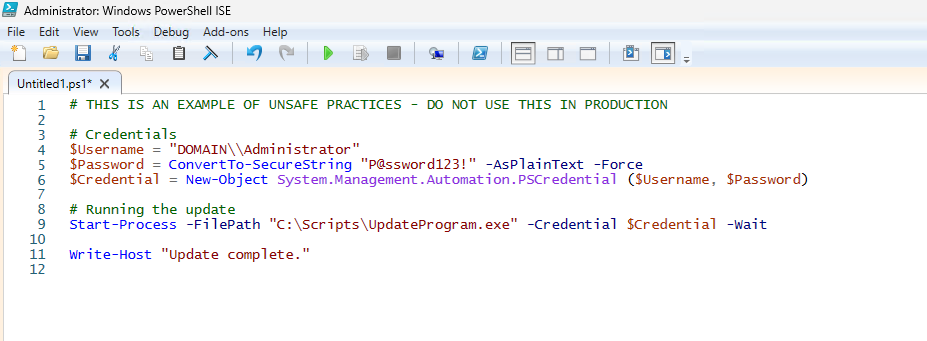
This is something that is really unsecure and I advice you to never do actions like these. With certificate-based authentication we eliminate the need for this by a lot.
Generating a self signed certificate
On our server or workstation where you want to setup the connection, we can generate a self signed certificate. The server then generates a certificate which is unique and can be used for the connection.
Let’s open PowerShell to generate a new Self Signed certificate. Make sure to change the *certificatename to your own value:
POWERSHELL
New-SelfSignedCertificate -Subject *certificatename* -CertStoreLocation Cert:\CurrentUser\MyThen we have to get the certificate to prepare it for exporting:
POWERSHELL
$Cert = Get-ChildItem -Path Cert:\CurrentUser\My | Where-Object {$_.Subject -eq "CN=*certificatename*"}Then give your certificate a name:
POWERSHELL
$CertCerPath = "Certificate.cer"And then export it to a file using the settings we did above:
POWERSHELL
Export-Certificate -Cert $Cert -FilePath $CertCerPath -Type CERTWe now have generated a self signed certificate using the settings of the server. We now must import this into Entra ID. This file doesn’t include a private key and this is stored on the server.
Adding a certificate to a Entra ID app registration
Now head to the Entra ID portal and go to your already created App registration, and then to “Certificates & Secrets”.
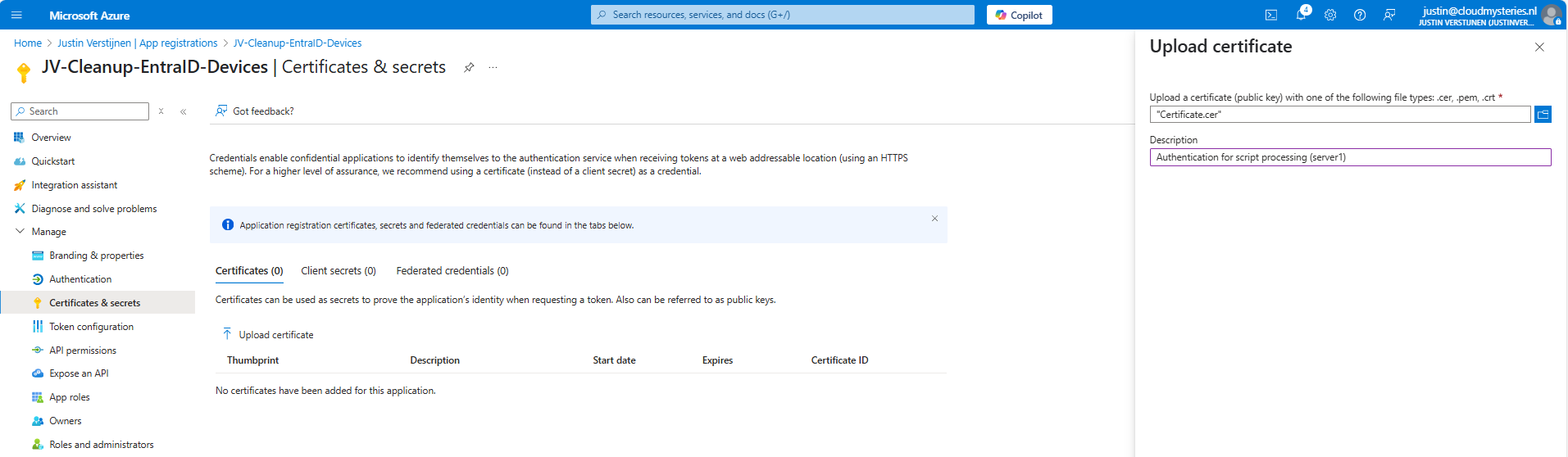
Upload the .cer file there to assign it to the app registration and get the assigned roles.
Now you will see the certificate uploaded:

Now we have the thumbprint of the certificate, which is a identifier of the certificate. You can also get this on the server where you just generated the certificate:
POWERSHELL
$cert.ThumbprintConnecting to Entra ID using a certificate
Installing the Microsoft Graph Powershell module can be done with:
PowerShell
Install-Module Microsoft.Graph -Scope CurrentUser -Repository PSGallery -Force
We can now logon to Microsoft Graph using this certificate, we must first fill in the parameters on your server:
POWERSHELL
$clientId = "your client-id"
$tenantId = "your tenant-id"
$thumbprint = "your thumbprint"

$cert = Get-ChildItem -Path Cert:\CurrentUser\My | Where-Object { $_.Thumbprint -eq $thumbprint }
Make sure you use your own client ID, Tenant ID and certificate thumbprint.
Now let’s connect to Graph with your certificate and settings:
POWERSHELL
Connect-MgGraph `
    -ClientId $clientId `
    -TenantId $tenantId `
    -Certificate $cert
Now you should be logged in succesfully:
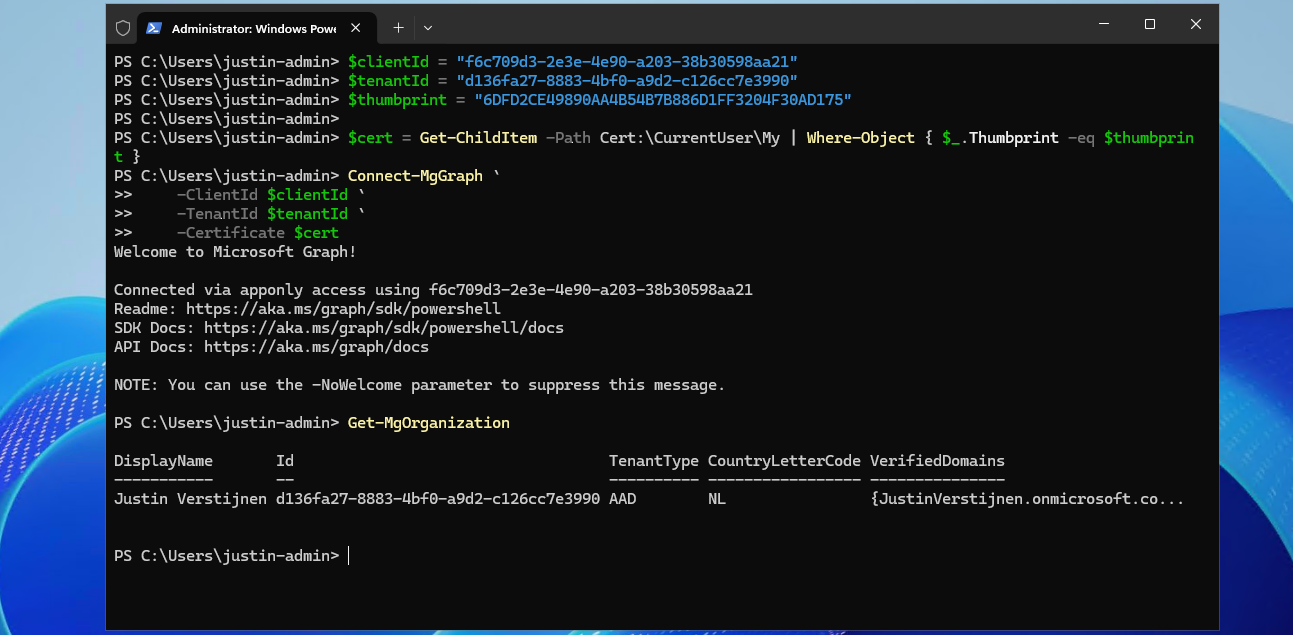
I double checked if we were able to get our organization and that was the case. This is a command that doesn’t work when not connected.
Connecting to Entra ID without a certificate (test)
As we should not be able to connect without the certificate installed, we will test this for sure on another device:
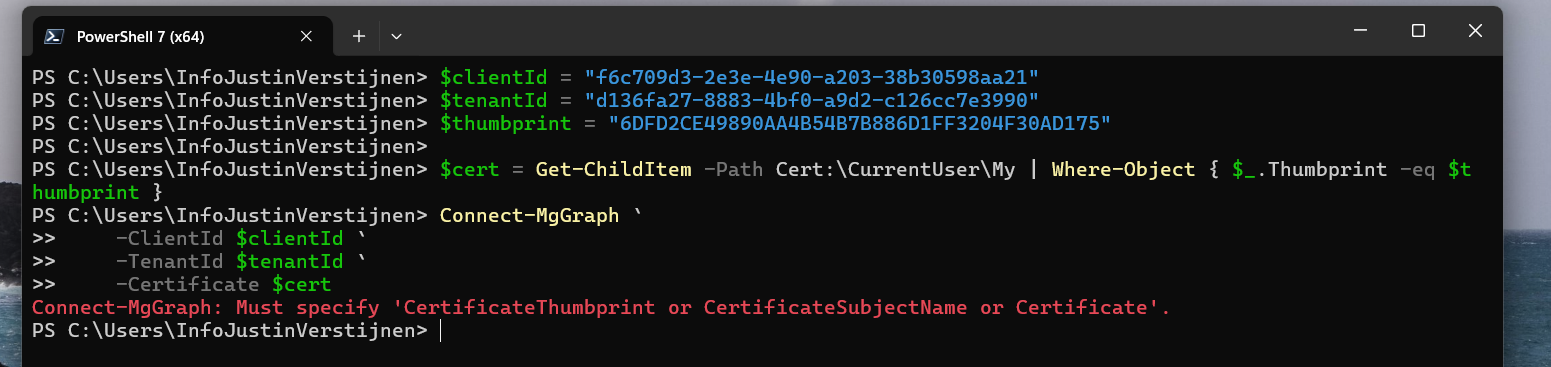
Powershell cannot find our certificate in the store. This is as expected as we didn’t install it. But let’s try another method:

With Exchange Online Powershell, this also doesn’t work because we don’t have the certificate installed. Working as intended!
Summary
Implementing Certificate based authentication is a must for unattended access to Entra ID and app registrations. Its a great authentication method when having a script processing server that needs access to Entra ID or any Microsoft 365/Azure service and not wanting to hard-code credentials which you shouldn’t do either.
This can also be used with 3rd party applications when supported. Most of the applications will only support Client ID and secrets, as this is much easier to implement.
Sources 📖
These sources helped me by writing and research for this post;
End of the page 🎉
You have reached the end of the page. You can navigate through other blog posts as well, share this post on X, LinkedIn and Reddit or return to the blog posts collection page. Thank you for visiting this post.
Support the blog
Audit your Entra ID user role assignments
Today I have a relatively short blog post. I have created a script that exports all Entra ID user role assignments with Microsoft Graph. This can come in handy when auditing your users, but then realizing the portals doesn’t always show you the information in the most efficient way. Therefore, I have created a script that only gets all Entra ID role assignments to users of every role and exports it to a nice and readable CSV file.
Requirements
- Microsoft Graph PowerShell module
- Entra P2 or Governance license for PIM
- Only required for fetching PIM specific data. Script can run without licenses.
Entra ID User role assignments script
To start off with the fast pass, my script can be downloaded here from my Github page:
Using the Entra ID User role assignments script
I have already downloaded the script, and have it ready to execute:
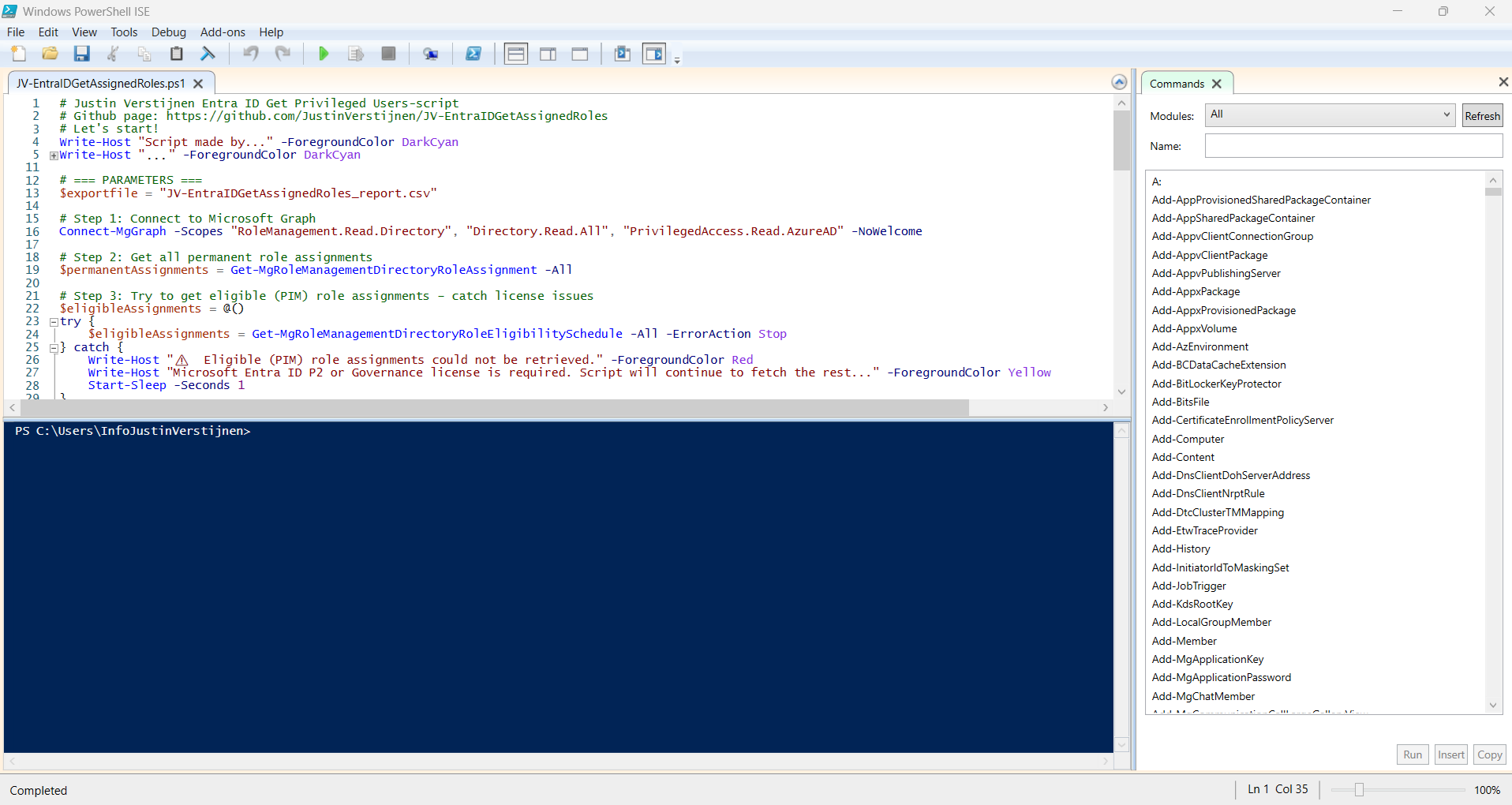
When executed, it asks to login to a tenant. Here you have to login to the tenant you want to audit. After that it will be performing the checks. This can take a while with several users and role assignments.
When prompted that the Execution Policy is restricted, you can use this command for a one-time bypass (till the window closes):
Set-ExecutionPolicy Unrestricted -Scope Process
After the script finishes all the checks, it puts out a CSV file in the same folder as the script which we can now open to review all the Entra ID user role assignments:

As you can see, this shows crystal clear what users and assigned roles this environment has.
Using the script without PIM licenses
If your environment doesn’t have any licenses for Privileged Identity Management (PIM), we can still use the script, but an error will be printed in the processing of the script:
POWERSHELL
⚠️  Eligible (PIM) role assignments could not be retrieved.
Microsoft Entra ID P2 or Governance license is required. Script will continue to fetch the rest...
Summary
This very short blog post shows the capabilities of this users script. In my opnion, the GUI shows most of the information, but is not particularly good at summarizing information from multiple pages. Powershell is, as we can get information from everywhere and put it in one single file.
Sources 📖
These sources helped me by writing and research for this post;
End of the page 🎉
You have reached the end of the page. You can navigate through other blog posts as well, share this post on X, LinkedIn and Reddit or return to the blog posts collection page. Thank you for visiting this post.
Support the blog
Audit your privileged Entra ID applications
In Microsoft Entra ID it’s possible to create App registrations and Enterprise applications who can get high privileges if not managed and monitored regularly. We do our best with Identities to be secure, with security processes like MFA, access reviews and such, but most of the companies don’t care that much about the Enterprise applications. In this post, I will try to convince you that this is as much as important as identities. For helping you to solve this I built a PowerShell script to get a complete overview of all the applications and their permissions.
Entra ID Privileged Applications report script
To start off with the fast pass, my script can be downloaded here from my Github page:
This script can be used to get a report of all high privileged applications across the tenant. Go to this section for instructions of how to use the script and the output.
What are Enterprise Applications?
Enterprise Applications in Entra ID are the applications which will be registered when users need them. Somethimes, it can be for a add-on of Outlook or Teams, but other times this can be to enable Single Sign On to 3rd party applications.
Info
In terms of Entra ID and Identity, we call such application a Service Principal. A principal for a service to give permissions to.
Enterprise applications are mostly pre-configured by the 3rd party publisher of the application that needs permission. However, a user can be prompted to give their information to a application. This looks like this:
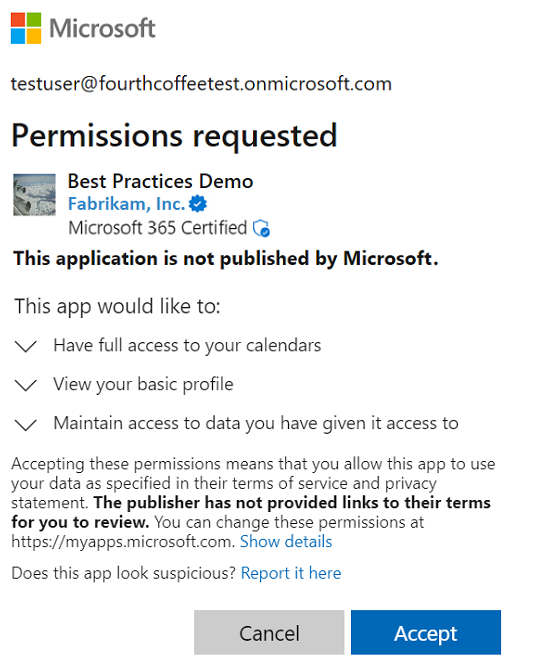
As we can see, the application gets the information of the calendars, the profile of the user and gets data. These alone aren’t not that much privileged, but this can be much worse. Let’s take a look at App Registrations.
What are App Registrations?
App Registrations are applications who are mostly custom. These can be used for Single Sign On integration with 3rd party applications or to provide access from another application to Microsoft Entra ID and subservices.
App Registrations are commonly more privileged and can be dangerously high privileged, even not having a requirement for MFA. The only thing you need to use an app registration is:
- Client ID
- Tenant ID (public available: https://tools.justinverstijnen.nl/tenantlookuptool/)
- Secret/Certificate
App registrations can have permissions far above “Global Administrator”, but we don’t handle them like global administrators or even higher accounts. The Microsoft Secure Score also doesn’t report them and they can be hard to find.
Warning
These applications are used in practice by hackers to leave backdoors in tenants to remain in the tenant. If they do this right, they can be unseen for months while still stealing company information.
What to do to prevent unauthorized access through apps?
We can do several things to avoid being hacked by this sort of things:
- Audit all applications every X days, deleting apps that aren’t needed
- You can use my script to help you audit
- Saving App registration information in safe places only, don’t transfer them in plain-text over email
- Treat these applications as passwords and certificates
Let’s create a High privileged App registration
We will now create a high privileged app registration, purely to showcase the permissions and to show you how much of a deal this could be.
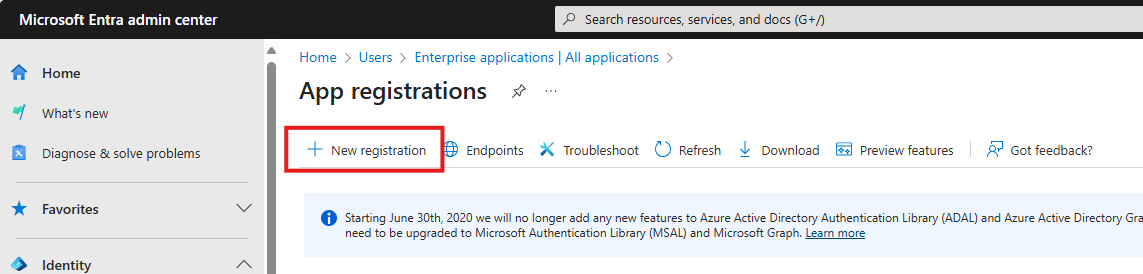
Open the Microsoft Entra admin center and go to: Applications and then click App registrations.
Click on + New registration:
Fill in a name and the rest doesn’t care for testing purposes. You can leave them default.
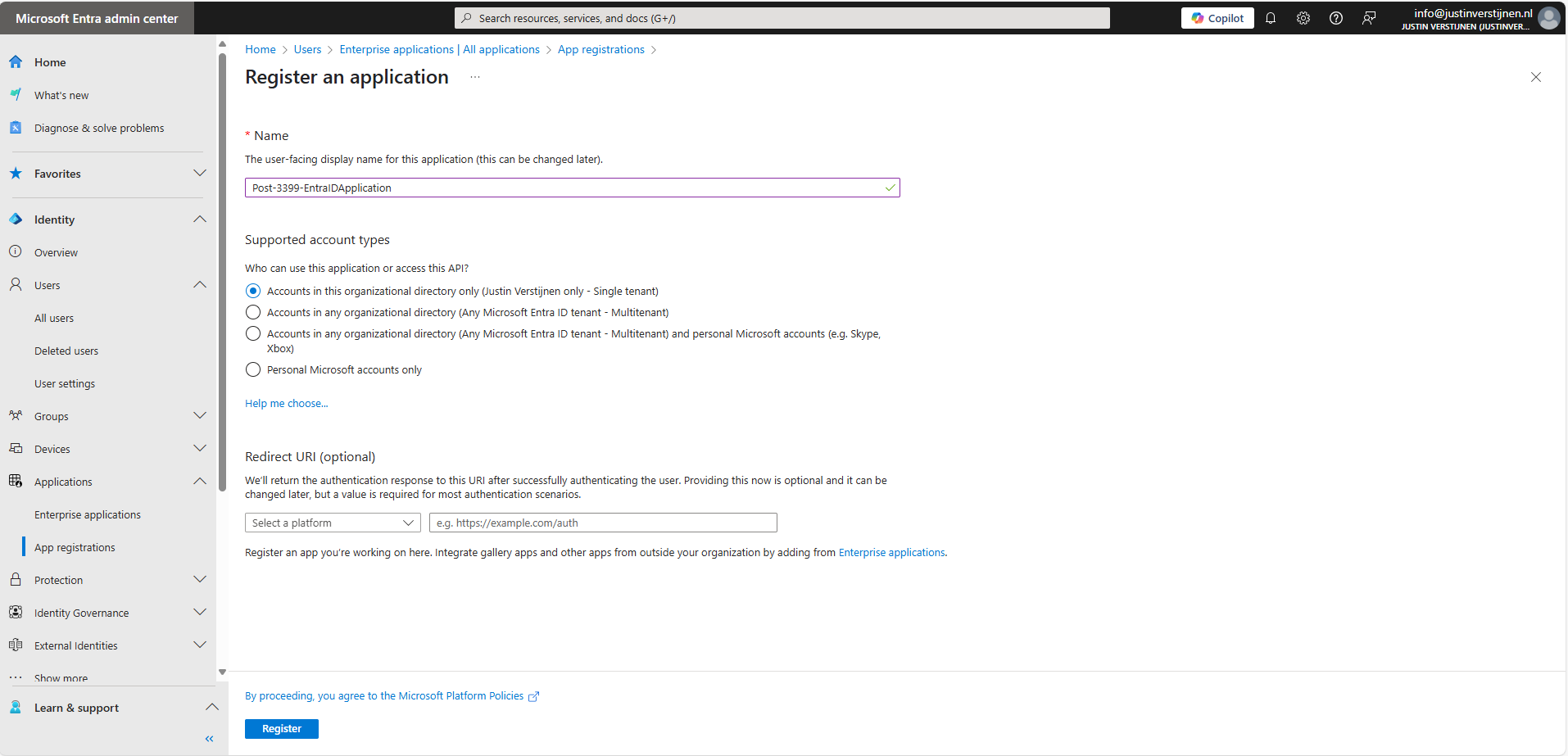
Click Register to finish creating the application.
Permissions and Assignment
Now the application is created. Open it if not already redirected. Write down the Client ID and the Tenant ID because we will need them in a short moment. Then go to the section API permissions.
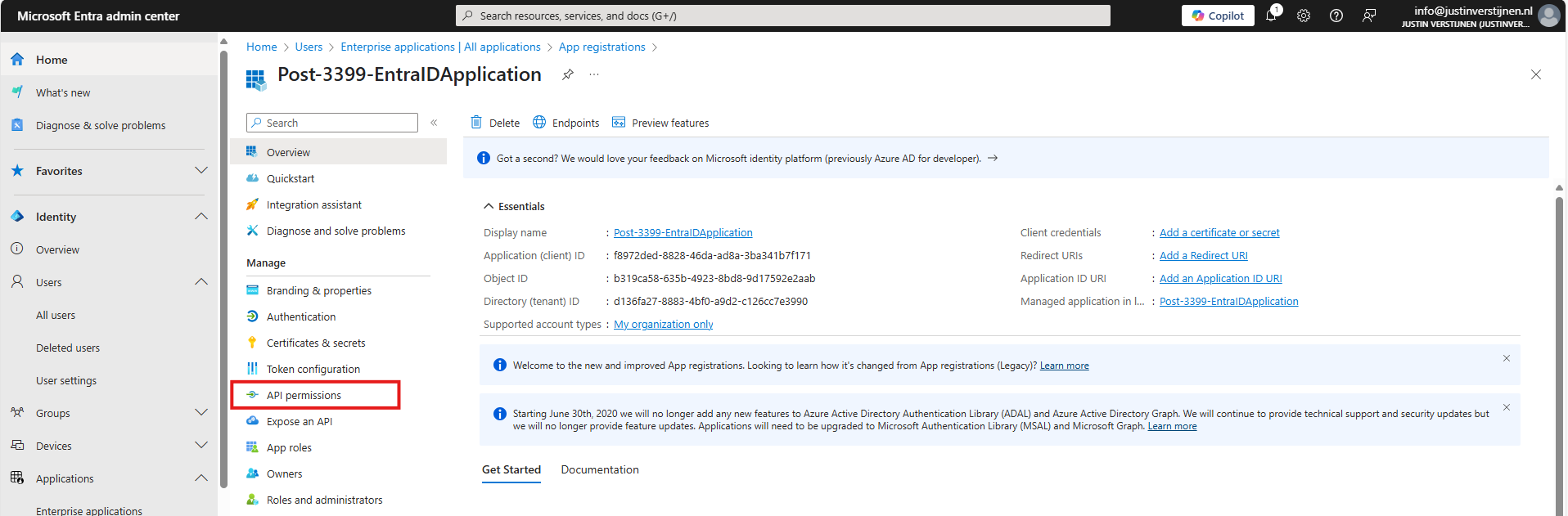
Here you find all assigned permissions to the application. Click on + Add a permission to add permissions to this application. Then click on Microsoft Graph.
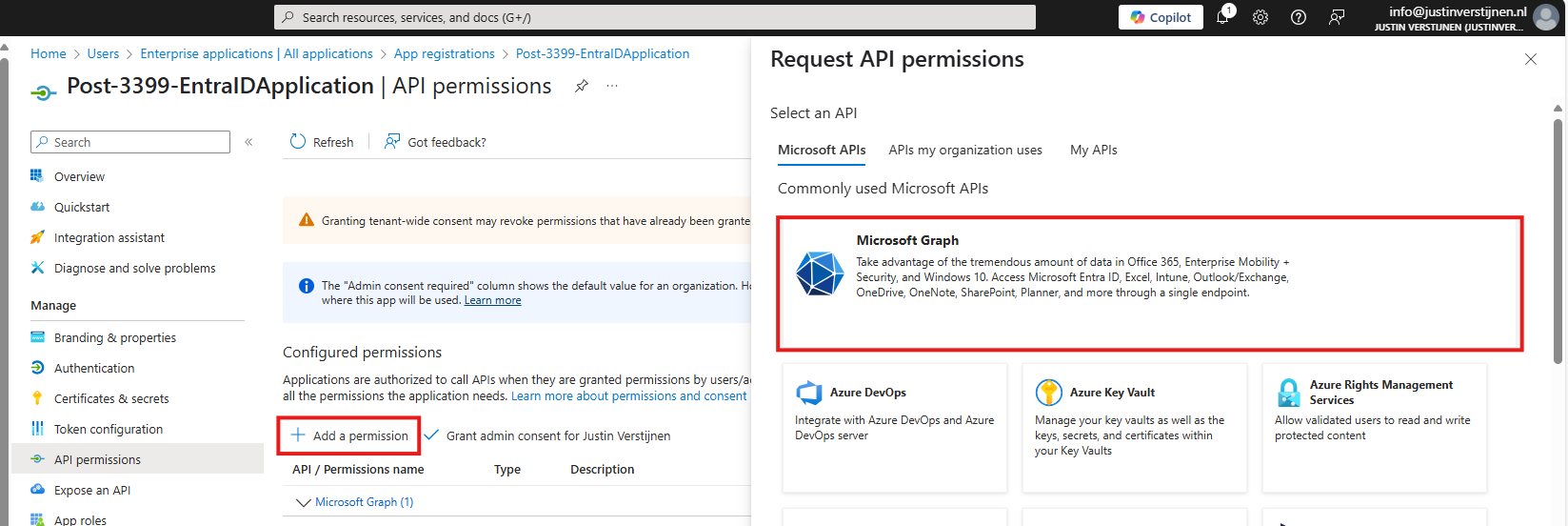
Microsoft Graph is the new API of Microsoft that spans across most of the Microsoft Online services.
Click now on Application permissions:
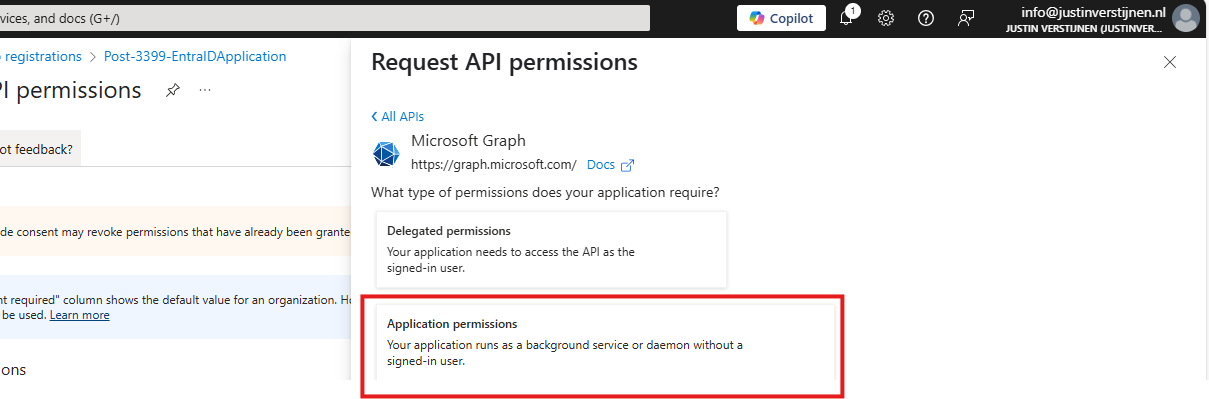
Now we can choose several permissions that the application gets. You can search for some of the High privileged apps, for example these:
| Permission name | Action |
|---|---|
| Directory.ReadWrite.All | Read and write directory data |
| User.ReadWrite.All | Read and write all users’ full profiles |
| Policy.ReadWrite.ConditionalAccess | Read and write your organization’s conditional access policies |
| Mail.ReadWrite | Read and write mail in all mailboxes |
| Application.ReadWrite.All | Read and write all applications |
| PrivilegedAccess.ReadWrite.AzureResources | Read and write privileged access to Azure resources |
As you can see; if I create the application with these permissions I have a non-monitored account which can perform the same tasks as a Global Administrator, disabling MFA, exporting all users, reading contents of all mailboxes, creating new backdoors with applications and even escalate privileges to Azure resources.
Create the application with your permissions and click on “Grant admin consent for ‘Tenant’” to make the permissions active.
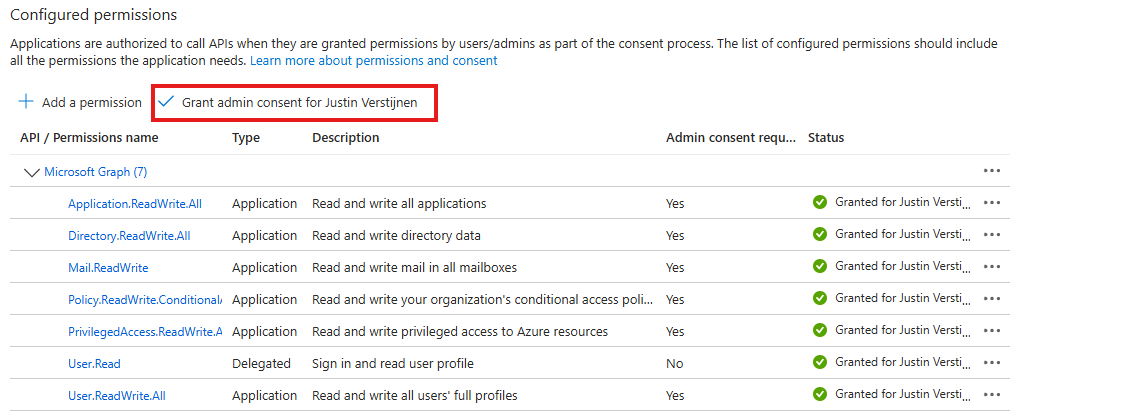
Create Client secret for application
We can now create a Client secret for this application. This is a sort of master password for accessing the service principal. This can also be done with certificates, which is more preferred in practice environments, but it works for the demo.
In Entra, go to the application again, and the to “Certificates & secrets”:
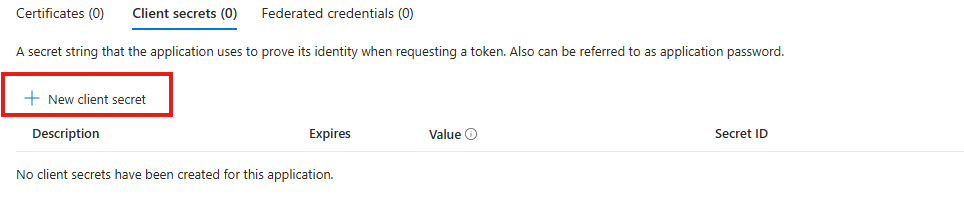
Create a new secret.
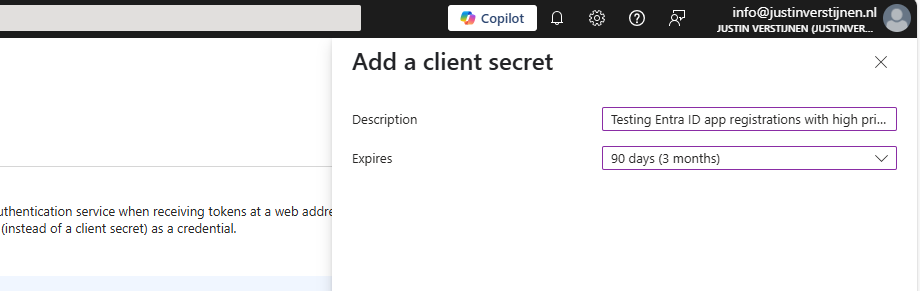
Specify the period and the lifetime and click on “Add” to create the secret.

Now copy both the Value, which is the secret itself and the Secret ID and store them in a safe place, like a password manager. These can be viewed for some minutes and then will be concealed forever.
Using this application to login on Microsoft Graph
We can now use the application details to login to Microsoft Graph with the following script:
PowerShell
# Fill in these 3 values
$ApplicationClientId = '<your-app-client-id>'
$TenantId = '<your-tenant-id>'
$ApplicationClientSecret = '<your-client-secret>'

Import-Module Microsoft.Graph.Authentication

# Create a ClientSecretCredential object
$ClientSecretCredential = [Microsoft.Graph.Auth.ClientCredentialProviderFactory]::CreateClientSecretCredential(
    $TenantId,
    $ApplicationClientId,
    $ApplicationClientSecret
)

# Connect to Microsoft Graph without the welcome banner
Connect-MgGraph -ClientSecretCredential $ClientSecretCredential -NoWelcome
Here we can fill in the Client ID and Tenant ID from the previous steps and the Secret from the created client secret. Then run it with PowerShell. I advice to use the Windows PowerShell ISE for quick editing of the script and executing + status for debugging.
After logging in we can try to get and change information:
Get all Users:
PowerShell
Get-MgUserCreate user:
PowerShell
$PasswordProfile = @{
  Password = 'Pa$$w)rd!'
}
New-MgUser -Displayname "Test" -MailNickname "test" -Userprincipalname "test@justinverstijnen.nl" -AccountEnabled -PasswordProfile $PasswordProfile
Remove user:
PowerShell
Remove-MgUser -UserId "247f8ec8-c2fc-44a0-9665-48b85c19ada4" -ConfirmWatch the demo video here:
Now a user isn’t that destructive, but given the scopes we assigned: we can do a lot more. For more Microsoft Graph commands, visit: https://learn.microsoft.com/en-us/powershell/module/microsoft.graph.users/?view=graph-powershell-1.0
Using my script to Audit all high privileged applications
Now that we have created and abused our demo application, let’s use my script to get a report where this application must be reported.
You can, once again, download the script here:
I have already downloaded the script, and have it ready to execute:
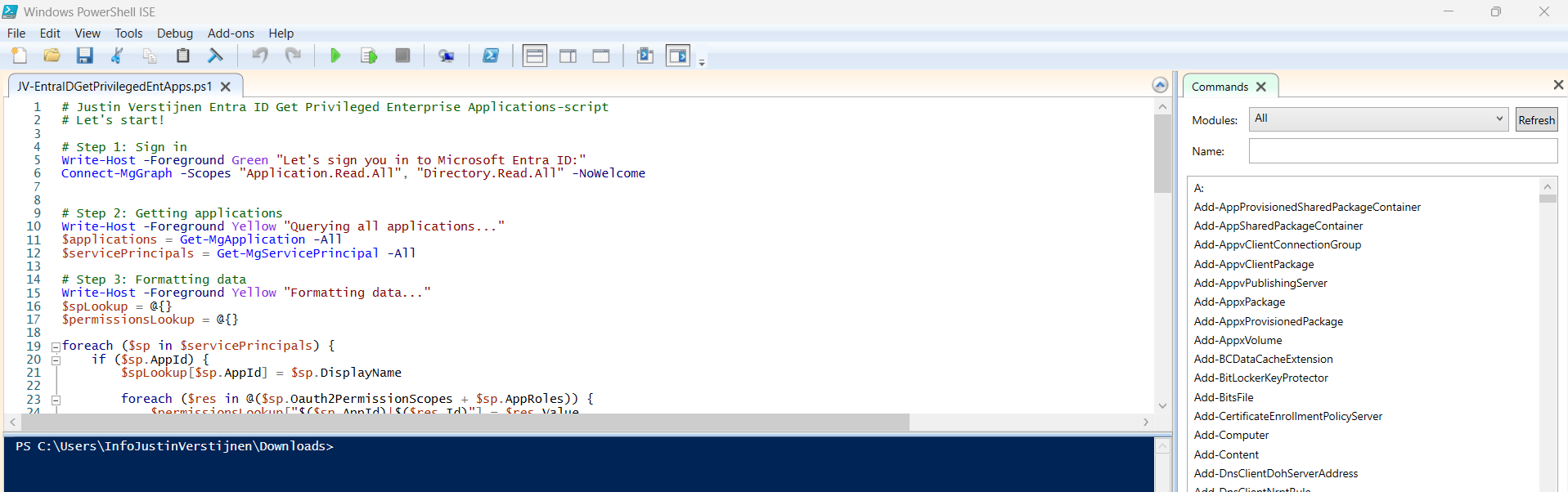
When executed, it asks to login to a tenant. Here you have to login to the tenant you want to audit. After that it will be performing the checks. This can take a while with several applications.
Info
When prompted that the Execution Policy is restricted, you can use this command below for a one-time bypass until the window closes.
PowerShell
Set-ExecutionPolicy Unrestricted -Scope Process -ForceAfter the script finishes all the checks, it puts out a CSV file in the same folder as the script which we can now open to review the applications and their permissions:

As we can see, this must be a far too much privileged application, and everything must be done to secure it:
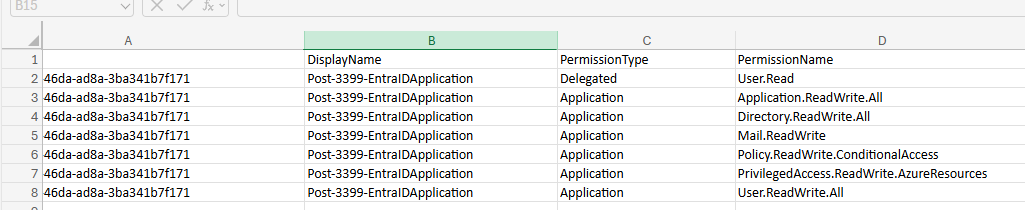
It also queries if the applications has active secrets or certificates:

So this way we know within minutes which applications we must monitor and even deleted or seperated into more, smaller, less privileged applications.
Summary
I hope I convinced you with this guide how much of an risk the applications in Microsoft Entra ID really can be. They can be used by threat actors, as Break glass application or by attackers to leave backdoors in a tenant after a breach.
Sources 📖
These sources helped me by writing and research for this post;
- https://learn.microsoft.com/en-us/entra/identity-platform/application-consent-experience
- https://learn.microsoft.com/en-us/graph/permissions-overview?tabs=http#comparison-of-delegated-and-application-permissions
- https://learn.microsoft.com/en-us/powershell/microsoftgraph/authentication-commands?view=graph-powershell-1.0#use-client-secret-credentials
- https://learn.microsoft.com/en-us/powershell/module/microsoft.graph.users/?view=graph-powershell-1.0
End of the page 🎉
You have reached the end of the page. You can navigate through other blog posts as well, share this post on X, LinkedIn and Reddit or return to the blog posts collection page. Thank you for visiting this post.
Support the blog
How to solve DeletingCloudOnlyObjectNotAllowed error Entra Connect Sync
Now and then we come across a problem with Entra Connect Sync which states “DeletingCloudOnlyObjectNotAllowed”. This post helps you to solve this error.
Now and then we come across a problem with Entra Connect Sync which states “DeletingCloudOnlyObjectNotAllowed”. This error looks like this:
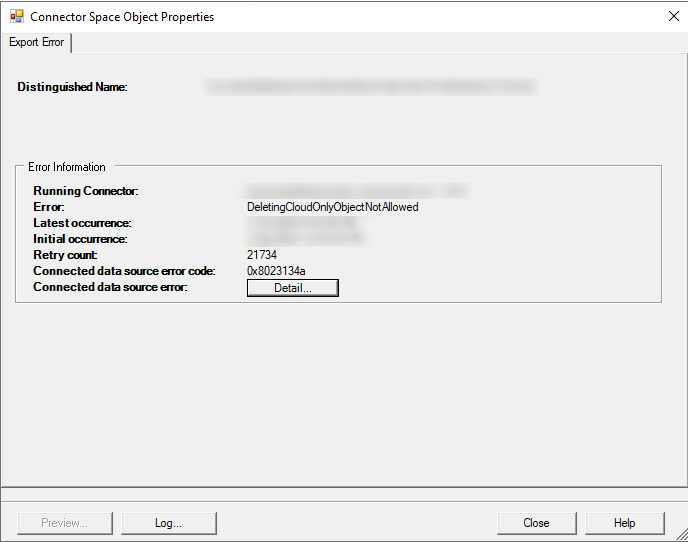
This error will be shown if opening the Syncronization Service and email messages of this error will aso be sent to your tenant’s technical contact.
In this guide, I will explain the cause of this problem and the options to solve the issue.
Cause of this problem
The cause of this problem is mostly an object that is first created cloud-only and then created in Active Directory, or a user that was synced previously but is deselected or deleted. Entra Connect Sync will not match the users correctly, and a the ImmutableId of the user in Entra still exists. In short; it still wants to sync a user that not exists.
In the Synchronization Service Manager on the Entra Connect server, the sync will complete but with a warning:
This error indicates that a deleted object was recovered from the recycle bin in Azure AD before Azure AD Connect was able to confirm its deletion. Please delete the recovered object in Azure AD to fix this issue. Please refer to https://docs.microsoft.com/en-us/azure/active-directory/hybrid/tshoot-connect-sync-errors#deletion-access-violation-and-password-access-violation-errors
Tracking Id: 482d9cb0-f386-47e4-a56f-f33b6b6421db ExtraErrorDetails: [{“Key”:“ObjectId”,“Value”:[“aa5c5d7b-2bde-40f4-94f1-b29ff664e669”]}]
As this gives us only the ObjectId of the cloud user, we still have to dig into our systems to make sure which account is affected.
How to find the affected account
We can find the affected account by pasting the object ID into Microsoft Entra:
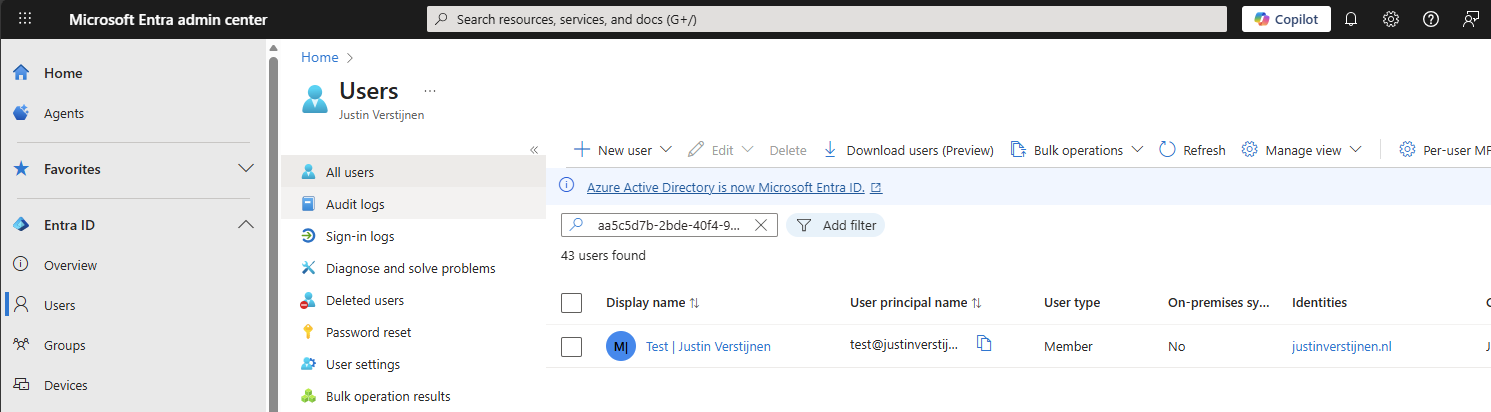
This will return the affected user.
Or you could do this with Microsoft Graph, where the UserId is the ObjectId which we know:
POWERSHELL
PS C:\Windows\system32> Get-MgUser -UserId aa5c5d7b-2bde-40f4-94f1-b29ff664e669
Now we know which user gives us the errors, let’s solve the problem.
How to solve the problem
We can solve this problem using Microsoft Graph Powershell. This is the newest Powershell module to manage Microsoft 365 and related services. If you don’t already have Microsoft Graph installed, run this command first:
POWERSHELL
Install-Module Microsoft.Graph -Scope CurrentUserIf you already have it installed, let’s proceed to the sign in:
POWERSHELL
Connect-MgGraph -Scopes User.ReadWrite.AllYou will get a prompt that Microsoft Graph wants to login to your tenant using the permissions to read and write on all users. Accept that and Graph will proceed.
Then we have to execute this command with the username/UPN to set the ImmutableId to null:
POWERSHELL
Invoke-MgGraphRequest -Method PATCH -Uri "https://graph.microsoft.com/v1.0/Users/user@justinverstijnen.nl" -body '{"OnPremisesImmutableId": null}'Now we have set the ImmutableId to null, and told Entra that this user has no on-premises entity anymore. It will delete the user from the sync database:
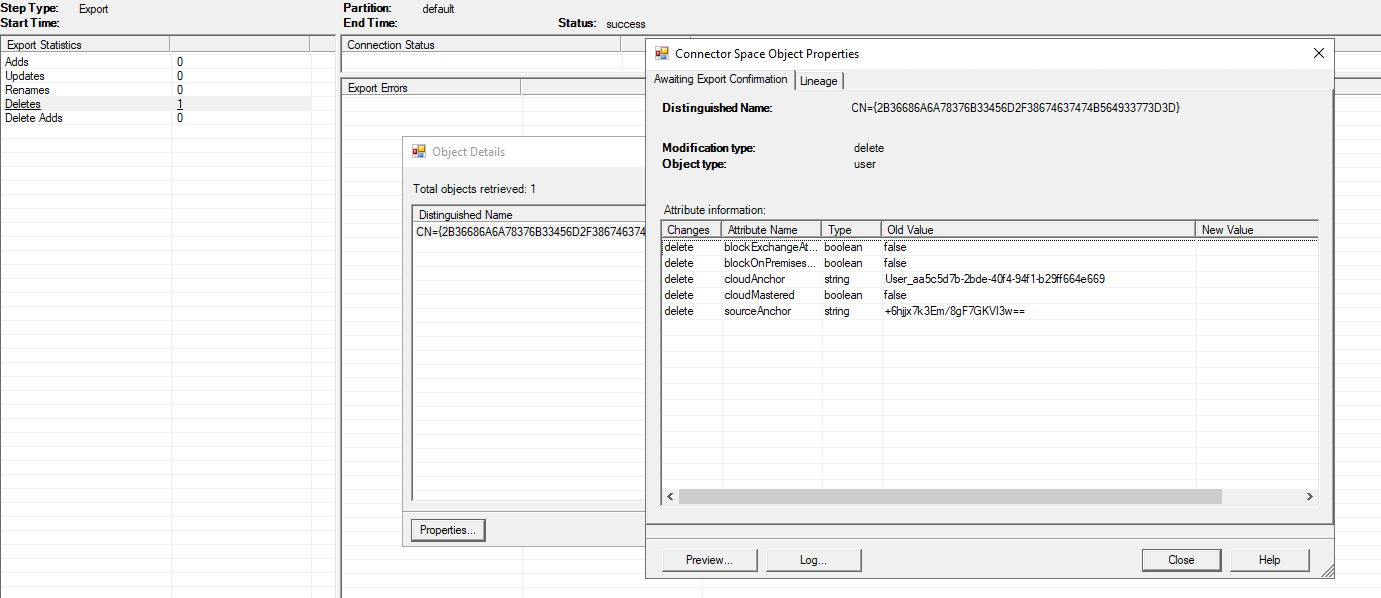
Summary
These steps above describe very easily how to solve this problem. Now and then we come across this problem and we need these commands. It is also possible through the GUI but requires you to delete the account, then sync to clean it from the database and then restore the user. However, these steps will require you to do more effort and has more impact on possible users.
Thank you for reading this guide and I hope it was helpful.
Sources 📖
These sources helped me by writing and research for this post;
End of the page 🎉
You have reached the end of the page. You can navigate through other blog posts as well, share this post on X, LinkedIn and Reddit or return to the blog posts collection page. Thank you for visiting this post.
Support the blog
Disable Active Directory synchronization in Microsoft Entra ID (company-wide)
This guide describes on how to disable Entra ID synchronization company-wide without the need of restoring users from the recycle bin. Therefore instructing you further on how to phase out Entra Connect Sync.
The process described
The correct way to disable Active Directory synchronization with Microsoft Entra ID is to follow the steps in the Microsoft article on how to uninstall Microsoft Entra Connect Sync. We will disable the Synchronization on the Microsoft Entra ID side, which prevents any users from being moved to the recycle bin. After all these steps described, the software can be removed from your server.
If your on-premises AD environment is offline or unreachable then you cannot do the uninstallation of the server. In that case, you can disable the sync setting only in Microsoft Entra ID forcing this process. We are assuming that the server won’t be online again in this case.
Step 1. Install and Connect with Microsoft Graph
We first need to install the Microsoft Graph PowerShell module, if you don’t already have it installed. Let’s open up PowerShell on your computer and run the command below:
PowerShell
Install-Module Microsoft.Graph -ForceIf you already have this module installed, you can skip this step. Let’s connect to Microsoft Graph PowerShell using the required scopes, which are the permissions you request:
PowerShell
Connect-MgGraph -Scopes "Organization.ReadWrite.All"If being asked to grant consent to the Microsoft Graph Command Line Tools, grant this as we need those permissions to execute the actions after this.

After this has been completed, check if you are logged in correctly by using this command:
PowerShell
Get-MgContextThis should result in a list of details of your account and sign-in:

We are now ready to perform the further steps. If this doesnt show a list similar to the list above, then you are not logged in or the PowerShell module is not installed correctly.
Step 2. Check current on-premises sync status
Now we are logged in to Microsoft Graph, let’s check the current status of the sync in Microsoft Entra ID:
PowerShell
Get-MgOrganization | Select-Object DisplayName, OnPremisesSyncEnabledThis results in a list of your tenants with the actual sync status:

If this list shows a “Yes” or “Enabled” at the OnPremisesSyncEnabled coloumn, then synchronization is enabled. In my case, Entra Connect Sync is already disabled.
Step 3. Disable on-premises directory synchronization
Now we can disable the on-premises ADSync with this simple script below. Copy and run these commands to disable the synchronization.
PowerShell
$OrganizationID = (Get-MgOrganization).Id
$param = @{onPremisesSyncEnabled = $false}
Update-MgOrganization -OrganizationId $OrganizationID -BodyParameter $param
This gives not any output as the execution was succesful. You can now check the status again just like in the previous steps:

PowerShell
Get-MgOrganization | Select-Object DisplayName, OnPremisesSyncEnabledBe aware
- Disabling the synchronization can take up to 72 hours to complete
- Wait for the process to fully complete before performing any other organization wide action
- Once the disable process has started, it cannot be canceled so use it with care
After that we can also check the status in the Microsoft 365 Admin center and Entra ID Admin center. Make sure to check it on a subset of users which had synchronization enabled before:
Microsoft 365 Admin Center:

Make sure to enable the Sync status column:

Entra ID Admin Center:

This shows the user is now a full cloud-only user, which makes the disable action a success. You can now remove the Entra Connect Sync application from your servers as no further action is needed there. Re-enable the synchronization needs consent from a Global Administrator account.
Summary
In this post, I showed how to disable Active Directory synchronization in Microsoft Entra ID which can be used to phase this synchronization out and fully leverage all features of Entra ID. This action prevents any users from getting moved to the recycle bin which is also nice. If we were to disable the synchronization of the users in AD first, then all users will be moved to the recycle bin in the cloud, and needing manual action to recover them.
Thank you for reading this post and I hope it was helpful!
Sources 📖
These sources helped me by writing and research for this post;
End of the page 🎉
You have reached the end of the page. You can navigate through other blog posts as well, share this post on X, LinkedIn and Reddit or return to the blog posts collection page. Thank you for visiting this post.
Support the blog
Dynamic group for access to Windows 365
When using Windows 365 in your organization, the deployment is very easy to do. When it comes to adding more users to the service, it can be much manual clicks to reach your goal. My advice is to leverage the Dynamic Group feature of Microsoft Entra.
Requirements
- Azure AD/Entra ID/Microsoft Graph Powershell module
- 10 minutes of your time
What are Dynamic Groups?
The Dynamic Groups feature of Microsoft Entra is a great tool for auto-managing members of a group based on a single rule or collection of rules. Some examples of using dynamic groups:
- Group for all users with the department “Office”
- Group for all users with or without a specific attribute
- Group for all users with a specific license assigned
Dynamic group don’t need any manual assignment or un-assignment. Instead of that, members will be automatically added based on the rules. Great feature for automation purposes!
Creating a dynamic group for acces to Windows 365
To create a dynamic group for every user which has a Windows 365 license assigned follow the following steps:
Go to the Microsoft Entra admin center (entra.microsoft.com)
Go to “Groups” and create a new group and select the membership type “Dynamic User”
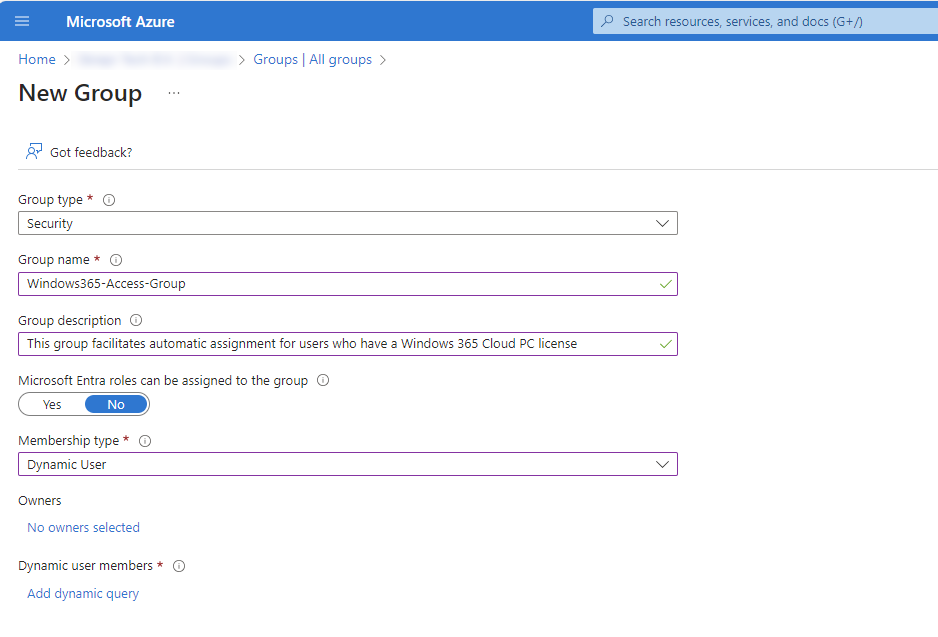
Now we have the group, we need to create the rules for the group to determine which users can be added. Click on “Add dynamic query” to configure the rules.
To filter on users with a specific assigned license, we need to use the “assignedPlans” property. The operator needs to be “Equals”.
Now at the “Value” field, we need to have the Service Plan ID of the license. Every Entra ID assignable license has an underlying Service Plan ID which represents the license. A list of all this Service Plan ID’a can be found here: https://learn.microsoft.com/en-us/entra/identity/users/licensing-service-plan-reference
In my environment, we have 2 types of Windows 365 licenses available:
| License type | ServicePlanId |
|---|---|
| Windows 365 Enterprise (2 vCPU / 8GB / 128GB) (non-hybrid benefit) | 3efff3fe-528a-4fc5-b1ba-845802cc764f |
| Windows 365 Enterprise (4 vCPU / 16GB / 128GB) (non-hybrid benefit) | 2de9c682-ca3f-4f2b-b360-dfc4775db133 |
Note: Every Windows 365 machine configuration has it’s own Service Plan ID, but the ServicePlan ID’s are globaly identical.
With this Service Plan ID now in place, we can complete the rule:
We use the And/Or option “Or” because the users has the license for 2vCPU/8GB or 4vCPU/16GB.
After creating the group, the group will contain only members who have one of this licenses.
How to find Service Plan ID’s in my environment?
Now is the page of Microsoft filled with every single Service Plan ID available which is a mess. You can find all Service Plan ID’s in your environment easily with Azure AD Powershell. I will tell you how.
Log into Azure AD with Powershell:
POWERSHELL
Connect-AzureADWe can find all licenses and referring Service Plan ID’s which your environment is subscribed to by using the following command:
POWERSHELL
Get-AzureADSubscribedSku | Select-Object -ExpandProperty ServicePlansYou can also search all Service Plans referring to Windows 365 Cloud PC with the following commands:
POWERSHELL
$searchstring = "*CPC*"
Get-AzureADSubscribedSku | Select-Object -ExpandProperty ServicePlans | Where-Object {$_.ServicePlanName -like $searchstring} | Select-Object ServicePlanId, ServicePlanName
You will get a output like this with the Service Plan ID’s you need.
POWERSHELL
ServicePlanId ServicePlanName
------------- ---------------
3efff3fe-528a-4fc5-b1ba-845802cc764f CPC_2
2de9c682-ca3f-4f2b-b360-dfc4775db133 CPC_E_4C_16GB_128GBSummary
Dynamic Groups are an excellent way to automating and securing your environment with the least administrative tasks possible. I hope I helped you a little bit by automating some more of your environment!
End of the page 🎉
You have reached the end of the page. You can navigate through other blog posts as well, share this post on X, LinkedIn and Reddit or return to the blog posts collection page. Thank you for visiting this post.
Support the blog