All pages referring or tutorials for Windows Server.
This is the multi-page printable view of this section. Click here to print.
Windows Server
- Fixing CVE-2026-41089 on Windows Server
- Group Policy Central Store and Active Directory
- Active Directory FSMO roles
- Managing Hyper-V server without Active Directory
- How to repair faulty Windows in 5 steps
- Migrate Group Policies to a new server or domain like a pro
- Windows Server Backup Retention
- Change Evaluation version to Standard/Datacenter version
Fixing CVE-2026-41089 on Windows Server
Microsoft released security updates for multiple Windows Server versions to address CVE-2026-41089. This vulnerability is rated as important and affects all supported Windows Server versions, including ESU editions of Windows Server 2012 and 2012 R2. This vulnerability affects the Windows Netlogon service, a core component used for authentication and secure communication between domain-joined systems and Domain Controllers. Successful exploitation could allow an attacker to execute arbitrary code on a vulnerable system.
How would an attacker be able to use this? An attacker would send specially crafted Netlogon requests to a vulnerable server. By manipulating the way the Netlogon service processes these requests, the attacker may be able to trigger remote code execution (RCE) without requiring prior authentication. Something we must prevent at all costs.
The potential impact of this CVE being unresolved is:
- Remote code execution on the target server
- Full system compromise if the attack succeeds
- Privilege escalation to SYSTEM level access
- Lateral movement within the network
- Compromise of Active Directory infrastructure if a Domain Controller is affected
In this post I will quickly go through what systems are impacted and how you can install the required updates to remediate the vulnerability.
Affected Windows Server versions
The following updates are currently released by Microsoft for CVE-2026-41089:
| Windows Server Version | KB Number | PowerShell check |
|---|---|---|
| Windows Server 2025 | KB5087539 | Get-HotFix -Id KB5087539 |
| Windows Server 2025 Azure Edition / Hotpatch | KB5087423 | Get-HotFix -Id KB5087423 |
| Windows Server 2022 | KB5087545 | Get-HotFix -Id KB5087545 |
| Windows Server 2022 Azure Edition / Hotpatch | KB5087424 | Get-HotFix -Id KB5087424 |
| Windows Server 23H2 | KB5087541 | Get-HotFix -Id KB5087541 |
| Windows Server 2019 | KB5087538 | Get-HotFix -Id KB5087538 |
| Windows Server 2016 | KB5087537 | Get-HotFix -Id KB5087537 |
| Windows Server 2012 R2 ESU | KB5087471 | Get-HotFix -Id KB5087471 |
| Windows Server 2012 ESU | KB5087470 | Get-HotFix -Id KB5087470 |
To perform an all-in-one check that works on all Windows Server versions from 2012 and higher, use this command:
PowerShell
Get-HotFix -Id KB5087539,KB5087423,KB5087545,KB5087424,KB5087541,KB5087538,KB5087537,KB5087471,KB5087470This must return an update, where the number matches with the version of Windows Server:

This server is already patched, so shows the installed update.
Important
Windows Server 2012 and 2012 R2 require an active ESU license via Azure Arc to receive these security updates. Without these licenses, they stay pretty vulnerable.
Step 1: Check if the update is already installed
Before installing updates manually, it is good to check if the KB is already present on the server. Lookup your version of Windows Server, and copy the KB number. Then open up PowerShell as Administrator and run:
PowerShell
Get-HotFix | Sort-Object InstalledOn -DescendingYou can also search directly for a specific KB number by using this command and changing the KB number on the end:
PowerShell
Get-HotFix -Id KB5087539Replace the KB number with the update matching your Windows Server version. If the update is installed already, PowerShell will return the installed update information. If PowerShell returns an error like the one below, then the update might not be installed yet, and action is needed.
Failure
Get-HotFix : Cannot find the requested hotfix on the ’localhost’ computer. Verify the input and run the command again.
If this shows the update without returning an error on all your servers, you are secured against this CVE.
Step 2: Install the Windows Update
The easiest and recommended way is through Windows Update or Azure Update Manager. In you like manual updates, you can use the Windows Server GUI or PowerShell for example to install the updates.
- Open Settings
- Go to Windows Update
- Click on “Check for updates”
- Install the latest cumulative update
- Reboot the server
For demonstration purposes, here I am installing the fix for Windows Server 2025 on my testing server:
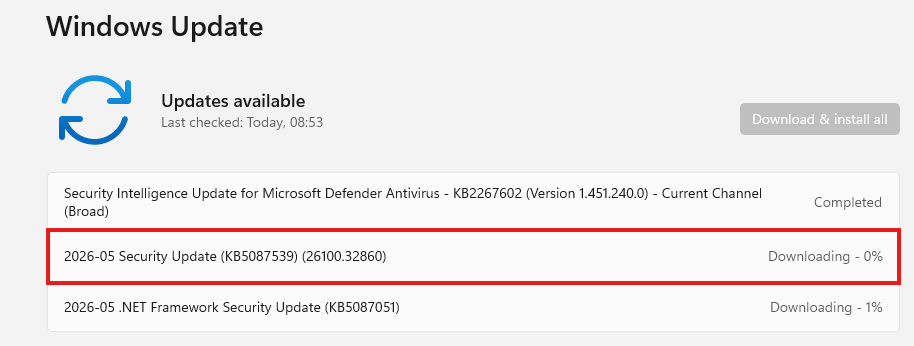
On older Windows Server versions like 2016 or 2019, use the classic Windows Update interface through Server Manager or Control Panel. If you manage multiple Azure or Arc-enabled servers, Azure Update Manager is a great option to deploy these updates centrally.
After installing the update, the server must be restarted to apply the patches and to secure you from this exploit.
Step 3: Check the installation
After rebooting the server, verify the KB installation again to confirm the installation was successful. Run the command you ran earlier too see if the correct update has been installed:
PowerShell
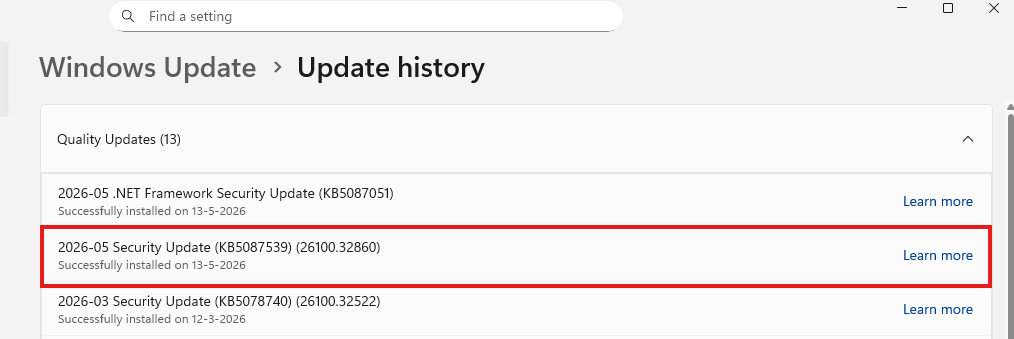
Get-HotFix -Id KB5087539If the update is installed correctly, you will see output similar to this:

You can also verify this through:
- Settings > Windows Update > Update history
- Control Panel > Programs and Features > Installed Updates
Summary
CVE-2026-41089 impacts multiple Windows Server versions and Microsoft already released security updates to mitigate the vulnerability. Installing the latest cumulative update for your Windows Server version is currently the recommended remediation. Installing the update like described in this guide is enough from defending you from at least this exploit. A huge recommendation is to use Azure Update Manager for your Azure VMs and Azure Arc joined servers.
The installation itself is relatively straight forward, but always validate the update afterwards and test important workloads after rebooting production systems. If this update wasn’t installed by now, I would highly recommend reviewing your updating processes, as its not worth waiting so long for vulnerabilities to be actively abused and then fix it. A good updating process will fix many things before they can be abused.
Thank you for reading this post and I hope it was helpful!
Sources 📖
These sources helped me by writing and research for this post;
End of the page 🎉
You have reached the end of the page. You can navigate through other blog posts as well, share this post on X, LinkedIn and Reddit or return to the blog posts collection page. Thank you for visiting this post.
Support the blog

Group Policy Central Store and Active Directory
In this guide, I will show how to create a Group Policy Central Store inside SYSVOL, how ADMX and ADML files work, and how to add new Administrative Templates to your Active Directory environment.
Group Policy Central Store described
When you manage Group Policies in an Active Directory environment, big chance you use the Administrative Templates quite often. These templates contain the policy settings which you can configure for Windows, Microsoft products, and many third-party applications like FSLogix and Google Chrome.
By default, Group Policy Management can use the Administrative Template files which are installed locally on the computer where you edit your Group Policies. This works, but can become confusing when multiple administrators or management servers are being used. One administrator could have newer or different sets of Administrative Templates installed than another admin. This is where the Group Policy Central Store comes in.
The Central Store is a shared location inside the SYSVOL folder of your Active Directory domain where we can centrally store our .admx and .adml files. All servers and clients can then fetch the configured policies from there ,because SYSVOL is shared and replicated between the Domain Controllers, the same Administrative Templates can then be used when editing Group Policies throughout the domain. The replication of these files work with Distributed File System (DFS).
In this guide, we will create one central location from where our Administrative Templates can be managed. This is crucial if having multiple domain controllers and/or management servers.
ADMX and ADML files described
Before creating the Central Store, it is useful to understand the two different file types we are going to work with.
- ADMX file: contains the actual policy definition, which describes things like the policy category, supported operating systems, registry locations, and which settings can be configured
- ADML file: contains the language-specific text belonging to the ADMX file. This includes the policy names, descriptions, help texts, and other information you see inside the Group Policy Management Editor
For example:
Plain text
PolicyDefinitions
│
├── WindowsUpdate.admx
├── TerminalServer.admx
├── WindowsDefender.admx
│
└── en-US
    ├── WindowsUpdate.adml
    ├── TerminalServer.adml
    └── WindowsDefender.adml
It is important that the ADMX and ADML files belong together. Copying a new ADMX file without the matching language file can result in errors or missing descriptions inside Group Policy Management.
Requirements
- Around 20 minutes of your time
- An Active Directory domain
- Access to a Domain Controller
- Permissions to modify the SYSVOL Policies folder
- Group Policy Management Console
- A Windows 10 or Windows 11 computer with the Administrative Templates you want to use
- Basic knowledge of Active Directory and Group Policy
For this guide, I will use my Active Directory domain:
Plain text
internal.justinverstijnen.nlYou will need to replace this with your own Active Directory domain name when following this guide in your own environment.
Step 1: Checking if a Central Store already exists
Before we start to create anything, we should first check if the domain already has a Central Store. Open File Explorer on your Domain Controller or management computer and browse to:
Plain text
\\<yourdomain>\SYSVOL\<yourdomain>\PoliciesFor my domain this is:
Plain text
\\internal.justinverstijnen.nl\SYSVOL\internal.justinverstijnen.nl\Policies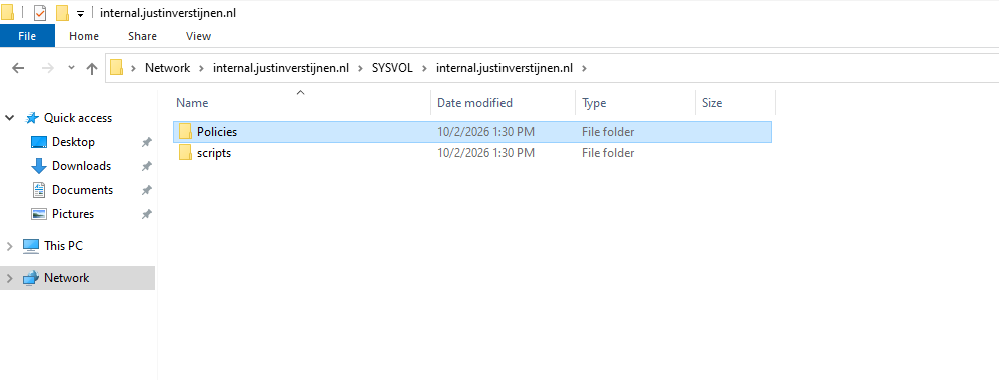
Inside the Policies folder, check if there is already a folder named PolicyDefinitions.
If the PolicyDefinitions folder already exists, your environment already has a Central Store. Do not create another PolicyDefinitions folder in that case. First check the existing files and make a backup before changing anything.
If there is no PolicyDefinitions folder yet, we can continue and create our new Central Store by following the steps below.
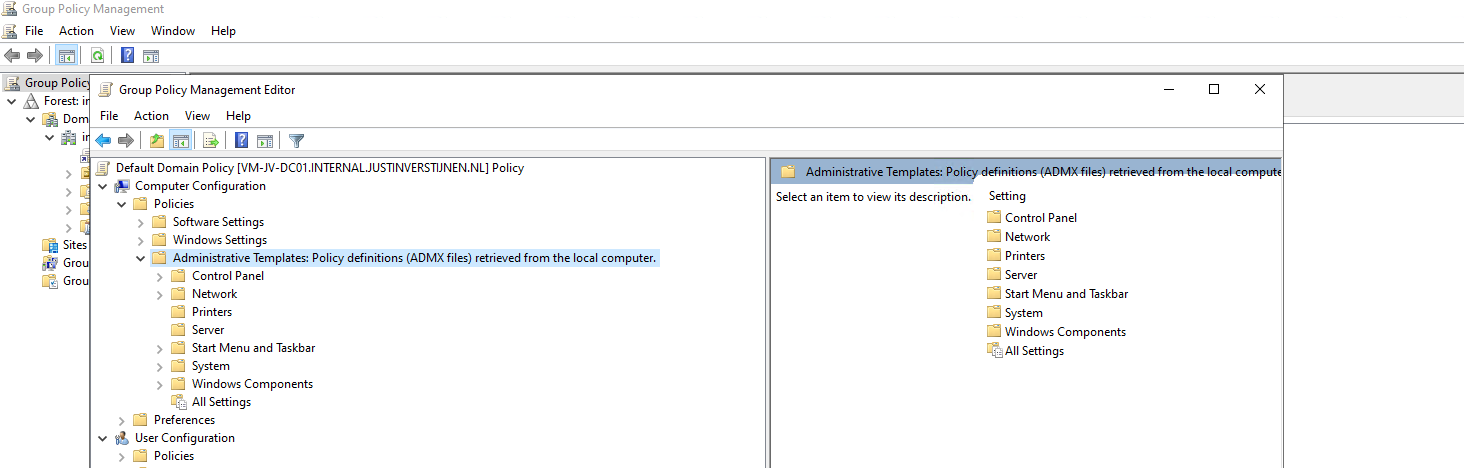
You could also check the location of the current Group Policy store in the Group Policy Management Console:
Step 2: Moving the current Policy store
Let’s move our store to the shared domain location. In your domain, you should have a server where you manage the group policies. This will be your management server or (single) domain controller.
Go to the folder C:\Windows on that server and on that location we have a folder called PolicyDefinitions.
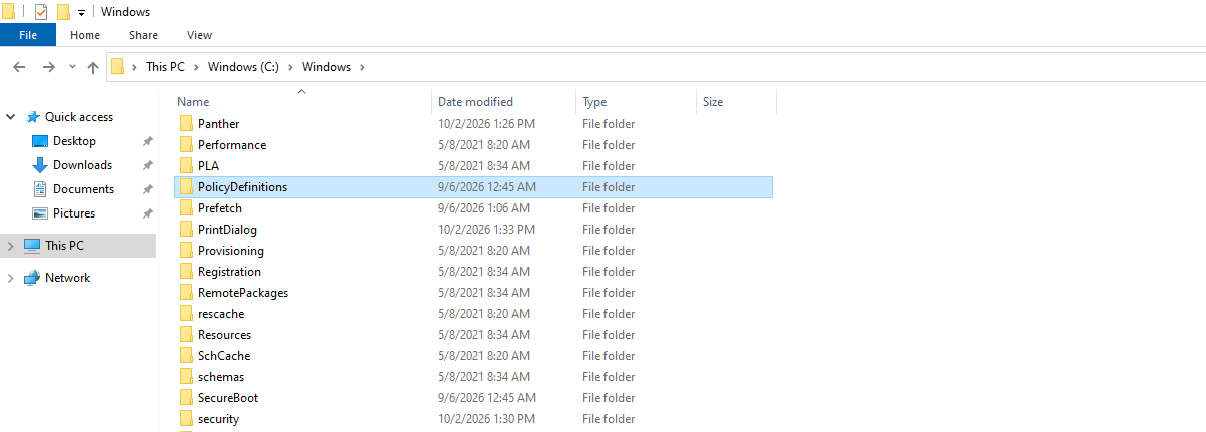
We will copy this folder PolicyDefinitions to the following location:
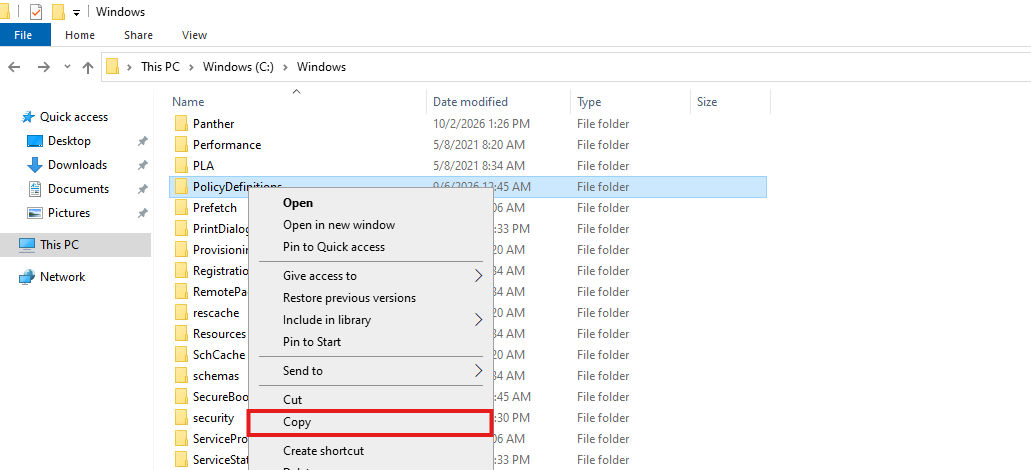
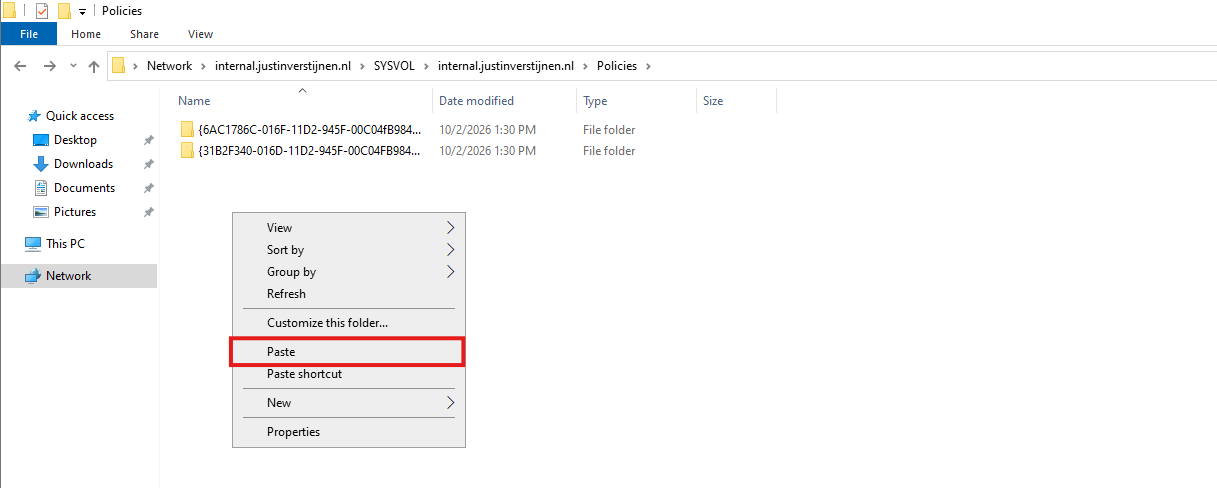
Click Copy. Then navigate back to your SYSVOL folder:
Plain text
\\internal.justinverstijnen.nl\SYSVOL\internal.justinverstijnen.nl\PoliciesPaste the folder there:
Now the folder is in the correct location and picked up by all servers in the domain.
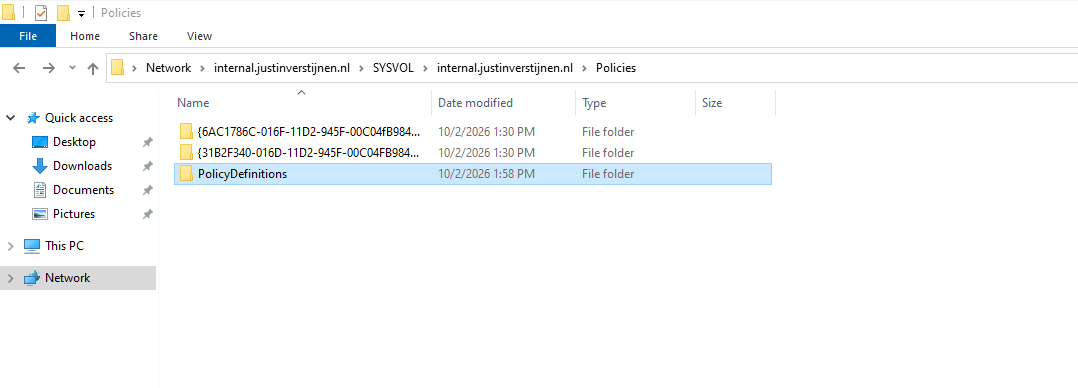
Step 3: Check the Central Store
Now we will check if the Central Store actually works. Let’s again open a random Group Policy Object in the Group Policy Management Console.
From there open the Administrative Templates. This will take some seconds if the Central Store works:
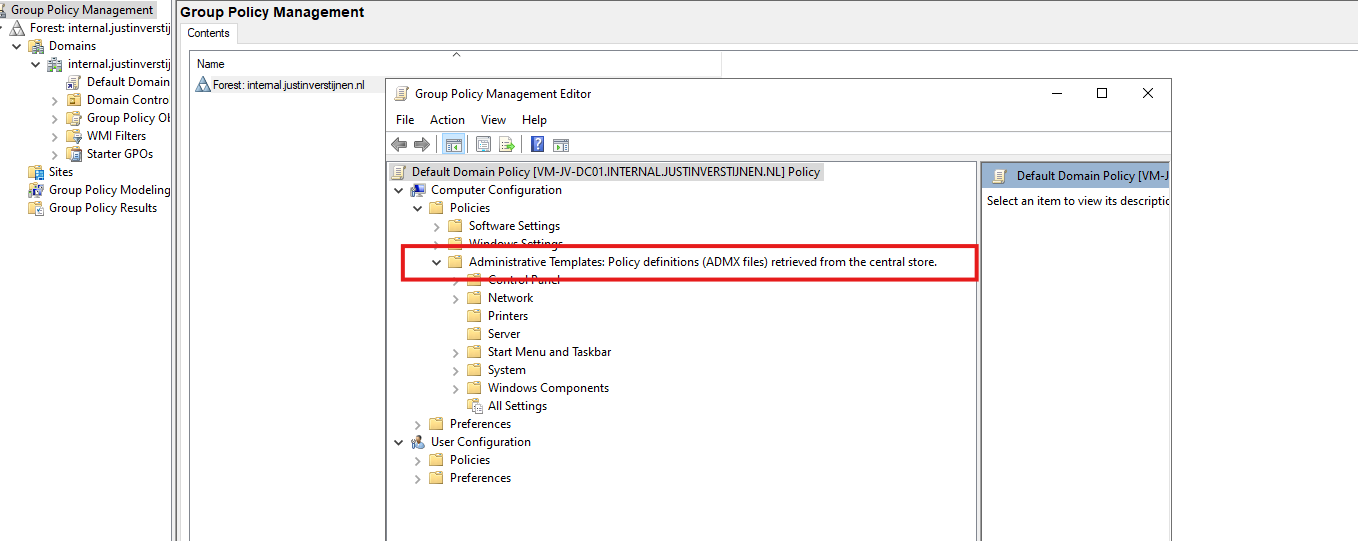
It will now show you that the Central Store is being used. Now we have one single store of ADMX/ADML files which is replicated with Distributed File System (DFS).
Step 4: Adding new ADMX and ADML policies
Our Central Store is working, but over time we will probably need additional Administrative Templates or update the existing files when:
- Microsoft releases new Windows or Office policies
- Microsoft Edge Administrative Templates are updated
- New FSLogix policies for AVD
- A third party application provides its own Group Policy templates, for example Google Chrome Enterprise
The downloaded Administrative Template package will normally contain one or more .admx files and matching .adml language files. For example, a package could look like this:
Plain text
Administrative Templates
│
├── ExampleApplication.admx
│
└── en-US
    └── ExampleApplication.adml
The ADMX file must be placed in the PolicyDefinitions folder with the ADML file in the target subfolder of the preferred language. For my example, I will be installing the FSLogix Administrative Templates, which I downloaded from here: https://aka.ms/fslogix-latest
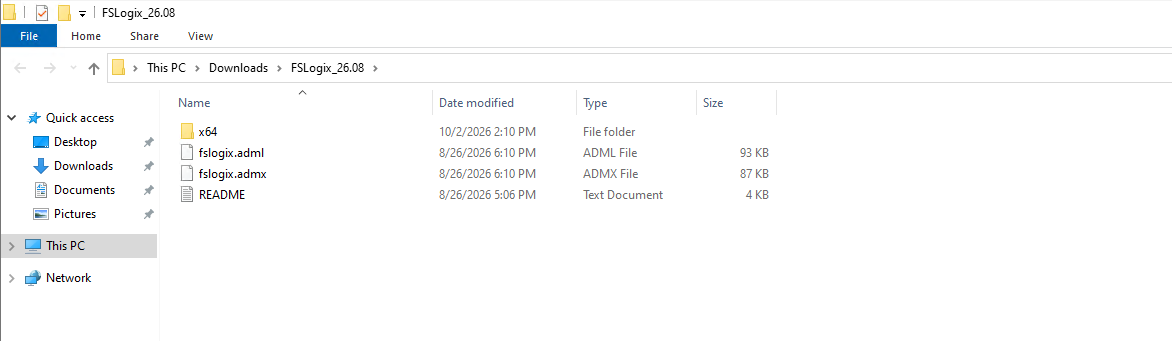
To install a United States policy, we can create a en-US folder at forehand.
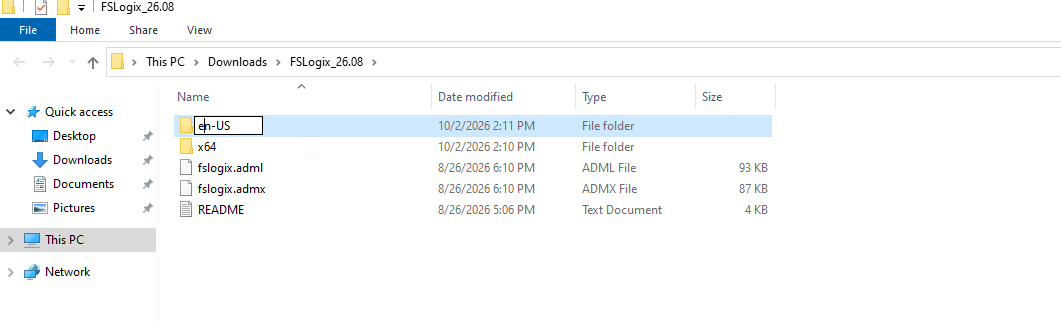
Then move the .ADML into the newly created en-US folder.
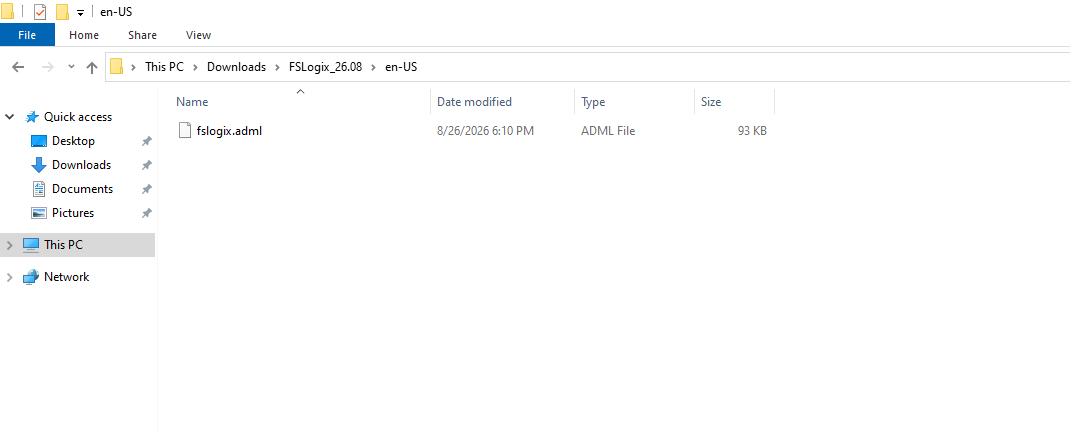
Now we can simply hold CTRL and select both files and copy them to this folder:
Plain text
\\internal.justinverstijnen.nl\SYSVOL\internal.justinverstijnen.nl\Policies\PolicyDefinitionsPaste the files there and overwrite them when needed.
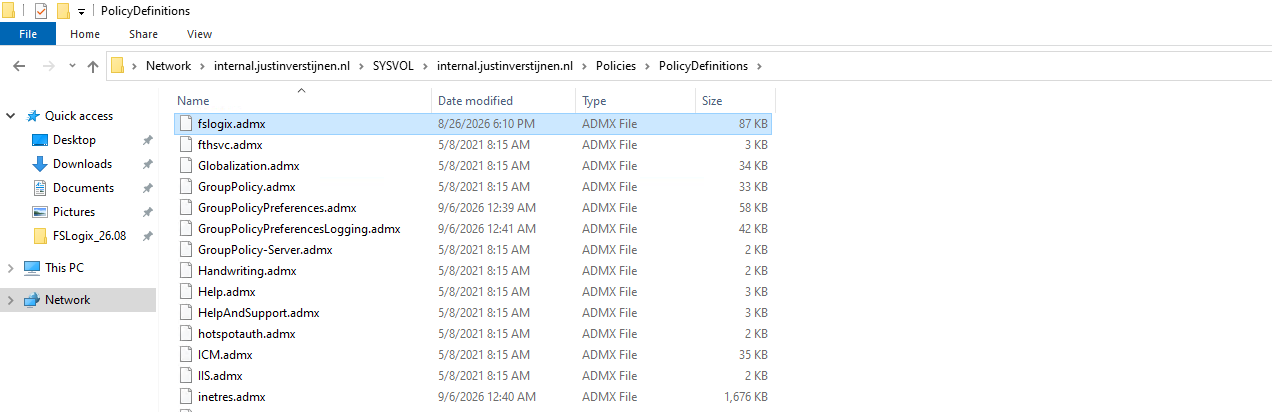
Then we can check the Group Policy Management Console again if FSLogix policies are being retrieved:
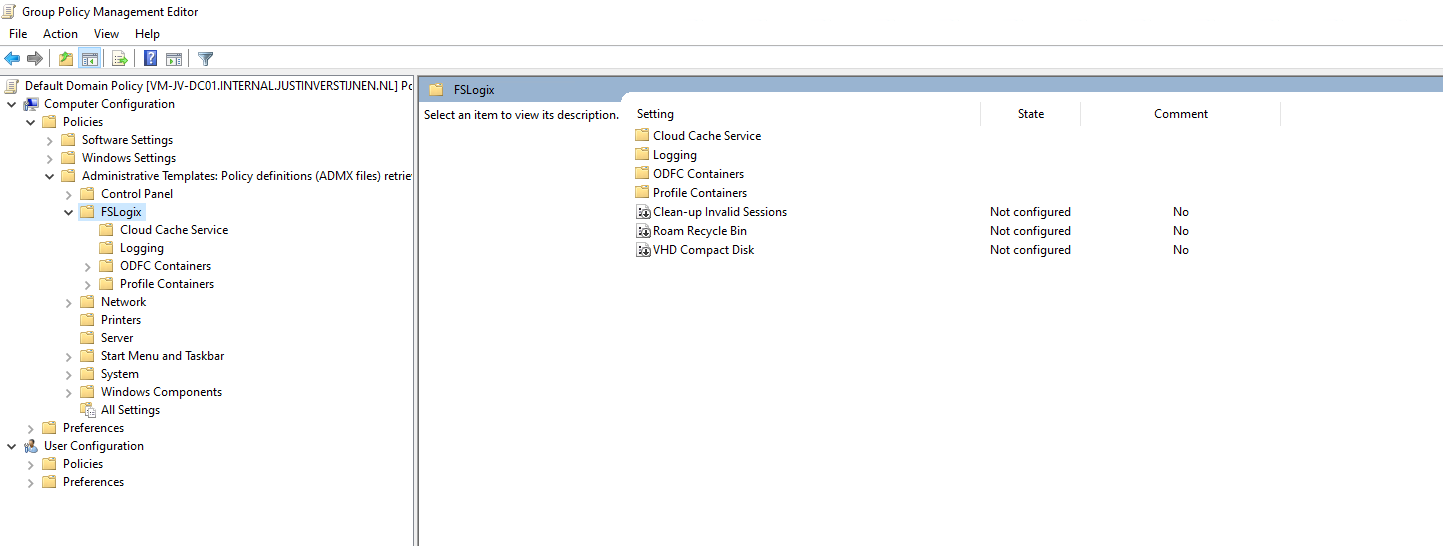
We now have the FSLogix policies, so the Central Store is working as expected.
Knowledge check
Knowledge check
This quiz needs JavaScript to show the questions and feedback.
This quiz needs JavaScript to show the questions and feedback.
Summary
The Group Policy Central Store gives us one central location for the Administrative Templates used to manage Group Policies inside an Active Directory domain. Instead of depending on the local PolicyDefinitions folder of each management computer, we created a shared PolicyDefinitions folder inside SYSVOL and populated it with the required ADMX and ADML files. This folder is then replicated throughout the Active Directory domain.
When we need additional Administrative Templates later, we download the new templates, create a backup of the Central Store, copy the ADMX files to the root of PolicyDefinitions, and copy the matching ADML files into the correct language folder.
The biggest advantage for me is that all administrators now work with the same Administrative Templates instead of depending on which templates happen to be installed on their local management computer.
Thank you for reading this post and I hope it was helpful!
Sources 📖
These sources helped me by writing and research for this post;
End of the page 🎉
You have reached the end of the page. You can navigate through other blog posts as well, share this post on X, LinkedIn and Reddit or return to the blog posts collection page. Thank you for visiting this post.
Support the blog
Active Directory FSMO roles
Active Directory Domain Controllers are assigned 5 different FSMO roles, which all have their own function. We can separate them over multiple servers to create more redundancy, but make sure to handle those all as servers. All roles neeed a 24/7 uptime for your environment to work properly. In this guide, I will give a brief explaination of the roles, what their function is and how to move them to different servers to enhance availability and redundancy.
What are the FSMO roles of Active Directory?
FSMO stands for Flexible Single Master Operations. Active Directory is normally multi-master, meaning changes can be made on any domain controller. However, some operations must be handled by one specific domain controller at a time to avoid conflicts. These special responsibilities are called the FSMO roles.
There are five FSMO roles:
- Two forest-wide roles
- Three domain-wide roles
Let’s look at them all and explain what their function is:
| FSMO Role | Scope | Primary Responsibilities |
|---|---|---|
| Schema Master | Forest | Manages Schema updates |
| Domain Naming Master | Forest | Adds/removes domains |
| PDC Emulator | Domain | Time service, password updates, Group Policy |
| RID Master | Domain | Assigns RID pools for unique SIDs |
| Infrastructure Master | Domain | Maintains cross-domain references |
For more information about the specifics of the roles, check out the official Microsoft page: https://learn.microsoft.com/en-us/troubleshoot/windows-server/active-directory/fsmo-roles
Depending on your environment, these roles can run on one or multiple domain controllers. If having an environment with a single domain controller, all roles will be done by that single server. As you might already guess, this is a single point of failure.
According to the table, the PDC Emulator is the role with the highest user impact. Outage will mean no NTP, no password updates which happens daily in bigger environments and no Group Policy updates are possible.
An effective distribution of FSMO roles
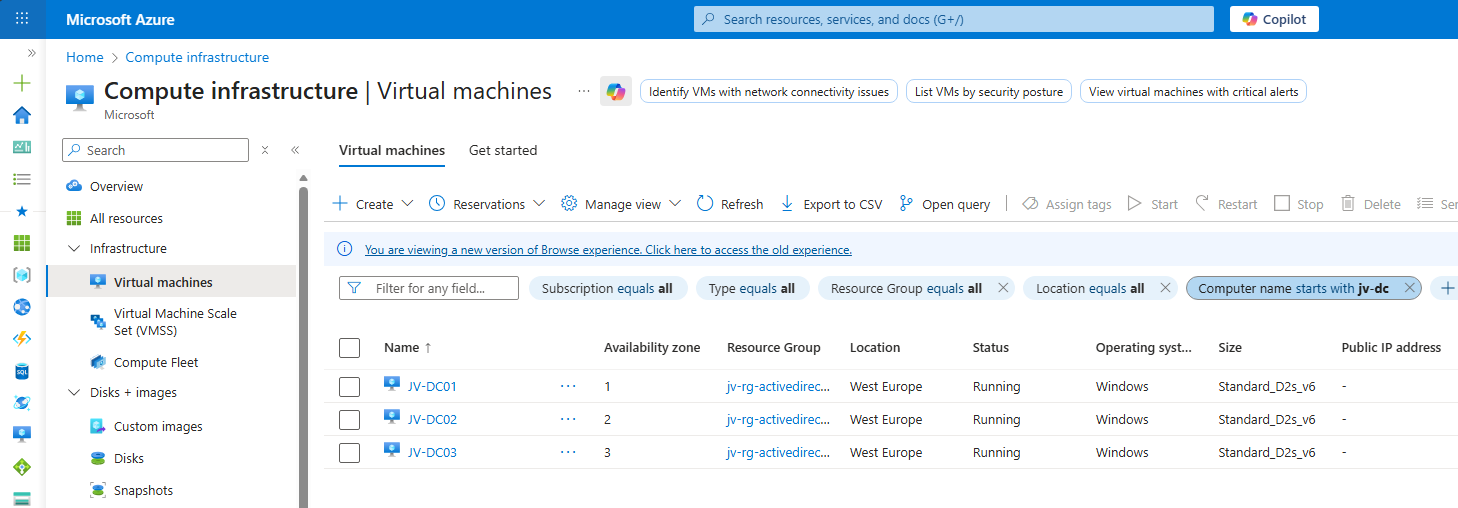
In my environment, I have 3 domain controllers. This means we can separate all roles over the 3 servers. I also use Microsoft Azure to run them, and so placed the 3 servers into 3 availability zones.
| Server | Roles | Availability Zone |
|---|---|---|
| JV-DC01.justinverstijnen.nl | Primary Domain Controller (PDC) & Infrastructure master | Zone 1 |
| JV-DC02.justinverstijnen.nl | Domain naming master & RID Master | Zone 2 |
| JV-DC03.justinverstijnen.nl | Schema Master & Entra Connect Sync | Zone 3 |
Because Entra Connect Sync is also a critical function of my domain, I placed this on my third server to give all 3 servers 2 dedicated roles.
Get the actual separation of roles
To view how the roles are separated at this time, run this command at one of your AD management servers (or domain controllers):
POWERSHELL
netdom query fsmoYou will get an output like this:
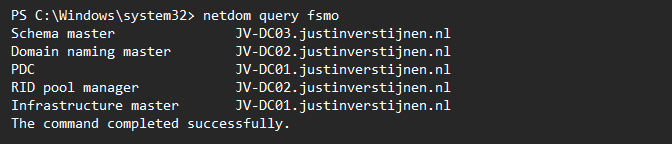
Here I have separated the roles onto 3 different servers. In Microsoft Azure, I have the servers set-up in different availability zones to also defend my environment to datacenter-outages.
Move FSMO roles with PowerShell (one by one)
We can move those roles with PowerShell by using those commands:
POWERSHELL
Move-ADDirectoryServerOperationMasterRole -Identity *server* -OperationMasterRole PDCEmulator -Confirm:$falseMake sure to change the *server* placeholder to your server name.
Move FSMO roles with PowerShell (bulk)
To move all roles to predetermined servers, you can also run all commands at once:
POWERSHELL
Move-ADDirectoryServerOperationMasterRole -Identity *server* -OperationMasterRole PDCEmulator -Confirm:$false
Move-ADDirectoryServerOperationMasterRole -Identity *server* -OperationMasterRole InfrastructureMaster -Confirm:$false
Move-ADDirectoryServerOperationMasterRole -Identity *server* -OperationMasterRole RIDMaster -Confirm:$false
Move-ADDirectoryServerOperationMasterRole -Identity *server* -OperationMasterRole DomainNamingMaster -Confirm:$false
Move-ADDirectoryServerOperationMasterRole -Identity *server* -OperationMasterRole SchemaMaster -Confirm:$false
Make sure to change the *server* placeholder to the correct server names in your environment.
Knowledge check
Knowledge check
This quiz needs JavaScript to show the questions and feedback.
This quiz needs JavaScript to show the questions and feedback.
Summary
Every now and then, we need to move some FSMO roles to other servers or we need this when setting up. Dividing the roles onto multiple servers ensure not the whole domain is interrupted with one server failing and so creates redundancy and availability for your users.
Sources 📖
These sources helped me by writing and research for this post;
End of the page 🎉
You have reached the end of the page. You can navigate through other blog posts as well, share this post on X, LinkedIn and Reddit or return to the blog posts collection page. Thank you for visiting this post.
Support the blog
Managing Hyper-V server without Active Directory
When you use Hyper-V server, you want to manage this with the management tools. However, by default Hyper-V only allows connections…
When you use Hyper-V server, you want to manage this with the management tools. However, by default Hyper-V only allows connections from domain-joined machines by design because of security and trust reasons.
We can bypass this requirement by building these trust ourselves and so managing the server from a machine that isnt even in a domain but Entra ID Joined or in a workgroup.
Installing Hyper-V management tools
When you use Windows 11 Pro/Education/Enterprise, you have the option to install Hyper-V on your machine. This can be done through the features on demand window:
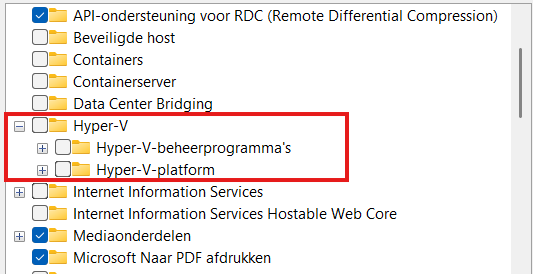
Here select the management tools and you are good to go.
Configurations we need to do
Before we can manage Hyper-V server from our non-domain joined machine, we need to configure some things on both sides. Both has to trust each other before we can make the connection.
Hyper-V server side configuration steps
- Configure Remote Management
- Configure PowerShell Remote
- Configure a hostname
Client side configuration steps
- Configure the NIC to use “Private” profile
- Adding the server to the “TrustedHosts” file
Let’s dive into these steps to make the connection work.
Hyper-V Server side configuration
When using Hyper-V server and logging in will present you this “sconfig” window:
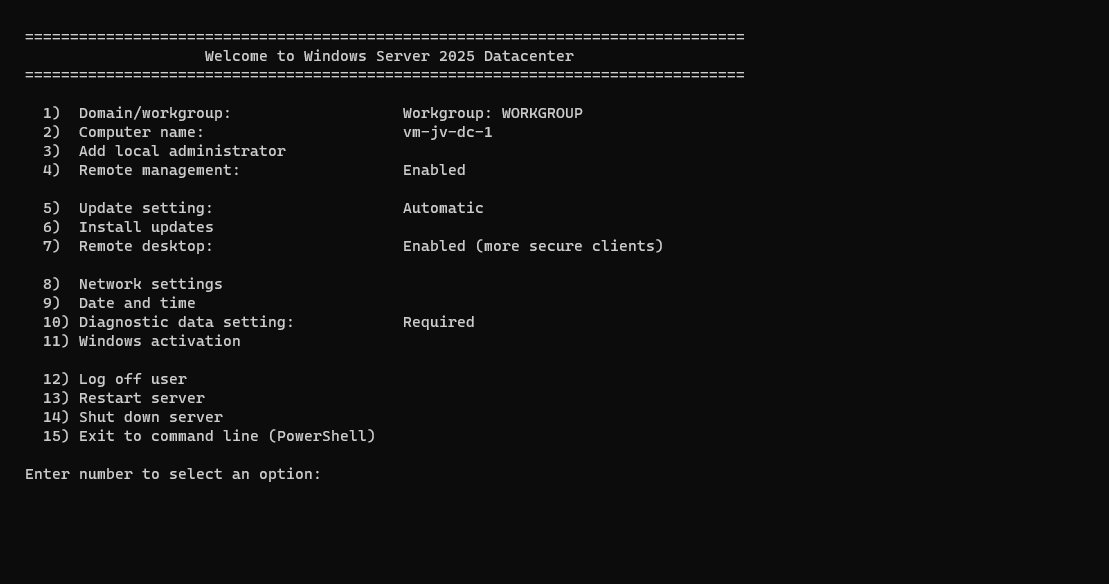
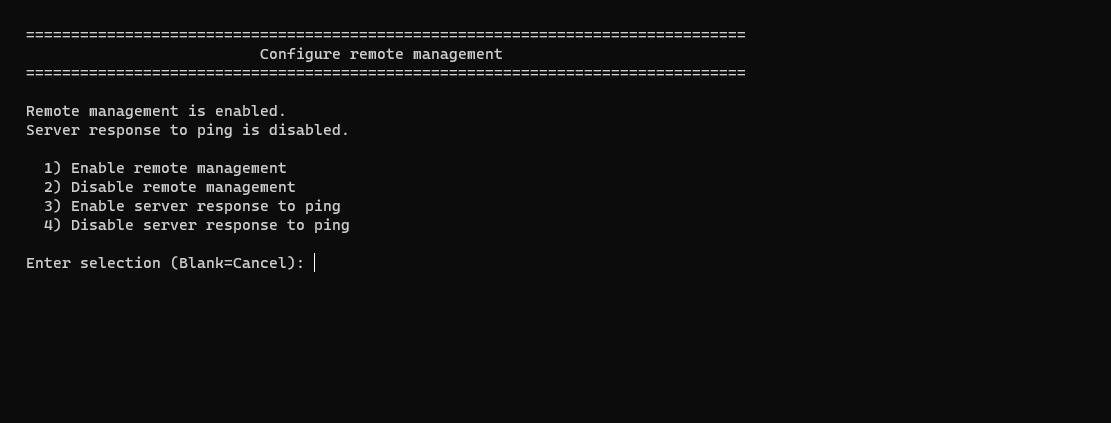
Press number “4” here to open the “Configure Remote Management” menu. Check if “Remote Management is enabled, otherwise enable it by pressing number “1”. Then press number “3” here to optionally enable ping response.
Then back on the home page, press number “2” to configure a hostname. This will be the hostname of your Hyper-V server. Do not reboot yet.
Then go back to the home of the sconfig menu, and press number “15” to go to Powershell.
In Powershell, type in the following command:
POWERSHELL
Enable-PSRemotingThis enables PowerShell to listen to remote sessions. Then type in a second command:
POWERSHELL
Enable-WSManCredSSP -Role serverThis enables CredSSP authentication and accepts local users on the server to authenticate from remote. Now reboot the server.
We can now head over to our client workstation for some configurations and the Hyper-V server can reboot in the meanwhile.
Client side configuration
On your workstation where you want to connect with Hyper-V, we need to execute some commands for checks and changes.
Open PowerShell as Administrator here and run this command:
POWERSHELL
Get-NetAdapter | Get-NetConnectionProfileThis will return the configuration of your network interface card. This must be on “NetworkCategory: Private”
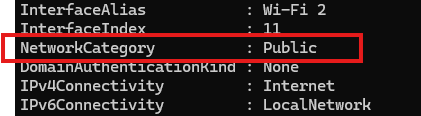
If this is Public, we need to run this command:
POWERSHELL
Set-NetConnectionProfile -InterfaceAlias "Wi-Fi 2" -NetworkCategory PrivateChange the Interface Alias to the output of your command and this will set the interface prfile to “Private” which is the least restrictive profile.
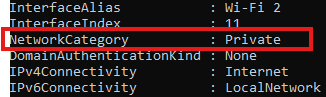
Now the profile is “Private”. Now we need to run another command to add the server to the Trustedhosts file of the workstation. We do this by executing this commands:
POWERSHELL
Start-Service -Name WinRMThis starts the WinRM service, now add the server:
POWERSHELL
Set-Item WSMan:\localhost\Client\TrustedHosts -Value *servername* -ForceChange the *servername* value to your configured servername. After that we can stop the WinRM service, as you might not want to have this running on your workstation.
POWERSHELL
Stop-Service -Name WinRMNow we would be able to connect to the server with Hyper-V.
Testing the connection
Open the Hyper-V Manager on your workstation:
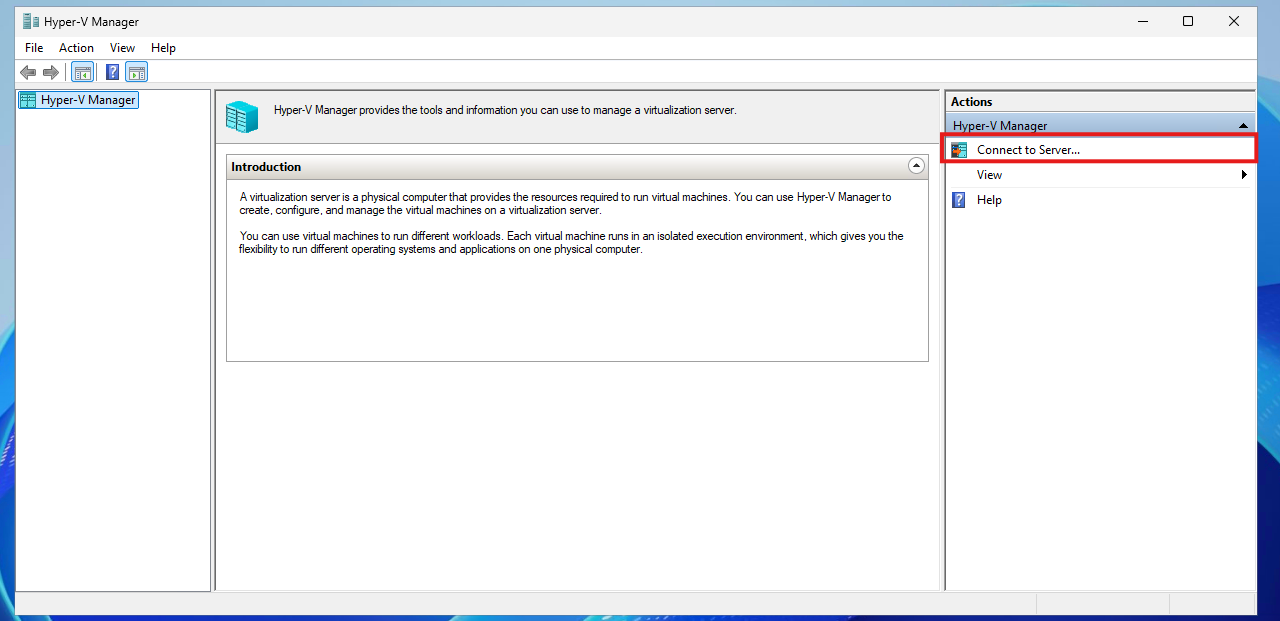
Click on “Connect to Server…” and the select another computer:
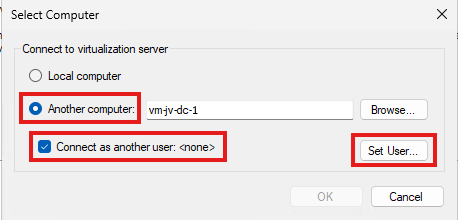
Type in the hostname of the external computer, select connect as another user and the set the user.
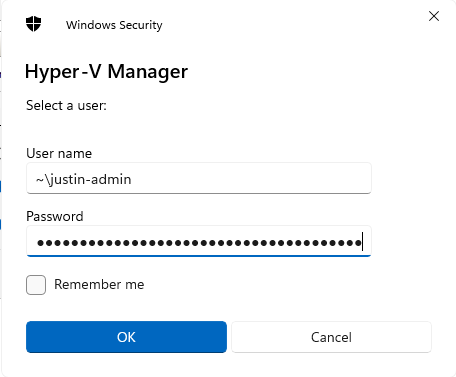
Use servername\username or ~\username which is basically the same and your password. Click OK now.
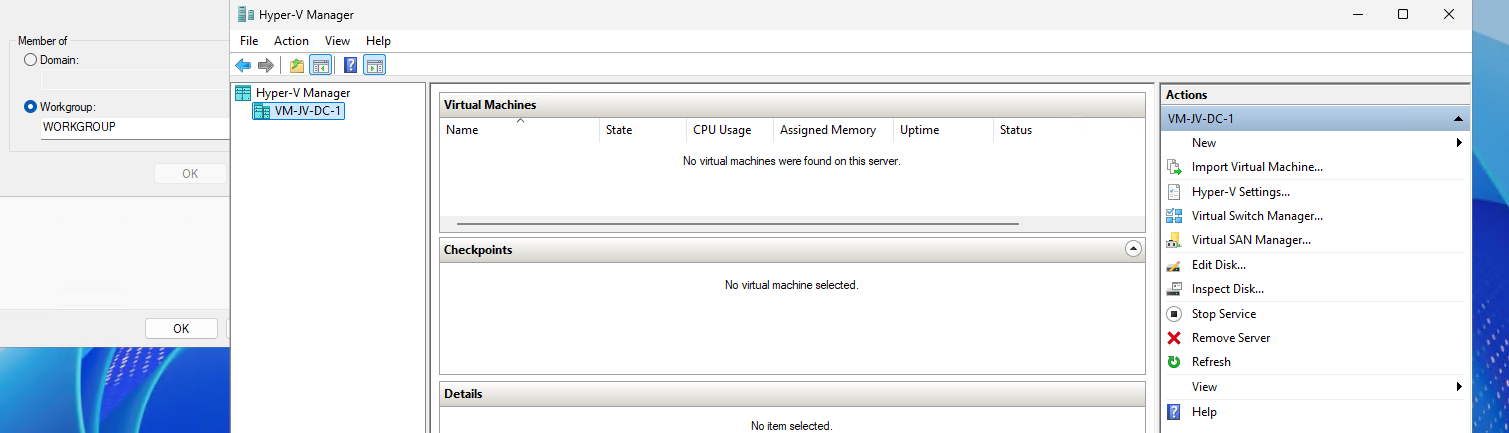
We will manage the Hyper-V server now while still being in a workgroup and non-domain joined environment.
If it still doesn’t work, you have to add the credentials to your credential manager on the workstation by running this command:
POWERSHELL
cmdkey /add:*servername* /user:justin-admin /pass:Pa$$W0rd!Summary
You see, setting this up is relatively easy. It’s somewhat more work but definitely worth it against other virtualization tools. When I had my own lab for the first time, this got me in some real errors. Fixing those is pretty easy.
Sources 📖
These sources helped me by writing and research for this post;
End of the page 🎉
You have reached the end of the page. You can navigate through other blog posts as well, share this post on X, LinkedIn and Reddit or return to the blog posts collection page. Thank you for visiting this post.
Support the blog
How to repair faulty Windows in 5 steps
Repair broken or unstable Windows installations using DISM, SFC, CHKDSK, Windows Update reset actions and recovery options.
Windows and Windows Server installations can in some rare cases become unstable after failed updates, corrupted system files, missed backups disk issues or unexpected shutdowns. In my experience, Windows Client systems are less stable than Windows Server systems, as client systems are more used by end-users who not always fully shutdown their PC’s
In this guide I will show 5 repair steps I often use to get Windows systems working again before going for a full reinstall. However, always think of yourself at this point if you want to repair and take the risk of future (new) problems, or if a reinstallation may take 1 or 2 hours it may be better to directly re-install Windows.
Info
All commands mentioned in this guide should be run in an elevated PowerShell or Command Prompt window.
Step 1: Create back-ups (optional)
Before starting this guide, I want you to give an advice from one IT guy to another. If you ever find yourself in a situation of an unstable Windows machine, please start off by creating backup of important data and applications. It may now be the time to do it.
In my IT career I have seen many cases of systems running unstable for a random period and also randomly stopped working. When you can still access the system and you are unclear if you have a reliable backup, create this at this point.
While I want to help you recovering your Windows installation, I can not fully guarantee that the system will function better after following these steps. In most cases it will, but a warned human is worth more.
Step 2: Repair the Windows image using DISM
We want to follow Microsoft’s advice and start with the DISM Restore command. DISM checks and repairs the Windows component store and often the first thing to run when Windows updates or system files are broken.
Open “Command Prompt” or “PowerShell” as Administrator and run this command:
PowerShell
DISM /Online /Cleanup-Image /RestoreHealthThis process can take some time depending on the system performance, size/workload and damage to the image. In most cases, it’s finished within 15 minutes.
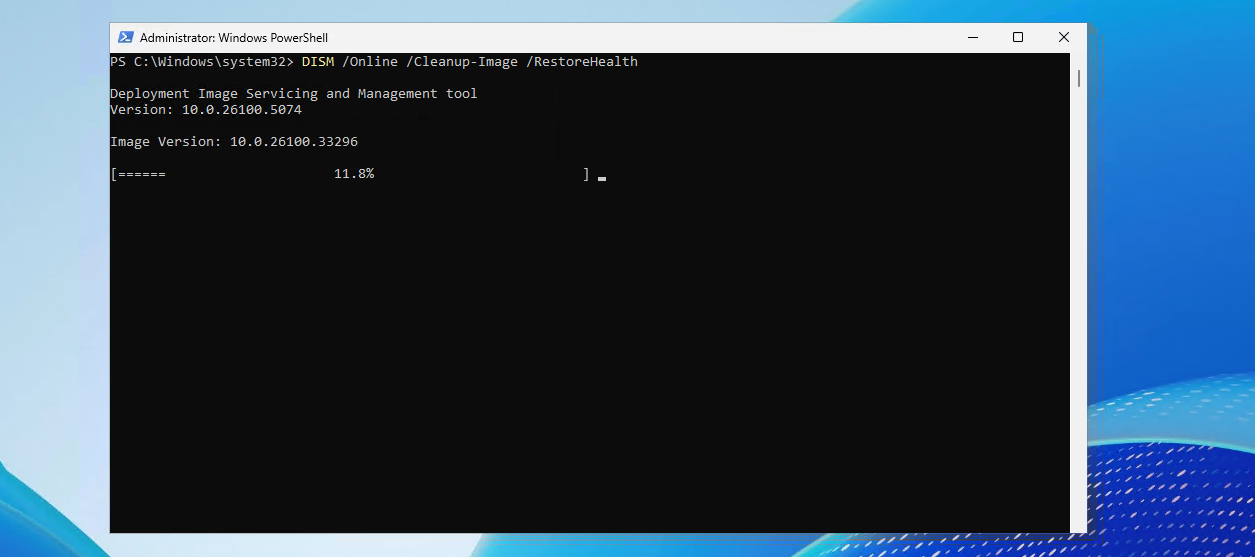
If the repair finishes, it will show you what it found/repaired or nothing is found at all. Then continue with the next step.
Step 3: Scan and repair system files using SFC
Now that the Windows image itself has been repaired, we can check the actual system files.
Open “Command Prompt” or “PowerShell” as Administrator (or re-use the previous window) and run:
PowerShell
SFC /scannowThe System File Checker scans protected Windows files and replaces corrupted versions automatically.
When finished, you will get one of these results:
- Windows Resource Protection did not find any integrity violations
- Windows Resource Protection found corrupt files and successfully repaired them
- Windows Resource Protection found corrupt files but was unable to fix some of them
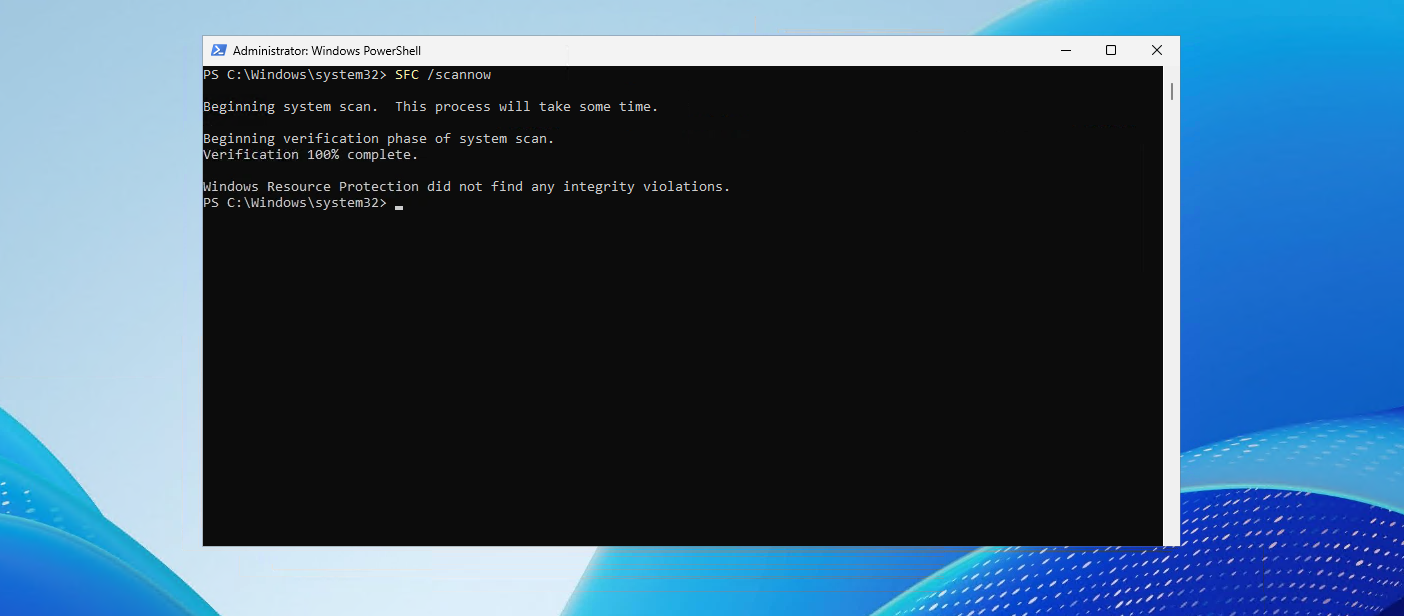
If Windows could not repair some files, reboot the machine and run the command again.
Step 4: Check the disk for file system or sector issues
If Windows is still unstable, the storage itself could contain corruption or damaged sectors. We can also issue a disk check where Windows can check the partitions and fix possible problems.
Open “Command Prompt” or “PowerShell” as Administrator and run:
PowerShell
chkdsk C: /fThis command repairs file system errors on the C: drive. If the drive is currently in use, Windows will ask to schedule the scan during the next reboot, so this must be done outside of possible office hours.
You can also run a more aggressive disk scan which additionally checks for bad sectors:
PowerShell
chkdsk C: /f /rWarning
The /r option can take a very long time on large or damaged disks.
After the reboot and disk check are finished, log back into Windows and verify if the problems are resolved.
Step 5: Reset the Windows Update components
A broken Windows Update cache can cause failed updates, endless update loops or missing system repairs.
First we need to stop the Windows Update related services which can be done with these commands:
Open “PowerShell” as Administrator and run:
PowerShell
Stop-Service wuauserv
Stop-Service bits
Stop-Service cryptsvc
Now remove the SoftwareDistribution cache folder contents running this command:
PowerShell
Remove-Item -Path "C:\Windows\SoftwareDistribution\*" -Recurse -ForceWarning
This cleans the local Windows Update cache history and downloaded update files which contains possible corruption.
After that, start the services again by running this commands:
PowerShell
Start-Service wuauserv
Start-Service bits
Start-Service cryptsvc
You can now retry Windows Update.
Step 6: Reinstall Windows system files using Recovery
Windows 11 and newer Windows 10 builds include a recovery option that reinstalls Windows while keeping files, applications and settings where possible. This tries to replace every system file with new files which can help to solve corruption. This can be useful in some cases where DISM and SFC cannot help you or cannot find the problem.
To start this recovery option, open “Settings”, go to “System”, select “Recovery”, and under “Fix problems using Windows Update” click “Reinstall now”.
If Windows no longer starts correctly and/or you are stuck in a boot loop, you can use the Windows Recovery Environment (WinRE) instead.
Boot into WinRE and go to:
- “Troubleshoot”
- “Advanced options”
From there you can use:
- “Startup Repair”
If this step did not solve the problem for you, I’m afraid the last option you have is to reinstall your system.
Summary
With these steps you can repair many common Windows issues without directly reinstalling the operating system. DISM and SFC repair Windows files, CHKDSK checks storage corruption, resetting Windows Update fixes update problems and the Recovery options help restore systems that no longer function properly. These are the steps most IT guys follow after corruption is detected and Windows needs some fresh system files.
Thank you for reading this post and I hope it was helpful!
Sources 📖
These sources helped me by writing and research for this post;
- https://learn.microsoft.com/en-us/windows-hardware/manufacture/desktop/repair-a-windows-image
- https://learn.microsoft.com/nl-nl/windows-server/administration/windows-commands/sfc#syntax
- https://learn.microsoft.com/en-us/windows-server/administration/windows-commands/chkdsk?tabs=hdd%2Cevent-viewer#syntax
- https://learn.microsoft.com/en-us/troubleshoot/windows-client/installing-updates-features-roles/additional-resources-for-windows-update
End of the page 🎉
You have reached the end of the page. You can navigate through other blog posts as well, share this post on X, LinkedIn and Reddit or return to the blog posts collection page. Thank you for visiting this post.
Support the blog
Migrate Group Policies to a new server or domain like a pro
Once in a while, we as IT administrators need to migrate our Group Policies of Windows Server to another server. Sometimes to…
Once in a while, we as IT administrators need to export and import our Group Policies of Windows Server to another server. Sometimes to copy a great policy you’ve built, or to migrate a customer to a new server.
By default, the only option Microsoft has built in into Group Policy Management (gpmc.msc) is the backup option. This creates some administrative tasks.
The Export and Import scripts
I have created two scripts with Powershell that fully exports and imports all Group Policy Objects (GPOs). This with 2 seperate scripts. These can be found and downloaded from my Github page:
Download Export script from GitHub Download Import script from GitHub
Using the Export script to migrate Group Policies
When having our Group Policies in place on a server, create a new folder on a preferred place like Desktop.
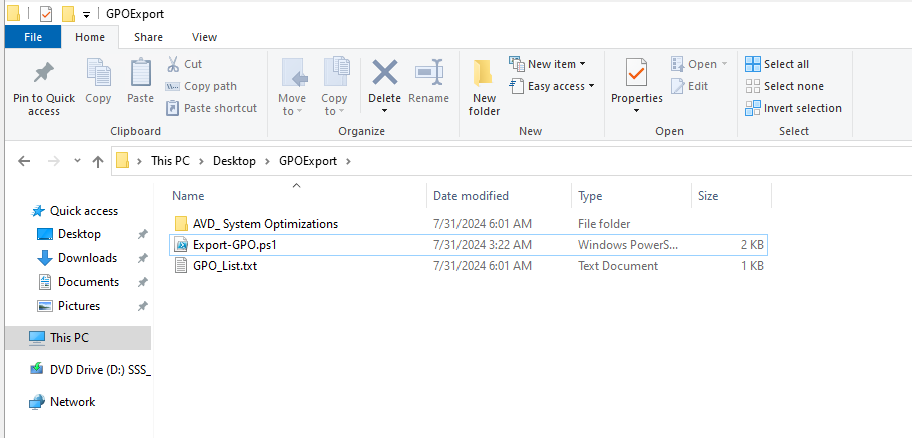
Save my Export script to a .ps1 file and place that into the newly created folder.
If you haven’t changed your Powershell script execution policy yet, do a shift + right click on a empty space in the folder, and run the command:
**POWERSHELL**
Set-ExecutionPolicy Unrestricted -Scope ProcessAfter that you can run the script by typing .\*tab button*
**POWERSHELL**
.\ExportGroupPolicies.ps1This will temporarily accept our script and other scripts till we close the Powershell window. This is the best and most secure way handling the Execution Policy of Powershell.
Now lets run our script to export all non-default Group Policy objects:
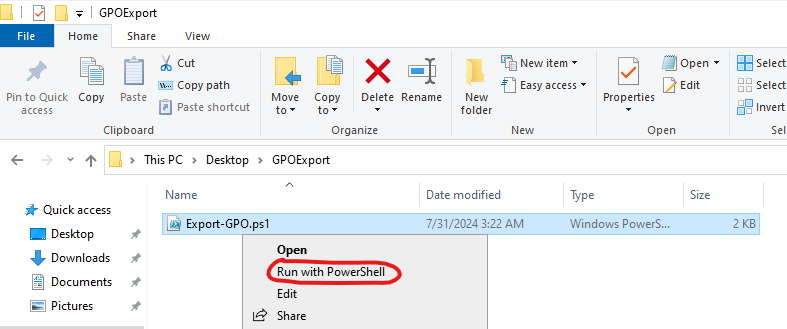
It will save all needed files in this folder, so you can copy the whole folder and start the importing process on the destination server:
Using the import script to migrate Group Policies
Lets say, we have just created our new forest and promoted our first server to a domain controller. We now want to import the GPOs we exported using this export script to this new server.
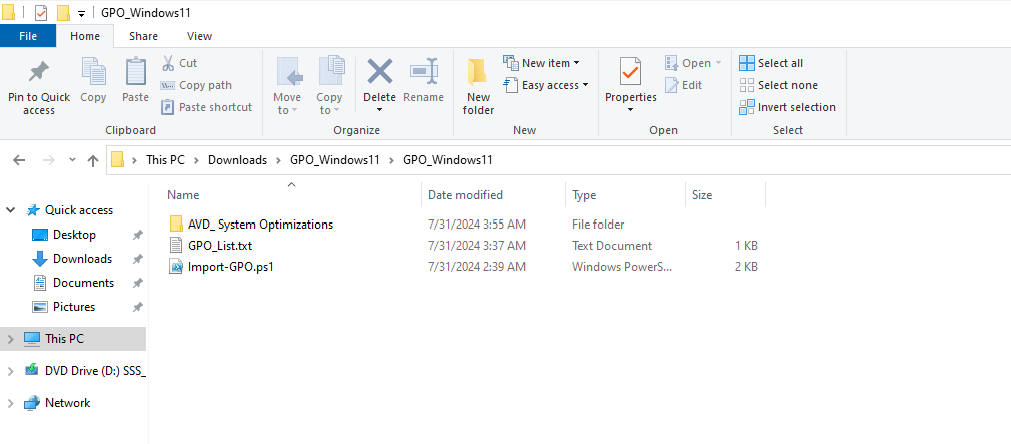
I have saved the script as .ps1 file for quick execution, and have saved in the same folder as my export script saved the GPO’s:
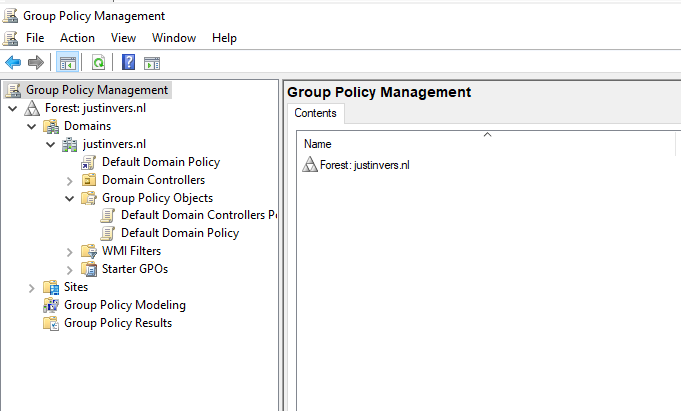
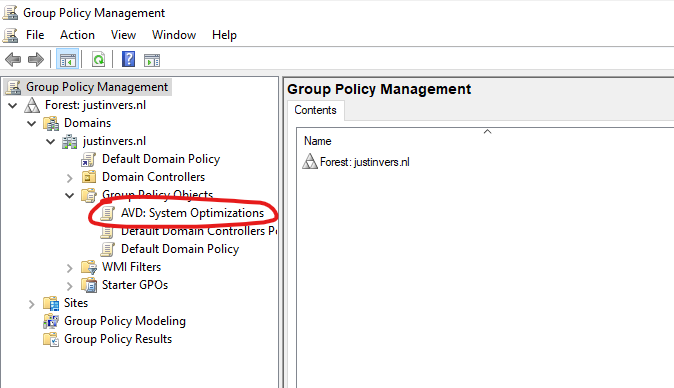
When checking our Group Policy Management console, it is completely empty and clean:
We now execute the script to import the Group Policies:
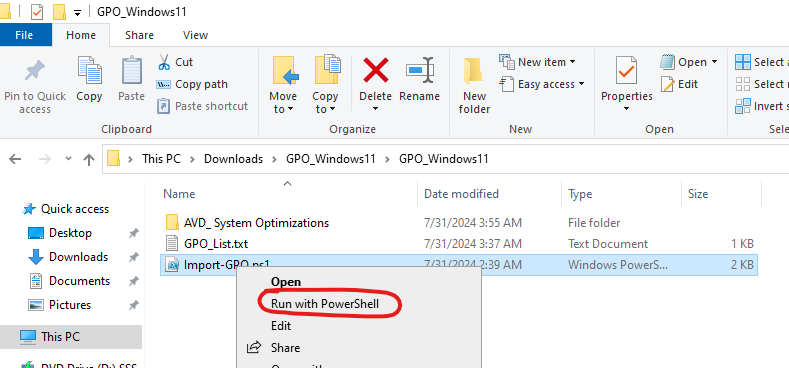
If you haven’t temporarily disabled your PowerShell execution policy yet, do this just like in the exporting action.
After succesfully executing the script, our GPO is available and ready to link to our OU. This is the only task what we have to do manually.
Summary
These 2 scripts will export and import our Group Policy easy for migration. Unfortunately Microsoft does not offer a native and easy solution for this.
I have used this script multiple times and I am very satisfied.
Thank you for reading this page and hope it was interesting and helpful.
End of the page 🎉
You have reached the end of the page. You can navigate through other blog posts as well, share this post on X, LinkedIn and Reddit or return to the blog posts collection page. Thank you for visiting this post.
Support the blog
Windows Server Backup Retention
This page explains a simple script/task to have backup retention for Windows Server Backup.
For more information about the wbadmin tool, see:
https://learn.microsoft.com/en-us/windows-server/administration/windows-commands/wbadmin
The Script
With this small script based on wbadmin we can remove old backups while keeping the last 30 items for example. This retains the data for 30 days while also keeping your storage nice and clean.
The script itself consists of the following command:
POWERSHELL
wbadmin delete backup -keepVersions:30 -quietExplanation of the command
- wbadmin: The command-line tool that makes this solution possible. It is part of Windows Server Backup.
- delete: Indicates that a delete operation should be performed.
- backup: Specifies what should be deleted: backups.
- -keepVersions:30 Keeps the 30 most recent backups and deletes all older backups.
- -quiet: Prevents confirmation prompts (Y/N) and avoids showing a command window to interactive users.
You can change the amount of backups to keep according to your needs and storage by changing the 30 to a lower or higher number.
Scheduled Task
Using this script, you can create a scheduled task that runs the cleanup automatically at a fixed interval.
Make sure the task runs outside the regular backup window, as running it during an active backup may cause issues. Preferably before creating backups so the storage is cleaned prior to writing new data on it.
To open the Windows Task Scheduler:
- Type “Task Scheduler” in the Start menu, or
- Run taskschd.msc
The perform the following tasks:
- Configure the task schedule according to your maintenance window
- Configure the task action to run the batch file located in C:\Scripts
End of the page 🎉
You have reached the end of the page. You can navigate through other blog posts as well, share this post on X, LinkedIn and Reddit or return to the blog posts collection page. Thank you for visiting this post.
Support the blog
Change Evaluation version to Standard/Datacenter version
When you install a fresh Windows Server Evaluation installation from a .iso file, it will be installing the OS as a Evaluation version…
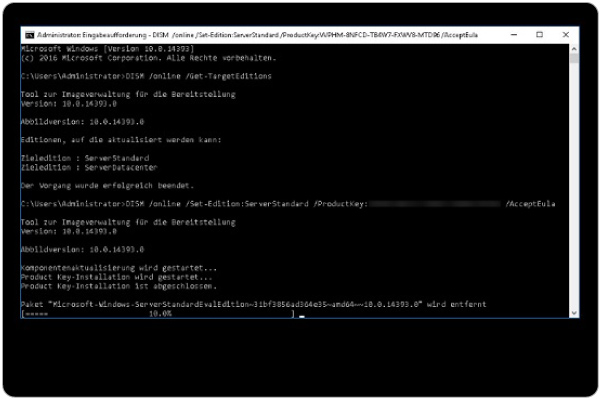
When you install a fresh Windows Server installation from a .iso file, it will be installing the OS as a Evaluation version. When you want to activate the installation with a key you need to rebuild the OS and set the edition to Standard.
Microsoft considers Standard and Standard Evaluation as different editions of Windows, because of this we have to change the edition before you can activate the installation. When you want to use the edition Datacenter, you can change the command to Datacenter which also works.
You can download the ISO file for Windows Server 2025 Evaluation here: https://www.microsoft.com/en-us/evalcenter/evaluate-windows-server-2025
Requirements
- A valid product key for Windows Server Standard
- 15 minutes of your time
Step 1: Install and prepare
You first have to install your instance of Windows Server Evaluation. After this you can install the latest updates and configure the rest of your needs.
Step 2: Upgrade Evaluation to Datacenter/Standard
After finishing up the configuration of your server, we need to run a command to upgrade the edition of Windows Server.
Open a command prompt window, and run the following command:
POWERSHELL
DISM /online /Set-Edition:ServerStandard /ProductKey:XXXXX-XXXXX-XXXXX-XXXXX-XXXXX /AcceptEulaHere you have to use your own product key for Standard/Datacenter depending on your version. Replace this with the XXXXX-XXXXX placeholder. Also, you can choose your target edition by changing the edition:
- Windows Server Standard: ServerStandard
- Windows Server Datacenter: ServerDatacenter
Summary
When installing a Windows Server instance, your edition could be an evaluation version. This is considered as a different edition, and for some features, it must be upgraded.
I hope I helped you upgrading your edition to a non-evaluation version.
End of the page 🎉
You have reached the end of the page. You can navigate through other blog posts as well, share this post on X, LinkedIn and Reddit or return to the blog posts collection page. Thank you for visiting this post.
Support the blog