Module 10: Monitoring and Security
Azure Monitor
Azure Monitor is a service in Azure that enables monitoring. With it, you can monitor various resources and quickly identify potential issues during an outage. Azure Monitor supports almost all resources in Azure and can, for example, retrieve event logs and metrics from the guest operating system of virtual machines.
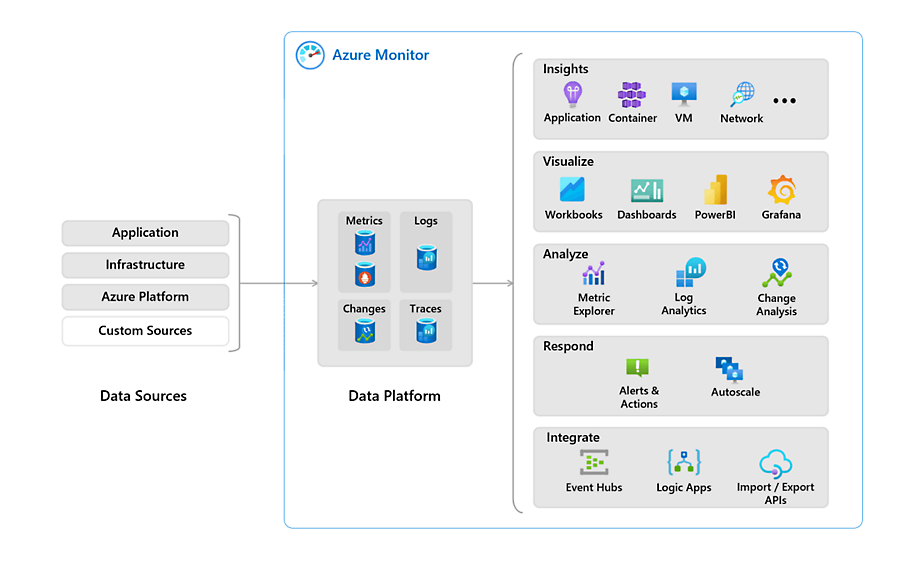
Azure Monitor Agent (AMA)
The Azure Monitor Agent is an agent that can run on Windows- and Linux-based VMs in Azure. These agents operate as a service to send information from the VM to Azure Log Analytics.
This information can include:
- Event Logs (Windows)
- Syslog (Linux)
- IIS Logs
- Performance Counters (CPU/RAM/DISK/NIC)
The agent is automatically installed as a VM extension when a Data Collection Rule is created and linked to the VM. This means customers do not need to install anything manually.
Previously, a manually installable agent was used for this purpose, which had several names:
- Log Analytics Agent
- Monitor Agent
- Microsoft Monitoring Agent
- OMS Agent
Data Collection Rules (DCR)
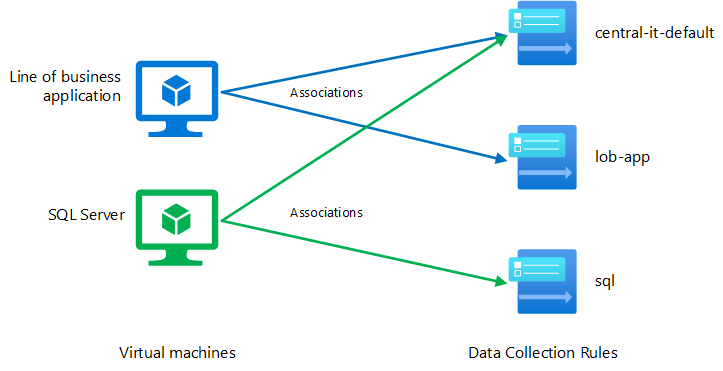
Data Collection Rules are centralized rules that allow you to collect the same data from one or multiple resources at once. When you add a VM to its first Data Collection Rule, the Azure Monitor Agent is automatically installed.
Previously, diagnostic settings had to be configured per resource. With Data Collection Rules, you can enable this for, for example, 100 VMs at once or even enforce it using Azure Policy.
In a Data Collection Rule, you define:
- Which resources you want to collect data from
- What information you want to collect
- In which workspace you want to store the data
Custom Dashboards
Azure Monitor allows you to create a custom dashboard with key information and shortcuts. Such a dashboard looks like this:
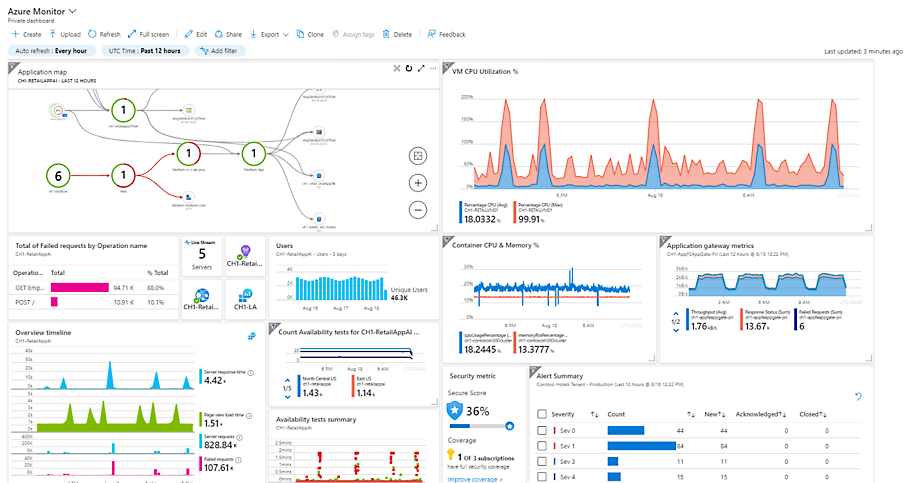
This dashboard gets information from various places, like Virtual Machine insights, Guest OS insights, Azure Resource Graph and Log Analytics workspaces.
Resource Insights
In almost every resource in Azure, you can view resource-specific insights. This is information relevant to the selected resource and can be found under “Monitoring” and then “Insights”.
However, this information is predefined and cannot be customized. Additionally, it only covers a small portion of the entire application you want to monitor.
Azure Workbooks
Azure Workbooks are flexible overviews in Azure. You can fully customize what you want to see for a specific service and even add tabs. This option is more advanced than an Azure Dashboard. The information displayed in an Azure Workbook comes mostly from a Log Analytics workspace, but it is possible to get information from Azure Resource Graph too.
An workbook can look like this:
The advantages of an Azure Workbook are that every button, every column and every type of conditional formatting is customizable. However, it can quickly become very complex and it requires a bit of knowledge of Kusto Query Language (KQL) to make it totally yours. I speak out of experience here.
What really helped me were the free Azure Workbook templates from Microsoft themselves. They have created a whole Github repository full of templates which you can import in your own environment and use some modules from. You can find them in the link below:
https://github.com/microsoft/Application-Insights-Workbooks/tree/master/Workbooks
I also did a guide to Azure Workbooks and how to create your own custom workbook a while ago: https://justinverstijnen.nl/create-custom-azure-workbooks-for-detailed-monitoring/
Log Analytics
Log Analytics is an Azure service for centrally storing logs and metrics. It acts as a central database where you can link all resources of a solution or application. Azure Dashboards and Workbooks, in turn, retrieve their information from Log Analytics. By sending data to a Log Analytics workspace, you can retrieve it and build reports. Data from Log Analytics can be queried using the Kusto Query Language (KQL).
Log Analytics data is organized within a Workspace, which is the actual Log Analytics resource. Within this workspace, you can choose to store all information for a specific application, as data retention settings are defined at the workspace level.
It is very important to watch the data retention of the workspace. The more data you store, the more expensive it will get.
In Azure, you can send logs to Log Analytics from almost every resource under “Diagnostics Settings”:
And then “+ Add diagnostic setting”:
Alternatives to Log Analytics
While Log Analytics is a great service of Azure, it can be very expensive for small environments. There are two alternatives to Log Analytics:
- Storage Account (Archive): With a Storage Account, you store data as an archive in Azure Storage. This is the most cost-effective option, but it does not allow for real-time data retrieval or analysis.
- Event Hub: Event Hub serves as a central point for sending events and data to be used with other solutions, such as Microsoft Sentinel or another Security Information & Event Management (SIEM) solution.
Practice Examples of Log Analytics
Log Analytics can be of services for some business and technical requirements:
- Company defined log retention policy: If you company states that logs have to be stored for 180 days, you can use Log Analytics to store the logs. For example, Entra ID sign in logs have a retention of 30 days. With storing them in Log Analytics, we extend this to 180 days.
- Performance Counters of VMs: By default in Azure we can only view the host-level resource usage of the VM. However, some usage bursts will not be displayed. By capturing the counters exactly from the the VMs guest OS we have a clear view of these counters and can act if anything happens like abnormal CPU or RAM usage.
- Event Logs of VMs
- Heartbeats
Azure Activity Logs
Every came in the situation that something has changed but you don’t know what exactly, who did the change and when?
The Azure Activity logs solve this problem and can be displayed on every level in Azure. Here is an example of the Activity logs on Resource Group-level:
Let’s say we have an storage account named sa-jv-amc10 and suddenly, the application doesn’t have access to the storage account anymore, starting like 5 minutes ago. You can fire up the activity log to search for possible changes.
And there it is, like 5 minutes ago someone disabled public internet access to the storage account and this caused the outage.
Alert rules in Microsoft Azure
It is possible to create specific alerts in Azure based on collected data. For example, you can trigger an alert when a virtual machine exceeds a certain load threshold or when there are multiple failed login attempts.
Alerts in Azure may seem complex, but they are designed to be scalable. They consist of the following components:
- Alert Rule (Trigger): Defines which resources are monitored, what triggers the alert, and any conditions that must be met.
- Alert Processing Rules: Modify existing alerts after they have been triggered. These rules can ensure that an alert is only received once, is automatically resolved when the condition is no longer met, or is only active during specific times. They can also suppress certain notifications.
- Action Groups (Action): Define what action should be taken when an alert is triggered. Actions can include sending a notification (email, SMS, or push notification via the Azure app) or executing an automated response to resolve an issue. For example, an automated cleanup can be triggered if disk usage exceeds 95%.
The available action types for Action Groups include:
- Notification methods: Email, SMS, and push notifications
- Automation Runbooks
- Azure Functions
- ITSM Incidents
- Logic Apps
- Secure Webhooks
- Webhooks
- Event Hubs
An overview of how this works looks like this:
Basic security principles in Microsoft Azure
Some basic principles in Microsoft Azure are:
- Use the least privileges possible (JEA/JIT) and Privileged Identity Management (PIM): Limit permissions to only what is necessary and apply Just Enough Administration (JEA) and Just-In-Time (JIT) access where possible.
- Use MFA/Passwordless authentication: Enforce Multi-Factor Authentication (MFA) or passwordless authentication to enhance security.
- Implement monitoring: Ensure proper monitoring is in place to detect and respond to issues proactively.
- Encryption: Every resource in Azure is encrypted by default. Additionally, ensure that the application itself is encrypted and that secure protocols such as SSL and TLS 1.2+ are used within a VM.
- Have at least 2 and a maximum of 4 global administrators: We want to assign this role as least as possible. Always have a minimum of 2 global administrators to prevent lockout of the tenant in case one account doesn’t work.
The Zero Trust model is also considered as a must-have security pillar today. You can read more about the zero trust model here: https://justinverstijnen.nl/the-zero-trust-model
Zero Trust solutions in Azure
Solutions that help facilitate Zero Trust in Microsoft Azure include:
- Conditional Access: Enforces access policies based on conditions such as user identity, device compliance, location, and risk level.
- Privileged Identity Management (PIM): Provides just-in-time access and role-based access control (RBAC) to minimize the risk of excessive permissions.
- Network Security Groups (NSG): Controls inbound and outbound traffic at the network level, enforcing least-privilege access.
- Microsoft Defender for Cloud: Provides threat protection, security posture management, and compliance monitoring across Azure and hybrid environments.
- Encryption: Ensures that data at rest and in transit is encrypted, securing sensitive information from unauthorized access.
Microsoft Defender for Cloud
Microsoft Defender for Cloud is a security service for Azure, AWS, Google Cloud, and Arc resources. It provides security recommendations in the Azure Portal, such as identifying open ports that should be closed, enabling backups, and more.
The main objectives of Defender for Cloud are:
- Secure Score: Measures the security posture of your cloud environment and provides recommendations to improve it.
- Best Practice analyzer
- Azure Policy Management and Recommendations: Ensures compliance by enforcing security policies and best practices.
- Cloud Security Posture Management (CSPM): Continuously monitors cloud environments to detect misconfigurations and vulnerabilities.
- Cloud Security Explorer: Allows in-depth security investigations and queries to analyze risks across cloud resources.
- Security Governance: Helps implement security controls and best practices to maintain compliance with industry standards.
Microsoft Defender for Cloud also provides a dashboard with Secure Score, which evaluates your entire environment. Not just Azure, but also AWS, Google Cloud, and Azure Arc (on-premises) resources.
Defender for Cloud is partially free (Basic tier), but it also offers a paid version with advanced features and resource-specific plans, such as protection for SQL servers, Storage accounts, Windows Server VMs and more.
Security Policies and Compliance
In addition to its standard recommendations, Defender for Cloud allows you to apply global security standards to your Azure subscriptions. This provides additional recommendations to ensure compliance with industry standards, such as:
- PCI DSS v4
- SOC TSP
- SOC 2 Type 2
- ISO 27001:2022
- Azure CIS 1.4.0
- NIST SP 800 171 R2
- CMMC Level 3
- FedRAMP H
- HIPAA/HITRUST
- SWIFT CSP CSCF v2020
Microsoft Sentinel (SIEM & SOAR)
Azure/Microsoft Sentinel is an advanced Security Information & Event Management (SIEM) and Security Orchestrated Automation and Response (SOAR) solution. It provides a centralized platform for investigating security events. Sentinel integrates with many Microsoft services as well as third-party applications and solutions.
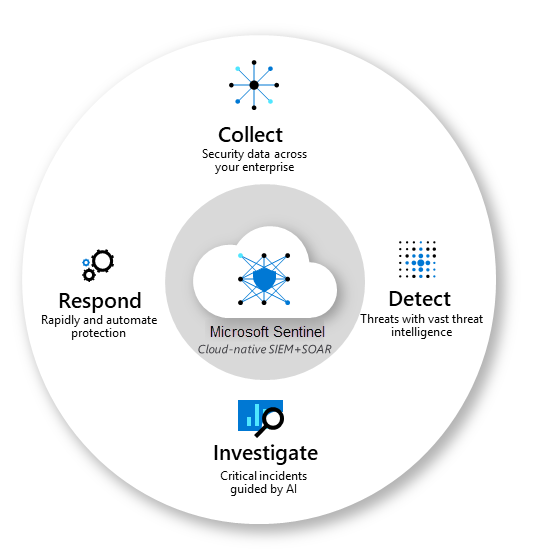
Azure Sentinel stores its data in Log Analytics and allows the creation of custom Workbooks for visualization. Additionally, it supports Playbooks, which enable automated responses to security incidents based on incoming data.
Key objectives of Microsoft Sentinel:
- Collect data: Aggregate security data from cloud, on-premises, and third-party sources.
- Detect threats: Identify potential threats using built-in AI and analytics.
- Respond to incidents: Automate responses with Playbooks to mitigate risks.
- Investigate incidents: Analyze and correlate security events to improve threat detection and response.
Microsoft Sentinel Playbooks
Playbooks are collections of procedures that are executed from Azure Sentinel in response to a specific alert or incident. These workflows are built on top of Azure Logic Apps, allowing automated actions to be triggered based on security events.
Microsoft Sentinel and AI
In addition to manually investigating security incidents, Microsoft Sentinel uses AI-driven learning to continuously improve its threat detection and response. If a specific alert is resolved multiple times using the same Playbook, Sentinel will recognize this pattern and automatically trigger the Playbook in future occurrences.
Managed Identities (MI)
Managed Identities in Microsoft Azure are the next generation of service accounts. They represent a resource in Azure and can be assigned Entra ID roles. They are stored in Entra ID as well.
The main advantage is that they do not use passwords or secrets that need to be securely stored, reducing the risk of leaks. Additionally, each resource can be granted only the necessary permissions following the principle of least privilege.
Types of Managed Identities in Azure:
- System-Assigned Managed Identity:
- Directly tied to one specific resource.
- Exclusive to the resource where it was created.
- Automatically deleted when the resource is removed.
- Advantage: No maintenance required.
- User-Assigned Managed Identity:
- Created separately and can be linked to multiple resources.
- Advantage: More flexibility and customization in identity management.
Mostly you use a System-assigned MI when you must allow access to for example a storage account for one resource, but if you need to have multiple resources needing access to this storage account you use a User-asssigned MI. This to have one Managed Identity and minimize administrative effort.
Azure Key Vault
Azure Key Vault is a type of vault used to store sensitive technical information, such as:
- Certificates
- Secrets
- Keys
What sets Azure Key Vault apart from a traditional password manager is that it allows software to integrate with the vault. Instead of hardcoding a secret, the software can retrieve it from the vault. Additionally, it is possible to rotate a secret every month, enabling the application to use a different secret each month.
Practical use cases include:
- Storing BitLocker encryption keys for virtual machines
- Storing Azure Disk Encryption keys
- Storing the secret of an Entra ID app registration
- Storing API keys
How does Azure Key Vault work?
The sensitive information can be retrieved via a unique URL for each entry. This URL is then used in the application code, and the secret is only released if sufficient permissions are granted.
To retrieve information from a Key Vault, a Managed Identity is used. This is considered a best practice since it is linked to a resource.
Access to Azure Key Vault can be managed in two ways:
- Access Policies
- Provides access to a specific category but not individual entries.
- RBAC (Recommended Option)
- Allows access to be granted at the entry level.
A Managed Identity can also be used in languages like PHP. In this case, you first request an access token, which then provides access to the information in the vault.
There is also a Premium option, which ensures that Keys in a Key Vault are stored on a hardware security module (HSM). This allows the use of a higher level of encryption keys and meets certain compliance standards that require this level of security.
Summary
With Monitoring and Security in Azure, there almost is no limit. Workbooks enables you to create really interactive overviews of the health of your environment/application and be alerted when anything is wrong. With security and auditing tools, Microsoft has everything to embrace the zero trust model and having the bar very low to start and use them today.
Thank you for reading this page.
To go back to the navigation page: https://justinverstijnen.nl/blog/azure-master-class/
End of the page 🎉
You have reached the end of the page. You can navigate through other blog posts as well, share this post on X, LinkedIn and Reddit or return to the blog posts collection page. Thank you for visiting this post.
Support the blog
