Module 11: Infrastructure as Code & DevOps
Azure Management Tools
There are multiple environments to manage Azure and its resources:
- Azure Portal: This is the web-based environment, which is the easiest to use.
- Advantages: Intuitive, organized, and easy to navigate.
- PowerShell: This is the PowerShell-based environment for Azure.
- It allows you to manage Azure resources via scripts and command-line commands.
- CLI (Command-Line Interface): This is the CLI-based environment for Azure.
- Like PowerShell, it provides command-line management, but it’s based on the cross-platform Azure CLI.
Each of these environments offers different levels of flexibility and control, with the portal being more user-friendly for beginners, and PowerShell/CLI being preferred for automation and advanced scripting. We IT guys don’t want to eternally click around to do some basic tasks, don’t we?
Azure Portal
The Azure Portal is the home of your Azure environment and is the most used tool to manage Azure. From the start, you always use it and in case of emergencies, it is the easiest, fastest and most reliable tool for some troubleshooting.
You visit the Azure Portal by going to: https://portal.azure.com
Azure Powershell
Azure Powershell is a Powershell module built on the Azure Resource Manager and can be used to manage and deploy resources into Azure. When deploying multiple instances, it fastly becomes a faster and less time consuming tool than the Azure Portal.
In practice I sometimes stumbled on some errors with Virtual Machines freezing in the Azure Portal and having to restart them with Powershell. It therefore gives you access to a deeper level of your Azure Environment.
You can access Azure Powershell by installing the Powershell module or by going to https://shell.azure.com
Azure CLI
Azure CLI is the deepest level of managing Azure and is based on Bash. This enables Linux and Unix based developers to also benefit from Azure without having to learn a complete new set of commands.
You can access Azure CLI by installing the Azure CLI module or by going to https://shell.azure.com
Azure CLI vs Azure PowerShell
Azure PowerShell and Azure CLI are both needed in Azure to manage all services. Some tasks can be performed in both shells, but they will be triggered by different commands.
Besides the way of triggering, there are a few other important differences between Azure PowerShell and Azure CLI:
- Azure PowerShell is a module and requires PowerShell.
- Azure CLI can be installed on any platform.
- Azure CLI is Linux-based, whereas Azure PowerShell is Windows-based.
- Azure CLI is required for managing Linux servers.
- Azure PowerShell is required for managing Windows servers.
It comes mostly to personal preference what you will use more often.
Automation in Azure
Automation can be summarized in two categories:
Declarative:
Declarative means that we proactively tell systems, “Meet this requirement,” for example, by specifying that they should contain at least certain versions, packages, dependencies, etc.
Examples of declarative automation are:
- PowerShell DSC (Desired State Configuration)
- Configuration Management
- Terraform (coming up later)
- Bicep (coming up later)
Imperative:
Imperative means that we perform an occasional “Do this” action on a system, such as installing a specific package, applying an update, or making a change using a script that we run one time.
Examples of imperative automation are:
- Provisioning
- Automation
Azure Resource Graph
Azure Resource Graph is a database designed to retrieve advanced information about resources. It allows you to efficiently fetch data from multiple subscriptions and resources. The data retrieval from Azure Resource Graph is done using the query language Kusto Query Language (KQL).
Azure Resource Graph is purely a central point for data retrieval, and it does not allow you to make changes to resources. Additionally, Azure Resource Graph is a service that does not require management and is included by default in Azure, similar to Azure Resource Manager (ARM), the Azure Portal, and other core services.
Azure Resource Graph Explorer-tool
Azure Resource Graph also provides a tool for visual data retrieval, called Azure Resource Graph Explorer. This tool allows you to view and fetch live data using Kusto (KQL) and includes a query builder to write queries without needing extensive technical knowledge.
Check out the Resource Graph Explorer tool here: https://portal.azure.com/#view/HubsExtension/ArgQueryBlade
Azure Resource Manager
Under the hood, resource deployment in Azure is managed by the Azure Resource Manager (ARM) service using the JSON programming language. In almost every blade in the Azure Portal, you can access the JSON view or the option to export a template, where you can view and export the complete configuration of a resource in JSON. This allows you to quickly deploy identical configurations across multiple subscriptions.
Bicep and Azure
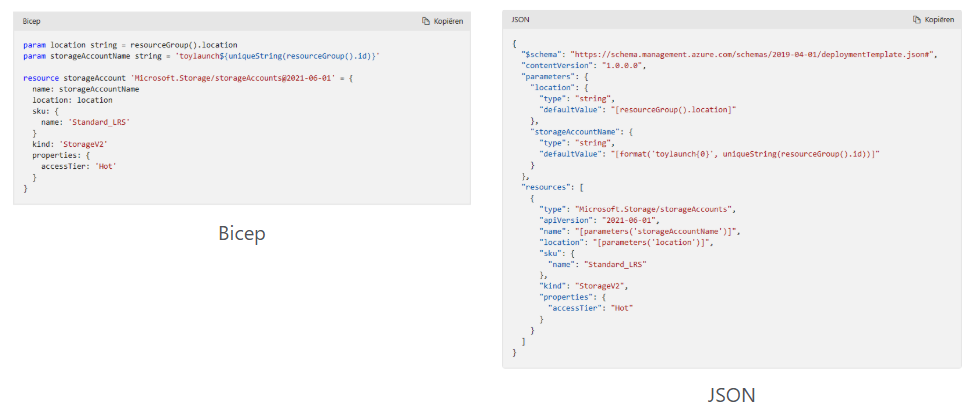
Bicep is an alternative language for deploying Azure resources. It is a declarative language that communicates directly with Azure Resource Manager (ARM) but with much simpler syntax. When deploying resources, the administrator provides a Bicep template to ARM, which then translates the instructions into JSON and executes them.
Here’s an example to show the difference in syntax between Bicep and JSON when implementing the same resources:
Using Bicep with Azure
Step 1: Install Visual Studio Code
If you haven’t already installed Visual Studio Code (VS Code), follow these steps:
- Download and install Visual Studio Code from the official website: https://code.visualstudio.com/.
Step 2: Install the Bicep Extension for VS Code
To make it easier to work with Bicep, you can install the Bicep extension for VS Code. This way VS Code will know exactly what you are working on and can auto complete your scripts.
- Open Visual Studio Code.
- Go to the Extensions view by clicking on the Extensions icon in the Activity Bar on the side of the window or pressing Ctrl + Shift + X.
- Search for “Bicep” in the search bar.
- Click Install on the Bicep extension by Microsoft.
This extension provides syntax highlighting, IntelliSense, and support for deploying Bicep templates directly from VS Code.
Step 3: Install Azure CLI
To deploy directly to Azure from VS Code, you’ll need the Azure CLI. If you don’t already have it installed, you can install it by following the instructions here.
Once installed, log in to Azure using the following command in your terminal:
az loginStep 4: Write Your First Bicep Template in VS Code
- Open VS Code and create a new file with the .bicep extension (e.g., storage-account.bicep).
- Write a simple Bicep template to create an Azure Storage Account.
Example Bicep template:
resource myStorageAccount 'Microsoft.Storage/storageAccounts@2021-04-01' = {
  name: 'mystorageaccount001'
  location: 'East US'
  sku: {
    name: 'Standard_LRS'
  }
  kind: 'StorageV2'
}
In this template:
- The resource is a Storage Account
- The name of the storage account is mystorageaccount001 (must be globally unique)
- We are using the Standard_LRS SKU (Locally Redundant Storage) and the StorageV2 kind
Step 5: Deploy the Bicep Template Directly from VS Code
To deploy the Bicep template directly from VS Code, you can use the Azure CLI integrated into the Terminal in VS Code.
- Open the Terminal in VS Code by navigating to Terminal -> New Terminal or pressing Ctrl + (backtick).
- Run the following command to deploy the Bicep template:
az deployment group create --resource-group *YourResourceGroupName* --template-file storage-account.bicep- Replace
*YourResourceGroupName* with the name of the Azure Resource Group you want to deploy to.
This command will deploy the Bicep template defined in storage-account.bicep to your Azure resource group.
Step 6: Verify the Deployment
Once the deployment command is successfully executed, we can verify the deployment in the Azure Portal:
- Go to the Resource Group you specified
- You should see the Storage Account named mystorageaccount001 deployed
Alternatively, we can check the deployment using the Azure CLI:
az storage account show --name mystorageaccount001 --resource-group *YourResourceGroupName*Step 7: Modify and Redeploy the Template
If we need to make changes to your template (e.g., changing the SKU or location), simply edit the Bicep file and redeploy it using the same command:
az deployment group create --resource-group <YourResourceGroupName> --template-file storage-account.bicepAzure will handle the update automatically.
Step 8: (Optional) Convert Bicep to JSON ARM Template
If you ever need to generate a traditional ARM template (JSON), we can compile the Bicep file to JSON using the following command in VS Code’s terminal:
bicep build storage-account.bicepThis will generate a storage-account.json file containing the equivalent ARM template in JSON format.
Conclusion
That’s it! You we have a workflow for writing Bicep templates in Visual Studio Code and deploying them directly to Azure using the Azure CLI. The Bicep extension in VS Code makes it easier to manage your Azure resources with a simplified syntax compared to traditional JSON-based ARM templates.
Terraform and Azure
Terraform is an open-source infrastructure as code (IaC) tool created by HashiCorp. It allows users to define, provision, and manage cloud infrastructure using a declarative configuration language (HCL - HashiCorp Configuration Language).
With Terraform, you can manage infrastructure across multiple cloud providers (like Azure, AWS, Google Cloud, etc.) and services by writing simple code files. This eliminates the need for manual configuration, automating the setup, updating, and scaling of infrastructure in a consistent and repeatable manner. This has as an advantage that the formatting is the same across all cloud platforms.
Using Terraform with Azure
Step 1: Install Visual Studio Code
If you haven’t already installed Visual Studio Code (VS Code), download and install it from the official website: https://code.visualstudio.com/.
Step 2: Install the Terraform Extension for VS Code
To make it easier to work with Terraform in VS Code, you can install the Terraform extension. This extension provides syntax highlighting, IntelliSense, and other features to help you write Terraform code.
- Open Visual Studio Code.
- Go to the Extensions view by clicking on the Extensions icon in the Activity Bar on the side or pressing Ctrl + Shift + X.
- In the search bar, type “Terraform”.
- Install the Terraform extension (by HashiCorp).
Step 3: Install Terraform
If you don’t already have Terraform installed, follow these steps to install it:
- Go to the official Terraform website: https://www.terraform.io/downloads.html.
- Download and install the appropriate version of Terraform for your operating system.
- Verify the installation by running the following command in your terminal:
terraform --versionThis should return the installed version of Terraform.
Step 4: Install Azure CLI
You will also need the Azure CLI installed to interact with Azure. Follow the instructions to install the Azure CLI from the official documentation: https://docs.microsoft.com/en-us/cli/azure/install-azure-cli.
Once installed, log in to Azure by running:
az loginStep 5: Write Your First Terraform Configuration
Now, let’s create a simple Terraform configuration that provisions an Azure Storage Account.
- Open Visual Studio Code and create a new file with the .tf extension (e.g., main.tf).
- Add the following Terraform configuration to the file:
# Configure the Azure provider
provider "azurerm" {
  features {}
}

# Create a Resource Group
resource "azurerm_resource_group" "example" {
  name     = "example-resources"
  location = "East US"
}

# Create a Storage Account
resource "azurerm_storage_account" "example" {
  name                     = "examplestorageacc"
  resource_group_name       = azurerm_resource_group.example.name
  location                 = azurerm_resource_group.example.location
  account_tier               = "Standard"
  account_replication_type = "LRS"
}- Defines the Azure provider (
azurerm). - Creates an Azure Resource Group named
example-resourcesin the East US region. - Creates a Storage Account named
examplestorageaccwithin the resource group.
Step 6: Initialize Terraform
Before deploying your resources, you need to initialize Terraform. Initialization downloads the necessary provider plugins and sets up your working directory.
- Open the Terminal in VS Code by navigating to Terminal -> New Terminal or pressing Ctrl + (backtick).
- Run the following command to initialize the Terraform configuration:
terraform initTerraform will download the required provider and prepare your environment for deployment.
Step 7: Plan the Deployment
Once the configuration is initialized, you can run a terraform plan to preview the actions Terraform will take based on your configuration. This is a safe way to ensure everything is correct before making changes.
Run the following command in the terminal:
terraform planThis will display a list of actions Terraform will take to provision the resources.
Step 8: Apply the Terraform Configuration
Once you’re happy with the plan, you can apply the configuration to deploy the resources to Azure.
- Run the following command to apply the Terraform configuration:
terraform apply- Terraform will ask you to confirm the changes before proceeding. Type
yesto confirm.
Terraform will now deploy the resources defined in your main.tf file to Azure. Once the process is complete, you will see output confirming that the resources have been created.
Step 9: Verify the Deployment in Azure
Once the Terraform apply process completes, you can verify the deployment in the Azure Portal:
- Go to Resource Groups and check for the example-resources group.
- Inside that resource group, you should see the Storage Account examplestorageacc.
Step 10: Modify and Redeploy
If you need to make changes (e.g., update the account tier of the storage account), simply edit the main.tf file, then run:
terraform planThis will show you the changes Terraform will make. If everything looks good, run:
terraform applyStep 11: Destroy the Resources
If you no longer need the resources and want to clean them up, you can run the following command to destroy the resources created by Terraform:
terraform destroyTerraform will ask you to confirm, type yes to proceed, and it will remove the resources from Azure.
Conclusion
You have now set up a complete workflow to write Terraform configurations in Visual Studio Code, and deploy resources to Azbure using the Azure CLI. Terraform is a powerful tool that simplifies infrastructure management, and with VS Code’s Terraform extension, you have a streamlined and productive environment to develop and deploy infrastructure as code.
Git and Azure
Git is an open-source version control system used to manage different versions of projects and take periodic snapshots. This allows you to, for example, start from a specific version during debugging and then make changes (or “break” the code) without losing the original state.
Additionally, Git enables merging code with other versions. Think of it as a form of collaboration similar to working in Word, where every minute represents a “save” action. With Git, you can return to any version from any minute, but applied to code instead of a document.
Github
GitHub is a public or private repository service from Microsoft for storing code and collaborating with multiple DevOps engineers or programmers on a project involving code. It works by allowing developers to work locally on their machines, and then click “push changes,” which essentially acts as a save-to-server option.
GitHub can be used in combination with Git to get the best of both worlds, allowing developers to save changes via the command line while benefiting from version control and collaboration features provided by GitHub.
Summary
While this module is not my primary focus, it contains really cool stuff for automation purposes. When done properly it can save a ton of time but also helps secure and unifies your environments. Humans can make mistakes, but when having a correct template, the number of errors will drop significantly.
However, using those tools is not a must and there is no “wrong” way of how you perform tasks in Azure. Only one can be faster or slower than the other based on multiple factors.
Thank you for reading this module, and the rest of the master class. Unfoetunately, this is the last page.
To go back to the navigation page: https://justinverstijnen.nl/blog/azure-master-class/
End of the page 🎉
You have reached the end of the page. You can navigate through other blog posts as well, share this post on X, LinkedIn and Reddit or return to the blog posts collection page. Thank you for visiting this post.
Support the blog
