Module 2: Identity in Azure
What is identity?
For every service that a user accesses, it is necessary to have an identity. Access needs to be determined, and the service must know who the user is in order to open the correct environment. During authentication, a system will double check if a user is who it says it is which we can do in various ways today. We can only allow a password or go better and more secured by using MFA, Passkeys, physical authentication etc.
Then we get the authorization phase; what is a user able to do after checking in is completed. Best practice is to always assign the least possible privileges. A person who performs 3 tasks does not need permissions for 200 tasks, but for the 3 tasks only. “Least privilege” is one of the 3 key principals of the Zero Trust model.
Microsoft Entra ID (formerly known as: Azure Active Directory)
Microsoft Entra ID is the Identity Provider for all enterprise Microsoft Cloud services and 3rd-party applications:
- Microsoft Azure
- Microsoft 365
- Microsoft Dynamics 365
- Power Platform
- Exchange Online
- SharePoint Online
- TOPdesk (3rd-party)
- Salesforce (3rd-party)
This was previously known as Azure Active Directory which sounds similar to the traditional Active Directory Domain Services that you install on Windows Servers, but it differs significantly in terms of functionality and purpose. The name of it was changed in 2023 to make it less confusion.
However, it differs some from the old Active Directory Domain Services protocols:
| Protocol type | Active Directory Domain Services | Microsoft Entra ID |
|---|---|---|
| Verification protocols | NTLM & Kerberos | Open ID, OAuth 2.0, SAML, WS-FED |
| Query protocols | LDAP | Powershell |
Federation
The Federation process means that an application trusts a federation server, allowing it to issue tokens for Single Sign-On. In the past we had Active Directory Federation Services as a role, which makes AD authentication and SSO possible to 3rd party applications.
Multiple Entra ID tenants
It is possible to create multiple Azure ADs within a single .onmicrosoft tenant. For example, for a partner who works on the same tenant with a different domain name. This can be done in the Microsoft Azure marketplace.
Microsoft Entra ID SKUs
Microsoft Entra ID consists of 4 different licenses:
- Microsoft Entra ID Free
- Microsoft Entra ID Free is the default you get when your tenant has 0 licenses.
- Microsoft Entra ID for Microsoft 365
- You get this SKU when you have Microsoft 365 licenses.
- Microsoft Entra ID Premium P1
- You get this SKU when one or more users have Microsoft Entra ID Premium P1 licenses.
- Microsoft Entra ID Premium P2
- You get this SKU when one or more users have Microsoft Entra ID Premium P2 licenses.
Each SKU has its own functionality and features. For the actual list of features, please visit: https://learn.microsoft.com/en-us/entra/identity/authentication/concept-mfa-licensing#available-versions-of-azure-ad-multi-factor-authentication
Microsoft Secure Score
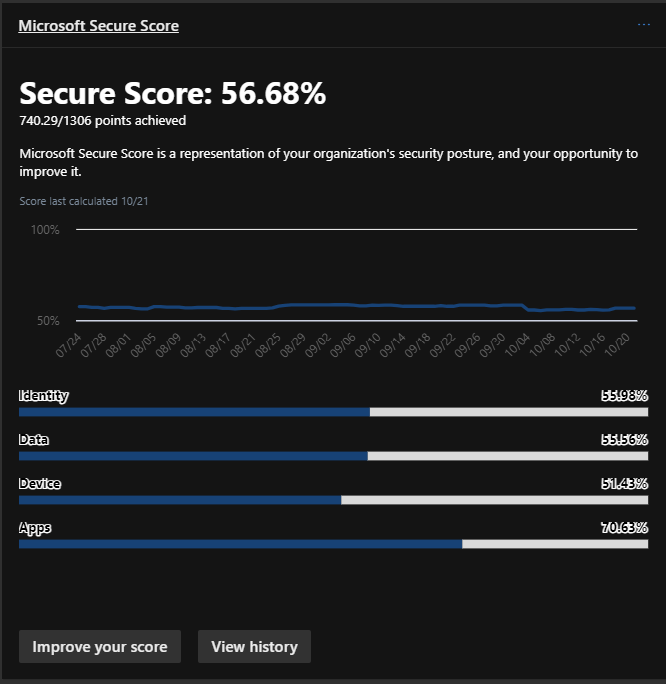
The Microsoft Secure Score is a score for the Azure AD tenant on a scale from 0 to 100%. By using various security features, this score will increase, indicating how secure your identities and organization are with the use of Azure AD.
A few tasks that improve the Secure Score of the Azure AD environment include:
- Using Multi-Factor Authentication
- Disabling users’ rights to create or mark company applications as trusted
- Using Identity Protection
- Assigning reduced administrative privileges
Identity has become the primary factor to secure because, in the past 5 years, approximately 85% of cyberattacks have originated from leaked, harvested or stolen credentials.
There are multiple overviews of the Microsoft Secure Score. In the Security portal (https://security.microsoft.com) you have the best overview with the most information:
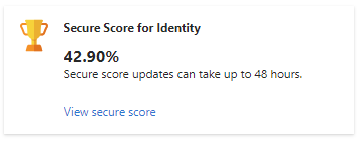
In the Microsoft Entra portal, only the “Identity” score is shown:
For more information about the Microsoft Secure Score, check out my Secure Score pages on the left.
Identities in Microsoft Entra ID
All types of identities stored in Microsoft Entra ID are:
- Users: Real people/employees or shared accounts.
- Guest Users: Individuals from external companies who have an account with reduced rights within your tenant.
- Groups: A group of users or devices. Groups can be Assigned or Dynamic, where you define a rule for membership in the group. For example, all users with the role “IT Specialist.”
- Devices: Devices such as laptops, phones, tablets, PDAs.
- Enterprise Applications and App Registrations: Used for Single Sign-On (SSO) or assigning specific API permissions with OAuth 2.0.
- Service Principals (PowerShell only): A service principal is an entity that obtains access to resources secured by Microsoft Entra ID. For instance, you need a service principal to grant an enterprise application permissions to users/groups, etc.
Enterprise Applications
An Enterprise Application is the local representation of an application inside your Microsoft Entra ID tenant. It is mainly used to configure who is allowed to access the application and how users authenticate.
Within an Enterprise Application, you can configure:
- User and group assignments
- Single Sign-On with SAML, OpenID Connect or password-based authentication
- Conditional Access policies
- Automatic user provisioning
- Permissions and consent
- Sign-in and audit logs
When an application is added from the Microsoft Entra application gallery or consent is given to an external application, an Enterprise Application is automatically created in the tenant.
App Registrations
An App Registration is used to create an identity for an application that needs to authenticate against Microsoft Entra ID. This is commonly used for custom applications, scripts, APIs and automated services.
An App Registration contains settings such as:
- Application (client) ID
- Directory (tenant) ID
- Redirect URIs
- API permissions
- Client secrets and certificates
- Supported account types
The App Registration describes the application itself, while the Enterprise Application is the actual instance of that application inside a Microsoft Entra ID tenant. This Enterprise Application instance is also called a Service Principal. This is a identity which can be assigned various permissions and possibly risky.
Entra ID Join/Hybrid Entra ID Joined/Entra ID Registered
Devices can be added to Microsoft Entra ID for various reasons:
- Single Sign-On for users to enhance user convenience.
- Apply configurations using Endpoint Manager MDM.
- Device registration for auditing what device made what request or change
- Security with compliance policies.
Devices can be added to Microsoft Entra ID in multiple ways, for different purposes/reasons:
- Microsoft Entra ID registered: to register devices such as BYOD (Bring Your Own Device). Works with Windows/Mac/Android/iOS/Ubuntu. No configuration capabilities, just registration to track which accounts are used on which device.
- Microsoft Entra ID joined: to manage and register devices. In addition, it provides Single Sign-On. This is supported on Windows 10 and later (no support for Windows Server).
- Hybrid Microsoft Entra ID joined*: devices are added to Active Directory Domain Services (AD DS) and synced to Microsoft Entra ID. This offers the benefits of both AD DS and Microsoft Entra ID. Supported on Windows 10 and later (no support for Windows Server).
*Active Directory Domain Services and Entra ID Connect required
Synchronize Active Directory (AD DS) to Microsoft Entra ID
Synchronizing traditional Active Directory (AD DS) to Microsoft Entra ID offers the following benefits:
- Single Sign-On
- Centralized management
- Accounts exist in both locations and don’t need to be created twice.
To synchronize AD DS with Microsoft Entra ID, there are two solutions available:
- Microsoft Entra ID Connect: This is installed as an agent on a domain-joined server and initiates synchronization to Microsoft Entra ID. However, this is a single point of failure.
- Advantages: Supports Hybrid Entra ID join.
- Disadvantages: Single point of failure.
- Microsoft Entra ID Cloud Sync: This is a newer variant initiated from the cloud. A small agent is installed on each domain-joined server, allowing synchronization access to AD DS resources. Settings can be managed in the cloud, and the major benefit is that synchronization can be made redundant.
- Advantages: Cloud-only, highly available.
- Disadvantages: Does not support Hybrid Entra ID join.
Central Identities/Identity Provider
To store identities, you need an Identity Provider. In Azure, we have a built-in identity provider called Azure Active Directory. An Identity Provider itself is a database where all identities are stored, and it can securely release them through Single Sign-On applications.
An overview of what this process looks like:
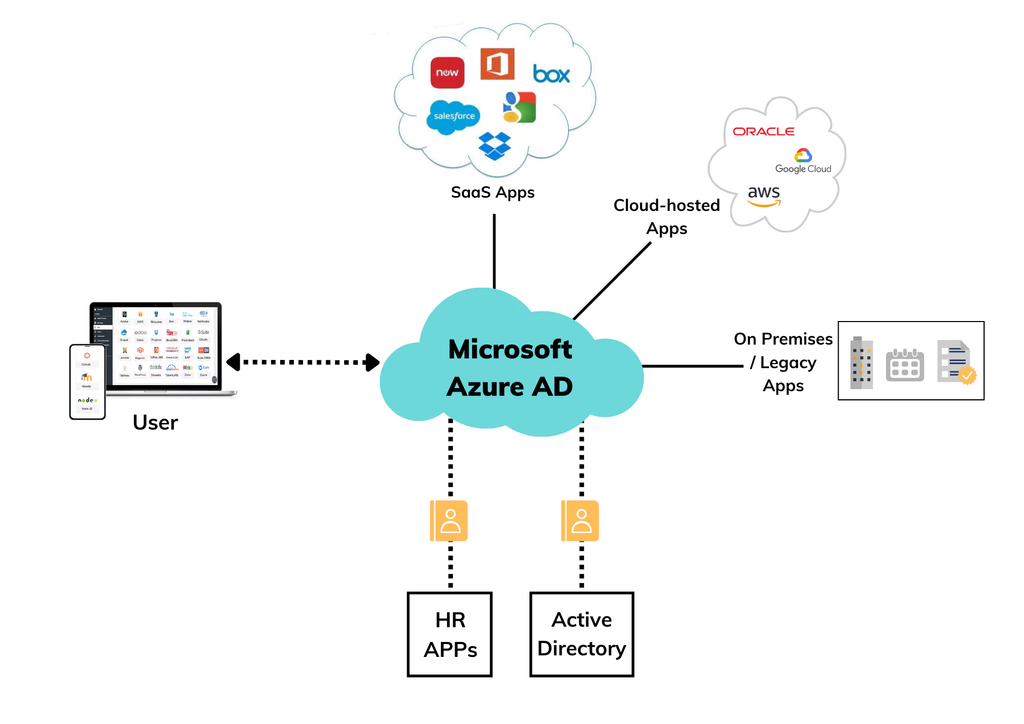
In this diagram, Azure Active Directory, our Identity Provider, is at the center. When an application is set up, a ’trust’ is established with the Identity Provider. This allows a user to log in to third-party applications through the Identity Provider using the same credentials, and they will be logged in automatically.
Decentralized Identities
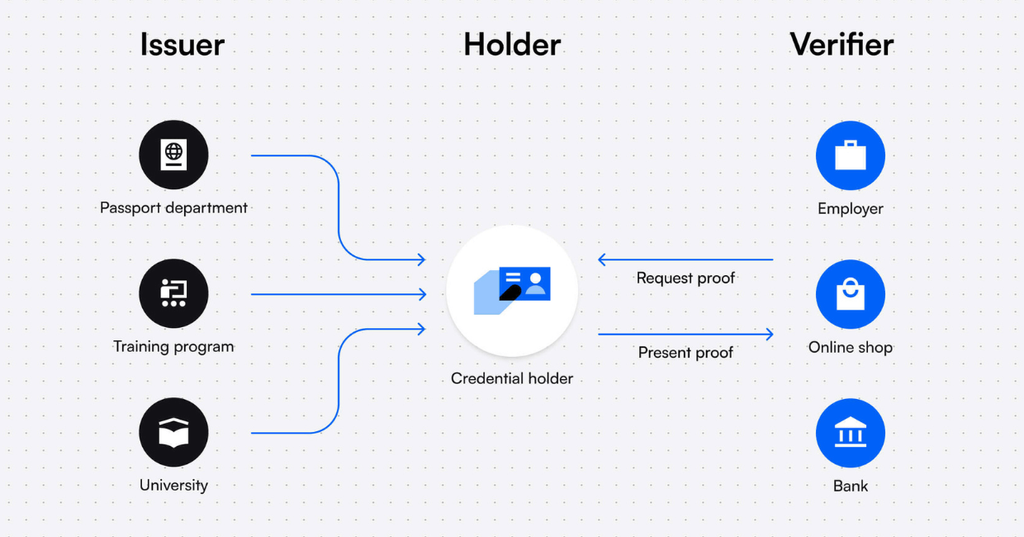
Another possibility is to use the Decentralized Identity model. In this model, the user owns all their application credentials and can decide for themselves which entities/applications they share their credentials with.
An overview of what this process looks like:
Roles and Administrative units
Microsoft Entra ID has several built-in roles, which are packages with predefined permissions. These can be assigned to users to grant them access to specific functions. It is possible to create a custom role using JSON, defining actions that a user can or cannot perform (Actions/NotActions).
To learn more about roles and custom roles, check out my guide where I go in depth of this subject: https://justinverstijnen.nl/introduction-to-microsoft-azure-roles-rbac-iam-the-easy-way/
Roles cannot be assigned to groups, except if you create a custom group. In this case, you can specify that Microsoft Entra ID roles can be applied:

Administrative units are similar to OUs (Organizational Units) in traditional AD DS, but they differ in a few aspects. They are logical groups used to add identities, with the purpose of applying additional security to control what users can and cannot manage. For example, an administrative unit for Executives can be created so that not all administrators can manage these identities.
Identities that can be added to administrative units are:
- Users
- Groups
- Devices
However, administrative units have some limitations/security constraints:
- Group members are not added, only the group itself.
- Nesting is not possible.
- ACLs (Access Control Lists) are not possible.
Conditional Access (P1)
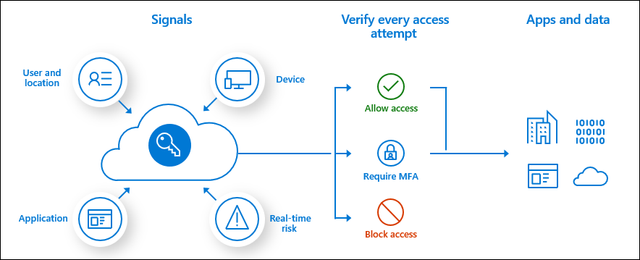
Conditional Access is a feature of Microsoft Entra ID that allows users to access resources based on “if-then” rules.
This works in 3 steps:
- Signals: Signals can include access to a specific application, certain Microsoft Entra ID roles, specific locations based on IP addresses, certain user groups, certain devices, or compliance of devices.
- Verify/Grant: In this step, you can specify whether access should be allowed or blocked. It’s also possible to enforce MFA.
- Session: In the Session step, you can specify how long a session remains active.
Examples:
- A user tries to access Windows 365 from IP address 88.134.65.213. For this, they must complete an MFA challenge every 2 hours.
- A user logs in into a service from a blocked country -> Block access
- A normal user doesn’t have to do MFA but a administrative user must do MFA
Conditional Access Policy presedence
Because you are able to create many different policies for Conditional Access to secure access to your resources, these policies work slightly differently than you might expect. For example, with firewall rules, only the first policy that is triggered applies.
With Conditional Access, the effective policy for a user is determined by all the available policies, and they are combined. In addition, the following two rules are taken into account:
- Blocking takes precedence over allowing: If the same user is subject to two policies, where one blocks access and the other allows access, the effective access will be blocked.
- The most restrictive policy wins over the less restrictive policy: This means the policy that allows the least access will be effectively applied.
Further the policies are being merged to apply as much to the identity as possible, let’s say:
- Policy 1: Requires MFA
- Policy 2: Requires login from trusted locations
The effect is that the user must do MFA and loggin in from the trusted locations to be able to login.
Identity Protection (User/Sign-in risk) (P2)
Identity Protection was formerly known as a separate option but today it is integrated into Conditional Access. It lets administrators block sign ins based on different automated signals:
- Anonymous IP address usage
- Malicious IP addresses
- Password spray attacks
- Leaked credentials
- Impossible travel
The general guideline for Identity Protection is to create two separate CA policies:
- Policy 1: User risks: Block from High
- Policy 2: Sign-in risks: Block Medium and High
Combining these policies will result in the policy not actually working, as the user then must comply with both conditions before any blocking happens.
To read more about the specifics of Identity Protection, check out: https://learn.microsoft.com/en-us/entra/id-protection/overview-identity-protection
Privileged Identity Management (P2)
Privileged Identity Management (PIM) is a feature in Microsoft Entra ID to reinforce the “least privilege” concept. With PIM, you can assign roles to users or groups, but also for specific time periods. Does someone need to make a change between 12:00 PM and 12:30 PM but otherwise doesn’t need these permissions? Why should they always have those rights?
Privileged Identity Management is your central tool for assigning all permissions to users within your Microsoft Entra ID tenant and Azure subscriptions. It also is a tool to build up a history on who did what change at what time.
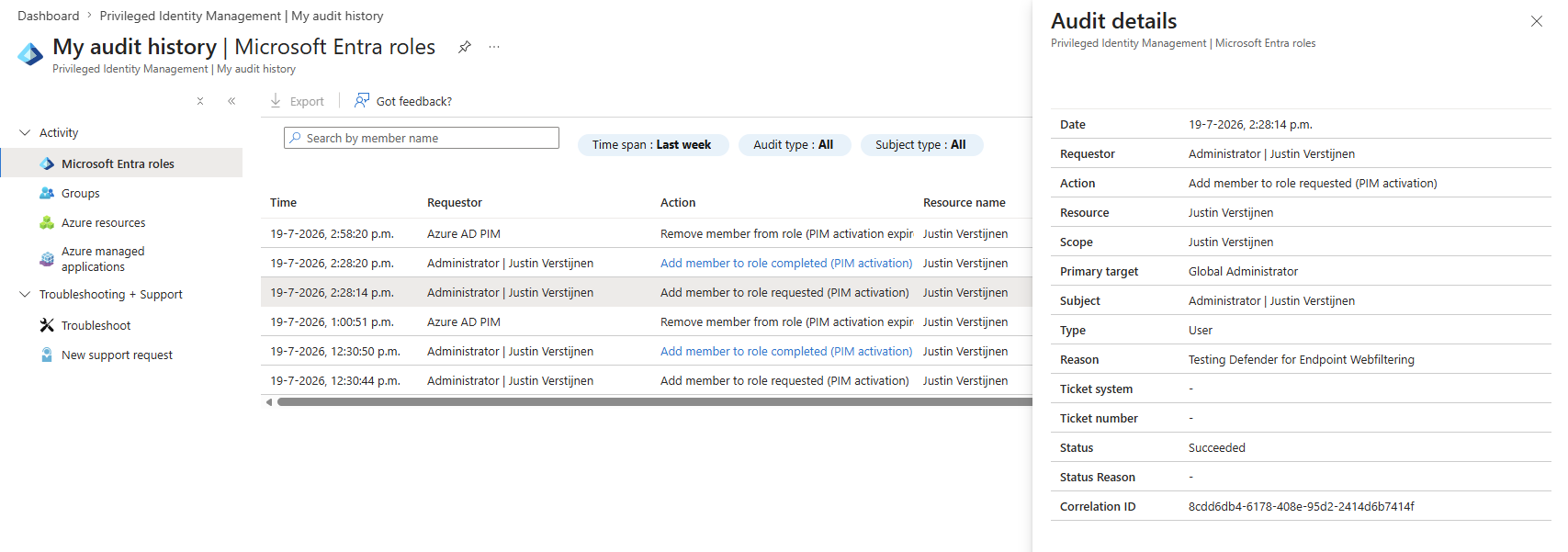
Here is an example of how this looks in the portal, where I have requested permissions to test a function of Microsoft Defender.
Privileged Identity Management works for Microsoft Entra ID roles and Azure Resource Manager roles, ensuring a systematic approach to resolving changes.
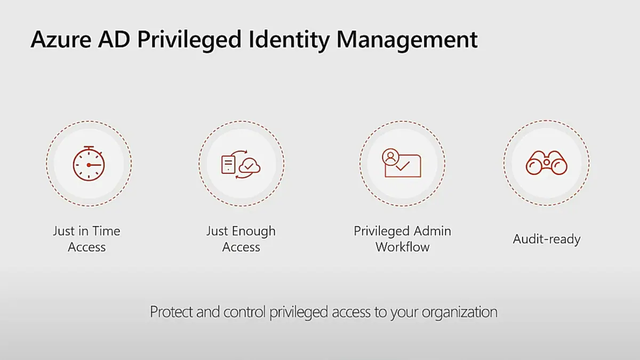
The four pillars of Entra ID Privileged Identity Management.
There are 3 types of assignments:
- Eligible: This means that a user or group can be granted the permissions, but they are not active. A PIM administrator can activate these roles at any time or schedule them for a specific time. During activation, for example, you can add a reference number. You can also set in the assignment wizard how long Eligible assignments remain valid.
- Active: An active assignment is a role that is currently active.
- Permanent: A permanent assignment is an assignment that does not expire, meaning the user has the specified access until it is revoked or the account is disabled.
Access Reviews (P2)
Another option in Microsoft Entra ID is access reviews. This allows you to periodically review user assignments to groups and ensure that users who no longer need access are removed.
Access reviews can assist by notifying administrators about users, but also by sending an email to the users themselves, asking whether access is still needed. If they respond with “no” or fail to respond within a set number of days, the assignment is removed, and access is revoked. This enhances the level of security while also reducing the workload for administrators.
Entra ID Multi Factor Authentication
Multi-Factor Authentication prevents alot of password-based attacks. However, enabling MFA isn’t a clean security method. It can still be phished by attacks like Evilnginx: https://evilginx.com/
Additionally, the two recommended ways to enable MFA are Security defaults (free) or through Conditional Access (P1).
Microsoft Entra ID supports Multi-Factor Authentication. This means that, in addition to entering an email address and password, you also need to complete multiple factors.
During authentication (AuthN), it is verified whether you are truly who you say you are, and whether your identity is valid. Multi-Factor Authentication means that you can perform two or more of the following methods:
- Something you know
- Password/PIN/Secret
- Something you have
- A phone
- A FIDO hardware key
- A laptop
- A token
- Something you are
- Biometric verification
- Facial recognition
Complexity levels for MFA methods
| Method | Level | Explanation |
|---|---|---|
| Password | Not secure | Passwords can be guessed, hacked, or stolen. With only a password, an account is not sufficiently protected in 2025. |
| PIN code | Not secure | A PIN code can also be guessed or stolen alongside a password. |
| Secret | Not secure | A secret, alongside a password, can also be guessed or stolen, regardless of its complexity or length. |
| SMS | Safer | SMS verification provides protection against credential theft but can be accessed when a phone is unlocked or stolen. Additionally, the code can be guessed (1 in 1,000,000). |
| Voice call | Safer | Phone call verification provides protection against credential theft but can always be answered when a phone is unlocked. Additionally, the code can be guessed (1 in 1,000,000). |
| Face recognition | Safer | Facial recognition is a good method; however, people who look alike could misuse it. |
| Biometric verification | Safer | Biometric verification significantly improves security but must be used alongside a password. |
| Authenticator app (OTP/notification) | Pretty safe, but not phising resistant | An authenticator app is still extra secure on the device and will ask for an additional check when approving access to the OTP. |
| Authenticator app passkey | Pretty safe | An authenticator app with the use of passkeys is very safe. It is like a software FIDO key and is very hard to phish (yet). |
| FIDO 2 key | Pretty safe | Use of a FIDO 2 key is the most secure option at this moment to use to authenticate. |
Smart use of MFA
MFA should be deployed intelligently so that it doesn’t become an action that appears for every minor activity, to prevent MFA fatigue. In Conditional Access, for example, you can set how long a session can remain active, so that the user doesn’t have to perform any action during that time, using the same cookies. If an attacker logs in from elsewhere in the world, they will still receive the MFA prompt to complete.
The user cannot mindlessly click “Allow” but must also confirm the number displayed on the screen. While the user could guess the number, the chance of guessing correctly is 1 in 100, and the number changes with each request.
Registration for MFA and SSPR
Before a user can use MFA, they must register for it. This means the initial configuration of the method and verifying the method. When registering for MFA, the registration for Self-Service Password Reset (SSPR) is also completed at the same time.
With Microsoft Entra ID security defaults, all users must register for MFA but don’t need to use it for every login (exception: administrators). When a system requires MFA from a user, the user must always register and use it immediately.
Self-Service Password Reset (SSPR)
Self-Service Password Reset is a feature of Microsoft Entra ID that allows a user to change their password without the intervention of the IT department by performing a backup method, such as MFA, an alternate private email address, or a phone number.
You can find the portal to reset your password via the link below, or by pressing CTRL+ALT+DELETE on a Microsoft Entra ID-joined computer and then selecting “Change Password”. Otherwise, this is the link:
https://passwordreset.microsoftonline.com
B2B en B2C (Business to Business and Business to Customer)
B2B and B2C can be seen as similar to how trusts used to work. This allows a user in an external Microsoft Entra ID tenant to access resources such as Teams channels or SharePoint sites in your own Microsoft Entra ID. The external user will be created as a guest in your Microsoft Entra ID, but the user from the external Microsoft Entra ID will use their own credentials and MFA. This provides high security and ease of use.
It is possible to block certain tenants (blacklist) or only allow certain tenants (whitelist) for use with guest users to prevent attacks or unwanted access. This can be configured in Microsoft Entra ID → External Identities → Cross-tenant access settings.
With B2C, it is entirely focused on customers. Customers can, for example, log in with Google or Facebook to an application published with Microsoft Entra ID. B2C does not work with guest users and is used purely for authentication. This must first be set up in Microsoft Entra ID and then External Identities.
Entra Domain Services
The traditional Active Directory with OUs and Group Policies is an outdated solution but is still needed for some applications/use cases (AVD/FSLogix/SQL). It is possible to get this as a service in Azure. A subscription to Azure is required for this.
With this solution, it is no longer necessary to set up and configure a separate VM as a Domain Controller. By default, this service is configured redundantly with 2 servers and a load balancer and costs about half (~90-100 euros per month, depending on the SKU and the number of objects) compared to a good server (~200 euros).
However, it has some limitations:
- The schema cannot be extended (no custom attributes).
- Administrative groups are predefined, and OU delegation is not possible.
- OUs are created by default and cannot be modified, only custom OUs can be created.
- Users cannot be divided into custom OUs.
- Entra Domain Services joined machines cannot be managed with Intune.
- Entra Domain Services joined machines cannot be added to Microsoft Defender for Endpoint.
All in all, Microsoft Entra Domain Services is a good and quick solution with minimal administrative overhead for a company with a maximum of 30 employees and not too many different groups. For larger companies, I would definitely recommend 2 domain controllers and a self-hosted Active Directory.
This feature was formerly known as Azure Active Directory Domain Services.
Summary Module 2
The Identity part is a huge part of Microsoft Azure. At each level it’s good to know for the platform who is accessing it, what access policy must be enforced and what permissions the user has after completing the authentication process.
Because Identity has become the primary attack vector the last years, we have to defend ourselves to Identity-based attacks. This is because humans do the most with their identity and this is the most easy target for attackers.
Always keep the Zero Trust principles (guidelines) in mind when configuring identities:
- Least privilege
- Verify explicitly
- Assume breach
To go back to the navigation page: https://justinverstijnen.nl/blog/azure-master-class/
End of the page 🎉
You have reached the end of the page. You can navigate through other blog posts as well, share this post on X, LinkedIn and Reddit or return to the blog posts collection page. Thank you for visiting this post.
Support the blog
