Module 5: Storage in Azure
The importance and types of storage
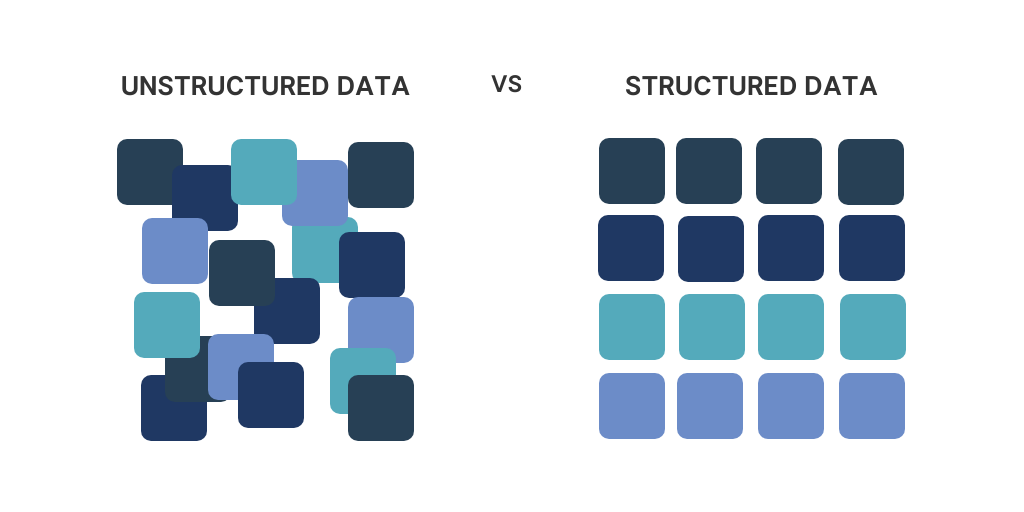
Storage fundamentally exists in three different types:
- Structured: Structured data is information stored according to a specific structure or model, allowing queries to be written to retrieve data.
- Examples: Databases, Database tables
- Semi-structured: Semi-structured data is not stored according to a strict schema, but each file contains a clear structure, making the data understandable.
- Examples: XML files, JSON files
- Unstructured: Unstructured data consists of individual files, each containing its own data.
- Examples: Text files, Video files, Images, Emails
In this chapter, we will primarily focus on Unstructured data.
Storage accounts
For most storage services, you need an Azure Storage Account. You can think of this as a file server, a top-level, logical container for all storage services and shares. It is possible to create multiple Storage Accounts within a subscription.
Standard/General Purpose V2: This option provides all storage services in one but uses HDD-based storage.
Premium: This option provides only one specific storage service but uses SSD-based storage. The account is optimized for the selected service.
Please note: The name of a Storage Account must be globally unique and comply to DNS naming requirements.
Roles and Access to Storage Accounts
Access to Azure Storage Accounts can be managed in three different ways:
1. Azure AD Authentication (preferred)
- Used for authentication of Azure Active Directory (Azure AD) users.
- Provides role-based access without needing account keys.
- More secure and manageable than other access methods.
2. Shared Access Signature (SAS)
- A SAS token grants temporary and restricted access to specific storage services, applications, or IP addresses.
- Can be configured with expiration times and limited permissions (e.g., read-only access).
- More secure than the Storage Access Key since access is limited and can be revoked easily.
3. Storage Access Key
- A static access key that provides full control over the storage account.
- Each Storage Account has two access keys, which can be rotated for security.
- Acts as a fallback solution and should not be used in applications due to the lack of auditing (i.e., it does not track which user performed an action).
Example: Roles for Azure Files
For each Azure Storage service, there are specific roles available to manage access effectively. These roles ensure that users and applications only have the necessary permissions for their tasks.
- Storage SMB Contributor → Grants read and write access to Azure Files shares.
- Storage SMB Elevated Contributor → Grants full control permissions to the SMB file share.
- Storage SMB Reader → Grants read-only access to Azure Files shares.
Types of storage in Azure
Azure Storage is a service provided by Azure for storing data in the cloud. Instead of merely simulating a traditional file server, it offers various storage services. These services include:
- Azure Disks (no storage account required): OS disks or shared disks for virtual machines on Azure.
- Azure Blobs: Optimized for unstructured data, commonly used as back-end storage for websites, streaming services, or other random access scenarios.
- Azure Queues: Used for asynchronous message queueing between application components.
- Azure Tables: Suitable for storing structured NoSQL data.
- Azure Files: Can be used as SMB or NFS file shares (but not both simultaneously) for end users or system data.
- Azure NetApp Files: Enterprise-grade SMB or NFS file shares (both protocols simultaneously) with ultra-low latency, built on fiber-optic-based SANs within Azure.
Service Level Agreements (SLAs)
An important aspect of storage in Azure is that different SLAs exist for resiliency, interaction, and durability:
- Durability: Azure ensures data is stored securely and reliably, with extremely high SLAs to protect against data corruption:
- LRS: 99.99999999999% (11 nines)
- ZRS: 99.999999999999% (12 nines)
- GRS: 99.9999999999999999% (16 nines)
- Interaction/Availability: The ability to access data and ensure its availability has a lower SLA compared to durability but is still very high:
- LRS: 99.99%
- ZRS: 99.999%
- GRS: 99.9999%
Storage Redundancy
Azure offers several options to ensure high availability of data by making smart use of Microsoft’s data centers. When designing an architecture, it’s important to ensure that a service is available just enough for its purpose to optimize costs.
Azure is structured into different regions, and within these regions, there are multiple availability zones, which are groups of data centers.
Storage redundancy is divided into three main methods:
- LRS (Locally Redundant Storage): Stores three instances of the data within the same data center.
- ZRS (Zone-Redundant Storage): Stores three instances of the data across different availability zones within an Azure region.
- GRS (Geographically Redundant Storage): Stores three instances of the data in one data center and an additional three instances in a paired region.
Note: Synchronizations between regions are asynchronous.
Aside from the options LRS, ZRS and GRS there is a 4th option available;
GZRS (Geo-Zone-Redundant Storage) stores three instances of the data across three availability zones within a region and an additional three instances in a paired region.
It is possible to enable read-access (RA), which allows the storage to be accessed via a secondary URL for failover purposes. This adds RA- to the redundancy type, resulting in RA-GRS or RA-GZRS.
Storage Tiers
Azure divides storage into different tiers/classes to ensure that customers do not pay more than necessary:
- Hot: Hot storage is the fastest storage (low latency) based on SSDs.
- Cool: Cool storage is slower storage (higher latency) based on HDDs.
- (Blobs) Archive: This storage tier is offline and based on HDDs. Access to Archive storage can take up to 48 hours.
- (Files) Transaction Optimized: Fast storage but without low latency, based on HDDs.
These tiers are designed for the customer to choose exactly the option needed. It is good to know that access to archive and cool data is more expensive than to Hot data.
Azure Storage billing
Billing for Azure Storage is done in 2 different types:
- Provisioning based billing: This means you pay a fixed price at some discount for “provisioning” a block of storage. I can be cheaper when storing huge amounts of data and is a little commitment to Azure.
- For Managed Disks
- Consumption based billing: This means you pay exactly what you use. More storage and transactions means paying more money.
- For Storage accounts
Provisioning based billing
Azure Storage will increase IOPS, throughput, and reduce latency when you allocate more storage space for Premium options or managed disks. See the image below:
Consumption based billing
The lower-tier Azure Storage options are always billed based on usage. This includes:
- Data storage
- Read operations
- Write operations
- Failover actions and read/write operations
Encryption storage
All Azure Storage options are encrypted with AES-256 by default for security reasons. This encryption is on platform-level and is the basic level which cannot be disabled.
Networking
Azure Storage offers the following networking options:
- Public Endpoint: The Public Endpoint is the default option when creating resources like SQL servers and Storage accounts which have a publicly accessible URL (like *.blob.windows.net)
- Private Endpoint: The storage account receives an internal IP address within an Azure virtual network and is only accessible from there. This option is commonly used for sensitive information, which may not travel over the internet.
- Service Endpoint: The storage account recognizes existing virtual networks, allowing you to restrict access so that only specific subnets of an Azure virtual network can reach the storage account.
- IP-based Firewall: Within the storage account, you can restrict access to specific IP addresses or Azure networks.
It is always recommended to enable the IP-based firewall and to block public access. Only use public access for testing and troubleshooting purposes.
Azure File Sync
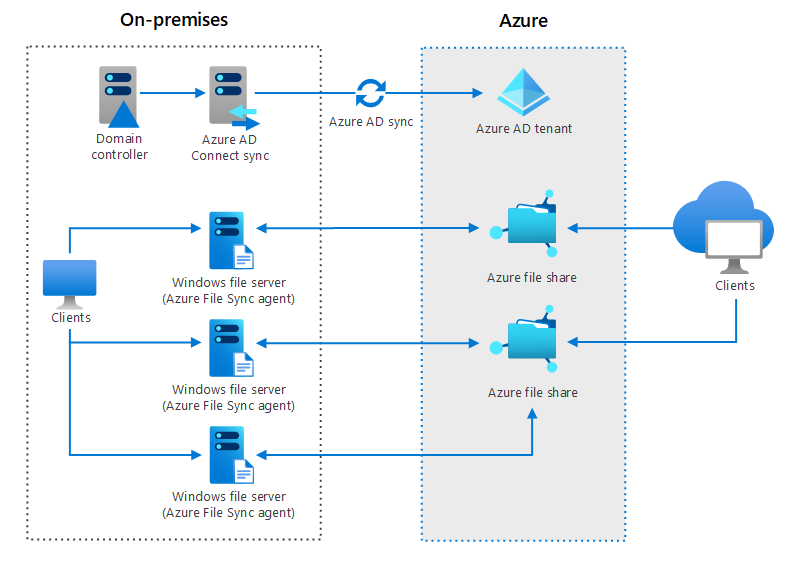
Azure File Sync is a service within Azure Files that allows you to synchronize an on-premises SMB-based file share with an Azure Files share in Azure. This creates replication between these two file shares and is similar to the old DFS (Distributed File System) in Windows Server, but better and easier.
Azure File Sync can be used for two scenarios:
- Migrating an on-premises file share to an Azure Files share
- Keeping a file share synchronized between Azure Files and an on-premises server for hybrid solutions
The topology of Azure File Sync is broadly structured as follows:
Managed Disks
Azure provides the ability to create custom disks for use with virtual machines. It is possible to attach a single virtual disk to up to three virtual machines (MaxShares). If you pay for more capacity, this limit increases, like described earlier (Provisional based billing).
The different options:
- Standard HDD
- Standard SSD
- Premium SSD
- Ultra SSD
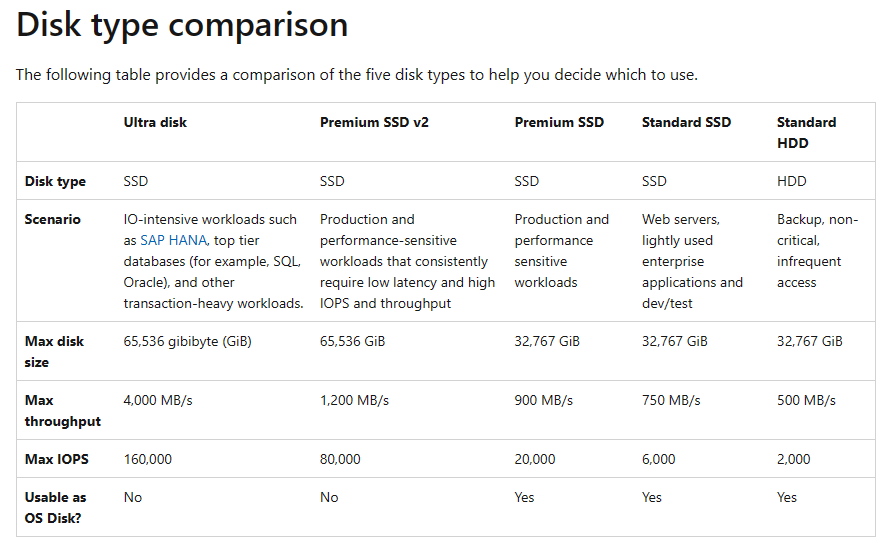
Source: https://learn.microsoft.com/nl-nl/azure/virtual-machines/disks-types#disk-type-comparison
Managed Disks are, like described, based on provisioning due to Operating System limitations. There has to be a fixed amount of storage available. You pay for a size and performance tier.
Goog to know, a Managed Disk can be resized but only increased. You cannot downgrade a Managed Disk from the portal. You have to create a new disk and migrate the data in this case.
Managed Disk Availability
Managed Disks are redundant with LRS and ZRS (Premium SSD only). These managed disks do not support GRS, as the disk is often used in conjunction with a virtual machine, making GRS unnecessary in this case.
With Azure Site Recovery, it is possible to create a copy of the VM along with the associated disk in another region. However, this process is asynchronous, and data loss may occur.
VM Storage
Virtual Machines rely on Managed Disks to store their data on. The disks where this data is stored, is stored on Azure Storage. VMs have a required OS disk, and can have some data disks. Also, you can have a temporary disk if you select this in the portal.
OS Disks
A virtual machine is placed on a host by Azure, and as a customer, you have no control over this placement. Azure uses an algorithm to do this automatically.
The storage for a virtual machine is by default always a managed disk, as this disk is accessible throughout the entire region within Azure.
Temporary Disks
Some VM generations include a “Temporary Disk” as the D: drive (or /dev/sdb1 for Linux). As the name suggests, this is temporary storage. After a machine is restarted or moved to another host/hypervisor, the data on this disk will be lost.
The purpose of this disk is to store the pagefile and cache. The performance of this disk is very high since it runs on the same host and uses the VM bus. This is why it is used for cache and pagefile (the Windows variant of Swap).
Tools
The different tools for working with Azure Storage are:
- Azure Storage Explorer: A Win32 installable application used to connect to an Azure Storage account and make changes or migrate data.
- AZCopy: A PowerShell-based tool used to migrate data to Azure Files.
Import/Export Services
Azure offers a service for importing or exporting large amounts of data.
- Azure Data Box: Microsoft sends you a hard drive, you load the data onto it along with a CSV file specifying where each file should go, and then send it back to Microsoft. This is an offline method. For Export, the process works in reverse.
To go back to the navigation page: https://justinverstijnen.nl/blog/azure-master-class/
End of the page 🎉
You have reached the end of the page. You can navigate through other blog posts as well, share this post on X, LinkedIn and Reddit or return to the blog posts collection page. Thank you for visiting this post.
Support the blog
