Module 6: Networking in Microsoft Azure
Check out the AZ-700 Azure Networking Certification at: https://learn.microsoft.com/en-us/credentials/certifications/azure-network-engineer-associate/?practice-assessment-type=certification
Introduction to generic Networking
A network is described as a group of devices who communicate with each other. In Microsoft Azure, we have to create and design networks for our resources to communicatie with each other. We only use TCP/IP networking, which works with IP addresses, DHCP, routing etcetera.
To keep things basic at the beginning, we have 2 types of networks:
- Your local network: where your devices are at and can communicatie with each other with private IP addresses
- The Internet: where a device is connected with the whole world
On a network, we have traffic. Just like you have roads and highways with cars and trucks driving to their destination. A network is litteraly the same. Each device (city) is connected through a cable/wifi (road) and sends TCP/IP packages (cars/trucks) their destination addresses.
Virtual Networks (VNETs) in Microsoft Azure
A virtual network in Azure is a private network within the Azure cloud. Within this network, you can deploy various services and extend an existing physical network into the cloud.
This Azure service does not require physical switches or routers. When creating a virtual network, you specify an address space, which defines the range of IP addresses available for subnet creation. An example of an address space would be: 10.0.0.0/16. This is the default setting when creating a virtual network in Microsoft Azure.
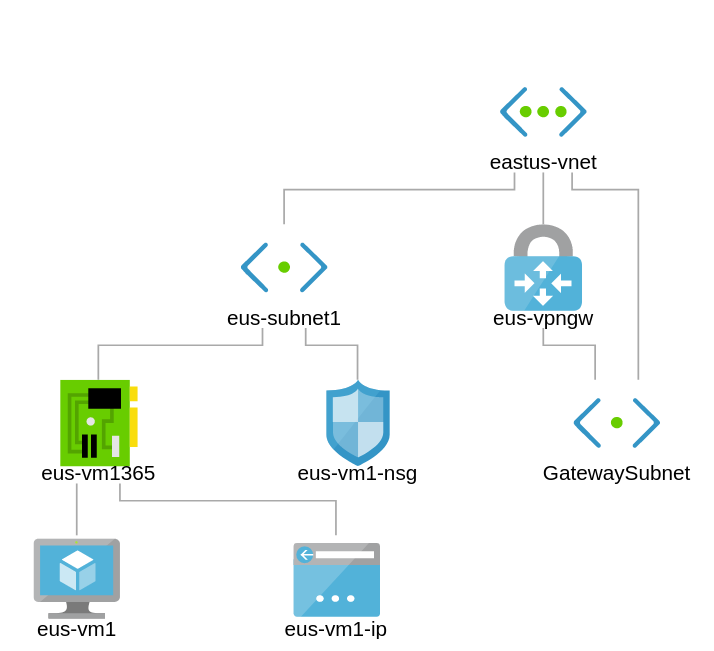
An example network in Microsoft Azure.
Azure Virtual Networks provide the following functionalities:
- Communication with the internet (not when using private subnets)
- Communication between Azure resources
- Communication between Azure and on-premises networks
- Filtering network traffic
- Routing network traffic
The most important features of virtual networks in Azure are:
- IPv4-based: All virtual networks in Azure use IPv4 with the option to also use IPv6.
- Highly available within a region: Virtual networks and subnets use Availability Zones to ensure redundancy and high availability. This is enabled by default and cannot be disabled.
- Reserved IP addresses per subnet: Azure automatically reserves specific IP addresses in each subnet:
x.x.x.0→ Network IDx.x.x.1→ Gateway servicex.x.x.2→ DNSx.x.x.3→ DNSx.x.x.255→ Broadcast address- For example: a /29 subnet, which in generic networks supports 6 devices, can only use 3 IP addresses in Azure.
- Azure Virtual Networks are free: You only pay for data throughput (measured in Gbps) and for traffic over peerings or VPNs.
- CIDR-based addressing: Networks must be based on CIDR ranges (as per RFC1918).
- Software-Defined Networking (SDN): Azure Virtual Networks operate using SDN, allowing for flexibility and scalability.
- Within a virtual network, you can create multiple subnets using the given address space for different purposes.
- Routing between subnets is automatically enabled by default.
- You cannot span a virtual network across multiple subscriptions or regions.However, with VNET Peering, you can connect virtual networks across different regions, enabling communication between them with routing-like behavior.
Designing Virtual Networks in Microsoft Azure
Before going ahead and building the network without thinking, we first want to design our network. We want to prevent some fundamental errors which can be a huge challenge later on.
- IPv4 address spaces: When defining the address space for an Azure Virtual Network, it must comply with RFC 1918 private IP address ranges:
- 10.0.0.0 - 10.255.255.255 (/8 prefix)
- 172.16.0.0 - 172.31.255.255 (/12 prefix)
- 192.168.0.0 - 192.168.255.255 (/16 prefix)
- IPv6 address spaces: When defining the address space for an Azure Virtual Network in IPv6, it must comply with RFC 4862 private IP address ranges:
- Unique Local Address Range:
fc00::/7 fd00::/8is the most commonly used part of this space.- The address space must not overlap with other networks which must be connected to each other
- 1: It is not possible to route to the same network ID
- 2: It makes your task very hard if you read an IP address and first having to lookup if its network 1, 2 or 3. Make your network numbering logical, easy and effective.
- Ensure additional isolation if required for security or compliance.
- Verify that all subnets have enough allocated IP addresses to accommodate expected growth.
- Determine if the network needs to connect to on-premises networks via VPN or ExpressRoute.
- Identify whether Azure services require a dedicated Virtual Network, such as:
- Azure Site Recovery
- Azure Image Builder
Subnets
To keep things simple, we stick to IPv4 for this part.
Within an Azure Virtual Network, you can create subnets that use a smaller portion of the allocated IP address space. A subnet is defined as a part/segment of a broader network.
For example, if the Azure network uses the address space 172.16.0.0/16, it theoretically provides 65,535 available addresses. This space can be divided into segments, typically used to group specific services and apply security measures at the subnet level. Let’s share an example of a possible real-world scenario:
| Subnet name | Purpose subnet | Network space |
|---|---|---|
| GatewaySubnet | VPN connection to on premises | 172.16.0.0/27 (27 hosts) |
| Subnet-1 | Infrastructure | 172.16.1.0/24 (250 hosts) |
| Subnet-2 | Azure Virtual Desktop hosts | 172.16.2.0/24 (250 hosts) |
| Subnet-3 | Windows 365 hosts | 172.16.3.0/24 (250 hosts) |
| Subnet-4 | Database-servers | 172.16.4.0/24 (250 hosts) |
| Subnet-5 | Web-servers | 172.16.5.0/24 (250 hosts) |
| Subnet-6 | Management-servers | 172.16.6.0/24 (250 hosts) |
To learn more about basic subnetting, check out this page: https://www.freecodecamp.org/news/subnet-cheat-sheet-24-subnet-mask-30-26-27-29-and-other-ip-address-cidr-network-references/
Here an example of Microsoft which I found really usefull and well-architected:
Network Interface Cards (NIC) in Microsoft Azure
In Azure we can configure the network interface cards of services like virtual machines and private endpoints. Here we can configure what IP address it has, which network it is connected to and what Network Security Group (more about that later) is assigned.
Note: Network configurations of virtual machines may never be done in the guest OS to prevent outage.
By default, Azure assigns IP addresses to virtual machines dynamically, but these addresses are reserved. In Azure, the term “Dynamic” actually means that the assigned IP address remains the same unless the resource is deleted or deallocated. It is also possible to configure a static IP address through the Azure Portal or via automation tools like PowerShell and Azure CLI. With a static IP address you can exactly define the address, and the portal will check if this is available prior to save the configuration.
Accelerated networking
All network interfaces in Azure support Accelerated Networking, which enhances network performance by bypassing the virtual switch on the hypervisor. This reduces latency, jitter, and CPU overhead, resulting in improved throughput and lower network latency. Compare this to SR-IOV when having great knowledge of Hyper-V or VMware.
How does this work?
- Without Accelerated Networking, packets are processed through the virtual switch on the host hypervisor, adding overhead and a extra step
- With Accelerated Networking, packets are offloaded directly to the network interface of a virtual machine, bypassing the virtual switch for faster processing
Connecting virtual networks in Azure
In Microsoft Azure, we can connect multiple virtual networks to each other to enable connection between them by using one of the options below:
A virtual network is tied to a resource group or subscription. It is possible to connect it in two ways:
- VNET Peering: For solutions where latency is important and additional encryption is not (Bandwidth max 3 Gbps).
- Site-to-Site with a virtual network gateway: For solutions where latency is not important but additional encryption is (Bandwidth max 100 Mbps).
My advice is to to link multiple virtual networks together to build a hub-and-spoke network. This allows multiple spokes to be connected to each other and not having traffic to transition through multiple networks before reaching its destination.
Billing and subscriptions
In terms of costs, you only pay for inbound and outbound gigabits. Creating VNETs and Peerings is free. Additionally, the network plan must be well-structured, as there should be no overlapping IP addresses or ranges.
With VNET Peering, it is possible to connect to VNETs in other regions and subscriptions. When a connection is created in one direction, the other side will also be established.
Connecting physical networks to Azure
There are two ways to connect your entire Azure network to your on-premises, physical network:
1. Site-to-Site (S2S) VPN Connection
A Site-to-Site VPN allows you to connect an on-premises network to a virtual network gateway in Azure via a router or firewall.
When to choose this solution:
- Cost savings
- No low latency or high bandwidth requirements
- Physical security is not a major concern
- ExpressRoute is not available
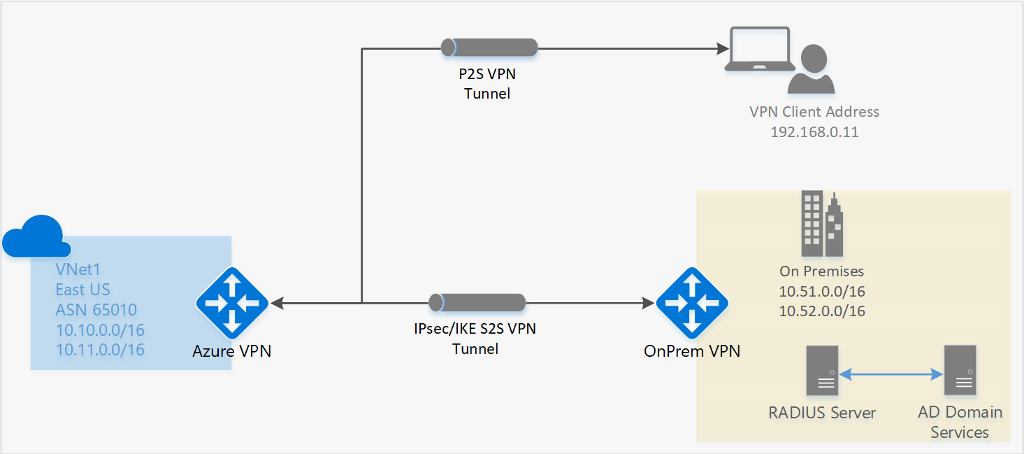
2. ExpressRoute
ExpressRoute is a private connection to an Azure datacenter. Microsoft establishes a dedicated connection based on MPLS, and you receive a router that connects to your Azure Virtual Network.
When to choose this solution:
- Cost is not a limiting factor
- High bandwidth requirements (up to 10 Gbps)
- Low latency requirements
- Physical security, traffic does not traverse the public internet
Point-to-Site (P2S) VPN Connections (users)
It is also possible to connect a single or multiple devices to a Virtual Network Gateway (VNG) in Microsoft Azure. This is often more cost-efficient than deploying a router and establishing a Site-to-Site (S2S) VPN connection.
Supported Protocols for Azure Virtual Network Gateways
- OpenVPN
- Uses port 443 TCP with TLS
- SSTP (Secure Socket Tunneling Protocol)
- Uses port 443 TCP with TLS
- IKEv2 (Internet Key Exchange version 2)
- Uses ports 500 and 4500 UDP
VPN clients that support these protocols will work with VPN options in Microsoft Azure. For the best integration, Azure provides its own VPN client.
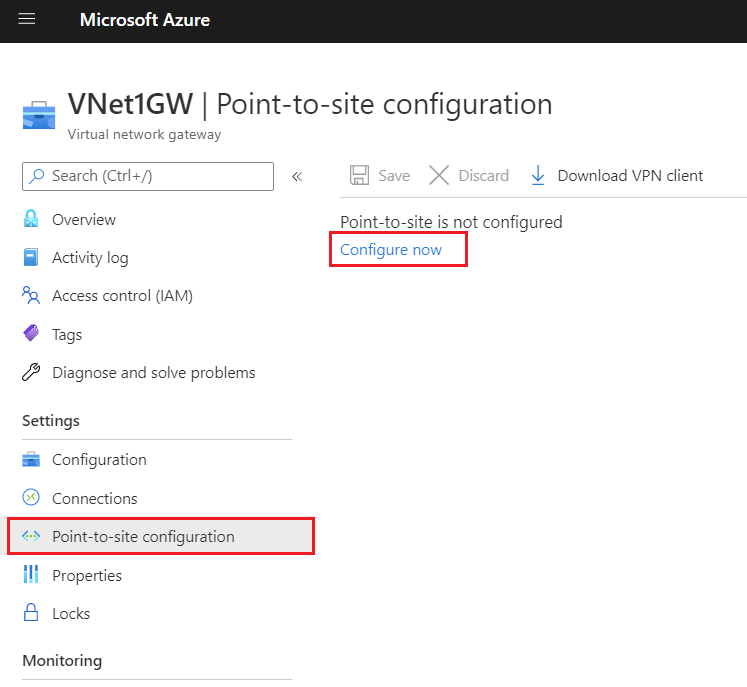
To configure a Point-to-Site VPN, navigate to “Settings” → “Point-to-site configuration” in the Virtual Network Gateway. From there, you can download a .zip file containing the required installation files and the correct VPN profile.
VPN Authentication
To keep the connection secure, authentication/login must be performed on the VPN connection. Azure Virtual Network Gateways (VNG) support the following authentication methods:
- Azure certificate
- Azure Active Directory
- Active Directory Domain Services with RADIUS
Network security in Microsoft Azure
In Azure, there are two ways to secure a network:
- Azure Firewall: A serverless firewall that can be linked to subnets and virtual networks to define rules for allowed and denied traffic.
- Operates on Layer 3, 4, and 7 of the OSI model (Network, Transport & Application).
- Network Security Groups (NSG): In Microsoft Azure, it is possible to create network security groups that control incoming and outgoing traffic on top of the firewall of resources (e.g., Windows Firewall). NSGs operate at the subnet level and the network interface level.
- Operates on Layer 4 of the OSI model (Transport).
Because we use Network Security Groups a lot, and Azure Firewall way less, we will cover that later and stick to Network Security Groups.
Network Security Groups
Network Security Groups can be created at two levels with the purpose of filtering incoming and outgoing network traffic. By default, all traffic within Azure virtual networks is allowed when it passes through the firewall of virtual servers. By applying Network Security Groups, traffic can be filtered. Here, inbound and outbound rules can be created to allow or block specific ports or protocols.
There are two options for applying NSGs:
- Network interface: Applied to individual servers.
- Subnet: Applied to a subnet with similar machines, such as web servers, AVD session hosts, etc.
If a resource does not have a Network Security Group or is not protected by Azure Firewall, all traffic is allowed by default, and the guest OS firewall (Windows Firewall or UFW for Linux) becomes the only point where security is enforced for incoming and outgoing traffic.
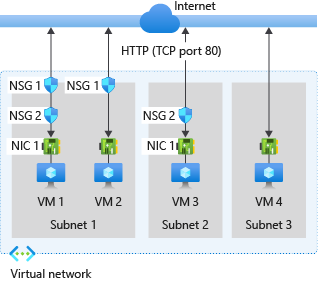
Network Security Group inbound processing order
Network Security Groups (NSGs) can filter incoming traffic. This means traffic from the internet to the machine, such as RDP access, HTTP(s) access, or a specific application.
A virtual machine or endpoint can have two Network Security Groups applied: one at the subnet level and one at the network interface (NIC) level.
The following order of rules is applied:
- NSG of the subnet
- NSG of the NIC
- Windows Firewall / Linux Firewall
Traffic must be allowed at all levels. If traffic is blocked at any point, it will be dropped, and so the connection will not work.
Network Security Group outbound processing order
Network Security Groups (NSGs) can also filter outgoing traffic. This means traffic from the resource to the internet.
For outbound connections, the order of rule processing is reversed:
- Windows Firewall / Linux Firewall
- NSG of the NIC
- NSG of the subnet
Traffic must be allowed at all levels. If traffic is blocked at any point, it will be dropped, and so the connection will not work.
Why use Network Security Groups?
Examples of using Network Security Groups (NSGs) can be:
- Allowing incoming ports on a server, such as RDP, HTTPS from specified IP addresses only or specific application ports
- Blocking certain outgoing ports, such as VPN ports (500 and 4500)
- Restricting access to a virtual machine by allowing only specific IP ranges
- Denying outbound internet access for specific subnets, such as database servers
- Allowing only internal communication between application servers and backend databases while blocking external traffic
Supported protocols
Microsoft Azure Virtual Networks primarily operate at Layer 3 of the OSI model. The supported protocols in virtual networks are:
- TCP
- UDP
- ICMP
The following protocols are blocked by Microsoft in virtual networks:
- Multicast
- Broadcast
- IP-in-IP encapsulation
- Generic Routing Encapsulation (GRE)
- VLANs (Layer 2)
- DHCP (Blocked)
The reason for these restrictions is that all networking capabilities in Azure are virtualized and based on Software Defined Networking (SDN). This means there are no physical wires connecting your resources.
Application Security Groups
Application Security Groups are definitions for a Network Security Group. This enables to have a third protection layer, because you can allow or disallow traffic based on a ASG member ship. Lets take a look at the image below:
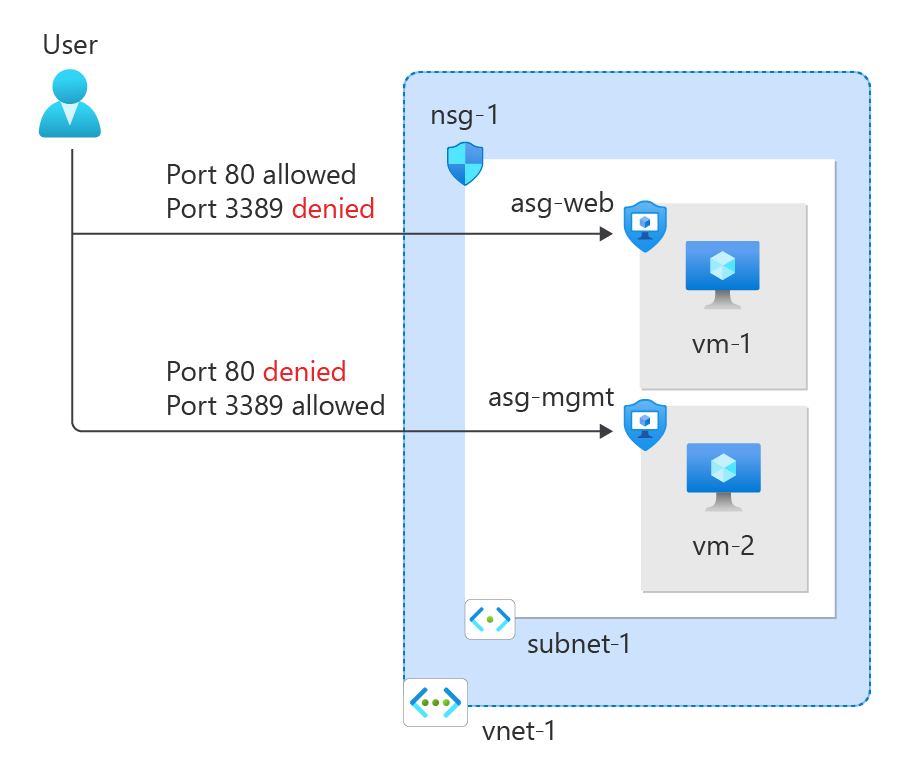
Here we have a single subnet. Normally all traffic in and out is allowed. But because we created a rule in the NSG of the VM specific NIC and added ASGs for web and mgmt, the user can only connect to the webservers for port 80 and port 3389 to mgmt servers. This enables that third layer of traffic filtering.
Typically, you use either an NSG per machine or an NSG for the entire subnet combined with ASGs. ASGs in this way eliminates the need of specifying every source in the NSG. Instead of that, you simply add a server to it.
Routing tables
Within Azure, you can also create route tables. These allow you to define custom rules on top of the virtual network or subnet to direct traffic. The routing table which contains all the user defined routes (UDR’s) has to be linked to one of the created subnets.
Every network uses routing to determine where specific traffic should be directed. In Azure, this works the same way within a virtual network. There are the following types of routing:
System routes are the default routes that Azure creates. These ensure that resources automatically have access to the internet and other resources/networks. The default routes created by Azure include:
System Routes (Default Routing)
- Internet access
- VNET Peering (ARM-only)
- Virtual Network Gateway
- Virtual Network Service Endpoint (ARM-only)
Custom Routes (User-Defined Routing)
In addition to the system routes automatically created by Azure, you can define your own custom routes. These take precedence over system routes and allow traffic to be routed according to specific needs.
Examples:
- Using a custom firewall for traffic control.
- Implementing a NAT Gateway for specific outbound traffic.
Route presedence/order in Azure
When determining how network traffic is routed, Azure follows this order:
- User-defined route
- BGP route
- System route
In a route table, you can configure various static routes, specifying that a particular IP range should be reachable via a specific gateway when using multiple subnets or networks.
Creating Routes
When creating routes, you need to know several values to ensure the route functions correctly:
- Route name
- Destination IP address or subnet
- Next Hop address (if applicable)
- Next Hop type
After this step there are different Next Hop types, each with its own purpose:
| Next Hop Type | Purpose |
|---|---|
| Virtual Network Gateway | Route traffic to Virtual Network Gateway/VPN |
| Virtual Network | Route traffic to Virtual Network |
| Internet | Route traffic to the Internet |
| Virtual Appliance | Route traffic to specified IP Address/Firewall |
| None (Drop) | Drop traffic |
Troubleshooting routing tables (client side)
It is good to know that all routes can be viewed through a network interface that is connected to the network. Additionally, you can check whether a route is a system route or a user-defined route. You can find this in the Network Interface Card (NIC) of the virtual machine.
This can be helpful if a routing doesn’t work properly and you want to find out if this is by a User defined route.
Forced Tunneling
It is possible to secure and monitor an Azure Virtual Network using Forced Tunneling. This ensures that all traffic is routed through an on-premises Site-to-Site VPN, where it can be monitored and secured before reaching the internet.
By default, Azure traffic communicates directly with the internet, as this results in fewer hops and higher speed.
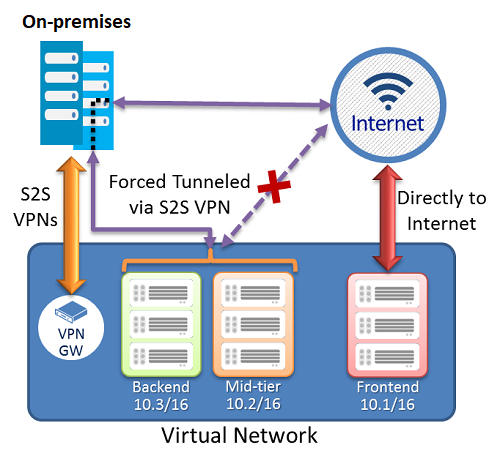
Now I don’t neccesarily recommend this option as it increases hops and lower the performance but when it is required for security and governance purposes it will do the trick.
Resources and Endpoints
In Azure, we have our resources that all use their own Endpoints to connect to. There are possibilities to further enhance and secure them.
We have the following types of endpoints:
- Public Endpoints
- Service Endpoints
- Private Endpoints
The order of these are very important, because I ordered them most inclusive to most restrictive.
Public Endpoints
When you create resources like the resources below, you get an URL to connect to the resource. This is called an Public Endpoint, which is accessible to the whole internet by default. You may want to limit this.
Resources who use public endpoints:
- Azure SQL Database and SQL Managed Instance
- Storage Accounts
- Recovery Services Vaults
In the configuration of the resource, its possible to still use the public endpoint for its simplicity but limit the access to specified IP addresses/ranges:
Service Endpoints
Service endpoints are extensions for virtual networks that enhance security by allowing traffic to specific Azure resources only from a designated virtual network. The following resources support both service endpoints and private endpoints:
- Azure Storage
- Azure SQL Database
- Azure Synapse Analytics
- Azure Database for PostgreSQL server
- Azure Database for MySQL server
- Azure Database for MariaDB
- Azure Cosmos DB
- Azure Key Vault
However, service endpoints are not the most secure option for access control, as they remain routable via the internet and the resource retains its public DNS name. For the highest level of security, a Private Endpoint should be used.
Private Endpoints
A private link ensures that a resource is only accessible from the internal network and not from both the internet and the internal network. It assigns the resource an IP address within your virtual network, allowing for additional security and control.
This provides extra security and performance since the route to the resource is optimized for efficiency. It also allows you to place a load balancer between the client and the resource if needed.
To give a better understanding of how this works:
In this case, John Savill created a Private Endpoint on his Storage Account and so connected it to his private network. It does get a local IP address instead of being routed over the internet.
This increases:
- Security: Traffic stays in your private virtual network
- Performance: Traffic takes a very short route from A to B because its from local to local
Service Endpoint vs. Private Endpoint
Because I find both terms still really confusing till this day, I have created a table to describe the exact differences:
| Service Endpoint | Private Endpoint |
|---|---|
| Access through public IP | Access through private IP |
| Isolation from VNETs | Complete isolation |
| Public DNS | Private DNS |
| Better performance by limiting hops |
Azure DNS
Azure DNS is a service in Azure that allows you to link a registered public domain name and create DNS records for it. Azure DNS is available in both a public and private variant for use within a virtual network. In the private variant, you can use any domain name.
This service is available in two service types:
- Public DNS: Publicly accessible DNS records for your website, servers, etc.
- Private DNS: Internal DNS for naming servers, databases, or web servers within your virtual network.
The default IP address for all DNS/DHCP-related services in Azure is 168.63.129.16. You can use this IP address as secondary or tertiary DNS server.
Azure NAT Gateway
Azure NAT Gateways are designed to provide one or more virtual networks within an Azure region (the same region as the VNET) with a single, static inbound/outbound IP address.
This allows you, for example, to enable an entire Azure Virtual Desktop host pool with 100 machines to communicate using the same external IP address.
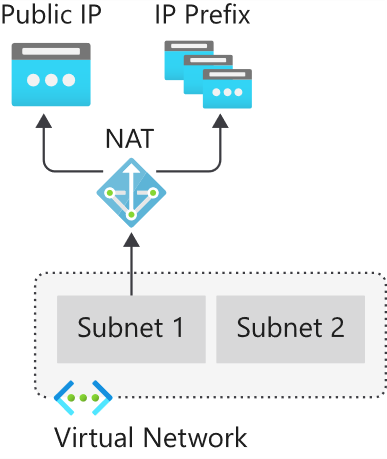
Use cases for Azure NAT Gateway are for example:
- When using applications or services that require an IP whitelist
- When using Conditional Access and so create a named/trusted location
Azure Virtual WAN
With Azure Virtual WAN, you can build a Hub-and-Spoke network in Microsoft Azure by configuring Azure as the “Hub” and the on-premises networks as “Spokes.”
This allows you to link all connections to Azure, such as VPN (S2S/P2S) and connections to other branches or other Azure virtual networks (VNETs) in different Azure Tenants/subscriptions. Microsoft utilizes its own backbone internet for this.
The topology looks as follows:
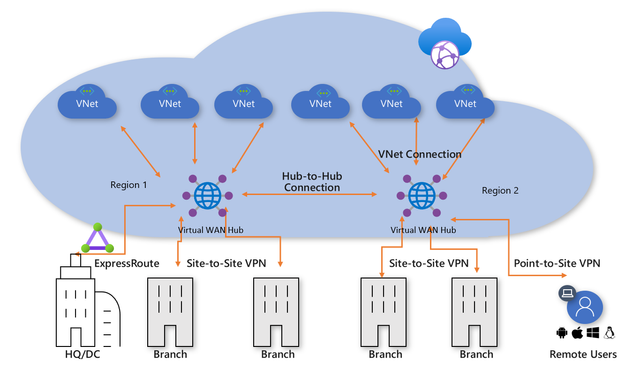
Azure Virtual WAN serves as the Hub for all externally connected services, such as:
- Branch Offices with SD-WAN or VPN CPE
- Site-to-Site VPNs (S2S)
- Point-to-Site VPNs (P2S)
- ExpressRoute
- Inter-Cloud connectivity
- VPN and ExpressRoute connectivity
- Azure Firewall and Routing
- Azure VNETs in other Azure tenants (cross-tenant)
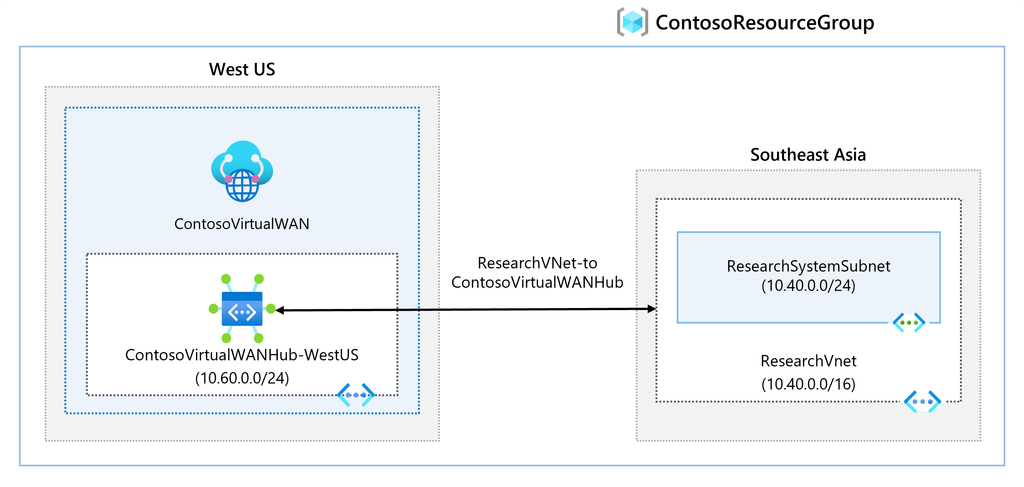
An Azure Virtual WAN consists of a base network that must be at least a /24 network or larger, to which all endpoints are connected. Additionally, it is possible to deploy a custom NVA (Network Virtual Appliance) or Firewall to secure traffic. The NVA must be deployed in the Virtual WAN Hub that you have created.
Overall, Azure Virtual WAN ensures that when a company has a network in Azure along with multiple branch offices, all locations are centrally connected to Azure. This architecture is a more efficient and scalable solution compared to manually connecting various virtual networks using different VPN gateways.
Azure Virtual WAN replaces VPN connections with Azure Virtual Network Gateways to Virtual WAN. It also supports more tunnels (2000 versus 30 in a virtual network gateway).
Azure ExpressRoute
Azure ExpressRoute is another method to connect an existing physical network to an Azure network. It works by establishing a dedicated, private fiber-optic connection to Azure, which is not accessible from the public internet.
With this method, you achieve much higher speeds and lower latency compared to Site-to-Site VPN connections. However, ExpressRoute can be quite expensive.
For a current overview of ExpressRoute providers: https://learn.microsoft.com/nl-nl/azure/expressroute/expressroute-locations-providers?tabs=america%2Ca-c%2Ca-k#global-commercial-azure
For using Azure ExpressRoute, there are 4 methods of connecting your network with ExpressRoute to Azure:
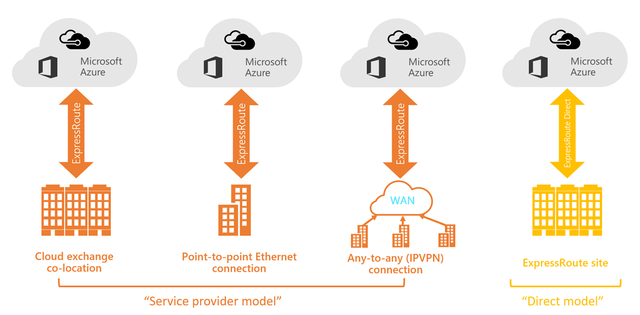
Co-location in a Cloud Exchange
If you are located at the same site as a cloud exchange, you can request virtual overlapping connections to the Microsoft Cloud via the co-location provider’s Ethernet exchange. Co-location providers can offer Layer 2 overlapping connections or managed Layer 3 overlapping connections between your infrastructure in the co-location facility and the Microsoft Cloud.
Point-to-Point Ethernet Connections
You can connect your on-premises data centers/offices to the Microsoft Cloud through point-to-point Ethernet links. Point-to-point Ethernet providers can offer Layer 2 connections or managed Layer 3 connections between your location and the Microsoft Cloud.
Any-to-Any (IPVPN) Networks
You can integrate your WAN with the Microsoft Cloud. IPVPN providers (typically MPLS VPN) offer any-to-any connectivity between your branches and data centers. The Microsoft Cloud can also be connected to your WAN, making it appear as just another branch. WAN providers generally offer managed Layer 3 connectivity.
Direct from ExpressRoute Sites
You can connect directly to Microsoft’s global network at a strategically located peering site worldwide. ExpressRoute Direct provides dual connectivity of 100 Gbps or 10 Gbps, supporting active/active connectivity at scale.
External access with custom services
When having to load balance external traffic to for example webservers, database servers etc. Azure has some solutions to achieve this:
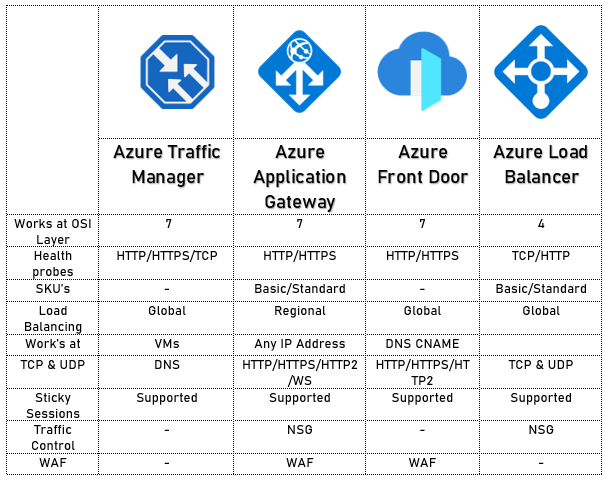
The solutions mentioned above each have their own use cases but work best with the following applications:
- Azure Traffic Manager
- Non-HTTP/HTTPS
- Azure Load Balancer
- Non-HTTP/HTTPS
- Azure Front Door
- HTTP/HTTPS
- Azure Application Gateway
- HTTP/HTTPS
Azure Application Gateway
Azure Application Gateway is an HTTP/HTTPS load balancer with advanced functionality. Like other load balancing options in Azure, it is a serverless solution.
The features of Azure Application Gateway include:
- Layer 7 load balancing (Application)
- Path-based routing / Multiple site routing
- Support for HTTP, HTTPS, HTTP/2, and WebSockets
- Web Application Firewall (WAF)
- End-to-end encryption
- Autoscaling
- Redirection
- HTTP request and response rewriting
- Custom error pages
Azure Application Gateway supports 2 load balancing methods:
- Path-based routing: Determines the endpoint or pool of endpoints based on a specific URL. (See image)
- Multiple site routing: Determines the endpoint or pool of endpoints based on a specific domain name. (See image)
On the frontend, Azure Application Gateway has a virtual WAN IP address that allows access to the web service. On the backend, you must determine how requests are routed to internal servers.
A load balancer also typically includes a health probe rule. This checks whether the backend web servers are functioning correctly by periodically opening an internal website. If a web server does not respond, the load balancer will immediately stop sending traffic to that server.
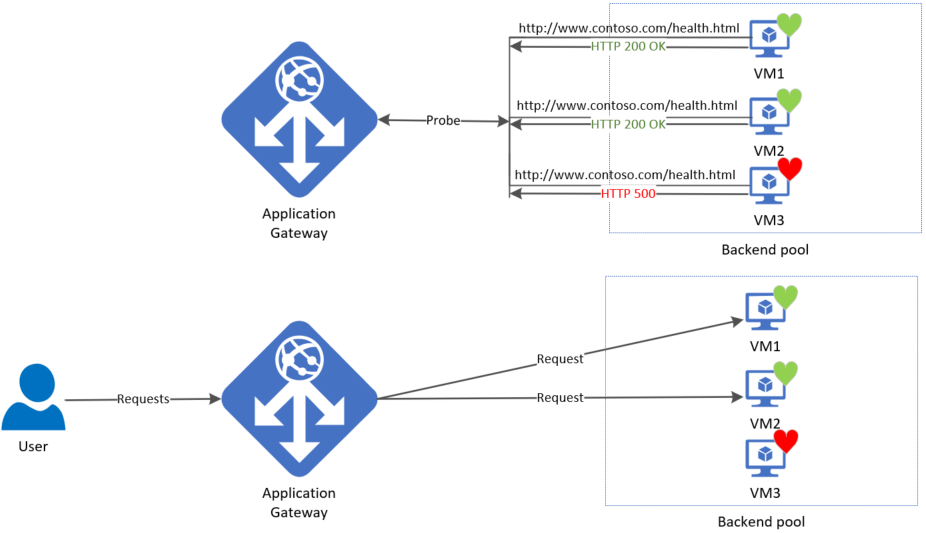
Azure Front Door
Azure Front Door is a Content Delivery Network (CDN) that runs on Azure. It is not a regional service and can be deployed across multiple regions. Essentially, it acts as a large index of all resources a company has and selects the appropriate backend resource for a client. In this sense, it also functions as a type of load balancer.
To learn more about Front Door, please review the image below:
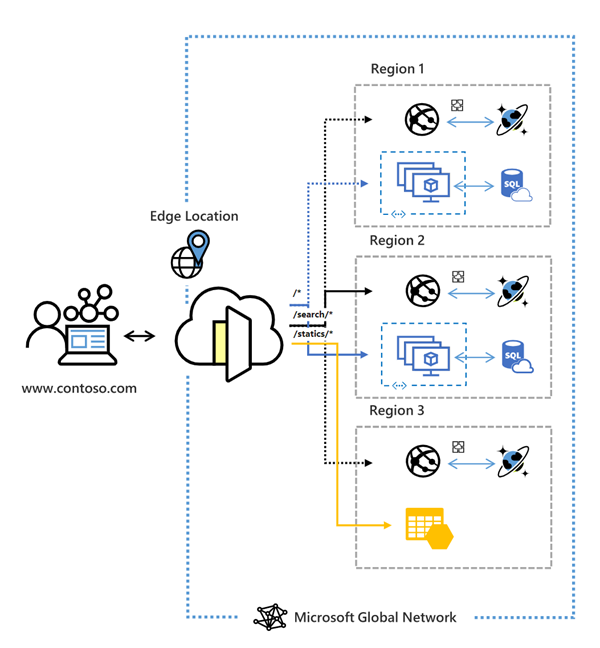
Azure Front Door has the following security features:
- Cross-site scripting
- Java attacks
- Local file inclusion
- PHP injection attacks
- Remote command execution
- Remote file inclusion
- Session fixation
- SQL injection protection
- Protocol attackers
Azure Bastion
Bastion is a service in Microsoft Azure that allows you to manage all virtual machines within an Azure Virtual Network (VNET-level). It works similarly to RDP but runs directly in your browser using port 443 combined with a reverse-connect technique.
This service is primarily focused on security, just-in-time access and ease of access. With this solution, there is no need to open any ports on the virtual machine, making it a highly secure option. It also functions as a jump-server where you can give someone permission to the server for 30 minutes to complete their task and disallowing access after that time window.
The topology of Azure Bastion:
Azure Firewall
Azure Firewall is a serverless, managed security service in Microsoft Azure that provides network-level protection for your virtual networks. It operates as a stateful firewall, meaning it inspects both incoming and outgoing traffic.
Azure Firewall has support for:
- Network Rules (Layer 3)
- Application Rules, allowing you to control traffic based on IP addresses, ports, and fully qualified domain names (FQDNs) (Layer 4)
- Threat Intelligence, which will block malicious traffic based on real-time security signals.
While Azure Firewall does what it convinces you, most people (including myself) are not a big fan of the solution. It is great for some basic protection, but it is very expensive and configuring it can be a long road. Fortunately, we have some great alternatives:
Custom Firewalls (NVA) in Azure
In Microsoft Azure we can use custom firewalls such as Palo Alto, Fortinet, Opensense, or Sophos XG. These have a lot more functionality than the default Azure Firewall and are a lot better to configure. The only downside to them is that they have a seperate configure page and the settings cannot be configured in the Azure Portal.
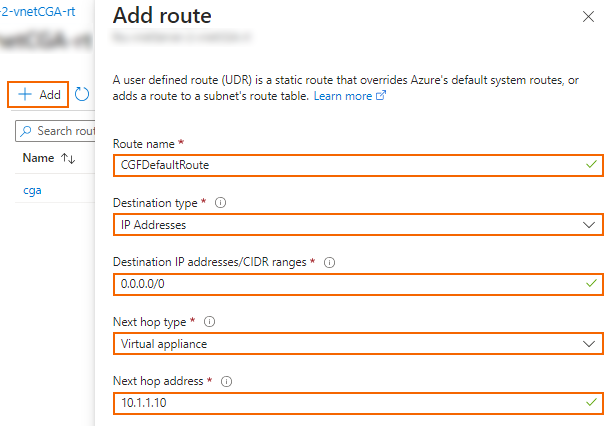
To make our Firewall effective, we configure a routing table with next hop “Network Appliance” and define the IP address to route traffic through the custom firewall.
Summary
Networking is a critical part of administering and architecturing solutions in Microsoft Azure. It really is the backbone of all traffic between services, devices and maybe customers. So it is not strange that this is a really large topic.
Most of the knowledge is needed to architect and configure the solutions and most of the time, you sporadically add an IP address to a whitelist or make a minor change.
TTo go back to the navigation page: https://justinverstijnen.nl/blog/azure-master-class/
End of the page 🎉
You have reached the end of the page. You can navigate through other blog posts as well, share this post on X, LinkedIn and Reddit or return to the blog posts collection page. Thank you for visiting this post.
Support the blog
