Module 7: Virtual Machines and Scale Sets
Virtual Machines (VMs)
Virtual Machines are one of the most commonly used services in Microsoft Azure. This is because a customizable virtual machine allows for nearly unlimited possibilities, and most software requires a real desktop environment for installation.
Technically, all virtual machines run on Microsoft’s hardware within Azure. A server that hosts one or more virtual machines is known as a Hypervisor. In on-premises environments, this could be Hyper-V, VMware, or VirtualBox.
With virtual machines, the system administrator or customer is responsible for everything within the VM. This makes it an IaaS (Infrastructure as a Service) solution. Microsoft ensures the VM runs properly from a technical standpoint, but the customer is responsible for everything from the VM’s operating system and beyond.
Virtual Machine Extensions
Azure can enable various extensions for virtual machines. These are small pieces of software installed as Windows Services within the VM to enhance integration with the Azure Backbone and the Azure Portal. When an extension is required for a specific function, Azure will automatically install it at the VM-bus level.
Below is a list of much used extensions which mosty will be installed automatically:
- Azure Monitoring Agent: Enables monitoring and performance tracking
- PowerShell DSC (Desired State Configuration): Used for PowerShell Configuration Management
- Azure Disk Encryption: Encrypts data within a VM and stores encryption keys in Azure Key Vault
- NVIDIA GPU Driver Extension: Provides drivers for GPU-powered virtual machines
- Microsoft Entra ID signin: Makes it possible to logon with Entra ID into a VM
These extensions help optimize and automate VM management within Microsoft Azure.
Virtual Machine workloads
Before choosing a VM size and family, we first want to do some research about the actual workload/tasks that the VM has to support. Compare this to driving a car, we have to buy tires that exactly fit the car and type of rims of your car and driving style.
In Azure, various virtual machine configurations are available to meet different requirements. The amount of resources a VM needs depends entirely on its workload. Below is a reference guide to help determine the appropriate resource allocation for different types of workloads:
RAM-Dependent Workload
These workloads require a high amount of memory (RAM):
- Database/SQL servers
- Application servers
CPU-Dependent Workload
For CPU-intensive workloads, it is crucial to choose the right number of vCPUs and the correct CPU generation.
- vCPUs (virtual CPUs) are not physical cores; they can be logical/hyperthreaded cores from a 64-core (128T) processor.
- A good rule of thumb is that 2 vCPUs can be compared to 2 to 3 single-core physical processors.
- The generation (v2, v3, v4, v5) determines the performance and efficiency of the underlying physical CPU.
Examples of CPU-dependent workloads:
- Domain Controllers
- Application servers
- Math-intensive applications
- Analytics-based applications
- Email servers
Disk-Dependent Workload
Disk performance depends on capacity, IOPS/throughput, and latency. Workloads that require high disk performance include:
- File servers
- Database/SQL servers
- Email servers
As you might have noticed, workloads are not limited to one type of resource but can rely on multiple types of resources. My advice from practice is to always allocate more than recommended specs and to use SSD based storage for real-world scenario’s.
Every application/software is different and always review the recommended specs of the software to comply.
Virtual Machine families and sizes
In Azure, every type of virtual machine is classified into families and sizes. You have to select one of the available sizes that suit your needs. This is a difference when used to on-premises virtualization solutions like Hyper-V or VMware where you can exactly assign the resources you need. To exactly know which VM you must pick, it is good to know where to pick from.
The family of a virtual machine determines the type of use the virtual machine is intended for. There are millions of different workloads, each with many options. These families/editions are always indicated in CAPITAL letters.
The following virtual machine families/editions are available:
| Type | Ratio vCPU:RAM | Letters family | Purpose |
|---|---|---|---|
| General Purpose | 1:4 | B, D, DC, DS | Desktops/testing/web servers |
| Compute-optimized | 1:2 | F, FX | Data analytics/machine learning |
| Memory-optimized | 1:8 | E, M | (in memory) database servers |
| Storage-optimized | 1:8 | L | Big data storages and media rendering with high I/O requirements |
| Graphical-optimized | 1:4 | NC, ND, NV | 3D and AI/ML based applications |
| HPC-optimized | 1:4 | HB, HC, HX | Simulations and modeling |
The ratio of vCPU and RAM can be confusing, but it stands for; General purpose has 4 GBs of RAM for every vCPU and Memory-optimized has 8 GBs of RAM for every vCPU.
Virtual Machine sub-families
When a virtual machine family/edition has more than one letter (for example: DC), the second letter serves as a sub-family. This indicates that the virtual machine is designed for two purposes. The available second letters/sub-families stands for:
- B: Higher memory bandwidth
- C: Confidential VMs for high security and reliability (FIPS-140)
- S: Premium Storage and Premium Storage caching
- X: Genoa X-CPUs and DDR5 RAM with 800GB/s memory bandwidth
Each type of virtual machine in Azure is identified by a name, such as E8s_v5, D8_v2, F4s_v1. This name provides information about the configuration and composition of the virtual machine. Here are some more examples of names:
Virtual Machine naming convention
| VM size name |
| D4_v5 |
| E8s_v3 |
| EC8as_v5 |
| ND96amsr_A100_v4 |
This name derives from a convention that works like this:
| Family | # of vCPUs | Functions | Accelerator | Version |
|---|
So all features and details are included in the name of the VM, but if a machine does not have a certain feature, the part is not included. Lets break down some names:
| VM name | Family | # of vCPUs | Functions | Accelerator | Version |
|---|---|---|---|---|---|
| D4_v5 | D-series | 4 | N/A | N/A | 5 |
| E8s_v3 | E-series | 8 | Premium Storage | N/A | 3 |
| EC8as_v5 | E-series | 8 | Confidential Computing AMD Premium Storage | N/A | 5 |
| ND96amsr_A100_v4 | ND-series | 96 | AMD Memory upgrade Premium Storage RDMA capable | Nvidia A100 | 4 |
Virtual Machine features
Virtual machines also have specific features, which are indicated in the VM name/size. If the feature is not mentioned, the virtual machine does not have that feature.
These features are always indicated in lowercase letters:
- a: The letter “a” in a VM size indicates that the VM uses AMD processors. Example: D8asv4
- d: The letter “d” in a VM size indicates that the VM runs on NVMe SSDs. Example: D8dv4
- i: The letter “i” in a VM size indicates that the VM is isolated. Example: D8iv4
- L: The letter “L” in a VM size indicates that the VM has less RAM compared to other machines in the same family. Example: D2lv4
- m: The letter “m” in a VM size indicates that the VM has more RAM compared to other machines in the same family. Example: D2mv3
- p: The letter “p” in a VM size indicates that the VM uses ARM processors. Example: D4plsv5
- s: The letter “s” in a VM size indicates that the VM is optimized for use with Premium SSDs or Ultra Disks/SSDs. Example: D2sv5
- t: The letter “t” in a VM size indicates that the VM has much less (tiny) RAM compared to other machines in the same family. Example: E4tv5
Virtual Machine accelerators
Certain types of virtual machines also include an accelerator, which is often a GPU. Azure has several different types of GPUs for different purposes:
- NVIDIA Tesla V100 Use Cases: Simulations, Deep Learning, AI
- NVIDIA A100 Use Cases: HPC-optimized applications
- NVIDIA Tesla M60 Use Cases: Remote visualizations, streaming, gaming, encoding, VDI
- AMD Radeon MI25 Use Cases: VDI, Remote visualizations
The type of GPU is directly reflected in the virtual machine name, such as:
- NC24ads_A100_v4
Virtual Machine versions
Each virtual machine edition has its own version number, which indicates the generation of physical hardware the virtual machine runs on. The best practice is to always select the highest version possible. Lower versions may be “throttled” to simulate lower speeds, and you’ll pay the same amount for a higher version number.
Versions available to this day are v1 to v6 in some families.
The biggest factor influencing performance is the CPU. The higher the version number, the faster and newer the CPU will be.
Generation 1 VMs vs Generation 2 VMs
Azure is based on Hyper-V, where you also deal with Generation 1 and Generation 2 virtual machines. The differences are as follows:
Generation 1 (Gen 1)
- BIOS-based
- IDE boot (max. 2TB disk)
- MBR (Master Boot Record)
Generation 2 (Gen 2)
- UEFI-based
- Secure Boot
- vTPM (Virtual Trusted Platform Module)
- SCSI boot (max. 64TB disk)
- GPT/GUID (GUID Partition Table)
Not all virtual machines support both generations. So, you should take this into account when designing your architecture. Also, because Windows 11 and up requires Secure Boot and TPM so Gen 2 is required for Windows 11.
Azure VM building blocks
A virtual machine on Azure is not a standalone resource; it is a collection of various resources that make the term “virtual machine” workable. It consists of:
- The VM: Contains information about the image/OS used by the VM, the size, the generation, and other settings.
- The NICs (Network Interface Cards): Connect the VM to the Azure virtual network and the internet.
- The OS Disk: Stores the bootloader and other files on the C:\ disk.
- Temp Disk: Some VM sizes come with a temporary disk.
- Data Disks: Additional disks for storing application data.
- Extensions: For adding functionality or configuring the VM further.
- Public IP: An IP address for accessing the VM over the internet.
- Availability Set, Zone, Proximity Placement Group: For ensuring high availability, redundancy, and optimal placement of VMs.
- Reserved Instance: For reserving a VM for a longer term at a discounted price.
Supported OSs on Azure VMs
On Azure, the basic support is available for:
- Windows
- Linux
Through the Azure Marketplace, it is possible to install a wide range of different operating systems, but it also offers ready-made solutions that are deployed with ARM templates. These ARM (Azure Resource Manager) templates help automate the deployment and configuration of complex environments, including both OS and application-level setups.
Isolated VM options
In Microsoft Azure, by default, your virtual machine is placed on a hypervisor. It is quite possible that virtual machines from completely different companies are running on the same hypervisor/physical server. By default, Azure does not allow these machines to connect with each other, as they are well isolated for security reasons.
However, there may be cases where a company, due to legal or regulatory requirements, cannot run virtual machines on the same server as another company. For such cases, Azure offers the following options:
Azure Isolated VM
- An Azure Isolated VM is a VM that runs exclusively on a physical server, without any other VMs from your own company or others.
- Drawbacks: These VMs have a relatively short lifespan as they are often replaced by Microsoft, and they tend to be more expensive, starting with editions that have 72 vCPUs.
- Alternative: In such cases, Azure Dedicated Host may be a better option.
Azure Dedicated Host
- With Azure Dedicated Host, you rent an entire physical server according to your specifications, and you can populate it with your own VMs.
- Advantages: This server is dedicated solely to your tenant and will not be used by Azure for other purposes, ensuring complete isolation.
Both options provide greater control and isolation for specific regulatory needs but come at a higher cost.
Virtual Machine Scale Sets (VMSS)
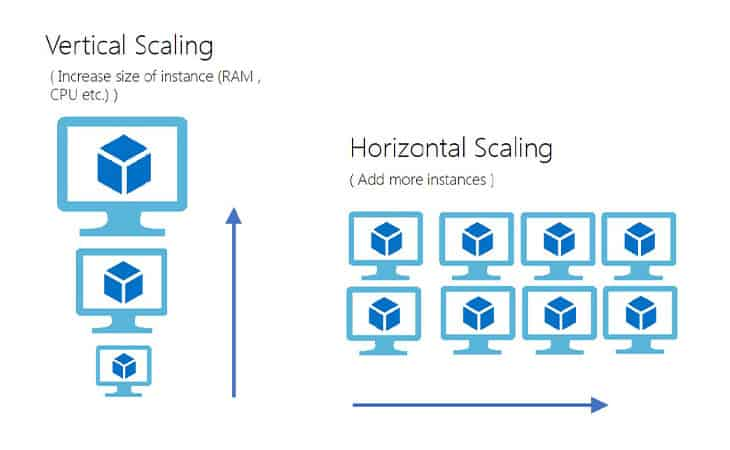
In Azure, you can create a Virtual Machine Scale Set. This means it is a set of identical virtual machines, all with 1 purpose like hosting a website on the web-tier. These sets of virtual machines can scale up or down according to the load of the machines. Scale Sets focusses primarily on achieving High Availability and saving costs.
The features of Virtual Machine Scale Sets are;
- Auto-scaling: VMSS can automatically scale the number of VMs based on load or custom policies.
- Load balancing: VMs within the scale set are distributed across different physical servers and automatically balanced for traffic.
- High availability: Ensures applications have redundancy and fault tolerance across multiple availability zones or regions.
Let’s say, a webserver needs 100 clients to be overloaded and we have a set of 4 machines. When the number of client increases to 500, Azure can automatically roll out some machines for the extra load. When the clients goes down to 200, the extra machines are automatically deleted.
Virtual Machine Scale Sets are an example of “Horizontal Scaling” where more instances are added to complete the goal.
VMSS configuration
The configuration of VMSS can be done in the Azure Portal and starts with configuring a condition to scale up and down and defining the minimum, maximum and default amount of instances:
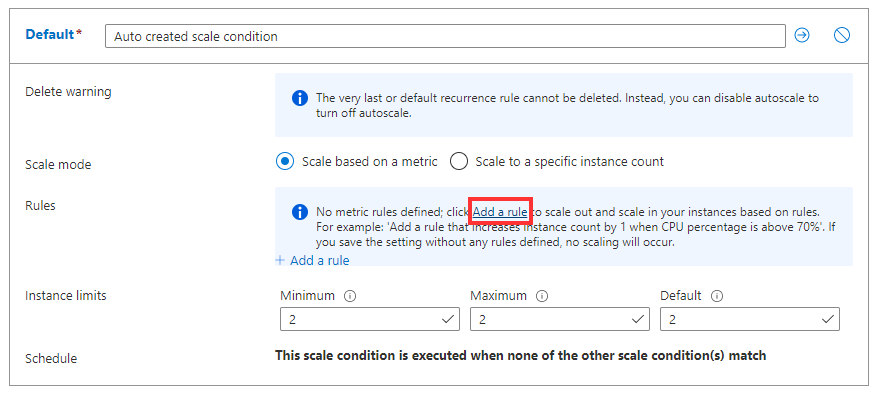
After the conditions are configured, we can define the rules where we plan when to scale up or down:
I am no expert in Scale Sets myself but I know the basic concept. If you want to learn more, refer to this guide: https://learn.microsoft.com/en-us/azure/virtual-machine-scale-sets/virtual-machine-scale-sets-autoscale-portal
Practice Scenarios
What type of scenario’s can really profit from scale sets?
- Web Application: You could use a VMSS to run a web application with fluctuating traffic. When traffic increases, VMSS can add more VMs to handle the load, and scale down during off-peak hours to save costs.
- Microservices Architecture: In a microservices-based system, each microservice could run in its own VMSS, ensuring scalability and managing each service’s demand separately.
- Big Data Processing: VMSS can be used to create a cluster of VMs that automatically scale to process large datasets when needed, ensuring that resources are used efficiently.
Maintenance and Hotpatching
Microsoft automatically maintains virtual machines and hypervisors. It’s possible for Microsoft to put a VM into a “freeze” mode, where the virtual machine does not need to be turned off, but critical updates can still be applied, often without the customer noticing.
To protect your applications from these micro-outages, it’s recommended to place multiple virtual machines in an availability set. Here, you can define different update domains, ensuring that not all VMs are patched at the same time.
Azure Guest Patch Orchestration
Azure Guest Patch Orchestration is an extension for the VM that automatically installs Windows updates on a schedule. This solution always works according to the “Availability-first” model, meaning it will not update all virtual machines in the same region simultaneously.
Azure Update Manager
Azure Update Management Center is a solution within Azure that can update virtual machines directly from the Azure Portal. It allows for applying both Windows and Linux updates without logging into the VMs. Additionally, you can update a whole batch of Azure VMs and Azure ARC machines from a central system.
These solutions help manage updates while ensuring that applications and VMs on Azure stay up-to-date without risking downtime or performance issues.
To learn more about Azure Update Manager, check out my guide: https://justinverstijnen.nl/using-azure-update-manager-to-manage-updates-at-scale/
Azure Compute Gallery
The Azure Compute Gallery is a service that allows you to create custom images for deployment. You can use this for Azure Virtual Desktop, virtual machines, and more.
You can create an image definition and associate multiple versions under it to ensure that you always keep an older version.
In the Azure Compute Gallery, you can also choose between LRS (Locally Redundant Storage) or ZRS (Zone-Redundant Storage) for data center redundancy.
Azure VMware solutions
In Azure, it is possible to use VMware as a service. In this setup, Azure provisions a VMware server for you on its own physical hardware. This server connects to Azure via ExpressRoute.
Normally, virtual machines in Azure run on Hyper-V, which is Microsoft’s own virtualization solution. However, with this service, you can create your own VMware host or even a cluster of hosts. Additionally, these VMware hosts can be connected to an on-premises vCenter server. This allows you to integrate your existing VMware environment with Azure’s infrastructure.
Azure Arc
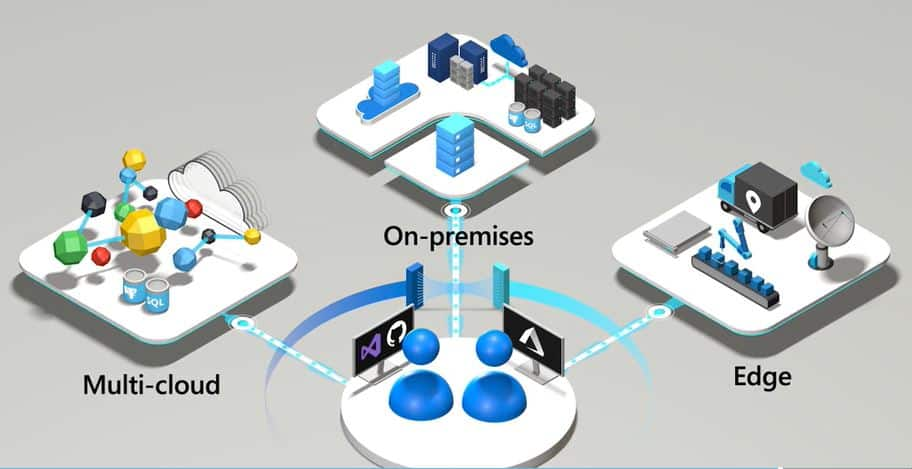
Azure Arc is a service that allows you to add servers outside of Azure as if they were part of Azure. This means you can integrate servers from AWS, Google Cloud, other public clouds, or on-premises servers to be managed in Azure.
Servers in other clouds are added to Azure Arc by generation a installation package in the Azure Portal and installing this package on the target server outside of Azure.
Additionally, Azure Arc enables you to leverage other Azure benefits on non-Azure servers, such as:
- Azure Policy
- Azure Monitoring and Workbooks
- Azure Backup
- Azure RBAC (Role-Based Access Control)
- Alert Rules based on monitoring
This allows you to have consistent management, monitoring, and security policies across your entire infrastructure, regardless of where it is hosted.
Summary
Virtual Machines are the most important feature of cloud computing in general. Virtual Machines enable you to build possibly 95% of all applications needed for an organization. It also gives great flexibility but not profit that much of the cloud as a whole. Remember, there is no such “cloud”. Its only others computer.
To go back to the navigation page: https://justinverstijnen.nl/blog/azure-master-class/
End of the page 🎉
You have reached the end of the page. You can navigate through other blog posts as well, share this post on X, LinkedIn and Reddit or return to the blog posts collection page. Thank you for visiting this post.
Support the blog
