ARM templates deployment via URL
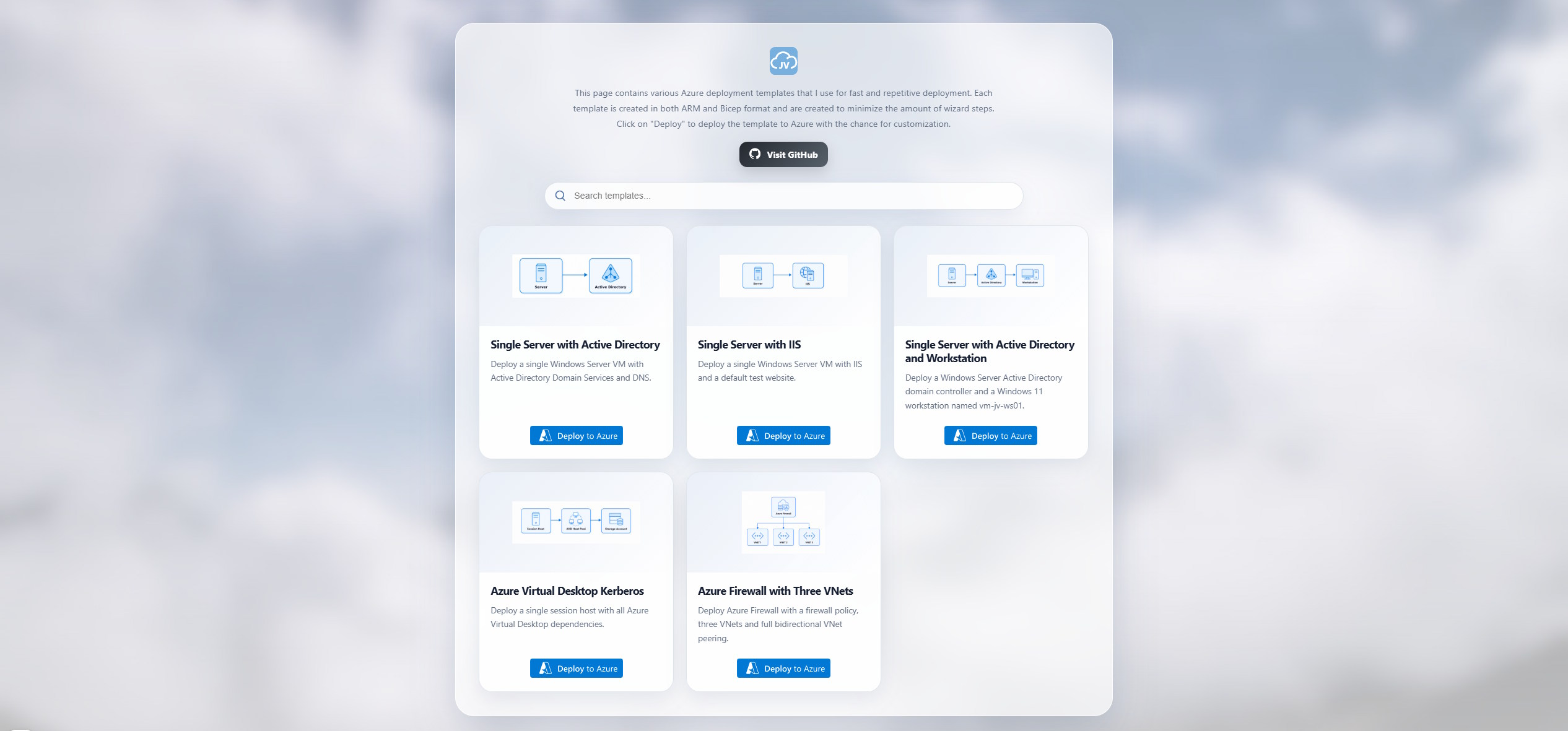
Some time ago, I spent some time on ARM templates and creating them through the portal and then redeploying them to save time. As I need to test some things very often for blog posts, for example updates for FSLogix and AVD, I needed a way to deploy some resources into Azure much faster. Here I want to save much of the clickwork and actually have more time on to the tesing and research themselves. Therefore, we will create template for these buttons:
After some testing and successfully be able to deploy different ARM templates, I dived even deeper in this world and was able to deploy them through a URI. This gave me inspiration to make my own gallery of ARM templates for fast deployment. It works like, you go to the URL, click on the Deploy to Azure button and you will be redirected to Azure and make minor customizations before deploying it into your environment.
In this guide, I will explain how this actually works and how you could setup this yourself.
Visit Deployment Templates gallery
Requirements
For this method you need the following:
- An Azure subscription
- Basic to Moderate knowledge of ARM
- A GitHub account or alternative public way of hosting JSON files
- An existing Bicep template is great
How ARM templates work
As Azure has Azure Resource Manager which can build its resources from a JSON file. We can say that the JSON file is a recipe/cookbook which we pass to Azure Resource Manager and he will build the environment based on our cookbook. If we have a correct template, this saves us a lot of time clicking through the portal and deploying the resources by hand. Also we cannot forget some crucial settings and saves us a lot of time, and can help us if we need to deploy a specific resource/setup into multiple environments.
What is also very nice is that we cannot only automate the deployment of resources, but also enabling managed identities and setting role assignments. For the example which I will demonstrate later on in this guide, I have built a demo Azure Virtual Desktop environment with variables built in to assign the correct roles to user groups.
This JSON file can be created through at least 3 ways:
A deployment in the Portal and downloading the automation template
Building a Bicep template which actually generates the JSON file
Write the JSON yourself or generate a template by using Artificial Intelligence
- Note here to test the template thoroughly before using in production
Step 1: Create a JSON file
Before we can deploy any template, we must first have a JSON file which contains the cookbook for Azure Resource Manager and the instructions on what to build, what settings must be used and which name structure you want. The most easiest way to get an ARM template is by configuring a resource in the Azure Portal, and then clicking the “Download a template for automation” button below:
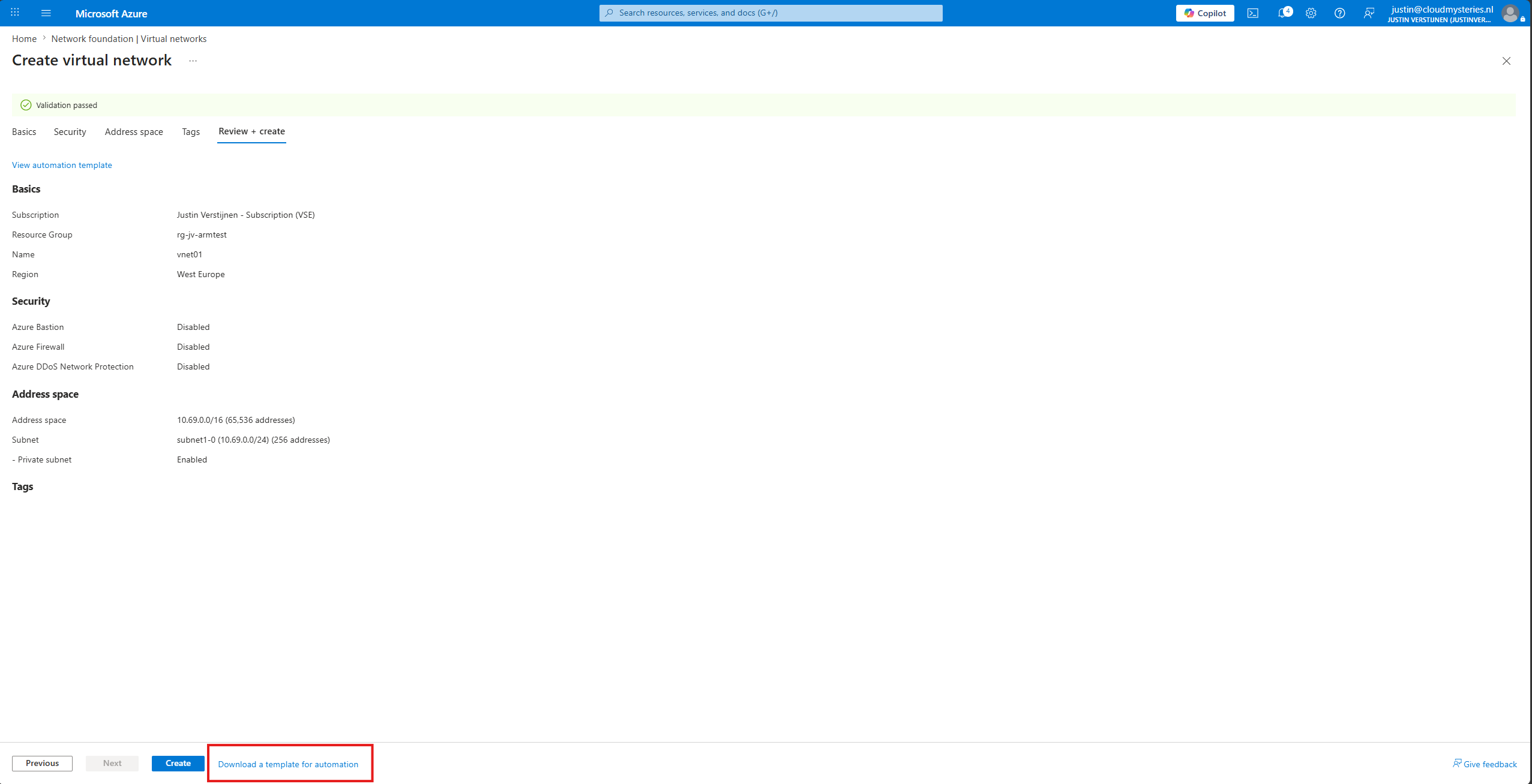
I created a simple virtual network for the purpose of this guide. We can now view the cookbook/code itself which Azure uses:
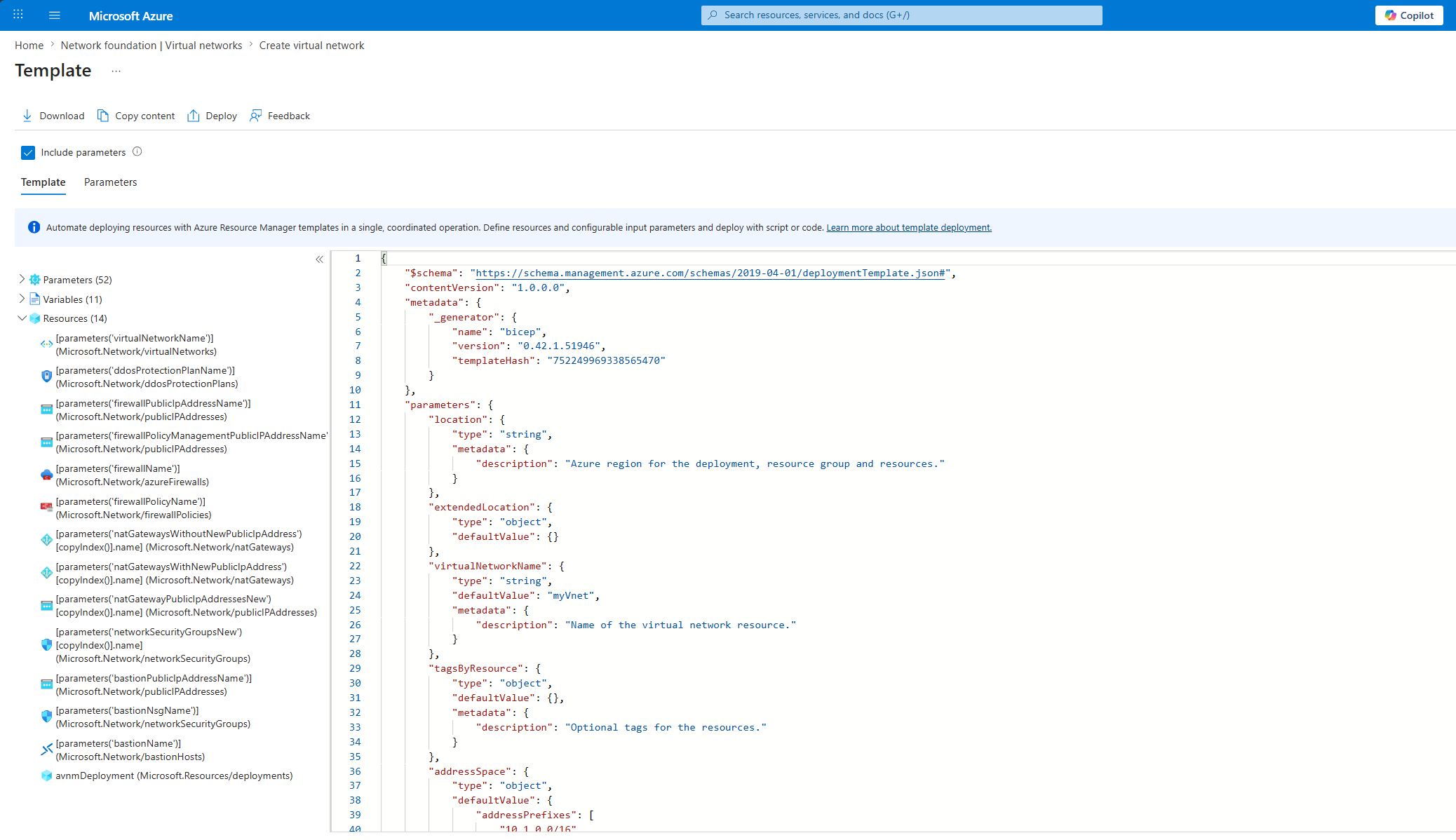
This can be your ARM template to deploy on Azure, but will be really simple. If you already have a Bicep template of your deployment, then you get a JSON during building which is what ARM can build. You can then use that as your template.
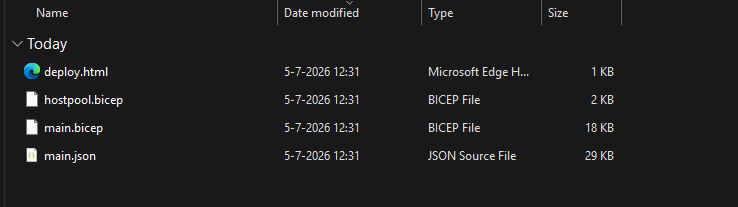
Here I have a Bicep template for Azure Virtual Desktop I created earlier, and built the JSON file using the Bicep deployment. If you want to learn more about Bicep, check out this guide.
Step 2: Host the ARM template
We now need to host the ARM JSON file on a public location. You can use any service for this, but I will be using GitHub. Any public GitHub repository can host files publically so this is an easy way.
Create a GitHub repository and place the files into the repository.
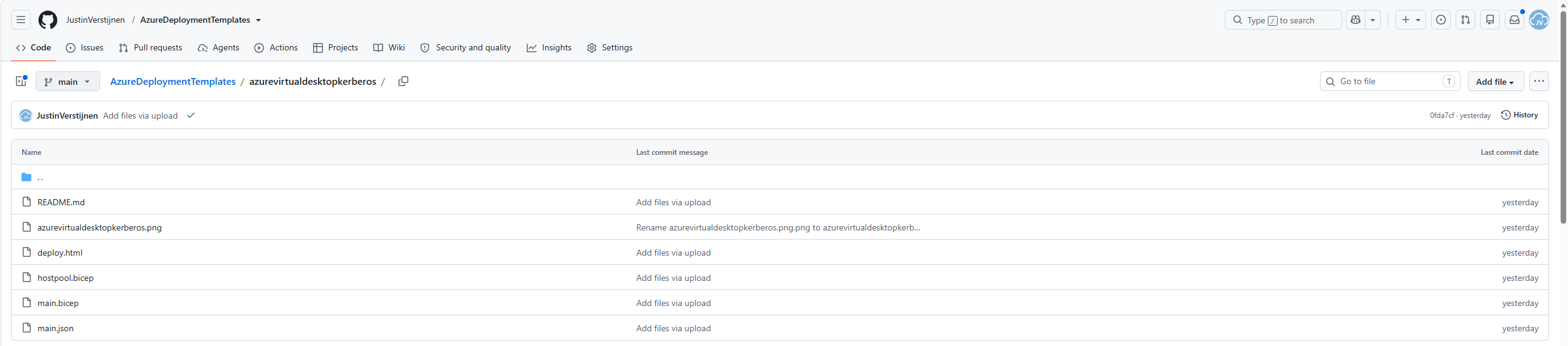
Then click on the JSON file and click on the “Raw” button. This gives you the raw file without any HTML styles, which we could pass to Azure.
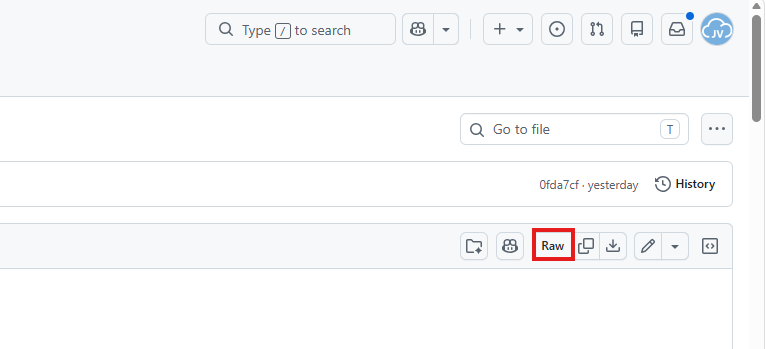
This will give you an URL like “https://raw.githubusercontent.com/JustinVerstijnen/AzureDeploymentTemplates/refs/heads/main/azurevirtualdesktopkerberos/main.json”. That is the URL which we can pass to Azure.
Step 3: Azure Deployment URL
Now we need to place the Deploy to Azure button somewhere. This can also be a website on GitHub Pages or elsewhere. Even local HTML files. We need to create a link to Azure with our hosted file as encoded suffix. I will guide you through the steps.
The base URL is this:
https://portal.azure.com/#create/Microsoft.Template/uri/After the uri/ part, we need to paste our encoded URL part. You can use this easy tool to convert the just copied Raw GitHub file to this encoded URL: https://meyerweb.com/eric/tools/dencoder/
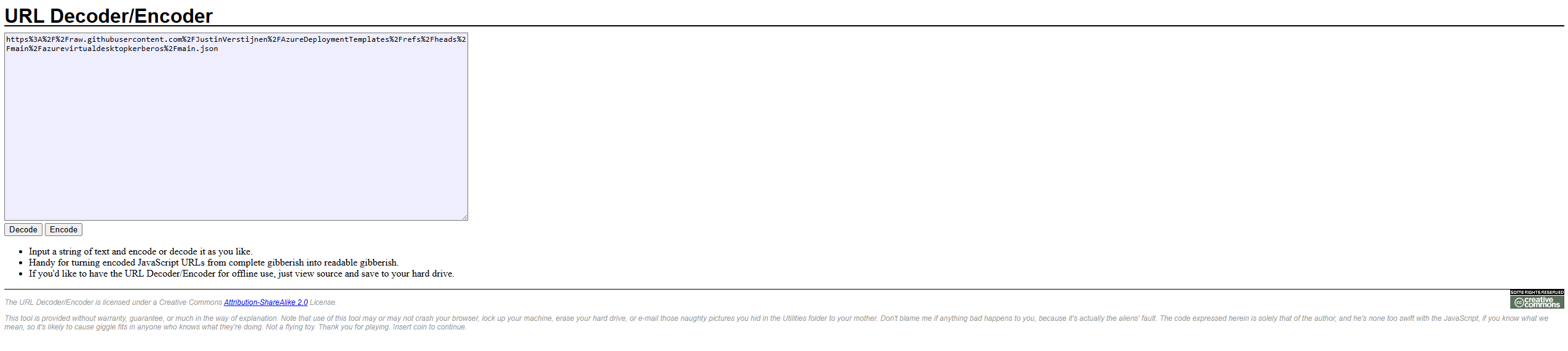
Paste in your URL into that tool, and click “Encode”. Then copy and paste that value in yo create a full URL like done below:
https://portal.azure.com/#create/Microsoft.Template/uri/https%3A%2F%2Fraw.githubusercontent.com%2FJustinVerstijnen%2FAzureDeploymentTemplates%2Frefs%2Fheads%2Fmain%2Fazurevirtualdesktopkerberos%2Fmain.jsonportal.azure/uri/your-pasted-url
Now you can check this URL already by pasting it into your Webbrowser. You should be redirected to the Azure Portal and then to a custom deployment:
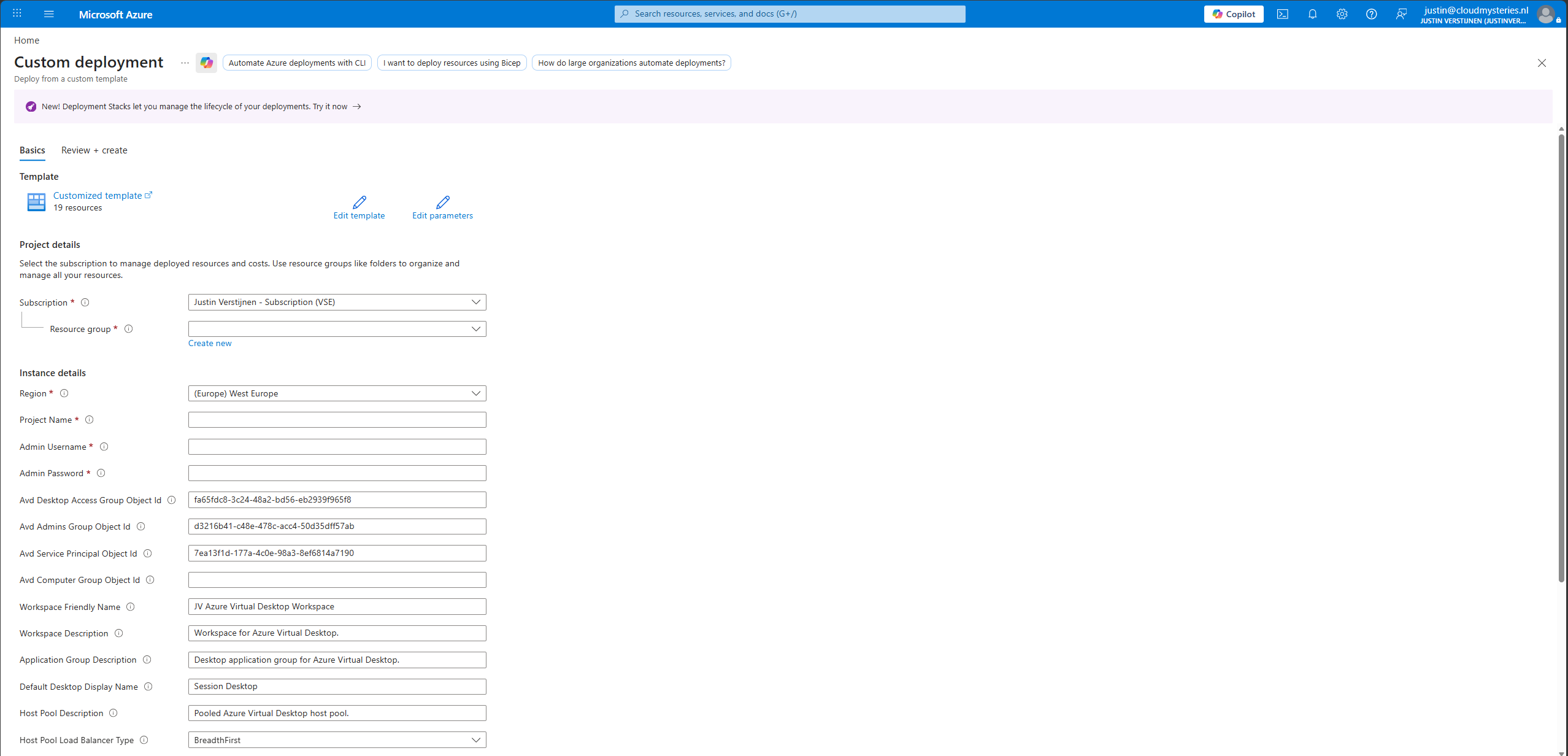
The URL works, which is fantastic. Now let’s dive into how to get that nice “Deploy to Azure” button.
Step 4: Deploy to Azure button HTML
We now need to turn the URL into a nice and tailored Deploy to Azure button. You can do this in HTML and Markdown using this HTML code:
<a href="https://portal.azure.com/#create/Microsoft.Template/uri/https%3A%2F%2Fraw.githubusercontent.com%2FJustinVerstijnen%2FJV-Azure-Deployment-Templates%2Frefs%2Fheads%2Fmain%2Fazurevirtualdesktopkerberos%2Fmain.json" target="_blank" rel="noopener noreferrer">
<img src="https://aka.ms/deploytoazurebutton" alt="Deploy to Azure"/>
</a>
Replace my URL on the first line between the quotes for your full working URL from step 3. If you now open this as HTML visual view, this should look like this:

I added the code source view to be able to see the URL. You can now use this button for various goals:
- On a GitHub README or your documentation
- On a blog
- On a page with multiple templates like I have done
Step 5: Performing the deployment
Like everything we can automate in IT, we need to test the template thoroughly before publishing it. Click the button from your documentation or website and check if you are redirected to Azure and your custom deployment.
Fill in the fields that needs filling and then head to Review + create. This will start the deployment sequence, deploying everything that is in your JSON file into Azure:
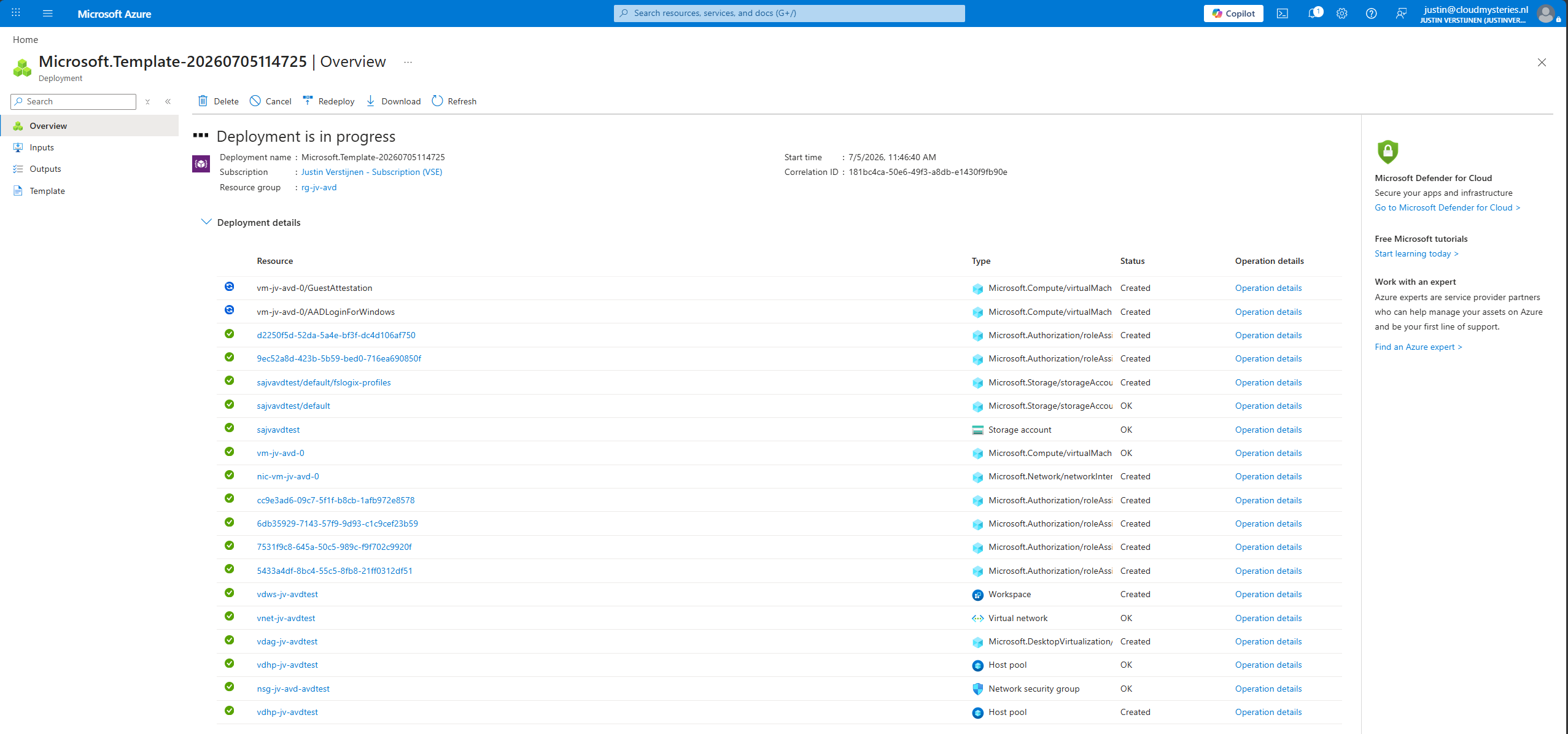
In my case, the deployment took about 15 minutes. This is because a virtual machine with some after deployment configurations must be done but most deployments will happen much faster.
Step 6: Testing the deployment
Now I will test the deployment after it has finished:
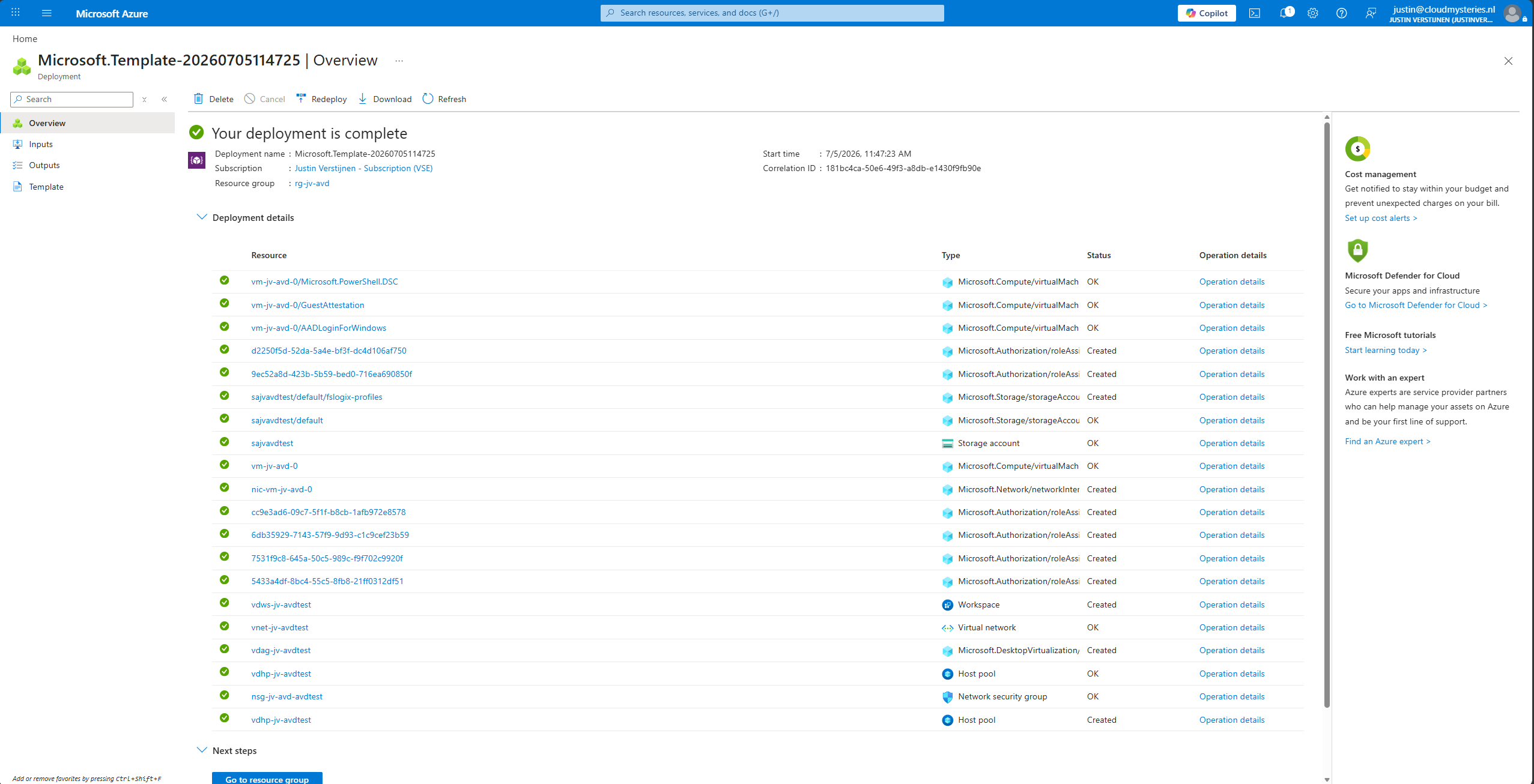
I wanted the template to comply to these things:
- The Azure Virtual Desktop deployment works and logging in is working including FSLogix
- The RDP settings are correctly according the Kerberos cloud AVD setup
- The names of resources are as wanted
Let’s test logging in first:
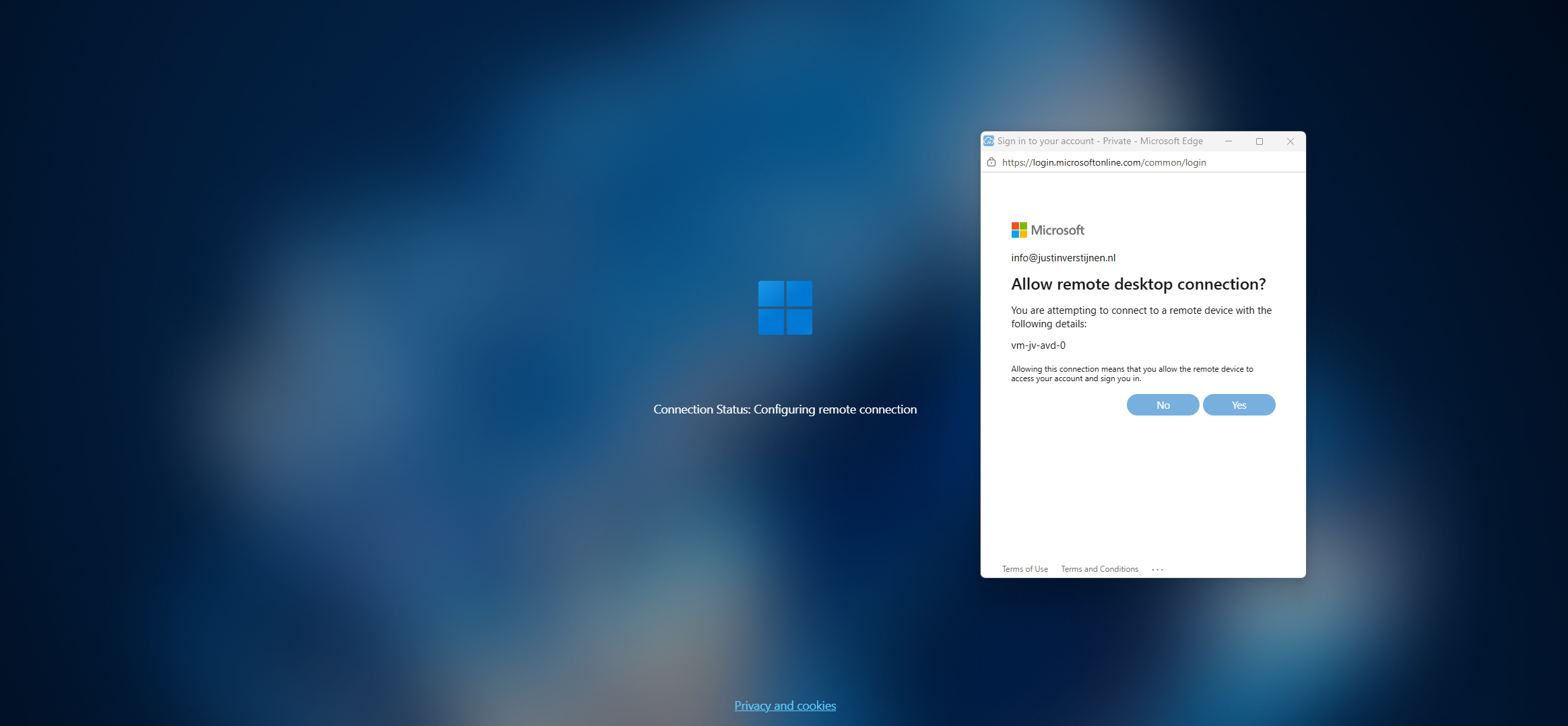
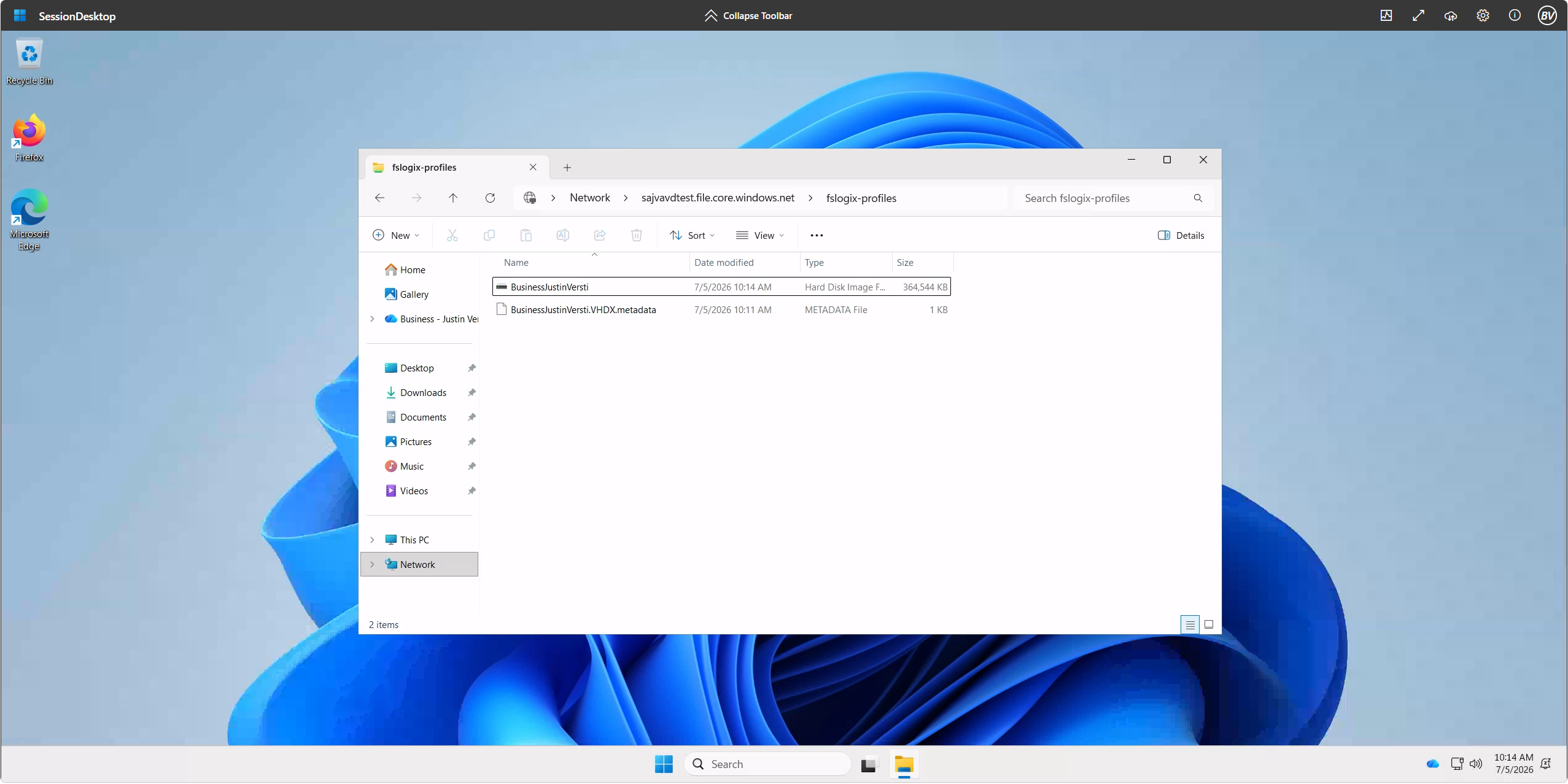
This is the Entra SSO prompt which I have accepted. Then logging in worked perfectly and we are able to navigate to the storage account with the FSLogix profile in use:
And let’s check the resource names in the Azure Portal:
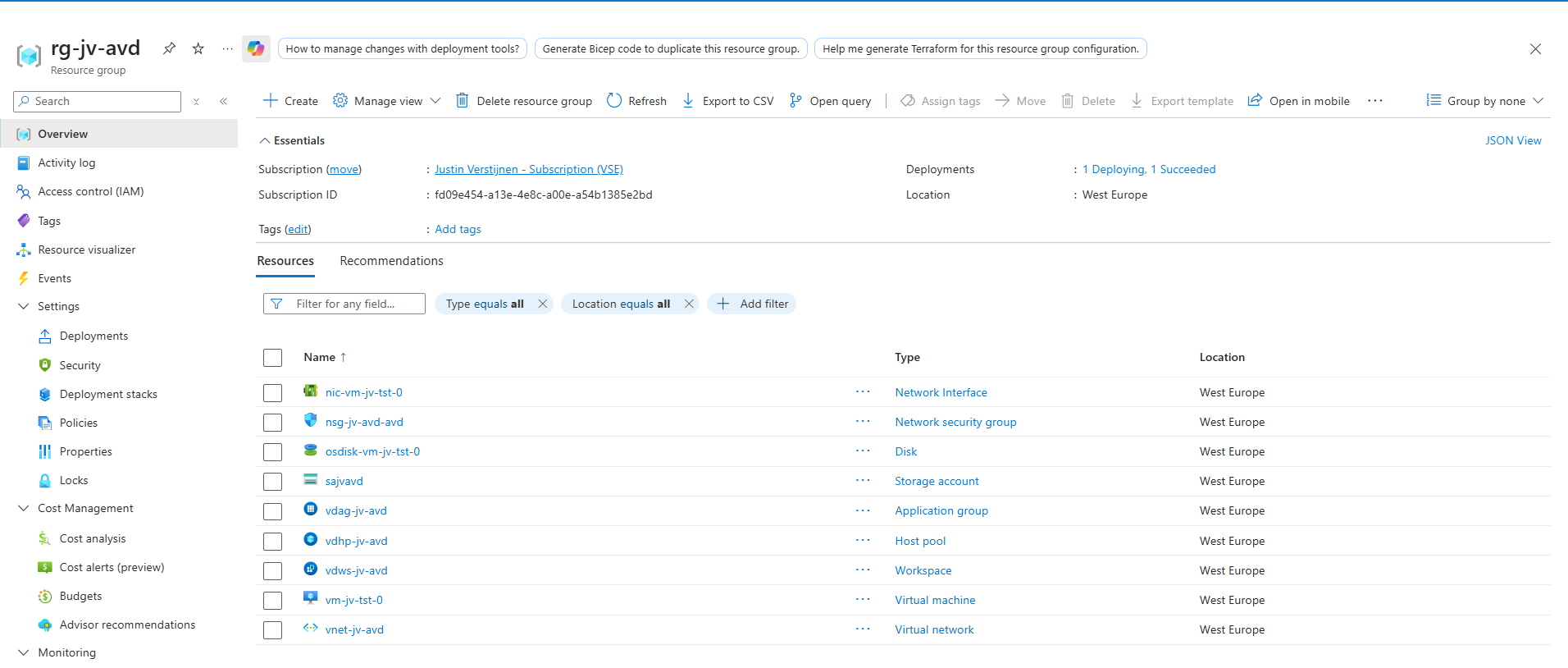
All looking pretty good and happy with the results.
Knowledge check
This quiz needs JavaScript to show the questions and feedback.
Summary
ARM template deployment via URL is a very practical way to make your Azure templates easy to use. The main thing to remember is that the deploy button expects an ARM JSON file at a public URL. So if you build your templates in Bicep, just convert them to main.json, publish that file, URL-encode the raw link, and place it behind the Azure portal deployment URL or a Deploy to Azure button.
For me this is one of the easiest ways to share reusable Azure deployments. It keeps the process simple:
- Write in Bicep if you want
- Build to ARM JSON
- Store the JSON in GitHub
- Generate one deployment link
- Place a button anywhere you like
Thank you for reading this post and I hope it was helpful!
These sources helped me by writing and research for this post;
End of the page 🎉
You have reached the end of the page. You can navigate through other blog posts as well, share this post on X, LinkedIn and Reddit or return to the blog posts collection page. Thank you for visiting this post.
Support the blog
