Audit your privileged Entra ID applications
Entra ID Privileged Applications report script
To start off with the fast pass, my script can be downloaded here from my Github page:
This script can be used to get a report of all high privileged applications across the tenant. Go to this section for instructions of how to use the script and the output.
What are Enterprise Applications?
Enterprise Applications in Entra ID are the applications which will be registered when users need them. Somethimes, it can be for a add-on of Outlook or Teams, but other times this can be to enable Single Sign On to 3rd party applications.
In terms of Entra ID and Identity, we call such application a Service Principal. A principal for a service to give permissions to.
Enterprise applications are mostly pre-configured by the 3rd party publisher of the application that needs permission. However, a user can be prompted to give their information to a application. This looks like this:
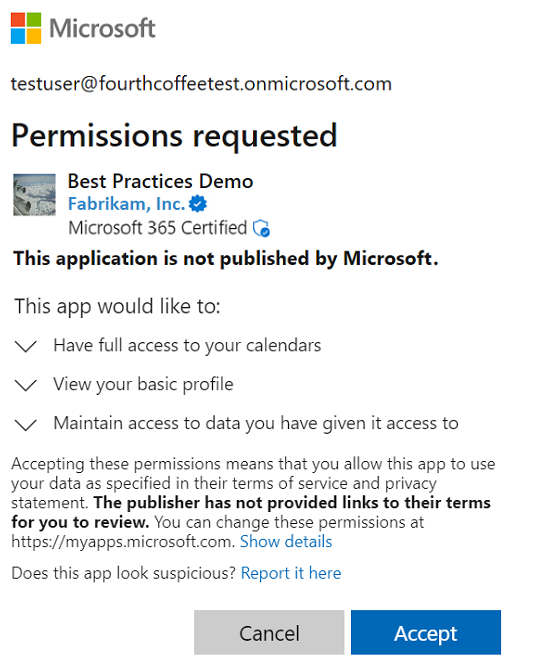
As we can see, the application gets the information of the calendars, the profile of the user and gets data. These alone aren’t not that much privileged, but this can be much worse. Let’s take a look at App Registrations.
What are App Registrations?
App Registrations are applications who are mostly custom. These can be used for Single Sign On integration with 3rd party applications or to provide access from another application to Microsoft Entra ID and subservices.
App Registrations are commonly more privileged and can be dangerously high privileged, even not having a requirement for MFA. The only thing you need to use an app registration is:
- Client ID
- Tenant ID (public available: https://tools.justinverstijnen.nl/tenantlookuptool/)
- Secret/Certificate
App registrations can have permissions far above “Global Administrator”, but we don’t handle them like global administrators or even higher accounts. The Microsoft Secure Score also doesn’t report them and they can be hard to find.
These applications are used in practice by hackers to leave backdoors in tenants to remain in the tenant. If they do this right, they can be unseen for months while still stealing company information.
What to do to prevent unauthorized access through apps?
We can do several things to avoid being hacked by this sort of things:
- Audit all applications every X days, deleting apps that aren’t needed
- You can use my script to help you audit
- Saving App registration information in safe places only, don’t transfer them in plain-text over email
- Treat these applications as passwords and certificates
Let’s create a High privileged App registration
We will now create a high privileged app registration, purely to showcase the permissions and to show you how much of a deal this could be.
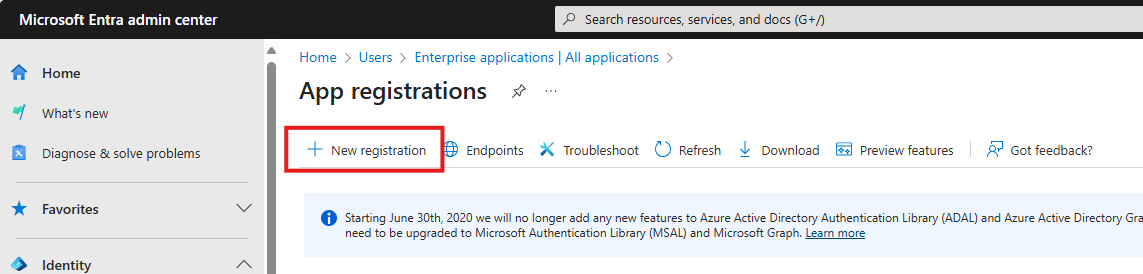
Open the Microsoft Entra admin center and go to: Applications and then click App registrations.
Click on + New registration:
Fill in a name and the rest doesn’t care for testing purposes. You can leave them default.
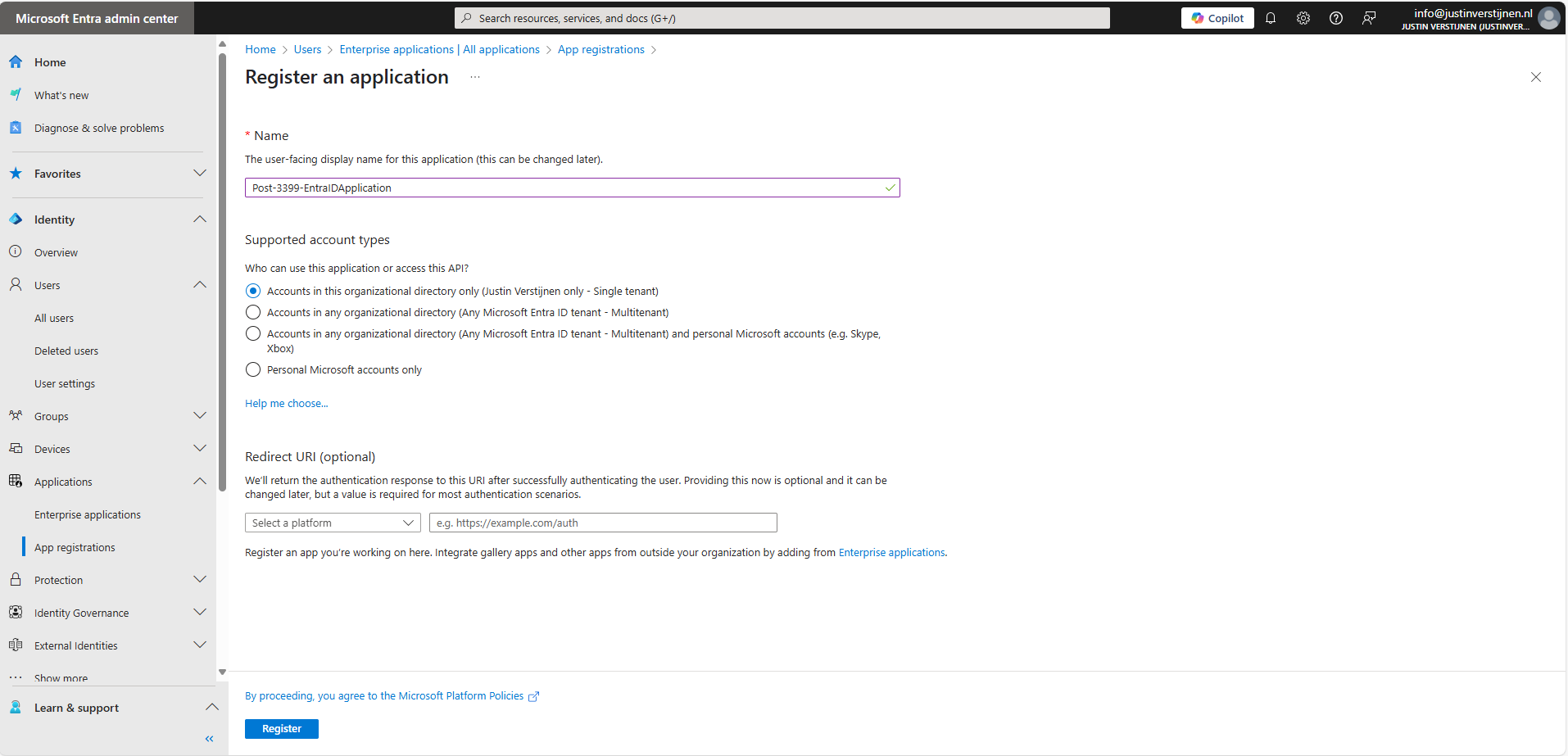
Click Register to finish creating the application.
Permissions and Assignment
Now the application is created. Open it if not already redirected. Write down the Client ID and the Tenant ID because we will need them in a short moment. Then go to the section API permissions.
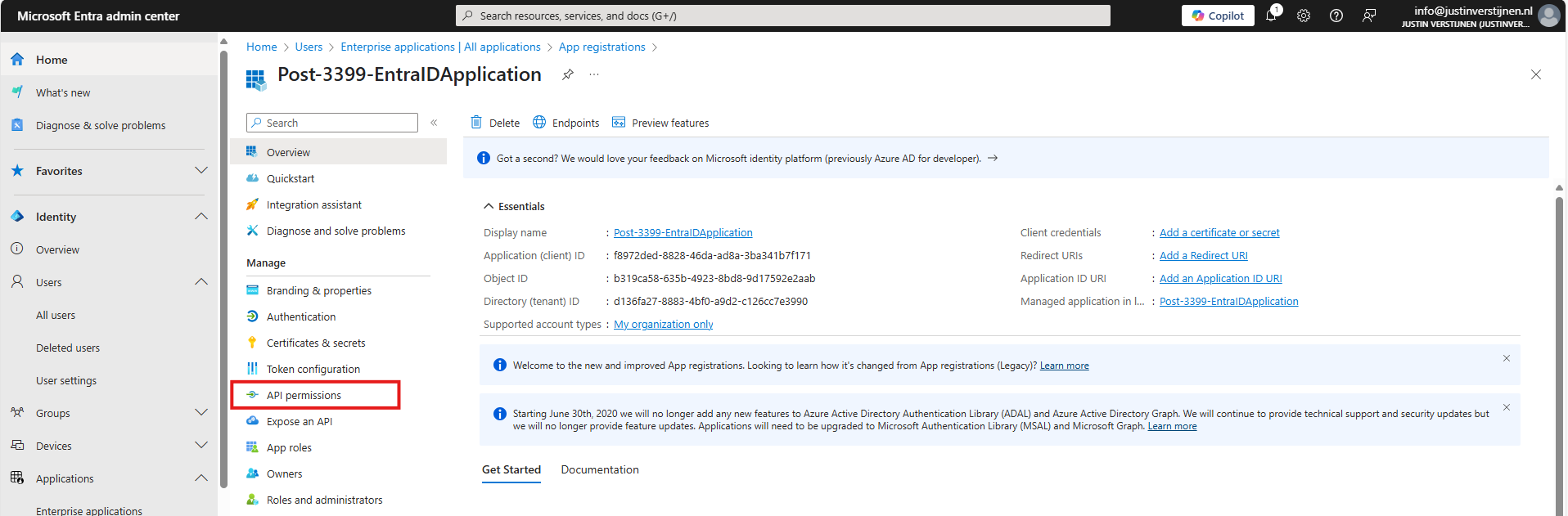
Here you find all assigned permissions to the application. Click on + Add a permission to add permissions to this application. Then click on Microsoft Graph.
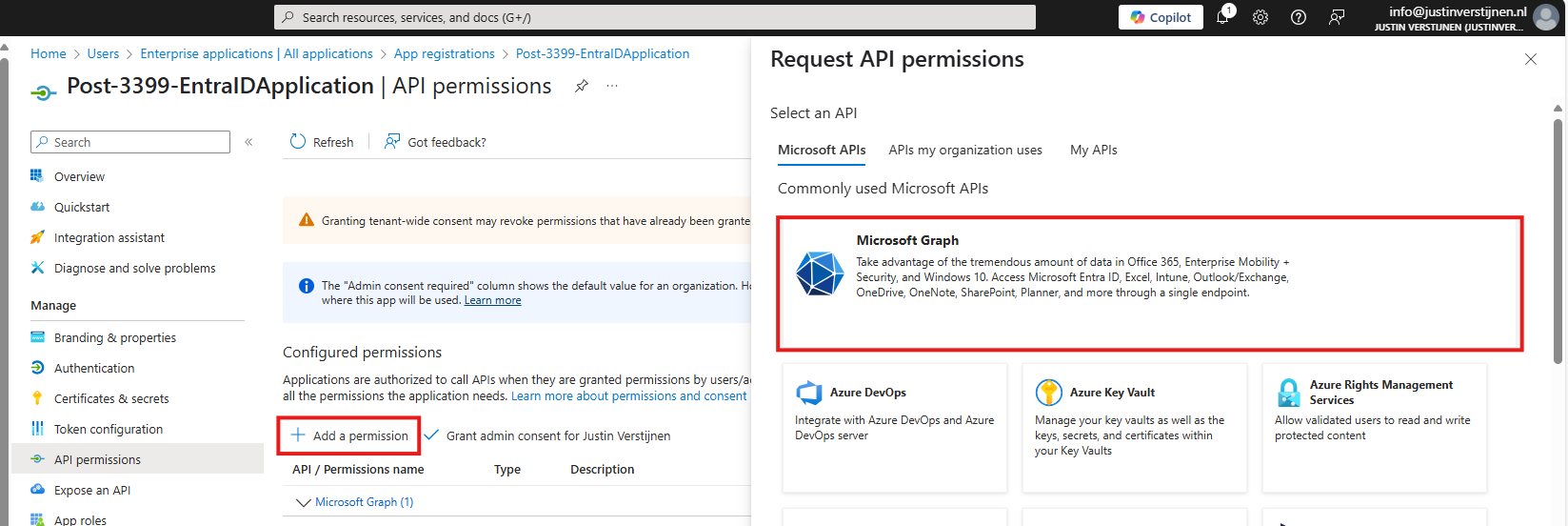
Microsoft Graph is the new API of Microsoft that spans across most of the Microsoft Online services.
Click now on Application permissions:
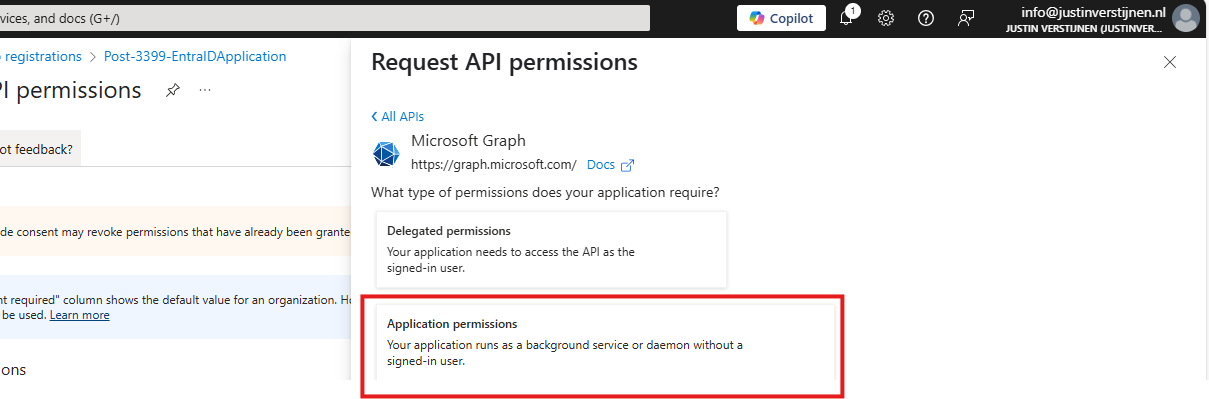
Now we can choose several permissions that the application gets. You can search for some of the High privileged apps, for example these:
| Permission name | Action |
|---|---|
| Directory.ReadWrite.All | Read and write directory data |
| User.ReadWrite.All | Read and write all users’ full profiles |
| Policy.ReadWrite.ConditionalAccess | Read and write your organization’s conditional access policies |
| Mail.ReadWrite | Read and write mail in all mailboxes |
| Application.ReadWrite.All | Read and write all applications |
| PrivilegedAccess.ReadWrite.AzureResources | Read and write privileged access to Azure resources |
As you can see; if I create the application with these permissions I have a non-monitored account which can perform the same tasks as a Global Administrator, disabling MFA, exporting all users, reading contents of all mailboxes, creating new backdoors with applications and even escalate privileges to Azure resources.
Create the application with your permissions and click on “Grant admin consent for ‘Tenant’” to make the permissions active.
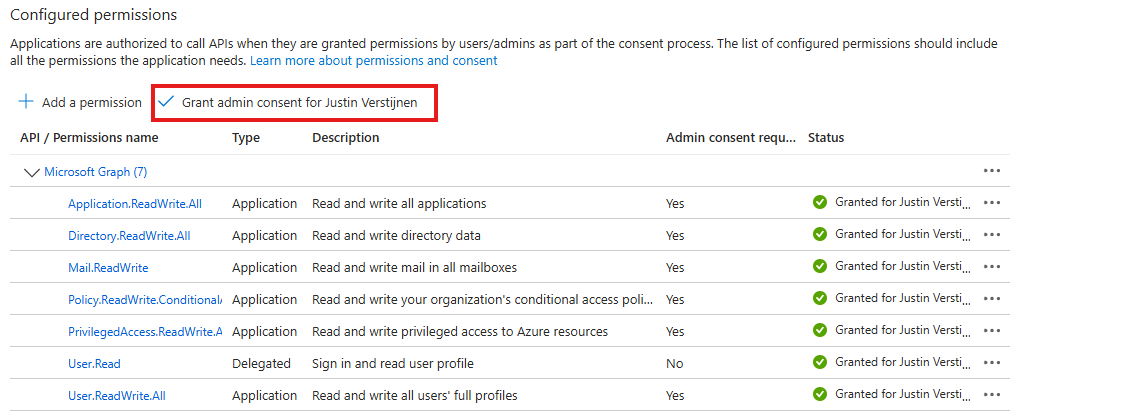
Create Client secret for application
We can now create a Client secret for this application. This is a sort of master password for accessing the service principal. This can also be done with certificates, which is more preferred in practice environments, but it works for the demo.
In Entra, go to the application again, and the to “Certificates & secrets”:
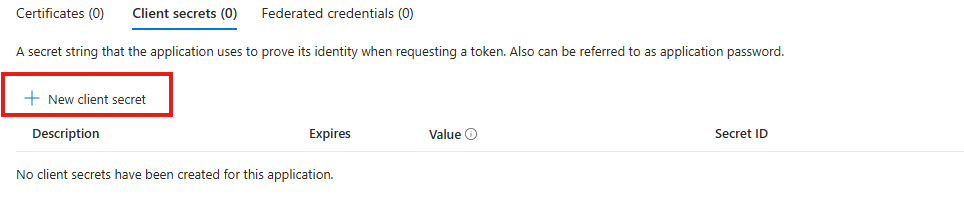
Create a new secret.
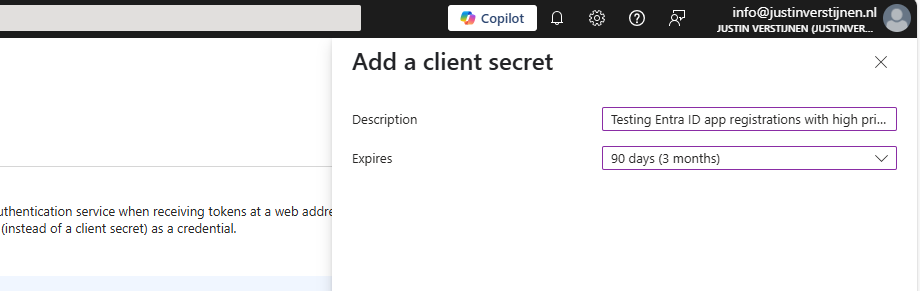
Specify the period and the lifetime and click on “Add” to create the secret.

Now copy both the Value, which is the secret itself and the Secret ID and store them in a safe place, like a password manager. These can be viewed for some minutes and then will be concealed forever.
Using this application to login on Microsoft Graph
We can now use the application details to login to Microsoft Graph with the following script:
# Fill in these 3 values
$ApplicationClientId = '<your-app-client-id>'
$TenantId = '<your-tenant-id>'
$ApplicationClientSecret = '<your-client-secret>'

Import-Module Microsoft.Graph.Authentication

# Create a ClientSecretCredential object
$ClientSecretCredential = [Microsoft.Graph.Auth.ClientCredentialProviderFactory]::CreateClientSecretCredential(
    $TenantId,
    $ApplicationClientId,
    $ApplicationClientSecret
)

# Connect to Microsoft Graph without the welcome banner
Connect-MgGraph -ClientSecretCredential $ClientSecretCredential -NoWelcome
Here we can fill in the Client ID and Tenant ID from the previous steps and the Secret from the created client secret. Then run it with PowerShell. I advice to use the Windows PowerShell ISE for quick editing of the script and executing + status for debugging.
After logging in we can try to get and change information:
Get all Users:
Get-MgUserCreate user:
$PasswordProfile = @{
  Password = 'Pa$$w)rd!'
}
New-MgUser -Displayname "Test" -MailNickname "test" -Userprincipalname "test@justinverstijnen.nl" -AccountEnabled -PasswordProfile $PasswordProfile
Remove user:
Remove-MgUser -UserId "247f8ec8-c2fc-44a0-9665-48b85c19ada4" -ConfirmWatch the demo video here:
Now a user isn’t that destructive, but given the scopes we assigned: we can do a lot more. For more Microsoft Graph commands, visit: https://learn.microsoft.com/en-us/powershell/module/microsoft.graph.users/?view=graph-powershell-1.0
Using my script to Audit all high privileged applications
Now that we have created and abused our demo application, let’s use my script to get a report where this application must be reported.
You can, once again, download the script here:
I have already downloaded the script, and have it ready to execute:
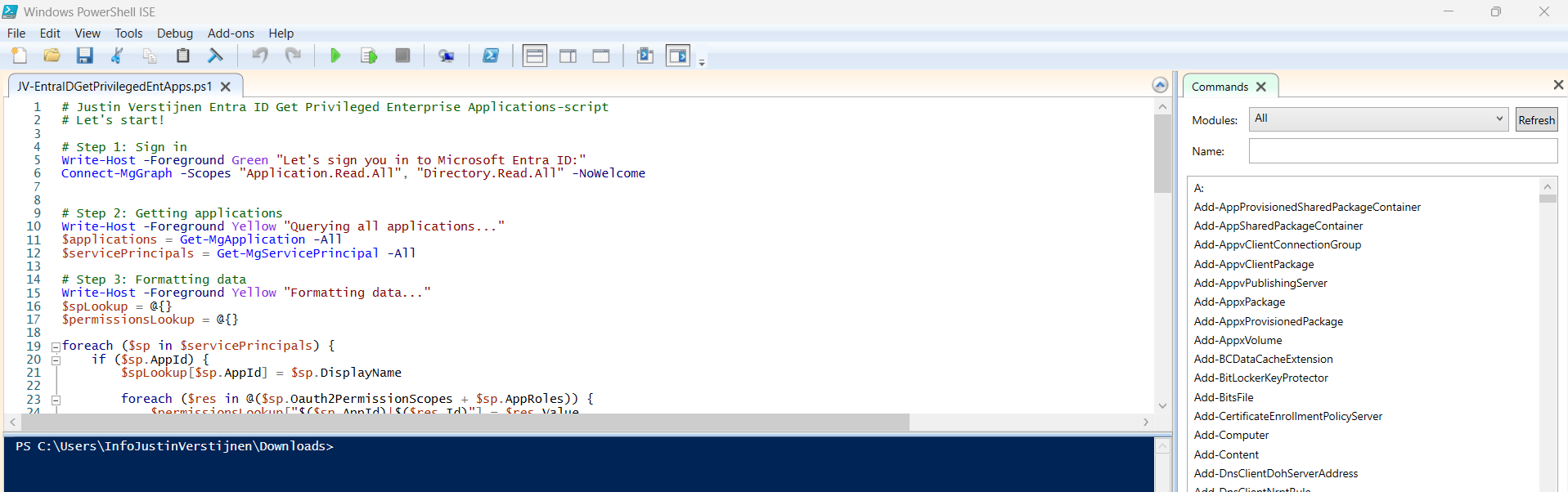
When executed, it asks to login to a tenant. Here you have to login to the tenant you want to audit. After that it will be performing the checks. This can take a while with several applications.
When prompted that the Execution Policy is restricted, you can use this command below for a one-time bypass until the window closes.
Set-ExecutionPolicy Unrestricted -Scope Process -ForceAfter the script finishes all the checks, it puts out a CSV file in the same folder as the script which we can now open to review the applications and their permissions:

As we can see, this must be a far too much privileged application, and everything must be done to secure it:
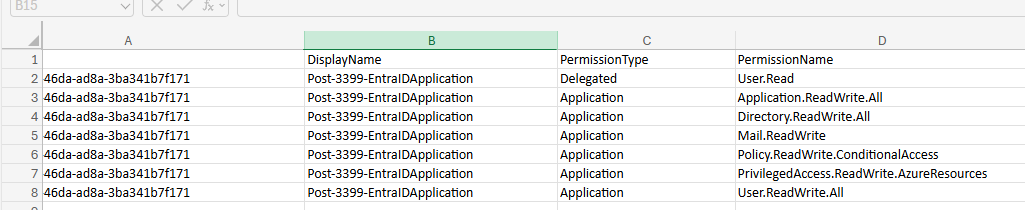
It also queries if the applications has active secrets or certificates:

So this way we know within minutes which applications we must monitor and even deleted or seperated into more, smaller, less privileged applications.
Summary
I hope I convinced you with this guide how much of an risk the applications in Microsoft Entra ID really can be. They can be used by threat actors, as Break glass application or by attackers to leave backdoors in a tenant after a breach.
These sources helped me by writing and research for this post;
- https://learn.microsoft.com/en-us/entra/identity-platform/application-consent-experience
- https://learn.microsoft.com/en-us/graph/permissions-overview?tabs=http#comparison-of-delegated-and-application-permissions
- https://learn.microsoft.com/en-us/powershell/microsoftgraph/authentication-commands?view=graph-powershell-1.0#use-client-secret-credentials
- https://learn.microsoft.com/en-us/powershell/module/microsoft.graph.users/?view=graph-powershell-1.0
End of the page 🎉
You have reached the end of the page. You can navigate through other blog posts as well, share this post on X, LinkedIn and Reddit or return to the blog posts collection page. Thank you for visiting this post.
Support the blog
