Configure Location redirection in Azure Virtual Desktop
Location redirection in Azure Virtual Desktop
When users connect to Azure Virtual Desktop (AVD), applications inside the remote session normally see the location of the Azure datacenter instead of the user’s actual physical location.
This can become a problem for applications such as:
- Microsoft Maps (Google Maps uses IP-based location)
- Weather applications
- Regional websites
- Browser-based location services
- Route planning applications
- Timezone-aware business applications
A user working from Los Angeles on a session host running in West Europe could suddenly appear to be located in Amsterdam. Location redirection can helpe solving this by redirecting the location information from the local device to the remote AVD session over Remote Desktop Protocol (RDP).
In this post, we will look at how location redirection works, the requirements, limitations, and how to configure it in Azure Virtual Desktop.
How location redirection works
Azure Virtual Desktop uses Remote Desktop Protocol (RDP) redirection to pass location information from the local device into the remote session.
| Location redirection disabled | Location redirection enabled |
|---|---|
| Applications use the Azure VM location | The client device shares its location with the AVD session |
| Browsers detect the datacenter region | Supported applications can use the user’s device location |
| Maps and regional services can show incorrect results | The user experience becomes more accurate for location-aware applications |
Microsoft classifies this as a state reflection redirection method in RDP. The local device state is reflected into the remote session. Take into account that the location redirection may not work for every application and use case, as the IP-address of the Azure VM/network will not change. Some applications base the location off the Outbound IP address, like Google Maps.
Step 1: Enable location services on the session host
The session host itself must allow location services. You can configure this with either:
- Microsoft Intune
- Group Policy
- Registry editor
Microsoft Intune
Open the Microsoft Intune admin center at https://intune.microsoft.com and go to “Devices”, select “Configuration”, and then create or update a policy for Windows 10 and later devices.
You can configure the Settings Catalog policies related to the location services. These are located here:
System
The setting name is: Allow Location
Select the setting and then set it to “Force location on”:
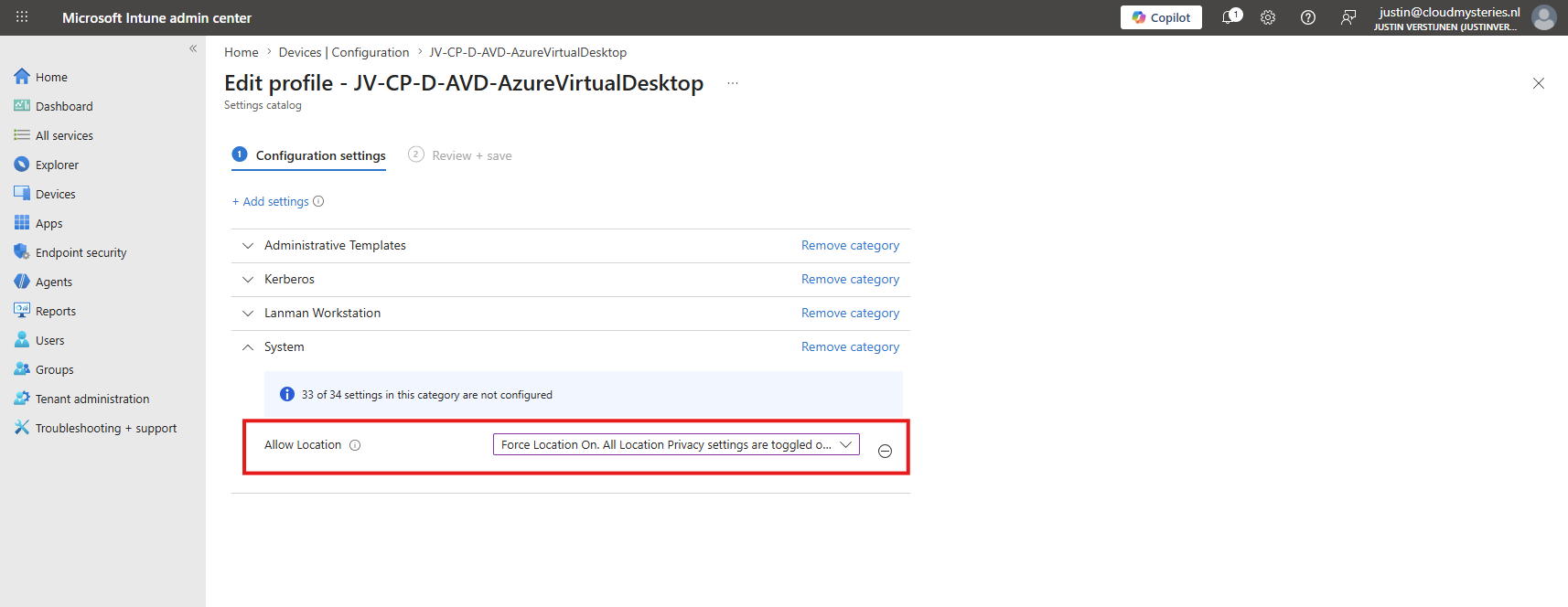
Assign the policy to the session hosts, and they will need to reboot before applying completely.
Group Policy
Open the Group Policy Editor (gpmc.msc) and go to:
Computer Configuration - Administrative Templates - Windows Components - Location and Sensors
Configure the following settings:
| Policy | Value |
|---|---|
| Turn off location | Disabled |
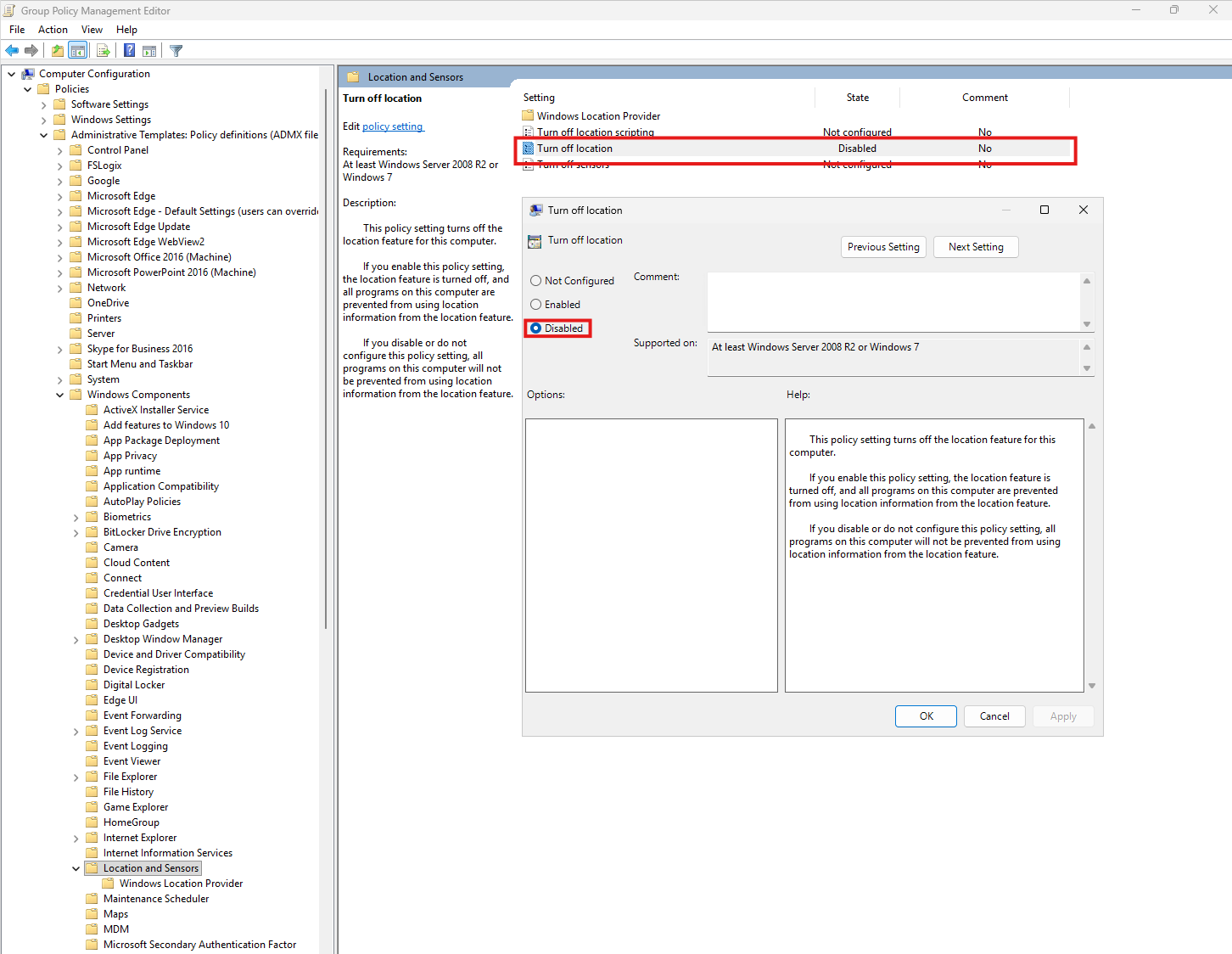
After applying the policy, restart the session host or run the command below to update the latest settings:
gpupdate /forceThe Intune and Group Policy settings are differnet, however the Intune setting is linked under the hood to the Turn off location setting.
Registry editor
When you want to do this through registry in scripting needs, you can set this by executing this command, which edits the correct key:
reg.exe add "HKLM\SOFTWARE\Policies\Microsoft\Windows\LocationAndSensors" /v DisableLocation /t REG_DWORD /d 0 /fStep 2: Enable location redirection in the host pool
The next step is enabling the RDP property inside the AVD host pool. This is effectively changing the RDP properties to allow the redirection of the users’ location to the AVD hostpool. Open the Azure portal at https://portal.azure.com and go to “Azure Virtual Desktop”, select “Host pools”, open your host pool and select “RDP Properties”.
Here on the tab “Device redirection”, enable the option “Location service redirection” by selecting this option:
- Enable location sharing from the local device and redirection to apps in the remote session
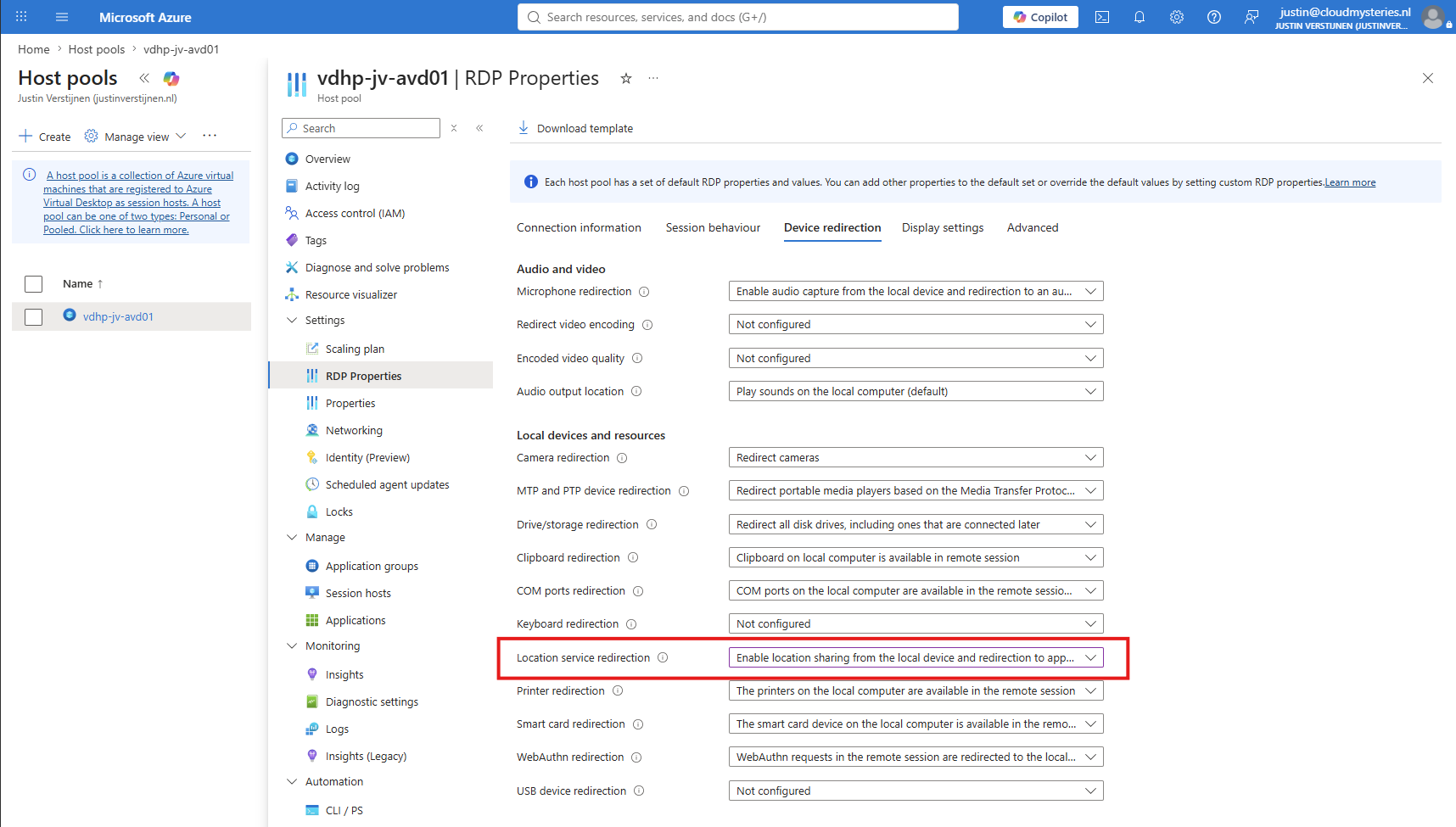
This setting configures the underlying RDP property, changes it from 0 to 1:
redirectlocation:i:1If already signed in to a AVD session, you may need to disconnect, refresh the workspace to reload the RDP properties.
Step 3: Verify location access on the local device
The local/physical device must also allow location access. On Windows devices, you can do this here:
- Open “Settings”
- Go to “Privacy & security”
- Select “Location”
- Enable “Location services”
- Also enable the “Windows App”
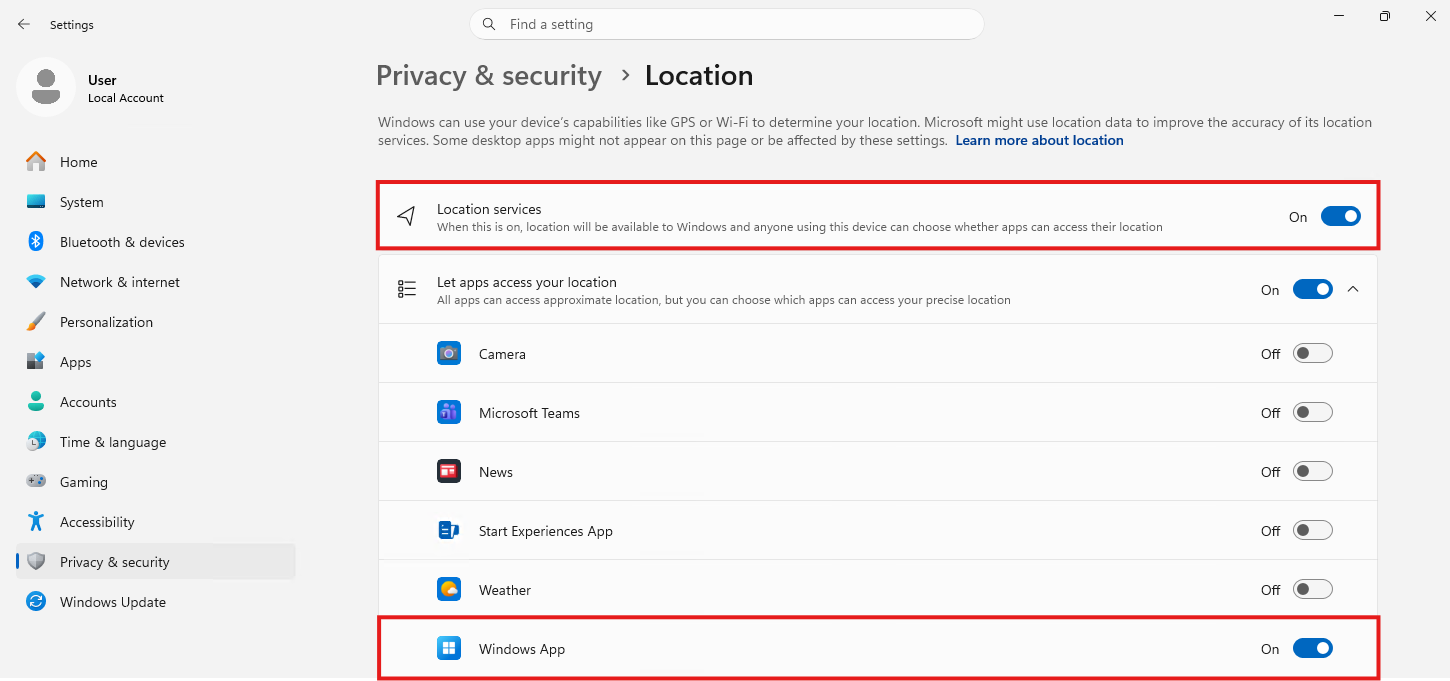
Without local location access, the AVD session cannot receive location information.
Summary
Location redirection in Azure Virtual Desktop helps applications inside the remote session use the actual client device location instead of the Azure datacenter location. This improves the user experience for mapping, browser, and regional applications. The configuration itself is straightforward, but all components must support and allow location services for it to work correctly.
Thank you for reading this post and I hope it was helpful!
These sources helped me by writing and research for this post;
End of the page 🎉
You have reached the end of the page. You can navigate through other blog posts as well, share this post on X, LinkedIn and Reddit or return to the blog posts collection page. Thank you for visiting this post.
Support the blog
