Configure time zone redirection in Azure Virtual Desktop
Time zone redirection in Azure Virtual Desktop
When users connect to Azure Virtual Desktop (AVD), the remote session normally uses the time zone configured on the session host. If the session hosts are running in West Europe, users in other timezones, like Greece or Great Brittain may see the European time zone (UTC+1 or UTC+2 in summer) instead of the time zone configured on their local device.
This can become a problem for applications and processes such as:
- Line-of-business applications
- Scheduling and planning applications
- Reports containing local date and time values
- Browser applications that use the Windows time zone
- The user being confused about the time
Time zone redirection helps solve this by passing the time zone information from the local device to the remote AVD session over Remote Desktop Protocol (RDP). This passes the correct and local configured timezone to the AVD session host, so users around the world will all get their preferred time/zone displayed in the session.
In this post, we will look at how time zone redirection works, the requirements, limitations, and how to configure it in Azure Virtual Desktop.
How time zone redirection works
Azure Virtual Desktop uses Remote Desktop Services time zone redirection to make the remote session use the time zone configured on the user’s local device.
| Time zone redirection disabled | Time zone redirection enabled |
|---|---|
| The remote session uses the session host time zone | The remote session uses the local device time zone |
| All users on the host can see the same time zone | Users can see the time zone of their own local device |
| Displayed times can be incorrect for remote users | Displayed times better match the user’s local working time |
When time zone redirection is enabled, the client sends its time zone information to the session host. Windows then calculates the current time for that individual remote session by combining the server base time with the client’s time zone.
The system time zone of the session host itself is not changed. Time zone redirection only changes the time zone presented inside the user’s remote session.
Take into account that some applications use their own profile, account, browser, or cloud service time zone settings. These applications may not automatically follow the Windows session time zone.
Step 1: Enable time zone redirection on the session host
The session host must allow time zone redirection. You can configure this with either:
- Microsoft Intune
- Group Policy
- Registry editor
Microsoft Intune
Open the Microsoft Intune admin center and go to “Devices”, select “Configuration”, and then create or update a policy for Windows 10 and later devices.
Use the Settings Catalog and search for:
Allow time zone redirection
The setting is located here:
Administrative Templates - Windows Components - Remote Desktop Services - Remote Desktop Session Host - Device and Resource Redirection
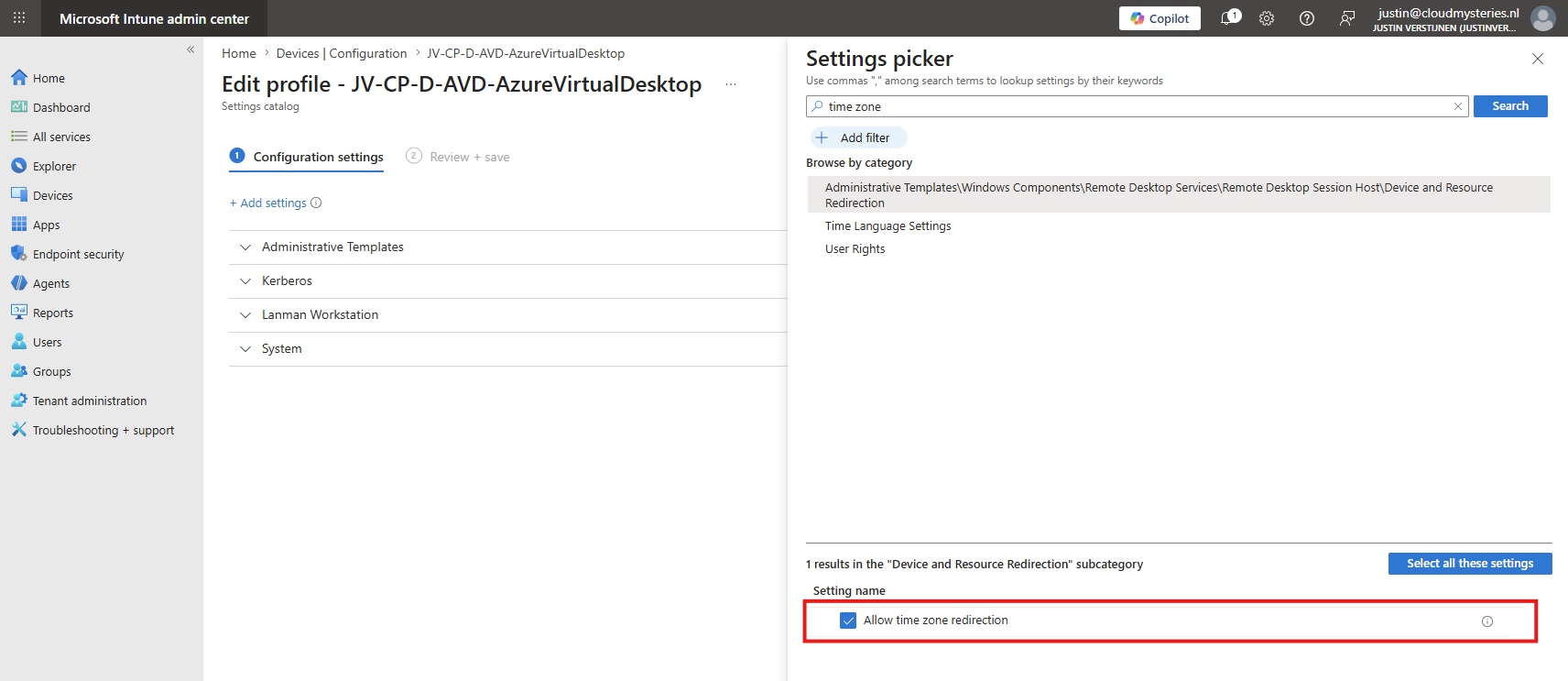
Configure the following setting:
| Policy | Value |
|---|---|
| Allow time zone redirection | Enabled |
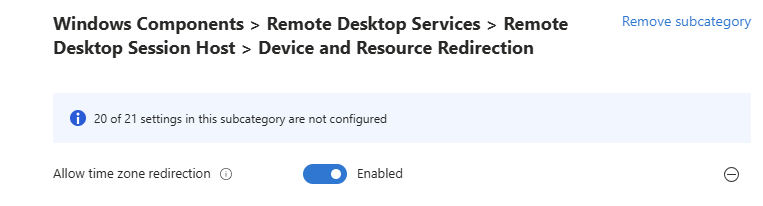
Assign the policy to the Azure Virtual Desktop session hosts, which will need to reboot before fully applying this change.
Group Policy
Open the Group Policy Management Editor and go to:
Computer Configuration - Policies - Administrative Templates - Windows Components - Remote Desktop Services - Remote Desktop Session Host - Device and Resource Redirection
Configure the following setting:
| Policy | Value |
|---|---|
| Allow time zone redirection | Enabled |
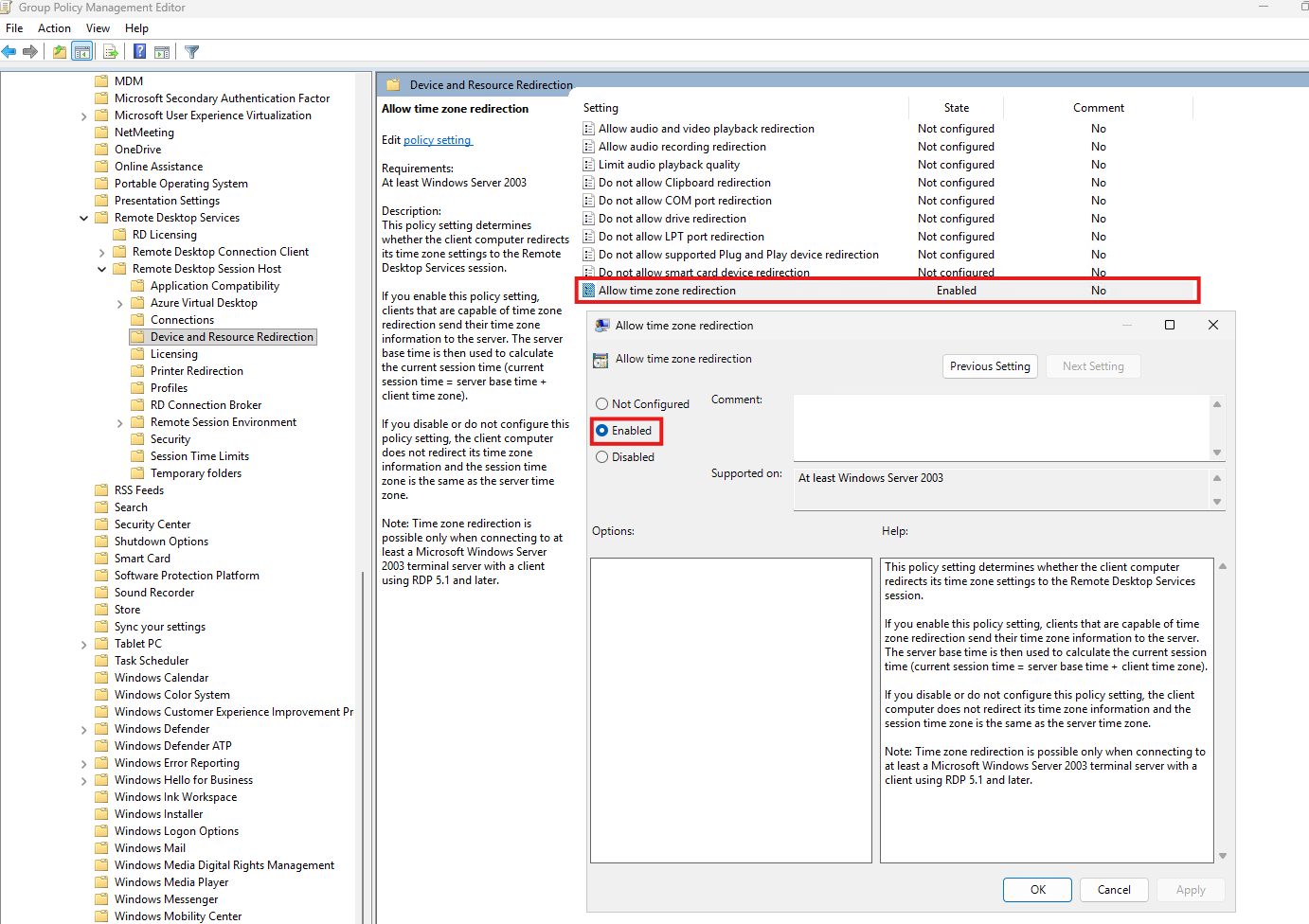
After applying the policy, restart the session host or run the command below to update the latest settings:
gpupdate /forceRegistry editor
When you want to configure time zone redirection through the registry for scripting purposes, execute the following command from an elevated Command Prompt or PowerShell session:
reg.exe add "HKLM\SOFTWARE\Policies\Microsoft\Windows NT\Terminal Services" /v fEnableTimeZoneRedirection /t REG_DWORD /d 1 /fThe registry value corresponds with the following policy:
| Registry value | Value |
|---|---|
| fEnableTimeZoneRedirection | 1 |
Step 2: Verify the time zone on the local device
The local or physical device must be configured with the correct time zone, because this is the time zone that is passed to the AVD session.
On a Windows device, you can verify this here:
- Open “Settings”
- Go to “Time & language”
- Select “Date & time”
- Verify that the correct time zone is selected
- Optionally enable “Set time zone automatically”
Microsoft’s configuration guidance does not require a separate client-side time zone setting in Windows App. When the session host allows time zone redirection, a supported Remote Desktop client provides the local time zone when the user starts a new remote session.
Unlike location redirection, the current Microsoft documentation does not list a separate Azure Virtual Desktop host pool RDP property for time zone redirection. The configuration is applied on the session hosts through policy or the registry.
Step 3: Reconnect and verify the AVD session
After applying the setting, sign out of the existing Azure Virtual Desktop session and start a new session. Disconnecting alone may leave the existing user session running with its current settings.
Inside the AVD session, open PowerShell and run:
Get-TimeZone
Get-Date
You can also use the following command to display only the configured Windows time zone identifier:
tzutil /gRun the same commands on the local device and compare the results. The time zone inside the AVD session should match the time zone of the local device.
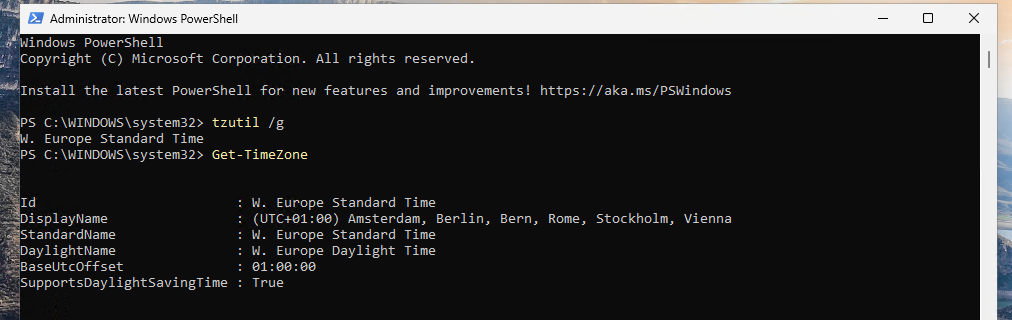
This way you can troubleshoot and double check the applied settings on the local device and AVD session hosts. They have to be aligned after this change.
Summary
Time zone redirection in Azure Virtual Desktop allows a remote session to use the time zone configured on the user’s local device instead of the time zone of the Azure session host. This is especially useful when users connect from different regions to session hosts running in a single Azure region.
The configuration is straight forward: enable the “Allow time zone redirection” policy on the session hosts, verify that the local device has the correct time zone, and start a new AVD session. Applications that use the Windows session time zone should then display dates and times based on the user’s local time zone. We don’t have an RDP setting for this redirection, only a configuration setting.
Thank you for reading this post and I hope it was helpful!
These sources helped me by writing and research for this post;
End of the page 🎉
You have reached the end of the page. You can navigate through other blog posts as well, share this post on X, LinkedIn and Reddit or return to the blog posts collection page. Thank you for visiting this post.
Support the blog
