Azure VPN Gateway Maintenance - How to configure
Why configure a maintenance configuration?
We would want to configure a maintenance configuration for our VPN gateway to Azure to prevent unwanted updates during business hours. Microsoft doesn’t publish when they perform updates to their infrastructure, so this could be any moment.
Microsoft has to patch or replace their hardware regularly, and by configuring this maintenance configuration, we tell them: “Hey, please only do this for us in this window“. You could understand that configuring this is essential for availability reasons, but also don’t postpone updates too long for security and continuity reasons. My advice is to schedule these updates daily or weekly.
If the gateway is already up-to-date during the maintenance window, nothing will happen.
How to configure a maintenance configuration
Let’s dive into how to configure this VPN gateway maintenance configuration. Open up the Azure Portal.
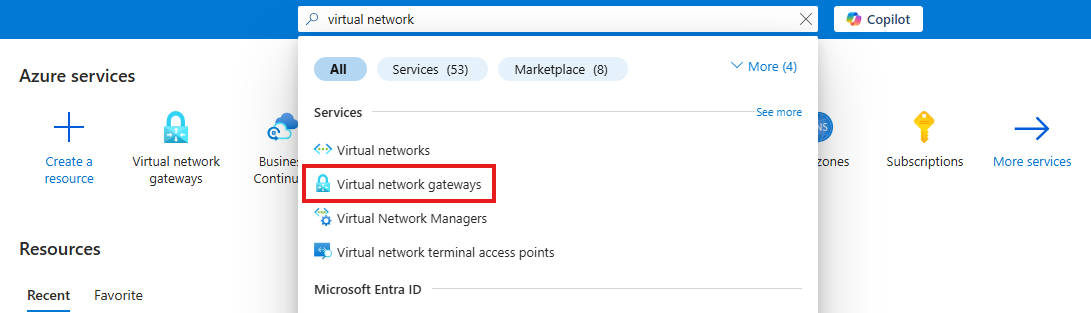
Then go to “VPN gateways“.
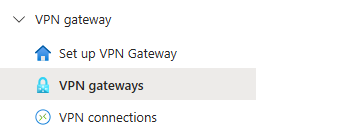
If this list is empty, you will have to select “VPN gateways“ in the menu on the left:
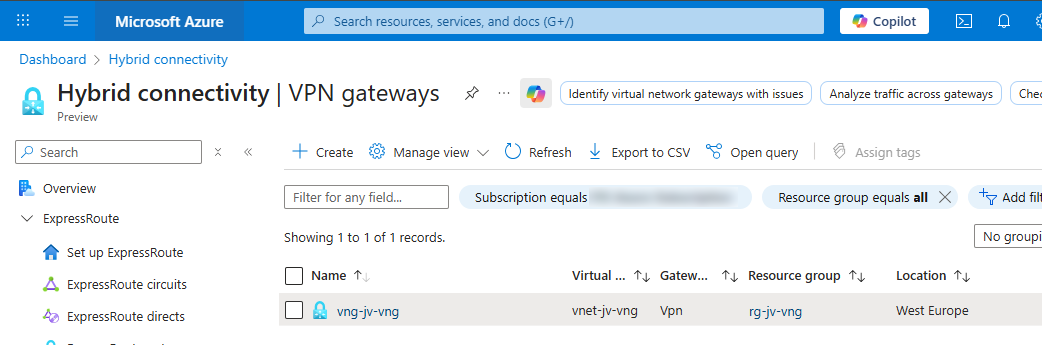
Open your VPN gateway and select “Maintenance“.
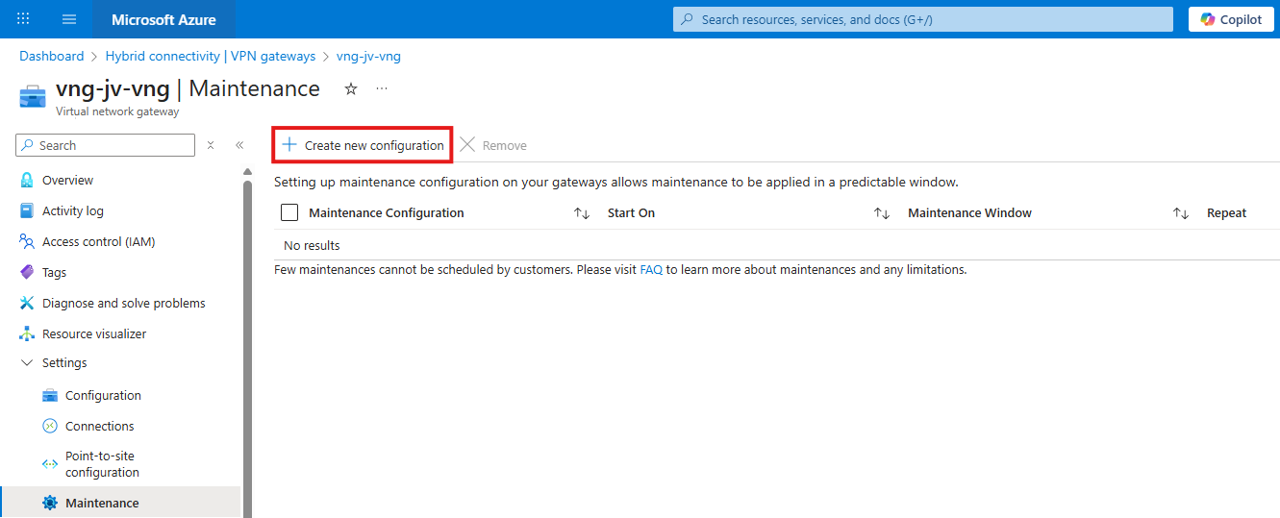
Then click on “Create new configuration“.
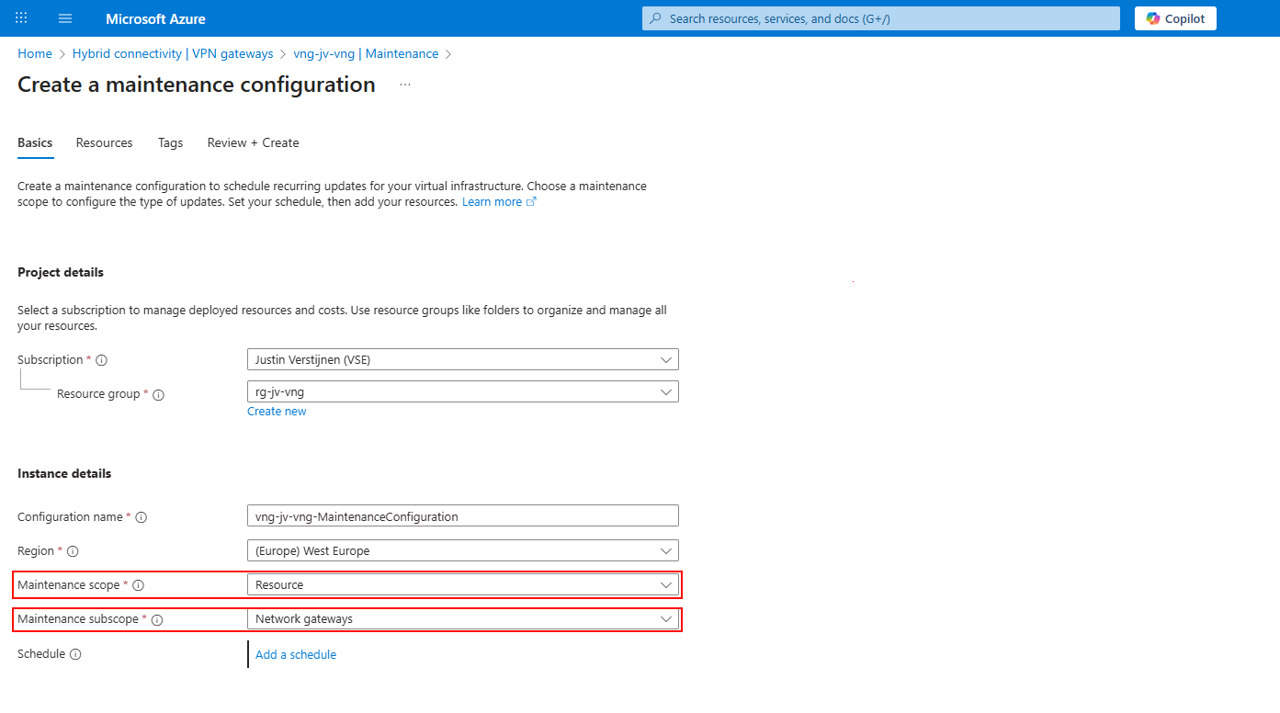
Fill in your details, select Resource at Maintenance Scope and Network Gateways for Maintenance subscope and then click “Add a schedule“.
Here I created a schedule that starts on Sunday at 00:00 hours and takes up to 6 hours:
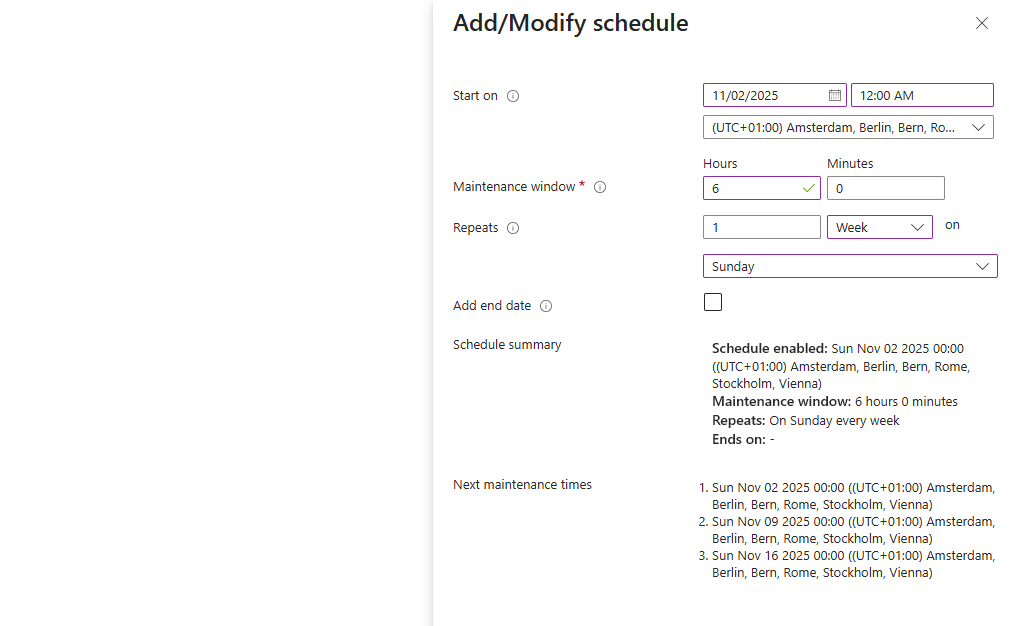
This must obviously be scheduled at a time then the VPN gateway may be offline, so outside of business hours. This could also be every day, depending on your wishes and needs.
After configuring the schedule, save the schedule and advance to the “Resources“ tab:
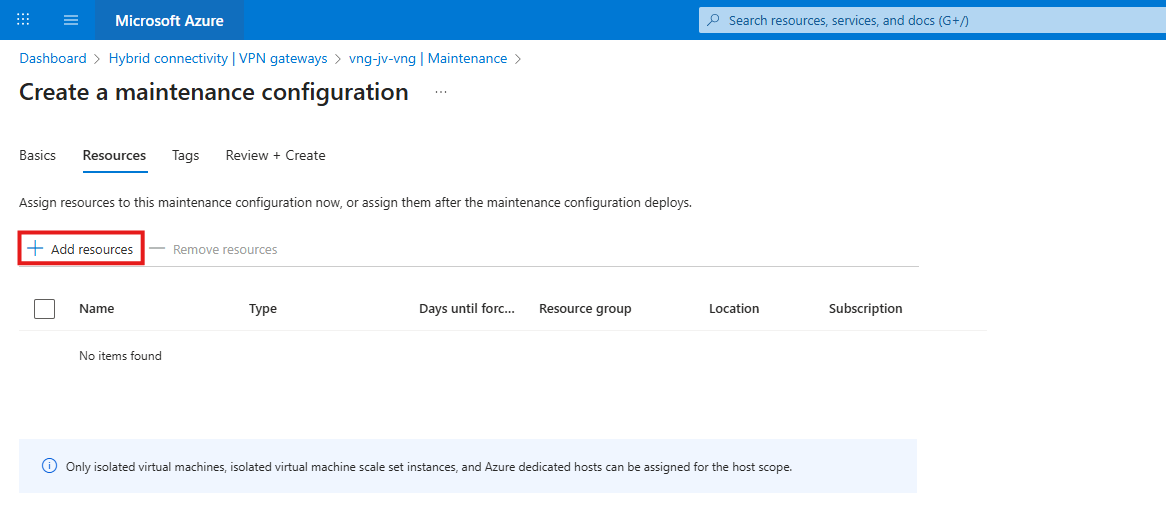
Click the “+ Add resources“ button to add the virtual network gateway.
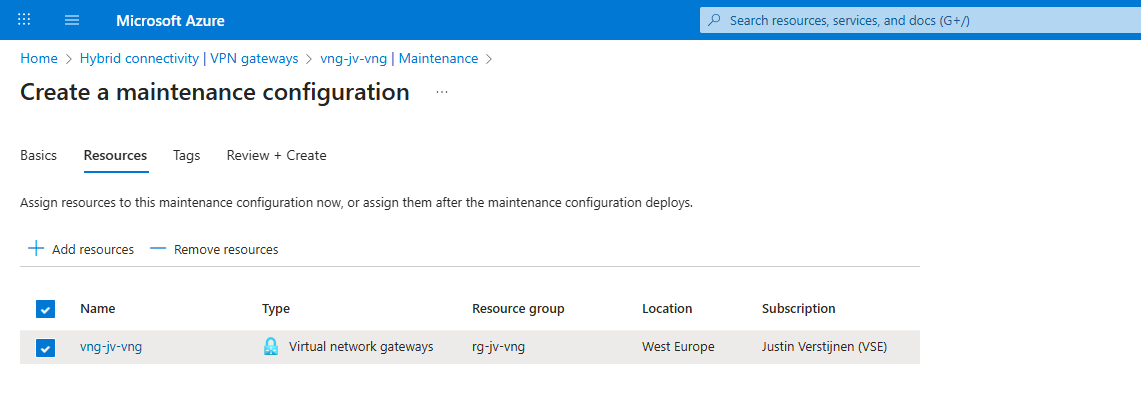
Then you can finish the wizard and the maintenance configuration will be applied to the VPN gateway.
Summary
Configuring maintenance configuration is relatively easy to do and it helps your environment to be more predictable. However this may never be the case, we know for sure that Microsoft doesn’t apply updates to our VPN gateway during business hours.
These sources helped me by writing and research for this post;
End of the page 🎉
You have reached the end of the page. You can navigate through other blog posts as well, share this post on X, LinkedIn and Reddit or return to the blog posts collection page. Thank you for visiting this post.
Support the blog
