Using and configuring Windows Backup for Organizations in Intune
Requirements
- Windows 11 with the latest feature updates installed for both creating and restoring backups
- Entra ID joined or Entra Hybrid joined device
- Microsoft Intune-capable license
- Around 15 minutes of your time
What is Windows Backup for Organizations?
Windows Backup for Organizations is a feature where Windows creates a backup of your Windows settings and Windows Store applications every 8 days. This will be saved to your Microsoft business account. If ever having to re-install your device or to use a new device, you can easily restore your old configuration. This is a revolution on top of the older Enterprise State Roaming feature, who did around 20% of this.
Enterprise State Roaming vs. Windows Backup for Organizations
Let’s compare what is included in this new Windows Backup for Organizations feature versus Enterprise State Roaming
| Item | Windows Backup for Organizations | Enterprise State Roaming |
|---|---|---|
| Windows Settings | ✅ | ✅ |
| Windows Personalization | ✅ | ❌ |
| Windows Store apps and data | ✅ | ❌ |
| Windows Desktop applications (Win32) | ❌ | ❌ |
Step 1: Enable Windows Backup for Organizations
To configure this new and great setting, go to Microsoft Intune and create a new configuration policy for Windows devices:
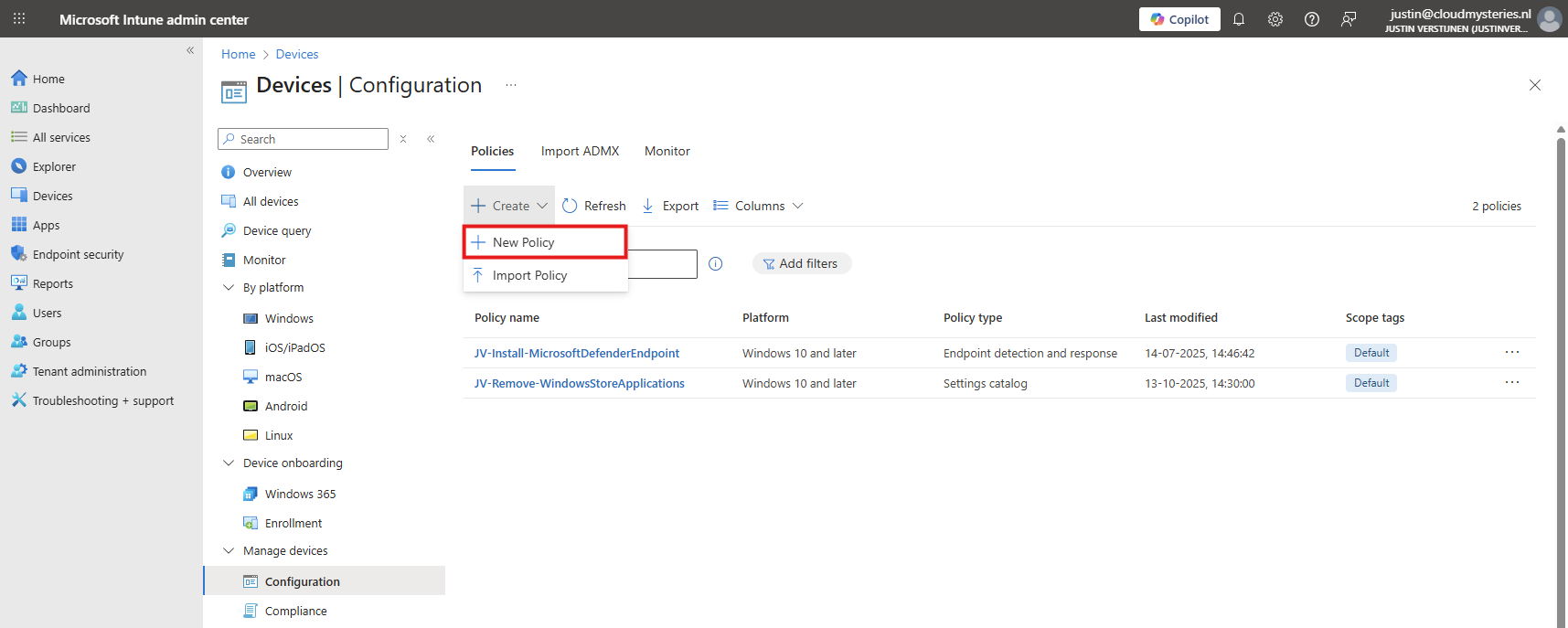
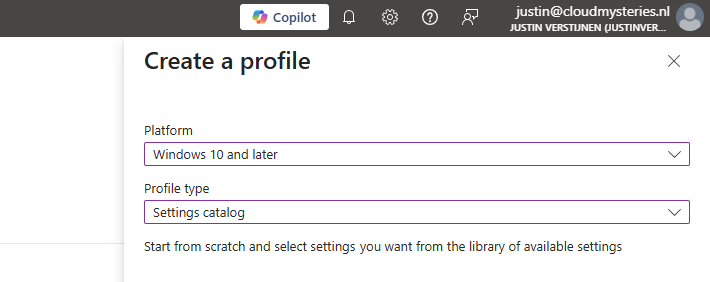
Then select Windows 10 and later, and the profile type “Settings catalog”.
Then click on create. Give the policy a name and a good description for your own documentation.
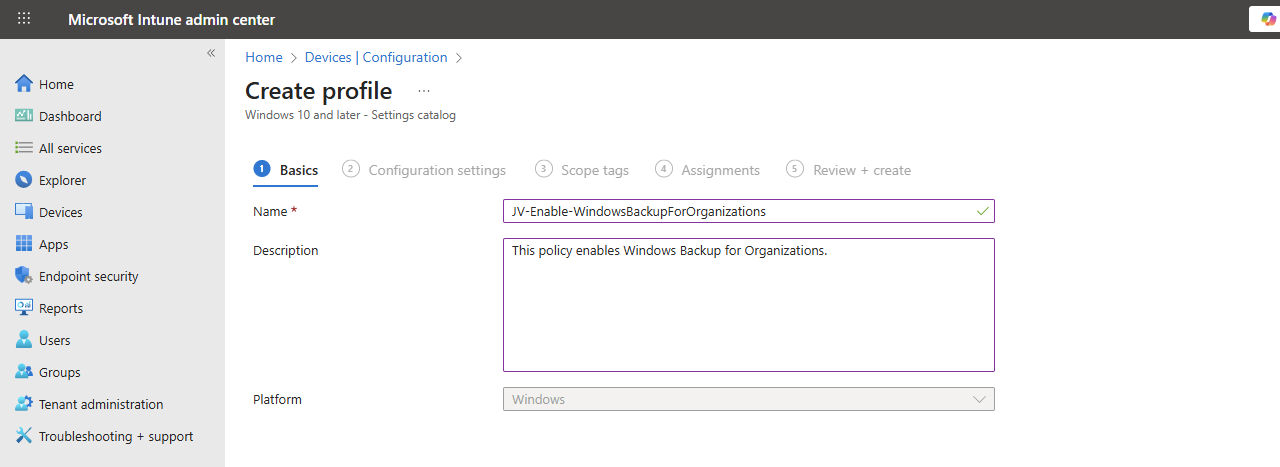
Click Next.
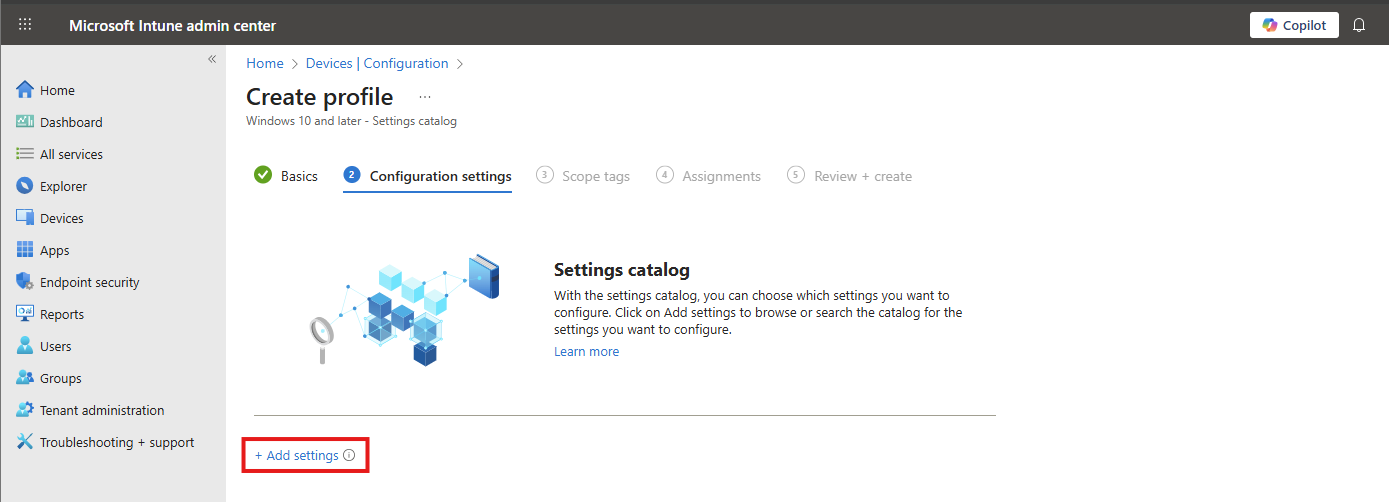
On the “Configuration settings” tab, click on “+ Add settings”. Navigate to this setting:
Administrative Templates -> Windows Components -> Sync your settings
Then lookup the setting-name: “Enable Windows Backup” and select it.
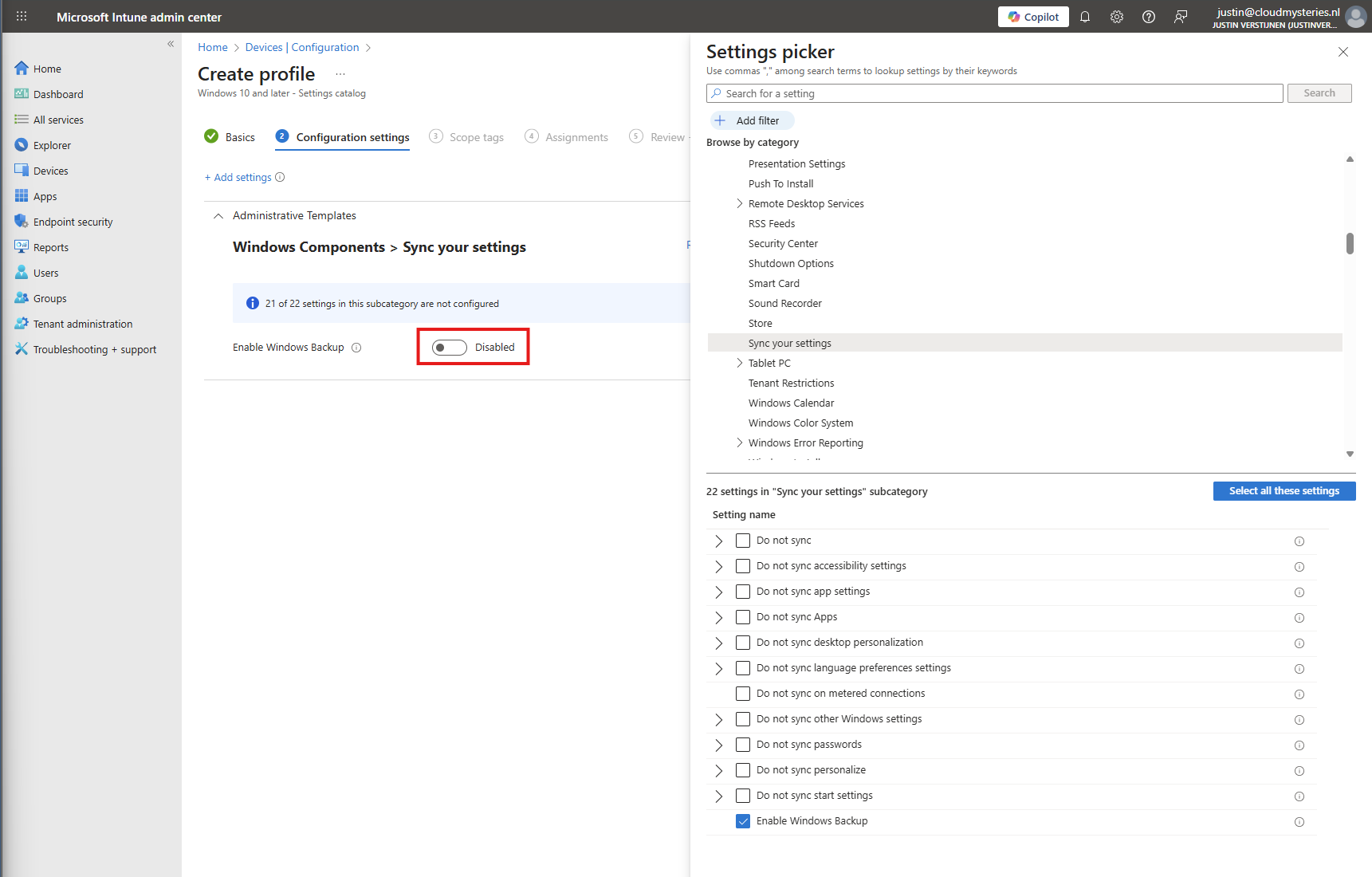
You can now enable the setting which will enable it on your device.
Then click “Next”, assign the policy to your devices.
Step 2: How to enable the restore of Windows Backup for Organizations
After enabling the the devices to make their back-up, we also need to configure that Windows shows automatically the older backups at the initial start (OOBE).
Head to Windows Devices -> Enrollment -> Windows Backup and Restore (preview)
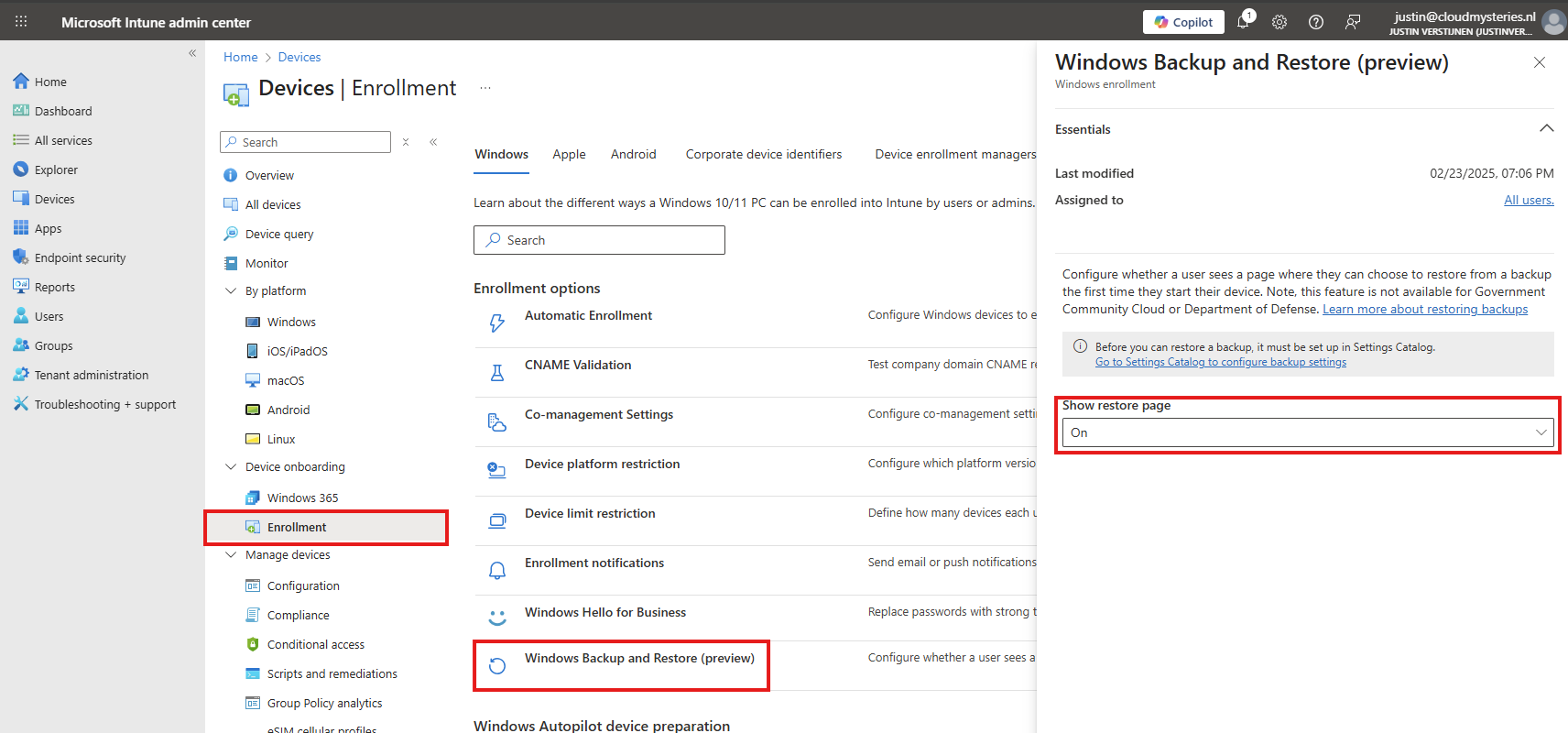
Select “On” to show the restore page. This will prompt the user (when an active backup is made) to restore their old configuration ath the Windows Out of the Box experience screen (OOBE)
Save the configuration to make this active.
Client-side configuration
Users can also manually configure this new Backup in the Windows Settings:
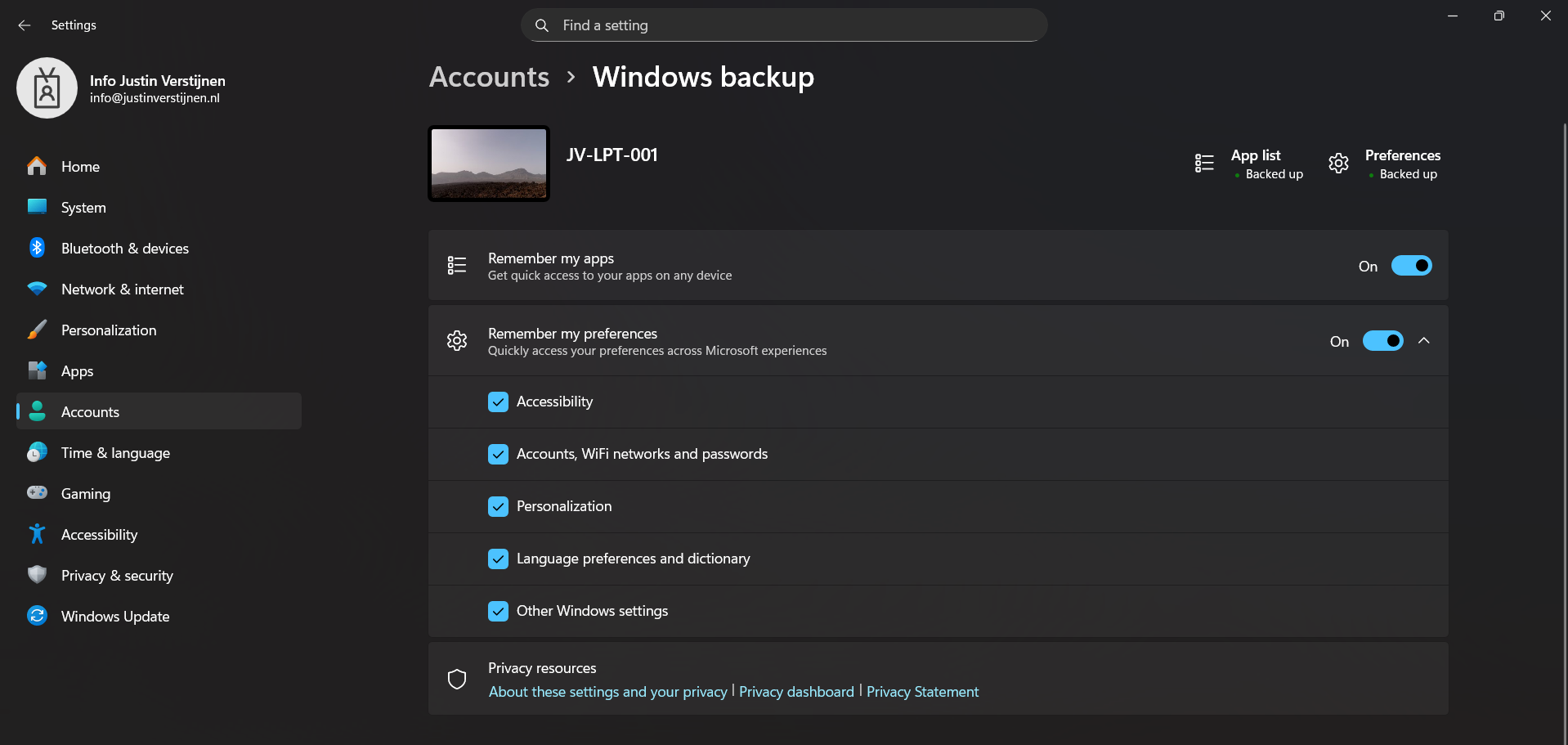
This is the overview after I have configured it in Intune and synced to my device. It automatically enabled the feature and should be ready to restore in case I’ll do a reinstall of my computer.
Step 3: Restoring a backup (Step-by-step)
To restore the back-up made by Windows Backup for Organizations, let’s install a second laptop (JV-LPT-002) with the latest Windows updates (25H2).
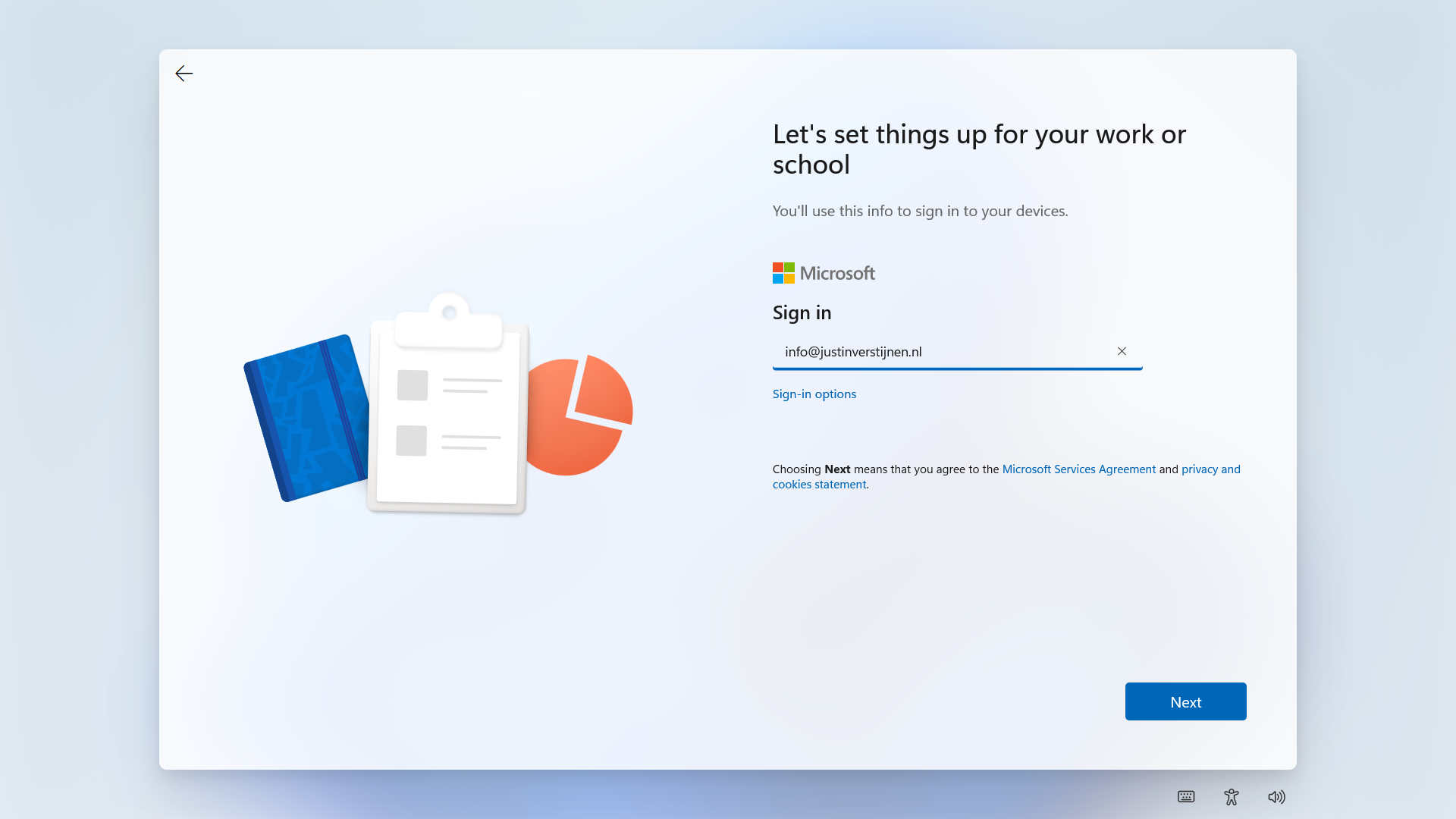
Now I will login to Windows with the same account as I logged in to the first laptop (JV-LPT-001).
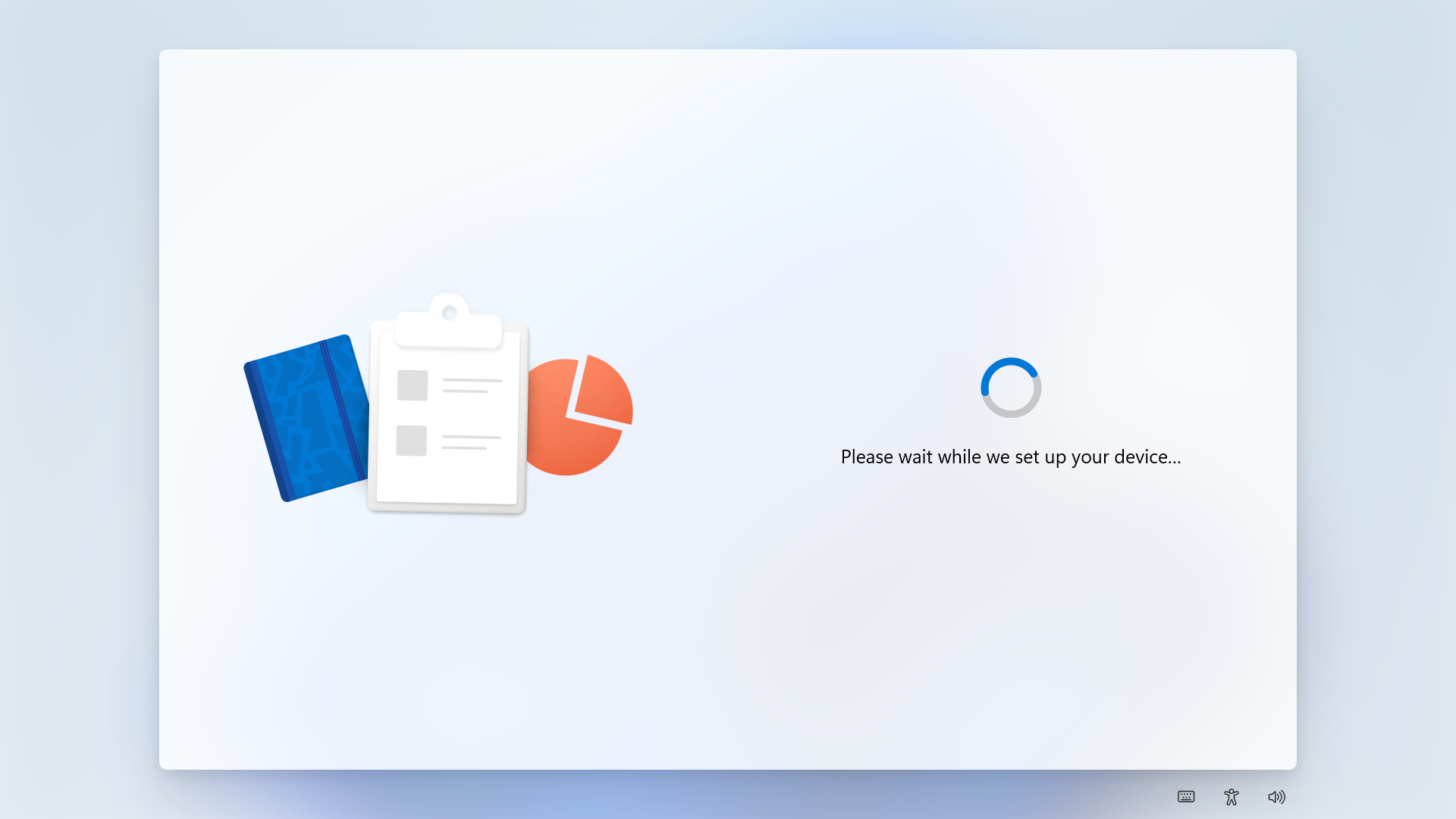
After succeeding the MFA challenge, Windows will process the changes and will get the additional information from our tenant.
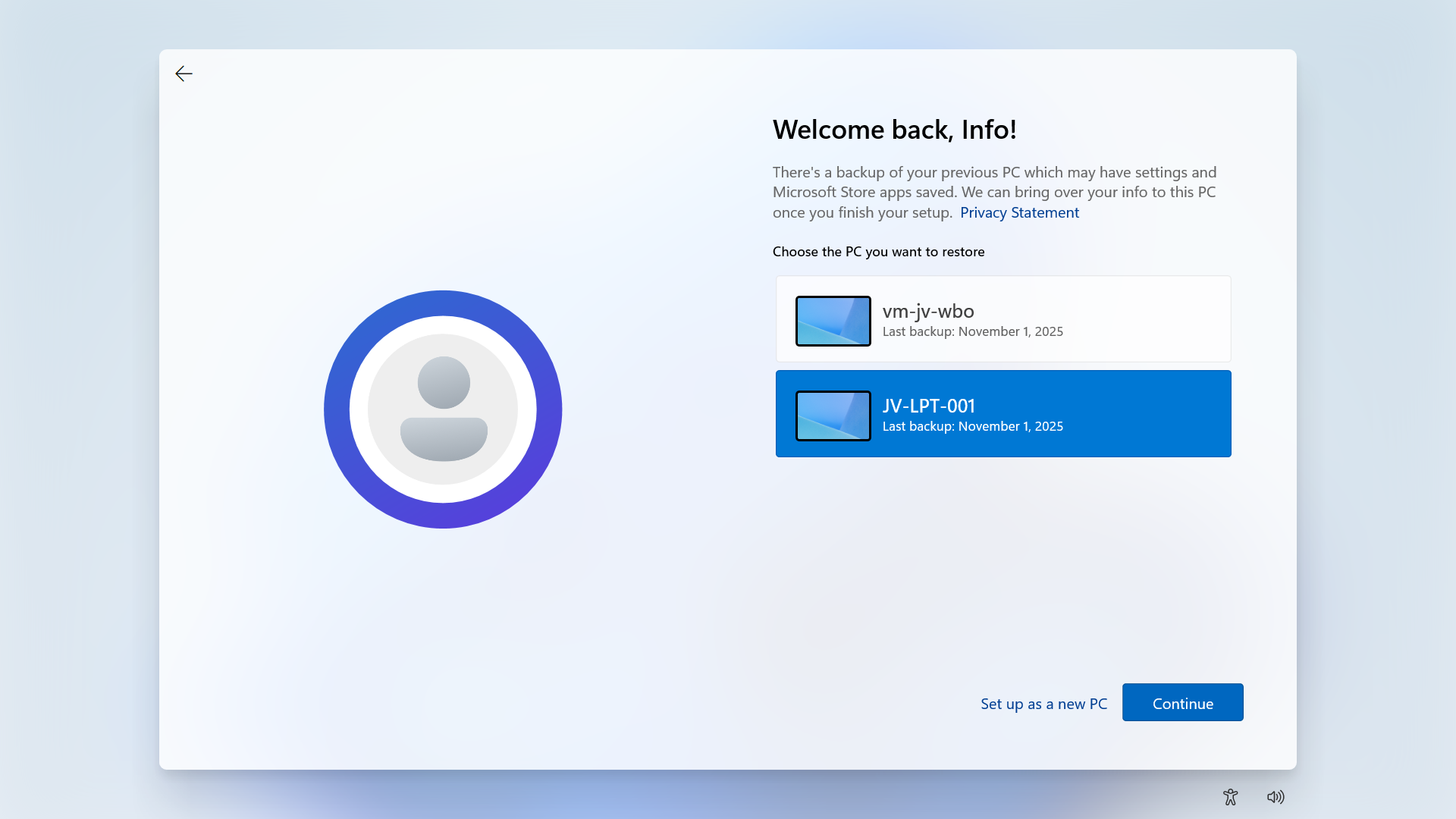
Then Windows will present you the options to restore a previously made backup. To get a better picture, I have made a second backup on a VM.
Now I will select the backup from the first laptop and click “Continue”.
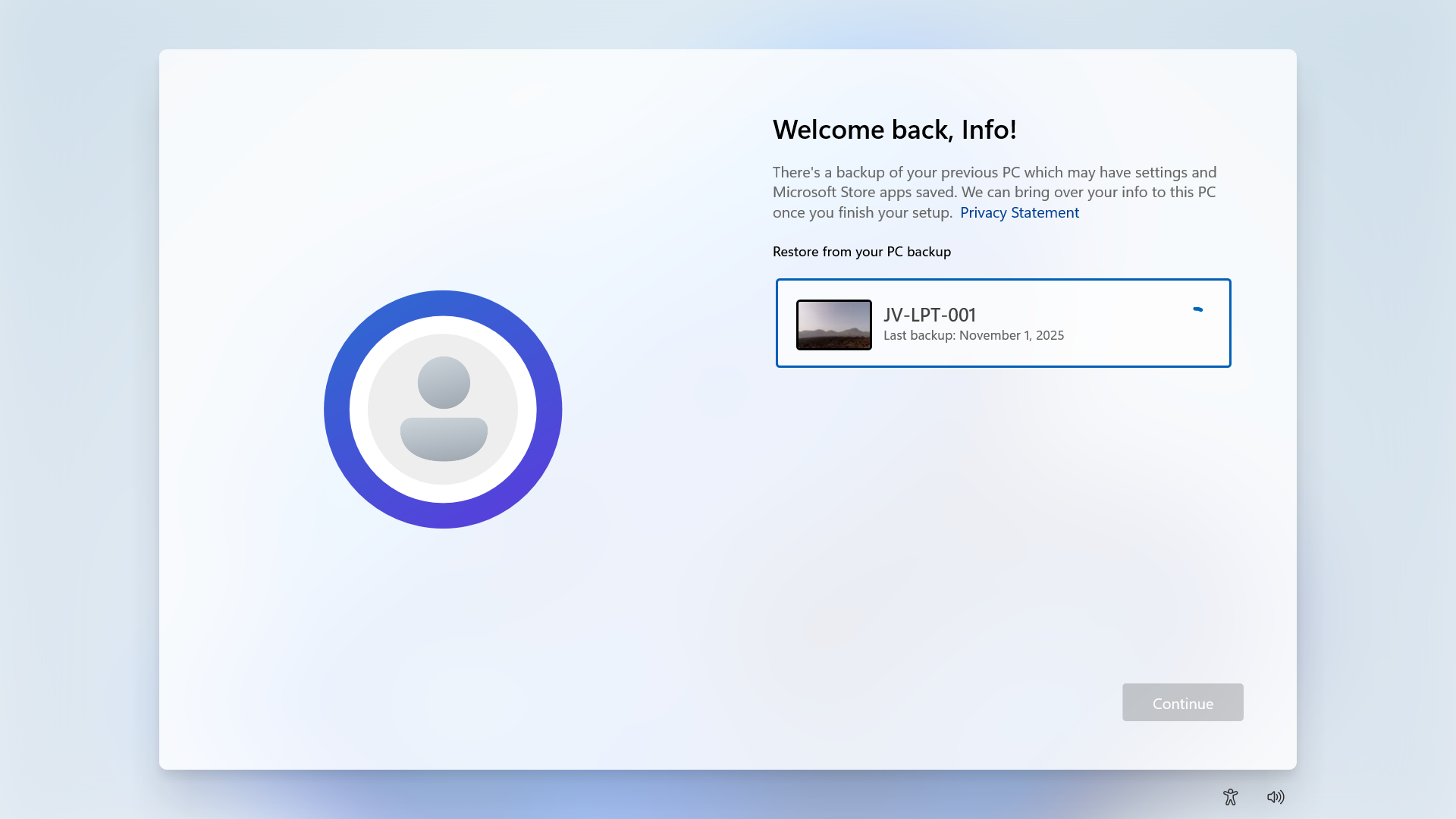
Now the backup will be restored.
Step 4: Result/after restoring backup
After the backup has been restored, this was the state on the laptop without any manual change. It synced the dark mode I configured, the installed Windows Store apps, the Windows taskbar to the left and my nice holiday picture. All without any manual action after restoring.
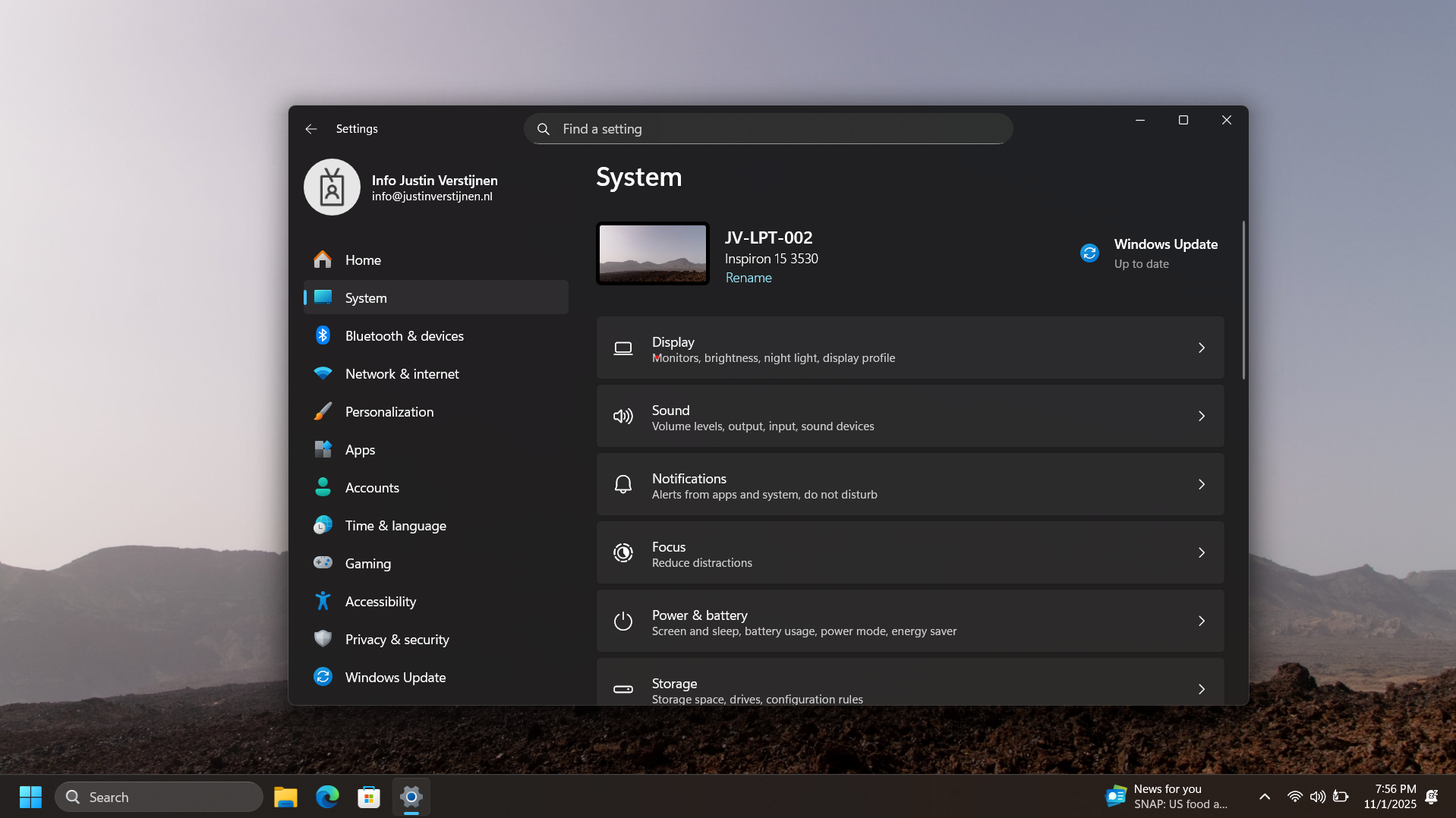
As you can see, installing an new computer is alot easier with this new feature. We can easily restore an this configuration and minimizes the configuration we need to do for our new computer or installation.
Bonus: Create screenshots at Windows OOBE
The Windows Out of the Box experience screen is the first you’ll see when going to a fresh Windows installation. We can take screenshots here but with a little difficult.
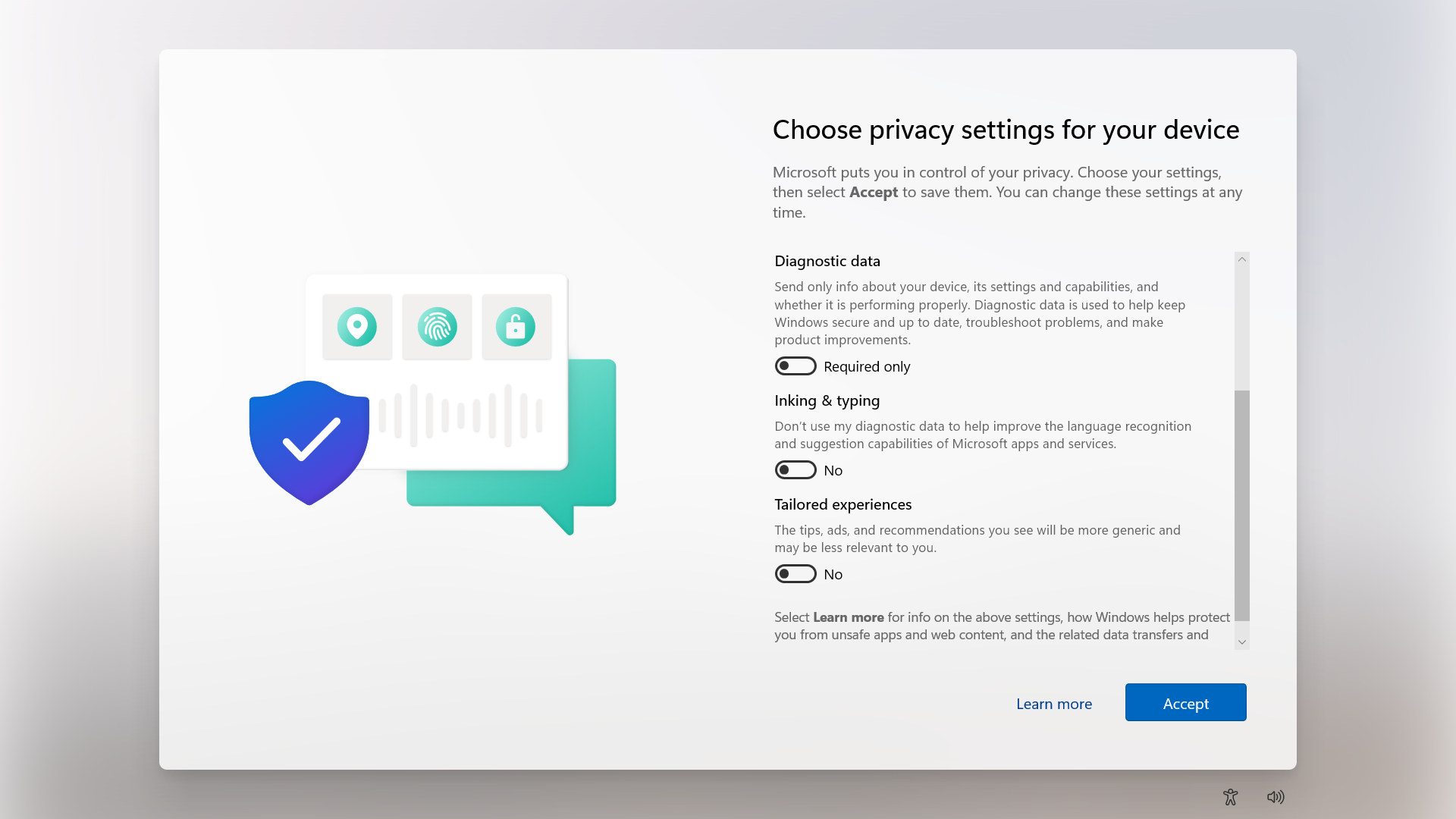
You can do this by pressing Shift + F10 or Shift + Fn + F10. A cmd window will the open.
Type in PowerShell, and the use this command to take a screenshot:
Add-Type -AssemblyName System.Windows.Forms; Add-Type -AssemblyName System.Drawing; $width = 1920; $height = 1080; $bmp = New-Object Drawing.Bitmap($width, $height); $graphics = [Drawing.Graphics]::FromImage($bmp); $graphics.CopyFromScreen(0,0,0,0,$bmp.Size); $bmp.Save("C:\OOBE.png")Screenshots will be saved to C:\ to be backed-up after the OOBE flow.
Summary
Windows Backup for Organizations is a great feature, especially for end users to keep their personal Windows Settings saved into their account. This in combination with OneDrive will make reinstalls pretty easy as we only have to install applications. The rest will be handled by Microsoft in this way.
These sources helped me by writing and research for this post;
End of the page 🎉
You have reached the end of the page. You can navigate through other blog posts as well, share this post on X, LinkedIn and Reddit or return to the blog posts collection page. Thank you for visiting this post.
Support the blog
