Create custom Azure Workbooks for detailed monitoring
What are Azure Workbooks?
Azure Workbooks allow us to create customizable dashboards for monitoring our solutions, applications and infrastructure in Azure. Instead of jumping between different Azure resources and monitoring blades, we can combine different types of information into one workbook, such as:
- Metrics
- Log Analytics Workspaces
- Visualizations
This makes Workbooks useful for both a quick overview of your environment and more detailed monitoring which is highly customizable.
In this guide, I will first show you some of the Workbooks that Azure already provides. After that, we will import an existing Workbook and finally build our own custom dashboard.
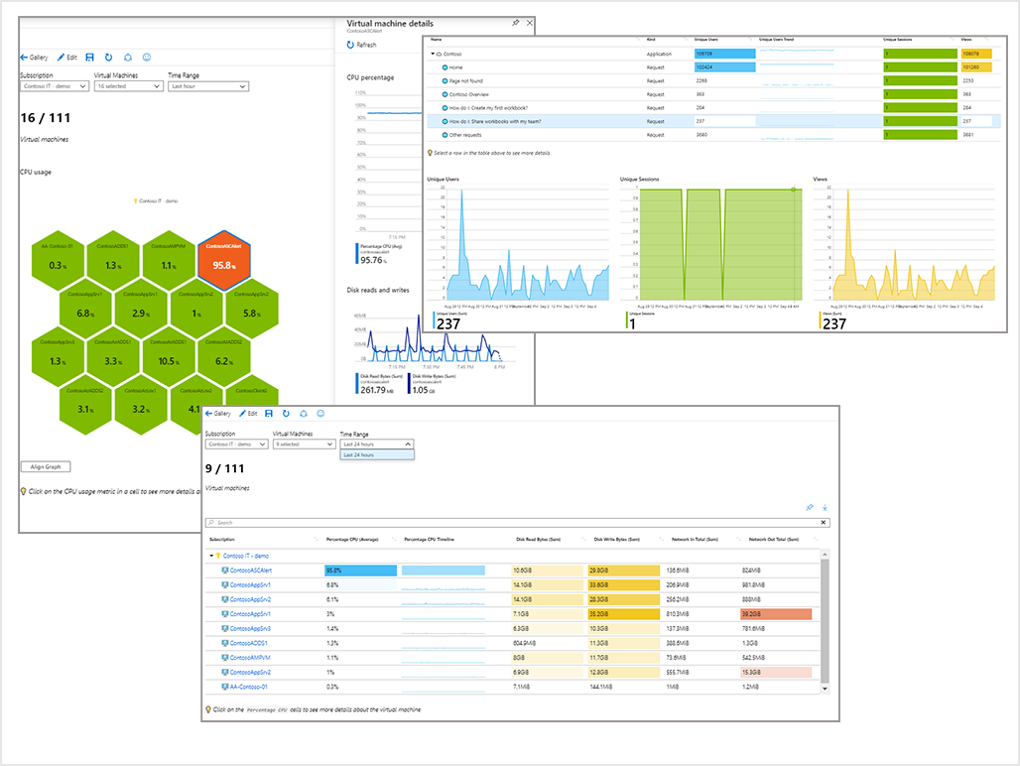
Step 1: Using the default Azure Workbooks
Before building something ourselves, it is useful to have a look at the Workbooks that are already available in Azure.
Many Azure resources have built-in Workbook templates which give us some basic information about the health and performance of the resource.
For example, open one of your Virtual Machines in the Azure portal.
Then select Workbooks and open Overview, or choose one of the other available templates.
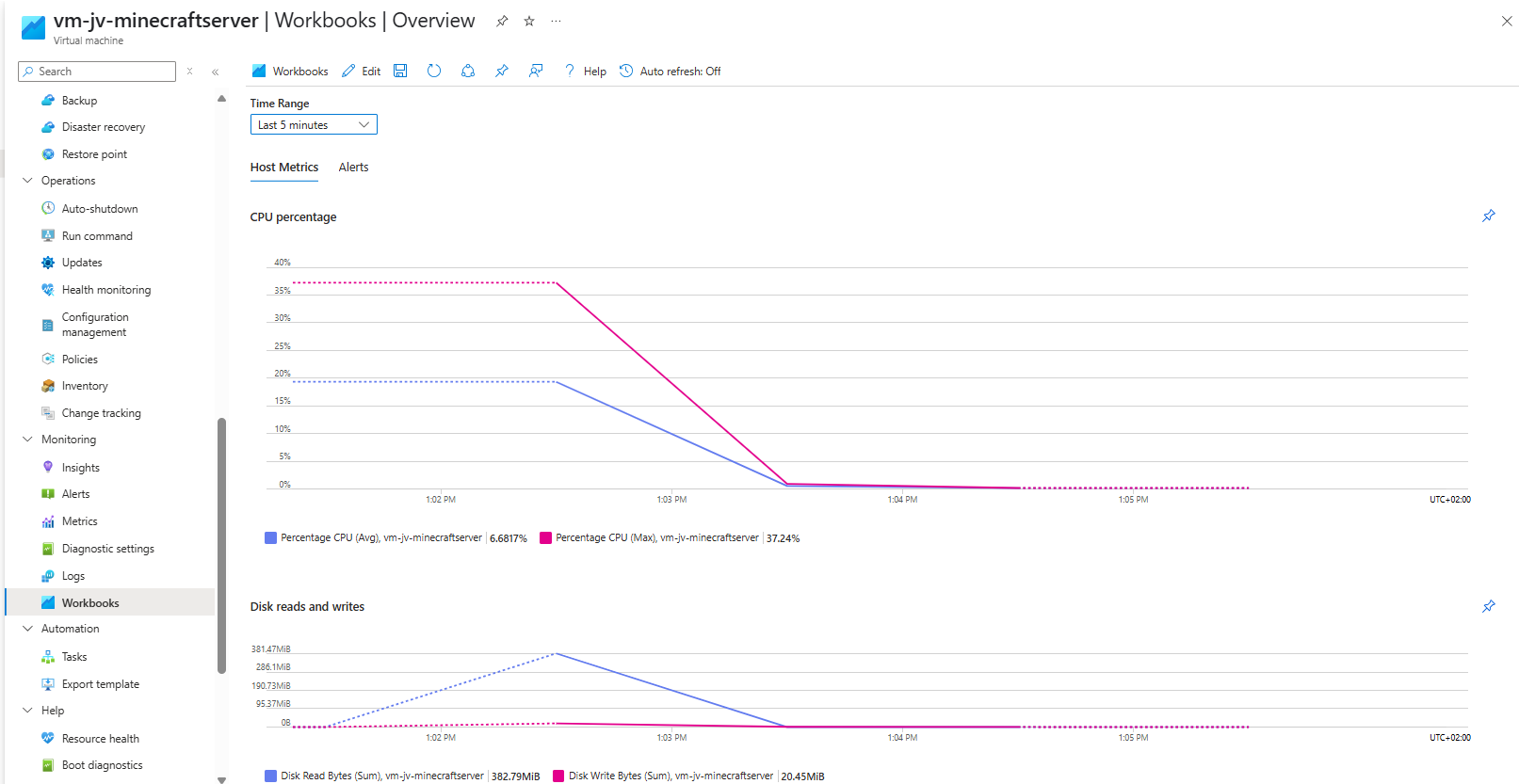
This already gives us a good idea of what is possible with Azure Workbooks. But of course, we are not limited to the templates that are available directly in the Azure portal and we will create our custom Workbook in this post later on.
Step 2: Finding Workbook templates
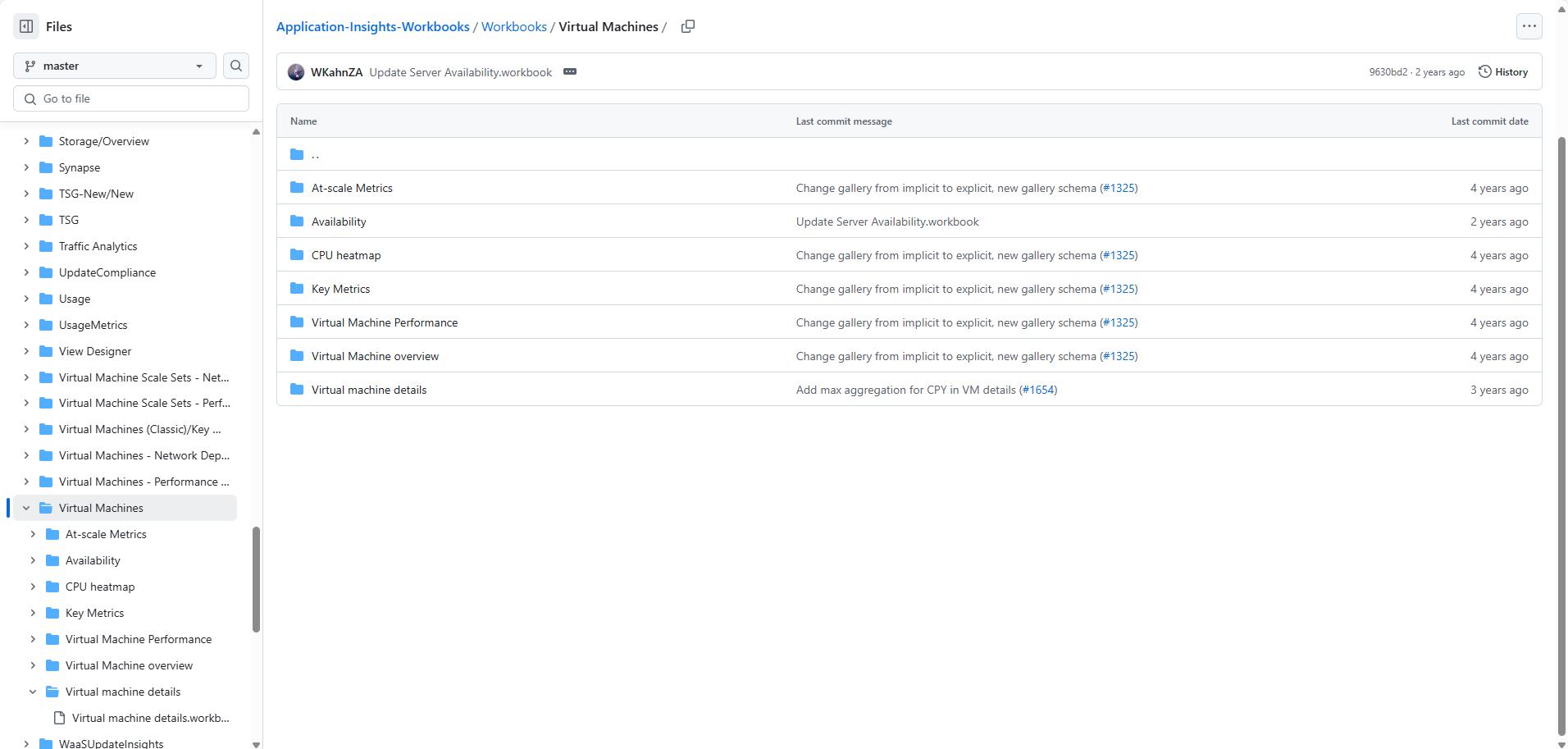
Microsoft has a public GitHub repository containing many different Azure Workbook examples and templates. You can find that repository here:
https://github.com/microsoft/Application-Insights-Workbooks/tree/master/Workbooks
There are hundreds of examples in this repository for different Azure services and monitoring scenarios. You can use the complete workbooks or some of the queries for some inspiration before creating your own Workbook.
Step 3: Importing an existing Workbook
Instead of creating everything from scratch, we can also import an existing Workbook. Create a new Workbook in Azure and open the Advanced Editor.
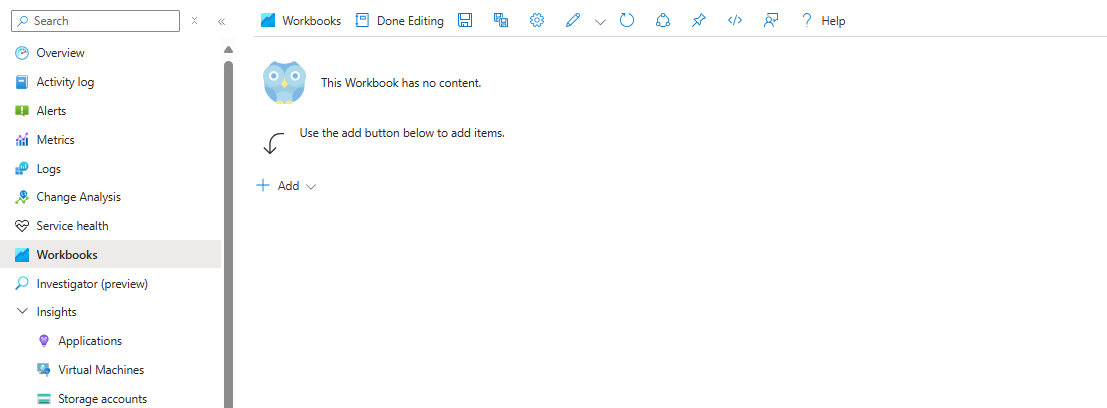
The Advanced Editor allows us to edit the JSON behind the Workbook. We can now copy the JSON from one of the examples on GitHub.

Paste the JSON into the Advanced Editor.
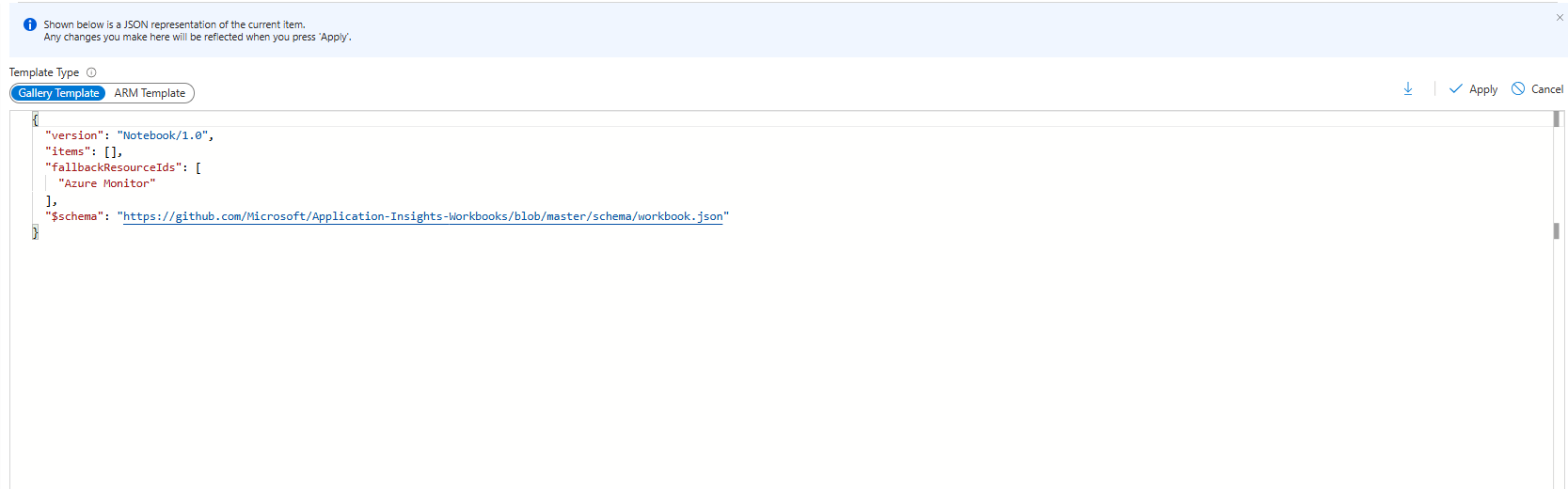
After applying the JSON, the Workbook becomes available in your own Azure environment.
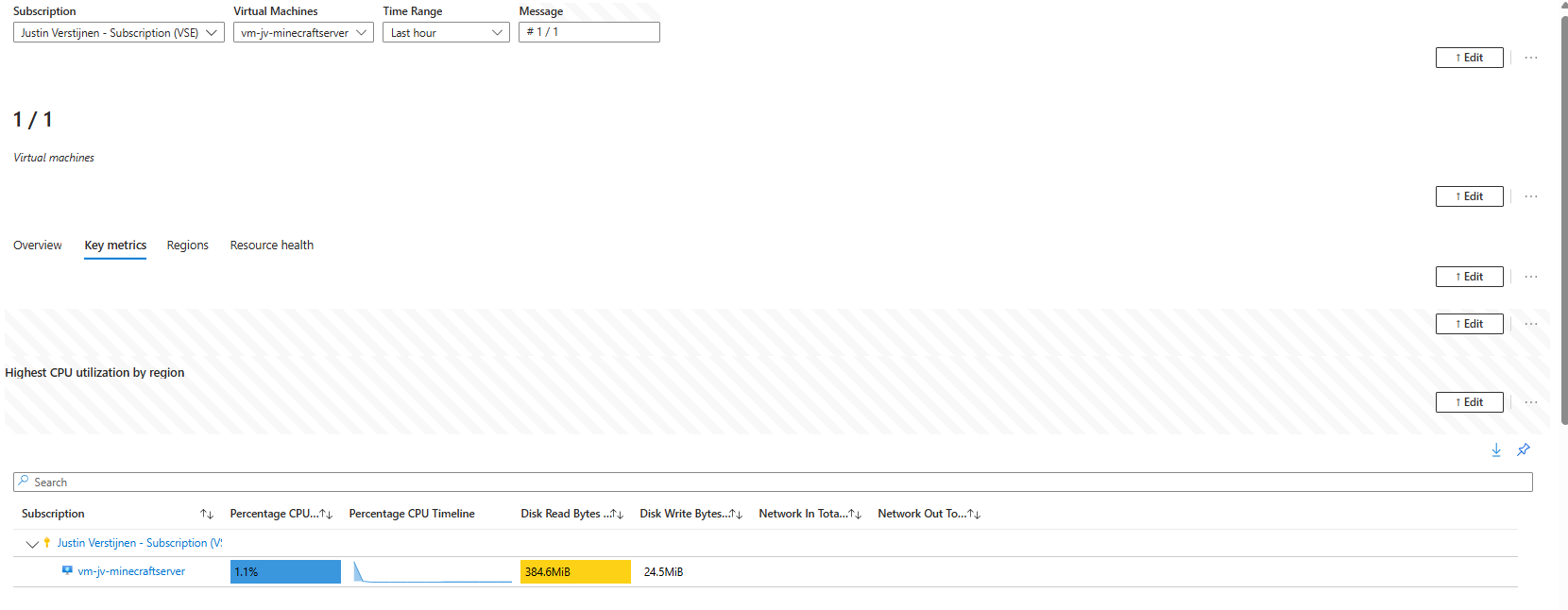
This is probably one of the easiest ways to get started. You can import an existing Workbook and then change it until it fits your own environment.
Step 4: Building our own custom Workbook
Now that we know how the existing Workbooks work, let’s create our own.
When creating a custom Workbook, there are a few useful building blocks we can use:
Parameters– filters, selectors, and dynamic viewsQueries– KQL queries against Log AnalyticsMetrics– information such as CPU, memory, disk, and networkGroups– combine multiple components into sections
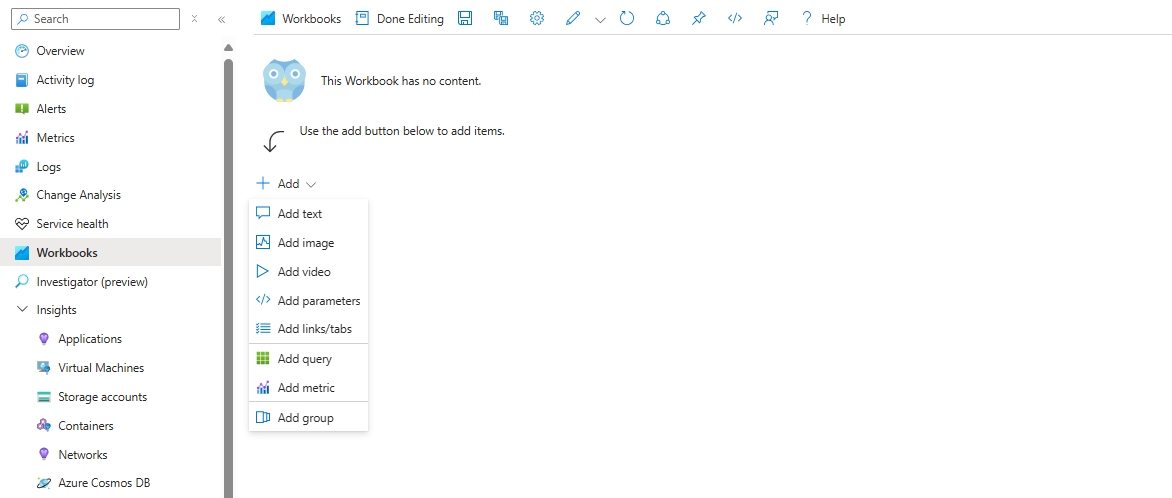
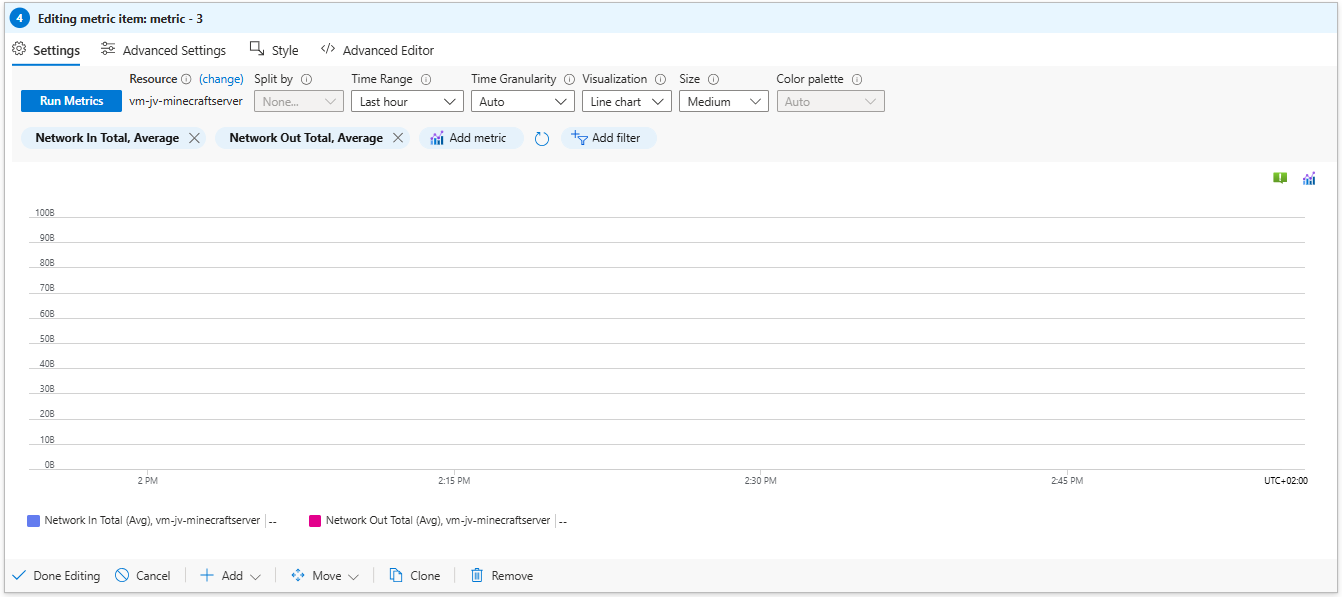
For this example, we will focus mostly on metrics for our Virtual Machines.
4.1: Adding CPU metrics
Let’s start with CPU usage.
Create a new metric tile and configure it with the following settings:
- Resource type:
Virtual Machines - Scope: select one or more VMs
- Metric:
Percentage CPU
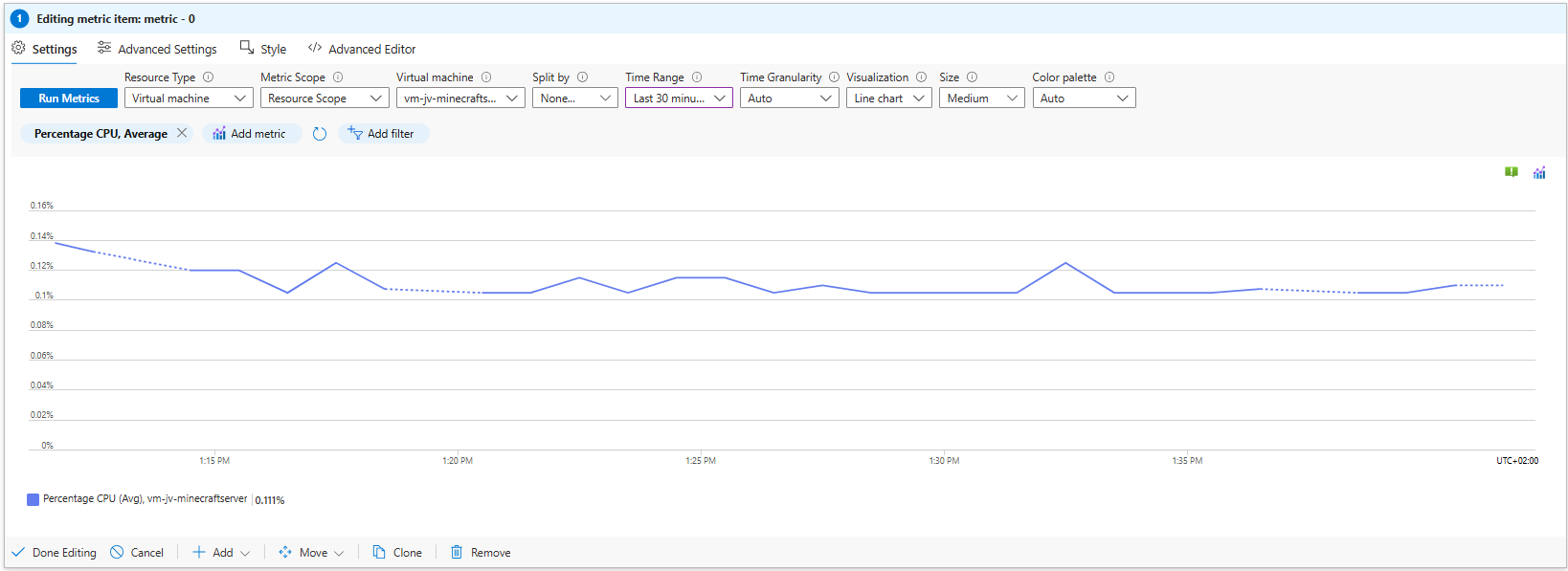
We now have our first metric inside the Workbook.
4.2 Adding memory metrics
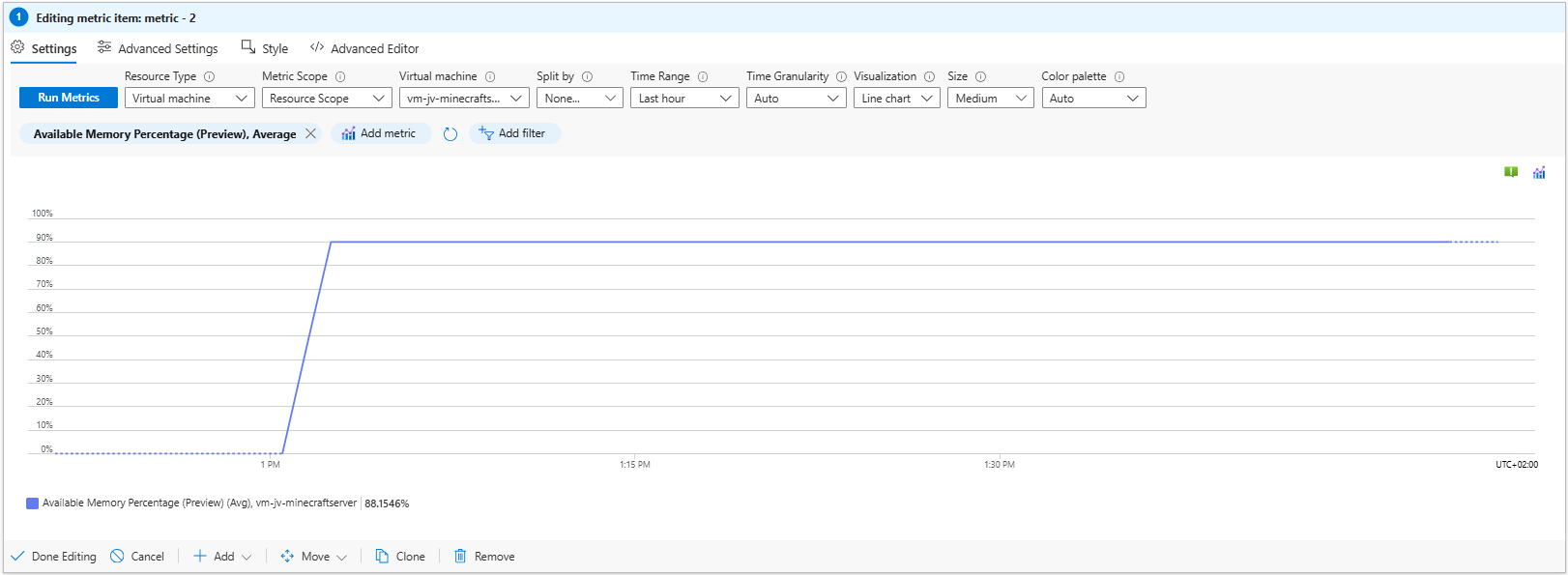
Next, we can add memory information to our dashboard.
For this example, use the following metric:
Available Memory Percentage
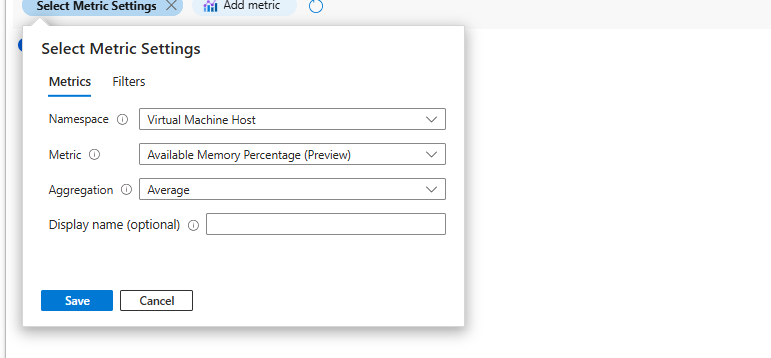
Now we can already see both CPU and available memory from the same Workbook.
4.3: Adding disk metrics
Disk activity is another useful thing to have in our dashboard.
For disk monitoring, we can add the following metrics:
- Disk Read Bytes
- Disk Read Operations/sec
- Disk Write Bytes
- Disk Write Operations/sec
For these metrics, use Average as the aggregation.
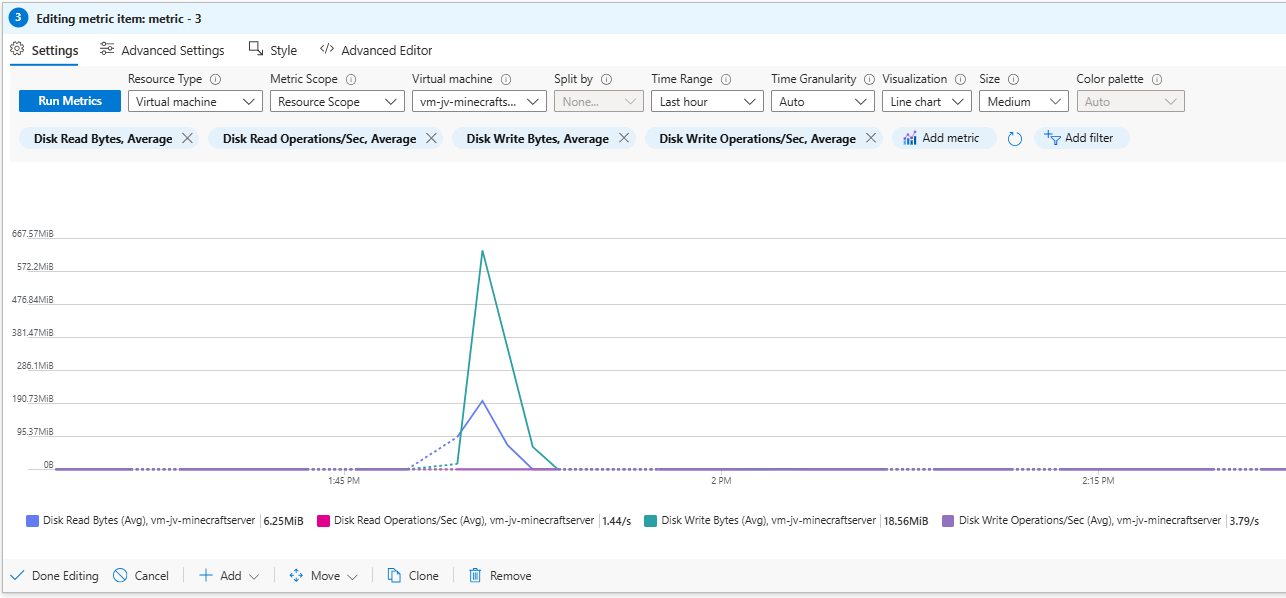
At this point, our Workbook already contains some of the most useful information for quickly checking the performance of our Virtual Machines.
Step 5: Saving the Workbook
When you are happy with the first version of your Workbook, we can save it.
You can store the Workbook inside a dedicated monitoring resource group or place it alongside the application or resources you are monitoring.
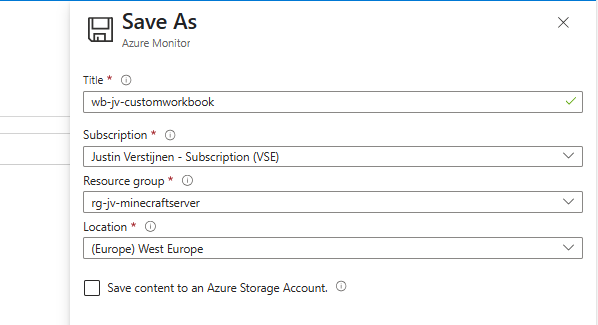
Now our custom Workbook is saved and we can start improving the layout.
Step 6: Improving the visualizations
Getting the data into a Workbook is one thing, but displaying it in a useful way is just as important. There are a few simple changes we can make to improve the overview. Good data visualisations are simple and give a great overview within seconds.
6.1: Adding titles
When you have multiple graphs and metrics on the same page, clear titles make the Workbook much easier to understand. Open the Advanced Settings of a visualization and configure a title for the chart.
6.2: Changing the tile order and size
You can also move the different tiles around and change their width. For example, setting two tiles to a width of 50% allows us to place two visualizations next to each other.
This is especially useful when you want to compare different metrics without making the Workbook unnecessarily long.
6.3: Using bar charts
Depending on the information you are displaying, a bar chart can give you a clearer overview than a line chart.
For quick health checks, this can make it easier to compare the different values in the Workbook.
6.4 Using a grid view
A grid view is useful when we want to see information from multiple Virtual Machines in one overview.
We can also add conditional formatting to make important values easier to recognize.
For example:
- CPU: Green → Red
- Memory Available: Red → Green
For percentages, I also like to round the values to zero decimals. This keeps the overview simple and readable.
With these small changes, the Workbook becomes much easier to use when you quickly want to check the state of your environment.
Download the example Workbook
If you want to test the Workbook yourself, you can download my example from GitHub:
You can use this as a starting point and change the resources, metrics, and visualizations to match your own environment.
Summary
Azure Workbooks give us a flexible way to bring different monitoring information together into one dashboard.
We can start with the default Workbooks that Azure already provides, import one of the many available examples, or build our own Workbook from scratch.
By combining metrics such as CPU, memory, and disk activity with a clear layout, we can create a dashboard that gives us a quick overview of our Azure resources without having to open every resource individually.
Thank you for visiting my website and I hope it was helpful.
These sources helped me by writing and research for this post;
- https://learn.microsoft.com/en-us/azure/azure-monitor/visualize/workbooks-overview
- https://learn.microsoft.com/en-us/azure/azure-monitor/visualize/workbooks-create-workbook
- https://learn.microsoft.com/en-us/azure/azure-monitor/visualize/workbooks-data-sources
- https://learn.microsoft.com/en-us/azure/azure-monitor/visualize/workbooks-visualizations
- https://learn.microsoft.com/en-us/azure/azure-monitor/visualize/workbooks-parameters
- https://github.com/microsoft/Application-Insights-Workbooks
End of the page 🎉
You have reached the end of the page. You can navigate through other blog posts as well, share this post on X, LinkedIn and Reddit or return to the blog posts collection page. Thank you for visiting this post.
Support the blog
