Cross-Tenant Message Recall in Exchange Online
How the message recall feature works
We have all been there. A email is sent and you forgot to add the attachment or the wrong recipient. Exchange Online already has the feature recall messages inside your own tenant but now the cross tenant recall feature is announced, meaning we can recall messages sent to external users which also use Microsoft 365.
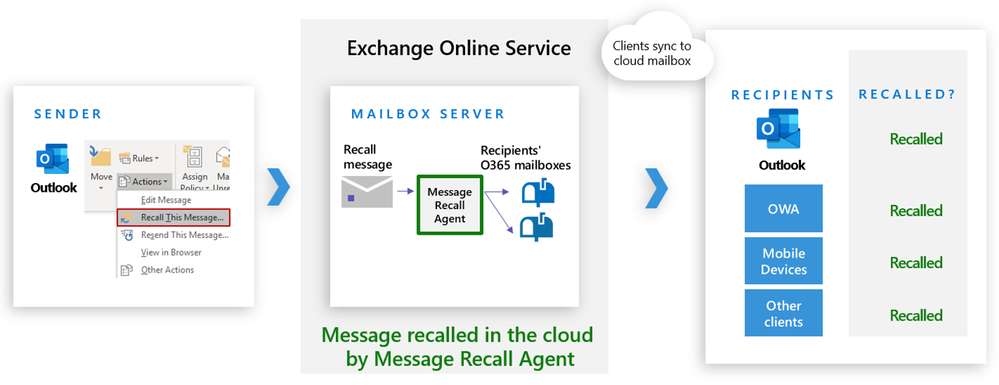
Cross-Tenant Message Recall has two configuration steps:
- A switch to enable or disable the feature
- An allow list which controls which tenants can recall messages received in your tenant, where the advice is to only add tenants which you trust, like partners or sub-organizations. Like a whitelist of tenants you trust
According to Message Center notification MC1423106 from 10 July 2026, the rollout is expected to begin across all clouds from mid-August 2026 and should be completed by early September 2026.
However, the feature is and will still be disabled by default but when the update has been done we can enable this by using this small steps.
Step 1: Connect to Exchange Online PowerShell
We can connect to Exchange Online with Powershell using this command:
Connect-ExchangeOnlineIf you don’t have this PowerShell module yet, follow the steps on this page: https://www.powershellgallery.com/packages/ExchangeOnlineManagement
You also need to have the newest version available which will contain the new Cross-Tenant message recall cmdlets.
Step 2: Enable Cross-Tenant Message Recall
Enabling cross-tenant recall and configuring allow list tenants changes how Message Recall requests are honored for messages delivered to your users. Review the allow list carefully before enabling.
After connecting to Exchange Online PowerShell, we can execute this command:
Set-CrossTenantRecallConfiguration -CrossTenantRecallEnabled $trueTo disable the feature, run the command with the boolean at the end set to “false”:
Set-CrossTenantRecallConfiguration -CrossTenantRecallEnabled $falseCross-Tenant Message Recall is disabled by default, and no cross-tenant recall happens until an admin adds at least one tenant to the allow list.
Step 3: Add allowed sender tenants (the allow list)
To allow other Microsoft 365 tenants to request recall for messages delivered to your organization, add their tenant ids to your allow list. Let’s go through these steps.
To find the tenant ID of a tenant which sends email to your tenant (external) which can be done in multiple ways, but the most easiest is to visit https://entra.microsoft.com/. There you have the Tenant ID with a copy button next to it. Paste this tenant id in this command:
Set-CrossTenantRecallConfiguration -AllowedSenderTenantIds @{Add="d136fa27-8883-4bf0-a9d2-c126cc7e3990"}In this step you will need to add the tenant ids of the external organizations in your allowed configuration, which means the external organization can recall messages sent to your organization.
Summary
Cross-Tenant Message Recall lets us IT guys expand the Message Recall across Microsoft 365 tenant boundaries, but only when the receiving tenant explicitly allow-lists the sender’s tenant. The feature is disabled by default, so you must enable it and configure the allow list before partner tenants can successfully request recalls for messages delivered to your organization.
This way we can recall messages sent inter tenants to for example partners or sub organizations which is a pretty cool developement.
Thank you for reading this post and I hope it was helpful!
These sources helped me by writing and research for this post;
End of the page 🎉
You have reached the end of the page. You can navigate through other blog posts as well, share this post on X, LinkedIn and Reddit or return to the blog posts collection page. Thank you for visiting this post.
Support the blog
