Deep dive into IPv6 with Microsoft Azure
Requirements
- Basic knowledge of Azure and IPv4 and IPv6
- Reading this guide prior is recommended: https://justinverstijnen.nl/basic-ipv6-explaination/
- Around 45 minutes of your time
- An Azure subscription to test and succeed on
- A cup of coffee or drink of your choice :)
Creating a Virtual Network (VNET) with IPv6
By default, Azure pushes you to use an IPv4 address space when creating a virtual network in Azure. Now this is the best understandable and easy version of addressing.
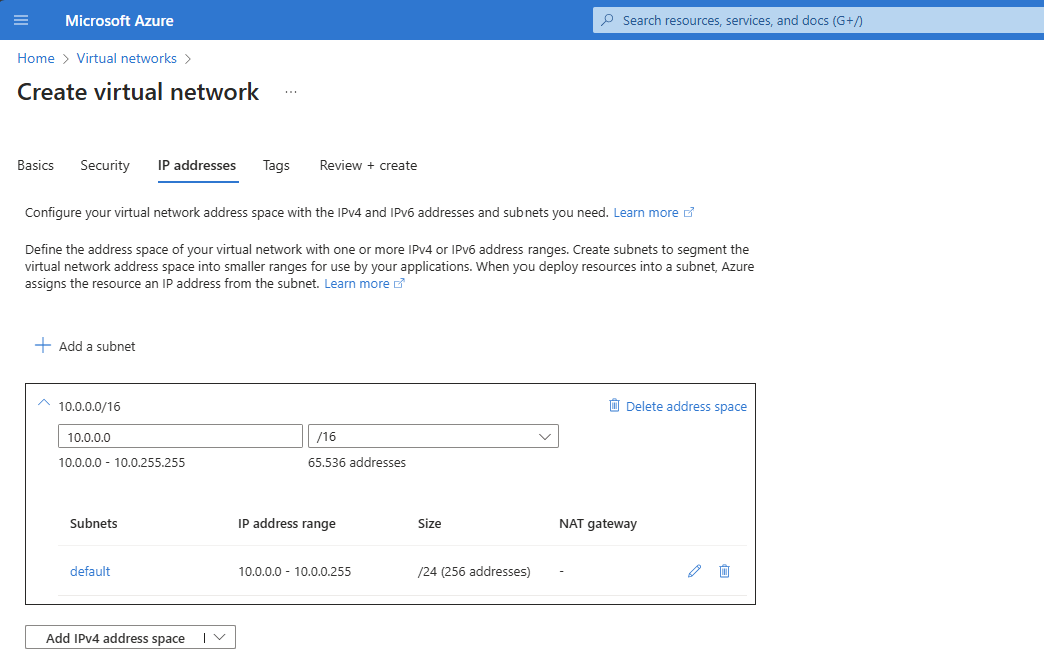
In some cases we want to give our IPv6 addresses only, IPv4 addresses only or use dual-stack where we assign both IPv4 and IPv6 to our resources.
In the wizard, we can remove the default generated address space and design our own, IPv6 based address space like I have done below:
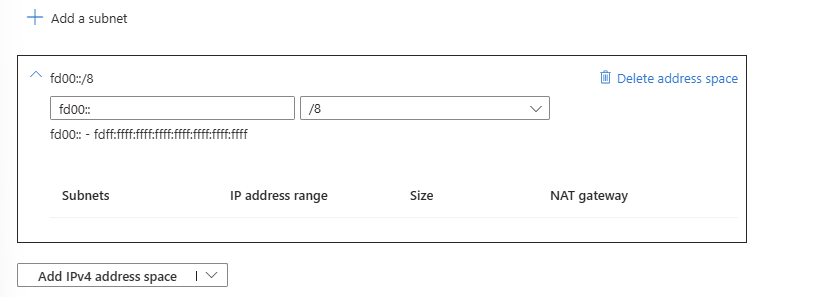
This space is a block (fd00::/8) which can be used for private networks and for example in our case. These are not internet-routable.
In the same window, we can configure our subnets in the IPv6 variant:
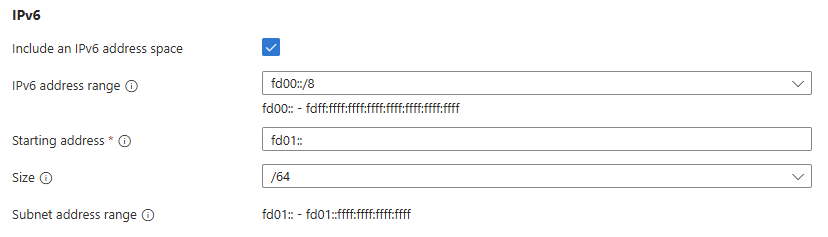
Here I created a subnet called Subnet-1 which has address block fd01::/64 which means there are 264 (18 quintillion) addresses possible in one subnet. Azure only supports /64 subnets in IPv6, this because this has the best support over all devices and operating systems worldwide.
For demonstration purposes I created 3 subnets where we can connect our resources:
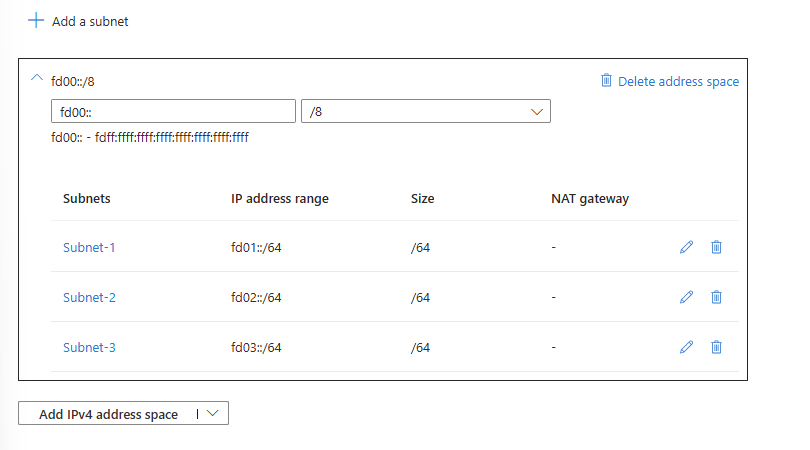
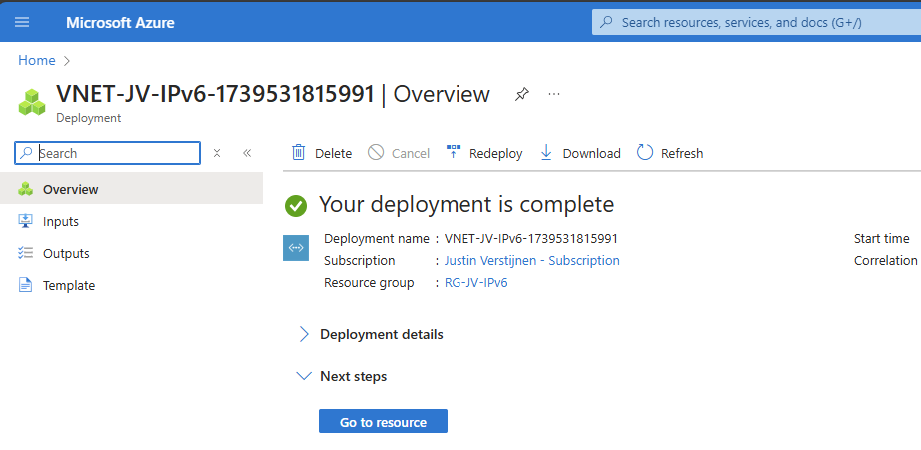
And we are done :)
Connecting a virtual machine (VM) to our IPv6 network
Now comes the more difficult part of IPv6 and Azure. By default, Azure pushes to use IPv4 for everything. Some options for IPv6 are not possible through the Azure Portal. Also every virtual machine requires a IPv4, selecting a subnet with only IPv6 gives an error:
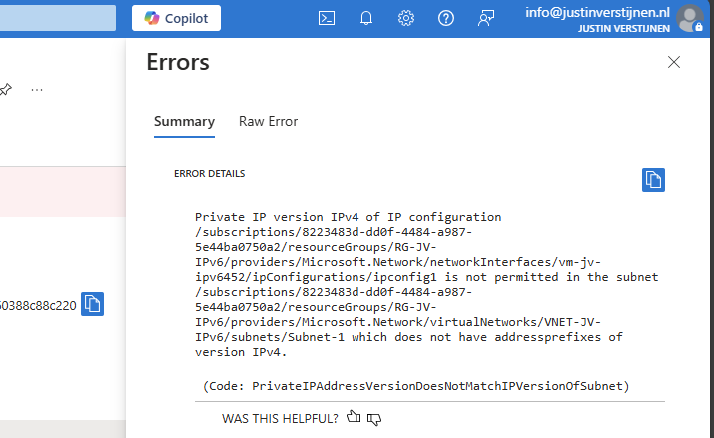
So we have to add IPv4 address spaces to our IPv6 network to connect machines. This can be done through the Azure Portal:
Go to your virtual network and open “Address space”
Here I added a 10.0.0.0/8 IPv4 address space:

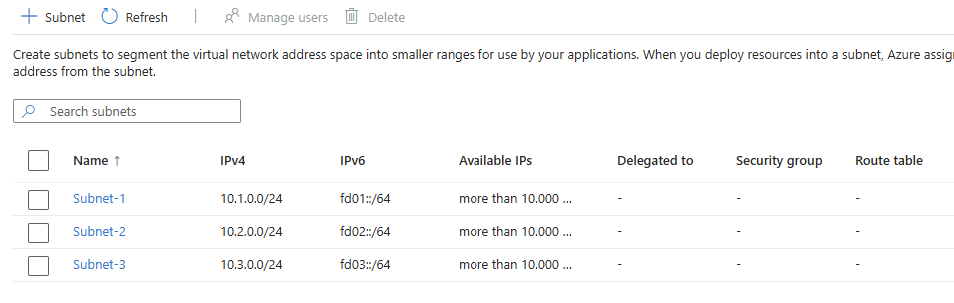
Now we have to add IPv4 spaces to our subnets, what I have already done:
Add the virtual machine to our network:
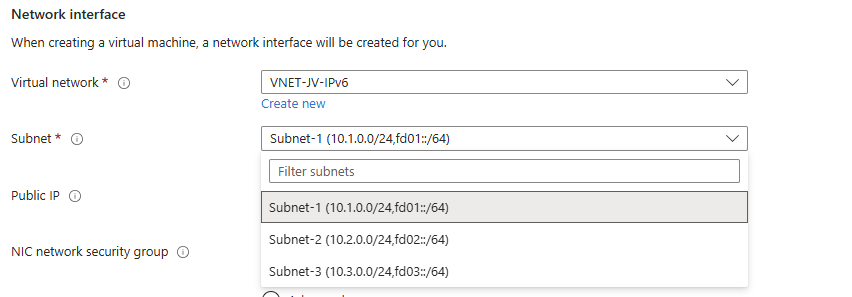
We have now created a Azure machine that is connected to our IPv4 and IPv6 stacked network.
After that’s done, we can go to the network interface of the server to configure the network settings. Add a new configuration to the network interface:
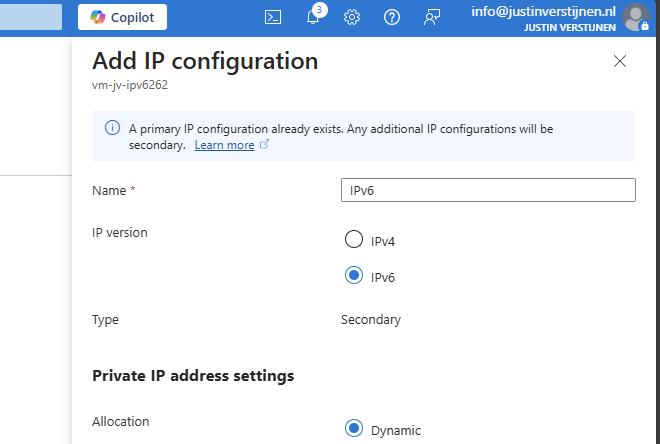
Here we can use IPv6 for our new IP configuration. The primary has to be leaved intact because the machine needs IPv4 on its primary interface. This is a Azure requirement.
Now we have assigned a new IP configuration on the same network interface so we have both IPv4 and IPv6 (Dual-stack). Lets check this in Windows:
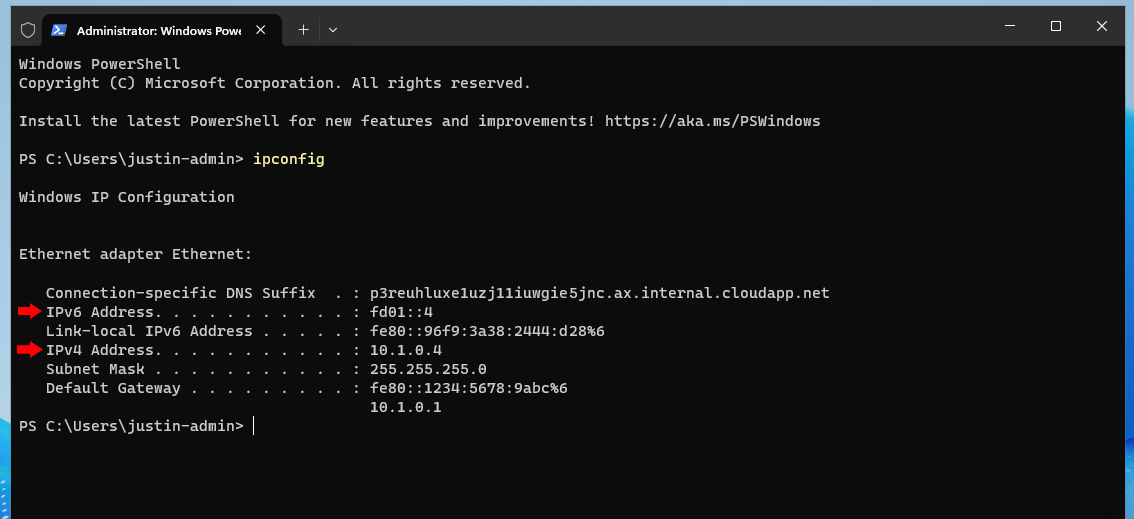
Here you can see that we have both IPv4 and IPv6 addresses in our own configured address spaces.
Create a IPv6 Public IP address
Now the cherry on the pie (like we say in dutch) is to make our machine available to the internet using IPv6.
I already have a public IPv4 address to connect to the server, and now I want to add a IPv6 address to connect to the server.
Go in the Azure Portal to “Public IP Addresses” and create a new IP address.
At the first page you can specify that it needs to be an IPv6 address:
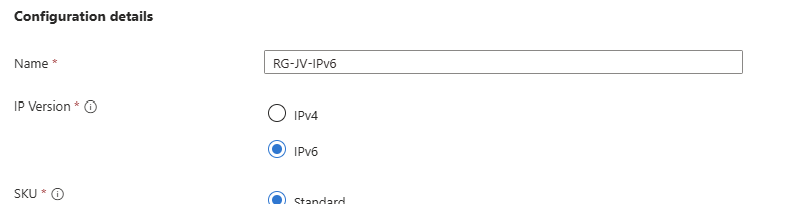
Now we can go to the machine and assign the newly created public IP address to the server:
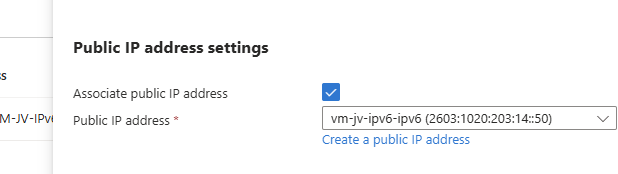
My complete configuration of the network looks like this:
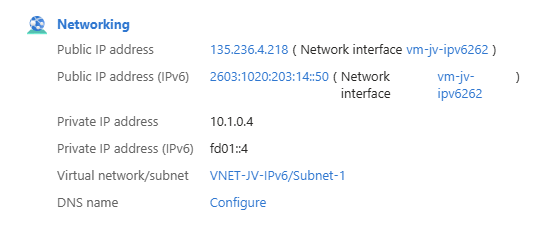
Now our server is available through IPv6. Good to mention that you may not be possible to connect to the server with this address because of 6-to-4 tunneling and ISP’s not supporting IPv6. In this case we have to use the IPv4 method.
Inter-subnet connectivity with IPv6
To actually test the IPv6 connectivity, we can setup a webserver in one of the subnets and try if we can make a connection with IPv6 to that device. I used the marketplace image “Litespeed Web Server” to serve this purpose.
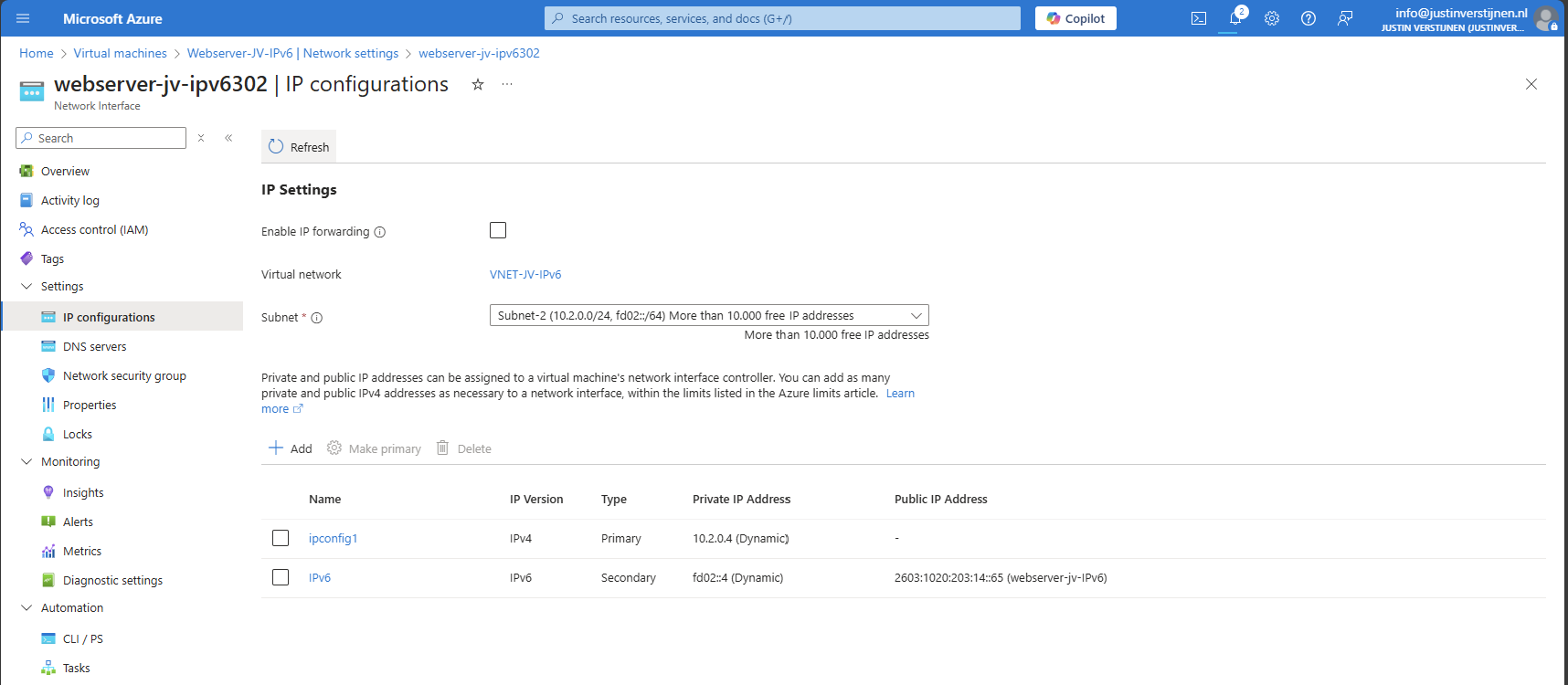
I used a simple webserver image to create a new VM and placed it in Subnet-2. After that I created a secondary connection just like the other Windows based VM and added a private and a public IPv6 address:
Now we are on the first VM which runs on Windows and we try to connect to the webserver:
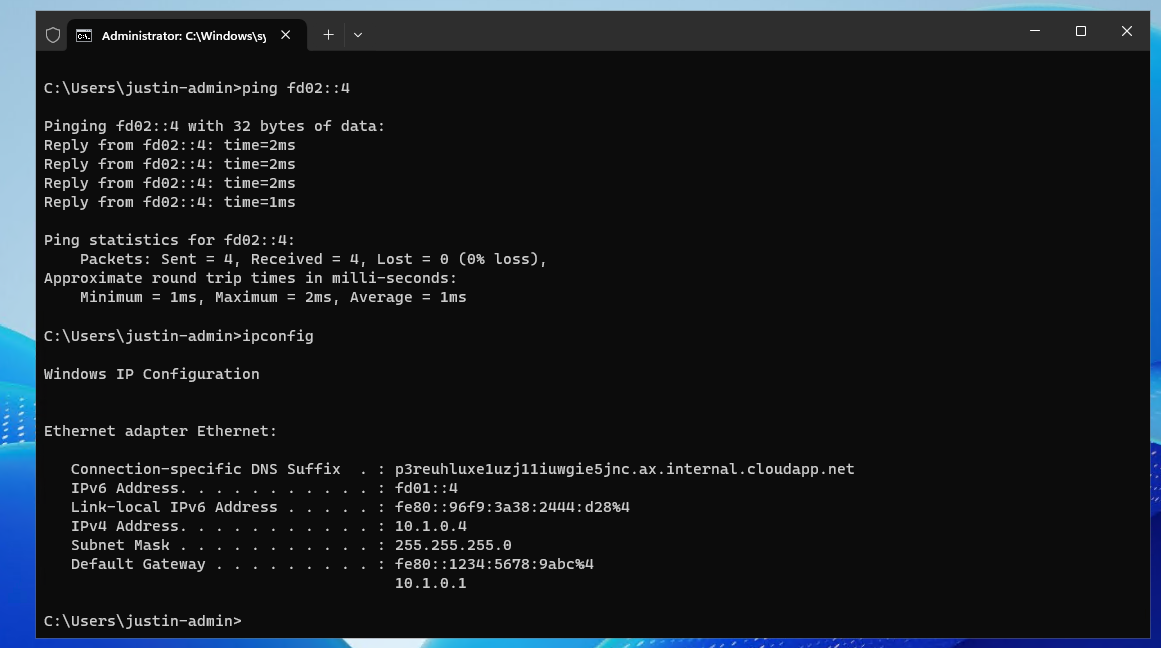
A ping request works fine and we get a response from the webserver.
Lets try if we can open the webpage. Please note, if you want to open a website on a IPv6 address, the address has to be placed [within brackets]. THis way the browser knows how to reach the page. This only applies when using the absolute IPv6 address. When using DNS, it is not needed.
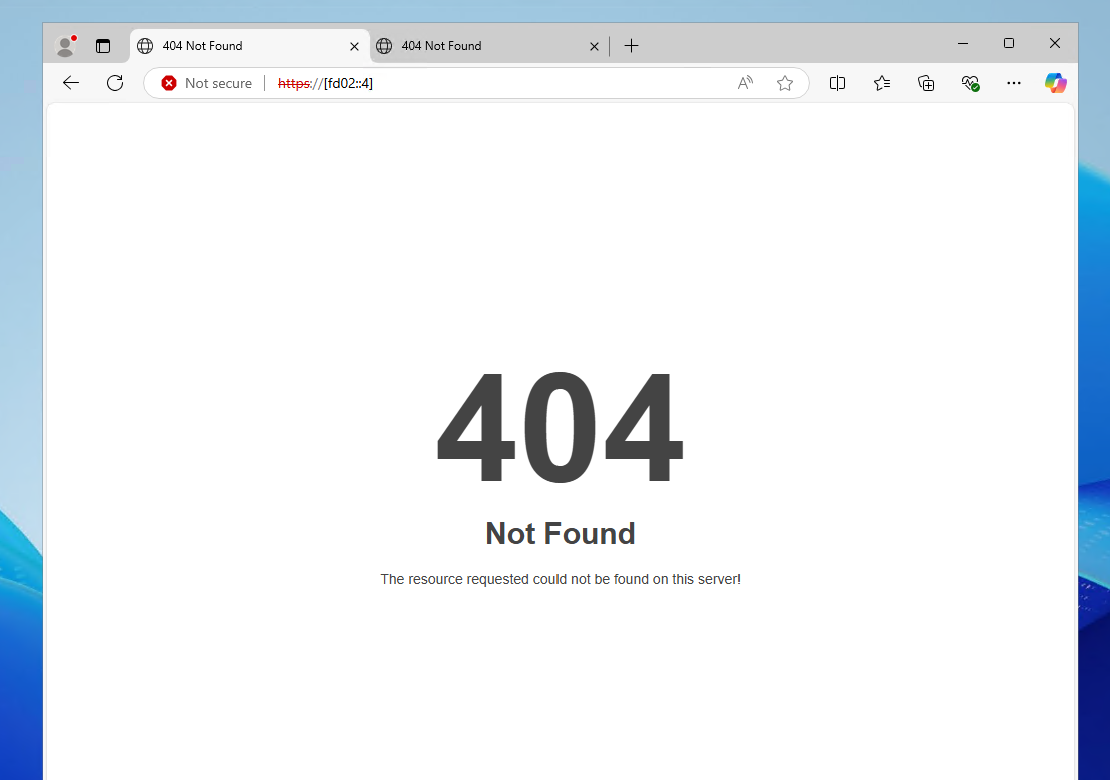
I went to Edge and opened the website by using the IPv6 address: https://[fd02::4]
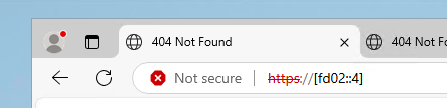
The webserver works, but I get a 404 not found page. This is by my design because I did not publish a website. The connection works like a charm!
The webserver also works with the added Public IPv6 address:
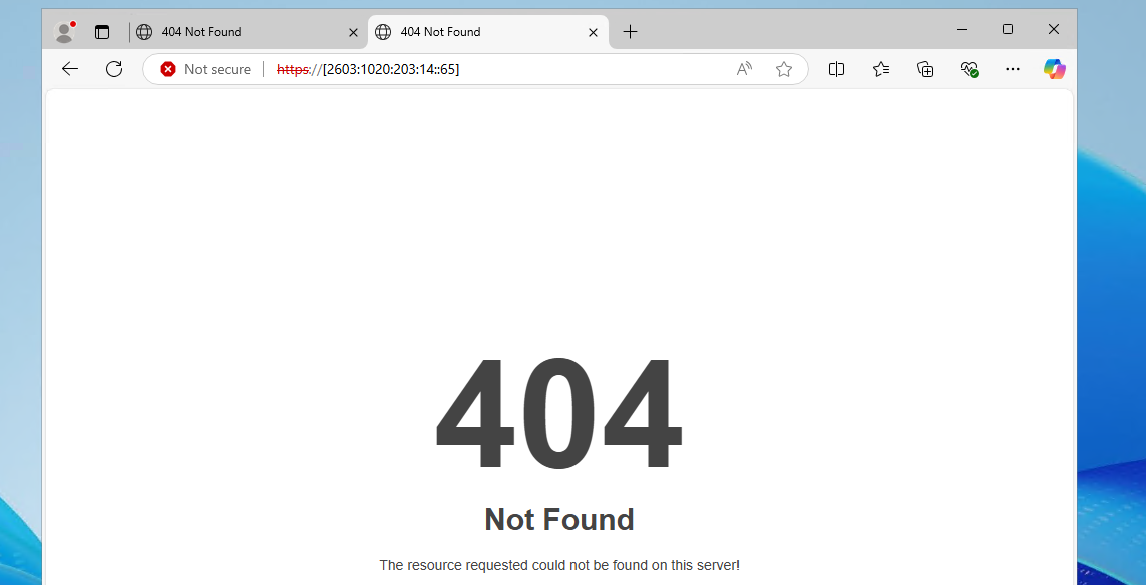
Small note: some webservers/firewalls may be configured manually to listen to IPv6. With my used image, this was the case.
Summary
When playing with IPv6, you see that some things are great but its use is primarily for filling up the worldwide shortage of IPv4 addresses. Also I admit that there is no full support for IPv6 on Azure, most of the services I tested like VMs, Private Endpoints, Load balancers etcetera all requires IPv4 to communicatie which eliminates the possibility to go full IPv6.
My personal opninion is that the addressing can be easier than IPv4, when done correctly. In the addressing I used in this guide I used the fd00::/8 space which makes very short addressess and no limitation of 250 devices without having to upper the number. These days a network of 250 devices is no exception.
End of the page 🎉
You have reached the end of the page. You can navigate through other blog posts as well, share this post on X, LinkedIn and Reddit or return to the blog posts collection page. Thank you for visiting this post.
Support the blog
