Disable AD synchronization for a single user in Microsoft Entra ID
The process described
Microsoft Entra Connect Sync is often used to synchronize users from your local Active Directory to Microsoft Entra ID. Normally, these synchronized users are managed from the local Active Directory and changes are then synchronized to the cloud.
Microsoft now also supports transferring the Source of Authority (SOA) of an individual user from Active Directory to Microsoft Entra ID. This makes it possible to make a single synchronized user cloud-managed while keeping Entra Connect Sync enabled for all other users.
In this guide, we will use Microsoft Graph PowerShell to check the current synchronization status, transfer the Source of Authority to the cloud and verify the result. After the transfer, changes from the local Active Directory are blocked for this specific user. This is helpful, as the normal process for stopping this synchronization results in the cloud user being deleted and you having to restore the user manually.
- Microsoft Entra Connect Sync version 2.5.76.0 or newer is required
- You need at least the Hybrid Identity Administrator role to transfer the Source of Authority (SOA)
- The Microsoft Graph permission User-OnPremisesSyncBehavior.ReadWrite.All requires admin consent
- Make sure the user has completed a final synchronization before transferring the Source of Authority
Step 1. Installing and connecting the PowerShell modules
We first need to install the Microsoft Graph PowerShell modules, if you don’t already have them installed. Let’s open up PowerShell on your computer and run the commands below:
Install-Module Microsoft.Graph -Force
Install-Module Microsoft.Graph.Beta -Force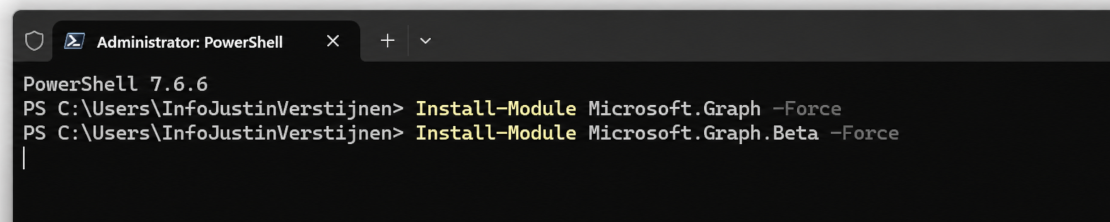
If you already have these modules installed, you can skip the step above.
Let’s connect to Microsoft Graph PowerShell using these required scopes, least privileges to read users and change the Source of Authority:
Connect-MgGraph -Scopes "User.Read.All","User-OnPremisesSyncBehavior.ReadWrite.All"If being asked to grant consent to the Microsoft Graph Command Line Tools, grant this as we need those permissions to perform the actions in the next steps. Admin consent is required for the User-OnPremisesSyncBehavior.ReadWrite.All permission.
After this has been completed, check if you are logged in correctly by using this command:
Get-MgContextThis should result in a list of details of your account, tenant and the granted scopes. We are now ready to perform the further steps.
Step 2. Preparing to disable the synchronization for the user
Before transferring the Source of Authority, make sure all current Active Directory changes for the user have been synchronized to Microsoft Entra ID. On your Microsoft Entra Connect Sync server, run:
Start-ADSyncSyncCycle -PolicyType DeltaWait for the synchronization cycle to complete before continuing. This should take up to 5 minutes.
Then can now select the user we want to convert. Run the line below on your own computer or management server and change the UserPrincipalName below to the user you want to make cloud-managed/cloud-only:
$UserPrincipalName = "testuser@justinverstijnen.nl"
This will create a variable which we can use in the further commands we are needed to run in the steps below.
Step 3. Check the current status
Now we have selected the correct user, let’s check the current Source of Authority using Microsoft Graph PowerShell:
Get-MgBetaUserOnPremiseSyncBehavior `
    -UserId $User.Id |
    Select-Object Id, IsCloudManaged
For a normal Active Directory synchronized user, IsCloudManaged should currently show False.
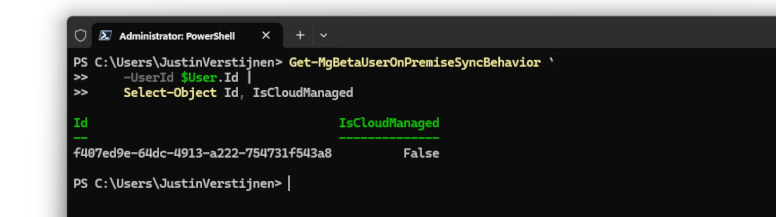
This means the local Active Directory is still the Source of Authority for this user and changes need to be made on-premises.
Step 4. Making the user cloud-only
Now we can transfer the Source of Authority for this specific user to Microsoft Entra ID, making it cloud only. Run the following command to perform this action:
Update-MgBetaUserOnPremiseSyncBehavior `
    -UserId $User.Id `
    -IsCloudManaged:$true
This changes IsCloudManaged to True for the selected user.
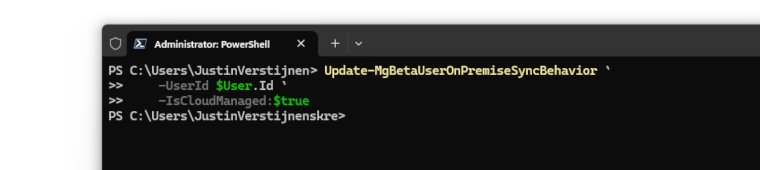
When IsCloudManaged is set to True, updates coming from the corresponding on-premises Active Directory object are blocked in Microsoft Entra ID. Entra Connect Sync can still continue synchronizing all other users normally.
This is the main difference compared to disabling directory synchronization company-wide: only the selected user is moved to cloud management.
Step 5. Verify the user
After performing the change, we want to make sure the Source of Authority was successfully transferred.
Run the following command again:
Get-MgBetaUserOnPremiseSyncBehavior `
    -UserId $User.Id |
    Select-Object Id, IsCloudManaged
IsCloudManaged should now show True. This means the user has now become cloud-only and Entra ID will block any on-premises changes to the user. The OnPremisesSyncEnabled parameter will become null.
Do not remove the local Active Directory user before IsCloudManaged shows True. Always verify the Source of Authority first.
Step 6. Remove the local Active Directory user
If the user no longer requires access to on-premises resources, you can now remove the local Active Directory account if it’s not longer needed.
Microsoft Graph cannot manage your local Active Directory, so this part needs to be performed using the ActiveDirectory PowerShell module or by the GUI Active Directory Users and Computers (dsa.msc) on your Actibve Directory management server.
For example on how to perform it with PowerShell:
Remove-ADUser `
    -Identity "username" `
    -Confirm:$true
After removing the user, you can start another synchronization cycle on your Microsoft Entra Connect server:
Start-ADSyncSyncCycle -PolicyType DeltaBecause the Source of Authority for the user has now been transferred to the cloud, the Microsoft Entra ID user itself will remain available and not in deleted state.
Summary
In this post, I showed how to disable Active Directory synchronization for a single Microsoft Entra ID user without disabling Entra Connect Sync for the complete organization.
By transferring the user’s Source of Authority to Microsoft Entra ID, the user becomes cloud-managed and further changes from the local Active Directory are blocked for this specific object. Other users can continue to be synchronized through Entra Connect Sync normally. This gives us a much easier way to phase out the local Active Directory user-by-user instead of having to migrate the complete organization at once. After verifying that IsCloudManaged is set to True, users that no longer require any on-premises resources can also be removed from the local Active Directory without removing the Microsoft Entra ID user.
- If the user is a member of groups that are still managed from your local Active Directory, removing the AD user can also remove those group memberships in Microsoft Entra ID
- Make sure required group memberships and permissions are transferred to cloud-managed groups before removing the local AD account
- If the user still requires access to on-premises resources, keep the local Active Directory object instead of deleting it, but the person will have 2 separate, non-synced accounts
Thank you for reading this post and I hope it was helpful!
These sources helped me by writing and research for this post;
- https://learn.microsoft.com/en-us/entra/identity/hybrid/how-to-user-source-of-authority-configure
- https://learn.microsoft.com/en-us/entra/identity/hybrid/user-source-of-authority-overview
- https://learn.microsoft.com/en-us/entra/identity/hybrid/user-source-of-authority-guidance
- https://learn.microsoft.com/en-us/powershell/module/microsoft.graph.beta.users/get-mgbetauseronpremisesyncbehavior
- https://learn.microsoft.com/en-us/powershell/module/microsoft.graph.beta.users/update-mgbetauseronpremisesyncbehavior
End of the page 🎉
You have reached the end of the page. You can navigate through other blog posts as well, share this post on X, LinkedIn and Reddit or return to the blog posts collection page. Thank you for visiting this post.
Support the blog
