Disable Teams Premium Trial Button
If we talk about the “Unlock Teams Premium” button, I mean this button which users get in their Teams client:
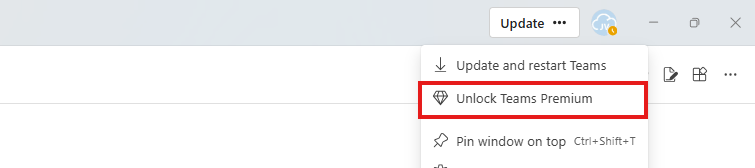
Let’s show how to disable this button. Disabling the button can take up to 48 hours to process and to see results at your end users’ clients, so a little patience is needed.
Option 1: Microsoft 365 Admin Center
Like I have already done in an earlier guide, we can disable self service licenses through the self-service trials menu in the Microsoft 365 admin center.
Open the Microsoft 365 admin center at https://admin.microsoft.com
Then go to “Settings”, then “Org settings” and search for “Self-service trials and purchases”. Then click on “Microsoft Teams Premium”
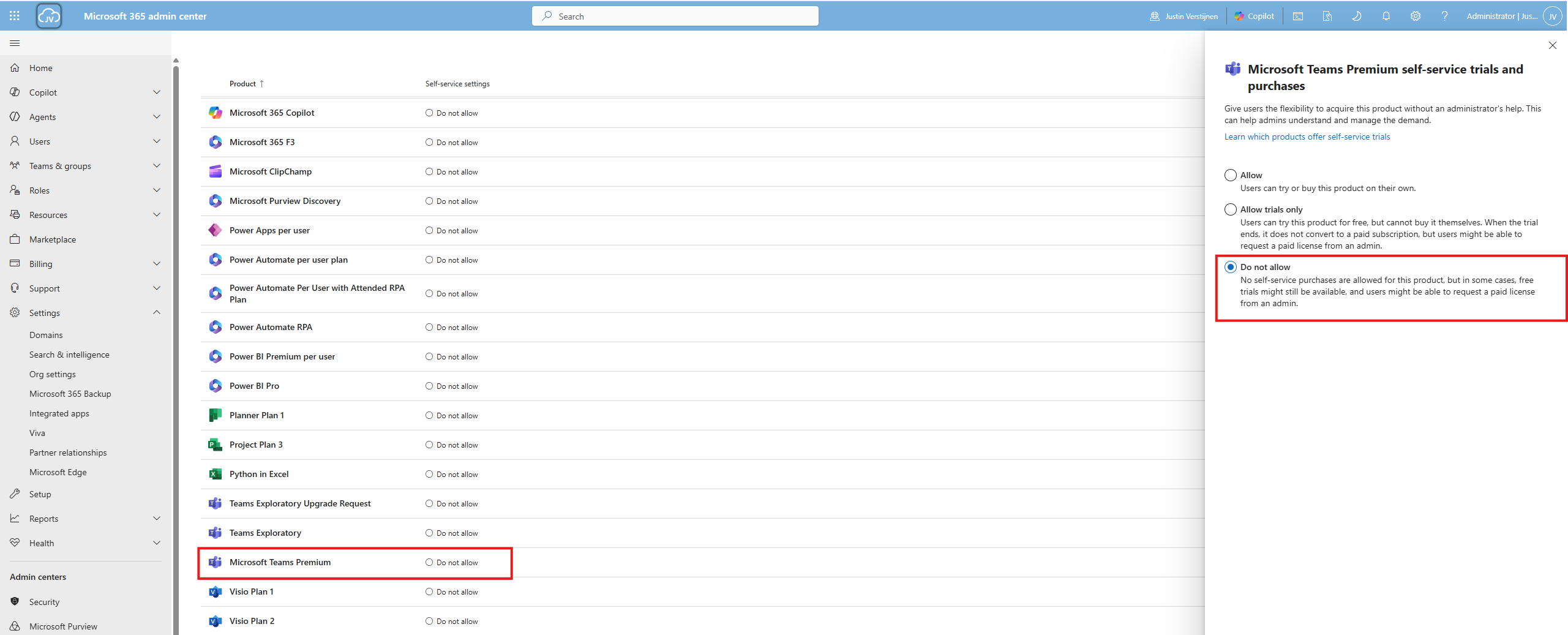
Then click on “Do not allow” and click “Save changes”. This will now be processed through your tenant.
Option 2: PowerShell
We can also disable this “Unlock Teams Premium” button with PowerShell and the MSCommerce module.
To install the MSCommerce PowerShell module, run:
Install-Module -Name MSCommerce -ForceAfter the installation has been completed, run this command to connect to your Microsoft 365 tenant:
Connect-MSCommerceAfter connecting to your tenant and finishing the authentication, run this block to set Teams Premium to Disabled:
Get-MSCommerceProductPolicies -PolicyId AllowSelfServicePurchase | Where-Object { $_.ProductName -like "*Teams Premium*" } | ForEach-Object { Update-MSCommerceProductPolicy -PolicyId AllowSelfServicePurchase -ProductId $_.ProductId -Enabled $false }Then you can check the current status again with PowerShell or in the Microsoft 365 Admin Center:
Get-MSCommerceProductPolicies -PolicyId AllowSelfServicePurchase | Where-Object { $_.ProductName -like "*Teams Premium*" }Again an note here that the processing time can take up to 48 hours for the button to be deleted in the Teams environment of end users.
Summary
Disabling self-service trials and purchases for Microsoft Teams Premium removes the “Unlock Teams Premium” button from Microsoft Teams for your users (or prevents it from appearing after refresh). It also helps you keep license trials from starting by accident and reduces support questions from users.
Thank you for reading this post and I hope it was helpful!
These sources helped me by writing and research for this post;
- https://learn.microsoft.com/en-us/microsoft-365/commerce/subscriptions/manage-self-service-purchases-admins?view=o365-worldwide
- https://learn.microsoft.com/en-us/microsoft-365/commerce/subscriptions/allowselfservicepurchase-powershell?view=o365-worldwide
- https://www.powershellgallery.com/packages/MSCommerce/3.0
End of the page 🎉
You have reached the end of the page. You can navigate through other blog posts as well, share this post on X, LinkedIn and Reddit or return to the blog posts collection page. Thank you for visiting this post.
Support the blog
