Disable users' self service license trials
Why should you disable trial licenses?
You can disable self service trial licenses if you want to avoid users to use un-accepted apps. This could result in shadow-it happening in your environment.
Let’s say, your company uses Zoom to call with each other, and users are starting to use Microsoft Teams. Teams then is an application not accepted by your organization and users then should not be able to use it. If you give them the possibility, they will. This all of course assuming you don’t have paid licenses for Microsoft Teams.
How to disable self service purchases - GUI
To disable those purchases from happening in the GUI, open up Microsoft 365 admin center.
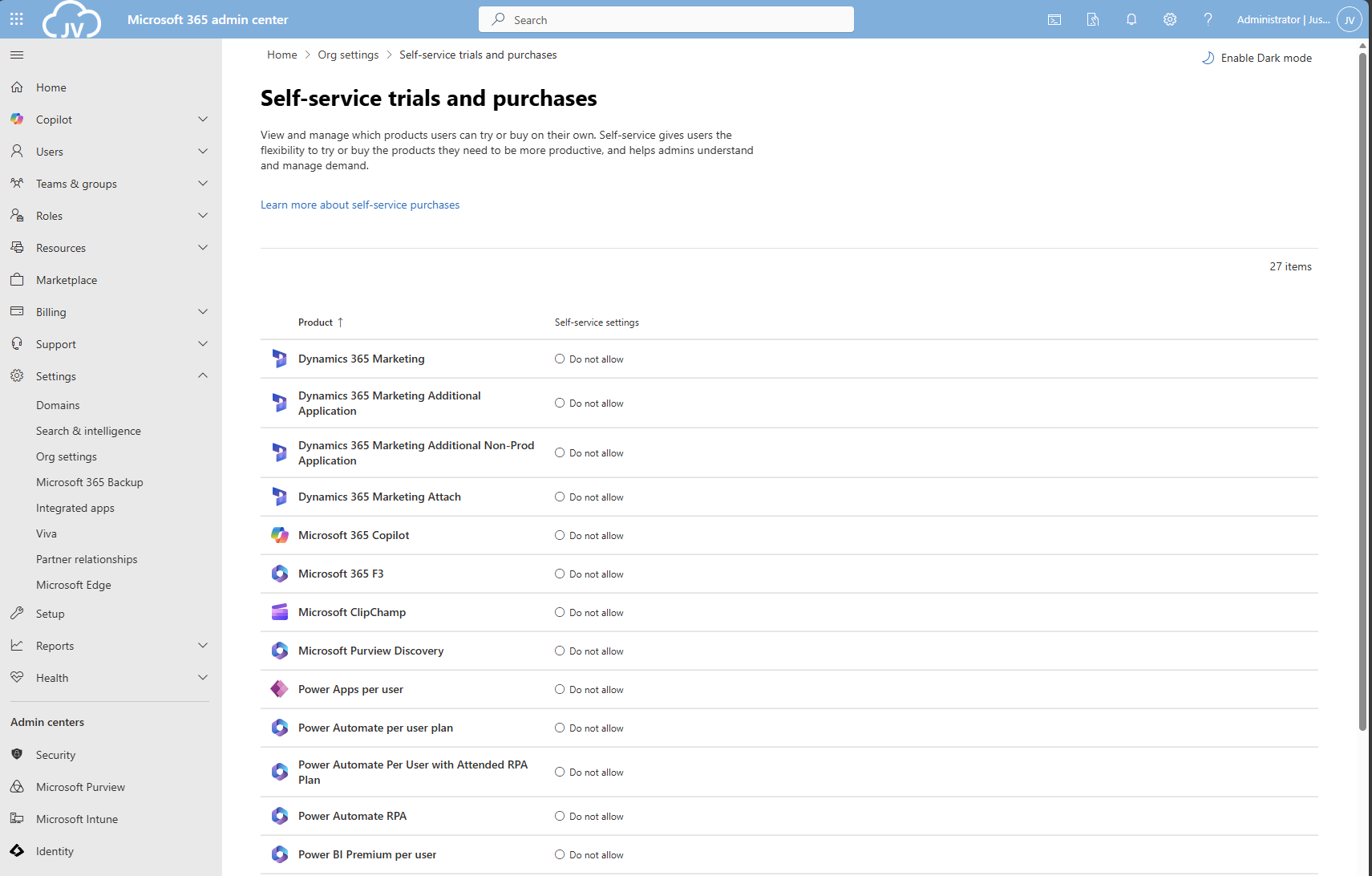
Then go to “Settings”, “Org settings” and then “Self-service trials and purchases”.
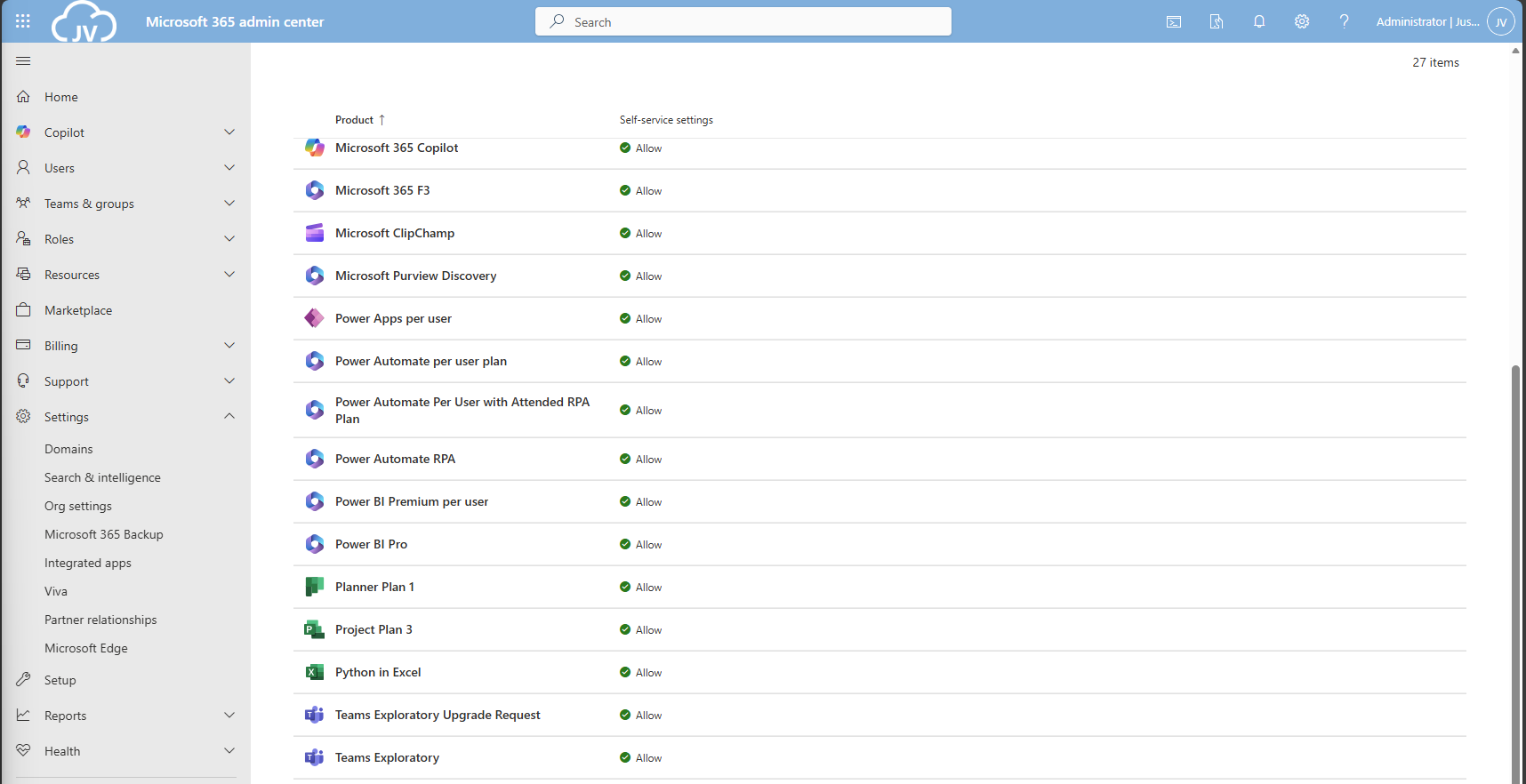
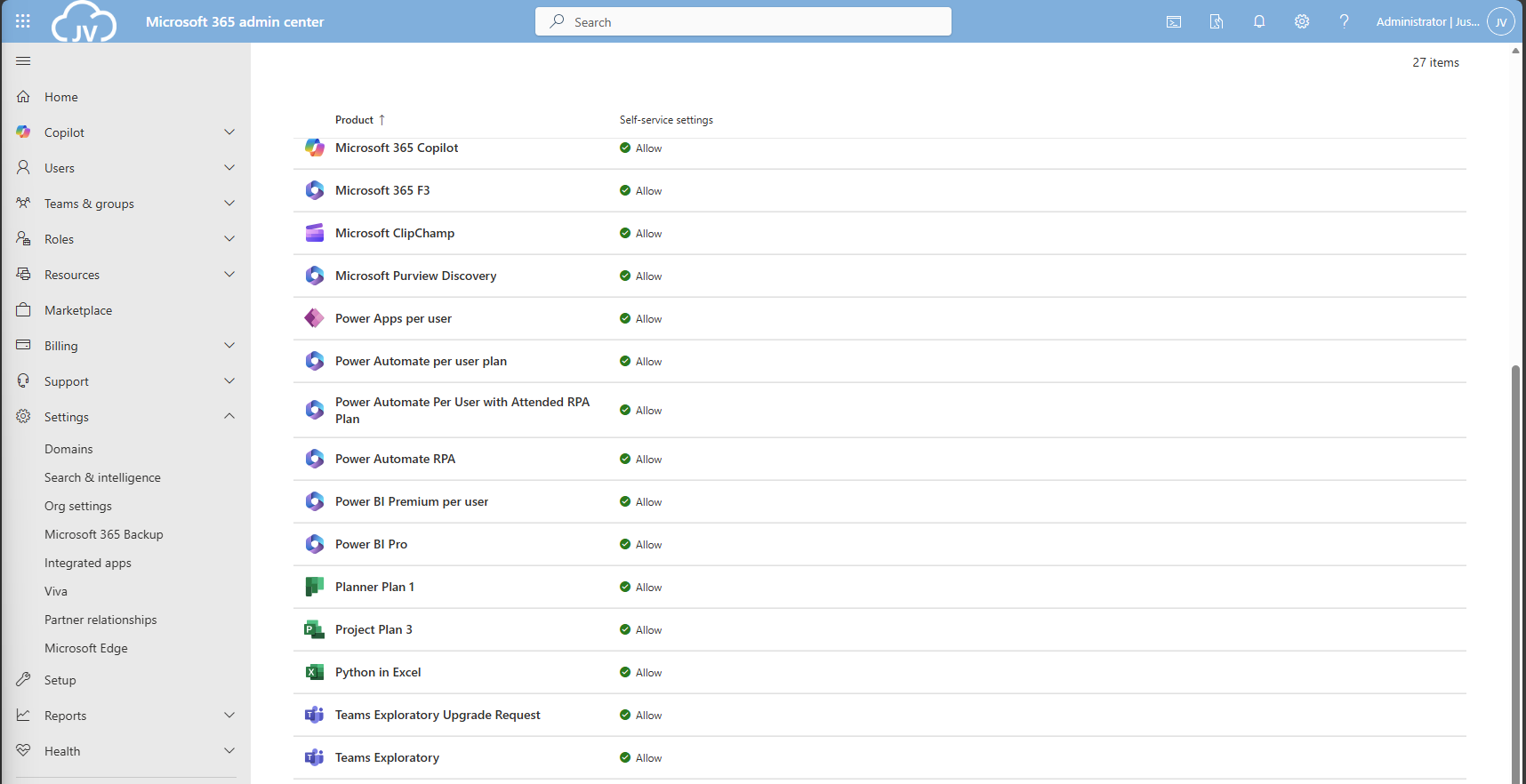
Here you get a list of all the possible products you could disable individually. Unfortunately, for disabling everything, you must do this manually for all (at the moment 27) items. The good thing is, PowerShell can actually do this for us.
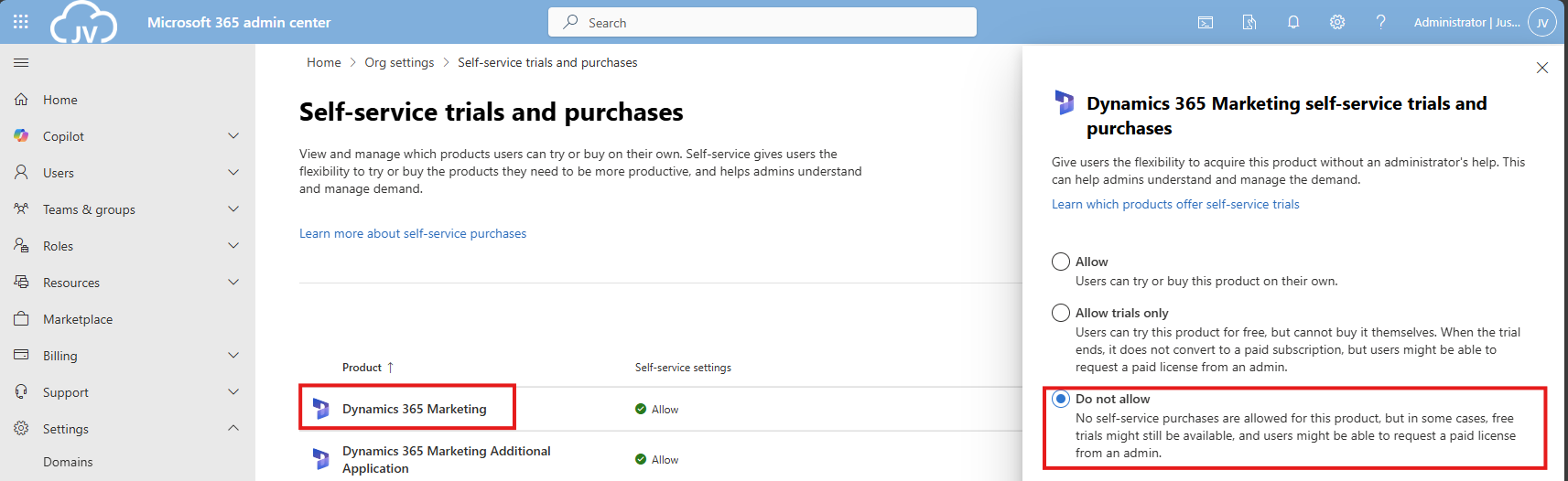
Click on your license to be disabled, and click on “Do not allow”. Then save the setting to apply it to your users.
How to disable self service purchases - PowerShell
There is a PowerShell module available that contains multiple options for billing and commerce options. This is the MSCommerce module, and can be installed using ths command:
Install-Module -Name MSCommerceAfter this module is installed, run this commando to login into your environment:
Connect-MSCommerceThen login to your environment, complete the MFA challenge and you should be logged in.
Run this command to get all the trial license options:
Get-MSCommerceProductPolicies -PolicyId AllowSelfServicePurchaseThis will return the list of all possible trial licenses, just like you got in the GUI.
To disable all trial licenses at once, run this:
Get-MSCommerceProductPolicies -PolicyId AllowSelfServicePurchase |
    ForEach-Object {
        Update-MSCommerceProductPolicy -PolicyId AllowSelfServicePurchase `
                                       -ProductId $_.ProductId `
                                       -Enabled $false
    }
PowerShell will now initiate a loop that sets the status of every license to “Disabled”:
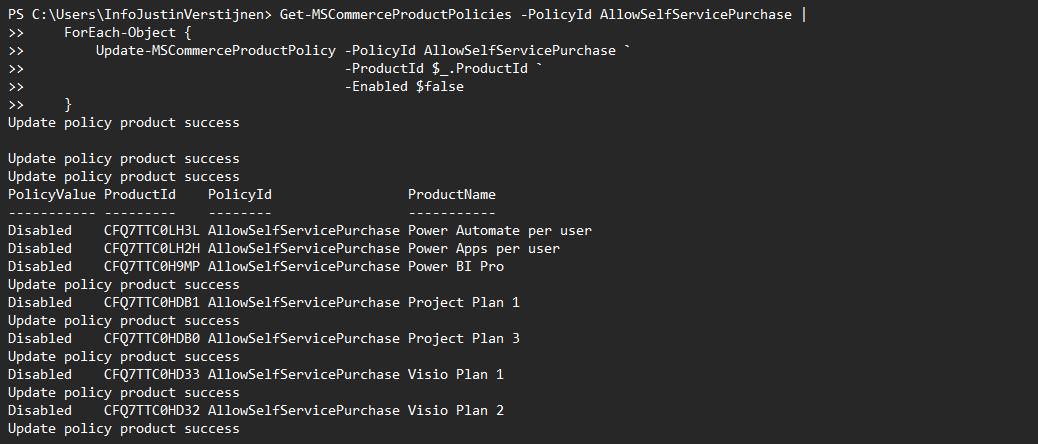
After the simple script has run succesfully, all trial license options should be disabled in the Microsoft 365 Portal:
And thank you once again PowerShell for saving a ton of clicks :)
Summary
Disabling the trial licenses is generally a good idea to avoid users from using services you don’t generally accept. You can technically still get trial licenses but an administrator has to approve them now by changing the status of the license.
Most of the time it’s better to use a paid license as trial, because you would have access to all features.
Thank you for reading this guide and I hope it was helpful.
These sources helped me by writing and research for this post;
End of the page 🎉
You have reached the end of the page. You can navigate through other blog posts as well, share this post on X, LinkedIn and Reddit or return to the blog posts collection page. Thank you for visiting this post.
Support the blog
