Dynamic group for access to Windows 365
Requirements
- Azure AD/Entra ID/Microsoft Graph Powershell module
- 10 minutes of your time
What are Dynamic Groups?
The Dynamic Groups feature of Microsoft Entra is a great tool for auto-managing members of a group based on a single rule or collection of rules. Some examples of using dynamic groups:
- Group for all users with the department “Office”
- Group for all users with or without a specific attribute
- Group for all users with a specific license assigned
Dynamic group don’t need any manual assignment or un-assignment. Instead of that, members will be automatically added based on the rules. Great feature for automation purposes!
Creating a dynamic group for acces to Windows 365
To create a dynamic group for every user which has a Windows 365 license assigned follow the following steps:
Go to the Microsoft Entra admin center (entra.microsoft.com)
Go to “Groups” and create a new group and select the membership type “Dynamic User”
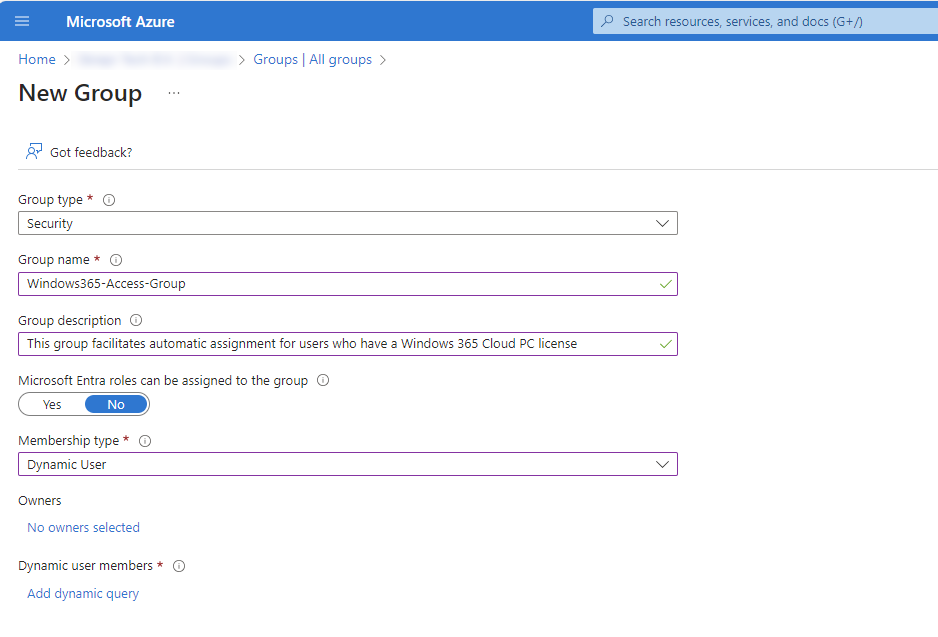
Now we have the group, we need to create the rules for the group to determine which users can be added. Click on “Add dynamic query” to configure the rules.
To filter on users with a specific assigned license, we need to use the “assignedPlans” property. The operator needs to be “Equals”.
Now at the “Value” field, we need to have the Service Plan ID of the license. Every Entra ID assignable license has an underlying Service Plan ID which represents the license. A list of all this Service Plan ID’a can be found here: https://learn.microsoft.com/en-us/entra/identity/users/licensing-service-plan-reference
In my environment, we have 2 types of Windows 365 licenses available:
| License type | ServicePlanId |
|---|---|
| Windows 365 Enterprise (2 vCPU / 8GB / 128GB) (non-hybrid benefit) | 3efff3fe-528a-4fc5-b1ba-845802cc764f |
| Windows 365 Enterprise (4 vCPU / 16GB / 128GB) (non-hybrid benefit) | 2de9c682-ca3f-4f2b-b360-dfc4775db133 |
Note: Every Windows 365 machine configuration has it’s own Service Plan ID, but the ServicePlan ID’s are globaly identical.
With this Service Plan ID now in place, we can complete the rule:
We use the And/Or option “Or” because the users has the license for 2vCPU/8GB or 4vCPU/16GB.
After creating the group, the group will contain only members who have one of this licenses.
How to find Service Plan ID’s in my environment?
Now is the page of Microsoft filled with every single Service Plan ID available which is a mess. You can find all Service Plan ID’s in your environment easily with Azure AD Powershell. I will tell you how.
Log into Azure AD with Powershell:
Connect-AzureADWe can find all licenses and referring Service Plan ID’s which your environment is subscribed to by using the following command:
Get-AzureADSubscribedSku | Select-Object -ExpandProperty ServicePlansYou can also search all Service Plans referring to Windows 365 Cloud PC with the following commands:
$searchstring = "*CPC*"
Get-AzureADSubscribedSku | Select-Object -ExpandProperty ServicePlans | Where-Object {$_.ServicePlanName -like $searchstring} | Select-Object ServicePlanId, ServicePlanName
You will get a output like this with the Service Plan ID’s you need.
ServicePlanId ServicePlanName
------------- ---------------
3efff3fe-528a-4fc5-b1ba-845802cc764f CPC_2
2de9c682-ca3f-4f2b-b360-dfc4775db133 CPC_E_4C_16GB_128GBSummary
Dynamic Groups are an excellent way to automating and securing your environment with the least administrative tasks possible. I hope I helped you a little bit by automating some more of your environment!
End of the page 🎉
You have reached the end of the page. You can navigate through other blog posts as well, share this post on X, LinkedIn and Reddit or return to the blog posts collection page. Thank you for visiting this post.
Support the blog
