Fix black-screen issues on Azure Virtual Desktop after Windows 11 Updates
What is the problem?
After installing KB5120998 or a later Windows update, some Azure Virtual Desktop users can sign in successfully but the Windows desktop does not load automatically.
The following symptoms can occur:
- A black screen appears directly after sign-in
- The Windows desktop and wallpaper does not load automatically
- The Application event log can show crashes of
explorer.exe
Microsoft states that the problem has mainly been observed on Azure Virtual Desktop session hosts using FSLogix. Existing user profiles seem to be affected more often than newly created profiles.
The issue affects Windows 11 version 24H2, Windows 11 version 25H2 and Windows 11 version 26H1. Windows Server is currently not listed/known as affected by this specific issue.
Source: https://learn.microsoft.com/en-us/windows/release-health/status-windows-11-25h2#5006msgdesc
In this post, I will give a temporary fix which helps minimize this problem. However, this is only possible through Group Policy at this time.
What is causing the black screen?
As we want to know the technical reason of this problem, the black screen itself is not caused by the Azure Virtual Desktop connection failing. The user is already signed in to Windows, but the Windows shell does not start correctly.
Microsoft has confirmed that the black screen is caused by explorer.exe crashing during shell startup. Explorer.exe is responsible for loading important parts of the Windows desktop, including the taskbar, Start menu and File Explorer.

When explorer.exe crashes during the sign-in process, the AVD session itself can remain active but Windows never finishes loading the desktop. This explains why manually starting explorer.exe from Task Manager can immediately make the desktop available again.
The issue has mainly been observed on Azure Virtual Desktop session hosts using FSLogix, and Microsoft states that it seems to occur more frequently with some existing user profiles.
At the time of writing, Microsoft has not published the root cause yet. It is confirmed that a Windows change introduced with update KB5120998 and included in subsequent updates can cause explorer.exe to crash during shell startup. Microsoft has also confirmed the higher occurrence in AVD environments using FSLogix, but has not documented exactly why FSLogix profiles trigger the problem more frequently. We hope to learn more from Microsoft in the near future.
Workaround 1: Apply the Known Issue Rollback
For environments where this happens too often, Microsoft has released a Known Issue Rollback package (KIR). A KIR disables only the Windows change which is causing the problem instead of uninstalling the complete Windows update. Microsoft provides a different KIR package depending on the Windows 11 version you use.
Windows 11 24H2 Windows 11 25H2 Windows 11 26H1
After downloading the package, proceed to the next steps.
Installing KIR package
Download the correct MSI package for your Windows version and install it on your management server which you use to manage Group Policy. From there install the MSI file:
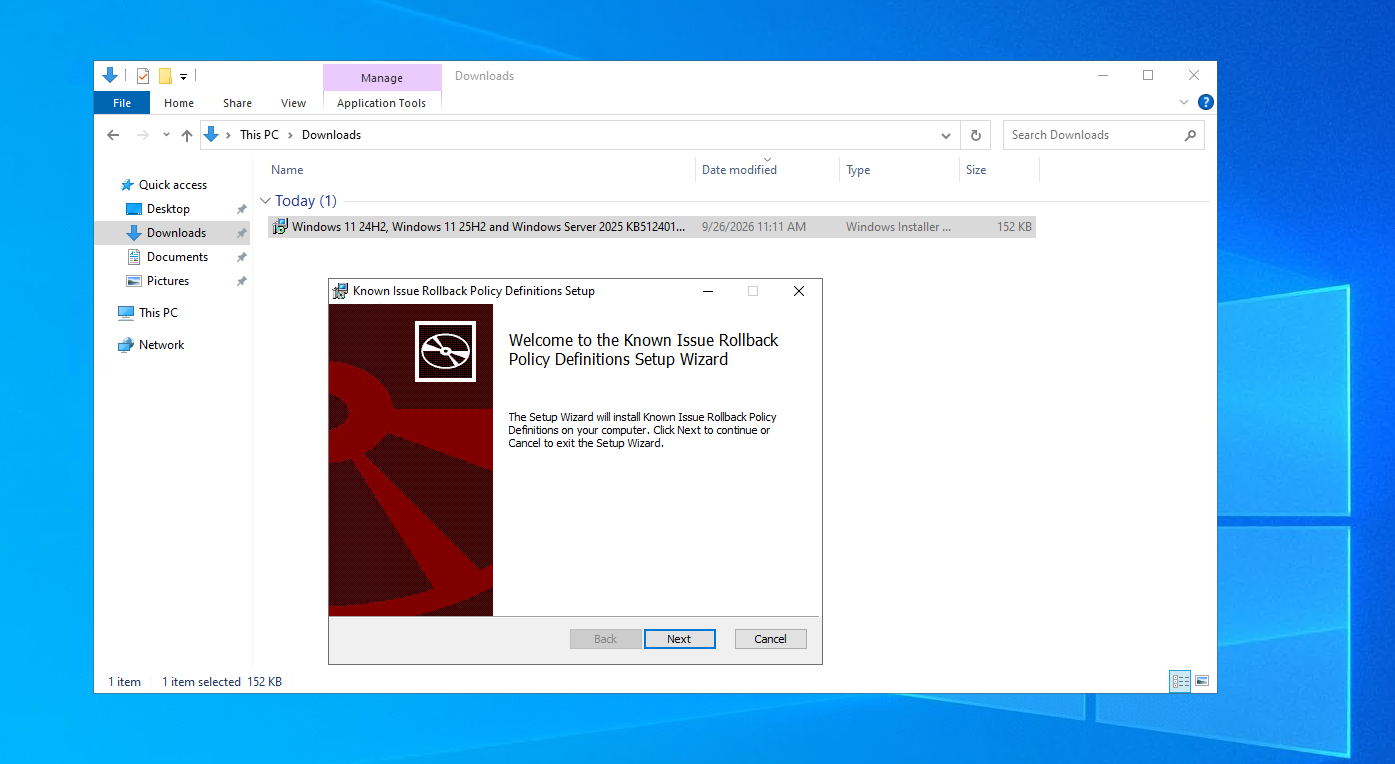
The policy definition will be installed in:
- C:\Windows\PolicyDefinitions
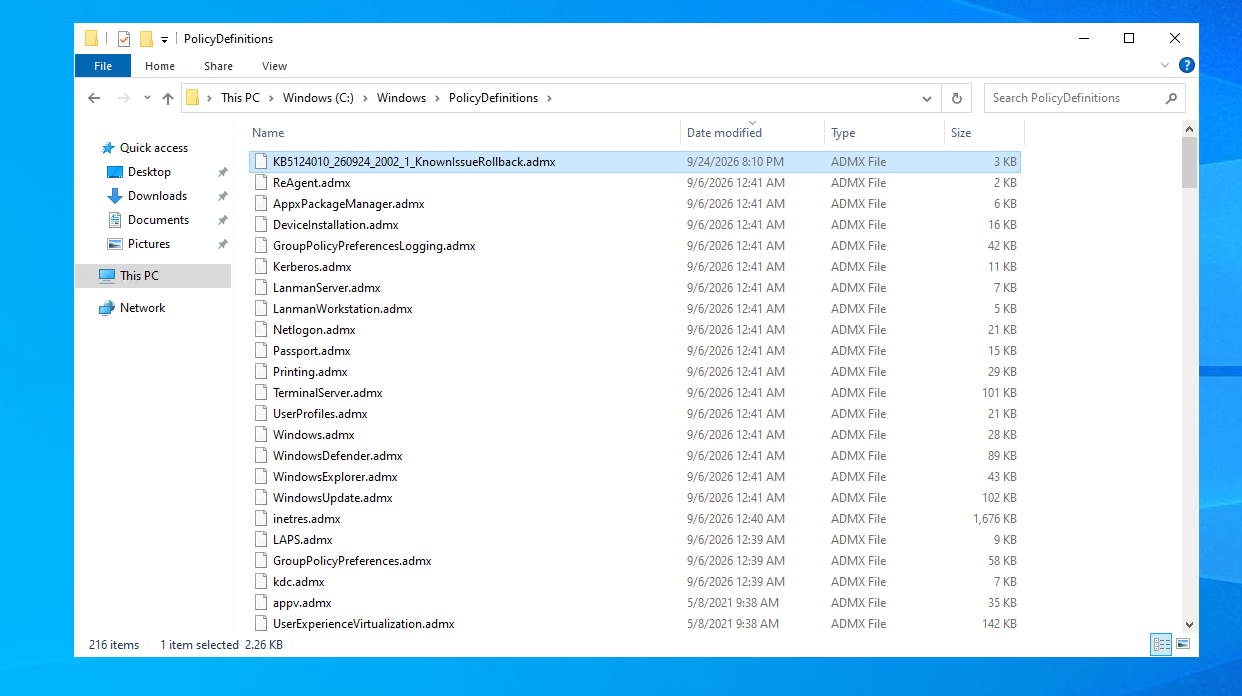
If you use a Group Policy Central Store, copy the installed ADMX and ADML files to your Central Store (\\domain.local\SYSVOL\domain.local\Policies\PolicyDefinitions\) as you would with other administrative templates. Search for the file named something like “KB5124010_260924_2002_1_KnownIssueRollback.admx” and adml and copy them to your central store if using this feature.
Creating Group Policy
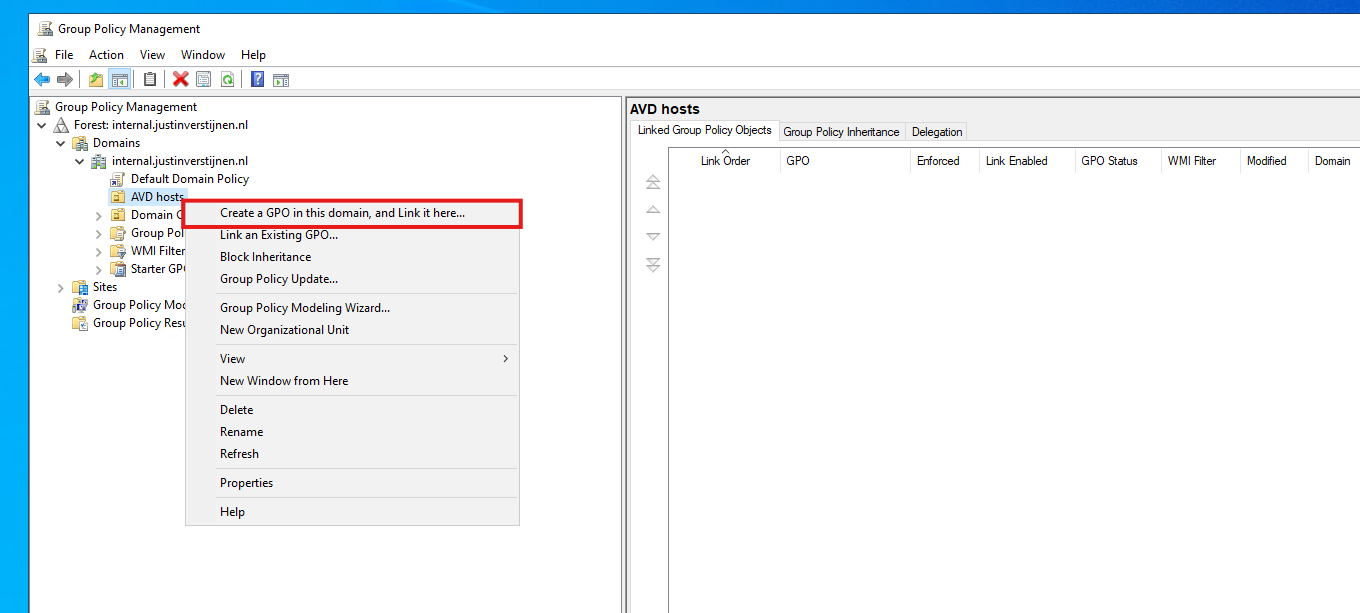
Now open the Group Policy Management Console (gpmc.msc) and create a new Group Policy or re-use an existing policy which is already assigned to your Azure Virtual Desktop session hosts. If creating a new policy, right-click the correct OU and click Create a GPO in this domain, and Link it here....
In the Group Policy Object, navigate to:
Computer Configuration - Policies - Administrative Templates - Known Issue Rollback policy installed by the KIR package
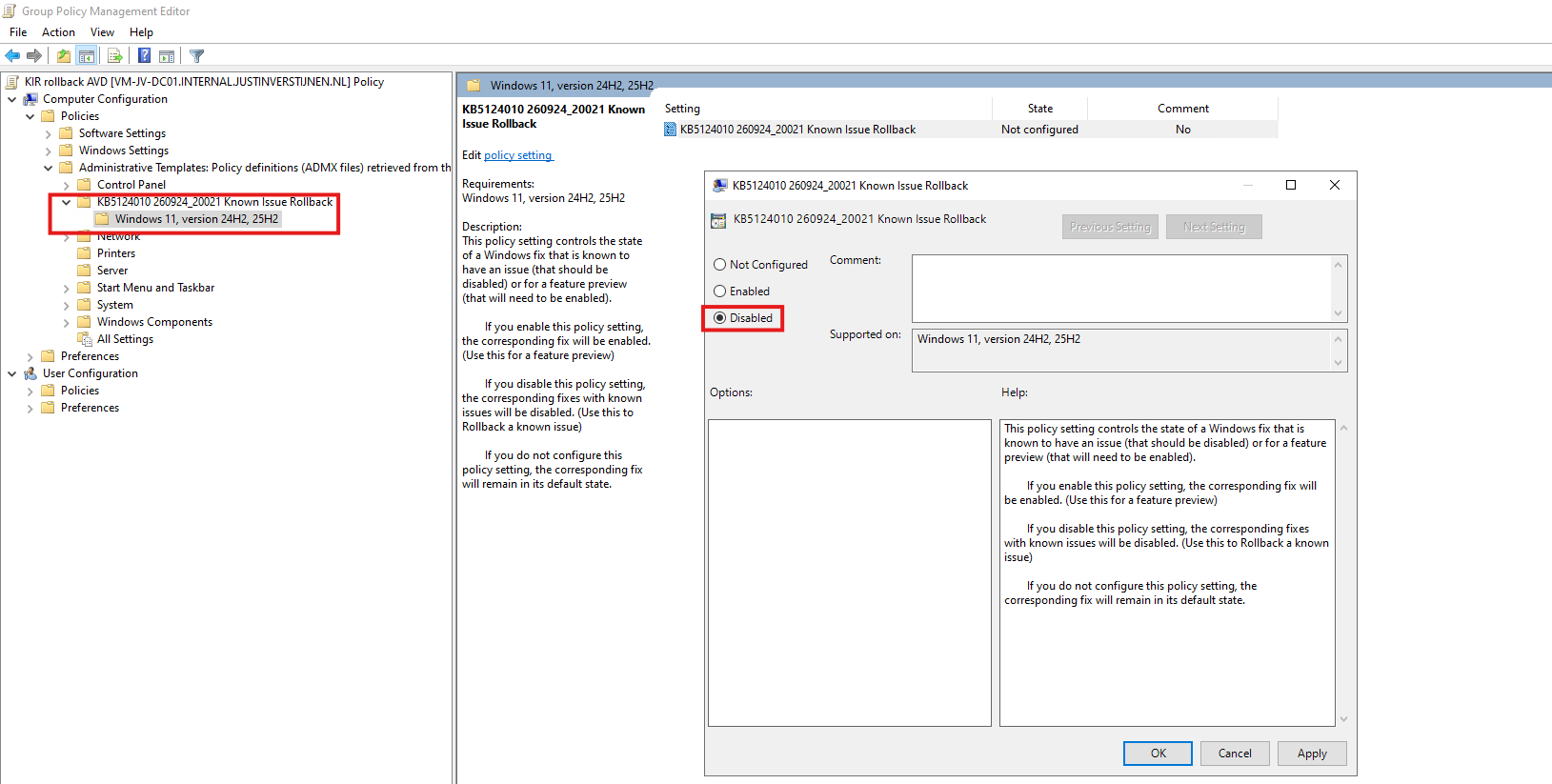
Open the rollback policy and set it to Disabled. This disables the Windows change which is causing the issue and therefore activates the Known Issue Rollback. Then save the Group Policy and apply it to the affected AVD session hosts.
You can force a Group Policy refresh on the client side using:
gpupdate /forceThen the session hosts must first be restarted after receiving the policy before the Known Issue Rollback becomes active.
The Known Issue Rollback is a temporary fix. Microsoft is working on a permanent resolution which will be released automatically in a future Windows update.
Workaround 2: Start Windows Explorer manually
A temporary workaround for an affected user is to manually start Windows Explorer after signing in. However this will work, this will not be our preferred way for end users to “fix” this problem.
On the black login screen. open Task Manager using:
- Ctrl + Shift + Esc
Click Run new task and enter:
explorer.exeClick OK and Windows Explorer should now start and the desktop should become available for the user. This is only a temporary workaround and must be repeated when the problem happens again at the next logon(s).
What about Microsoft Intune?
Microsoft also supports deploying Known Issue Rollback policies to Intune-managed devices. This is done using ADMX ingestion and a Custom configuration profile.
If your Azure Virtual Desktop session hosts are managed using Active Directory Group Policy, you can deploy the supplied KIR through Group Policy. If your AVD session hosts are managed through Microsoft Intune, Microsoft documents how to ingest the supplied ADMX policy and configure the rollback through a Custom profile.
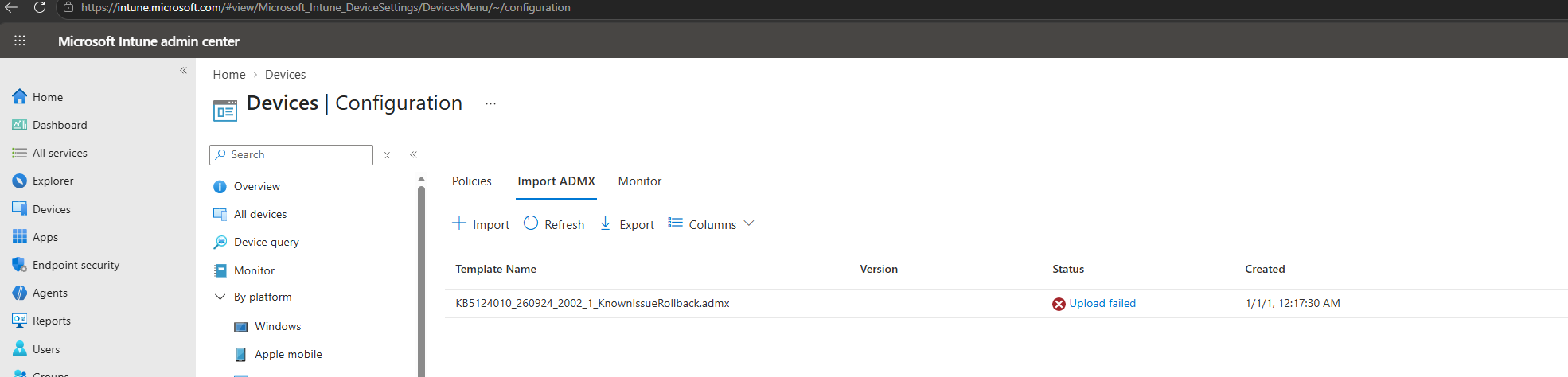
Uploading the ADMX and ADML files are yet not supported in this case. I tried this in my environment but got multiple errors. However, you could deploy the MSI package via Intune and configure the policy manually using gpedit.msc or just use the Custom profile option of Microsoft.
Summary
If users suddenly receive a black screen after signing in to Azure Virtual Desktop, and your session hosts are running Windows 11 with FSLogix, this known issue is something you should check first. Especially environments which installed KB5120998 or a newer Windows update can be affected.
For a temporary workaround, users can manually start explorer.exe from Task Manager. For centrally managed AVD environments, Microsoft provides a Known Issue Rollback which can be deployed to the affected session hosts, followed by a restart.
Once Microsoft releases a permanent fix, this KIR will no longer be necessary and this post will be obsolete.
Thank you for reading this post and I hope it was helpful!
These sources helped me by writing and research for this post;
- https://learn.microsoft.com/en-us/windows/release-health/status-windows-11-25h2#devices-might-experience-a-black-screen-or-desktop-loading-issues-after-sign-in
- https://learn.microsoft.com/en-us/troubleshoot/windows-client/group-policy/use-group-policy-to-deploy-known-issue-rollback
- https://learn.microsoft.com/en-us/windows/release-health/status-windows-11-25h2#5006msgdesc
End of the page 🎉
You have reached the end of the page. You can navigate through other blog posts as well, share this post on X, LinkedIn and Reddit or return to the blog posts collection page. Thank you for visiting this post.
Support the blog
