Fix Windows App grey screen after Windows 11 26H2 update
What is the problem?
Recently, I ran into an issue with Windows App after updating to Windows 11 26H2. When I opened Windows App, all I got was a blank grey screen. The application opened, but the sign-in screen or saved cloud resources never appeared.
I noticed the same behavior on multiple computers. Resetting Windows App, uninstalling it and installing it again did not solve the problem for me. As the issue happened before signing in, I decided to investigate the Windows App logs instead of troubleshooting the Azure Virtual Desktop infrastructure itself. No sign-in logs were being logged at Entra so this is something before the infrastructure itself. A client-side problem.
In this post, I’ll show you which logs I checked, how I verified the installed Microsoft Edge WebView2 version and what eventually solved the problem for me.
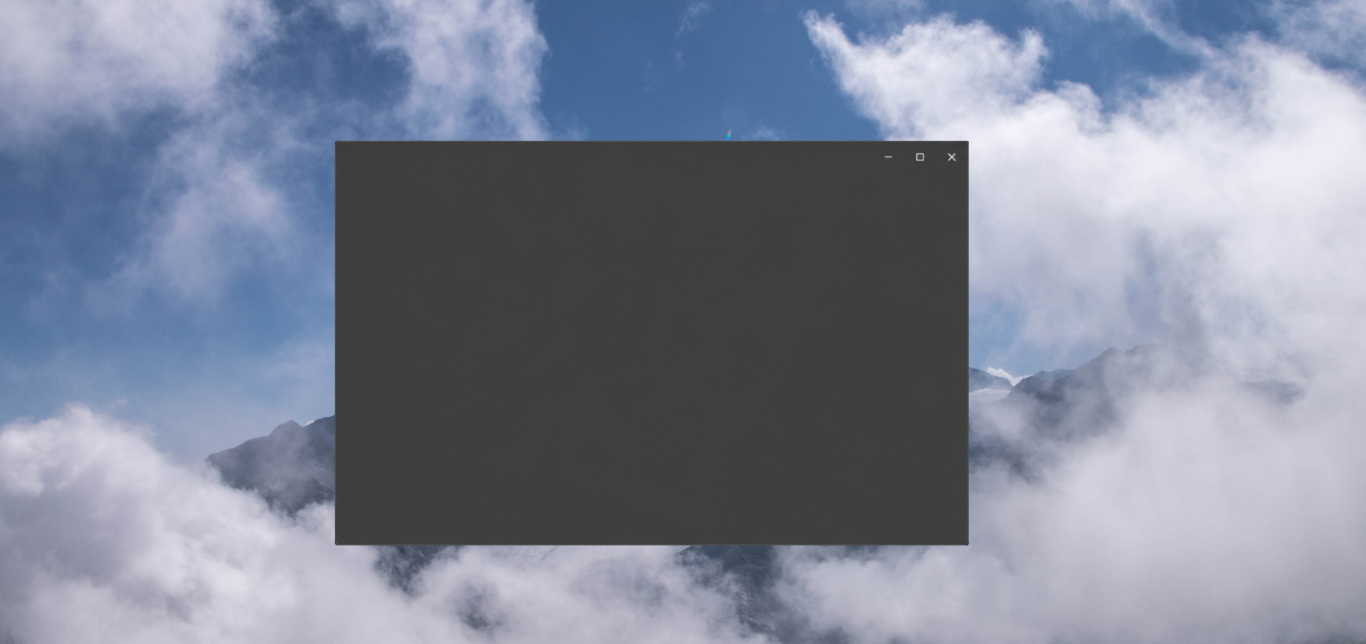
This was everything the Windows App showed in my case. Even after waiting for several minutes.
This issue occurred in the local Windows App before sign-in. It is not the same as a black screen inside an Azure Virtual Desktop session after signing in, which I posted last week: https://justinverstijnen.nl/fix-black-screen-azure-virtual-desktop-windows-11/
Step 1: Check the Windows App logs
As the Windows App did not show an error message, my first step was to check the application logs. I found the most detailed logs of this app not in the Event Viewer, but in this folder below:
%temp%\DiagOutputDir\Windows365\LogsOpen File Explorer, paste the path into the address bar and look for the log file named error.log.
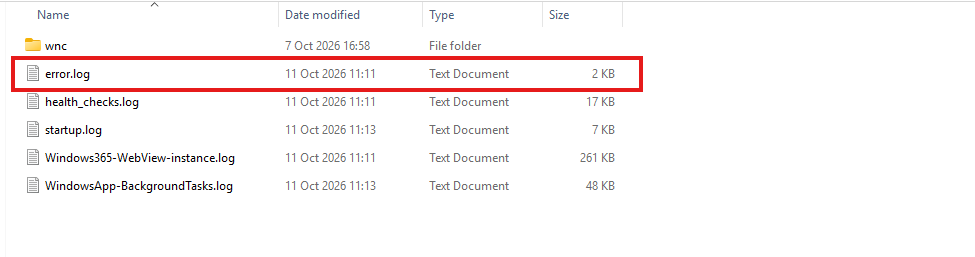
In my case, the following errors existed at the bottom of the file:
[2026-10-11 09:46:21.549] [async_logger] [error] [WebView2Host] Status=Failed;Message=Create Webview2 host failed with hresult:-2147024894
[2026-10-11 09:46:21.549] [async_logger] [error] Failed to create webview host for loading view.
The error code -2147024894 corresponds to 0x80070002, which means The system cannot find the file specified. This did not tell me exactly which file or path was missing, but the mention of WebView2Host gave me a useful direction for further troubleshooting. Webview2 could be the cause of the problems.
Step 2: Check the installed WebView2 version
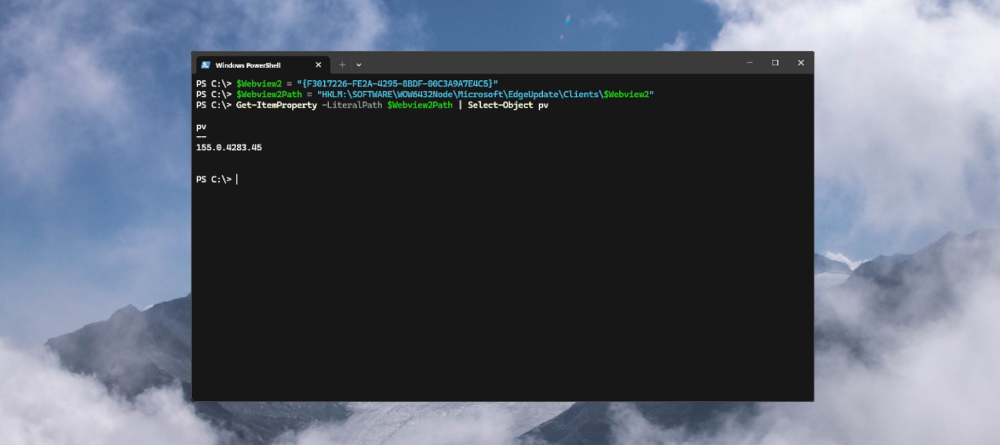
My next step was to check the registered version of Microsoft Edge WebView2 Runtime. I used the following PowerShell commands to pull the current version of Webview2 and also checks if Webview2 is correctly installed:
$Webview2 = "{F3017226-FE2A-4295-8BDF-00C3A9A7E4C5}"
$Webview2Path = "HKLM:\SOFTWARE\WOW6432Node\Microsoft\EdgeUpdate\Clients\$Webview2"
Get-ItemProperty -LiteralPath $Webview2Path | Select-Object pv
The pv value shows the registered WebView2 version which applications want to run in the background. In my case, PowerShell returned:
pv
--------------
154.0.4258.62
I then checked the WebView2 installation folder:
C:\Program Files (x86)\Microsoft\EdgeWebView\ApplicationOn the affected computers, the runtime files for version 155.0.4283.45 were present, while the registration from the registry still showed version 154.0.4258.62. This version difference was an important clue, although it did not by itself prove the cause of the grey screen but told me that this might be an issue if an application wants Webview to start version 154 but the computer only knows 155 and returned an error.
If the PowerShell command cannot find the registry path on your computer, it is most likely not installed, and you can follow the same steps as I do in this guide to install the newest version of Webview2.
Step 3: Update Microsoft Edge WebView2 Runtime
As Windows App could not create its WebView2 host, I decided to update the runtime using the official Microsoft installer to match the current version of Microsoft Edge which is 155.0.4283.45 at the time of writing.
Open the official Microsoft Edge WebView2 download page to start downloading the newest version of the software. Then scroll down to Evergreen Standalone Installer and download the correct installer for your PC. In most cases, this will be the x64 version.
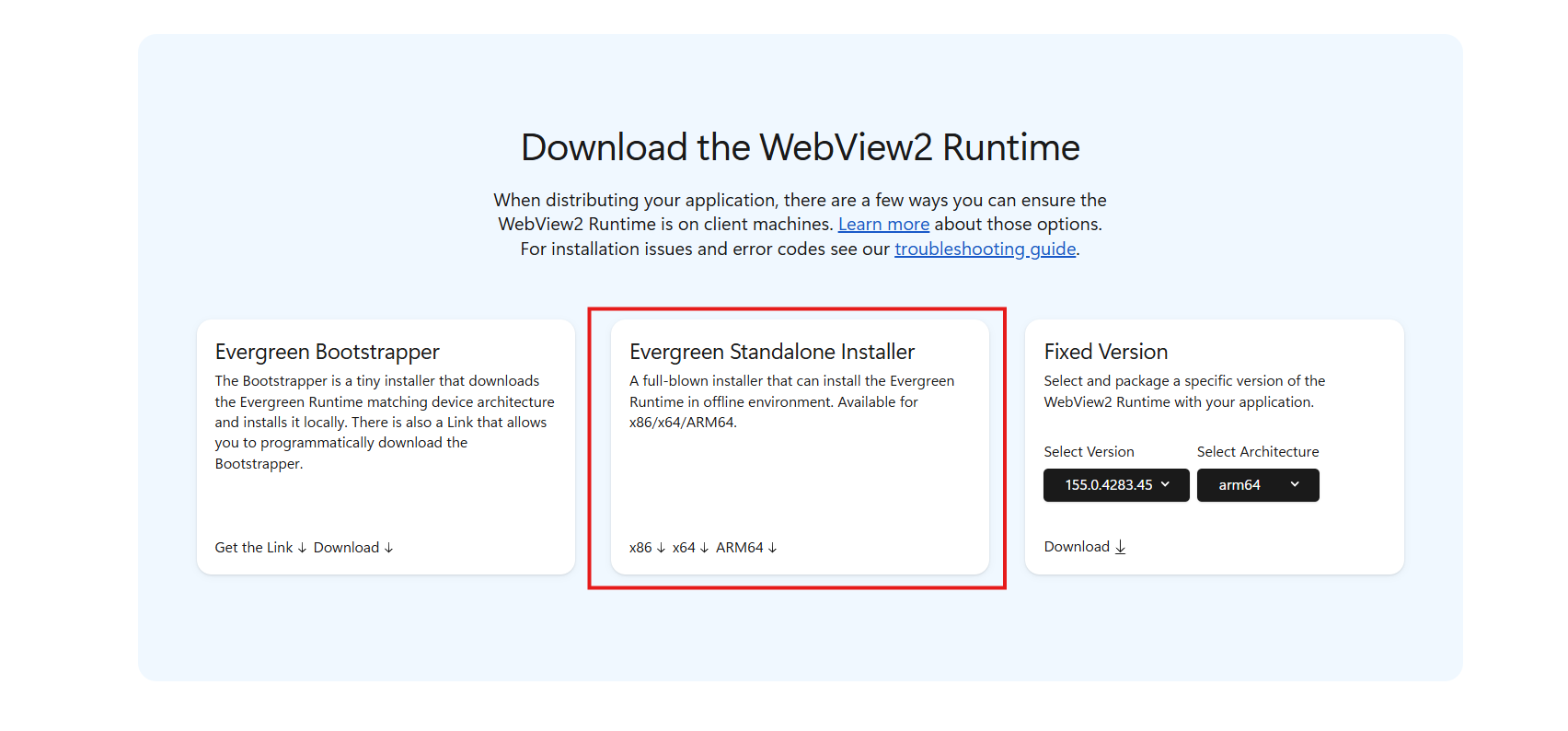
After downloading, right-click the downloaded installer and select Run as administrator and complete the installation.
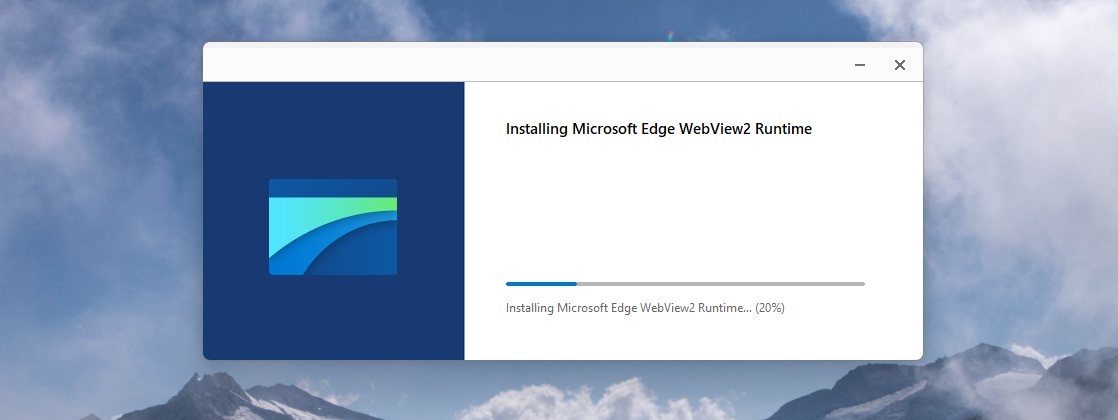
After running the Evergreen Standalone Installer as administrator, I checked the WebView2 version again with the same PowerShell command. This time, the registered version had been updated to 155.0.4283.45.
Step 4: Restart the computer and test Windows App
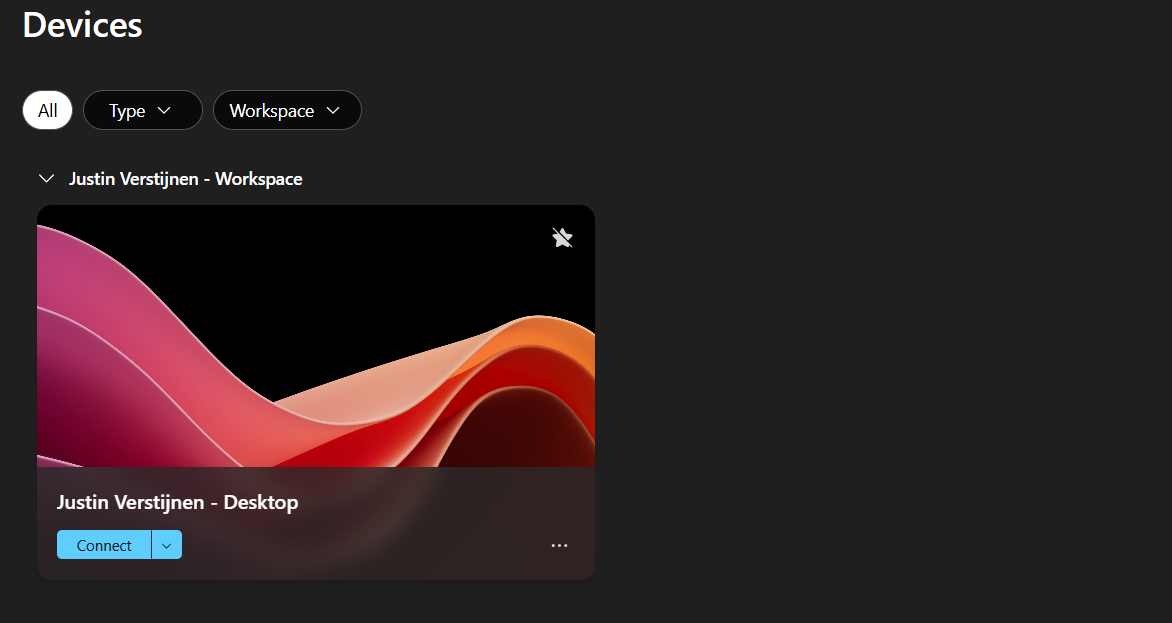
After the WebView2 update, I restarted the computer and opened Windows App again. This time, the grey screen was gone and the normal sign-in screen appeared. Windows App was working again, without needing to reset or reinstall it another time.
Summary
If Windows App suddenly opens with a blank grey screen after a Windows 11 update, it may be worth checking the Windows App logs and the registered Microsoft Edge WebView2 version before spending more time reinstalling Windows App.
In my case, Windows App failed to create its WebView2 host, the registered WebView2 version was still 154.0.4258.62, and the Evergreen Standalone Installer updated it to 155.0.4283.45. After restarting the computer, Windows App worked again for me.
This was the solution in my environment, but it does not necessarily mean it will solve the issue on every affected computer. A grey or blank Windows App window can have other causes as well. The error logs are the best place to start your own investigation, where I hope you get some specific error codes. You can also ask your favorite AI to help you out solving the problem but with caution of course.
The Windows 26H2 does not have to be the primary case of something similar happening, but in my environment, it was the case after 26H2 for some computers.
Thank you for reading this post and I hope it was helpful!
End of the page 🎉
You have reached the end of the page. You can navigate through other blog posts as well, share this post on X, LinkedIn and Reddit or return to the blog posts collection page. Thank you for visiting this post.
Support the blog
