Fixing CVE-2026-41089 on Windows Server
How would an attacker be able to use this? An attacker would send specially crafted Netlogon requests to a vulnerable server. By manipulating the way the Netlogon service processes these requests, the attacker may be able to trigger remote code execution (RCE) without requiring prior authentication. Something we must prevent at all costs.
The potential impact of this CVE being unresolved is:
- Remote code execution on the target server
- Full system compromise if the attack succeeds
- Privilege escalation to SYSTEM level access
- Lateral movement within the network
- Compromise of Active Directory infrastructure if a Domain Controller is affected
In this post I will quickly go through what systems are impacted and how you can install the required updates to remediate the vulnerability.
Affected Windows Server versions
The following updates are currently released by Microsoft for CVE-2026-41089:
| Windows Server Version | KB Number | PowerShell check |
|---|---|---|
| Windows Server 2025 | KB5087539 | Get-HotFix -Id KB5087539 |
| Windows Server 2025 Azure Edition / Hotpatch | KB5087423 | Get-HotFix -Id KB5087423 |
| Windows Server 2022 | KB5087545 | Get-HotFix -Id KB5087545 |
| Windows Server 2022 Azure Edition / Hotpatch | KB5087424 | Get-HotFix -Id KB5087424 |
| Windows Server 23H2 | KB5087541 | Get-HotFix -Id KB5087541 |
| Windows Server 2019 | KB5087538 | Get-HotFix -Id KB5087538 |
| Windows Server 2016 | KB5087537 | Get-HotFix -Id KB5087537 |
| Windows Server 2012 R2 ESU | KB5087471 | Get-HotFix -Id KB5087471 |
| Windows Server 2012 ESU | KB5087470 | Get-HotFix -Id KB5087470 |
To perform an all-in-one check that works on all Windows Server versions from 2012 and higher, use this command:
Get-HotFix -Id KB5087539,KB5087423,KB5087545,KB5087424,KB5087541,KB5087538,KB5087537,KB5087471,KB5087470This must return an update, where the number matches with the version of Windows Server:

This server is already patched, so shows the installed update.
Windows Server 2012 and 2012 R2 require an active ESU license via Azure Arc to receive these security updates. Without these licenses, they stay pretty vulnerable.
Step 1: Check if the update is already installed
Before installing updates manually, it is good to check if the KB is already present on the server. Lookup your version of Windows Server, and copy the KB number. Then open up PowerShell as Administrator and run:
Get-HotFix | Sort-Object InstalledOn -DescendingYou can also search directly for a specific KB number by using this command and changing the KB number on the end:
Get-HotFix -Id KB5087539Replace the KB number with the update matching your Windows Server version. If the update is installed already, PowerShell will return the installed update information. If PowerShell returns an error like the one below, then the update might not be installed yet, and action is needed.
Get-HotFix : Cannot find the requested hotfix on the ’localhost’ computer. Verify the input and run the command again.
If this shows the update without returning an error on all your servers, you are secured against this CVE.
Step 2: Install the Windows Update
The easiest and recommended way is through Windows Update or Azure Update Manager. In you like manual updates, you can use the Windows Server GUI or PowerShell for example to install the updates.
- Open Settings
- Go to Windows Update
- Click on “Check for updates”
- Install the latest cumulative update
- Reboot the server
For demonstration purposes, here I am installing the fix for Windows Server 2025 on my testing server:
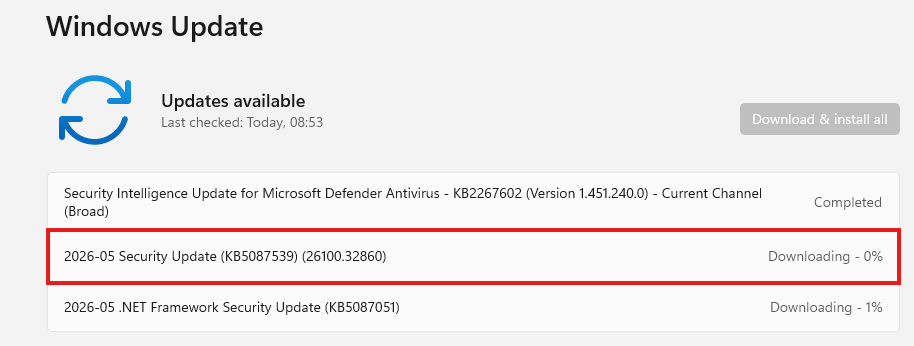
On older Windows Server versions like 2016 or 2019, use the classic Windows Update interface through Server Manager or Control Panel. If you manage multiple Azure or Arc-enabled servers, Azure Update Manager is a great option to deploy these updates centrally.
After installing the update, the server must be restarted to apply the patches and to secure you from this exploit.
Step 3: Check the installation
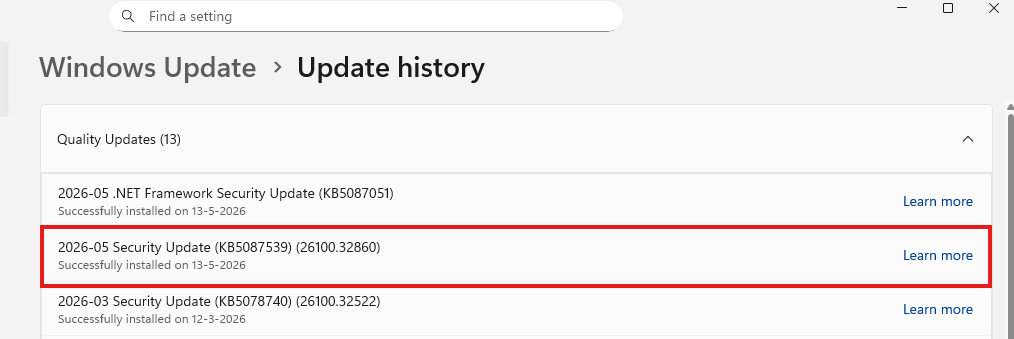
After rebooting the server, verify the KB installation again to confirm the installation was successful. Run the command you ran earlier too see if the correct update has been installed:
Get-HotFix -Id KB5087539If the update is installed correctly, you will see output similar to this:

You can also verify this through:
- Settings > Windows Update > Update history
- Control Panel > Programs and Features > Installed Updates
Summary
CVE-2026-41089 impacts multiple Windows Server versions and Microsoft already released security updates to mitigate the vulnerability. Installing the latest cumulative update for your Windows Server version is currently the recommended remediation. Installing the update like described in this guide is enough from defending you from at least this exploit. A huge recommendation is to use Azure Update Manager for your Azure VMs and Azure Arc joined servers.
The installation itself is relatively straight forward, but always validate the update afterwards and test important workloads after rebooting production systems. If this update wasn’t installed by now, I would highly recommend reviewing your updating processes, as its not worth waiting so long for vulnerabilities to be actively abused and then fix it. A good updating process will fix many things before they can be abused.
Thank you for reading this post and I hope it was helpful!
These sources helped me by writing and research for this post;
End of the page 🎉
You have reached the end of the page. You can navigate through other blog posts as well, share this post on X, LinkedIn and Reddit or return to the blog posts collection page. Thank you for visiting this post.
Support the blog
