FSLogix and maximum Azure Files security
The Maximum Security preset in the Azure Portal
We can also run the SMB security on the Maximum security preset in the Azure Portal and still run FSLogix without problems. In the Azure Portal, go to the storage account and set the security of the File share to “Maximum security”:
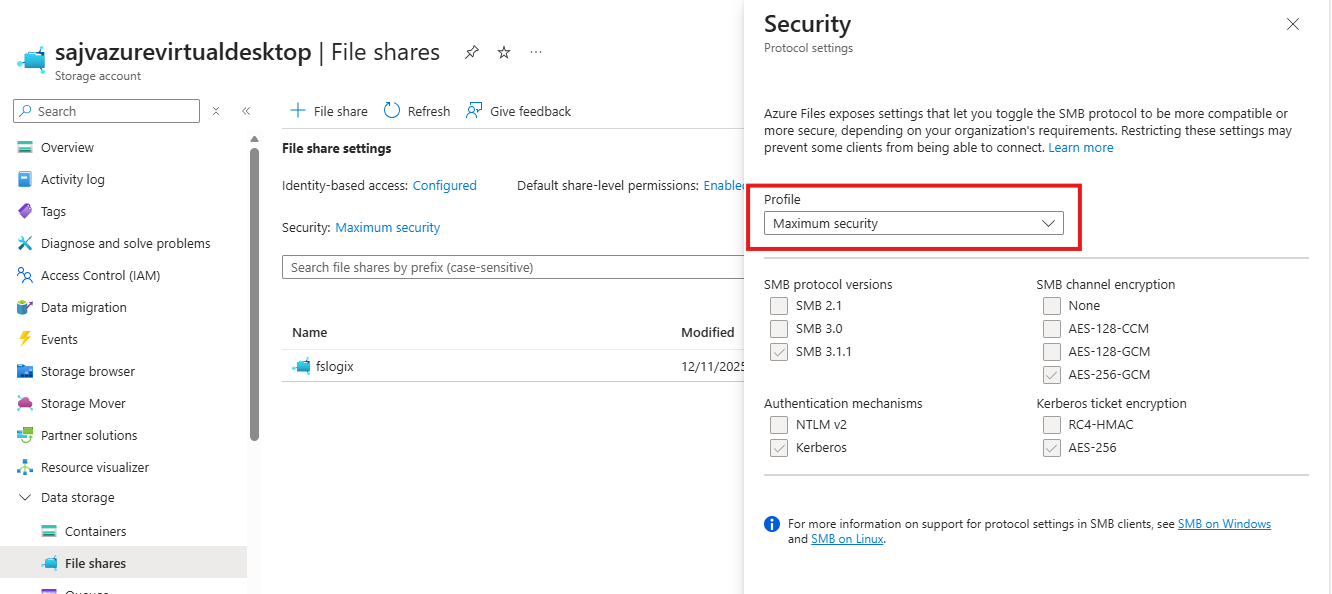
This will only allow the AES-256-GCM SMB Channel encryption, but Windows 11 defaults to the 128 version only. We now have to tell Windows to use the better secured 256 version instead, otherwise the storage account blocks your requests and logging in isn’t possible. I will do this through Intune, but you could do this with Group Policy in the same manner or with PowerShell.
Set-SmbClientConfiguration -EncryptionCiphers "AES_256_GCM" -Confirm:$falseConfigure SMB Encryption with Microsoft Intune
Go to the Intune Admin center (https://intune.microsoft.com). We need to create or change an existing policy in Intune to configure these 2 settings. This policy must be assigned to the Azure Virtual Desktop hosts.
Search for these 2 settings and select the settings:
- Administrative Templates -> Network -> Lanman Workstation
- Setting name: Cipher suites
- Lanman Workstation
- Setting name: Require Encryption
Both of these options are in different categories in Intune, altough they partly work with each other to facilitate SMB security.
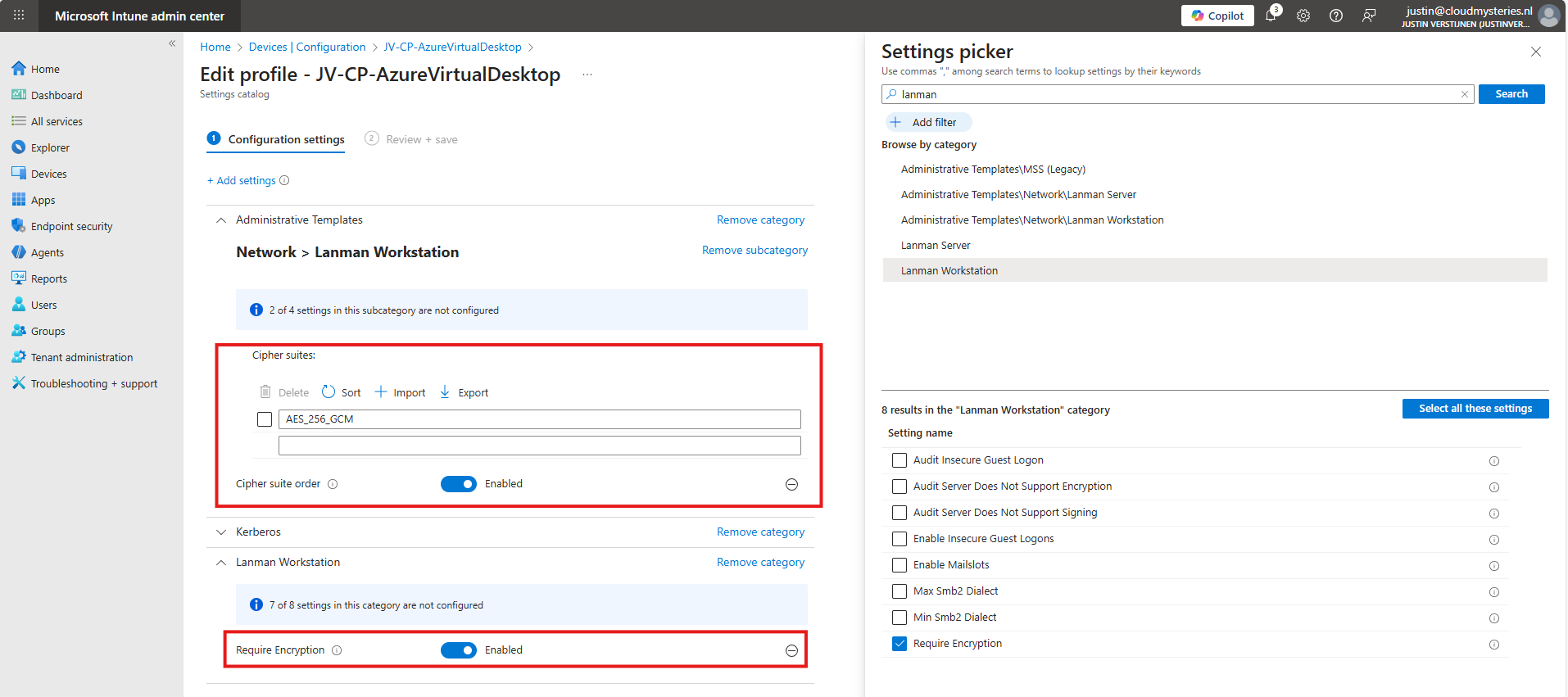
Set the Encryption to “Enabled” and paste this line into the Cipher Suites field:
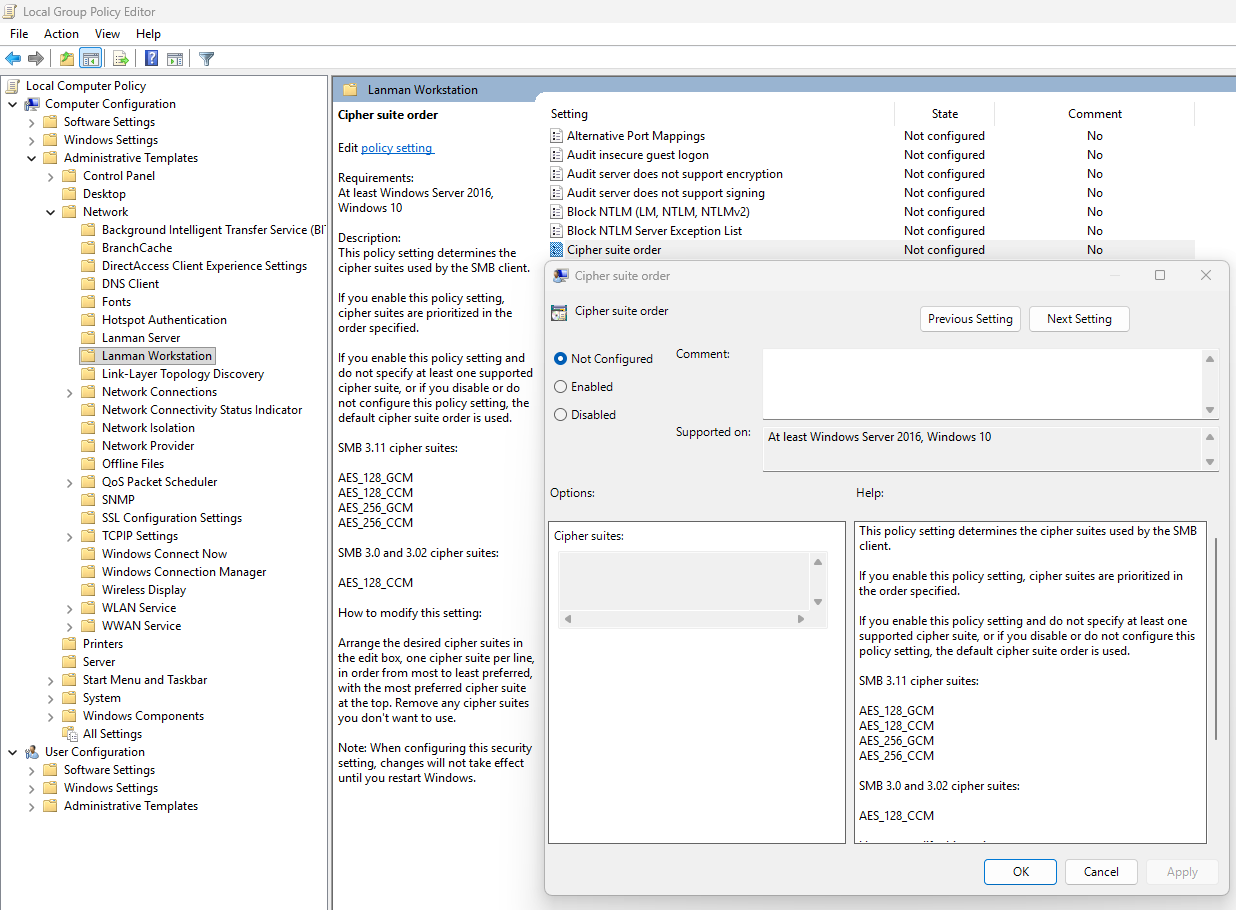
AES_256_GCMIf you still want to use more ciphers as backup options, you can add every cipher to a new item in Intune, where the top Cipher is used first.
AES_256_GCM
AES_256_CCM
AES_128_GCM
AES_128_CCM
This is stated by the local group policy editor (gpedit.msc):
After finishing this configuration, save the policy and assign it to the group with your session hosts. Then reboot to make this new changes active.
Let’s test the configuration
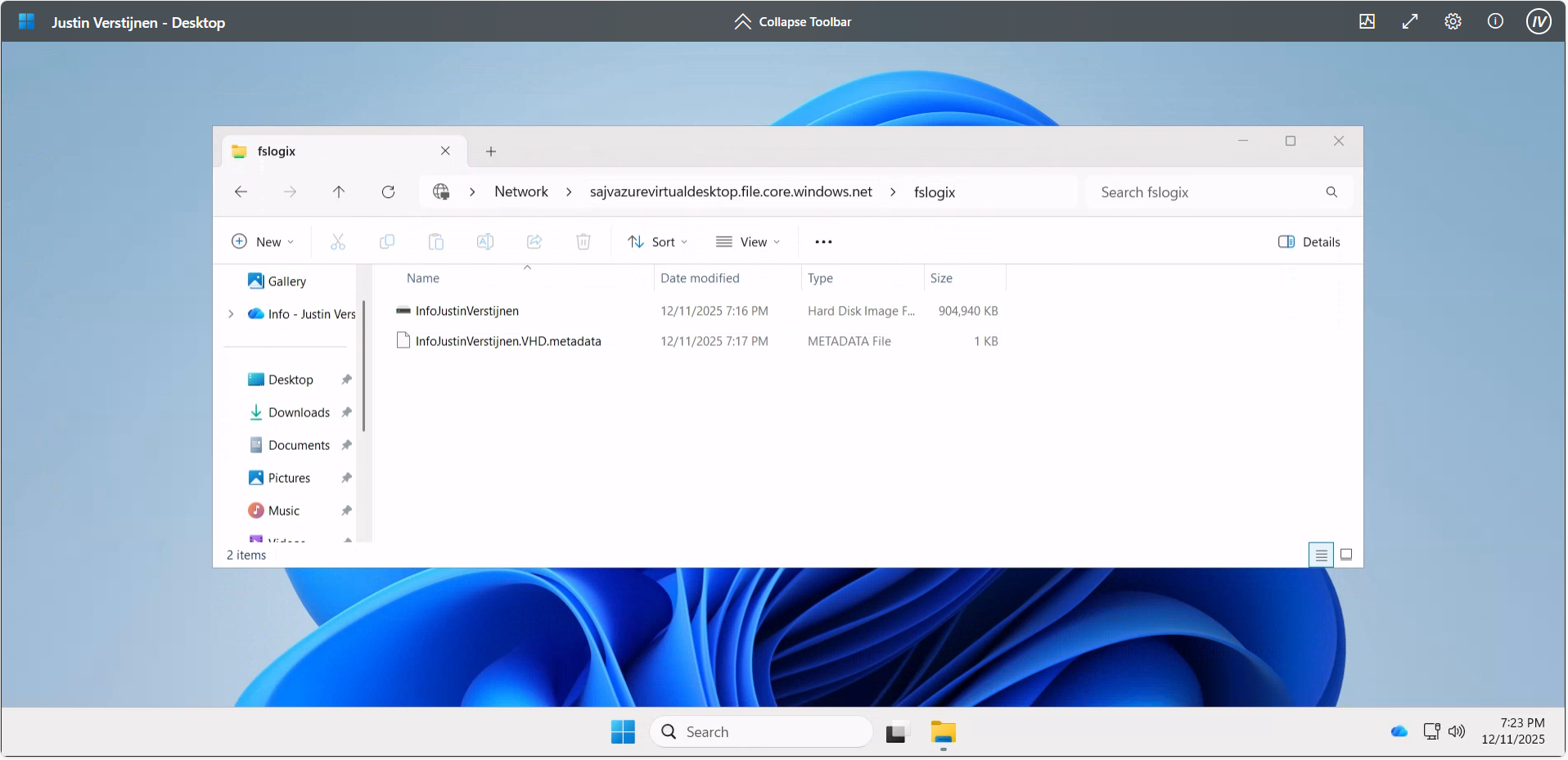
Now that we have set the configuration, I have rebooted the Azure Virtual Desktop session host, and let the Intune settings apply. This was seconds after reboot. When logged into the hostpool the sign in was working again, using the highest SMB ecryption settings:
Knowledge check
This quiz needs JavaScript to show the questions and feedback.
Summary
The Maximum security preset for Azure Files applies the most restrictive security configuration available to minimize the attack surface. It enforces:
- Private network access only
- Encryption for data in transit
- Strong authentication and authorization controls (such as Entra-based access with Kerberos only) and blocks older SMB and NTLM protocols
This preset is intended for highly sensitive workloads with strict compliance and security requirements.
Thank you for reading this guide and I hope it was helpful.
These sources helped me by writing and research for this post;
End of the page 🎉
You have reached the end of the page. You can navigate through other blog posts as well, share this post on X, LinkedIn and Reddit or return to the blog posts collection page. Thank you for visiting this post.
Support the blog
