How to completely hide language bar/selector Windows 11
One of the small things I experienced in one of the updates for Windows 11 (24H2) is that the language bar/selector get’s automatically visible on the Windows taskbar. In previous versions of Windows, this was only available when using multiple keyboard languages.
Because this can get very annoying, I researched on how to disable this button to clean up our taskbar and only use it for the applications and space we need.
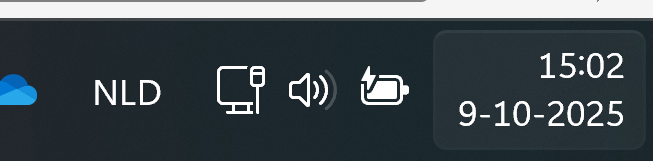
Cause of appearance
In most cases, this button will appear automatically when more than 1 language is installed in Windows. However, after one of the updates for 24H2, it appeared for me on multiple PC’s. Especially the PC’s which were installed with the Dutch language.
When using the Dutch language, we also have to configure “United States International” as keyboard layout, or we get issues with some of the symbols.
How I removed the button
Initially, I started with browsing on the internet how to disable this button ans they all pointed to this registry key:
- Computer\HKEY_CURRENT_USER\Software\Microsoft\CTF\LangBar
And set the value for “ShowStatus” to 3. However, this didn’t work for me, but you can try this by running this command in PowerShell:
Set-ItemProperty -Path "HKCU:\Software\Microsoft\CTF\LangBar" -Name "ShowStatus" -Value 3The way I finally manage to disable the button is to run these commands.
First run this command. This disables the Input manager which loads the language switcher:
New-ItemProperty -Path "HKCU:\Software\Microsoft\CTF" -Name DisableThreadInputManager -PropertyType DWord -Value 1 -ForceThen run this command to disable the startup item for the Text Services Framework:
reg delete "HKCU\Software\Microsoft\Windows\CurrentVersion\Run" /v "ctfmon.exe" /fSummary
Because I want to share how I solved the problem doesn’t mean you should actually do this. Running these commands can interrupt some of your systems’ functions or other components. So only run them if you are familiar with your computer and be able to be up and running within an hour in case this happens.
If you managed to run the commands, I hope I helped you to get rid of this annoying bar :).
End of the page 🎉
You have reached the end of the page. You can navigate through other blog posts as well, share this post on X, LinkedIn and Reddit or return to the blog posts collection page. Thank you for visiting this post.
Support the blog
