How to repair faulty Windows in 5 steps
Windows and Windows Server installations can in some rare cases become unstable after failed updates, corrupted system files, missed backups disk issues or unexpected shutdowns. In my experience, Windows Client systems are less stable than Windows Server systems, as client systems are more used by end-users who not always fully shutdown their PC’s
In this guide I will show 5 repair steps I often use to get Windows systems working again before going for a full reinstall. However, always think of yourself at this point if you want to repair and take the risk of future (new) problems, or if a reinstallation may take 1 or 2 hours it may be better to directly re-install Windows.
All commands mentioned in this guide should be run in an elevated PowerShell or Command Prompt window.
Step 1: Create back-ups (optional)
Before starting this guide, I want you to give an advice from one IT guy to another. If you ever find yourself in a situation of an unstable Windows machine, please start off by creating backup of important data and applications. It may now be the time to do it.
In my IT career I have seen many cases of systems running unstable for a random period and also randomly stopped working. When you can still access the system and you are unclear if you have a reliable backup, create this at this point.
While I want to help you recovering your Windows installation, I can not fully guarantee that the system will function better after following these steps. In most cases it will, but a warned human is worth more.
Step 2: Repair the Windows image using DISM
We want to follow Microsoft’s advice and start with the DISM Restore command. DISM checks and repairs the Windows component store and often the first thing to run when Windows updates or system files are broken.
Open “Command Prompt” or “PowerShell” as Administrator and run this command:
DISM /Online /Cleanup-Image /RestoreHealthThis process can take some time depending on the system performance, size/workload and damage to the image. In most cases, it’s finished within 15 minutes.
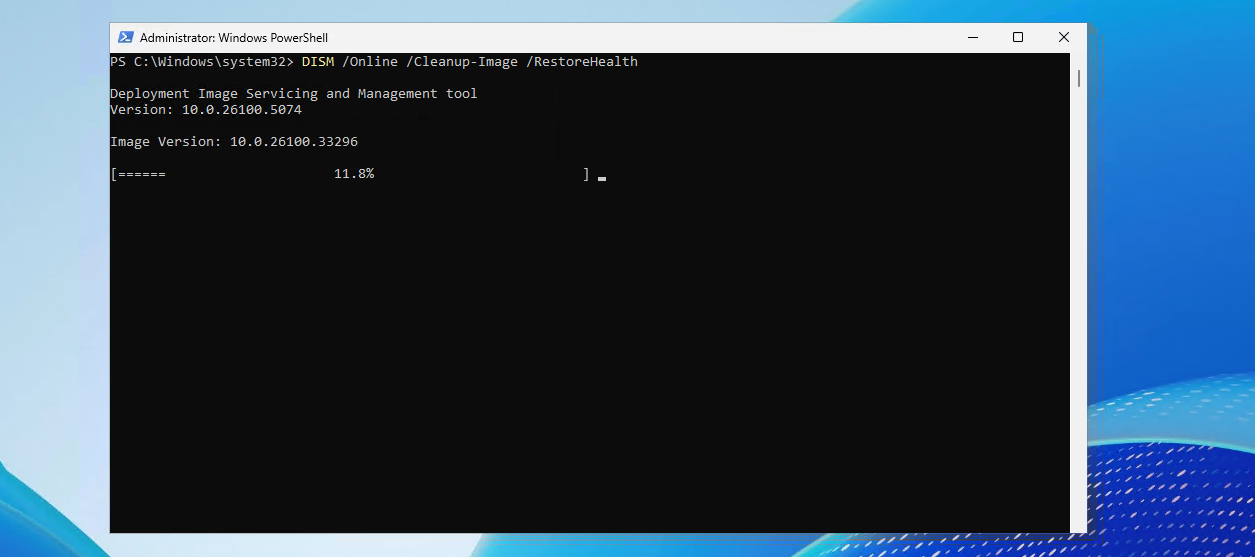
If the repair finishes, it will show you what it found/repaired or nothing is found at all. Then continue with the next step.
Step 3: Scan and repair system files using SFC
Now that the Windows image itself has been repaired, we can check the actual system files.
Open “Command Prompt” or “PowerShell” as Administrator (or re-use the previous window) and run:
SFC /scannowThe System File Checker scans protected Windows files and replaces corrupted versions automatically.
When finished, you will get one of these results:
- Windows Resource Protection did not find any integrity violations
- Windows Resource Protection found corrupt files and successfully repaired them
- Windows Resource Protection found corrupt files but was unable to fix some of them
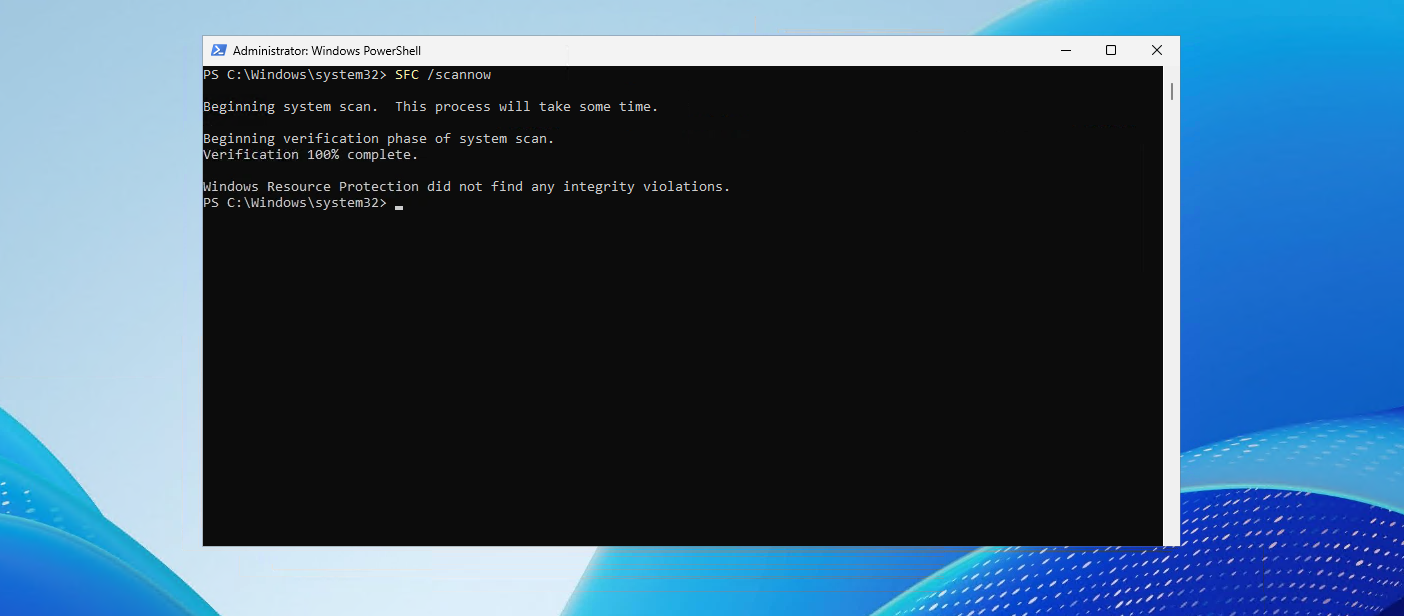
If Windows could not repair some files, reboot the machine and run the command again.
Step 4: Check the disk for file system or sector issues
If Windows is still unstable, the storage itself could contain corruption or damaged sectors. We can also issue a disk check where Windows can check the partitions and fix possible problems.
Open “Command Prompt” or “PowerShell” as Administrator and run:
chkdsk C: /fThis command repairs file system errors on the C: drive. If the drive is currently in use, Windows will ask to schedule the scan during the next reboot, so this must be done outside of possible office hours.
You can also run a more aggressive disk scan which additionally checks for bad sectors:
chkdsk C: /f /rThe /r option can take a very long time on large or damaged disks.
After the reboot and disk check are finished, log back into Windows and verify if the problems are resolved.
Step 5: Reset the Windows Update components
A broken Windows Update cache can cause failed updates, endless update loops or missing system repairs.
First we need to stop the Windows Update related services which can be done with these commands:
Open “PowerShell” as Administrator and run:
Stop-Service wuauserv
Stop-Service bits
Stop-Service cryptsvc
Now remove the SoftwareDistribution cache folder contents running this command:
Remove-Item -Path "C:\Windows\SoftwareDistribution\*" -Recurse -ForceThis cleans the local Windows Update cache history and downloaded update files which contains possible corruption.
After that, start the services again by running this commands:
Start-Service wuauserv
Start-Service bits
Start-Service cryptsvc
You can now retry Windows Update.
Step 6: Reinstall Windows system files using Recovery
Windows 11 and newer Windows 10 builds include a recovery option that reinstalls Windows while keeping files, applications and settings where possible. This tries to replace every system file with new files which can help to solve corruption. This can be useful in some cases where DISM and SFC cannot help you or cannot find the problem.
To start this recovery option, open “Settings”, go to “System”, select “Recovery”, and under “Fix problems using Windows Update” click “Reinstall now”.
If Windows no longer starts correctly and/or you are stuck in a boot loop, you can use the Windows Recovery Environment (WinRE) instead.
Boot into WinRE and go to:
- “Troubleshoot”
- “Advanced options”
From there you can use:
- “Startup Repair”
If this step did not solve the problem for you, I’m afraid the last option you have is to reinstall your system.
Summary
With these steps you can repair many common Windows issues without directly reinstalling the operating system. DISM and SFC repair Windows files, CHKDSK checks storage corruption, resetting Windows Update fixes update problems and the Recovery options help restore systems that no longer function properly. These are the steps most IT guys follow after corruption is detected and Windows needs some fresh system files.
Thank you for reading this post and I hope it was helpful!
These sources helped me by writing and research for this post;
- https://learn.microsoft.com/en-us/windows-hardware/manufacture/desktop/repair-a-windows-image
- https://learn.microsoft.com/nl-nl/windows-server/administration/windows-commands/sfc#syntax
- https://learn.microsoft.com/en-us/windows-server/administration/windows-commands/chkdsk?tabs=hdd%2Cevent-viewer#syntax
- https://learn.microsoft.com/en-us/troubleshoot/windows-client/installing-updates-features-roles/additional-resources-for-windows-update
End of the page 🎉
You have reached the end of the page. You can navigate through other blog posts as well, share this post on X, LinkedIn and Reddit or return to the blog posts collection page. Thank you for visiting this post.
Support the blog
