How to solve DeletingCloudOnlyObjectNotAllowed error Entra Connect Sync
Now and then we come across a problem with Entra Connect Sync which states “DeletingCloudOnlyObjectNotAllowed”. This error looks like this:
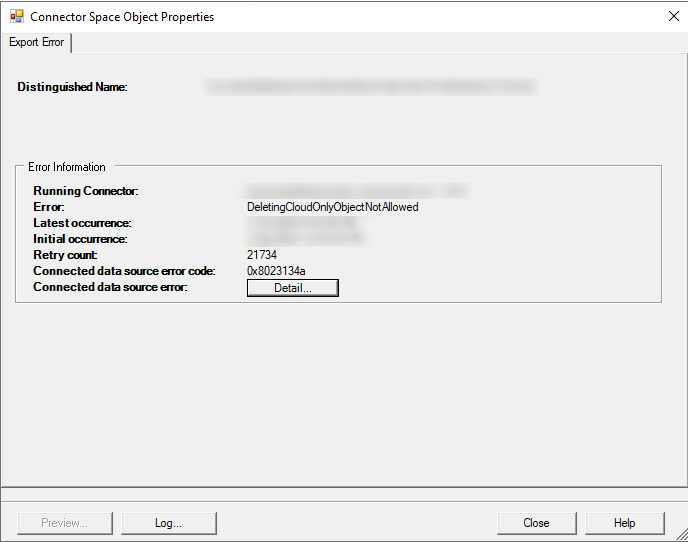
This error will be shown if opening the Syncronization Service and email messages of this error will aso be sent to your tenant’s technical contact.
In this guide, I will explain the cause of this problem and the options to solve the issue.
Cause of this problem
The cause of this problem is mostly an object that is first created cloud-only and then created in Active Directory, or a user that was synced previously but is deselected or deleted. Entra Connect Sync will not match the users correctly, and a the ImmutableId of the user in Entra still exists. In short; it still wants to sync a user that not exists.
In the Synchronization Service Manager on the Entra Connect server, the sync will complete but with a warning:
This error indicates that a deleted object was recovered from the recycle bin in Azure AD before Azure AD Connect was able to confirm its deletion. Please delete the recovered object in Azure AD to fix this issue. Please refer to https://docs.microsoft.com/en-us/azure/active-directory/hybrid/tshoot-connect-sync-errors#deletion-access-violation-and-password-access-violation-errors
Tracking Id: 482d9cb0-f386-47e4-a56f-f33b6b6421db ExtraErrorDetails: [{“Key”:“ObjectId”,“Value”:[“aa5c5d7b-2bde-40f4-94f1-b29ff664e669”]}]
As this gives us only the ObjectId of the cloud user, we still have to dig into our systems to make sure which account is affected.
How to find the affected account
We can find the affected account by pasting the object ID into Microsoft Entra:
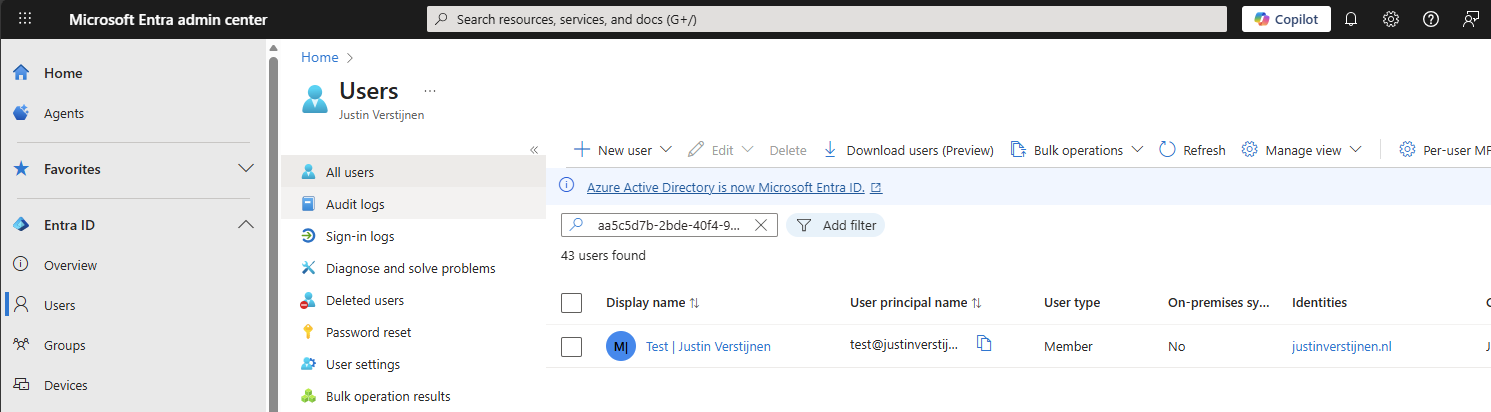
This will return the affected user.
Or you could do this with Microsoft Graph, where the UserId is the ObjectId which we know:
PS C:\Windows\system32> Get-MgUser -UserId aa5c5d7b-2bde-40f4-94f1-b29ff664e669
Now we know which user gives us the errors, let’s solve the problem.
How to solve the problem
We can solve this problem using Microsoft Graph Powershell. This is the newest Powershell module to manage Microsoft 365 and related services. If you don’t already have Microsoft Graph installed, run this command first:
Install-Module Microsoft.Graph -Scope CurrentUserIf you already have it installed, let’s proceed to the sign in:
Connect-MgGraph -Scopes User.ReadWrite.AllYou will get a prompt that Microsoft Graph wants to login to your tenant using the permissions to read and write on all users. Accept that and Graph will proceed.
Then we have to execute this command with the username/UPN to set the ImmutableId to null:
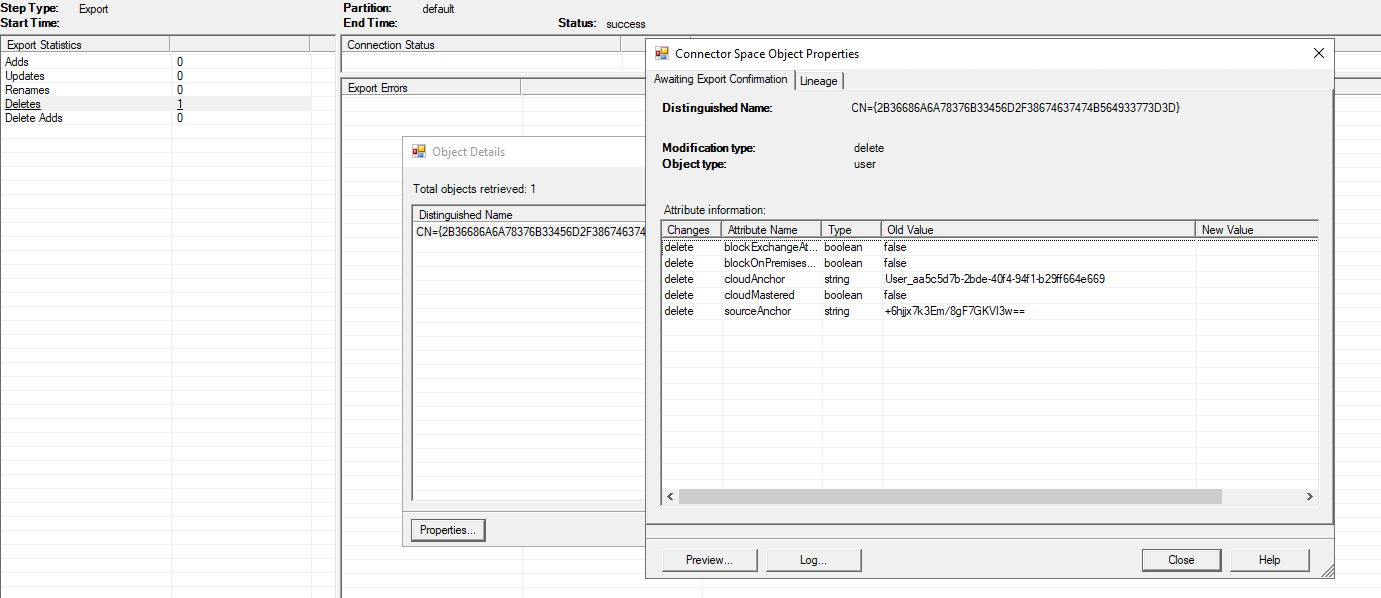
Invoke-MgGraphRequest -Method PATCH -Uri "https://graph.microsoft.com/v1.0/Users/user@justinverstijnen.nl" -body '{"OnPremisesImmutableId": null}'Now we have set the ImmutableId to null, and told Entra that this user has no on-premises entity anymore. It will delete the user from the sync database:
Summary
These steps above describe very easily how to solve this problem. Now and then we come across this problem and we need these commands. It is also possible through the GUI but requires you to delete the account, then sync to clean it from the database and then restore the user. However, these steps will require you to do more effort and has more impact on possible users.
Thank you for reading this guide and I hope it was helpful.
These sources helped me by writing and research for this post;
End of the page 🎉
You have reached the end of the page. You can navigate through other blog posts as well, share this post on X, LinkedIn and Reddit or return to the blog posts collection page. Thank you for visiting this post.
Support the blog
