I tried running Active Directory DNS on Azure Private DNS
The configuration explained
The configuration in this blog post is a virtual network with one server and one client. In the virtual network, we will deploy a Azure Private DNS instance and that instance will do everything DNS in our network.
This looks like this:
Deploying Azure Private DNS
Assuming you have everything already in plave, we will now deploy our Azure Private DNS zone. Open the Azure Portal and search for “Private DNS zones”.
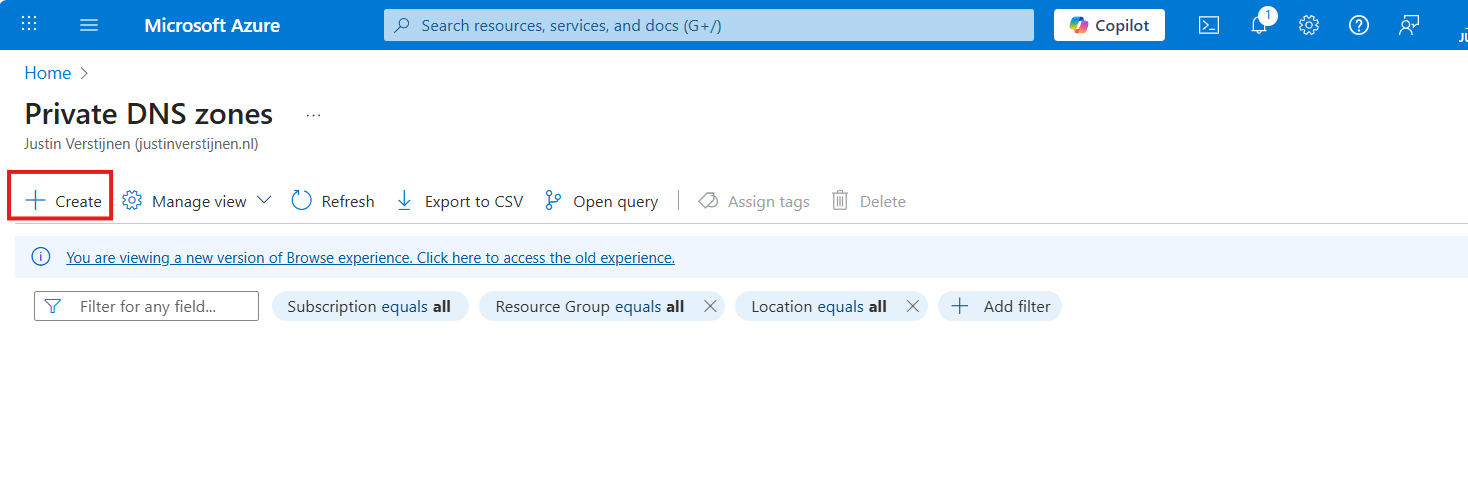
Create a new DNS zone here.
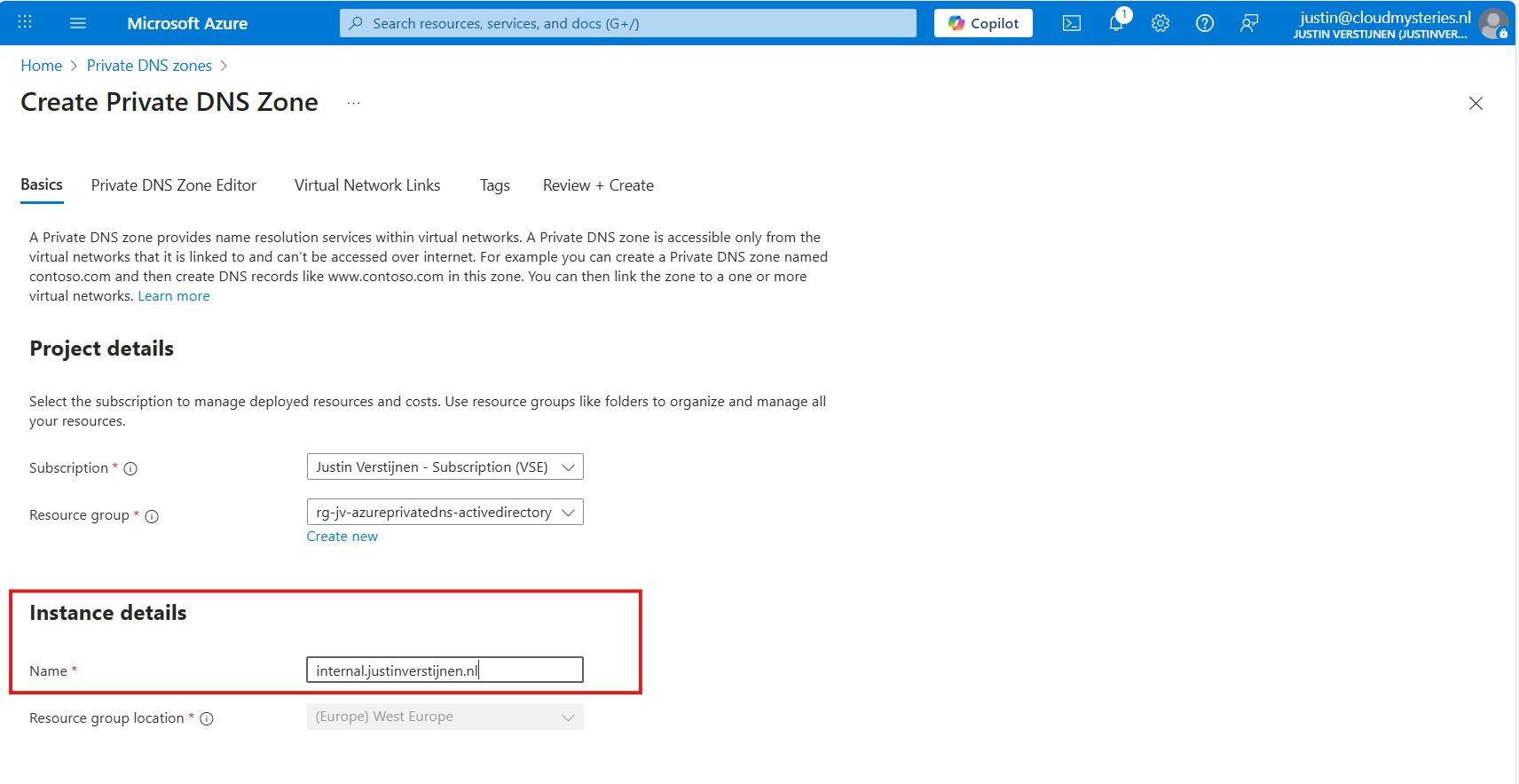
Place it in the right resource group and name the domain your desired domain name. If you actually want to link your Active Directory, this must be the same as your Active Directory domain name.
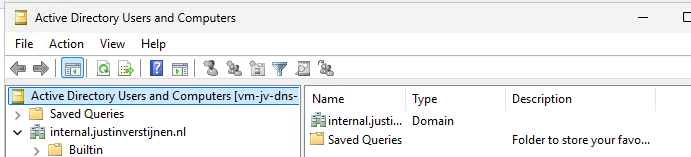
In my case, I will name it internal.justinverstijnen.nl
Link the DNS zone to your network
Advance to the tab “Virtual Network Links”, and we have to link our virtual network with Active Directory here:
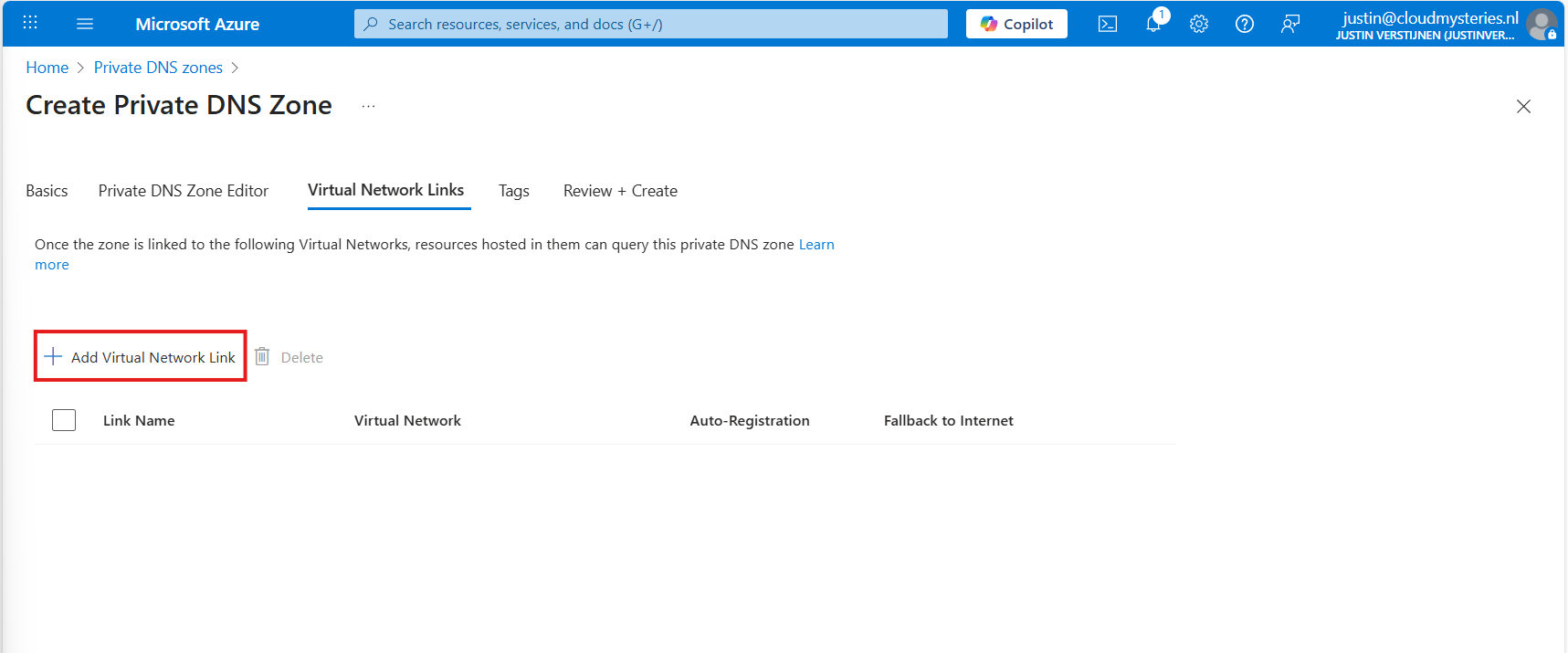
Give the link a name and select the right virtual network.
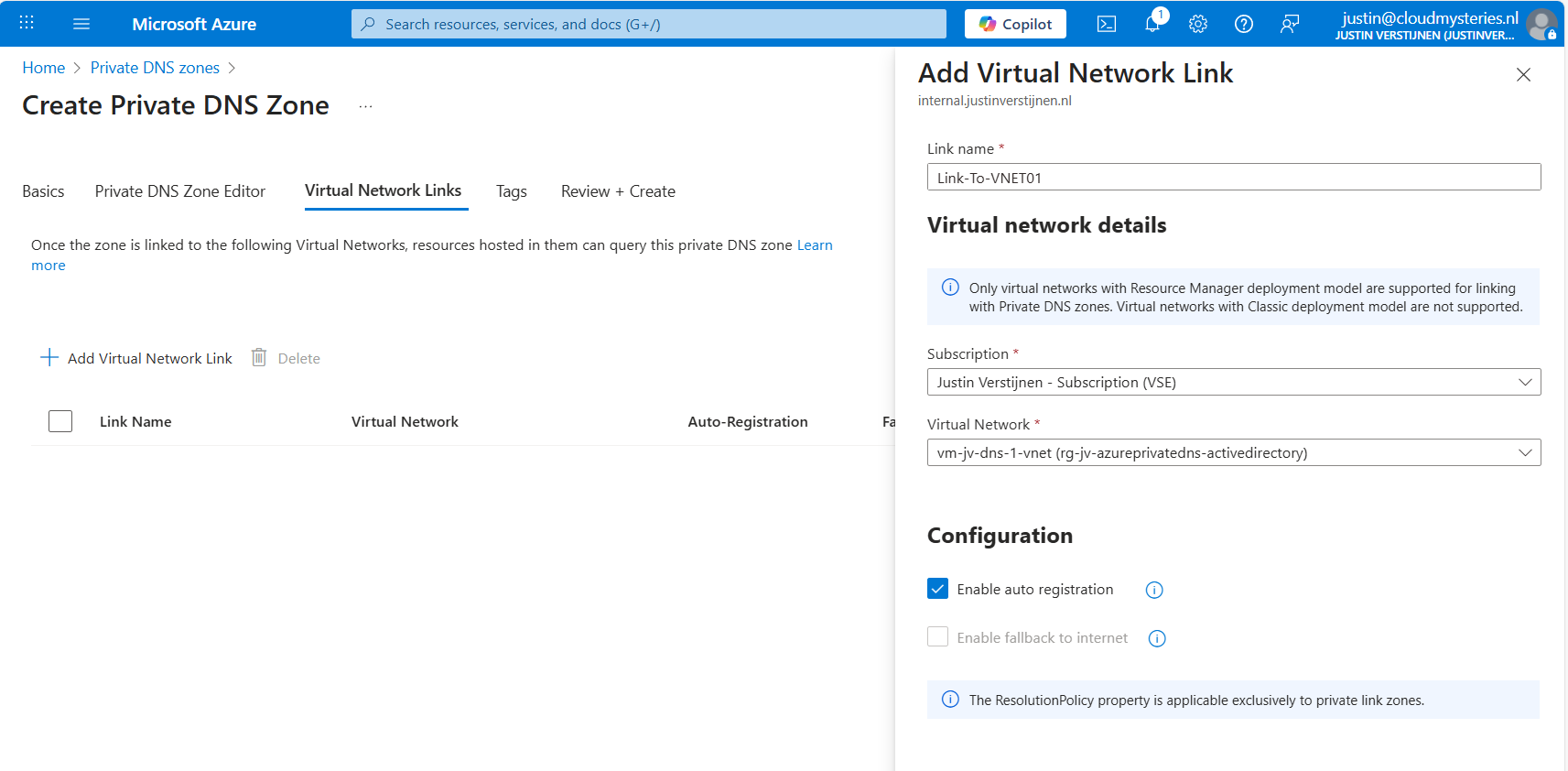
You can enable “Auto registration” here, this means every VM in the network will be automatically registered to this DNS zone. In my case, I enabled it. This saves us from having to create records by hand later on.

Advance to the “Review + create” tab and create the DNS zone.
Creating the required DNS records
For Active Directory to work, we need to create a set of DNS records. Active Directory relies heavily on DNS, not only for A records but also for SRV and NS records. I used priority and weight 100 for all SRV records.
| Recordname | Type | Target | Poort | Protocol |
|---|---|---|---|---|
| _ldap._tcp.dc._msdcs.internal.justinverstijnen.nl | SRV | vm-jv-dns-1.internal.justinverstijnen.nl | 389 | TCP |
| _ldap._tcp.internal.justinverstijnen.nl | SRV | vm-jv-dns-1.internal.justinverstijnen.nl | 389 | TCP |
| _kerberos._tcp.dc._msdcs.internal.justinverstijnen.nl | SRV | vm-jv-dns-1.internal.justinverstijnen.nl | 88 | TCP |
| _kerberos._udp.dc._msdcs.internal.justinverstijnen.nl | SRV | vm-jv-dns-1.internal.justinverstijnen.nl | 88 | UDP |
| _kpasswd._udp.internal.justinverstijnen.nl | SRV | vm-jv-dns-1.internal.justinverstijnen.nl | 464 | UDP |
| _ldap._tcp.pdc._msdcs.internal.justinverstijnen.nl | SRV | vm-jv-dns-1.internal.justinverstijnen.nl | 389 | TCP |
| vm-jv-dns-1.internal.justinverstijnen.nl | A | 10.0.0.4 | - | - |
| @ | A | 10.0.0.4 | - | - |
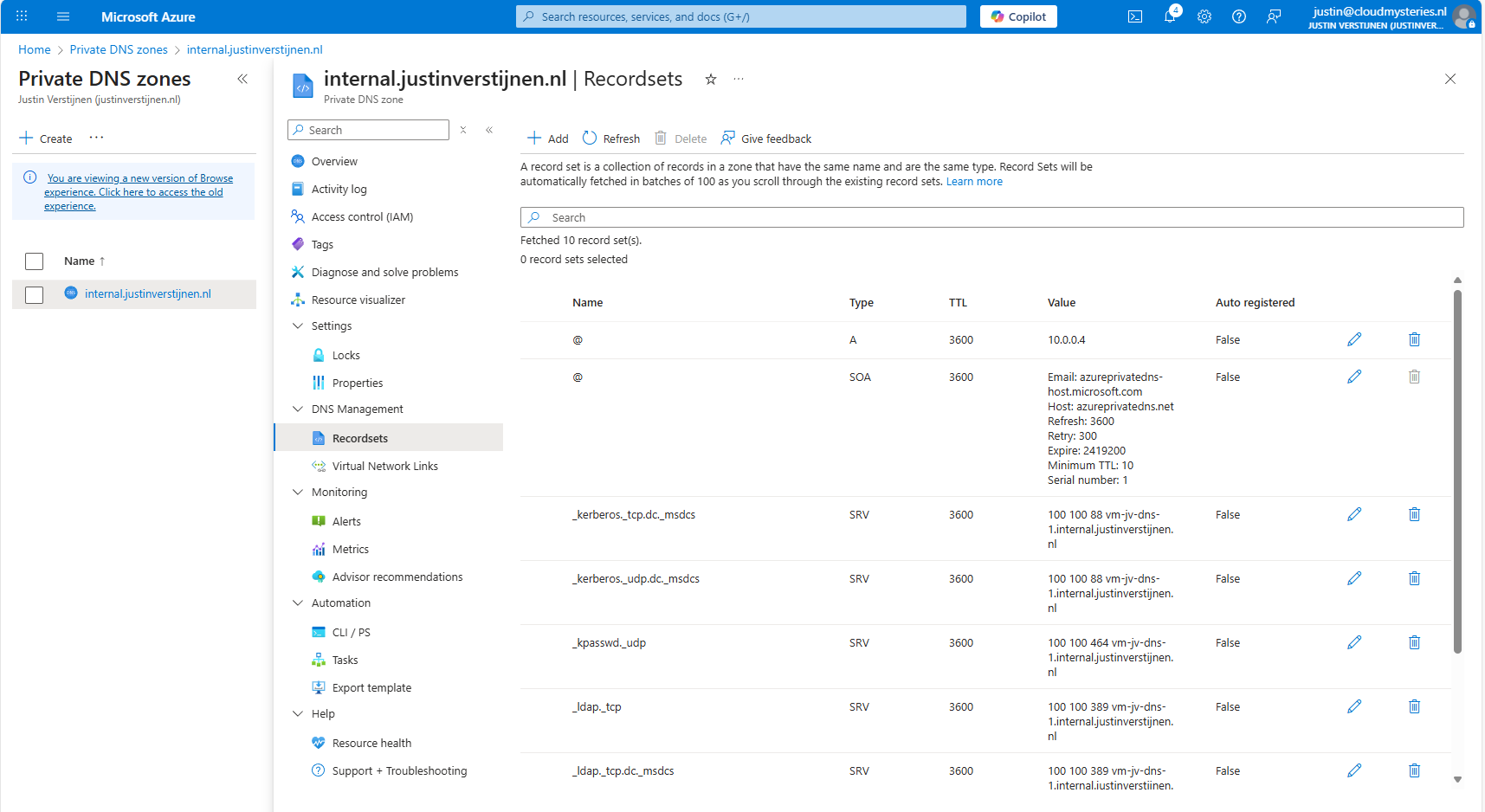
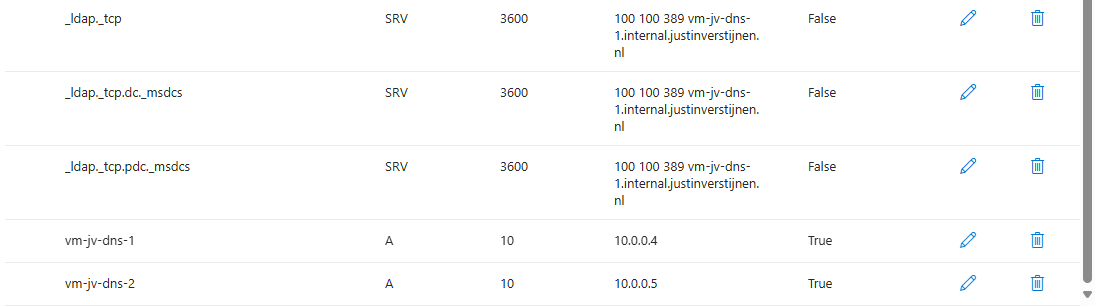
After creating those records in Private DNS, the list looks like this:
Joining a second virtual machine to the domain
Now I headed over to my second machine, did some connectivity tests and tried to join the machine to the domain which instantly works:
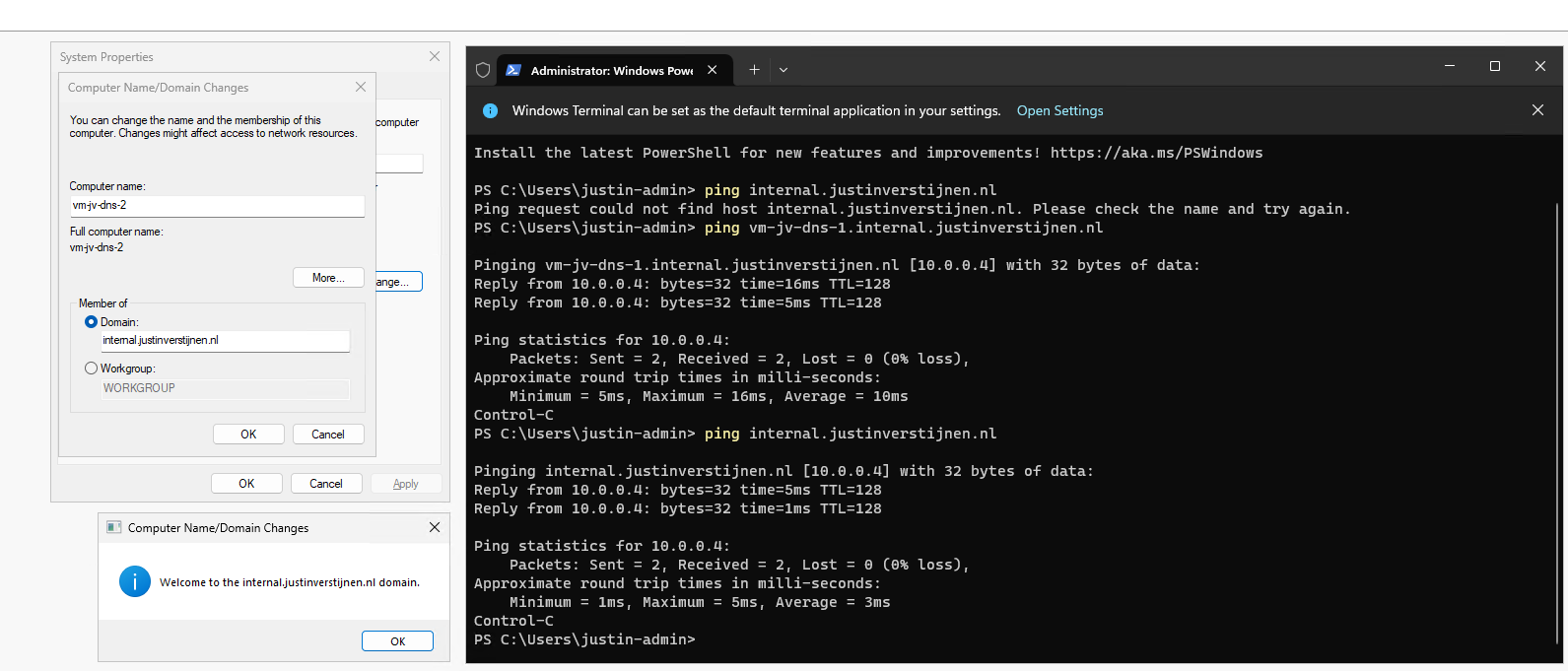
After restarting, no errors occured at this just domain joined machine and I was even able to fetch some Active Directory related services.
The ultimate test
To 100% ensure that this works, I will install the Administration tools for Active Directory on the second server:

And I can create everything just like it is supposed. Really cool :)
Summary
This option may work flawlessly, I still don’t recommend it in any production environment. The extra redundancy is cool but it comes with extra administrative overhead. Every domain controller or DNS server for the domain must be added manually into the DNS zone.
The better option is to still use the Active Directory built-in DNS or Entra Domain Services and ensure this has the highest uptime possible by using availability zones.
These sources helped me by writing and research for this post;
End of the page 🎉
You have reached the end of the page. You can navigate through other blog posts as well, share this post on X, LinkedIn and Reddit or return to the blog posts collection page. Thank you for visiting this post.
Support the blog
