I tried the new Windows 365 Developer Configuration image
Microsoft has been investing quite a lot in cloud-based workstations over the last few years. For developers, one of these solutions was Microsoft Dev Box. Dev Box gave developers an easy way to create powerful development machines in Azure without having to build everything themselves.
But things have changed, as Microsoft Dev Box is now being retired. The closing-down period started on September 14, 2026 and the service is scheduled to retire completely on September 18, 2028. Existing environments can still be used during this period, but Microsoft recommends moving developer workstation scenarios towards Windows 365 as an attempt to merge some of its services which is a great idea which they could have done from the start.
This makes the new Windows 365 Developer Configuration image quite interesting. Instead of starting with an empty Windows 11 Cloud PC and spending your first hour installing tools, Microsoft now provides an image which already contains a pretty complete developer workstation.
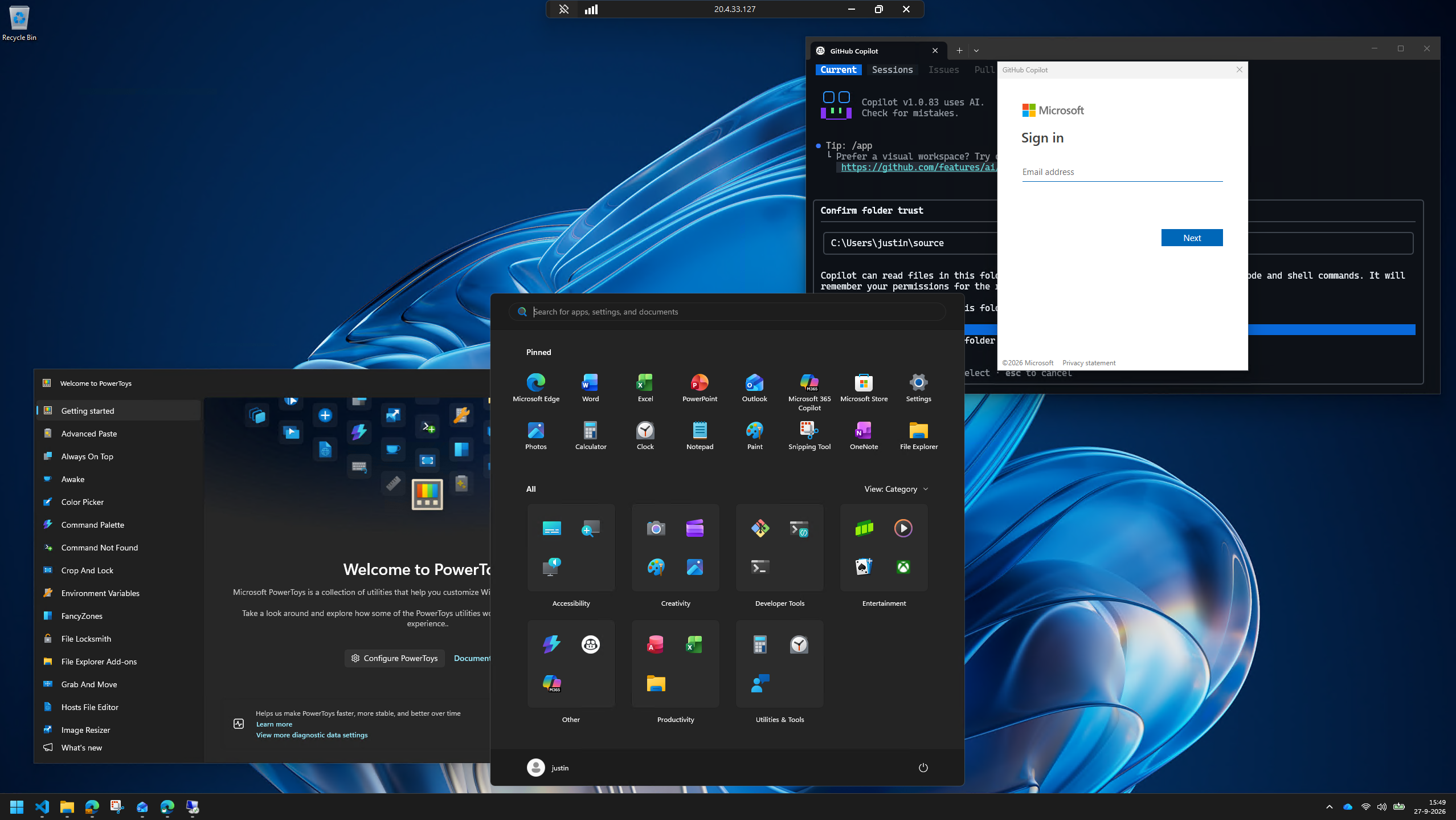
Of course I wanted to try this myself. :)
What is the Windows 365 Developer Configuration image?
The Developer Configuration image is a Windows 11 gallery image for Windows 365 which already contains most of the tools a developer normally installs after receiving a new machine. Microsoft configured both Windows itself and WSL to give you a ready-to-code environment directly after provisioning the Cloud PC.
Some of the tools currently included are:
- PowerShell 7
- Visual Studio Code
- PowerToys
- Python
- Node.js
- Git
- GitHub CLI
- GitHub Copilot CLI
- Azure CLI
- .NET Runtime
- .NET SDK
- Windows Subsystem for Linux
- Ubuntu in WSL
There are also multiple Visual Studio Code extensions already installed for things such as PowerShell, Python, WSL, GitHub and Edge development. Microsoft 365 Apps are included as well for collaboration with collegues
The exact versions can change because Microsoft updates the Windows 365 gallery images regularly but this version is from this week, the first week of October 2026.
After signing in for the first time the machine already looks much more like a developer workstation instead of a clean Windows installation, with all the tools available and dark mode enabled by default.
Dev Box vs. Windows 365
Before we dive into how to deploy such machine, it is important to understand that Windows 365 isn’t simply Dev Box with a different name.
With Microsoft Dev Box we had concepts such as Dev Centers, Projects, Pools and Dev Box definitions. Developers could also create their own machines from the developer portal. Windows 365 works differently, as the administrator configures a provisioning policy containing the image, network configuration and assignments. Windows 365 then provisions the Cloud PC for the developer before they start using it. Developers connect to their machine using Windows App or the browser.
So instead of:
Dev Center > Project > Pool > Developer creates Dev Box
We now have something more like:
Windows 365 provisioning policy > User group > Cloud PC gets provisioned
Personally I think this also makes the direction Microsoft is taking quite clear. Instead of maintaining a separate platform specifically for developer workstations, these scenarios are moving towards the existing Windows 365 platform where we already manage “normal” end users.
Deploying the Developer Configuration Cloud PC in Intune
One thing which can be slightly confusing is where we configure this. Although the actual compute behind Windows 365 obviously runs in Microsoft Azure, we aren’t deploying a normal virtual machine from the Azure Portal.
The Cloud PC is provisioned from Microsoft Intune using a Windows 365 provisioning policy. You can choose to add applications to this by creating a custom image or deploy the ready to go image to your users.
Open the Microsoft Intune admin center at https://intune.microsoft.com and navigate to Devices, then Provision Cloud PCs and click the tab Provisioning policies.
From here, select + Create policy.
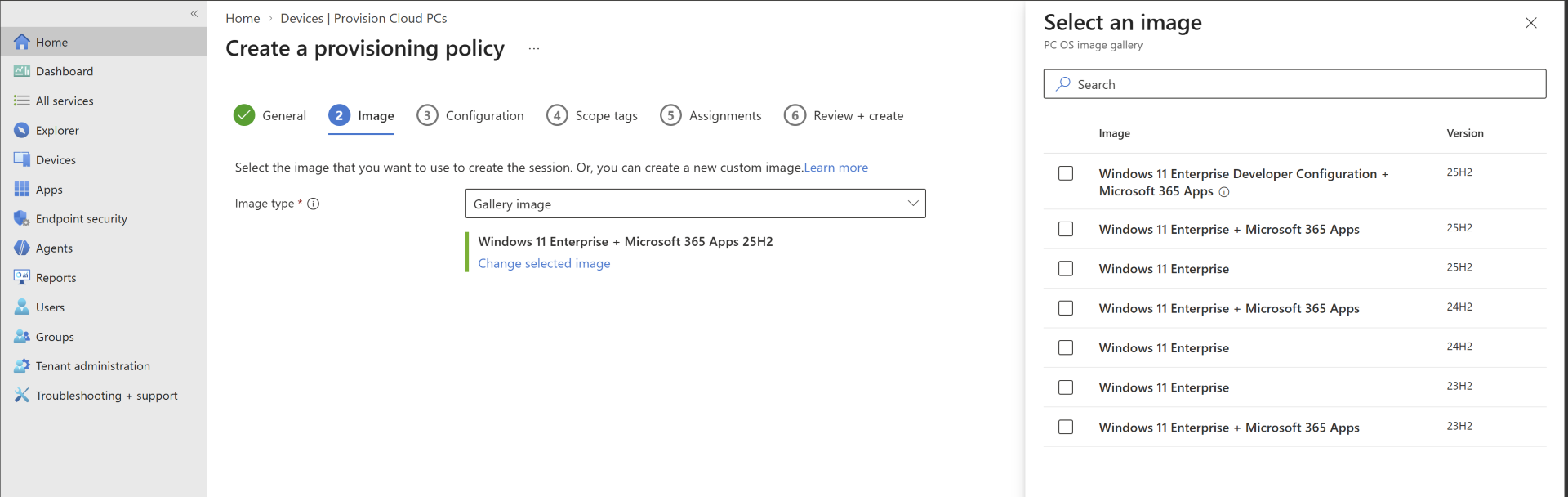
On the General page we can configure the basic settings for our Cloud PC. Give the provisioning policy a useful name and select the Windows 365 license type you want to use. Here you can select the Developer Configuration up top.
For this example I am using Windows 365 Enterprise which is a requirement for you to be able to select your image. Then configure the network and region according to your environment and deploy the image.
You can use a Microsoft hosted network or an Azure Network Connection depending on how your Windows 365 environment is configured. This really is dependent on your environment, no step by step guide can help you through here.
Deploying a standalone machine in Azure
As for every Windows 365 machine/image change we can easily deploy the Windows 365 Developer Configuration machine in Azure to create a custom image from it. I used this method to test the image and to look at the various applications installed.
When deploying a virtual machine, you can find this option in the Marketplace:
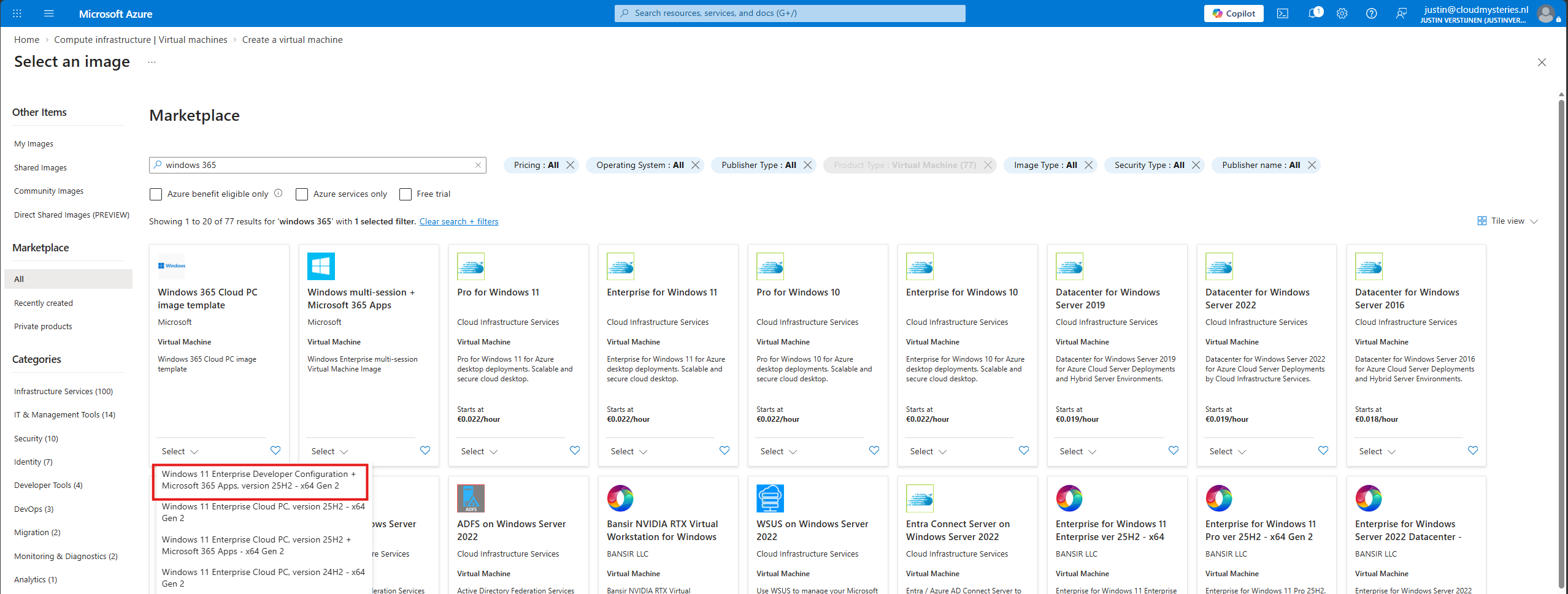
Under the Windows 365 Cloud PC image template section, we can select the image containing the Developer Configuration with the free added Microsoft 365 Apps.
Select the image and continue.
This image is currently available for Windows 365 Enterprise and Windows 365 Flex Dedicated mode. Microsoft also notes that the image isn’t supported on 2 vCPU or GPU licenses because the configuration requires nested virtualization.
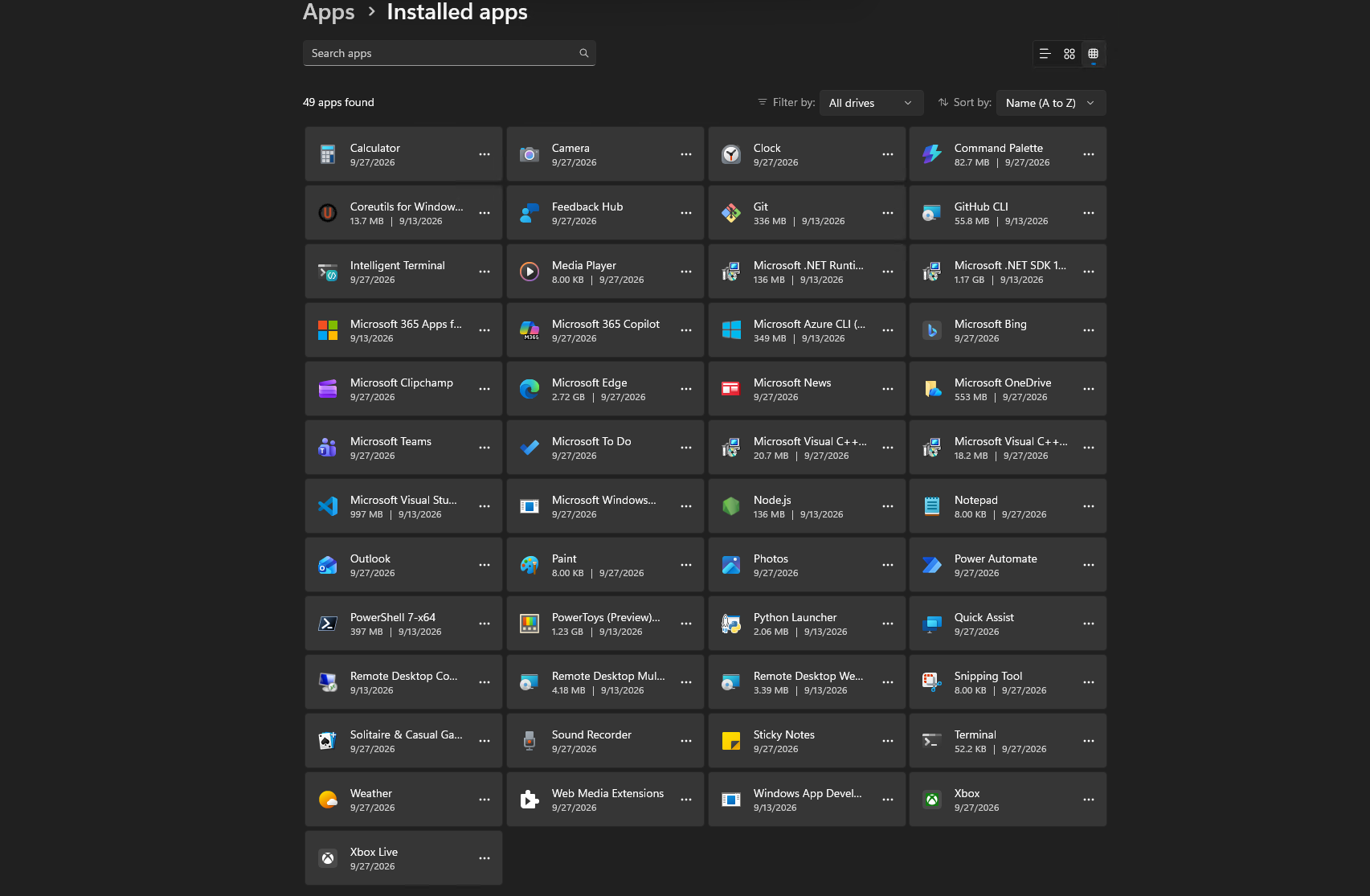
Full list of applications installed
The full list of applications which will be installed on the Developer Configuration machines is this:
Summary
Deploying a normal Windows 365 Cloud PC and installing all developer tooling afterwards isn’t difficult, but every step you can remove from the onboarding process helps. With this image you receive a Windows 11 machine with Visual Studio Code, Git, Python, Node.js, Azure CLI, PowerShell 7, .NET and a configured WSL Ubuntu environment directly after provisioning, which is a good starting point.
Microsoft Dev Box isn’t disappearing overnight, but its direction is clear. The service is being retired and Microsoft’s investments in virtual developer workstations are moving towards Windows 365. For organizations already using Windows 365, the Developer Configuration image makes this transition even more interesting.
Thank you for reading this post and I hope it was helpful!
These sources helped me by writing and research for this post;
- https://learn.microsoft.com/en-us/windows-365/enterprise/device-images
- https://learn.microsoft.com/en-us/windows-365/enterprise/create-provisioning-policy
- https://learn.microsoft.com/en-us/windows-365/enterprise/devbox-transition-to-w365
- https://learn.microsoft.com/en-us/azure/dev-box/dev-box-roadmap
- https://blogs.windows.com/windowsdeveloper/2026/09/14/build-anywhere-stay-in-flow-with-windows-365/
End of the page 🎉
You have reached the end of the page. You can navigate through other blog posts as well, share this post on X, LinkedIn and Reddit or return to the blog posts collection page. Thank you for visiting this post.
Support the blog
