Important action: Configure additional authentication for Bitlocker leaks
When Bitlocker is configured to only unlock with the TPM, we create an attack path which allows access to the unencrypted data. This is because you only need the disk and the TPM module to unlock by default.
In the Bitlocker settings, there is an option “Require startup PIN with TPM”. This will show an extra PIN code window to the end user at startup, and then Bitlocker can only be unlocked after the PIN and then with the TPM module, instead of only the TPM module. It also makes you a lot less vulnerable to Bitlocker leaks and directly exposing your cimportant personal and company data in any case your device is stolen.
In this guide I will show how to configure this “Require startup PIN with TPM” setting through Microsoft Intune and on your current Windows device, as this cannot be deployed as the user must set a PIN. I will show on how to configure this for new devices through policy and how to configure this for existing devices.
Requirements
- Basic knowledge of Microsoft Intune
- Basic knowledge of Bitlocker/Windows
- Around 20 minutes of your time
What changes when using a startup PIN?
By default with TPM-only protection, the TPM automatically releases the BitLocker key during startup when the boot environment looks trusted. The TPM is a hardware chip in your computer that has the Bitlocker code saved on it. If you replace the TPM or take one of the disks in another PC, you must enter the Bitlocker code first. This creates a sort of “trust”, as Bitlocker trusts the TPM module as long as its available.
With a startup PIN configured, the TPM will only release the key after the user enters the correct PIN before Windows boots. A sort of password for your Bitlocker key.
This means:
- Stolen devices become much harder to access
- Offline attacks become more difficult
- DMA and memory extraction style attacks are mitigated better
- Users must enter a PIN during every startup
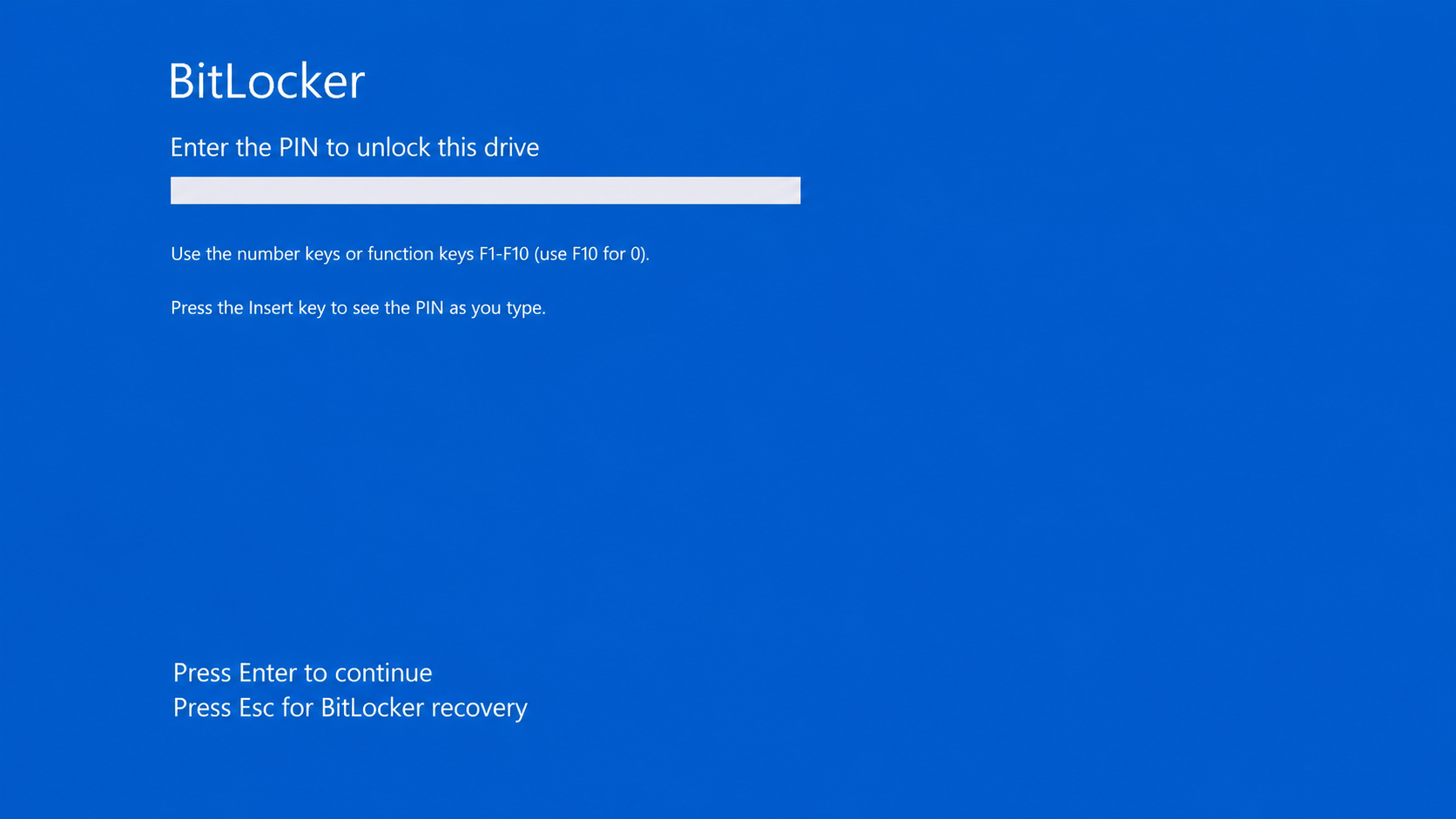
The downside is that this slightly reduces user convenience because users now interact with BitLocker before Windows starts. However if we take a moment and think about the need of putting in an extra PIN code or having such an increasing attack vector with big risk of data loss, the choice will be made very easy.
The leaks described
The recent reported leaks leveraging the Bitlocker without additional verification are:
| CVE / Name | URL | Vulnerability Type | CVSS score | Published / Seen |
|---|---|---|---|---|
| CVE-2026-45658 | https://nvd.nist.gov/vuln/detail/CVE-2026-45658 | Security Feature Bypass | 7.8 | 2026-06-09 |
| CVE-2026-27913 | https://nvd.nist.gov/vuln/detail/CVE-2026-27913 | Security Feature Bypass | 7.7 | 2026-04-14 |
| CVE-2026-45585 | https://nvd.nist.gov/vuln/detail/CVE-2026-45585 | Security Feature Bypass / Command Injection | 6.8 | 2026-05-19 |
| CVE-2026-50507 | https://nvd.nist.gov/vuln/detail/CVE-2026-50507 | Security Feature Bypass | 6.8 | 2026-06-09 |
| CVE-2026-45655 | https://nvd.nist.gov/vuln/detail/CVE-2026-45655 | Security Feature Bypass | 5.3 | 2026-06-09 |
Exposure of your data by these leaks can be minimized by leveraging these rules:
- Endpoints up-to-date and require them to be up to date with Compliance Policies
- TPM+PIN verification on startup configured
- No local administrator access for normal users
- Set BIOS/UEFI passwords for administrative access
Option 1: Create/Update the BitLocker policy in Intune
We can configure the Bitlocker policy in Microsoft Intune for new deployed devices only. This will not apply to existing devices as an PIN code must be set.
To configure this option, Open the Microsoft Intune admin center at https://intune.microsoft.com and go to “Endpoint security”, then to “Disk encryption” and update your existing policy or create a new policy if not done already.
Your BitLocker policy can also be under “Configuration Profiles” if its configured using the Administrative Templates.
Configure the following:
- Platform : Windows
- Profile : BitLocker
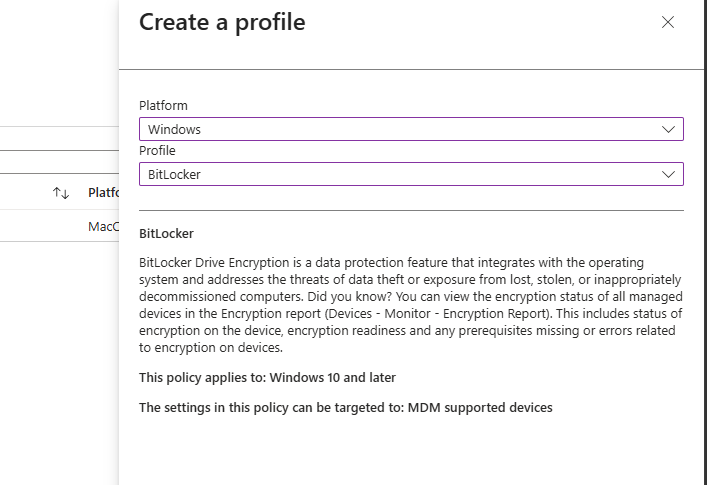
Give the policy a name and description and advance to the tab “Configuration settings”.
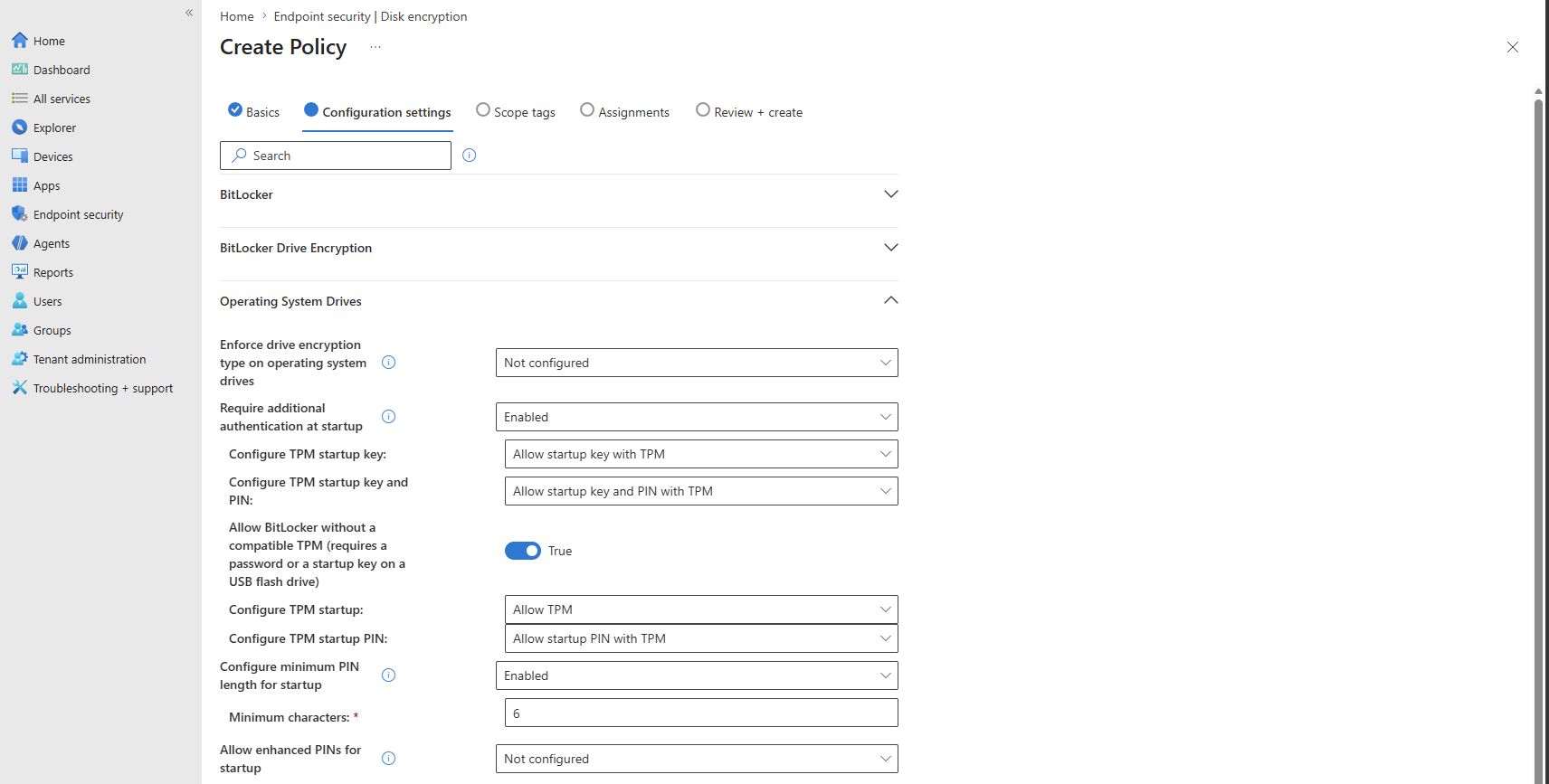
Configure these settings or change them to your own preferences. Starred settings must be set for this guide to work:
| Setting | Configure this: |
|---|---|
| *Require device encryption | *Enabled |
| Select the encryption type: (Device) | Full encryption |
| *Require additional authentication at startup | *Enabled |
| *Configure TPM startup key | *Do not allow startup key with TPM |
| *Configure TPM startup key and PIN | *Require startup key and PIN with TPM |
| Configure TPM at startup | Allow TPM |
| *Configure TPM startup PIN | *Require startup PIN with TPM |
| Configure minimum PIN length for startup | Enabled |
| Minimum characters | 6 |
| Allow enhanced PINs for startup | Enabled |
The enhanced PINs means that you can use symbols and letters in your PIN code, making a password of your PIN code.
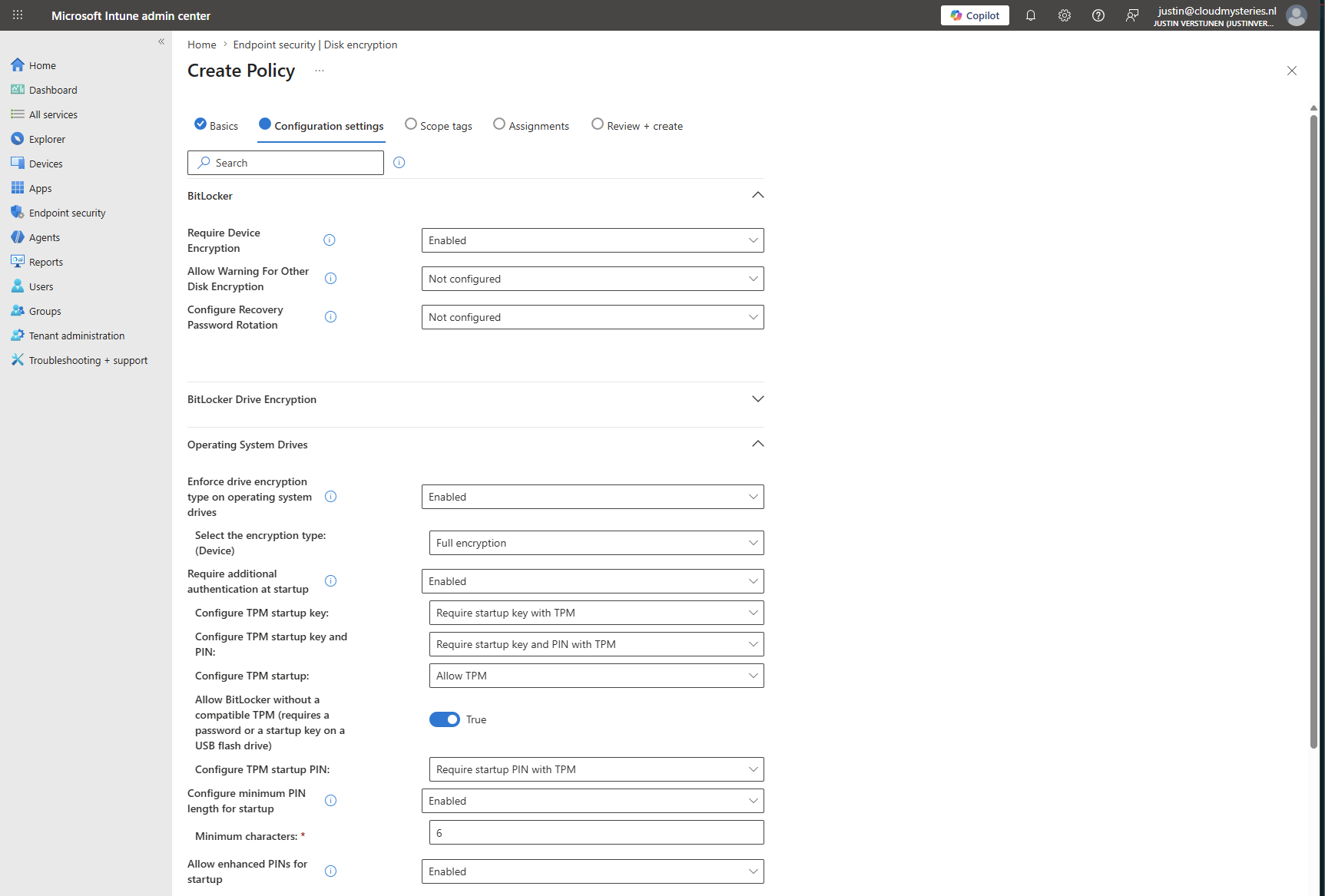
Then save the policy and assign it to your devices scope.
Option 2: Configure the startup authentication settings in Windows
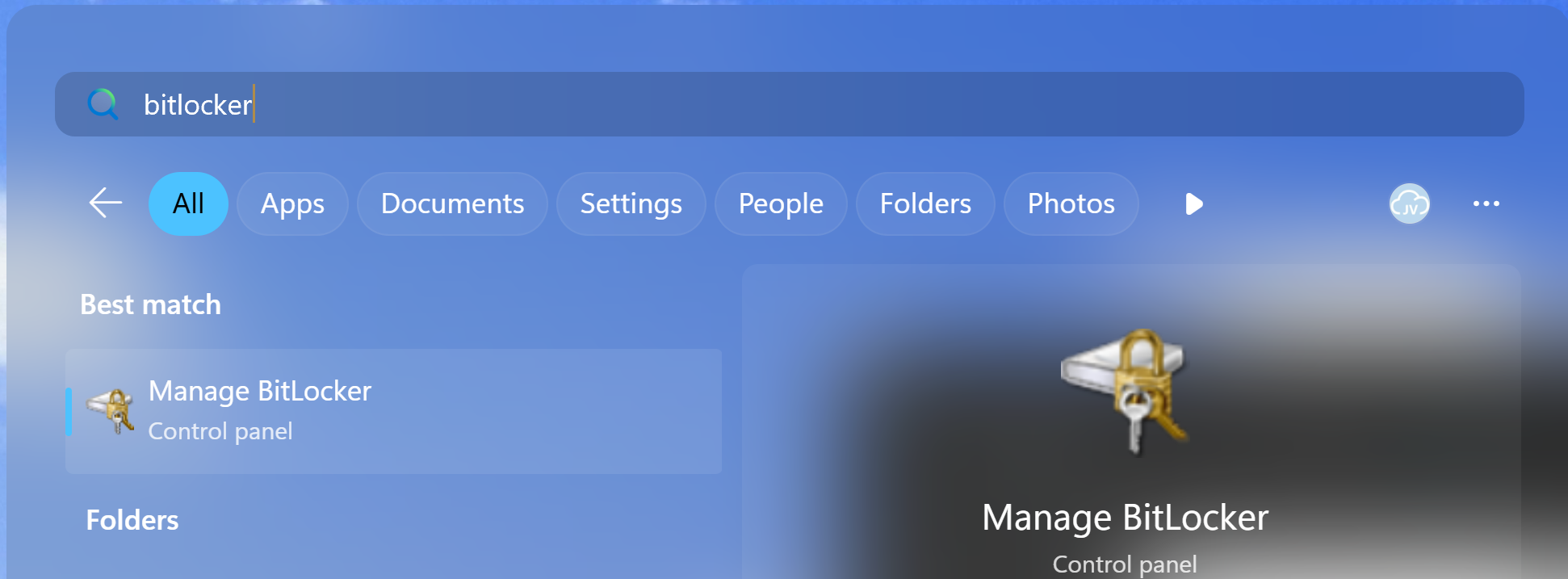
In Windows we can also set the startup authentication with a PIN code getting the same result as setting it for new devices in Intune. This can be found by searching for “Bitlocker” in the start menu:
From there we can click “Change how drive is unlocked at startup”, select the PIN code option and set a PIN.
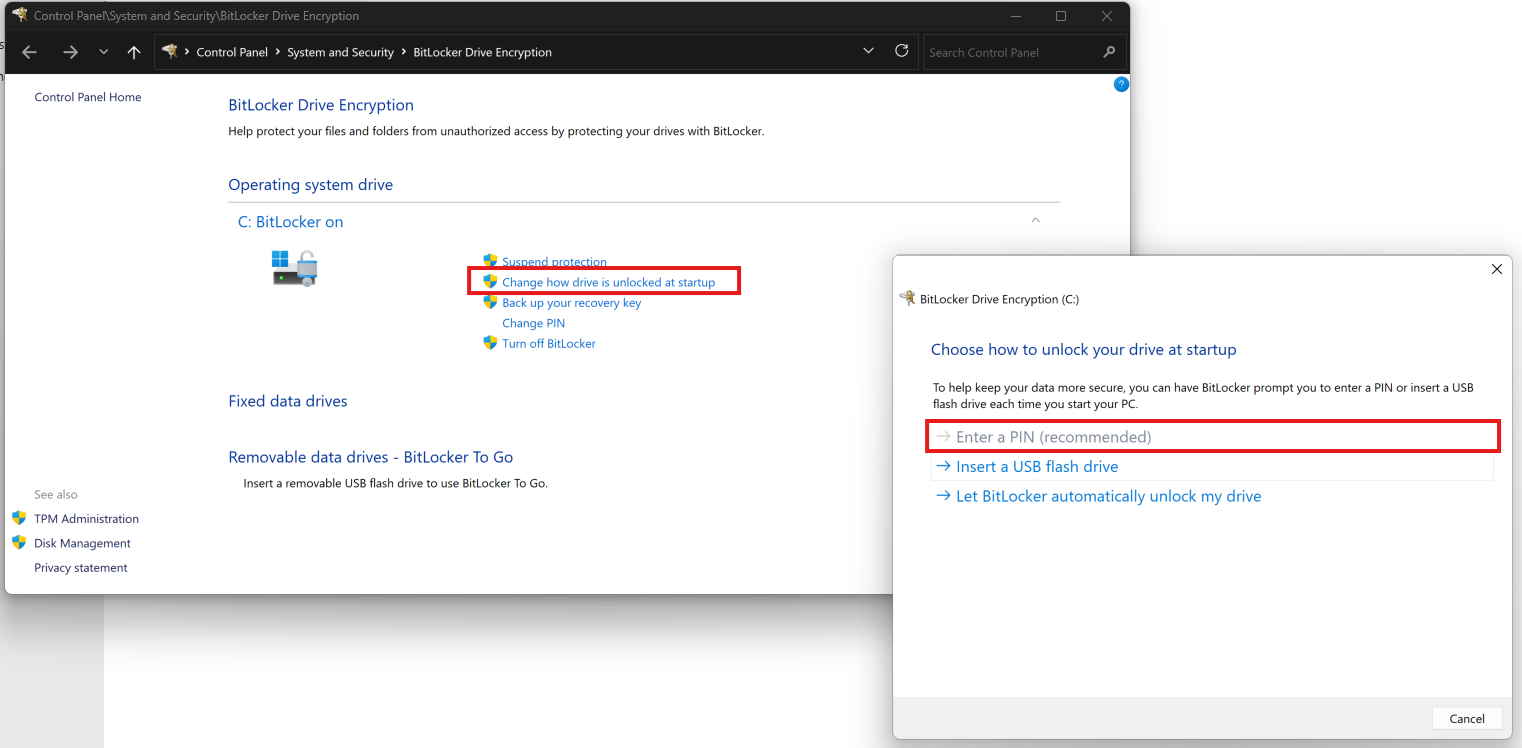
This will make you more secure immediately against the recent attacks and possibly more attacks in the future, leveraging this TPM and Bitlocker weakness.
Summary
BitLocker with TPM-only authentication is still much better than running devices without encryption, but attacks like YellowKey and GreatXML show why adding authentication to the TPM/Bitlocker key exchange is becoming increasingly important for data-sensitive environments. By requiring a startup PIN, we add another layer of protection before the BitLocker key is released. This makes offline attacks and physical theft scenarios much harder for attackers.
For organizations with mobile devices containing sensitive data, this is currently one of the most impactful BitLocker hardening steps you can deploy relatively quickly with Microsoft Intune.
Thank you for reading this post and I hope it was helpful!
These sources helped me by writing and research for this post;
- https://thehackernews.com/2026/06/new-greatxml-exploit-bypasses-windows.html
- https://thehackernews.com/2026/06/microsoft-patches-record-206-flaws.html
- https://thehackernews.com/2026/05/windows-zero-days-expose-bitlocker.html
- https://learn.microsoft.com/windows/security/operating-system-security/data-protection/bitlocker/configure
- https://learn.microsoft.com/windows/security/operating-system-security/data-protection/bitlocker/bitlocker-countermeasures
End of the page 🎉
You have reached the end of the page. You can navigate through other blog posts as well, share this post on X, LinkedIn and Reddit or return to the blog posts collection page. Thank you for visiting this post.
Support the blog
