Introduction to Analyzing Email Headers
Introduction to Analyzing Email Headers
When you troubleshoot mail flow, investigate phishing attempts, or validate spam filtering behavior, email headers are one of the most useful sources of information. Every email contains some hidden metadata (called the Headers that shows how the message traveled across mail servers, which authentication checks were performed, and how spam filtering systems handled the message. This gives you an answer why that one mail ended up in the user’s junk box.
In Microsoft 365 and Exchange Online environments, analyzing email headers is a common task for administrators and support engineers which must be performed regularly.
In this guide I will explain what email headers are, where to find them, what they contain and how to analyze them.
What are email headers?
An email header is a simple metadata injected into an email message that contains technical information about the email message. This information is added by mail servers while the message travels from sender to recipient, travelling around the world wide web and contains some useful information to us IT guys.
Headers are not normally visible in Outlook or other mail clients until you open the message source or internet headers or know where to look in the clients. They are also saved in exported files like .MSG and .EML.
Some common details inside headers include:
- Sender and recipient addresses
- Reason why an email message ended in the Junk folder
- Message ID
- Mail server hops
- SPF, DKIM, and DMARC results
- Spam confidence levels
- Anti-spam verdicts
- Timestamps
- Routing information
An header is a big pile of text, and looks like this, but shortened to the first 20 lines:
Received: from AMBPR09MB8182.EURP09.PROD.OUTLOOK.COM (2001:db8:10::17)
 by AS2PR09MB6215.EURP09.PROD.OUTLOOK.COM (2001:db8:10::14) with
 Microsoft SMTP Server (version=TLS1_2,
 cipher=TLS_ECDHE_RSA_WITH_AES_256_GCM_SHA384) id 15.21.339.8;
 Wed, 5 Aug 2026 10:17:43 +0000
Received: from AS2PR09MB6215.EURP09.PROD.OUTLOOK.COM (2001:db8:10::14)
 by DU4P194MB2969.EURP194.PROD.OUTLOOK.COM (2001:db8:11::7) with
 Microsoft SMTP Server (version=TLS1_3,
 cipher=TLS_AES_256_GCM_SHA384) id 15.21.339.8;
 Wed, 5 Aug 2026 10:17:45 +0000
Received: from DU4P194MB2969.EURP194.PROD.OUTLOOK.COM (2001:db8:11::7)
 by BESP194MB2832.EURP194.PROD.OUTLOOK.COM with HTTPS;
 Wed, 5 Aug 2026 10:17:46 +0000
From: Business | Justin Verstijnen <info@justinverstijnen.nl>
To: Reports | Justin Verstijnen <reports@justinverstijnen.nl>
Subject: Just testing
Thread-Topic: Just testing
Thread-Index: AQHJVInternalExample20260805AAAAAA==
Date: Wed, 5 Aug 2026 10:17:42 +0000
Message-ID:
 <AMBPR09MB8182JVINTERNAL20260805101742@AMBPR09MB8182.EURP09.PROD.OUTLOOK.COM>
I have some examples of full Email headers which I will explain later in this guide here:
Important email header fields
In Email headers, we have some important fields which are basically in the big pile of text but can be opened visually in various tools like my Email Header Analyzer tool: https://tools.justinverstijnen.nl/emailheaderanalyzer
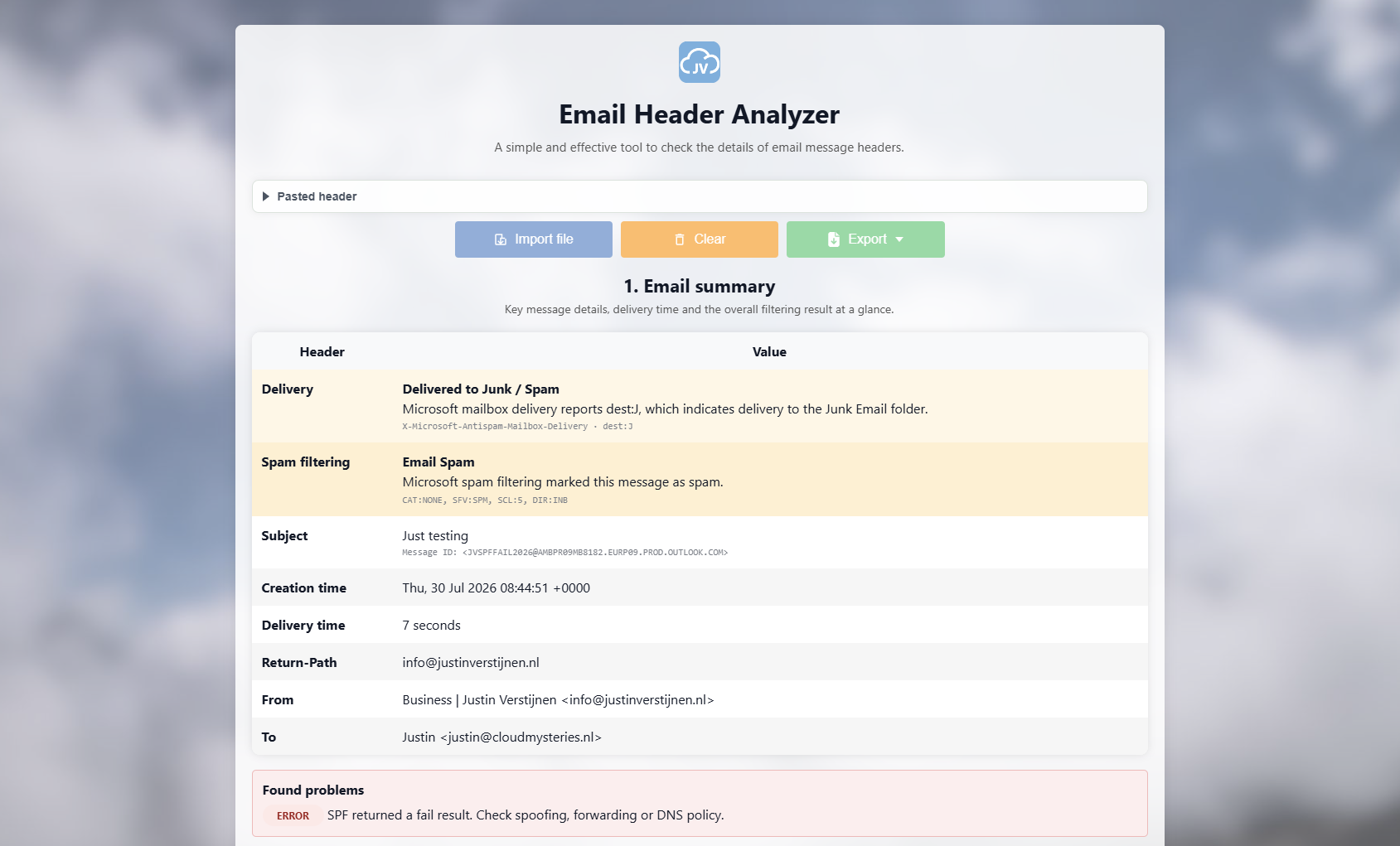
Altough this contains a huge amount of information, we can basically extract some simple things from a header that tells us everything about an email message.
| Header | Purpose |
|---|---|
| Delivery | Displays the delivery folder, Inbox or Junk |
| From | Displays the sender address shown to the user which can be spoofed |
| Return-Path | Shows the actual return address which cannot be spoofed |
| Received | Shows the route/hops the email traveled |
| Message-ID | Unique identifier for the message used as an identifier |
| Authentication-Results | SPF, DKIM, and DMARC validation results |
| X-Forefront-Antispam-Report | Microsoft spam filtering details which gives more information about possible hits |
| X-Microsoft-Antispam | Additional Microsoft anti-spam information |
In Microsoft 365, the X-Forefront-Antispam-Report header is one of the most useful headers to check when investigating spam. Microsoft Defender adds several values here that show how the email was assessed.
For example, you can see the Spam Confidence Level (SCL), whether Microsoft considered the message to be spam, phishing, or legitimate, and information about the sending IP address and the checks that were performed on the message.
How to obtain email headers
Email headers can be exported at the receiving side, as this contains the route and the spam filtering actions by the recipient’s email service. To effectively check what happened, you must obtain the headers from the recipient.
While this can be different for every client, I will show you where to find the headers in Outlook and Microsoft Defender.
Outlook (New) and Web/OWA
Open the message, select the three dots (or right-click the message), select “View”, and then select “View message details”.
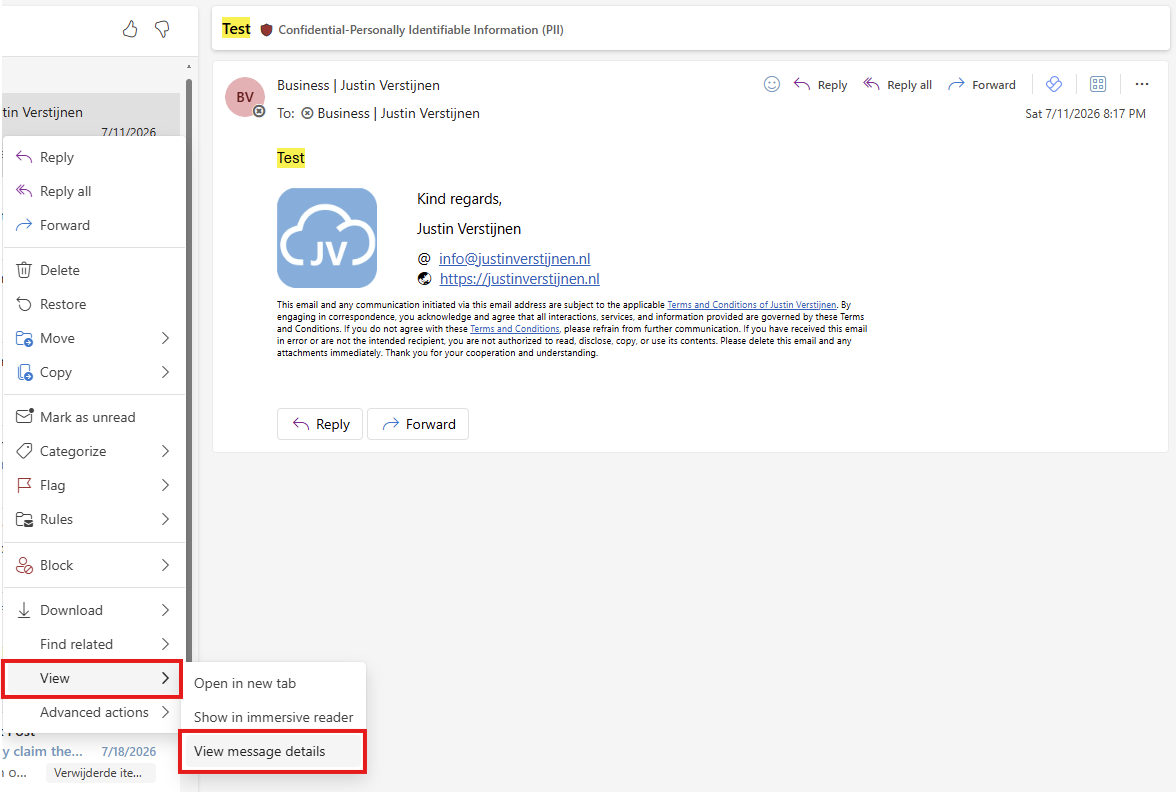
Now you will be presented a huge load of text, called the Headers:
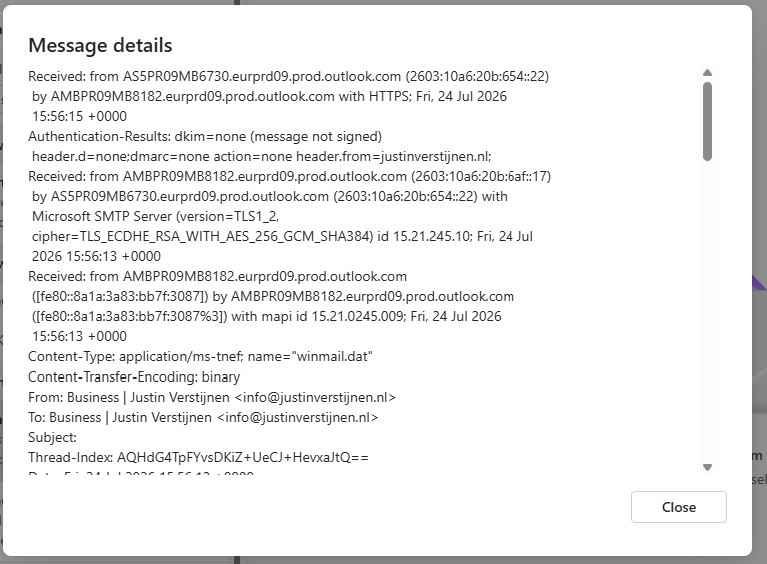
You can now copy all of this text and paste it into a Header Analyzer tool.
Outlook Desktop (Classic)
Open the email, select “File”, select Properties, and copy the content from the Internet headers box.
Microsoft Defender portal
Open the Microsoft Defender portal at https://security.microsoft.com, go to Email & collaboration, select Explorer, open the message, and review the message details and headers.
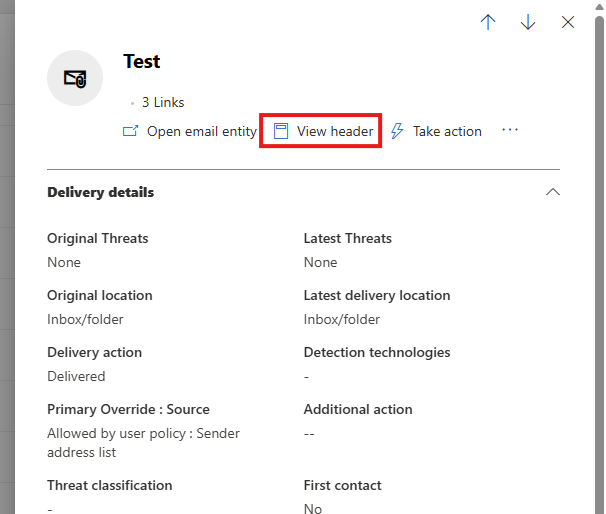
Please note that you could only do this for received messages as sent messages will not contain the route and anti spam scores and behaviour.
SPF, DKIM, and DMARC results
Modern email security heavily depends on email authentication.
These results are commonly stored inside the Authentication-Results header.
SPF
SPF validates whether the sending mail server is authorized to send email for the domain.
Example:
spf=passA failed SPF result can indicate spoofing or an incorrectly configured sender domain.
DKIM
DKIM validates the digital signature attached to the message.
Example:
dkim=passThis helps verify that the email content was not modified during transport.
DMARC
DMARC combines SPF and DKIM alignment checks and determines how receiving systems should handle failures.
Example:
dmarc=passA DMARC failure can explain why messages are quarantined or marked as suspicious.
Analyzing Microsoft anti-spam headers
Exchange Online and Microsoft Defender for Office 365 add several additional headers to incoming messages.
One commonly analyzed value is the Spam Confidence Level (SCL).
| SCL Value | Meaning |
|---|---|
| -1 | Bypassed spam filtering |
| 0-1 | Not spam |
| 5-6 | Spam |
| 9 | High confidence spam |
You may also see verdict values such as:
SFV:SPMThis indicates Microsoft classified the message as spam.
Another example:
SFV:SKSThis indicates the message skipped spam filtering.
These values are commonly used during investigations when users report missing emails or false positives.
Using an email header analyzer
Raw email headers can be difficult to read because they often contain hundreds of lines. To simplify this process, you can use an analyzer tool that parses the headers into readable sections.
I created a free and simple tool for exactly this purpose:
https://tools.justinverstijnen.nl/emailheaderanalyzer
The tool helps you quickly identify:
- Mail routing hops
- SPF, DKIM, and DMARC results
- Sender IP addresses
- Spam filtering information
- Suspicious indicators
You simply paste the raw email headers into the analyzer and review the parsed output.
This can significantly speed up troubleshooting and phishing investigations.
On my GitHub repository, I have some examples of Email Headers which can be used to test the tool and the effective information stored in the text. You can find the examples here:
However these are real world examples, some information is masked but the amount of masking is minimized.
Summary
Email headers provide detailed technical information about how a message was processed and delivered. By understanding headers such as Received, Authentication-Results, and Microsoft anti-spam headers, you can troubleshoot mail flow issues, investigate phishing attempts, and validate spam filtering behavior more effectively.
Thank you for reading this post and I hope it was helpful!
These sources helped me by writing and research for this post;
End of the page 🎉
You have reached the end of the page. You can navigate through other blog posts as well, share this post on X, LinkedIn and Reddit or return to the blog posts collection page. Thank you for visiting this post.
Support the blog
