Solved - Windows Store applications on FSLogix/Azure Virtual Desktop
Requirements
- Around 15 minutes of your time
- An Azure Virtual Desktop or Remote Desktop Services environment with FSLogix
- Some basic knowledge about Windows, Azure and Active Directory
- Session host must have winget installed
Default behaviour and why applications disappear
So the problem with Microsoft Store applications on any FSLogix based system is that the application can be installed like expected and they will work. After signing out of the session and logging in again, the applications will be gone. Under water, the applications are still installed on the computer, only Windows doesn’t know to show them to the user.
The fun fact is, the application data is stored in the user profile. You can test this by for example download the application WhatsApp and login to your WhatsApp account. Log off the machine and sign in again. Download the application and you will be logged into WhatsApp automatically.
So, the application manifest of Windows which contains what applications are available to the user cleans up after logging out, but the data is persistent.
Solution to make Microsoft Store apps persistent
Now that we know more about the underlying problem, we can come to a solution to it. My solution is relatively simple; a log-on script that uses winget and installs all the needed packages at sign in of the user. This also has some advantages because we of IT are in control what people and install or not. We can completely disable the Microsoft Store and only use this “allowed” packages.
For installing this Microsoft Store applications, we use Winget. This is a built-in (from 24H2) package manager for Windows which can download and install these applications.
Step-by-step guide
We can for example install the WhatsApp Microsoft Store application with Winget with the following command:
winget install 9NKSQGP7F2NH --silent --accept-package-agreements --accept-source-agreementsFor installing applications, we have to define the Id of the package, which is 9NKSQGP7F2NH for WhatsApp. You can lookup these Id’s by using your own command prompt and run the following command:
winget search *string*Where *string* is of course the application you want to search for. Let’s say, we want to lookup WhatsApp:
winget search whatsapp

Agree: Y

Name                            Id                            Version         Match         Source
---------------------------------------------------------------------------------------------------
WhatsApp                        9NKSQGP7F2NH                  Unknown                       msstore
WhatsApp Beta                   9NBDXK71NK08                  Unknown                       msstore
Altus                           AmanHarwara.Altus             5.5.2           Tag: whatsapp winget
Beeper                          Beeper.Beeper                 3.110.1         Tag: whatsapp winget
Wondershare MobileTrans         Wondershare.MobileTrans       4.5.40          Tag: whatsapp winget
ttth                            yafp.ttth                     1.8.0           Tag: whatsapp winget
WhatsappTray                    D4koon.WhatsappTray           1.9.0.0                       winget
Here you can find the ID where we can install WhatsApp with. We need this in the next step.
Creating the login script
Now the solution itself consists of creating a logon script and running this on login.
First, put the script in .bat or .cmd format on a readable shared network location, like a server or on the SYSVOL folder of the domain.
Then create a Group Policy with an start-up script that targets this script and launches it on startup of the PC. You can do that here:
User Configuration -> Policies -> Windows Settings -> Scripts (Logon)
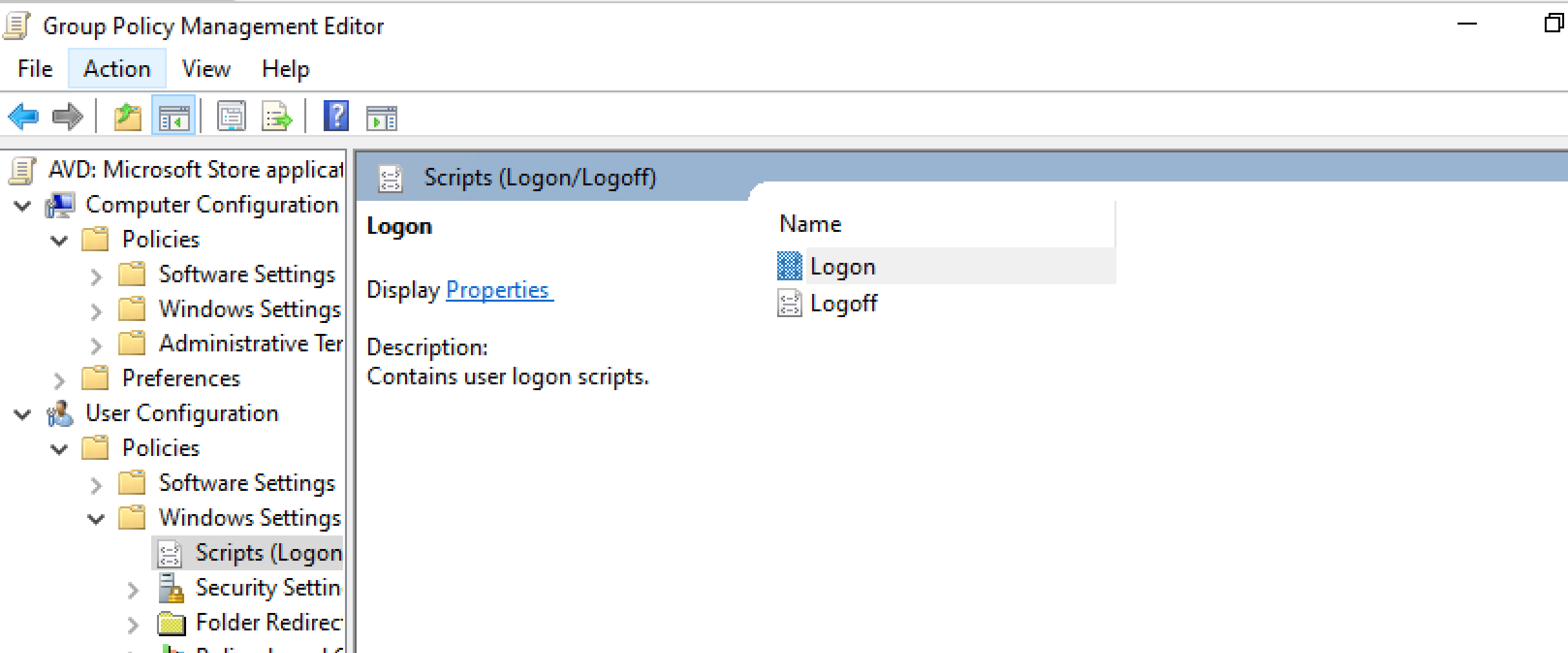
Add your network added script there. Then head over to your AVD application.
Testing the login script
After succesfully logging in to Azure Virtual Desktop (relogin required after changing policy), our applications will be available and installed in the background. After around 30 seconds you can find the applications in the start menu.
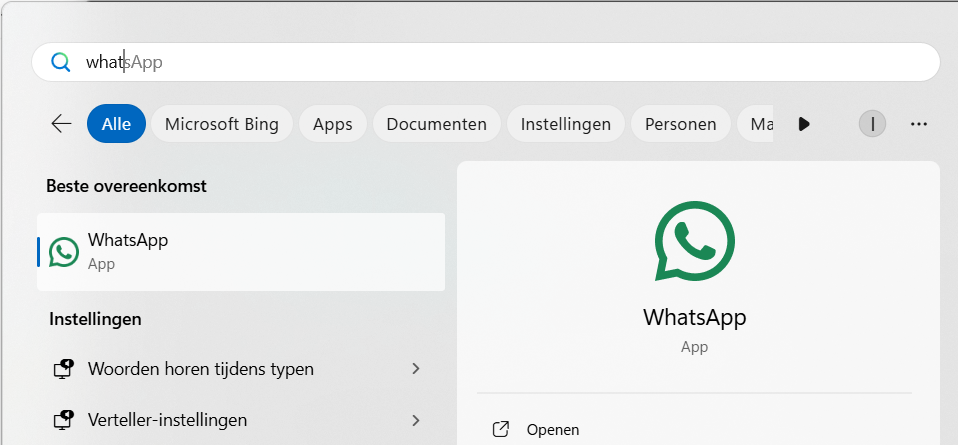
Fun fact is that the data is stored in the profile, so after installing the app it can be used directly and with the data from an earlier login.
Summary
Now this guide shows how I solved the problem of users not able to use apps on Azure Virtual Desktop without re-installing them every session.
In my opinion, I think its the best way to handle the applications. If the application has an option to install through a .exe or .msi file, that will work much better. I use this only for some applications that can be downloaded exclusively from the Windows Store.
These sources helped me by writing and research for this post;
End of the page 🎉
You have reached the end of the page. You can navigate through other blog posts as well, share this post on X, LinkedIn and Reddit or return to the blog posts collection page. Thank you for visiting this post.
Support the blog
