Migrate Group Policies to a new server or domain like a pro
Once in a while, we as IT administrators need to export and import our Group Policies of Windows Server to another server. Sometimes to copy a great policy you’ve built, or to migrate a customer to a new server.
By default, the only option Microsoft has built in into Group Policy Management (gpmc.msc) is the backup option. This creates some administrative tasks.
The Export and Import scripts
I have created two scripts with Powershell that fully exports and imports all Group Policy Objects (GPOs). This with 2 seperate scripts. These can be found and downloaded from my Github page:
Download Export script from GitHub Download Import script from GitHub
Using the Export script to migrate Group Policies
When having our Group Policies in place on a server, create a new folder on a preferred place like Desktop.
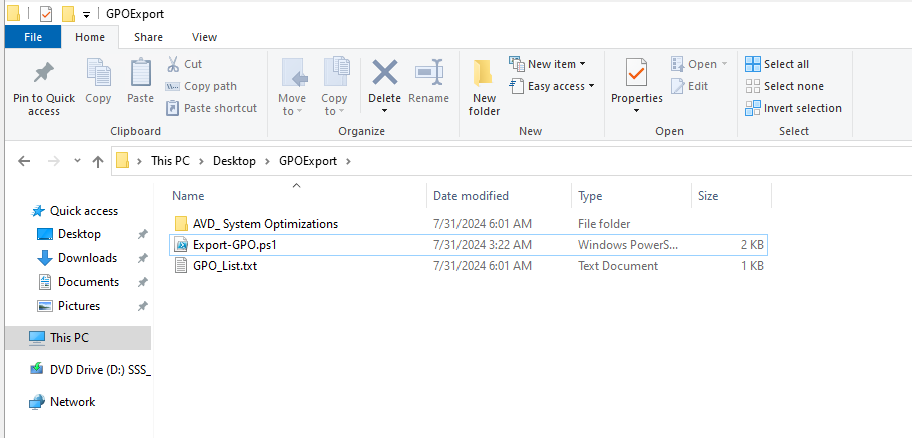
Save my Export script to a .ps1 file and place that into the newly created folder.
If you haven’t changed your Powershell script execution policy yet, do a shift + right click on a empty space in the folder, and run the command:
Set-ExecutionPolicy Unrestricted -Scope ProcessAfter that you can run the script by typing .\*tab button*
.\ExportGroupPolicies.ps1This will temporarily accept our script and other scripts till we close the Powershell window. This is the best and most secure way handling the Execution Policy of Powershell.
Now lets run our script to export all non-default Group Policy objects:
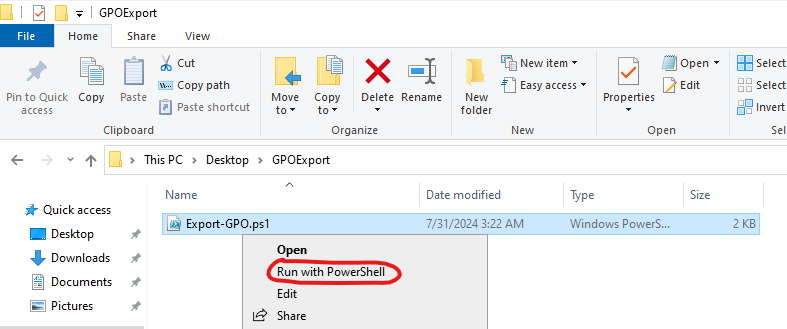
It will save all needed files in this folder, so you can copy the whole folder and start the importing process on the destination server:
Using the import script to migrate Group Policies
Lets say, we have just created our new forest and promoted our first server to a domain controller. We now want to import the GPOs we exported using this export script to this new server.
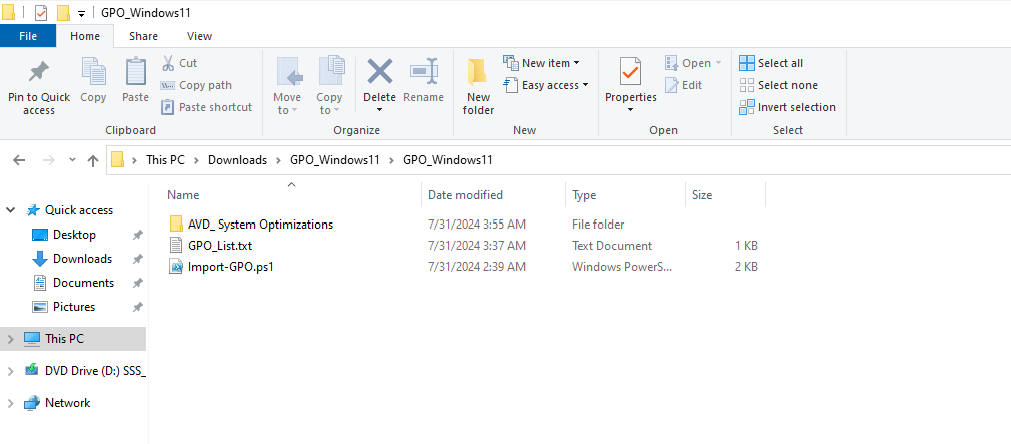
I have saved the script as .ps1 file for quick execution, and have saved in the same folder as my export script saved the GPO’s:
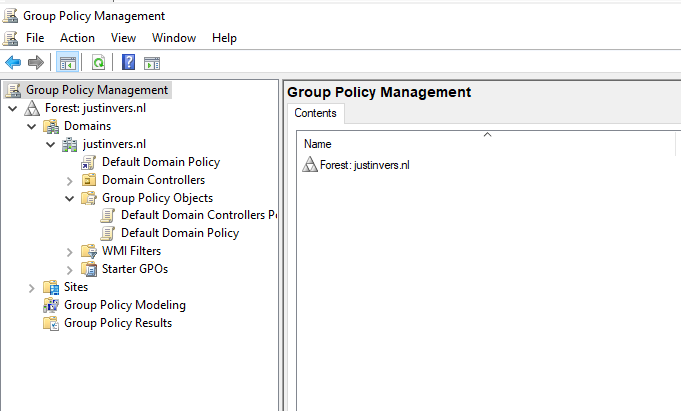
When checking our Group Policy Management console, it is completely empty and clean:
We now execute the script to import the Group Policies:
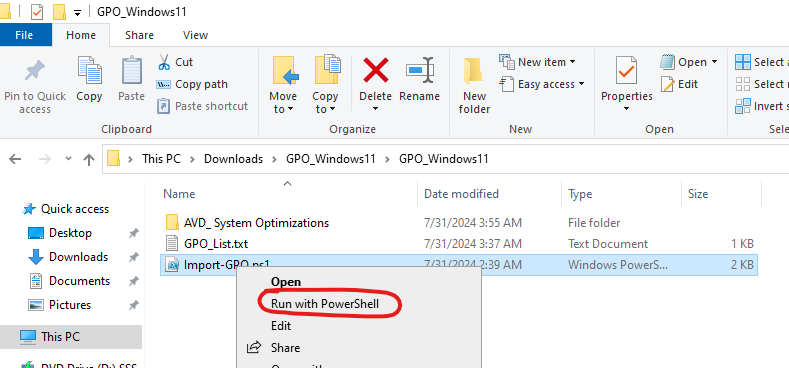
If you haven’t temporarily disabled your PowerShell execution policy yet, do this just like in the exporting action.
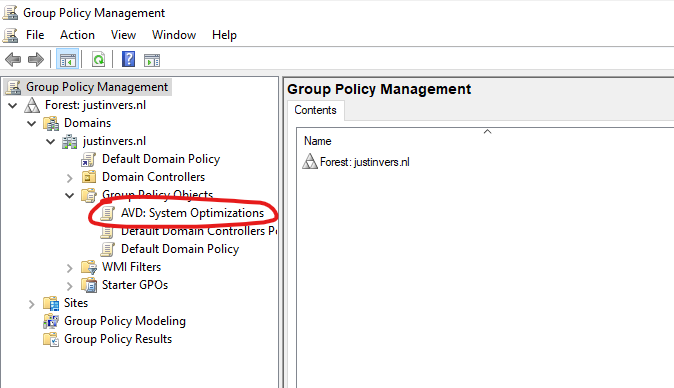
After succesfully executing the script, our GPO is available and ready to link to our OU. This is the only task what we have to do manually.
Summary
These 2 scripts will export and import our Group Policy easy for migration. Unfortunately Microsoft does not offer a native and easy solution for this.
I have used this script multiple times and I am very satisfied.
Thank you for reading this page and hope it was interesting and helpful.
End of the page 🎉
You have reached the end of the page. You can navigate through other blog posts as well, share this post on X, LinkedIn and Reddit or return to the blog posts collection page. Thank you for visiting this post.
Support the blog
