Monitor Azure Virtual Deskop logon speed
The script is not made by myself, the source of the script is: https://www.controlup.com/script-library-posts/analyze-logon-duration/
The script used in practice
I have a demo environment where we can test this script. There we will run the script.
The script must be run at the machine where a user has just finished the login process. The user must be still logged on at the time you run it because it needs information from the event log and the session id.
I have just logged in into my demo environment with my testuser. We must specify the user as: “DOMAIN\user”:
Get-LogonDurationAnalysis @params
cmdlet  at command pipeline position 1
Supply values for the following parameters:
DomainUser: JV\test.user
Then hit enter and the script will get all information from the event logs. It can generate some warnings about software not recognized, which is by design because they are actually not installed.
WARNING: Unable to find network providers start event
WARNING: Could not find Path-based Import events for source VMware DEM
WARNING: Could not find Async Actions events for source VMware DEM
WARNING: Could not find AppX File Associations events for source Shell
WARNING: Unable to find Pre-Shell (Userinit) start event
WARNING: Could not find ODFC Container events for source FSLogix
WARNING: No AppX Package load times were found. AppX Package load times are only present for a users first logon and may not show for subsequent logons.
The results
After about 15 seconds, we get the results from the script with readable information. I will give an explanation about each section of the output and the information it tells us.
Login information and phases
Here we have some basic information like the total time, the username, the FSLogix profile mounting, the possible Loopback processing mode and the total time of all login phases at the bottom.
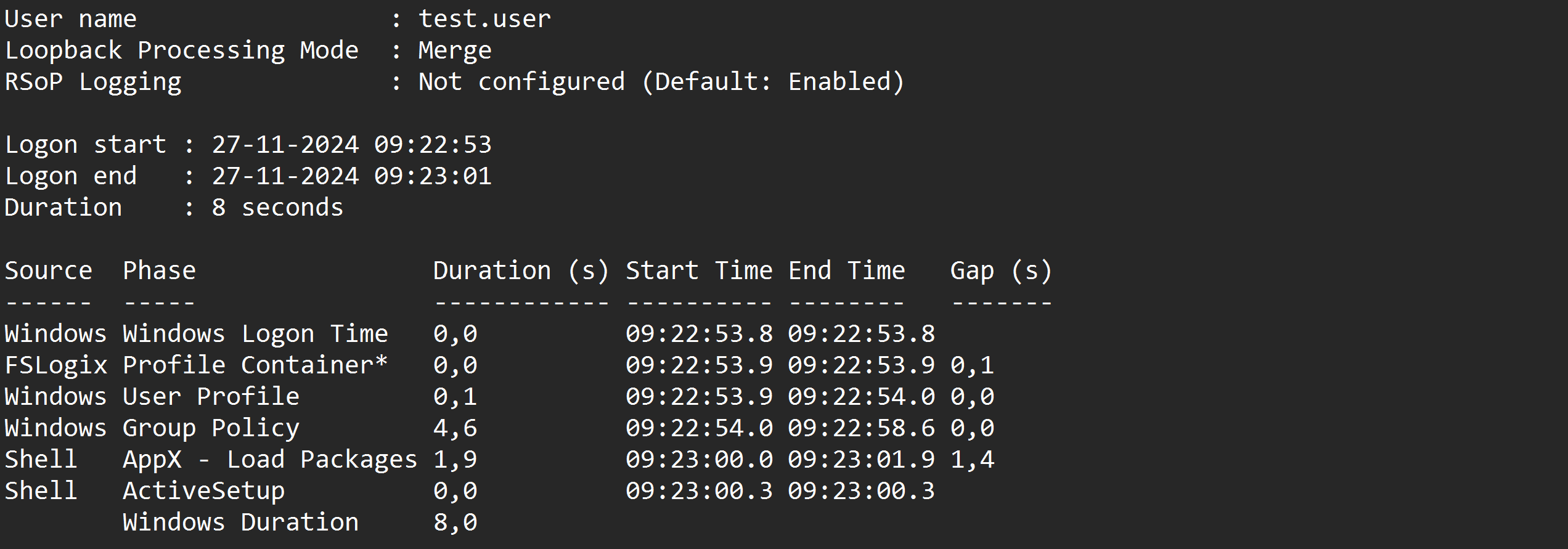
This is a nice overview of the total sign in time and where this time is spent. In my case, I did not use FSLogix because of 1 session host.
Login tasks
At this section there are some tasks that happens in the background. In this case, the client refreshed some Group Policy scripts.

Login scheduled tasks
Here the script assessed the scheduled tasks on the machine that ran on the login of the user. Some tasks can take much time to perform, but in this case it was really fast.

Group Policies
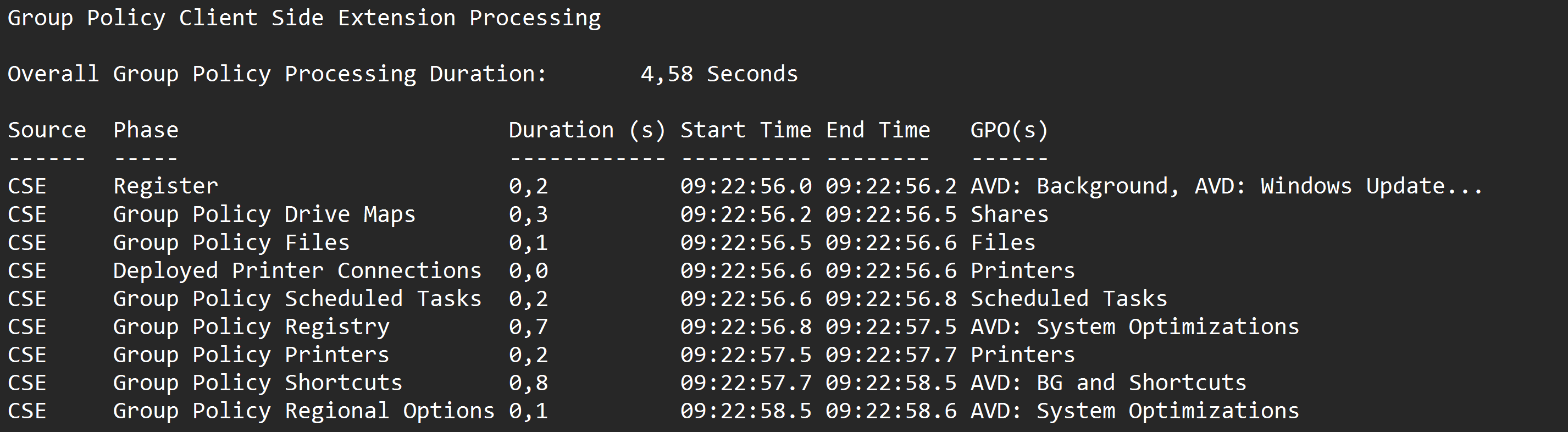
At this section the group policies are assessed. This takes more time the more settings and different policies you have.
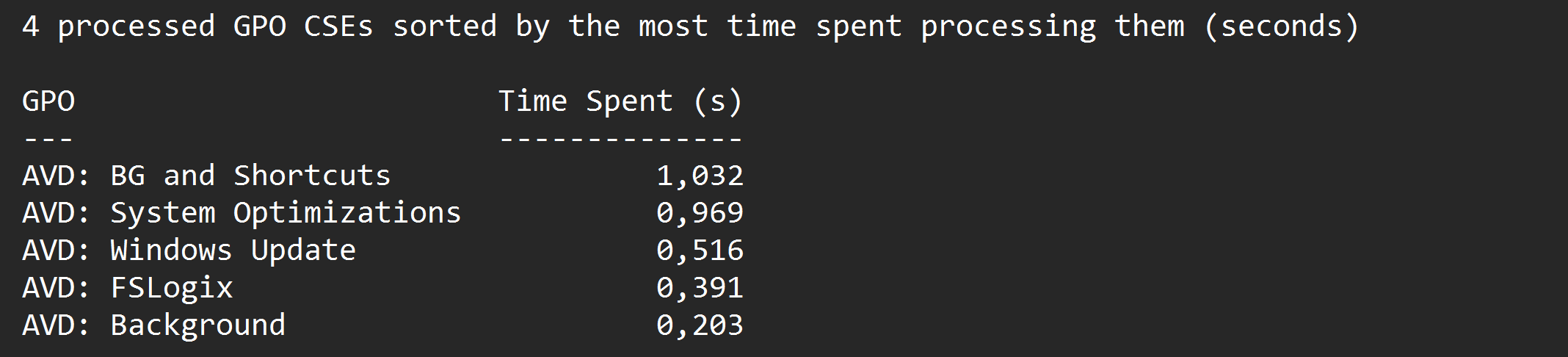
After that the script summarizes the processing time on the client for the Group Policy Client Side Extensions (CSE). This means, the machine get its settings and the CSE interprets this into machine actions.
Download the script
Not my own script this time, but you can get the script from this site
Summary
This script can be very handy when testing, monitoring and troubleshooting logon performance of Azure Virtual Desktop. It shows exactly how much time it takes and what part took the most time. I can recommend everybody to use it when needed.
Thank you for reading this guide and I hope it was helpful.
End of the page 🎉
You have reached the end of the page. You can navigate through other blog posts as well, share this post on X, LinkedIn and Reddit or return to the blog posts collection page. Thank you for visiting this post.
Support the blog
