Optimize Windows 11 for Azure Virtual Desktop (AVD)
Introduction to the Group Policy template
Assuming you run your Azure Virtual Desktop environment by using the good old Active Directory (AD DS), you can manage the hosts with Group Policy.
To help you optimizing the experience on Windows 11, I have a predefined group policy available with lots of settings to help optimizing your Windows 11 session hosts. This group policy follows the official Microsoft best practices, alongside with some of my own optimizations which has been proven good in production.
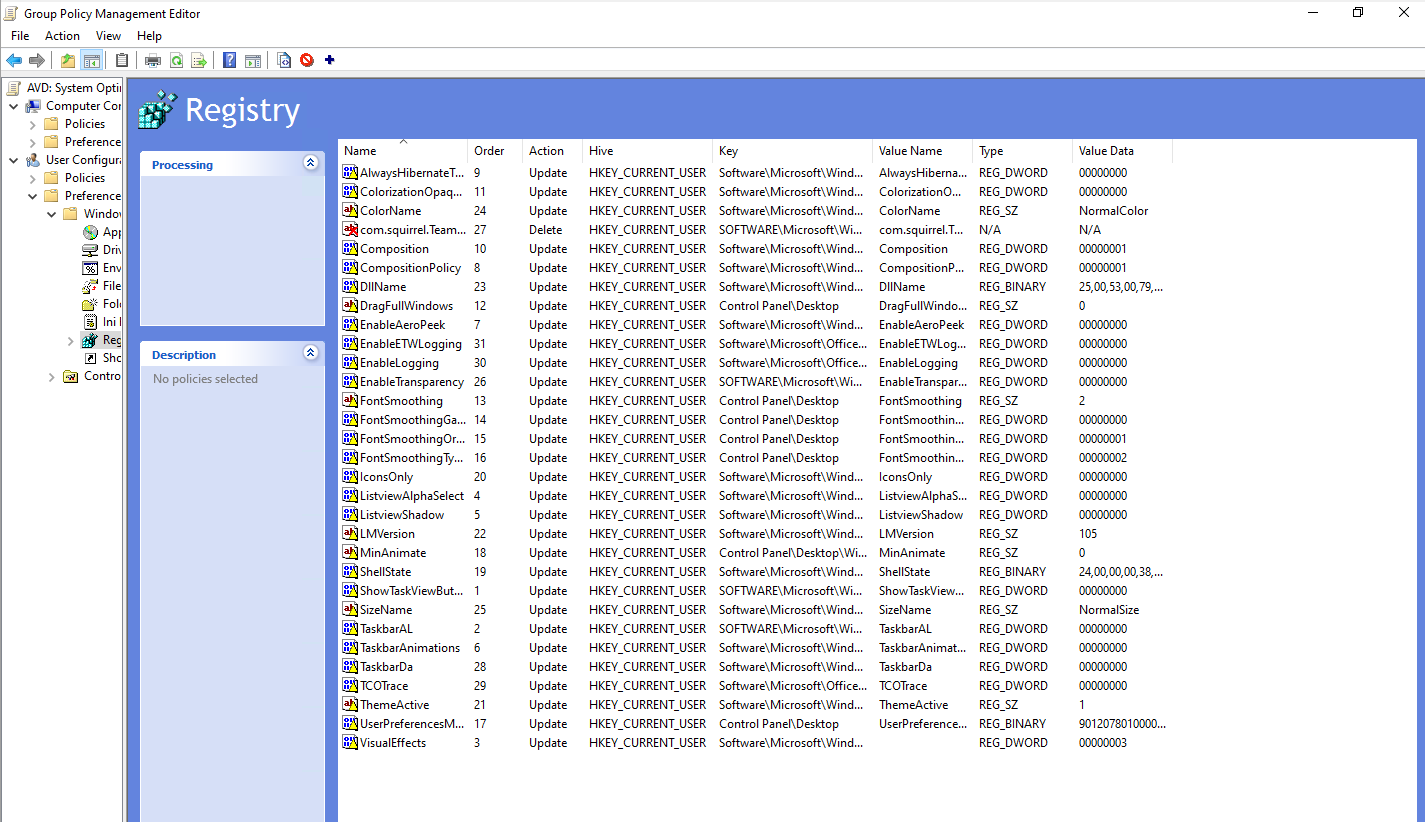
What this Group Policy does
This group policy does the following:
- Disables visual effects
- Disables transparency effects
- Disables shadows
- Disables other animations or CPU/GPU intensive parts not needed on RDP sessions
- Disables Cortana
- Disables redirected printers to be default
- Enables Timezone redirection from client to host (user sees time based on his client-side settings)
- Disables storage sensing
- Disables Taskview button in taskbar
- Places the start button on the left (most users prefer it on the left, not in the center)
- Enables RDP Shortpath when not already enabled (better performance and less latency)
- Verbose messages in Event Viewer
- Turn off Windows Autopilot
- Trust local UNC paths
- Google Chrome optimizations
How to install this Group Policy template
You can install this group policy by following the steps below;
- Download the zip file at the end of the page with contains a .ps1 scipt, GPO list and the GPO itself.
- Extract the zip file
- Run the .ps1 file in the zip
- In your current folder, do a shift+richt click and select “Open Powershell window”
If you have to change your Powershell Execution Policy, use Set-ExecutionPolicy Unrestricted -Scope Process and then run your script. This bypasses the execution policy for only the duration of that Powershell window.
After succesfully running the script, the GPO will be available in the Group Policy Management console;
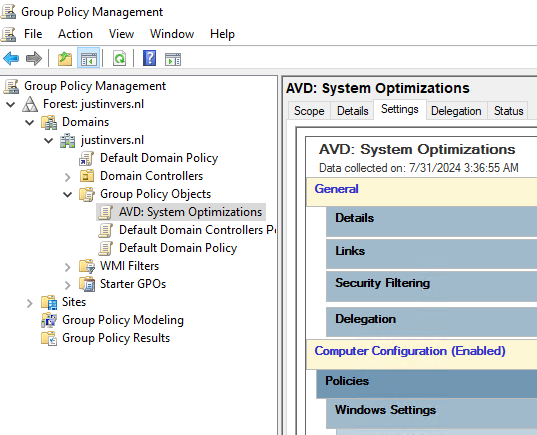
You are free to link the GPO to each OU you want but make sure it will not directly impact users or your service.
Tips when using this Group Policy
Managing AVD session hosts isn’t only enabling settings and hoping that it will reach its goal. It is building, maintaining and securing your system with every step. To help you building your AVD environment like a professional, I have some tips for you:
- Put your AVD session hosts in a seperate OU
- Better for security and maintainability, and you can link this group policy to your sessio hosts OU
- Use Group Policy Loopback Processing mode “Merge”
- Create a single GPO in your session hosts OU and set the group policy processing mode to “Merge”. This will ensure that your computer and user settings are merged.
- Carefully review all settings made by this GPO
- Test the change before putting into production
You can download the package from my Github (includes Import script).
Virtual Desktop Optimization Tool (VDOT)
Next to my template of performance GPO’s we can use the Virtual Desktop Optimization Tool (VDOT) to optimize our Windows images for multi-session hosts. When using Windows as multi session, we want to get the most performance without overshooting the resources which will result in high operational costs.
This tool does some deep optimizations for user accounts, processes and threads the background applications use. Let’s say that we have 12 users on one VM, some processes are running 12 times.
Download the tool and follow the instructions from this page:
Download Virtual Desktop Optimization Tool
When creating images, it is preferred to run the tool first, and then install the rest of your applications and changes.
Summary
This group policy is a great wat to optimize your Windows 11 session hosts in Azure Virtual Desktop (AVD) and Windows 365. This does disable some stuff that really uses some computing and graphical power which you don’t want in performance-bound situation like remote desktop. Those can feel laggy and slow really fast for an end user.
I hope I helped you optimizing your Windows 11 session hosts and thank you for reading and using my Group Policy template.
End of the page 🎉
You have reached the end of the page. You can navigate through other blog posts as well, share this post on X, LinkedIn and Reddit or return to the blog posts collection page. Thank you for visiting this post.
Support the blog
