OSConfig Baseline with Windows Server 2025
OSConfig is a configuration baseline engine for Windows Server 2025. This can be used to describe how a server needs to be configured, and OSConfig can help you enforce this configuration. When using Microsoft Azure, we can also leverage Azure Policy to enforce those configurations more easily.
This OSConfig baseline contains a set of 300+ settings to secure your Windows Server 2025 installation. The good thing about this is that it can be applied very quickly and will automatically correct settings to the baseline value if any drift occurs. Let’s say somebody enables TLS 1.0 because of an insecure application, but the baseline only permits 1.2 and up. OSConfig will then block this change and keep the baseline setting as the effective setting.
OSConfig can be used in various setups:
- Standalone with PowerShell
- Azure Policy for Azure-hosted servers
- Azure Arc for on-premises servers connected to Azure
In this guide, I will dive into how to use OSConfig on standalone and Azure-hosted servers, as this will cover 95% of all three options.
Requirements
- Around 30 minutes of your time
- Windows Server 2025 installation
- An Azure subscription with the Microsoft.GuestConfiguration resource provider registered if using Azure Policy
Set up a Windows Server 2025 instance (optional)
If not already available, we need to set up an instance to experiment with OSConfig, which is only included in Windows Server 2025 and higher. I will set up this server on Azure and use it in standalone and Azure Policy modes for the purpose of this guide.
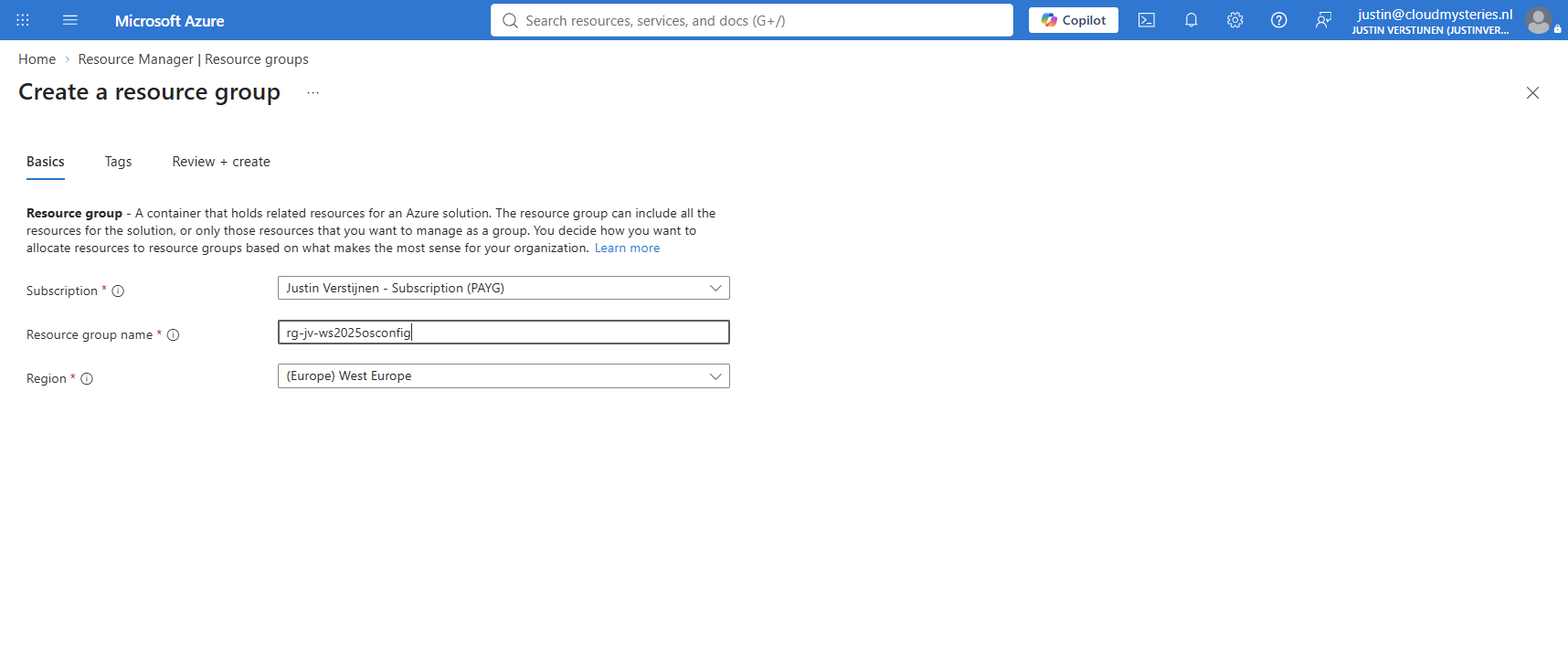
Open Microsoft Azure and create a resource group:
Then create a simple server to test OSConfig on and use the Windows Server 2025 image:
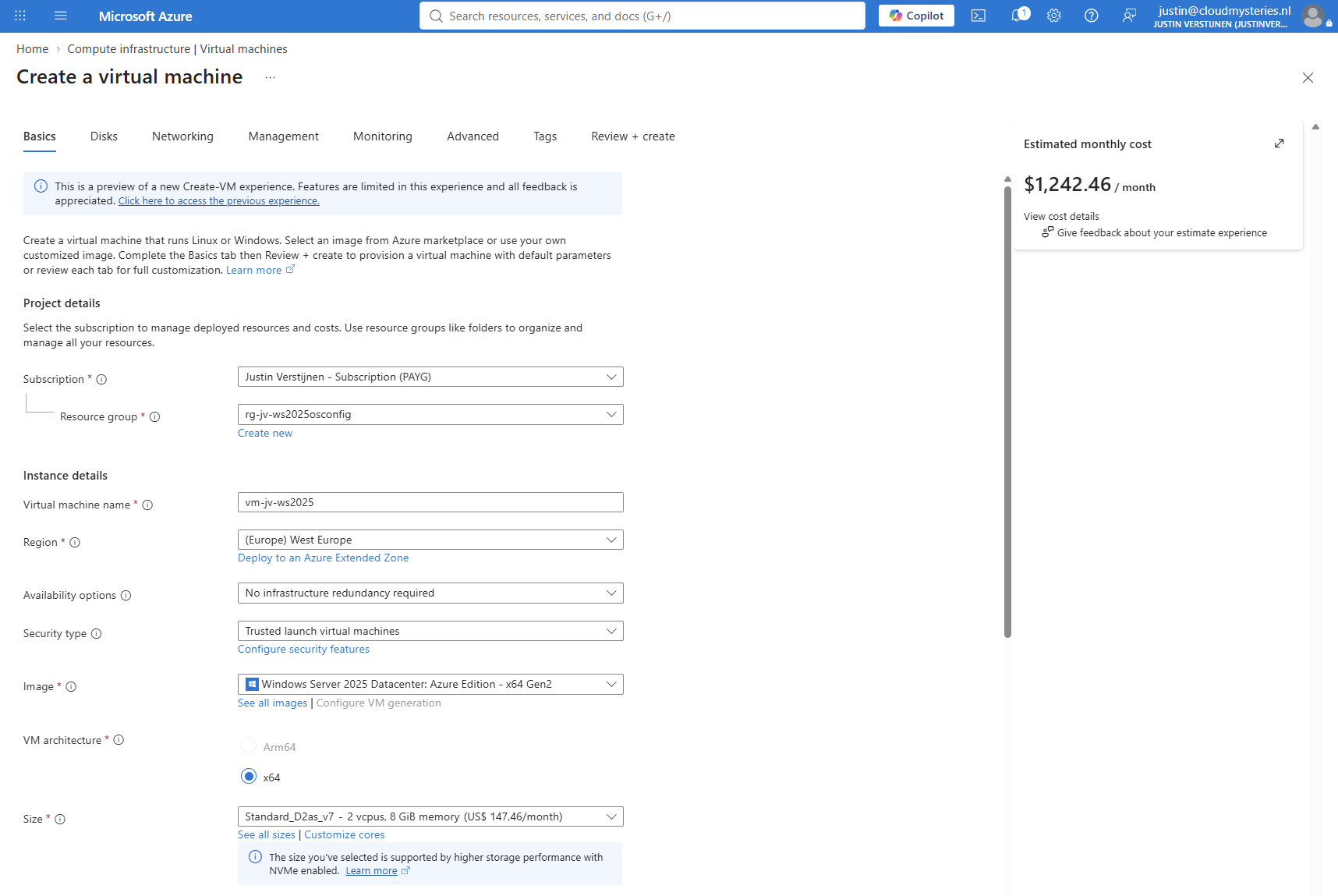
After a few minutes, our newly created server will be ready to be used.
Option 1: Using OSConfig in Standalone mode
To start using OSConfig on Windows Server 2025, let’s log in to our server and install the required PowerShell module.
Run this command to install the module:
Install-Module -Name Microsoft.OSConfig -Scope AllUsers -ForceIf any further action is required, proceed to install the module, and the installation will start accordingly.
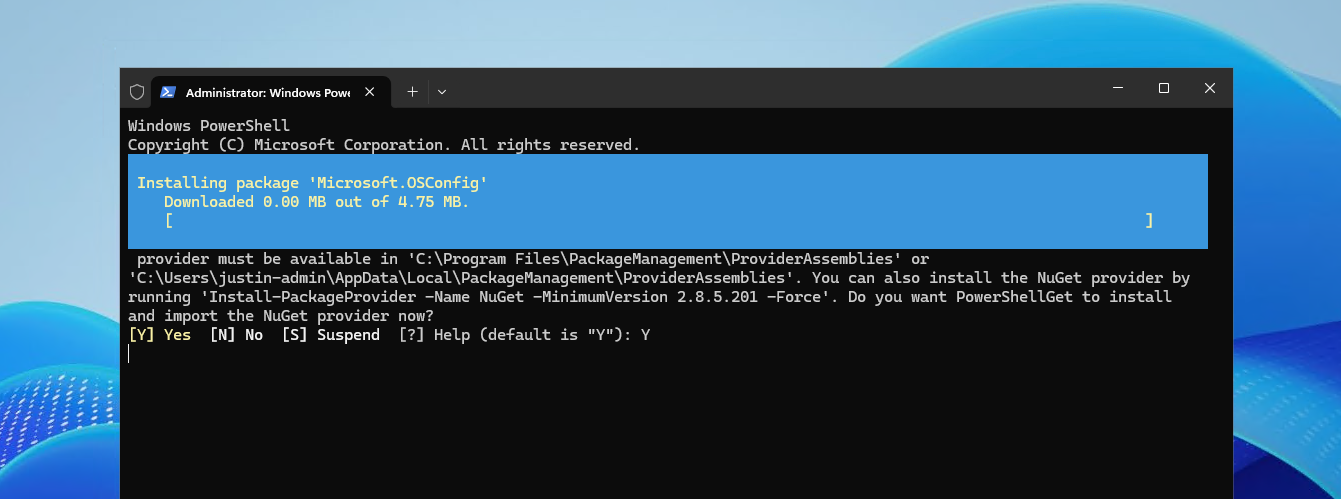
After about 45 seconds, the installation will be complete and we can start using the module.
Now that the module is active, we can start configuring the server(s) by using the Set-OSConfigDesiredConfiguration command, which supports parameters. We could enable the complete baseline for our server, which makes it very secure instantly, but this would not be the best option on live servers. You can make customizations to the actual baseline to suit your needs.
To enable OSConfig on a standalone server (no domain), use this command:
Set-OSConfigDesiredConfiguration -Scenario SecurityBaseline/WindowsServer/2025/WorkgroupMember -DefaultTo enable OSConfig on a domain controller server, use this command:
Set-OSConfigDesiredConfiguration -Scenario SecurityBaseline/WindowsServer/2025/DomainController -DefaultAnd to enable OSConfig on a member server, use this command:
Set-OSConfigDesiredConfiguration -Scenario SecurityBaseline/WindowsServer/2025/MemberServer -DefaultSo OSConfig has different baselines for the type of server you are using. In my case, I don’t have Active Directory installed on the server, so I will use the WorkgroupMember baseline:
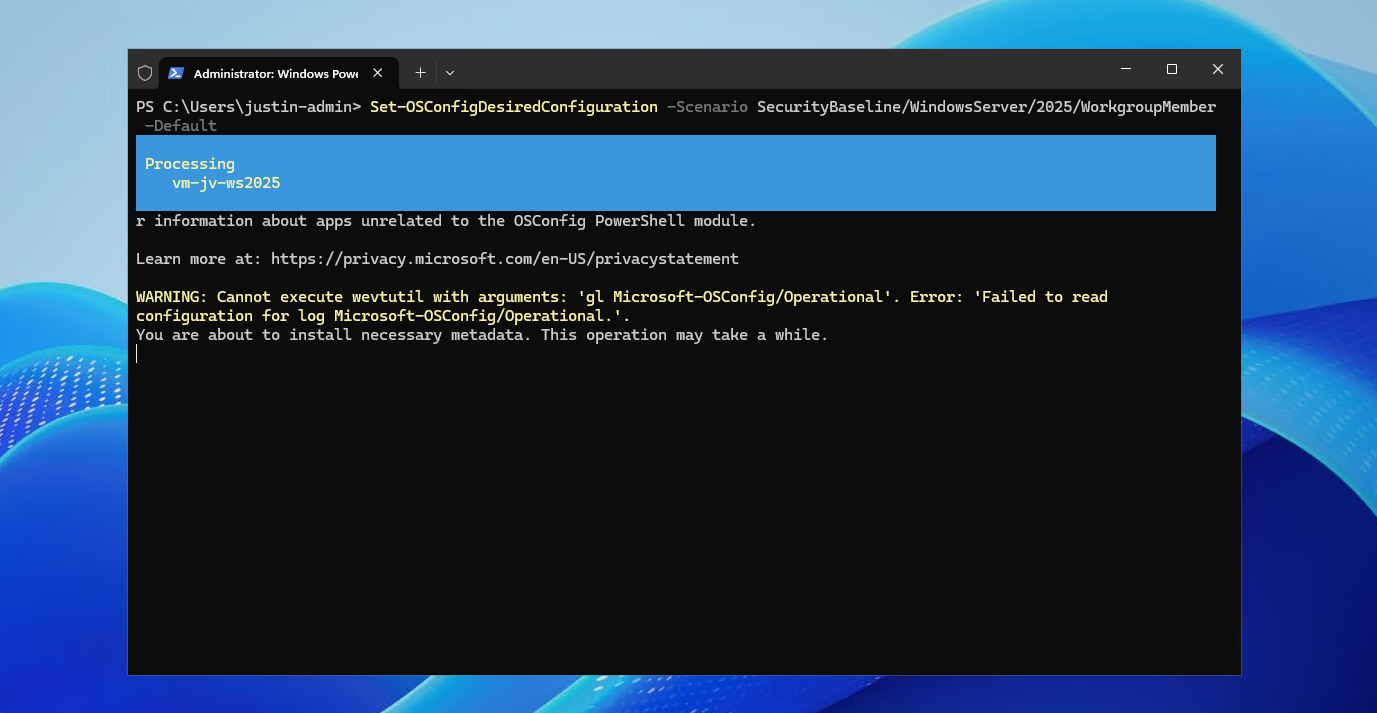
So this applies the full baseline with, at the time of writing, 317 settings that secure our server. These are settings such as:
- Windows Firewall enabled on Domain, Private, and Public profiles
- SMBv1 disabled and a minimum of SMB 3.0 enforced
- TLS 1.2 or higher required
- Local password policy hardened, like a minimum password length of 14 characters
- Anonymous and guest access restricted, including blocking anonymous SAM enumeration and disabling insecure guest logons
- Credential protections enabled, such as Credential Guard / LSASS protection where supported
- Advanced auditing enabled, including logon events, account management, process creation, file shares, and firewall activity
A full list of the baseline configuration options is available here: https://learn.microsoft.com/en-us/azure/osconfig/server2025machineconfigdoc
1.1 Exclusion on the baseline
Now we can also set exclusions on top of the complete baseline. Let’s say we don’t want the minimum password length to be 14 characters, but 10 characters instead, while keeping the rest of the baseline applied. We can view the settings graphically using secpol.msc:
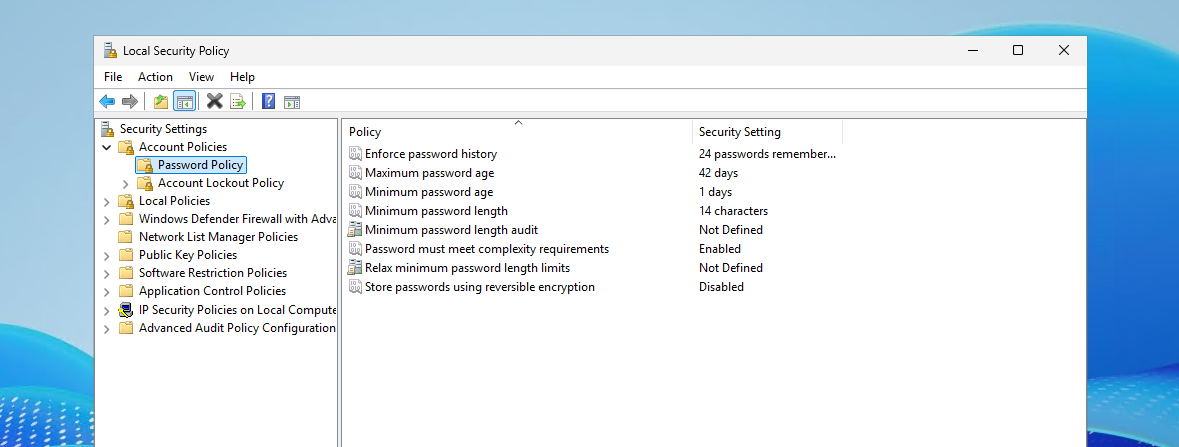
We could run the following command to apply an exclusion to the baseline and set it to 10 characters:
Set-OSConfigDesiredConfiguration -Scenario SecurityBaseline/WindowsServer/2025/WorkgroupMember -Setting DeviceLockMinimumPasswordLength -Value 10Running this will change the baseline and correct it to this value if configuration drift occurs:
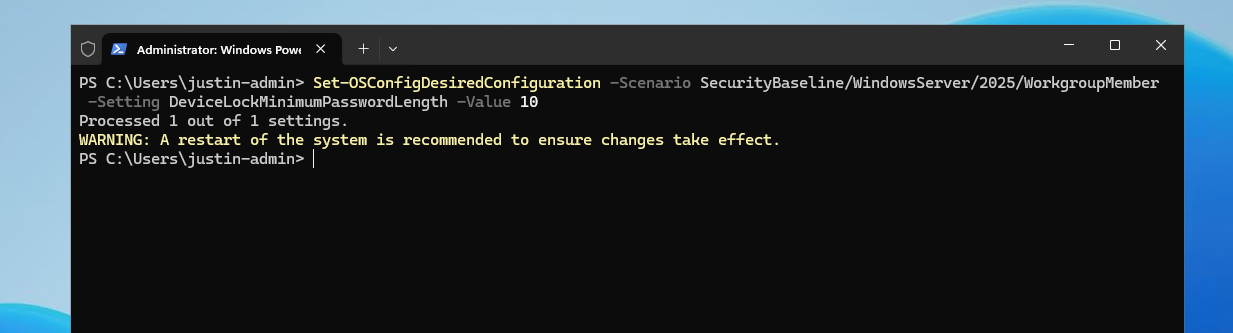
Restart the server (again) to make the changes effective.
Option 2: Using OSConfig with Azure Policy
The second option for using OSConfig on Windows Server 2025 is Azure Policy. This is more scalable than configuring a single server and manually running the commands on the various servers you use.
2.1 Deploying the Prerequisites policy
We first need to deploy some prerequisites for Azure to be able to perform configuration updates. This includes some VM extensions and a Managed Identity.
Open the Azure Portal (https://portal.azure.com), if you haven’t already, and open Policy.
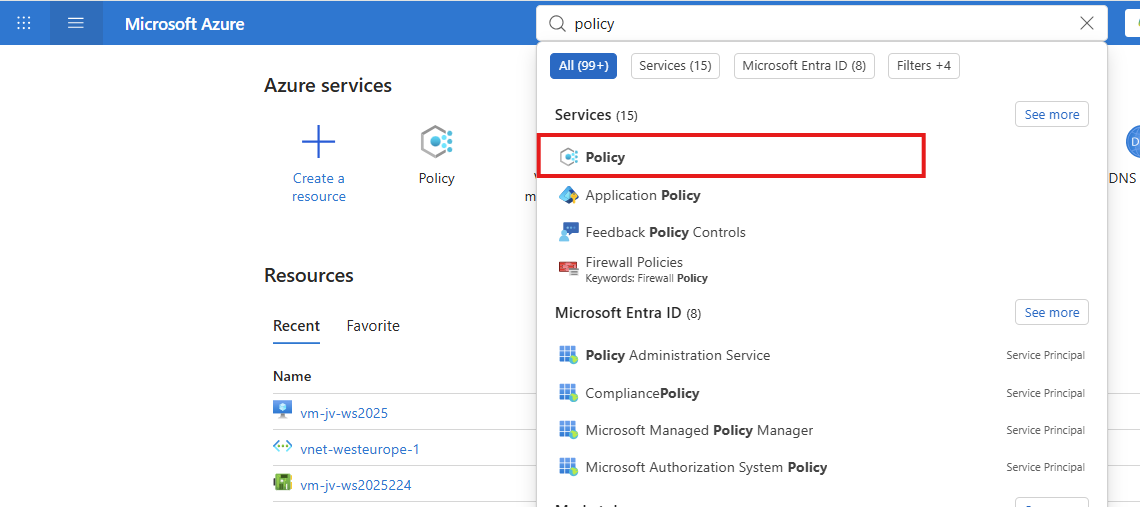
In Policy, open Definitions from the left and search for:
- Deploy prerequisites to enable Guest Configuration policies on virtual machines
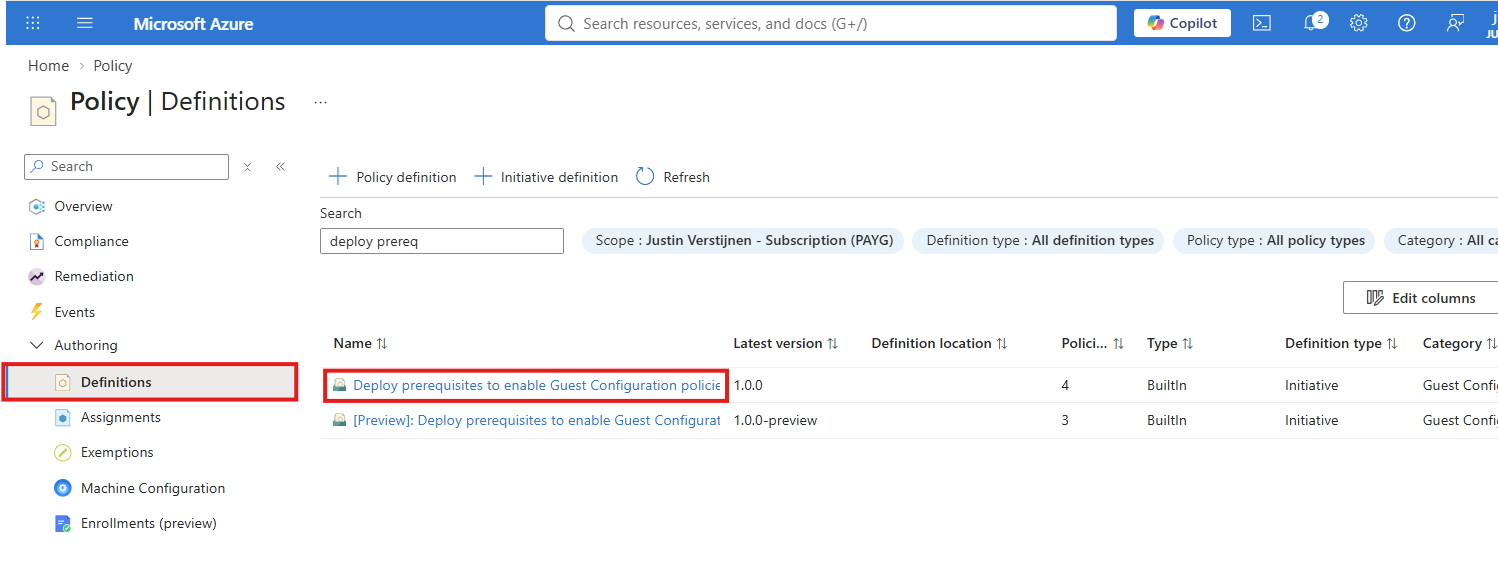
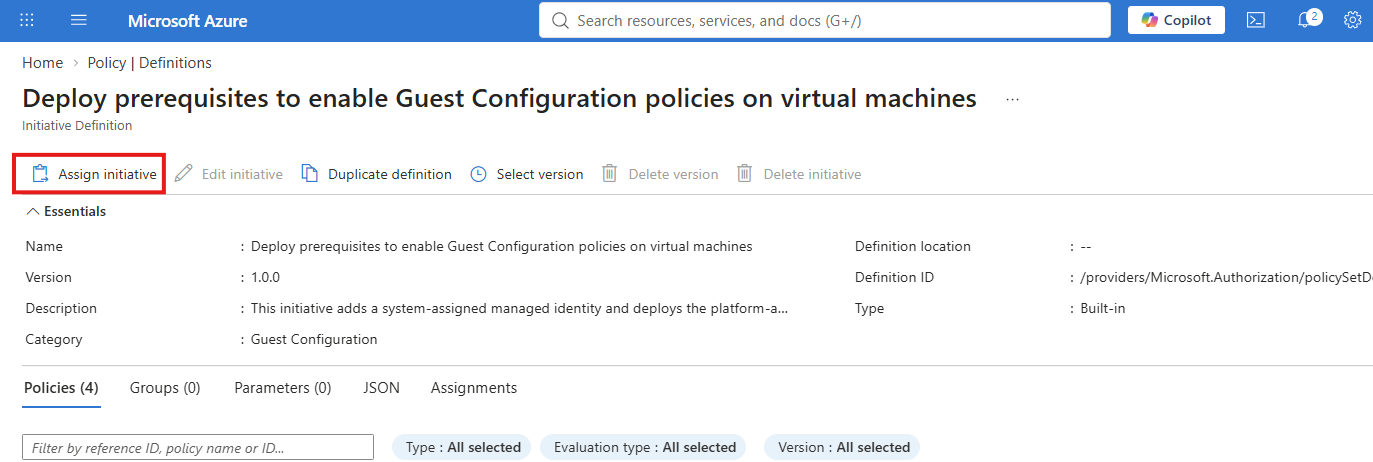
Open the Definition and then click on Assign initiative to assign this policy template to our server(s):
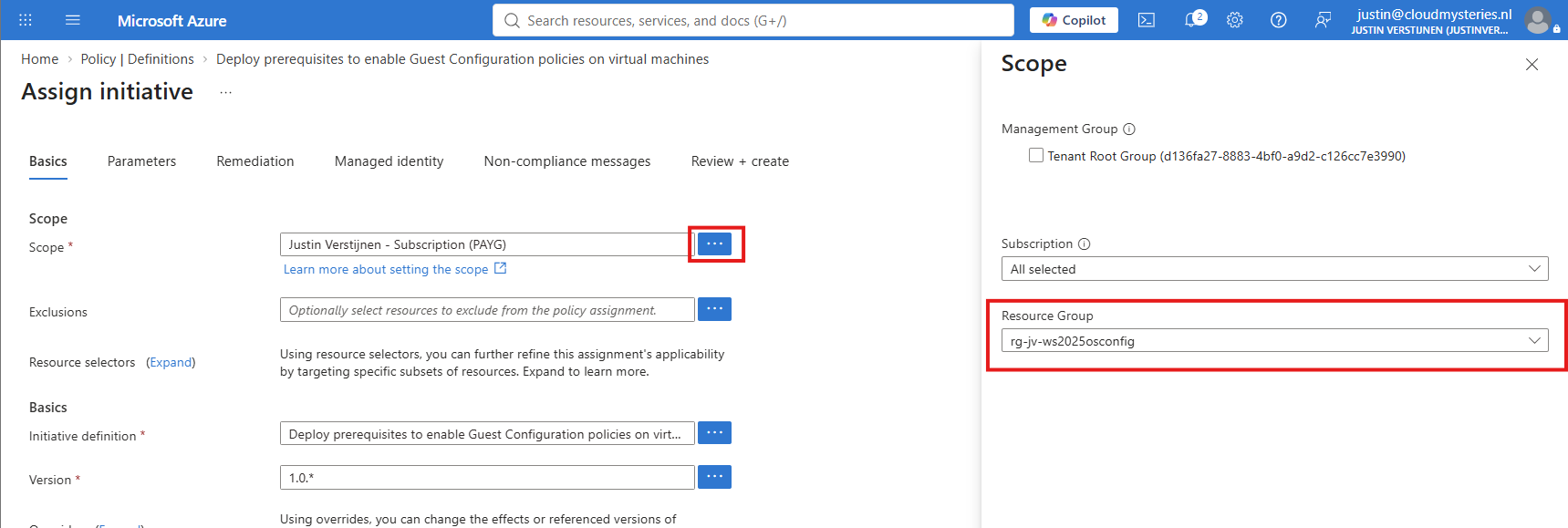
Under Scope, we can scope the policy to one or multiple resource groups, depending on our Azure architecture. If multiple similar servers are running for a particular solution, there is a good chance that they are in the same resource group.
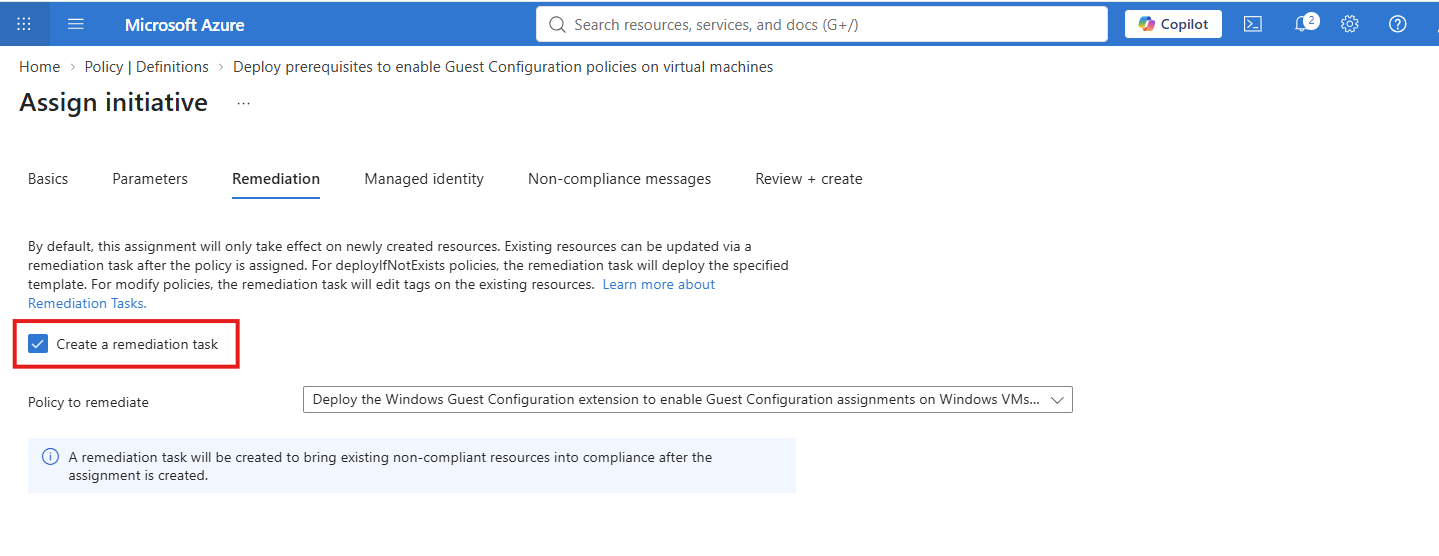
Click Next in the wizard until you get to the Remediation tab. Enable the Create a remediation task checkbox to allow Azure to deploy the prerequisites.
Click Next until you get to the Managed Identity tab and also check the option to create a Managed Identity. This is needed for Azure to have the correct permissions and scope to perform the installation of the prerequisites of OSConfig.
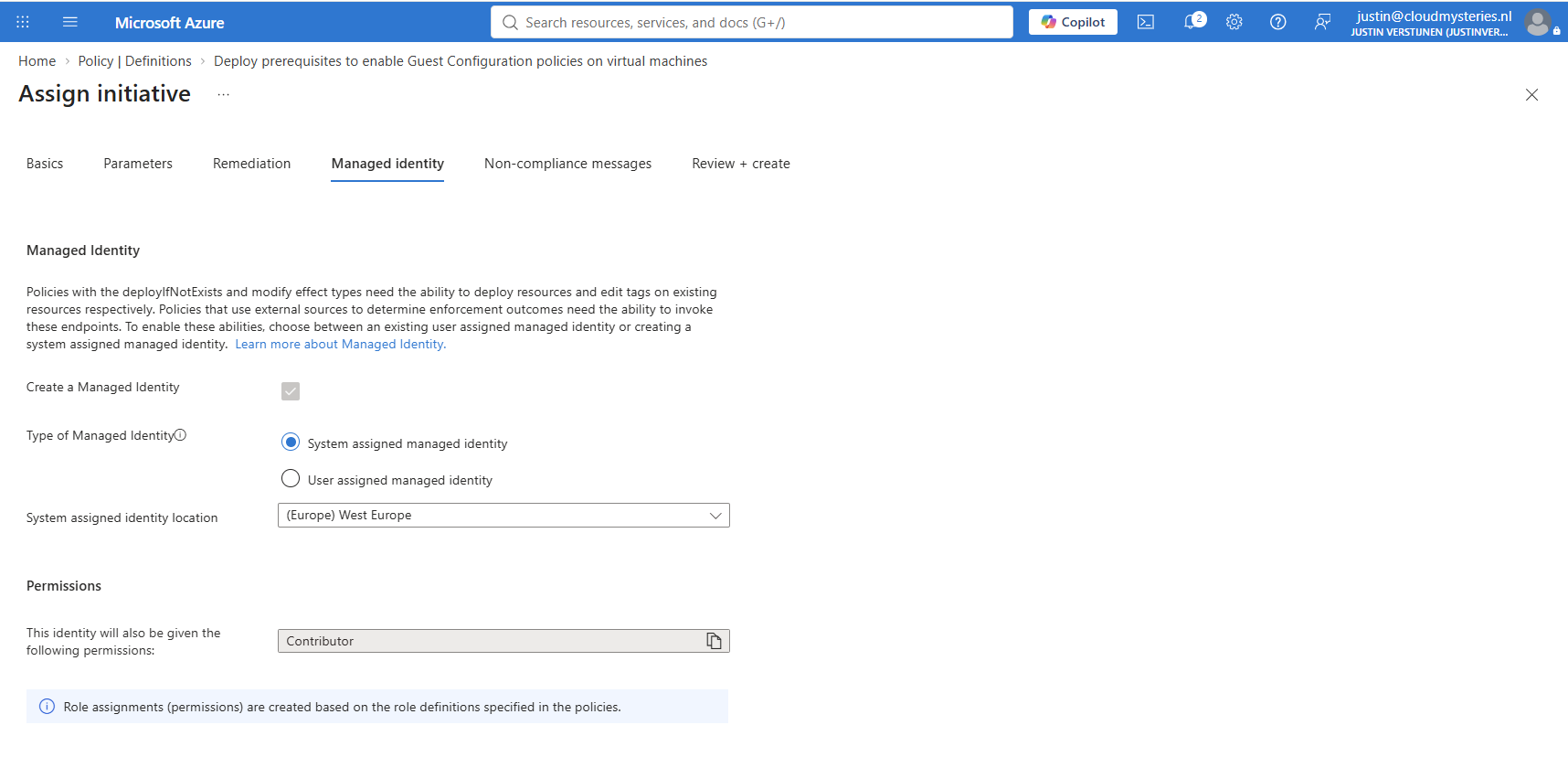
Then you can finish the wizard to enable the prerequisites policy.
2.2 Deploy the Security Baseline in Azure Policy
Now we can deploy the actual policy in Azure Policy. Go back to Policy and open Machine Configuration. Then click + Enable.
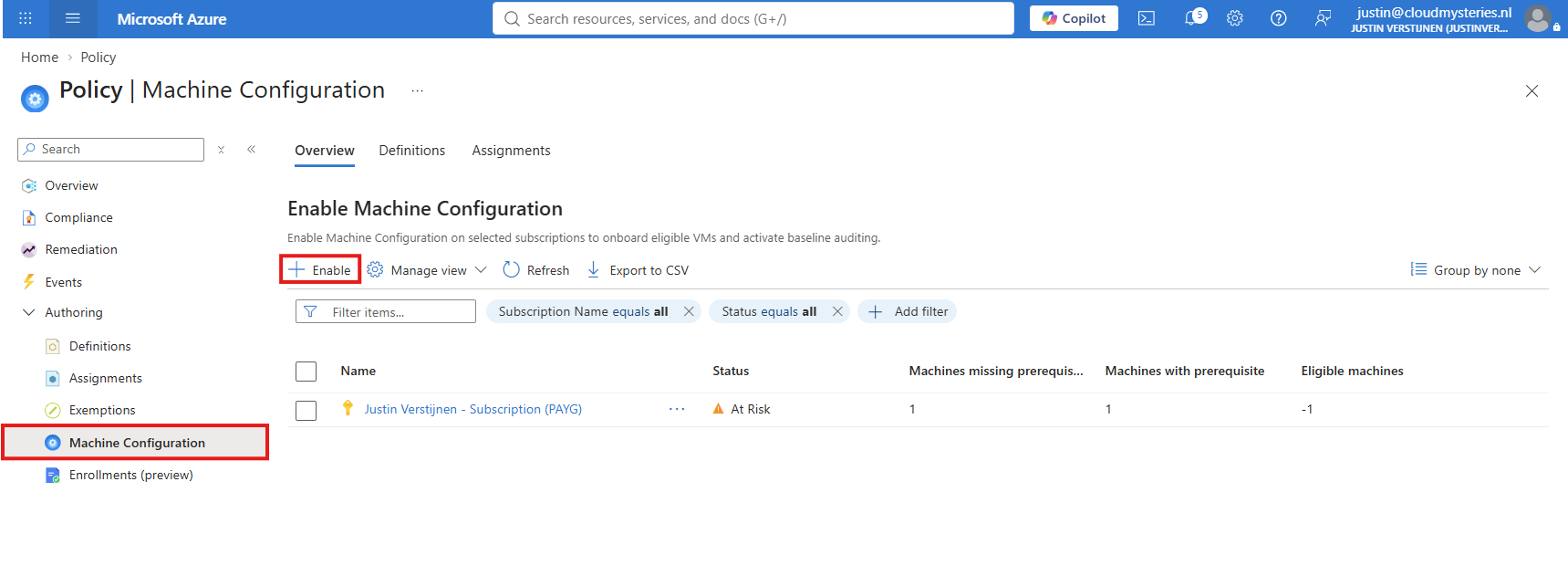
Select the subscription to enable Machine Configuration for the subscription.
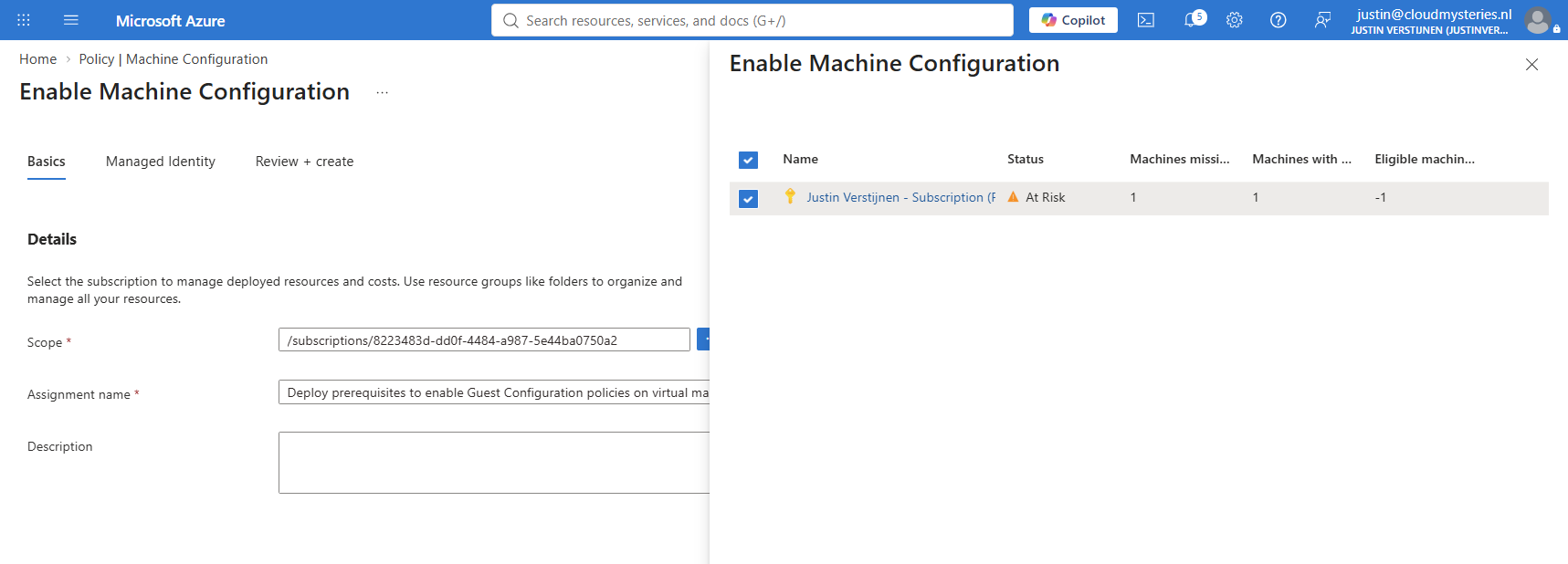
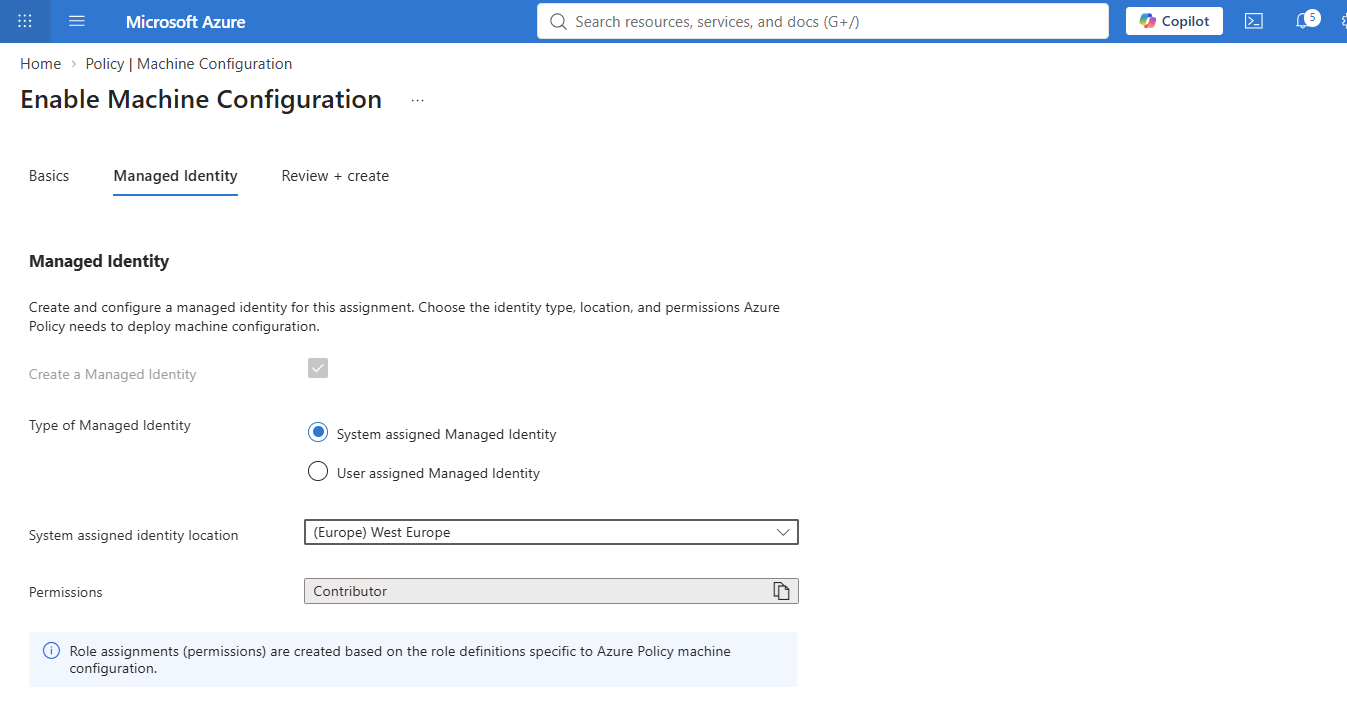
Then enable the Managed Identity and select the desired region.
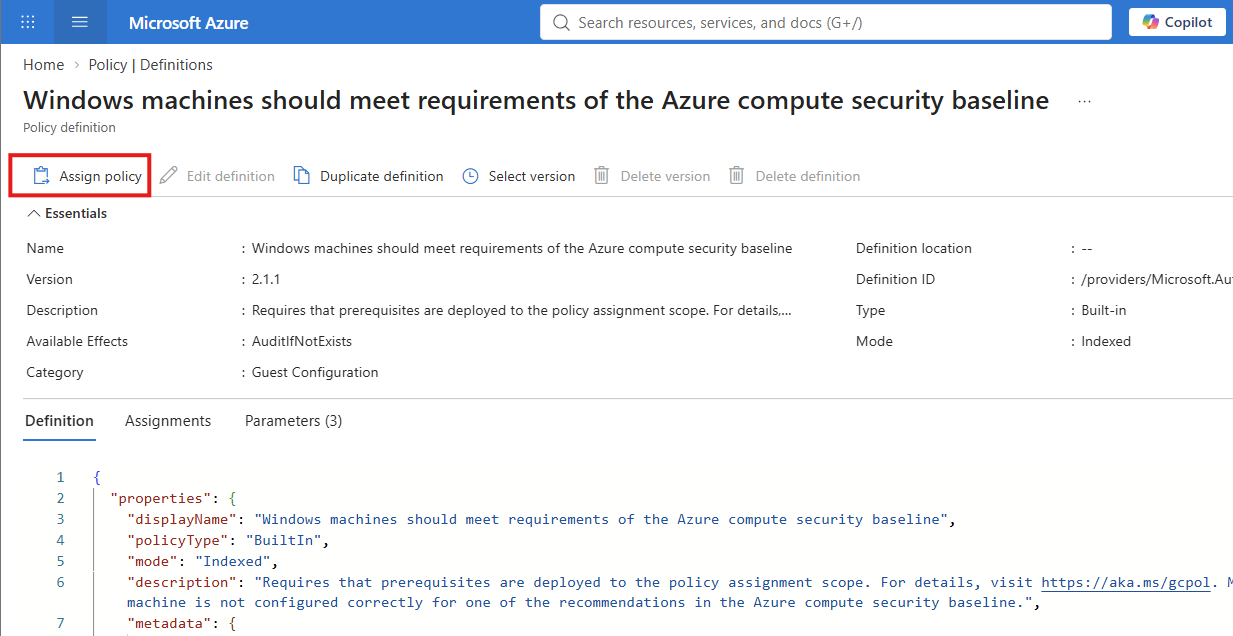
Then go back to Definitions and search for the correct policy definition to apply the benchmark:
- Windows machines should meet requirements of the Azure compute security baseline
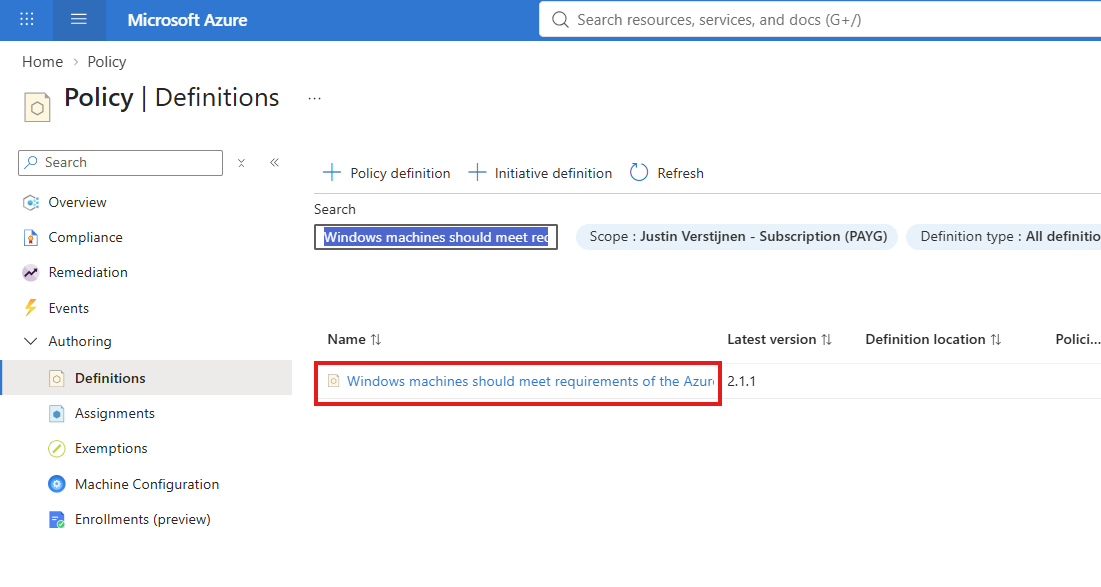
From there, click Assign policy to assign the policy to our resource group.
And select the correct resource group:
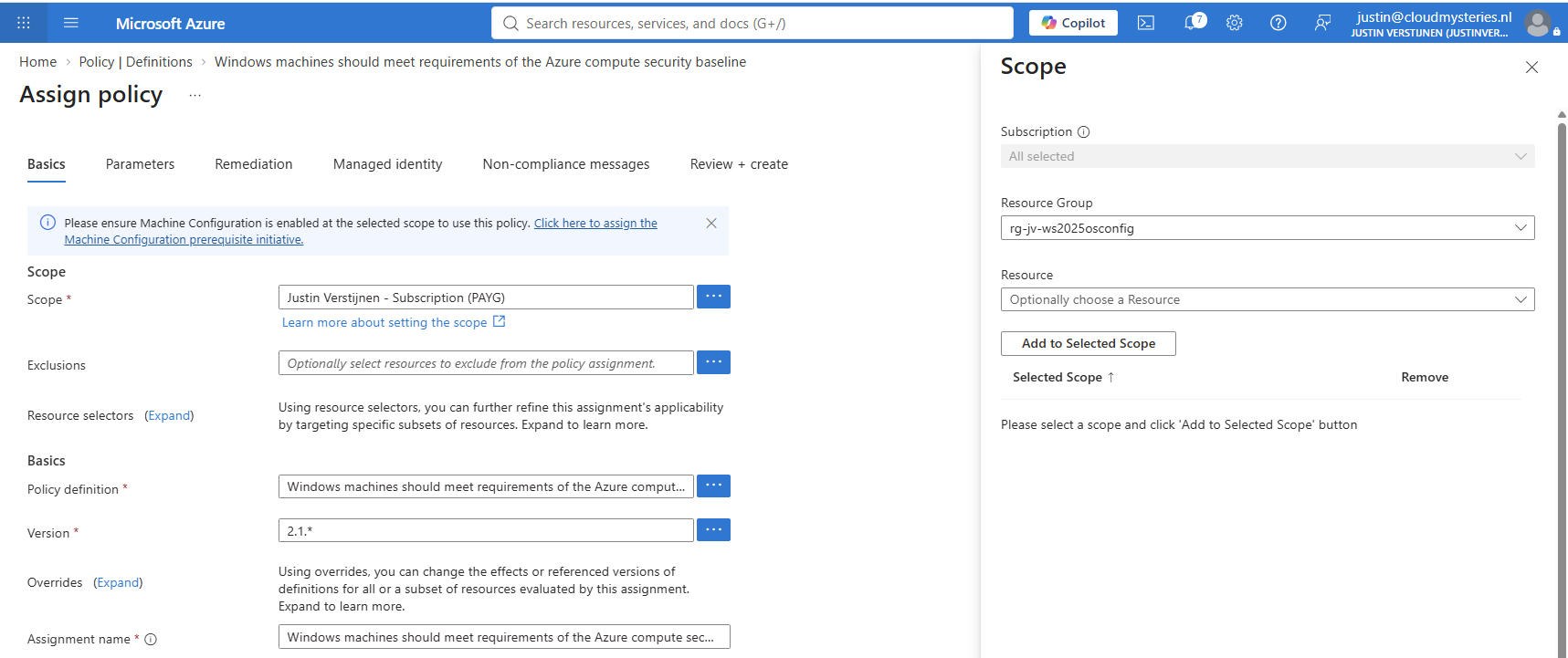
Then finish the policy assignment. It will become effective within 60 minutes.
If you want to change anything in the baseline, you could modify the baseline in the Machine Configuration section:
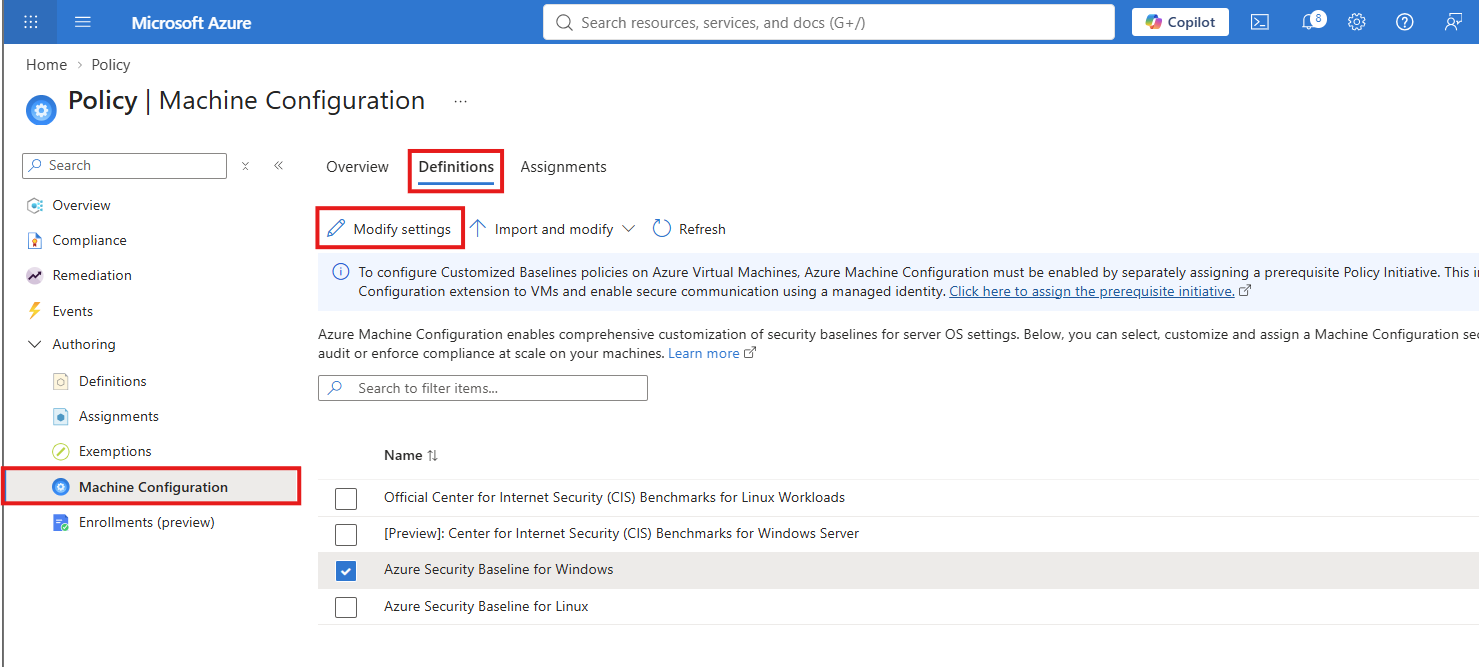
Summary
This guide explained how to use the OSConfig baseline tool in standalone mode and via Azure Policy. OSConfig is a great tool to further secure our Windows Server 2025 installation with some industry-accepted security settings like CIS benchmarks.
OSConfig can be used standalone within minutes or can be configured at scale via Azure Policy.
These sources helped me with the writing and research for this post:
- https://learn.microsoft.com/en-us/windows-server/security/osconfig/osconfig-overview
- https://learn.microsoft.com/en-us/training/modules/understand-active-directory-security-policies/8-design-deploy-manage-security-settings-at-scale
- https://learn.microsoft.com/en-us/azure/osconfig/server2025machineconfigdoc
End of the page 🎉
You have reached the end of the page. You can navigate through other blog posts as well, share this post on X, LinkedIn and Reddit or return to the blog posts collection page. Thank you for visiting this post.
Support the blog
