How to recover Script contents in Microsoft Intune
Great chance you ever uploaded a PowerShell script to Microsoft Intune, only to find out later that you no longer have the original file. You can still see the script in the Intune admin center, but there is no straight-forward download button for the original file, yet.
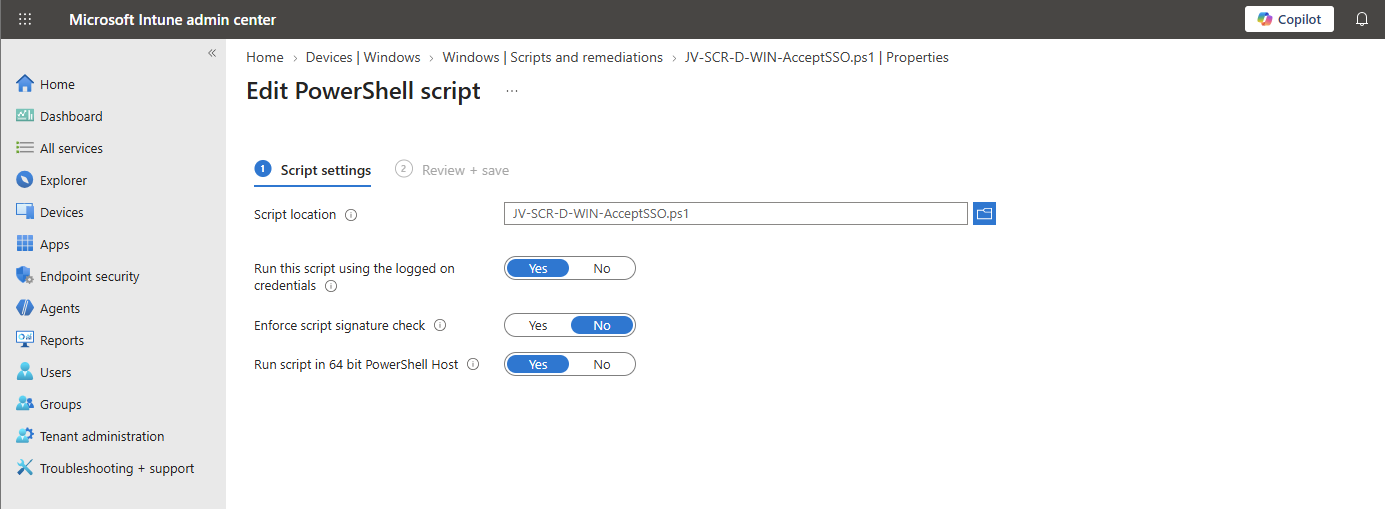
As you can see, no button to view the script contents.
Luckily, I found a way to retrieve the script using the Microsoft Graph Explorer. We don’t need to install any additional PowerShell modules or third party tools, and the process only takes a few steps.
In this post, I will show you how to find the script, retrieve its Base64-encoded content and convert it back into readable PowerShell by using as less tools/steps as possible.
Requirements
Before we start, make sure you have:
- A Microsoft 365 tenant
- Global Administrator permissions
- PowerShell on your computer to decode the content
Step 1: Find the script in Microsoft Intune
First, open the Microsoft Intune admin center and navigate to:
Devices > Scripts and remediations > Platform scripts
Find the script you want to recover. In my example, I have two previously uploaded PowerShell scripts where I want to retrieve the contents of the AcceptSSO script. For your example, make a note of the name of the one you want to retrieve.
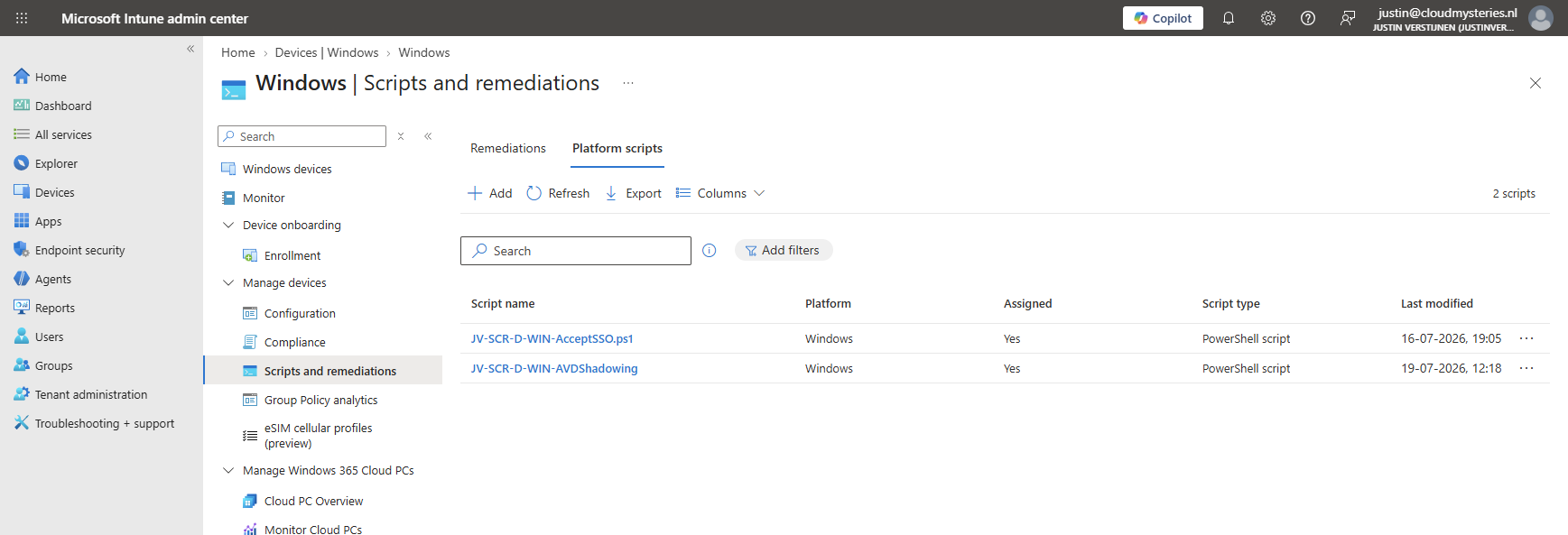
Then we can go ahead to step 2.
Step 2: Sign in to Microsoft Graph Explorer
Open the Microsoft Graph Explorer and sign in on the top right with an account that has access to the Intune environment. If this is your first time using Graph Explorer, Microsoft may ask you to accept its initial sign-in permissions.
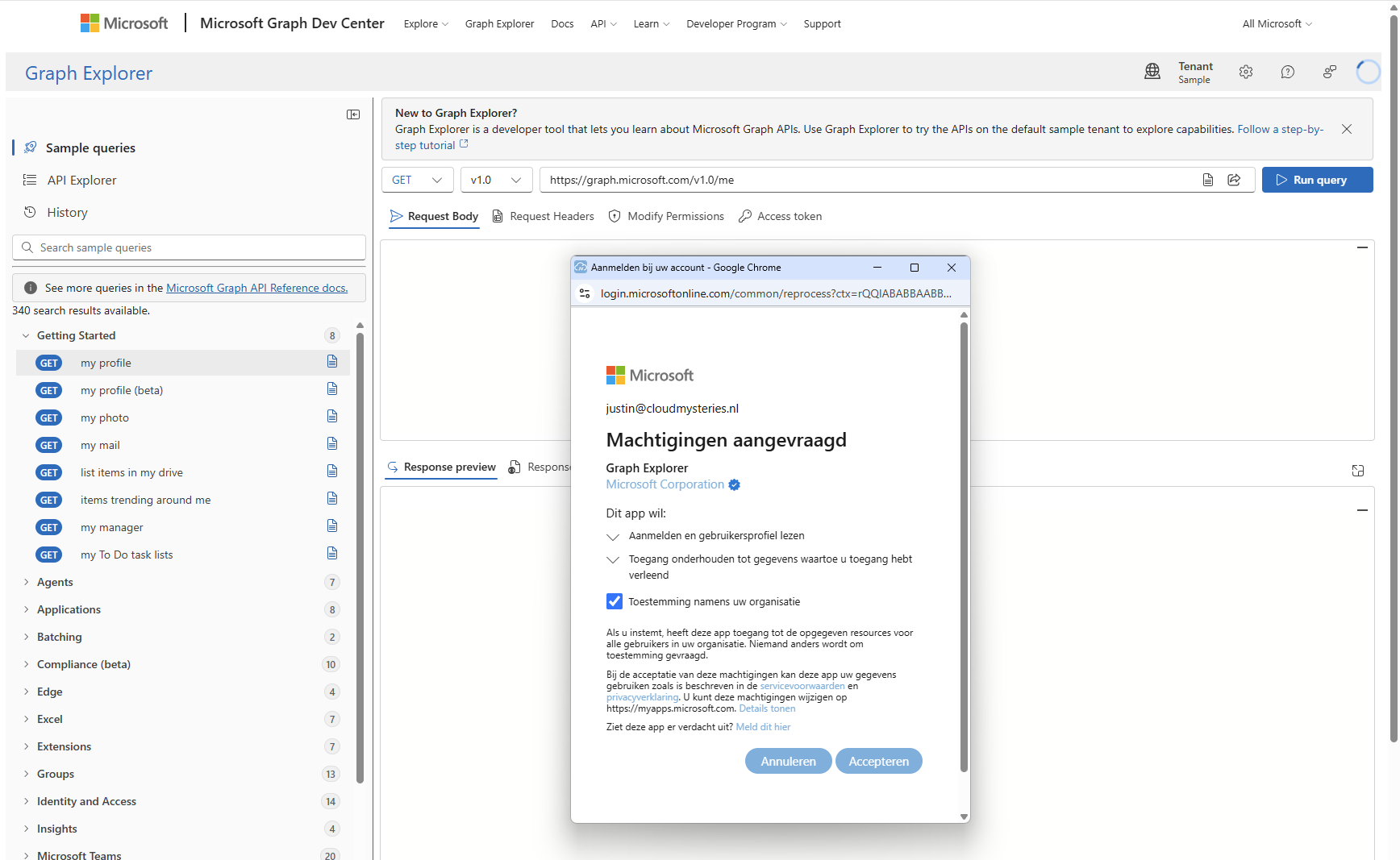
Then we can use the Microsoft Graph Explorer tool which we will use to fetch the script contents.
Step 3: Grant permission to read Intune scripts
Now we can retrieve the PowerShell script contents with Graph Explorer and to be able to do this, we need some permissions:
DeviceManagementScripts.Read.All
In Graph Explorer, paste the following URL where we will perform the query:
https://graph.microsoft.com/beta/deviceManagement/deviceManagementScriptsPaste this into the window, and click on Run query. This will bring up a message that we need additional permissions. Click this message to assign the permissions.
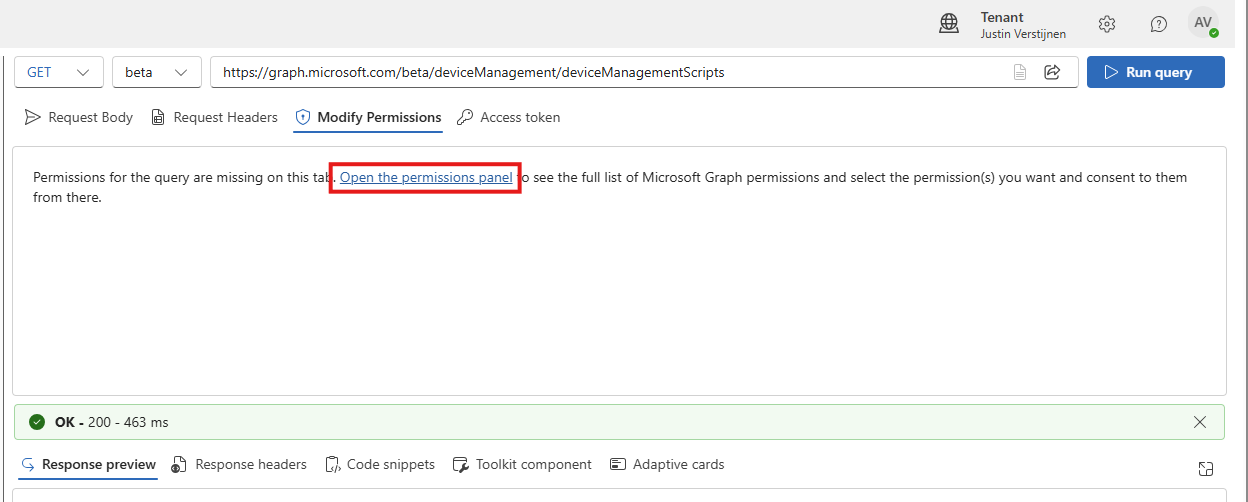
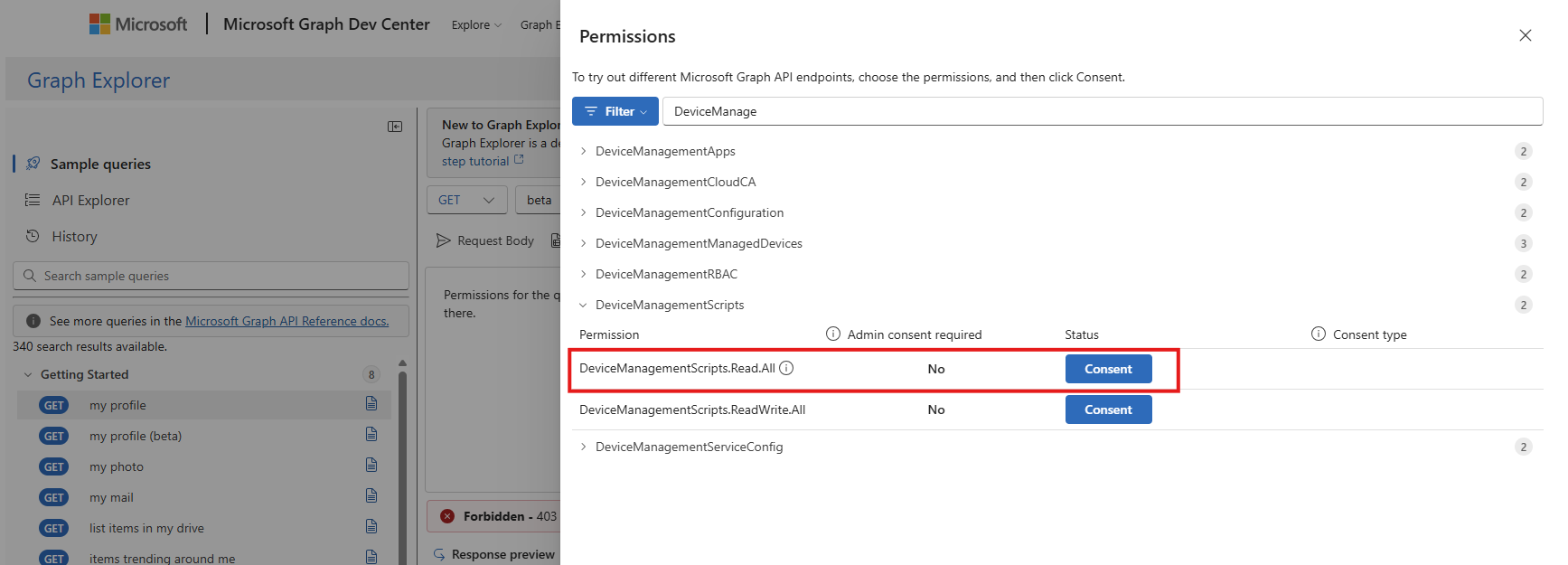
In the fly-in window, search for DeviceManagementScripts, expand the matching section, and click the Consent button next to the required permission DeviceManagementScripts.Read.All.
Microsoft will show another consent prompt. Review the requested permission and click Accept if you are authorized to grant it. If you don’t have permission, chance is that your administrator configured the approval flow in Entra ID, so request the access.
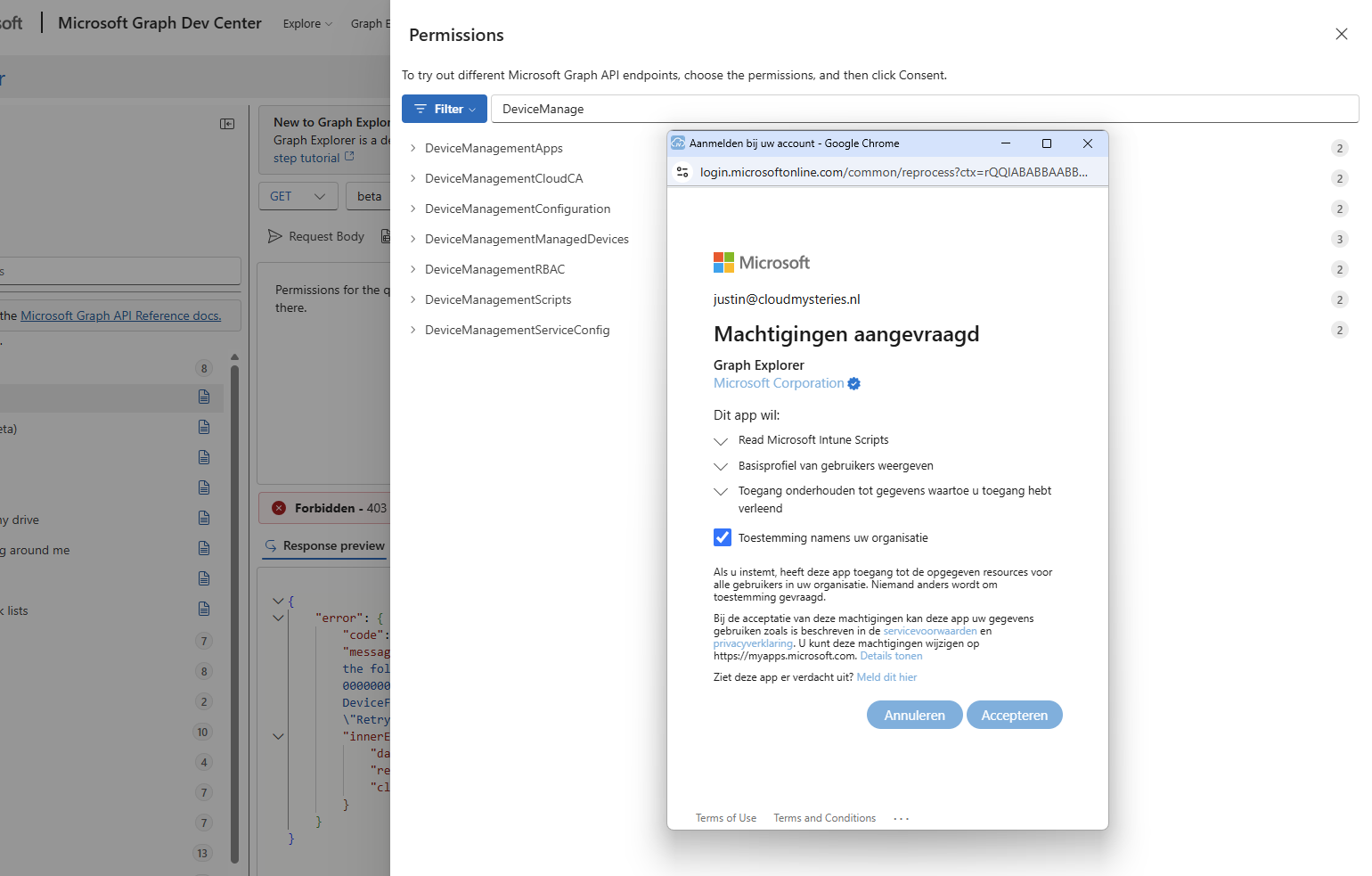
My apologies, this message is in Dutch but it states that permissions are required and we need to accept them.
Click the Accept button to agree on the permissions. Also, only select Consent on behalf of your organization when you intend to approve access at that scope and are authorized to do so.
If you previously received a 403 Forbidden response, run the query again after granting the required permission. Remember that your signed-in account must also have the appropriate Intune access.
Step 4: List the uploaded PowerShell scripts
Now set the request method to GET, select beta, and enter this URL in Graph Explorer, or try the query again if it is still in your query bar:
https://graph.microsoft.com/beta/deviceManagement/deviceManagementScripts
Click Run query. If everything is set correctly, you should receive a 200 OK response containing the uploaded scripts items.
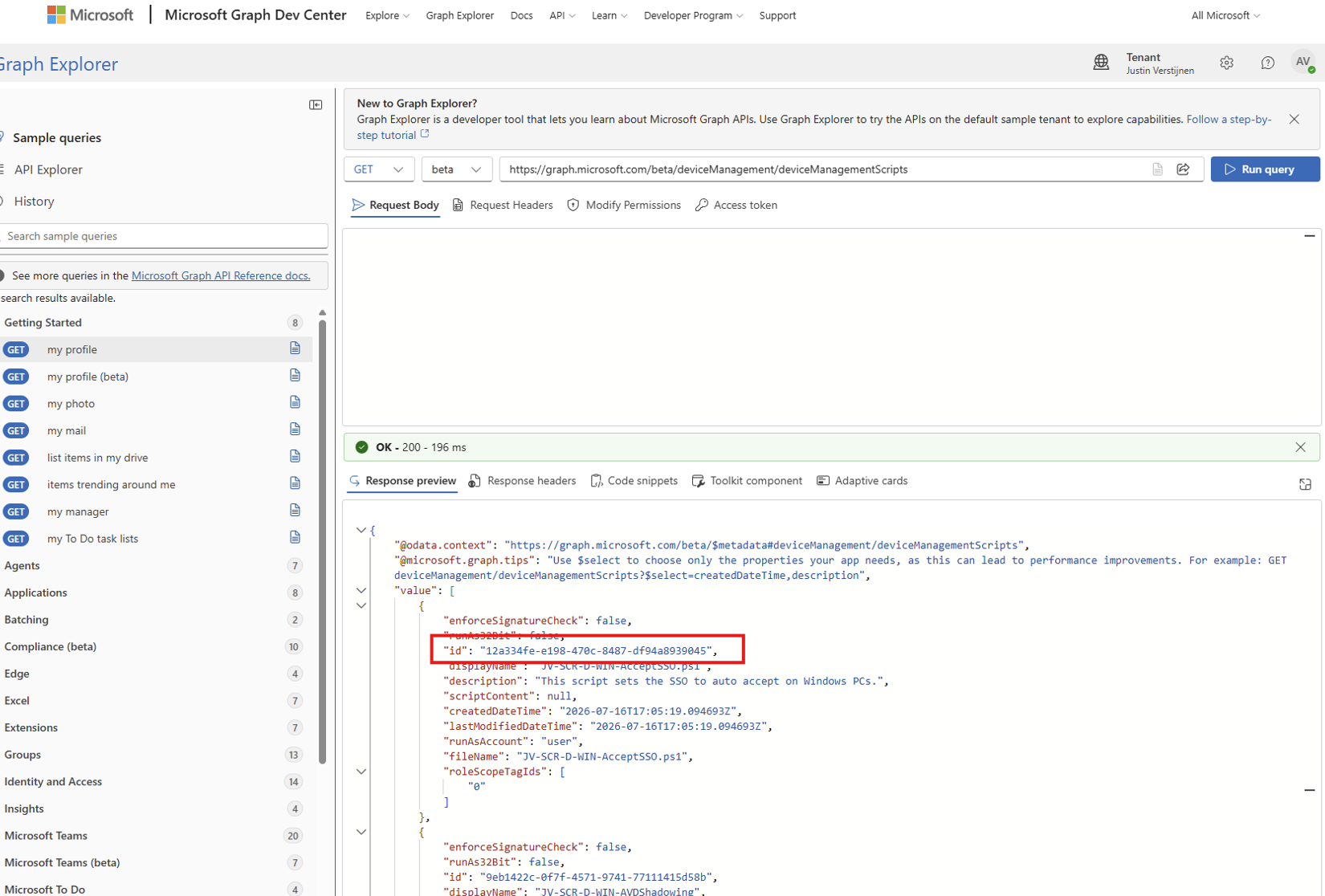
Look for the script’s displayName, and copy the corresponding id value. You may notice that scriptContent is null in this overview. That is also what we see in my example, so the next step is important.
Step 5: Retrieve the script content
Now we can fetch the actual contents, make a second GET request, this time targeting the script’s individual ID:
https://graph.microsoft.com/beta/deviceManagement/deviceManagementScripts/script-id
Replace script-id with the id copied from the previous response and click Run query again, as I have done below. This will result in everything sbout the script:
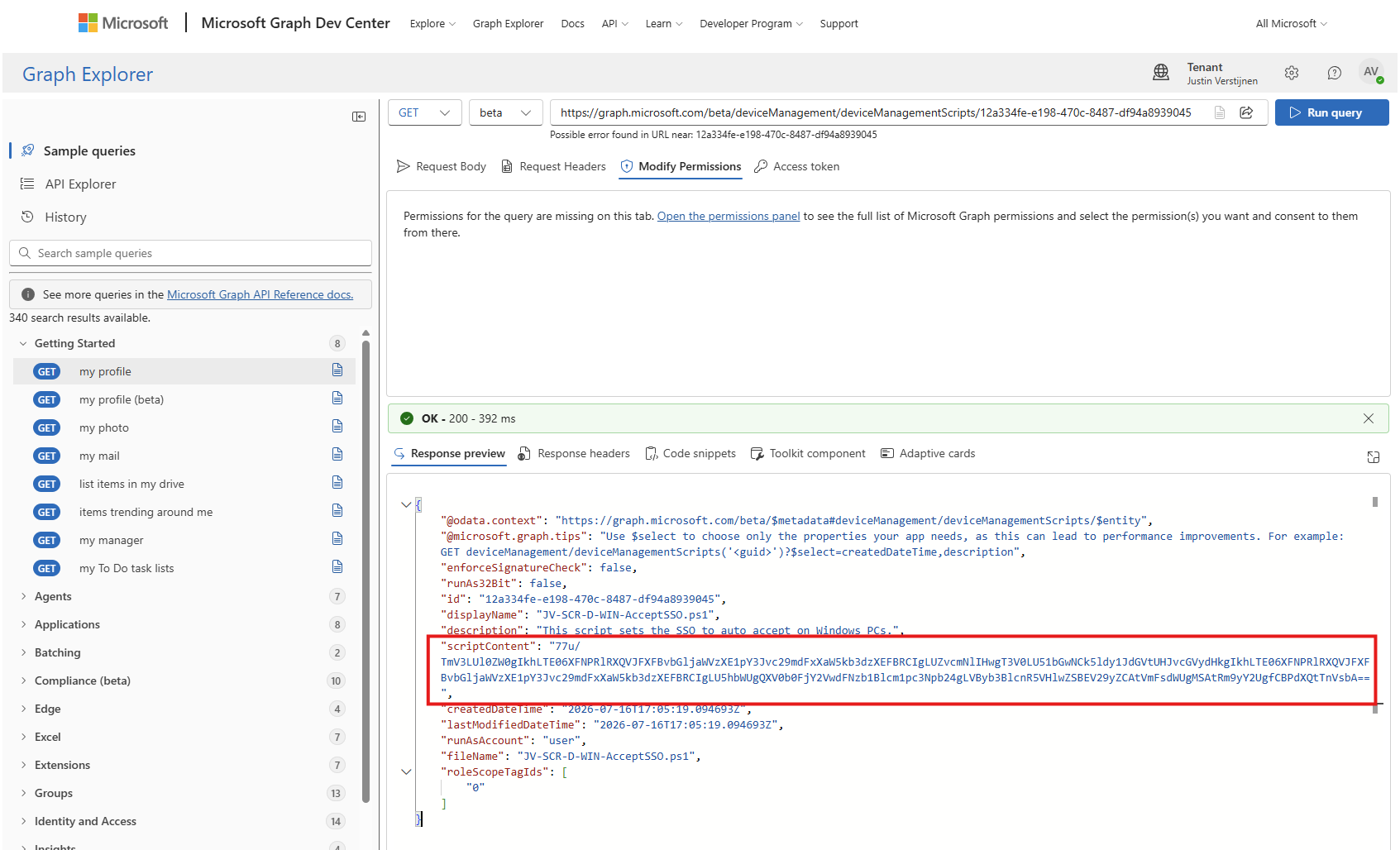
In the resulting JSON, find you will find the scriptContent which is a long Base64-encoded string rather than readable PowerShell. Copy the complete value without the surrounding quotation marks. Base64 is an encoding format, not encryption. We only need to decode it to recover the original PowerShell script, which we will do in the next step.
Step 6: Decode the Base64 content with PowerShell
Now open PowerShell on your computer and run the script below, but replace PASTE_YOUR_BASE64_VALUE_HERE with the complete scriptContent value you copied from Graph Explorer, everything which is between the quotation marks.
$Base64 = @'
PASTE_YOUR_BASE64_VALUE_HERE
'@

$Bytes = [Convert]::FromBase64String($Base64.Trim())
$Script = [System.Text.Encoding]::UTF8.GetString($Bytes).TrimStart([char]0xFEFF)

# Display the original script content
Write-Output $Script

# Optional: also save the original script bytes as a .ps1 file
$Desktop = [Environment]::GetFolderPath('Desktop')
$OutputPath = Join-Path $Desktop 'Recovered-Intune-Script.ps1'
[System.IO.File]::WriteAllBytes($OutputPath, $Bytes)
Write-Host "Script saved to: $OutputPath"
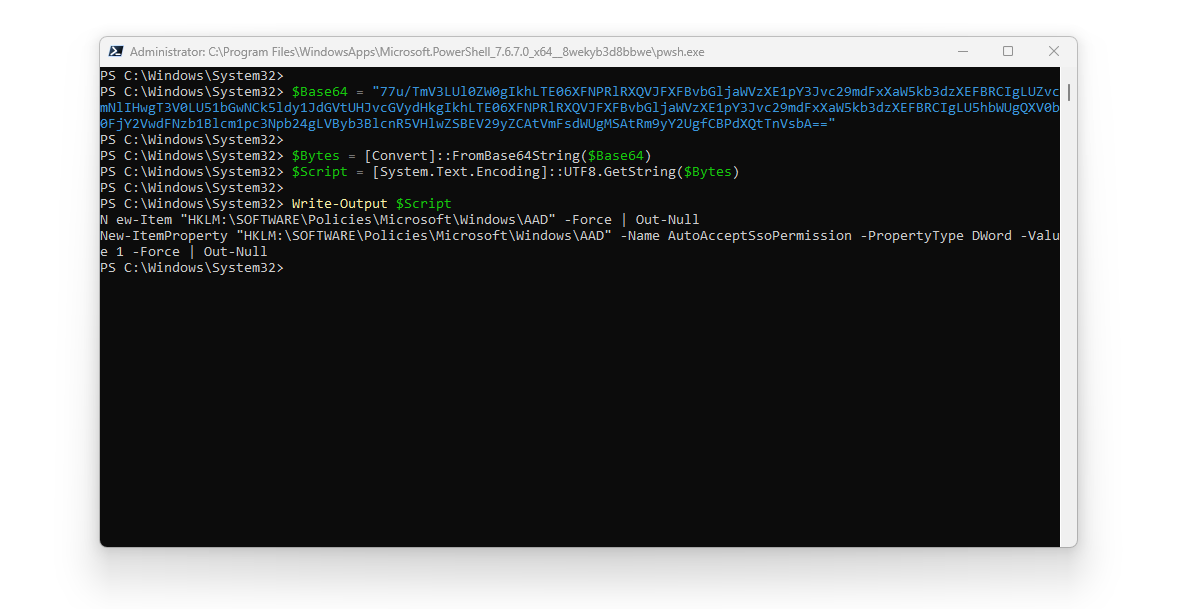
The original script is now displayed as plain text, and a copy is saved to your desktop as Recovered-Intune-Script.ps1. Writing the original decoded bytes preserves the source file’s encoding, including any UTF-8 byte-order mark.
In my case, I successfully recovered the script that configures the AutoAcceptSsoPermission registry value from an earlier guide.
Summary
In this post, we retrieved an existing PowerShell script from Microsoft Intune using Graph Explorer and decoded its Base64 contents back into readable PowerShell. We only needed one read permission, two Graph requests and a few PowerShell commands.
This is especially useful when the original .ps1 file has been lost but the script is still available in Intune. One thing to remember is that this walkthrough is specifically for Windows Platform scripts; Remediations use a different Microsoft Graph endpoint.
Thank you for reading this post, and I hope it was helpful!
These Microsoft resources helped me prepare and verify this post:
- https://learn.microsoft.com/en-us/graph/api/intune-devices-devicemanagementscript-list?view=graph-rest-beta
- https://learn.microsoft.com/en-us/graph/api/intune-devices-devicemanagementscript-get?view=graph-rest-beta
- https://learn.microsoft.com/en-us/graph/permissions-reference
- https://learn.microsoft.com/en-us/troubleshoot/mem/intune/general/403-error-graph-explorer-query
End of the page 🎉
You have reached the end of the page. You can navigate through other blog posts as well, share this post on X, LinkedIn and Reddit or return to the blog posts collection page. Thank you for visiting this post.
Support the blog
