Remove Microsoft Print to PDF and OneNote printers script
By default in Windows 11 with Microsoft 365 apps installed, we have two software printers installed. These are:
- OneNote (Desktop)
- Microsoft Print to PDF
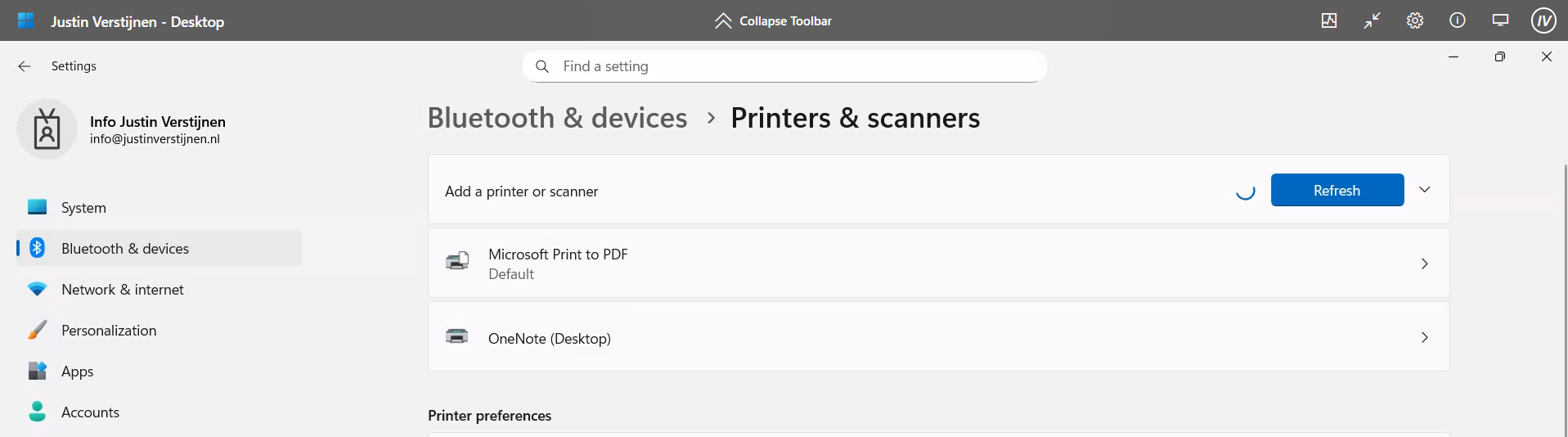
However, some users don’t use them and they will annoyingly be as default printer sometimes, which we want to avoid. Most software have built-in options to save to PDF, so this is a bit redundant. Our real printers will be further down which causes their own problems for end users.
The PowerShell script
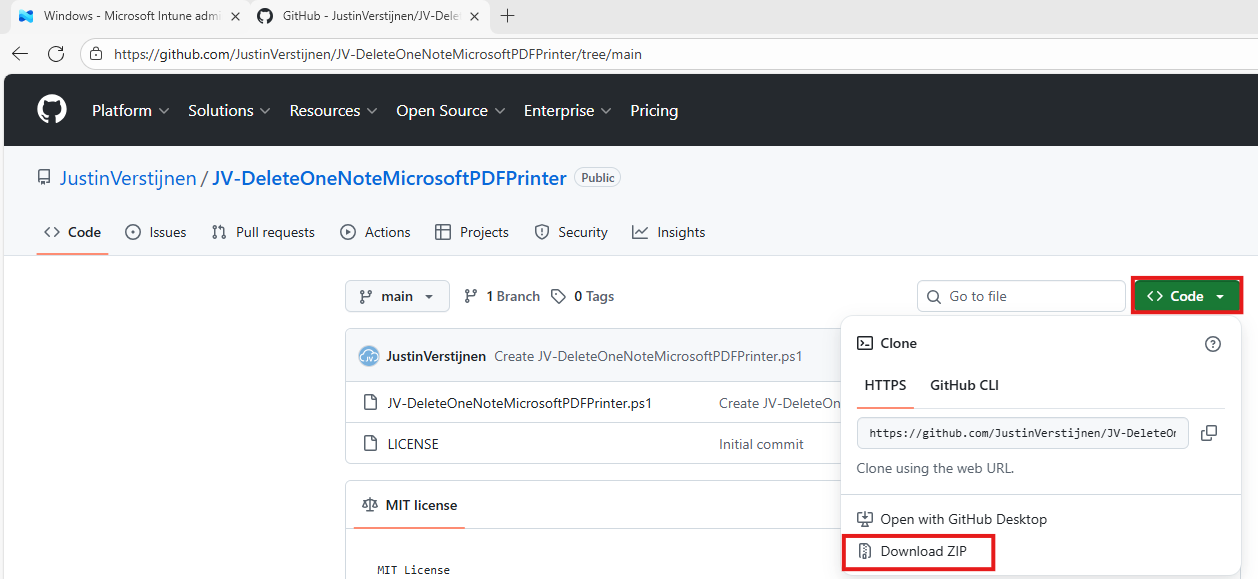
The PowerShell script can be downloaded from my Github page:
On the Github page, click on “<> Code” and then on “Download ZIP”.
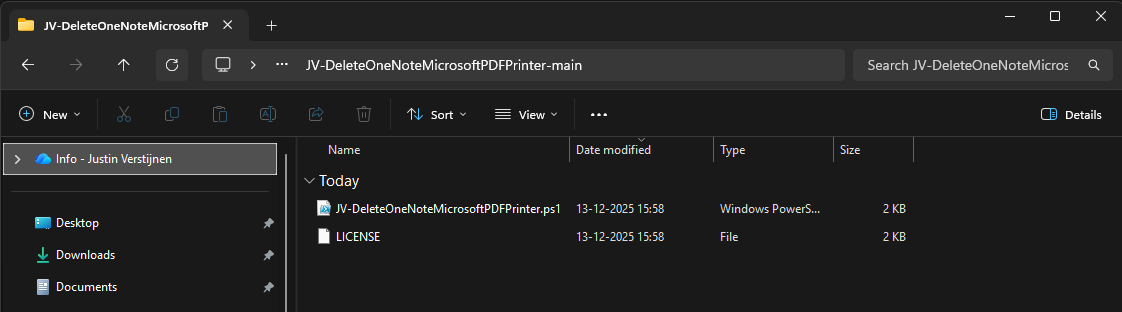
Unzip the file to get the PowerShell script:
The script described
The script contains 2 steps, one step for deleting one of the two printers. The Onedrive printer is a very easy removal as this only needs removing and will never return till you reinstall Office. The Microsoft PDF printer needs removing a Windows Feature.
This however cannot be accomplished by native Intune/GPO settings so we have to do this by script. Therefore I have added two different options to deploy the script to choose which one to use. It can also be used on other management systems too but steps may be different.
Option 1: Deploy script with Microsoft Intune
To deploy this script, let’s go to the Microsoft Intune Admin Center: https://intune.microsoft.com
Navigate to Devices -> Windows -> Scripts and remediations and open the “Platform scripts” tab. Click on “+ Add” here to add a new script to your configuration.

Give your script a name and good description of the result of the script.
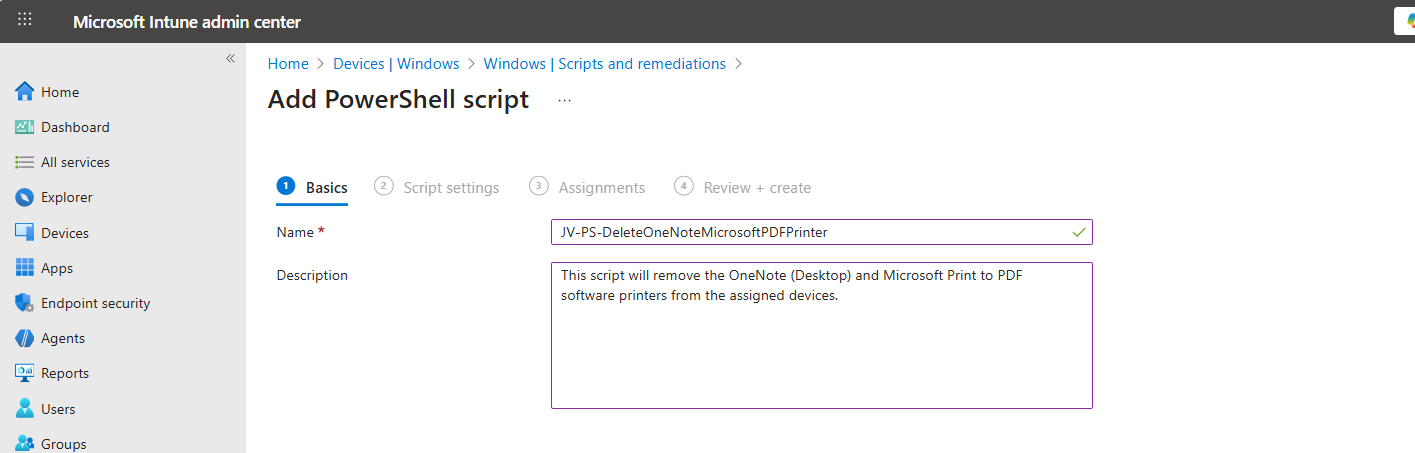
Then click “Next” to go to the “Script settings” tab.
Import the script you just downloaded from my Github page. Then set the script options as this:
- Run this script using the logged on credentials: No
- Enforce script signature check: No
- Run script in 64 bit PowerShell Host: Yes
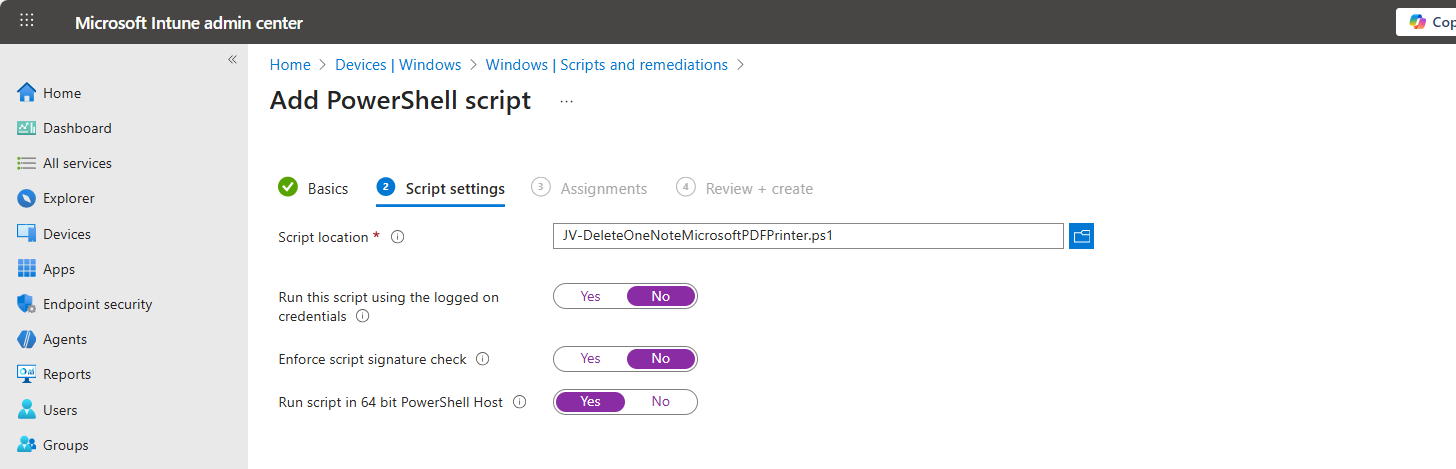
Then click “Next” and assign it to your devices. In my case, I selected “All devices”.
Click “Next” and then “Create” to deploy the script that will delete the printers upon execution.
Option 2: Deploy script with Group Policy
If your environment is Active Directory based, then Group Policy might be a good option to deploy this script. We will place the script in the Active Directory SYSVOL folder, which is a directory-wide readable folder for all clients and users and will then create a task that starts when the workstation itself starts.
Login to your Domain-joined management server and go to File Explorer and go to your domains SYSVOL folder by typing in: \domain.com in the File Explorer bar:
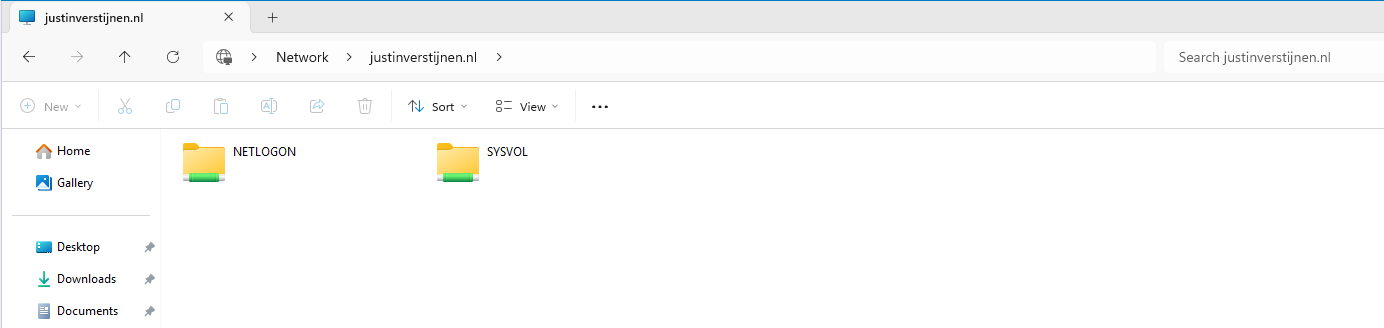
Open the SYSVOL folder -> domain -> scripts. Paste the script in this folder:
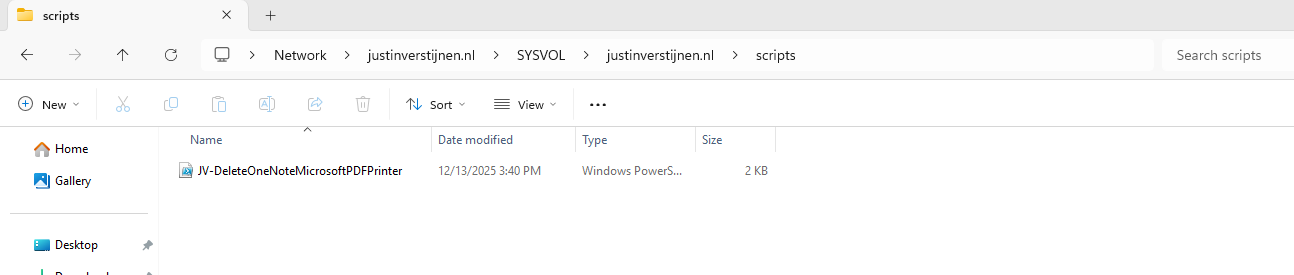
Then right-click the file and select “Copy as path” to set the full scipt path in your clipboard.
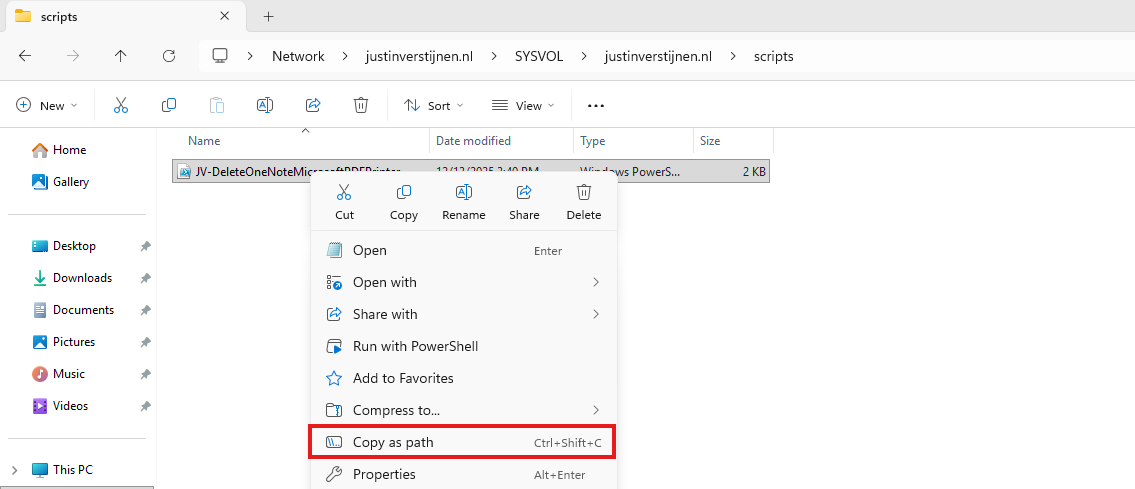
Open Group Policy Management on the server to create a new start-up script. Use an existing GPO or create a new one and navigate to:
Computer Configuration -> Policies -> Windows Settings -> Scripts -> Startup
Create a new script here and select the “PowerShell scripts” tab.
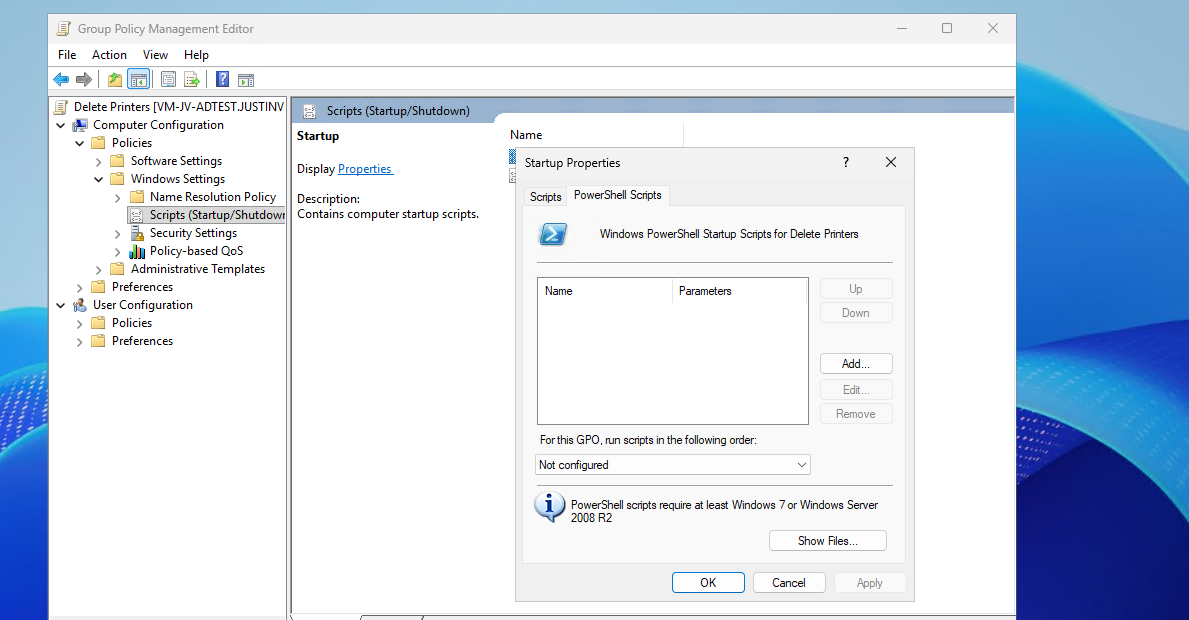
Add a new script here. Paste the copied path and remove the quotes.
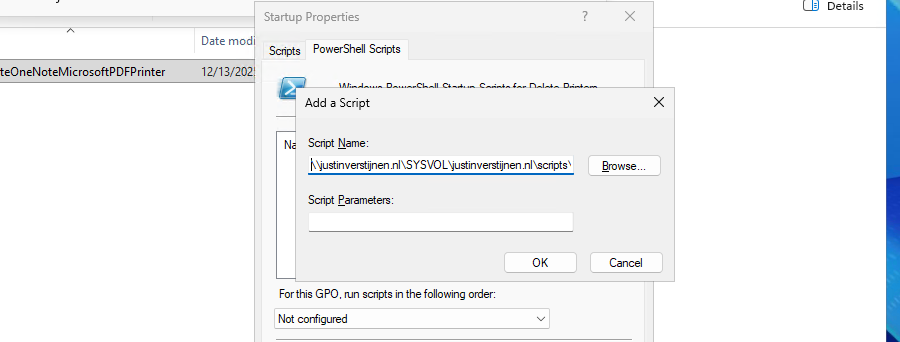
Then click “OK” to save the configuration. This will bring us to this window:
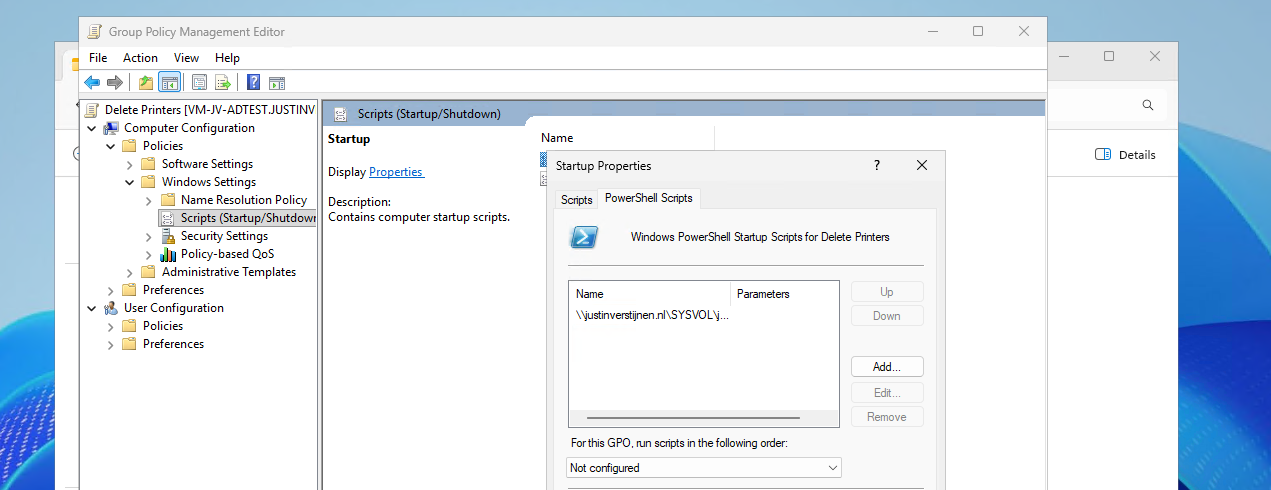
We have now made a start-up script which will run at every startup of the machine. If you place a updated script as the same name in the same directory, this new version will be executed.
The results on the client machine
After the script has been executed succesfully, which should be at the next logon, we will check the status in the Printers and Scanners section:
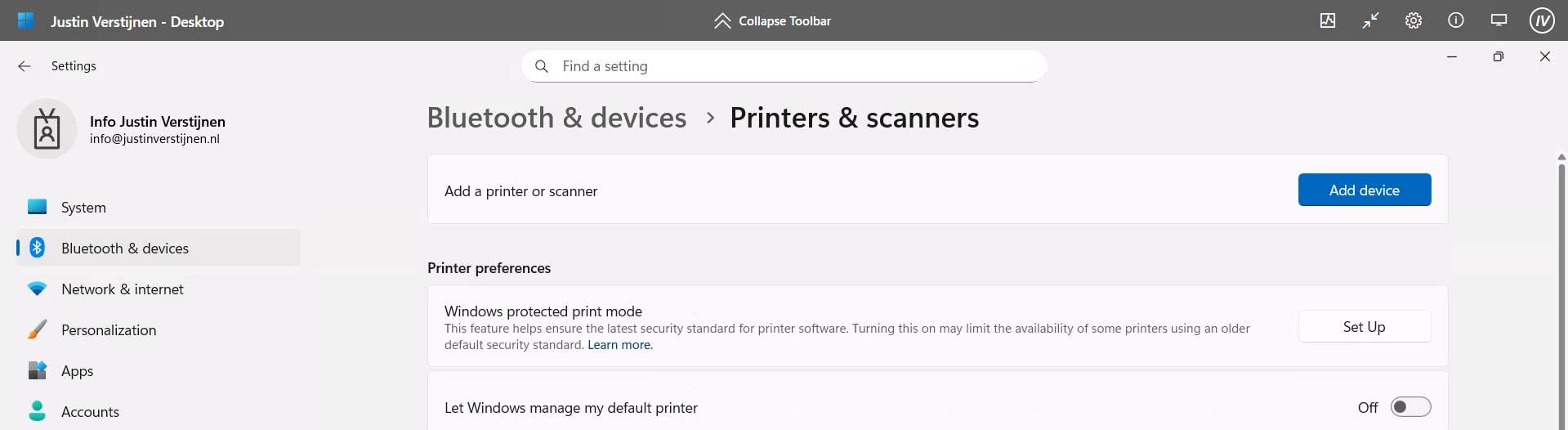
No software printers left bothering us and our end users anymore :)
Summary
Removing the default software printers may be strange but can help enhancing the printing for your end users. No software printer installed by default can take over being default printer anymore or even filling the list with printers. Almost every application has a option to save as PDF these days so this would be a little bit redundant.
Thank you for reading this guide and I hope it was helpful.
These sources helped me by writing and research for this post;
End of the page 🎉
You have reached the end of the page. You can navigate through other blog posts as well, share this post on X, LinkedIn and Reddit or return to the blog posts collection page. Thank you for visiting this post.
Support the blog
