Remove Pre-installed Windows Store Apps with Intune
This new feature described
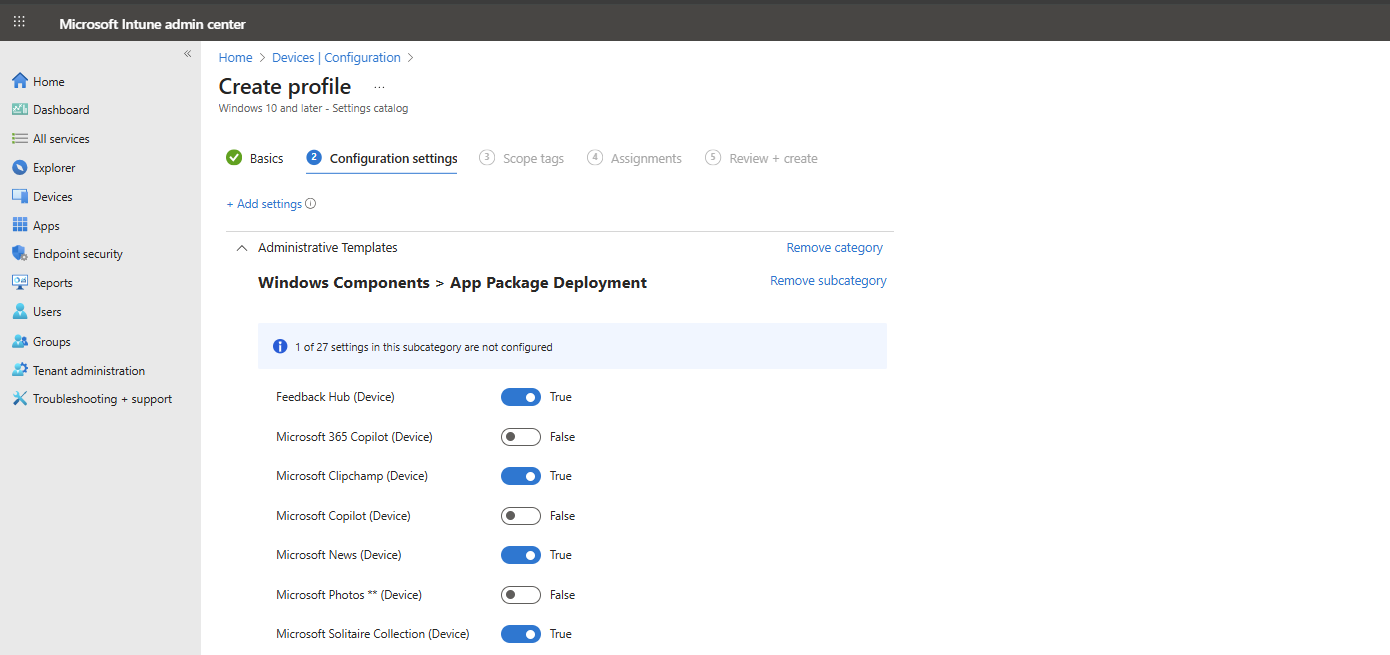
In Intune we can now select which default shipped apps must be removed from Windows clients. Before, this was a complete package we had to use or remove with custom scripts, but now we can select the apps to remove (and deselect to keep).
Keep in mind, we have the following requirements for this new feature:
- Windows 11 25H2
- Education or Enterprise version
Also worth mentioning, removing an application needs a manual reinstall, which is easy to do.
Step by step configuration
We can configure the removal of these apps with a configuration profile in Microsoft Intune. I will create this from A to Z in this guide to fully explain how this works:
Open up Microsoft Intune Admin center (intune.microsoft.com).
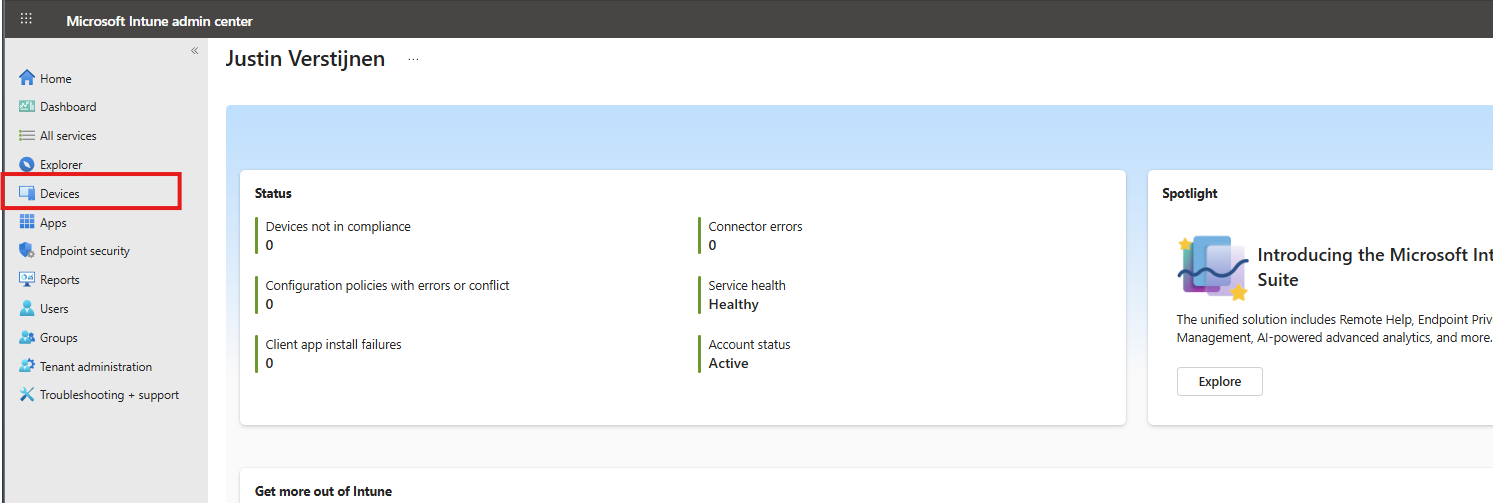
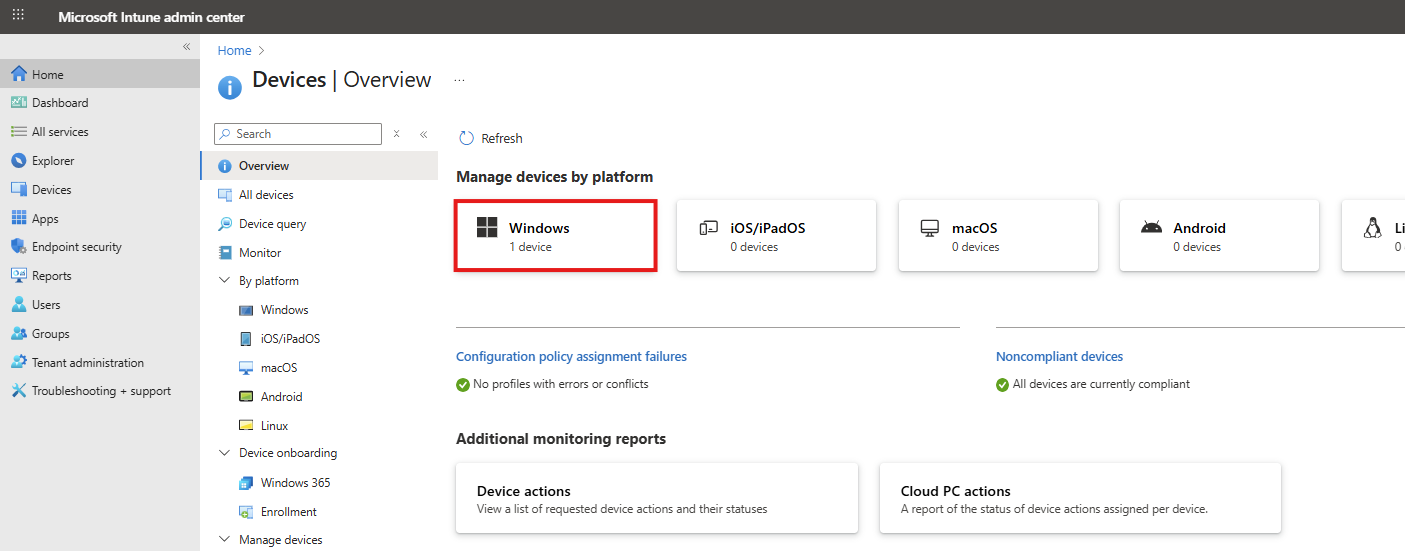
Then go to your Devices, and then Windows.
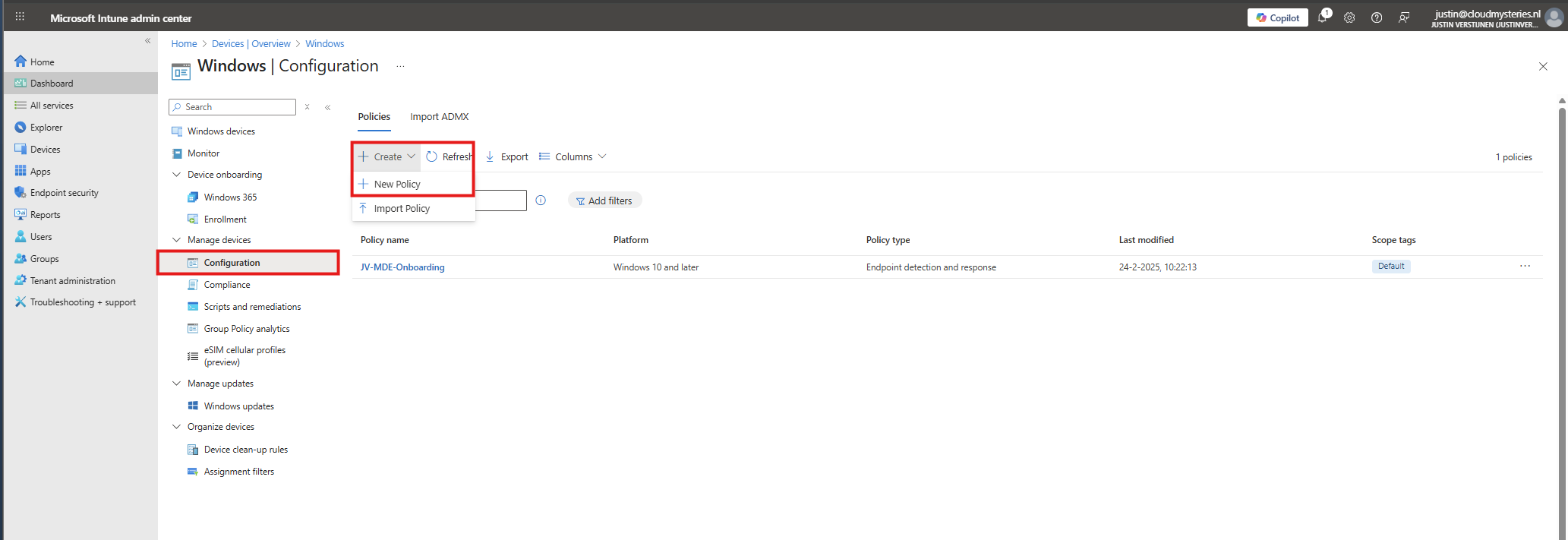
Then click on “Configuration” to view all the Windows-based Configuration Profiles. Here we can create a new profile for this setting. Click on “+ Create” and then “New Policy”.
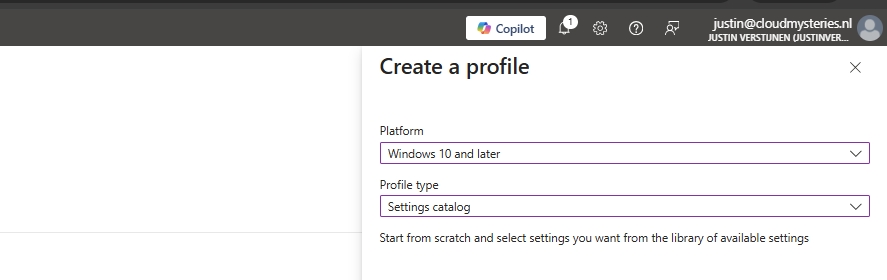
Select for Platform the “Windows 10 and later option”, and for Profile Type “Settings catalog”.
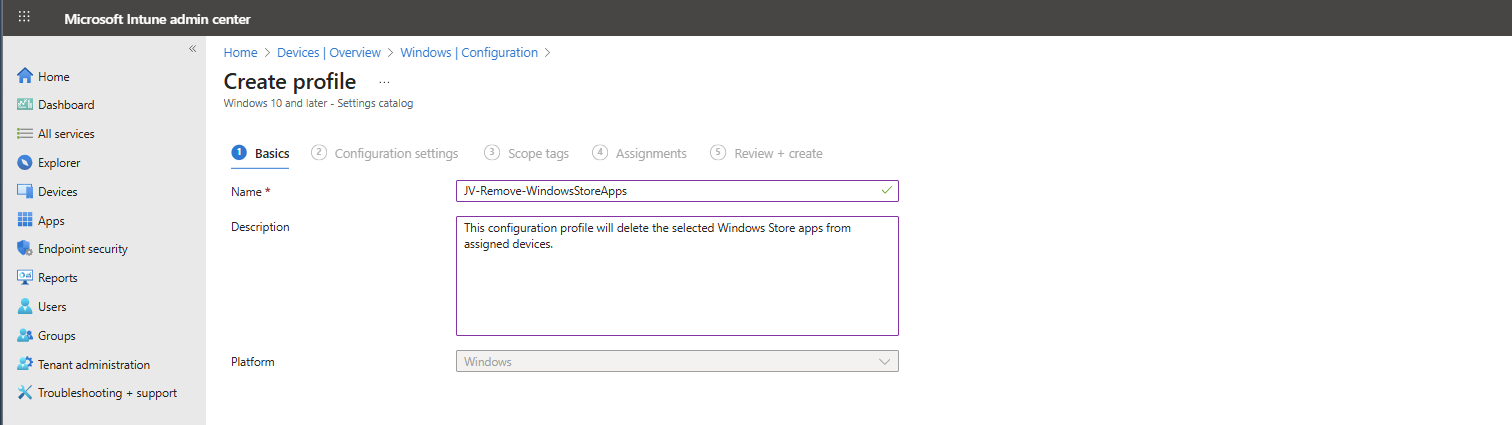
Then give the policy a recognizable name and description.
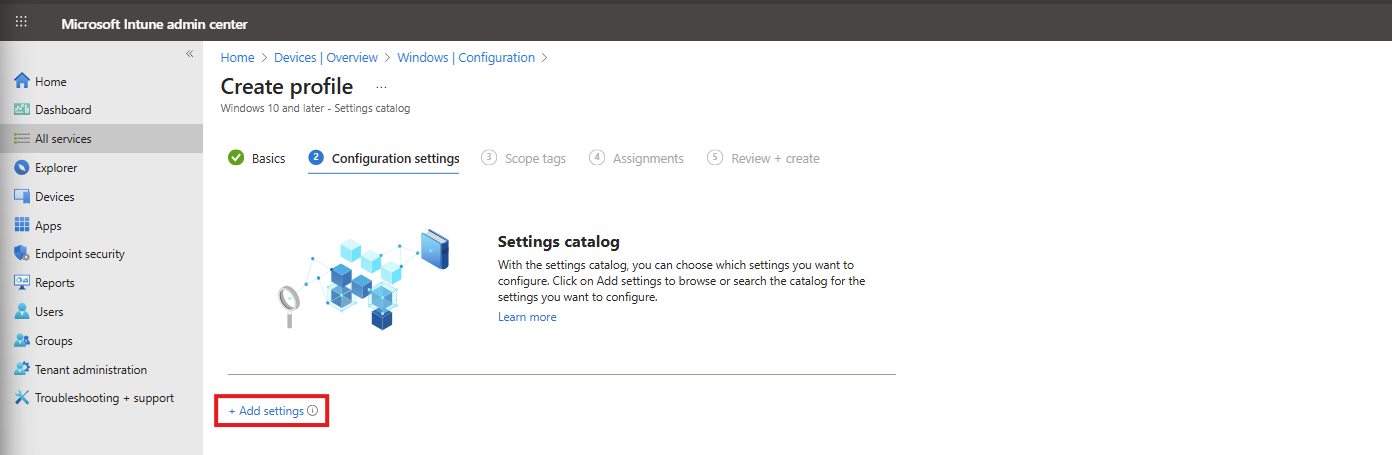
Then click “Next”. On the “Configuration settings” page, click on the “+ Add settings” button:
Then search for the setting in this location:
Administrative Templates -> Windows Components -> App Package Deployment
Then select the “Remove Default Microsoft Store packages from the system” option.
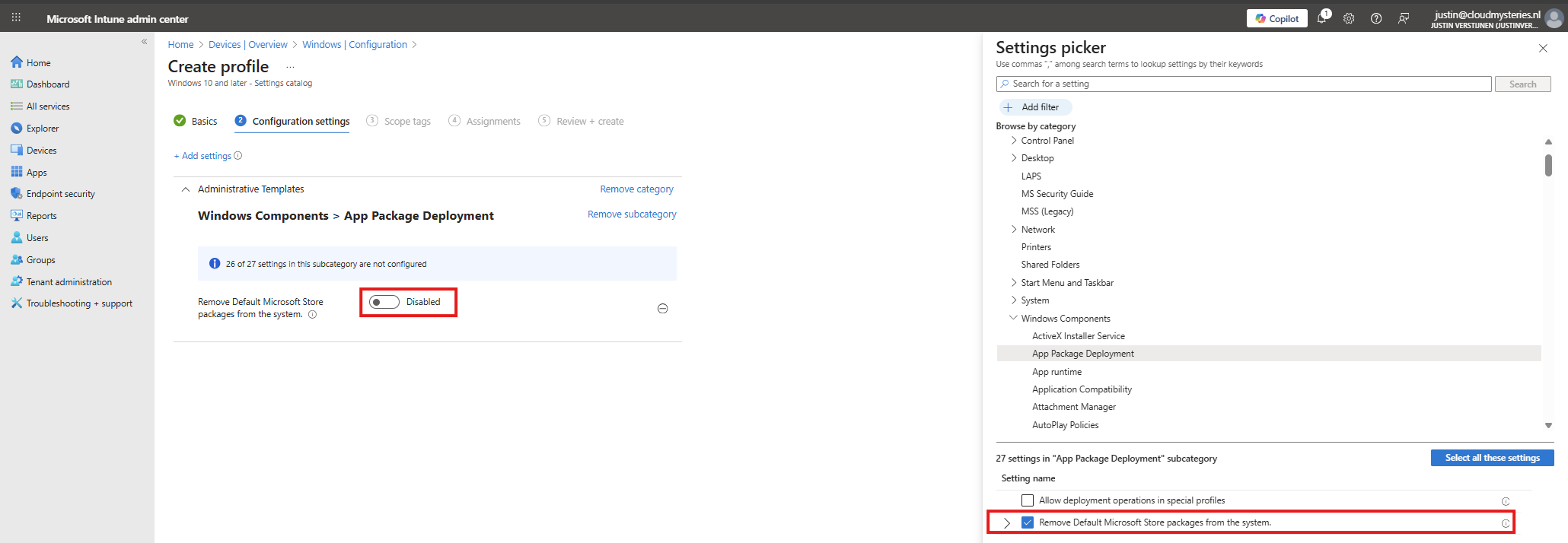
At the left side, flick the switch to “Enabled” and now we can select all apps to remove from Windows client devices.
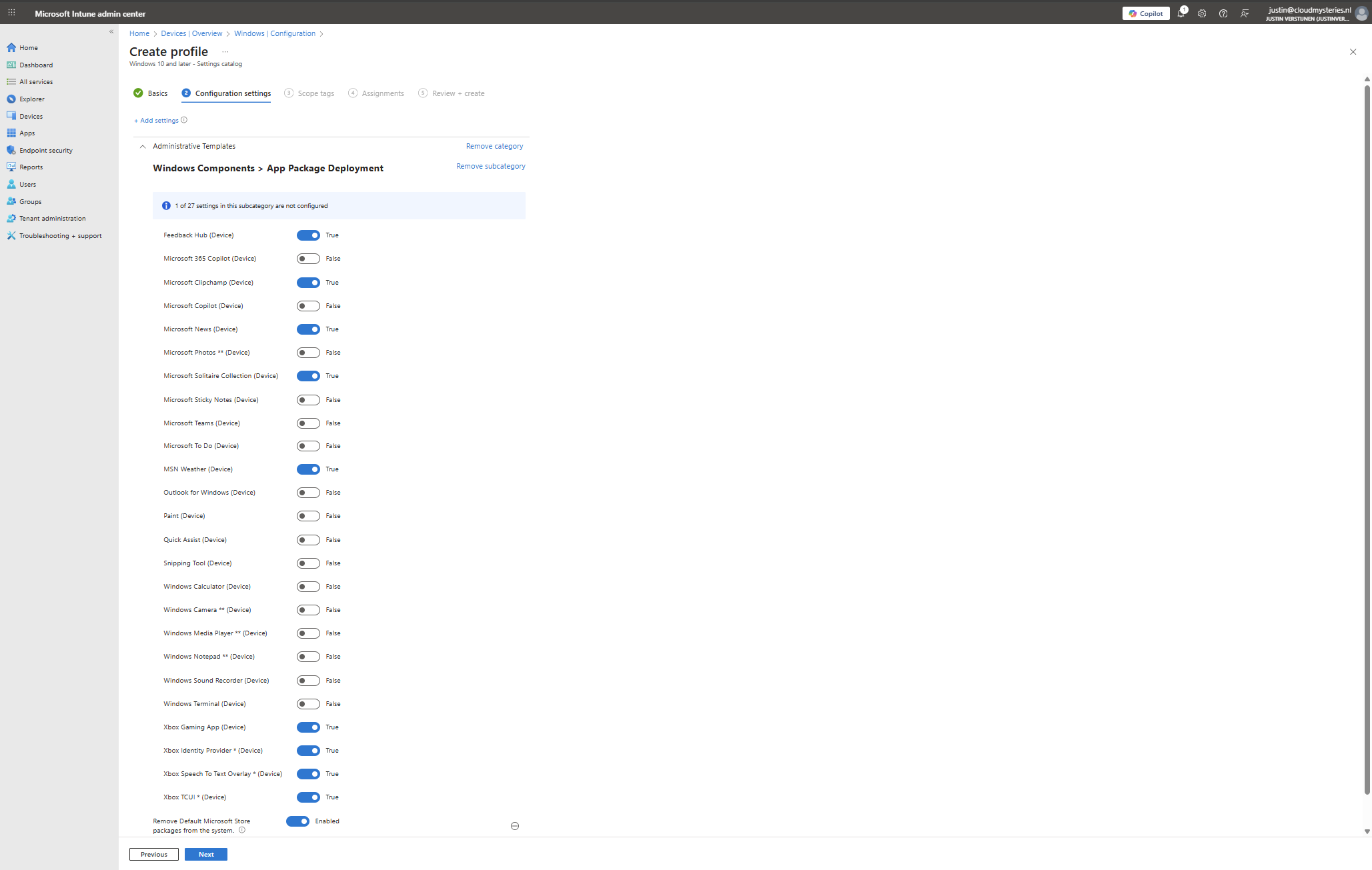
In this configuration, I want to leave all helpful tools installed, but want to remove non-business related applications like Xbox , Solitaire collection and Clipchamp.
You can make your own selection of course. After your apps to remove are selected, click “Next”. Then click “Next” again to assign the configuration profile to your devices. In my case, I select “All devices” but you can also use a manual or Dynamic group.
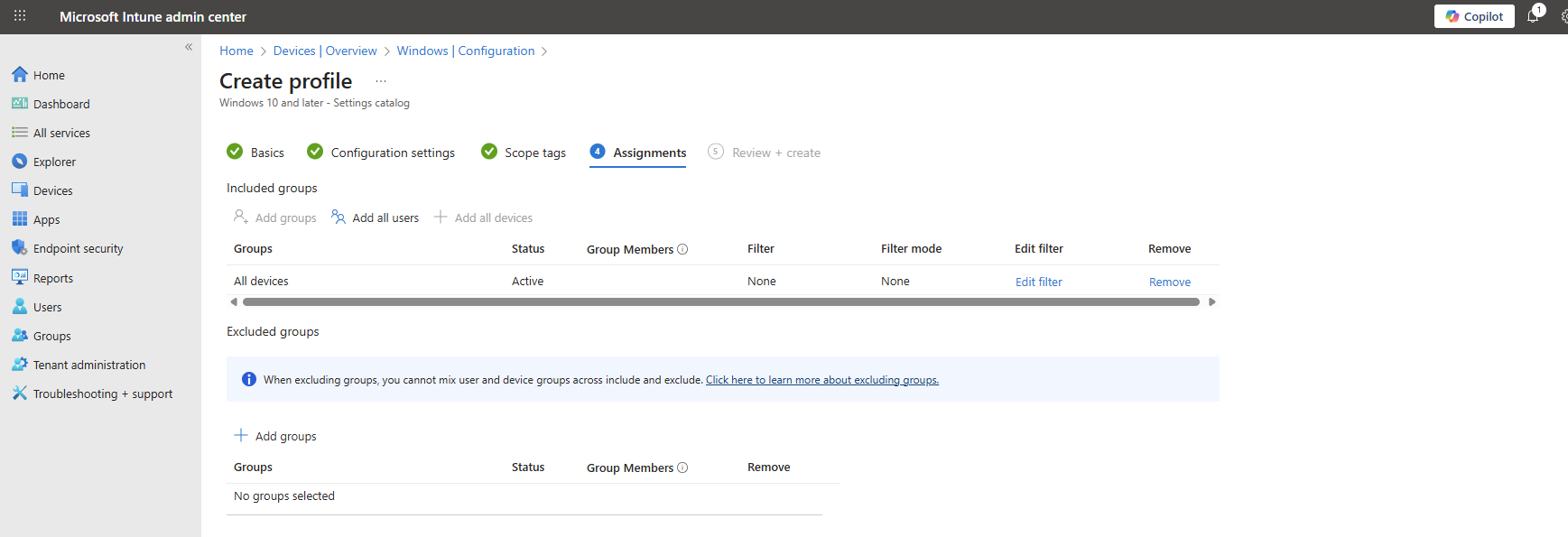
Now the policy is assigned and the actions will be applied the next time your device synchronizes with Microsoft Intune.
No Enterprise or Education?
In you don’t have Enterprise or Education licenses for Windows, I can highly recommend using this debloat script: https://github.com/Raphire/Win11Debloat
This script will help you in the Windows Experience by removing the selected apps, and helps with Windows Explorer settings.
Summary
This new feature is one of the greater updates to the Windows 11 operating system. Deleting applications you don’t need frees up some disk space and compute resources. Also, end-uders are not presented apps they should not use which makes the overall device experience alot better.
I hope I have made this clear to use and thank you for reading my post.
These sources helped me by writing and research for this post;
End of the page 🎉
You have reached the end of the page. You can navigate through other blog posts as well, share this post on X, LinkedIn and Reddit or return to the blog posts collection page. Thank you for visiting this post.
Support the blog
