Remove Roaming Profile folders with PowerShell (force)
What this script does
This script tries to clean and delete a folder which I have used in the past to remove Roaming Profile folders from Active Directory. These folders are heavily secured as personal data might reside in it. It can also contain files with more than 260 characters and as we already know by now, Windows doesn’t like that. This script therefore manages to do the following steps:
- Changes ownership (takeown`)
- Changes permissions (icacls) for the logged in administrator to actually get access to the folder if not having already
- Removes protected file attributes (attrib)
- If normal delete fails, it uses a robocopy fallback to make the folder empty
Make sure you delete the correct folders as this script performs destructive actions with irreversible results. Be sure to make backups prior to perform this action.
Requirements
- Run PowerShell or PowerShell ISE as Administrator
- Local machine access (SMB share not supported)
- Update these two variables before actuallyrunning:
- $fullPath = the folder you want to clean/remove
- $emptydir = where the script creates a temporary empty folder
- Be sure you are pointing to the correct folder as this script deletes contents without creating backups
Step 1: Download the script
Let’s start with downloading the script from my GitHub page:
Click on “Code” and then “Download ZIP”.
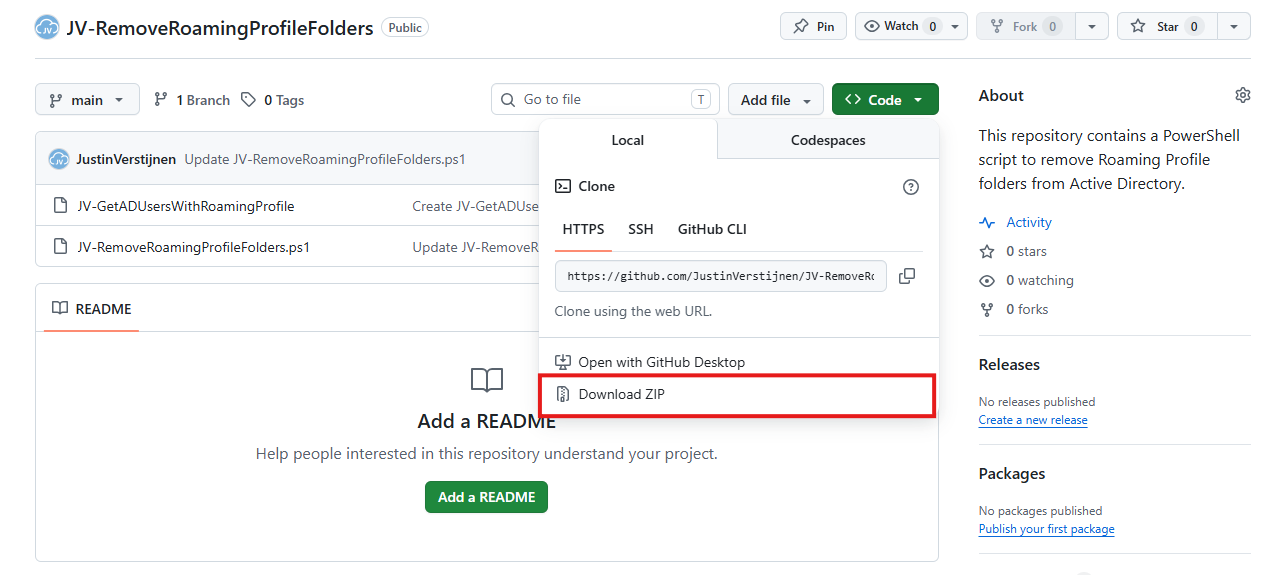
Now you have to put the script on the computer/server where the roaming profile folder is.
Step 2: Open and edit the script prior to execution
Before we run the script, we need to change the parameters. Let’s open PowerShell ISE as Administrator on the destination server for a nice split window of editing and execution of the script.
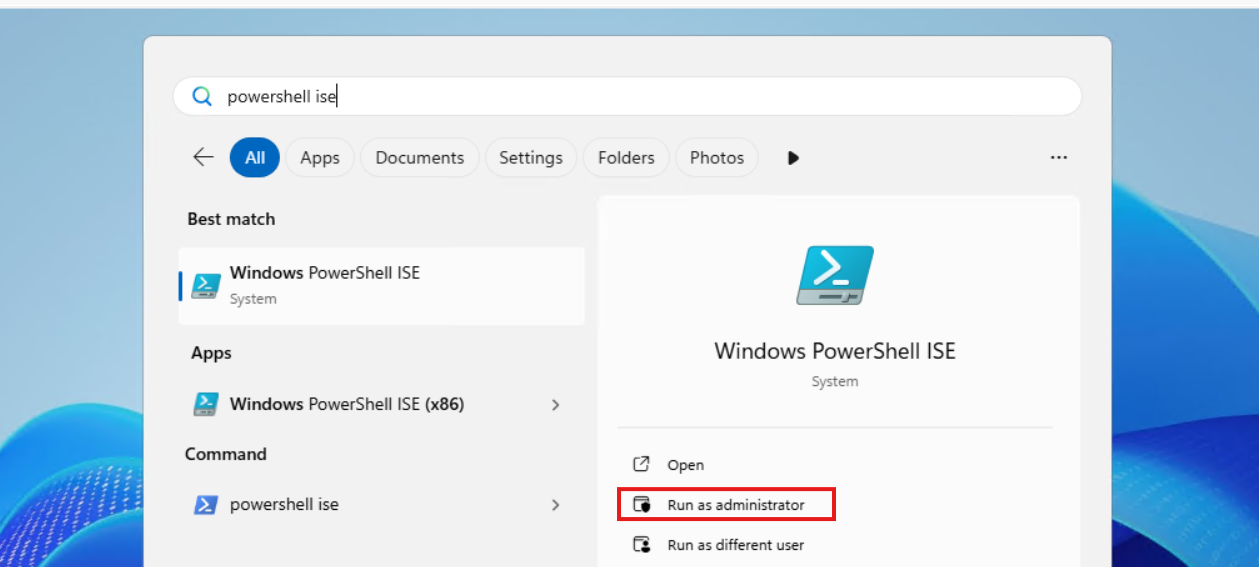
Then open the just downloaded file:
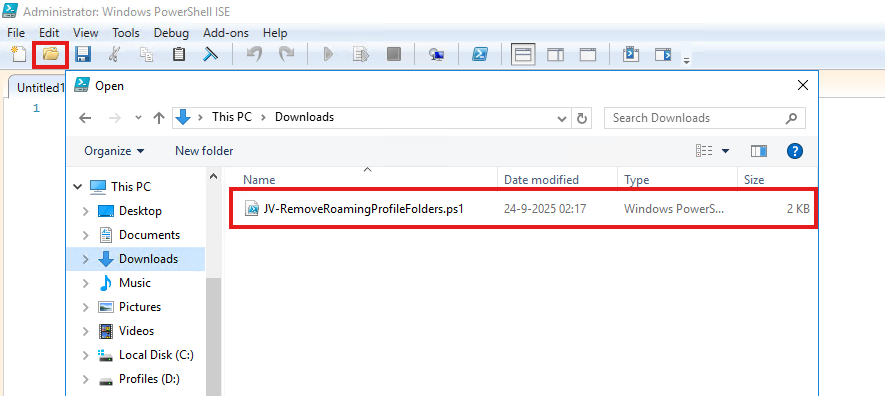
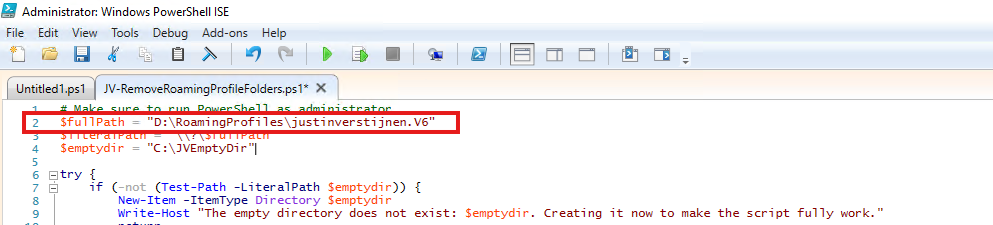
Then we need to change the folder on Line 2:
- $fullPath = “D:\Path\To\Profiles”
This must become the actual path on your machine you can’t remove through the GUI. Let’s say my own Roaming Profile on D:\RoamingProfiles\justinverstijnen.V6. Navigate to the folder, and then do a right click on that folder while holding down the Shift button. This brings up an option to copy the full path.
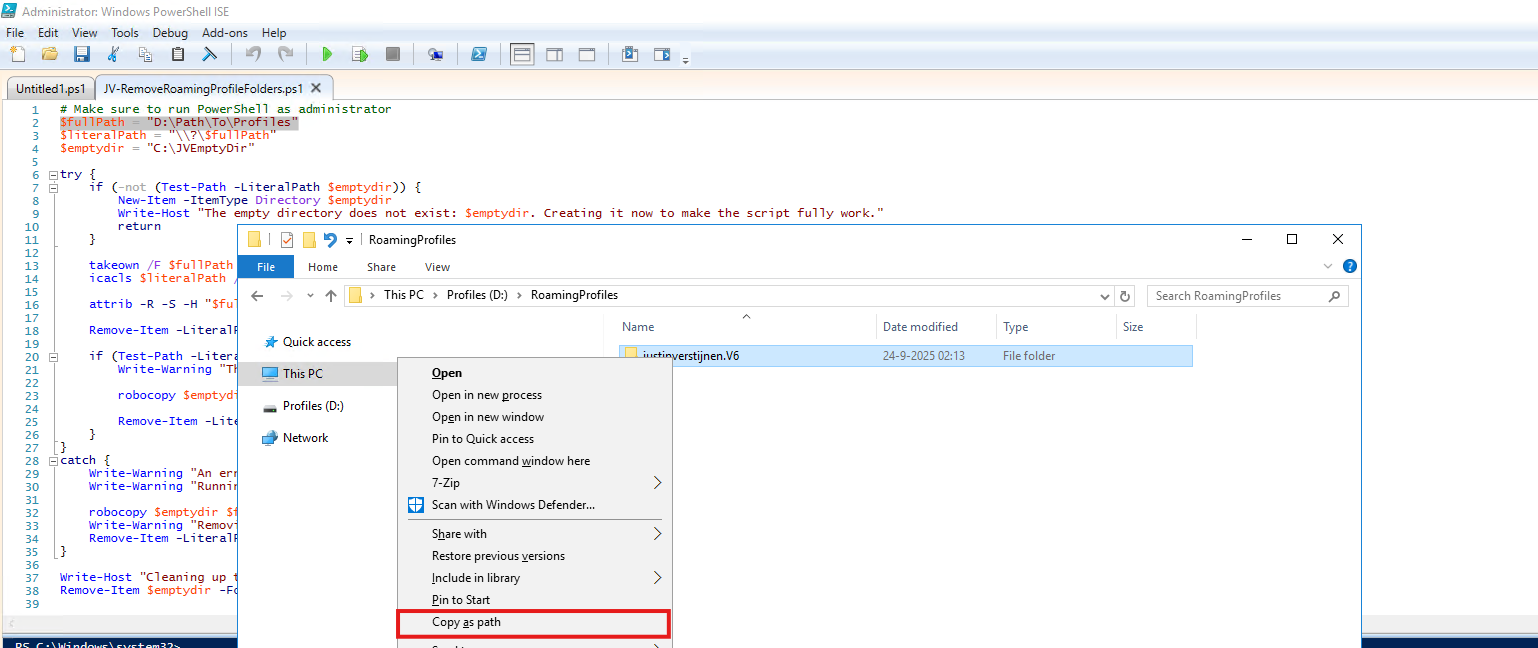
Paste that value in the variable on Line 2:
You can also change the value on Line 4 to change the temporary directory needed for the fallback method. This folder is cleaned before the script is finished.
Step 3: Running the script
Before we can actually run the script, great chance that the machine has an PowerShell execution policy active which it has by default. Run this command to bypass this for the duration of this window:
Set-ExecutionPolicy Unrestricted -Scope Process -ForcePaste the command into the blue execution part and hit Enter.

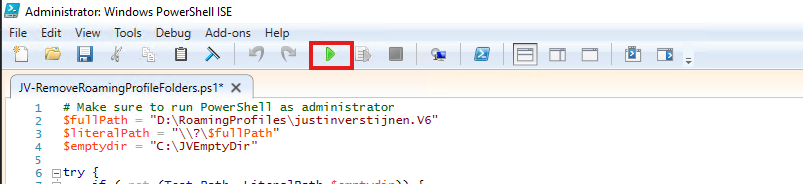
Now we are ready to execute the script to delete the bothering folder. Click on the “Play” button in the menu bar:
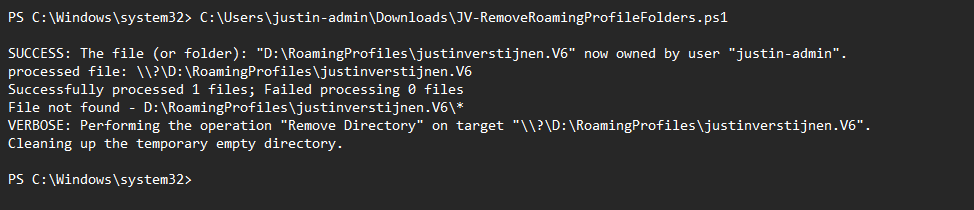
The script will exactly tell you what its doing at every moment, giving you insights on what files are permanently deleted.
Step 4: Check the results
After the script has finished, let’s check with the GUI File Explorer what has happened with the folder:
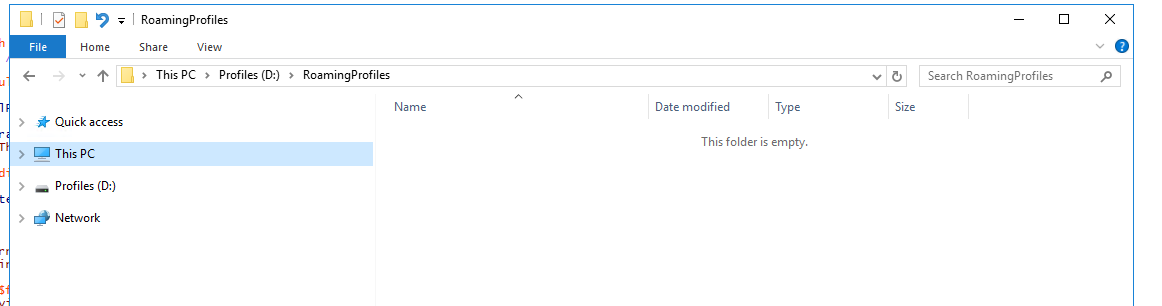
The folder is now completely gone and not bothering us anymore, which is great. You can use it for deleting more profiles by changing the variable on Line 2 to a new profile in case you need this.
Summary
- The script is designed to remove a folder and its contents , even when permissions, too long file lengths (260 chars) or attributes make deletion hard.
- It first tries a normal delete (Remove-Item), then:
- if the folder still exists, it uses a robocopy fallback to mirror an empty folder over the target (so the target becomes empty)
- if an error happens, it also uses the robocopy fallback and then tries again to remove what is left
- The script makes changes to permissions and ownership of the target folder (because of takeown and icacls).
- Because this is destructive, only run it when you are sure $fullPath is correct.
Thank you for reading this post and I hope it was helpful!
These sources helped me by writing and research for this post;
End of the page 🎉
You have reached the end of the page. You can navigate through other blog posts as well, share this post on X, LinkedIn and Reddit or return to the blog posts collection page. Thank you for visiting this post.
Support the blog
