Set correct language and timezone on Azure VM
By default, all Azure VMs are set to English language and UTC/Zulu timezone. This will work for a great portion of the Azure VM users but there are users in other parts of the world too. Like in the Netherlands, where I live we are 1 or 2 hours ahead of that timezone depending on the season.
Also, in the case of Azure Virtual Desktop, we want to present our users their native language as system language. For this case, I have made a script to correct those settings.
The script to set the language and timezone on Azure VM
For the fast pass, I have the script here:
The script steps described
The script consists of 7 steps:
- Ensuring the script runs as Administrator
- Querying current language (as it must remove it later on)
- Installing the new language pack
- Change the system language and regional settings
- Sets new timezone
- Sets new language for all current and new users
- Removing old language and reboots VM
Using the script
To use my script, download it from Github and place it on your newly created or existing Azure VM.
Click on “Code” and then on “Download ZIP”.
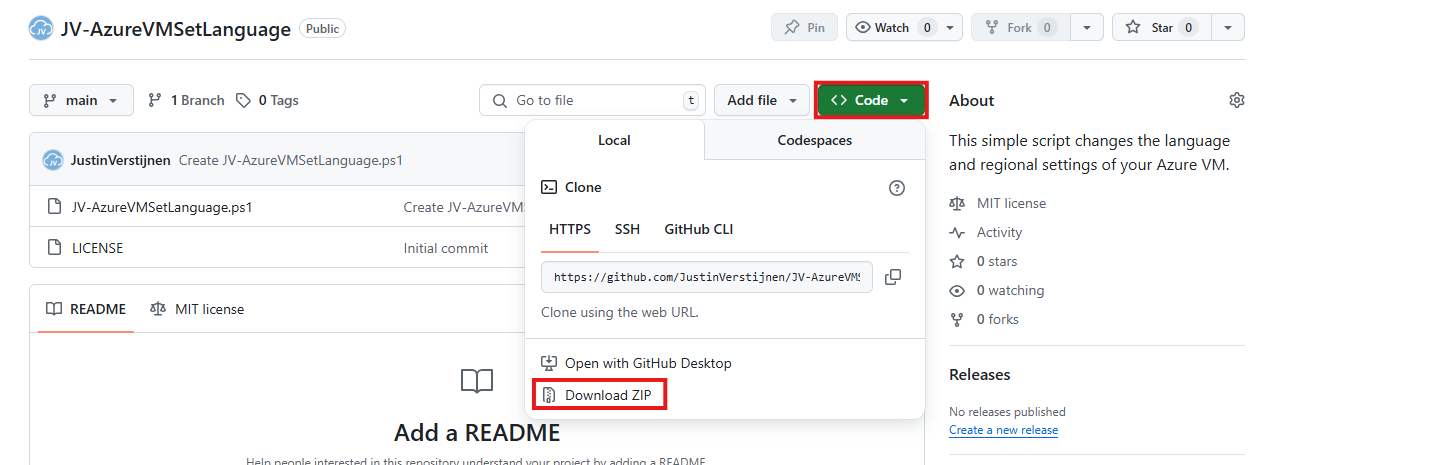
Place the ZIP file on your server. Then unzip it so we can navigate to the script itself.
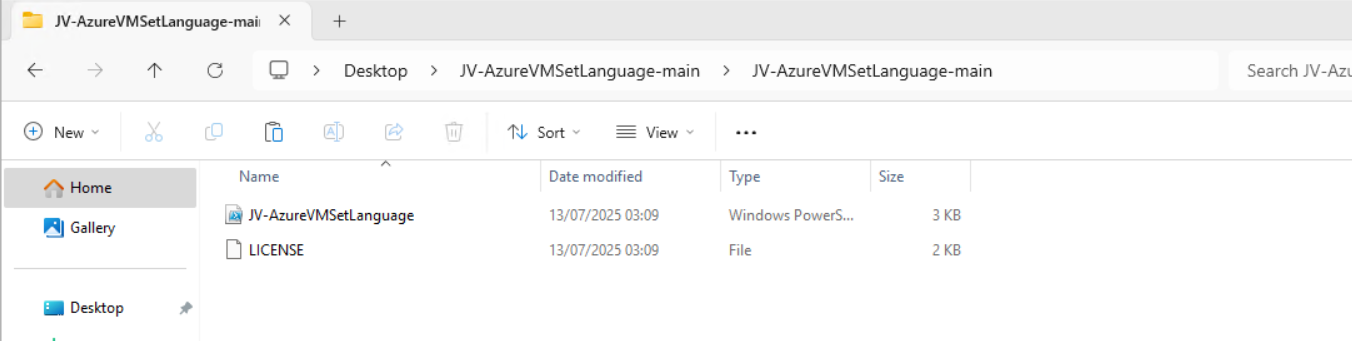
Now we can execute this script. The easiest way is to open the PowerShell ISE version as this eliminates navigating to the script by hand.
Open PowerShell ISE as Administrator:
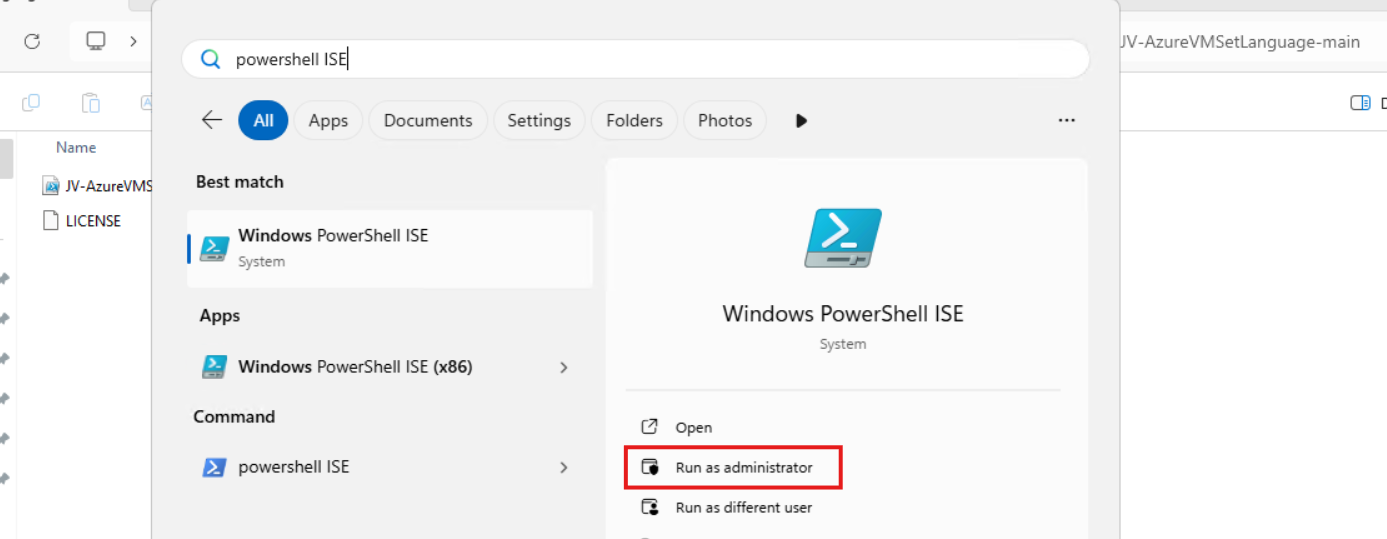
Verify your credentials if needed and then use the “Open” function of PowerShell ISE and open the script file:
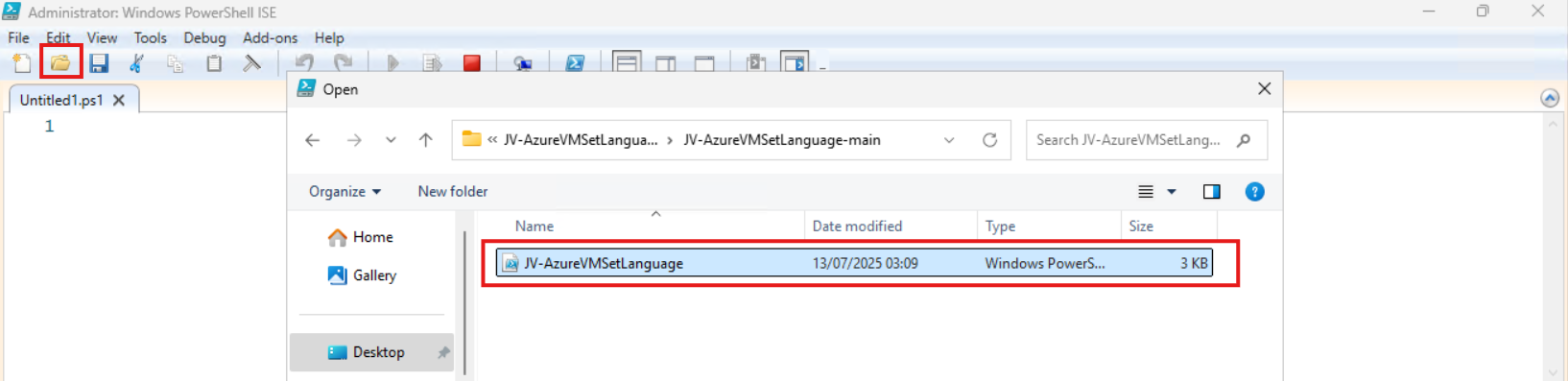
The script will now be opened and review the parameters on line 12 till 16:

By default, everything is set to “Dutch” but you can change them. I added links to the corresponding artices of Microsoft to quickly lookup what your settings must be. The links are also added to the sources at the bottom of this post.
Before we can run the script, we have to do a one-time bypass for the Powershell Execution Policy by typing the command in the blue window below:
Set-ExecutionPolicy Unrestricted -Scope ProcessThis way the execution policy stays enabled but for this session only it’s been lowered. When you close the window, you have to type this again before be able to run scripts.
Execute the command, and when prompted to lower the policy, click Yes.

Now we can run the script itself by clicking the green “Play” button.
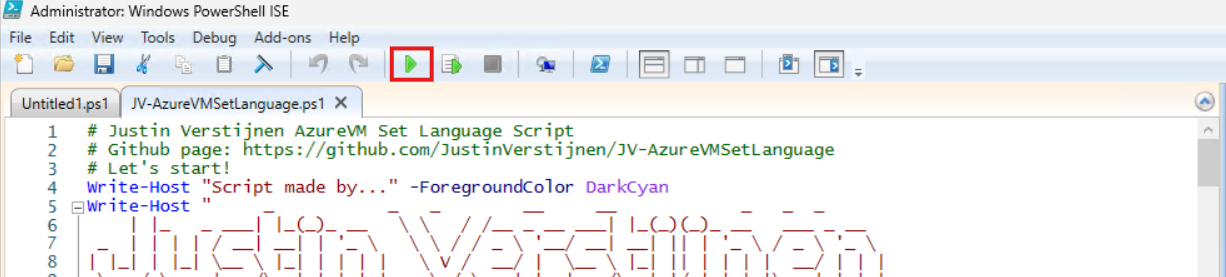
The script can take up to 20 minutes, so have a little patience.
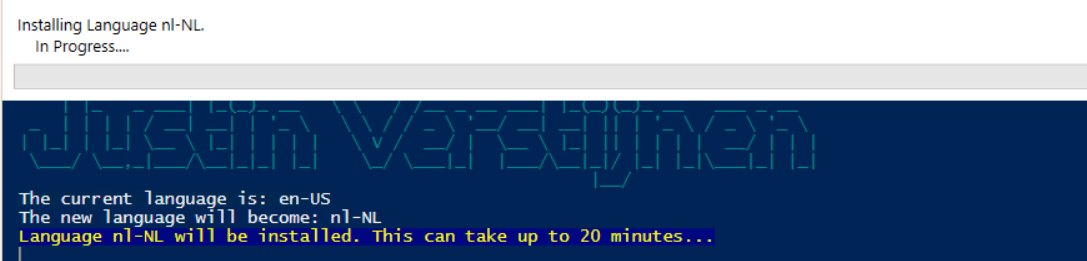
After every task is completed the server will reboot and you will be presented with the new settings.
Before and after the script
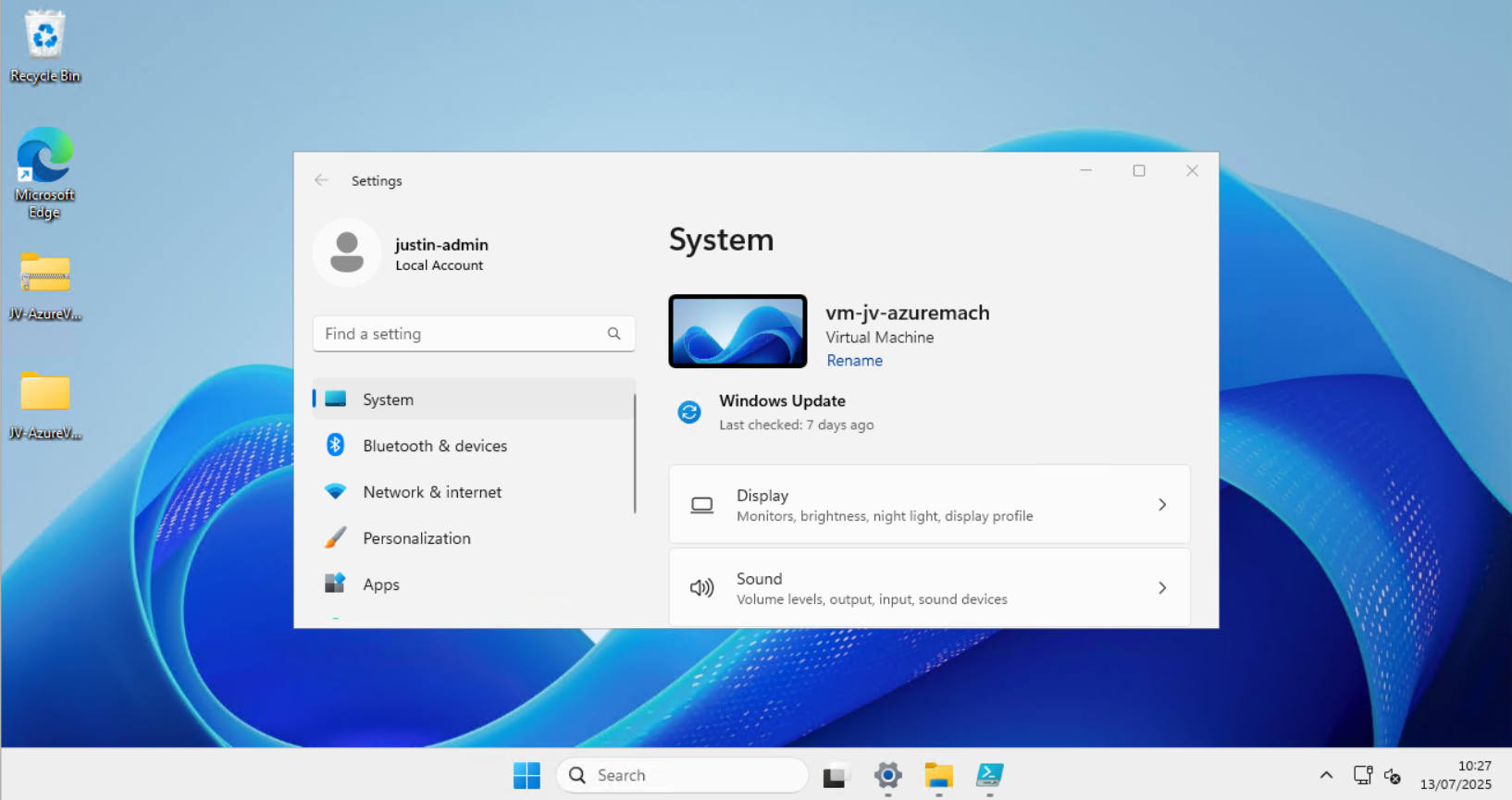
Before the script ran, my machine looked like this:
After the script ran, my machine looked like this:
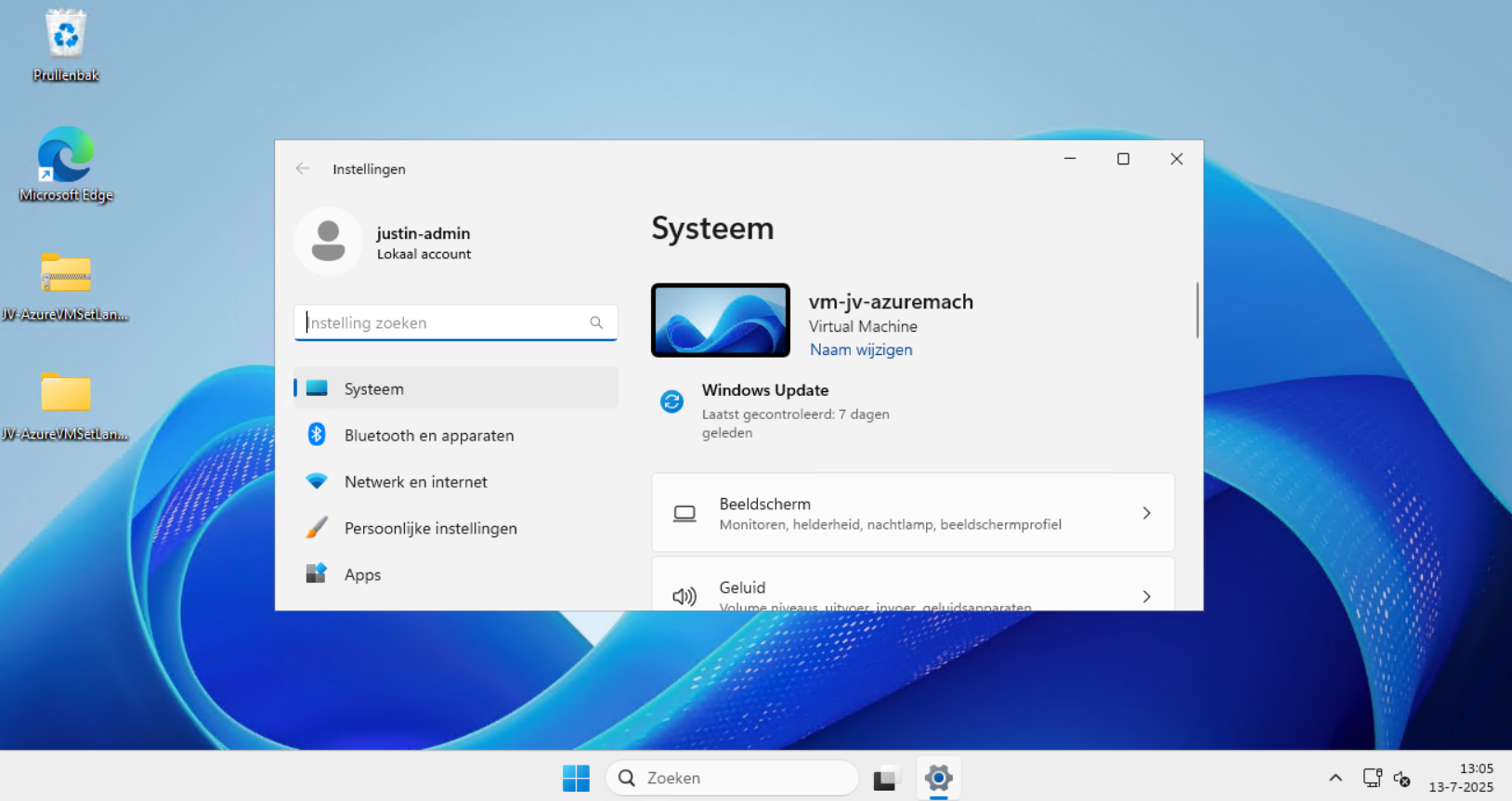
Perfectly in Dutch settings and ready to go.
Setting 24 hour-clock
Because of usability of my script, I did not include the use of the 24 hour clock because Windows does this because of the culture settings. If wanting to set this manually, you can execute these commands in PowerShell manually:
$24hclock = Get-UICulture

($24hclock.DateTimeFormat).ShortTimePattern = 'HH:mm'

Set-Culture $24hclock
This sets the time indication to 24-hour clock system.
Summary
In the beginning of creating Azure VMs this was something I found to be annoying. This was exactly the reason I wrote the script. This is especially useful when deploying Azure Virtual Desktop machines, as you want to present the users with their native language. We IT guys often like the systems in English so for us, it’s no problem.
I hope the script is useful and thank you for reading.
These sources helped me by writing and research for this post;
- https://learn.microsoft.com/en-us/linkedin/shared/references/reference-tables/language-codes
- https://learn.microsoft.com/en-us/windows-hardware/manufacture/desktop/default-time-zones?view=windows-11#time-zones
- https://learn.microsoft.com/en-us/windows/win32/intl/table-of-geographical-locations
- https://learn.microsoft.com/en-us/powershell/module/languagepackmanagement/set-systempreferreduilanguage?view=windowsserver2025-ps
End of the page 🎉
You have reached the end of the page. You can navigate through other blog posts as well, share this post on X, LinkedIn and Reddit or return to the blog posts collection page. Thank you for visiting this post.
Support the blog
