Use Session Shadowing with Azure Virtual Desktop
Step 1: Create a security group for allowed Shadow users
We must first create a security group which members of are allowed to use Shadowing. In my case, I have a AVD Admins group which I will use, but you can also be just more granular by creating a group for only this cause.
Create this group in Active Directory.
Step 2: Configure the Session Shadow policy
We must then enable Session Shadowing in the polcies of the session hosts. This can be done through Group Policy and Microsoft Intune which I will show you both.
Group Policy
Open the Group Policy Management Console (gpmc.msc) on your management server.
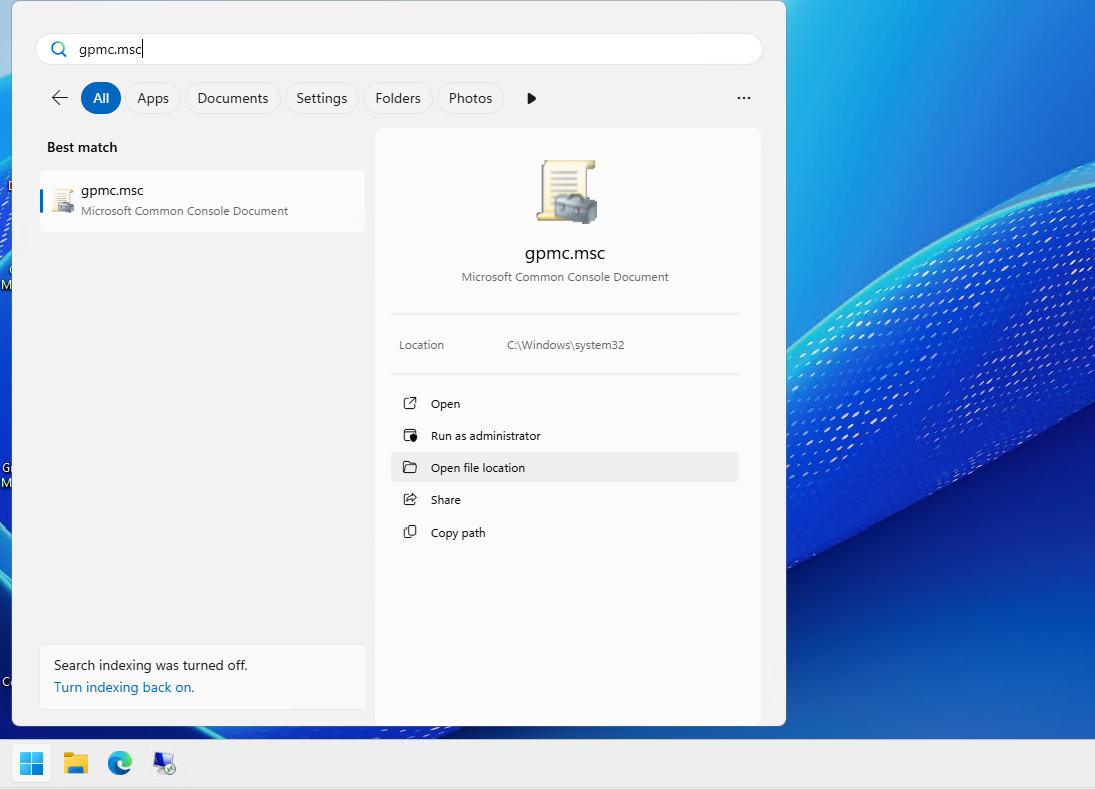
Use an existing policy or to create a new policy to configure this setting. Then navigate to this folder:
Computer Configuration - Administrative Templates - Windows Components - Remote Desktop Services - Remote Desktop Session Hosts - Connections
In the “Connections” folder you can find the correct setting to configure Shadowing: “Set rules for remote control of Remote Desktop Services user sessions”. Double click this to open a pop-up.
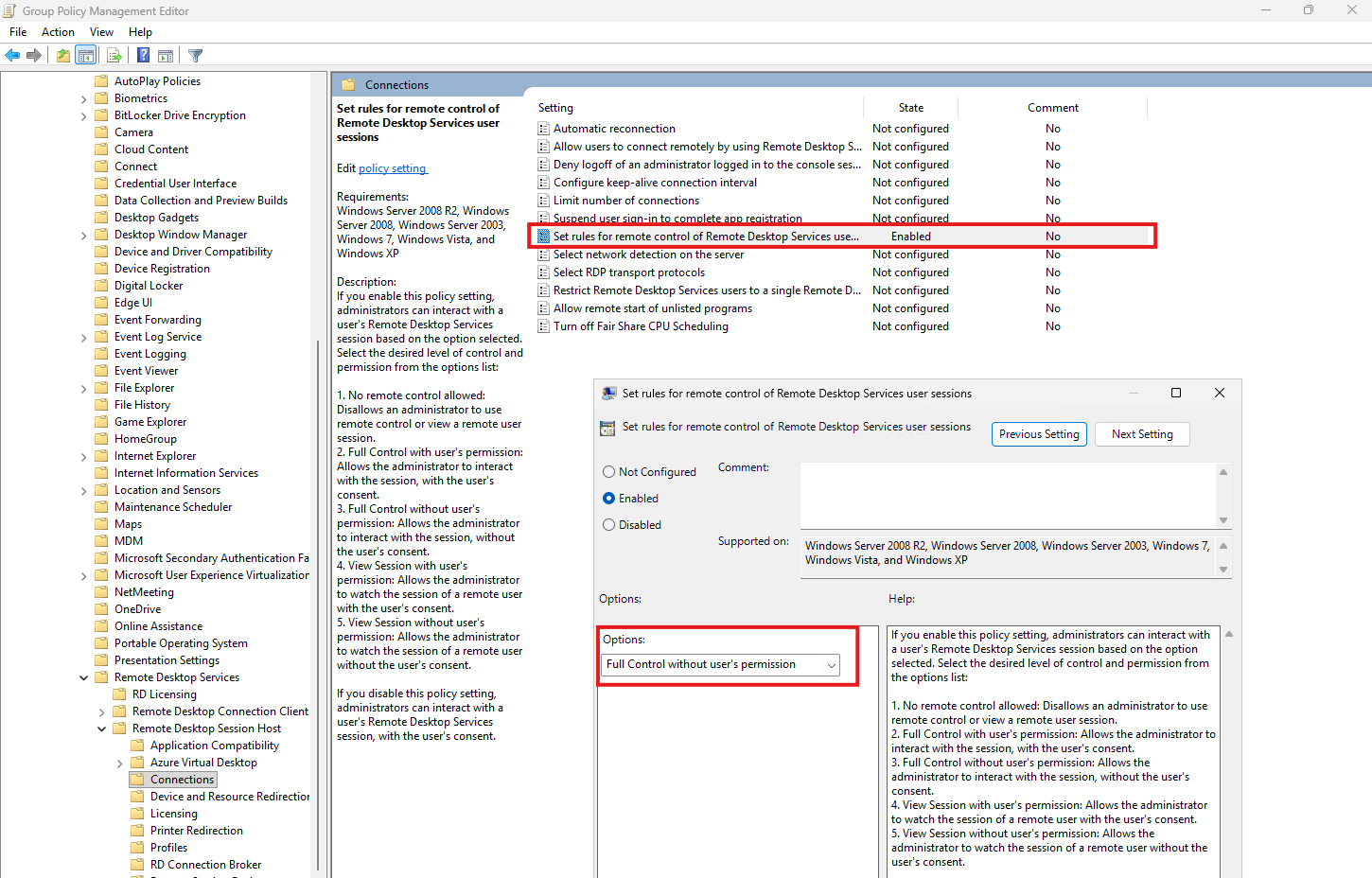
Here you can enable the policy and then decide on what settings to use. As you can see, this can be very granular to only view the session and also to have full control, both with and without user permission. In most cases when working with sensitive data, it’s better to require user’s permissions but for the cause of this guide, I will be setting the least restrictive setting, 2: Full Control without users permission.
Save the group policy.
Microsoft Intune
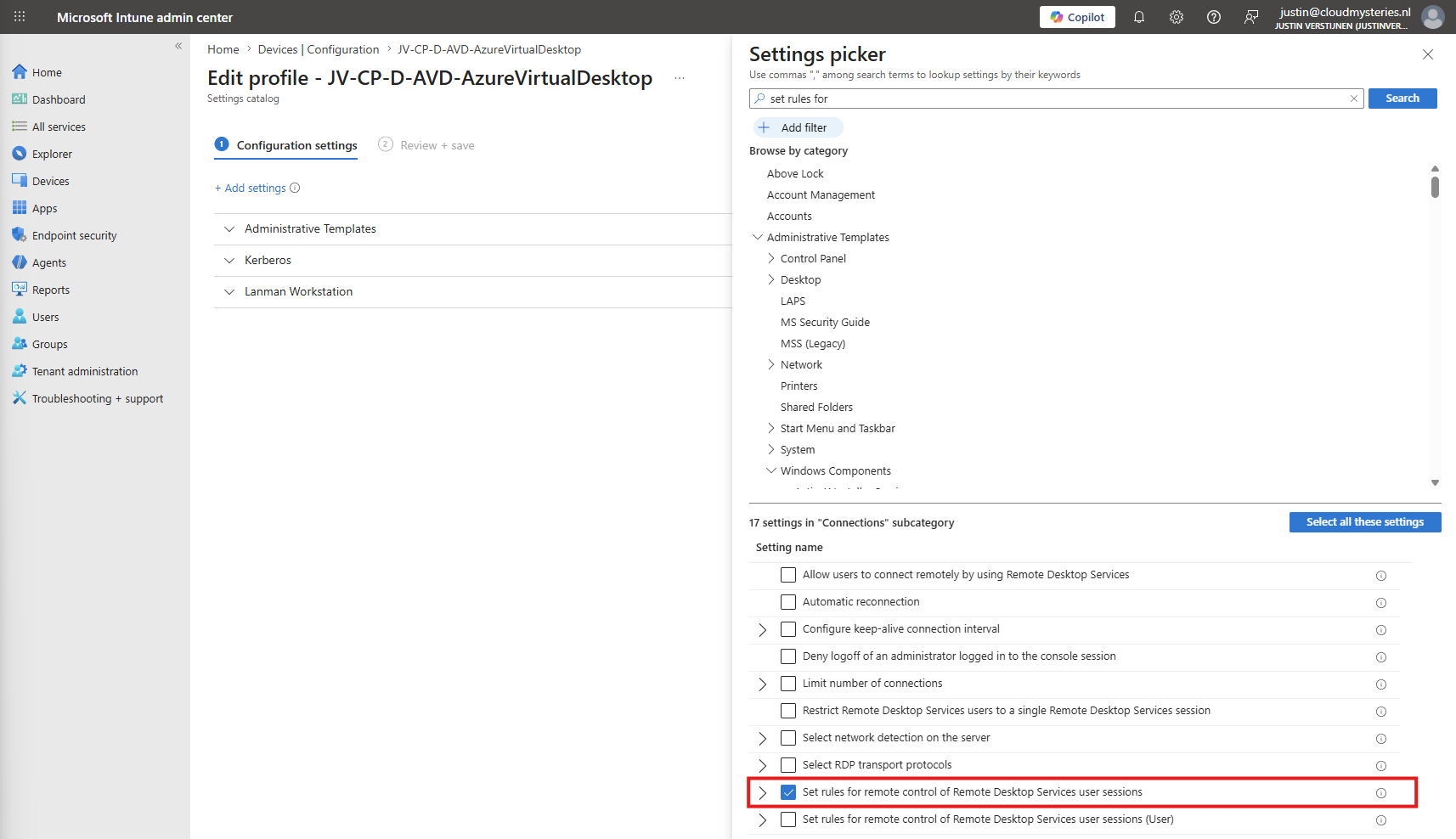
In Microsoft Intune, we can set this same setting by creating a new policy or to use an existing one. Then navigate to the right folder (or simply search for the setting):
Administrative Templates - Windows Components - Remote Desktop Services - Remote Desktop Session Hosts - Connections
Here select the setting “Set rules for remote control of Remote Desktop Services user sessions”:
Here we can enable the setting and which permissions are linked to this. I will also choose the Full Control without user’s permission here.
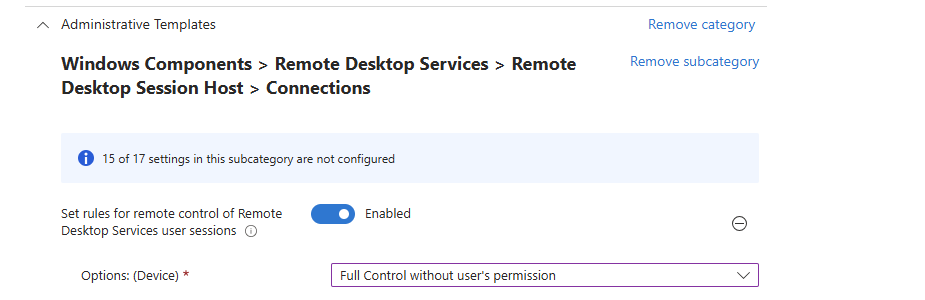
Save the policy and apply this to your Azure Virtual Desktop session hosts.
Step 3: Execute script for Shadow permissions
Now we have to give the user group permissions to use Shadow on the AVD session hosts. Unfortunately we don’t have a policy for this but this has to be done with PowerShell.
Change the group name on Line 1 and the Permissions preset on Line 2 to your own values and execute this script on every session host you use.
$groupname = "JV\JV-SG-U-AVD-Admins" # The name of the group to add
$PermissionPreSet = "2" # Corresponds with the setting numbers in the GUI

(Get-CimInstance -Namespace "root\CIMV2\TerminalServices" -ClassName Win32_TSPermissionsSetting -Filter "TerminalName like 'RDP-sxs%'")
Invoke-CimMethod -MethodName AddAccount -Arguments @{AccountName=$groupname; PermissionPreSet=$PermissionPreSet}
You can also use Group Policy and Microsoft Intune to execute a script remotely.
Group Policy
Before we can execute the script using Group Policy, we need to save the script on a shared location. For example:
\\justinverstijnen.nl\SYSVOL\justinverstijnen.nl\scriptsThis will ensure every domain computer can read and execute this script and us to be able to use it in our task. Now head to the Group Policy Management Console (gpmc.msc) on your management server.
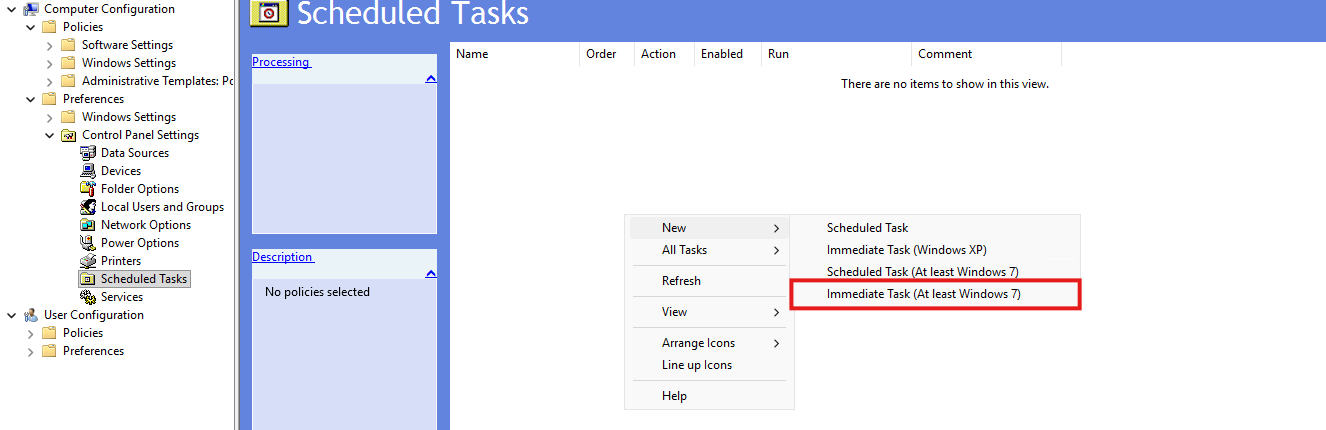
Here create a new group policy or use an existing policy. We will create a Scheduled -> Immediate task here which should run as soon as the group policy is updated.
You can find the Scheduled Tasks in Group Policy in:
Computer Configuration - Preferences - Control Panel Settings - Scheduled Tasks
Right click here, click “New” and click “Immediate Task (At least Windows 7)”
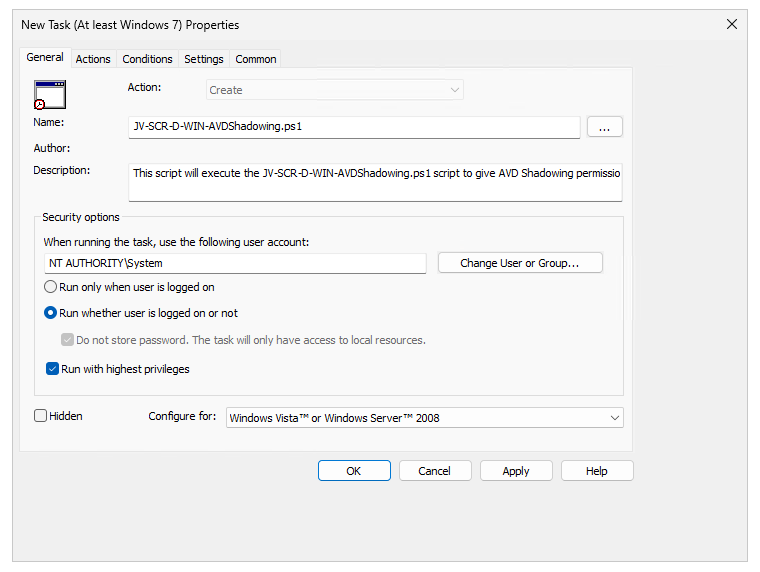
Configure the task with a name and description. Set the user to be NT AUTHORITY\SYSTEM to have the highest local permissions on session hosts.
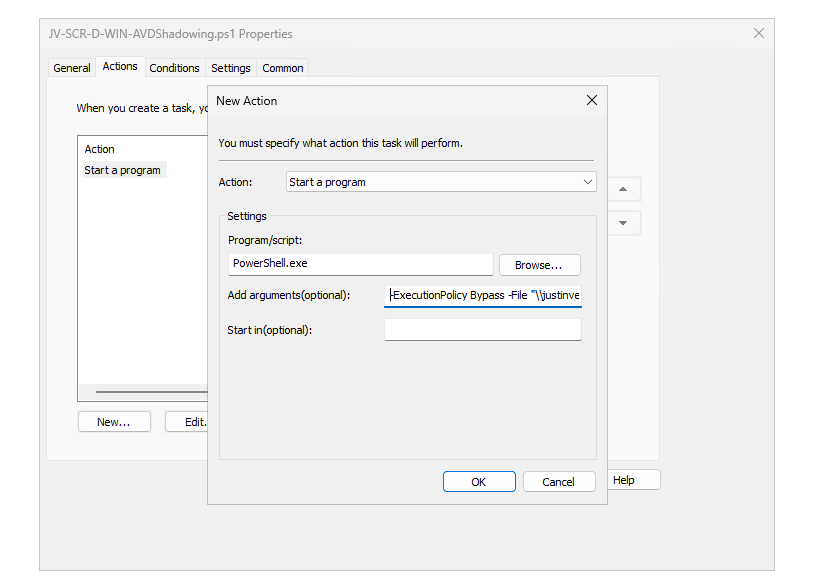
Now let’s create an action, which is to execute the script. Click on the “Actions” tab and click “New”.
Configure the action like this.
Program/script:
PowerShell.exeAdd arguments (optional):
-ExecutionPolicy Bypass -File "\\justinverstijnen.nl\SYSVOL\justinverstijnen.nl\scripts\Shadowing AVD\JV-SCR-D-WIN-AVDShadowing.ps1"Paste the file location of your own script here to ensure the script bypasses the PowerShell execution policy once.
Now save the task and the AVD session hosts must now be rebooted to apply this script and to apply the shadowing policy.
Microsoft Intune
In Microsoft Intune, we can simply add a PowerShell script and apply this to the group of our AVD session hosts.
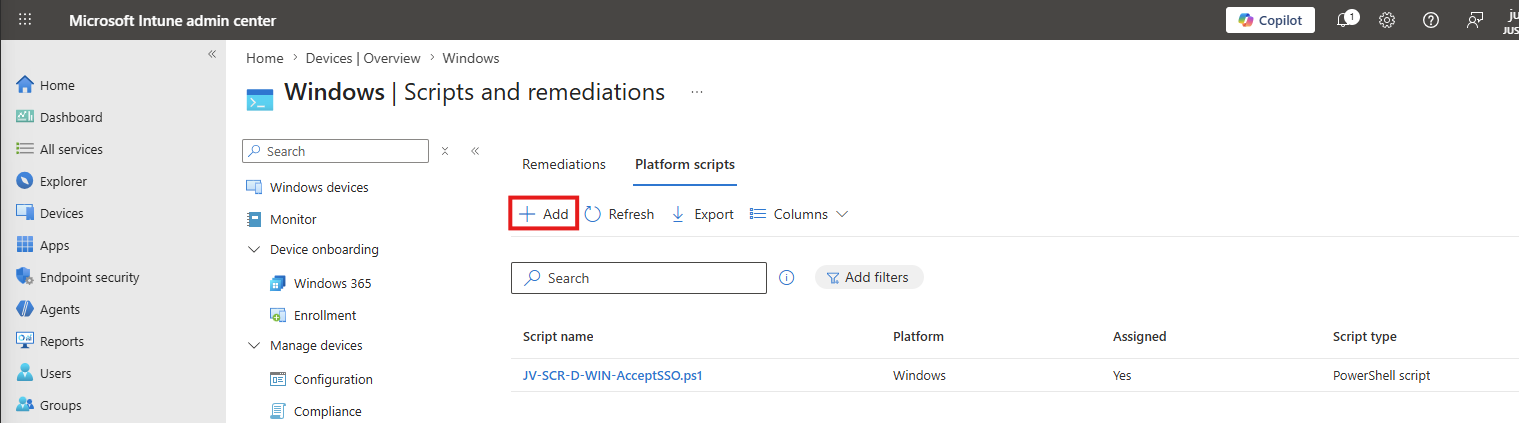
Open up Microsoft Intune on https://intune.microsoft.com and head to “Devices”, “Windows” and click on “Scripts and remediations”. Here select the “Platform scripts” tab.
Add a new script here by clicking “+ Add”:
Give the script a name and description and head to the “Script settings” tab.
Download the sample script from my GitHub page:
Now open the file and change the group name to your own group on Line 1. Then save the script and upload it into Intune.
Use these script settings:
- Run this script using the logged on credentials: No
- Enforce script signature check: No
- Run script in 64 bit PowerShell Host: Yes
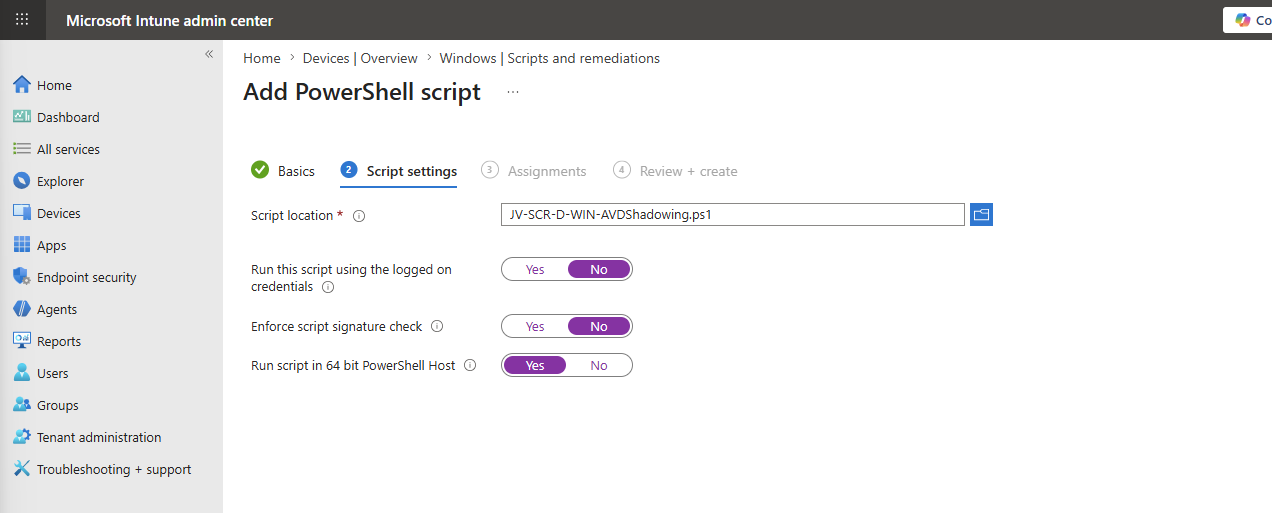
Assign the script to your AVD Session Hosts group and then save the script to apply it.
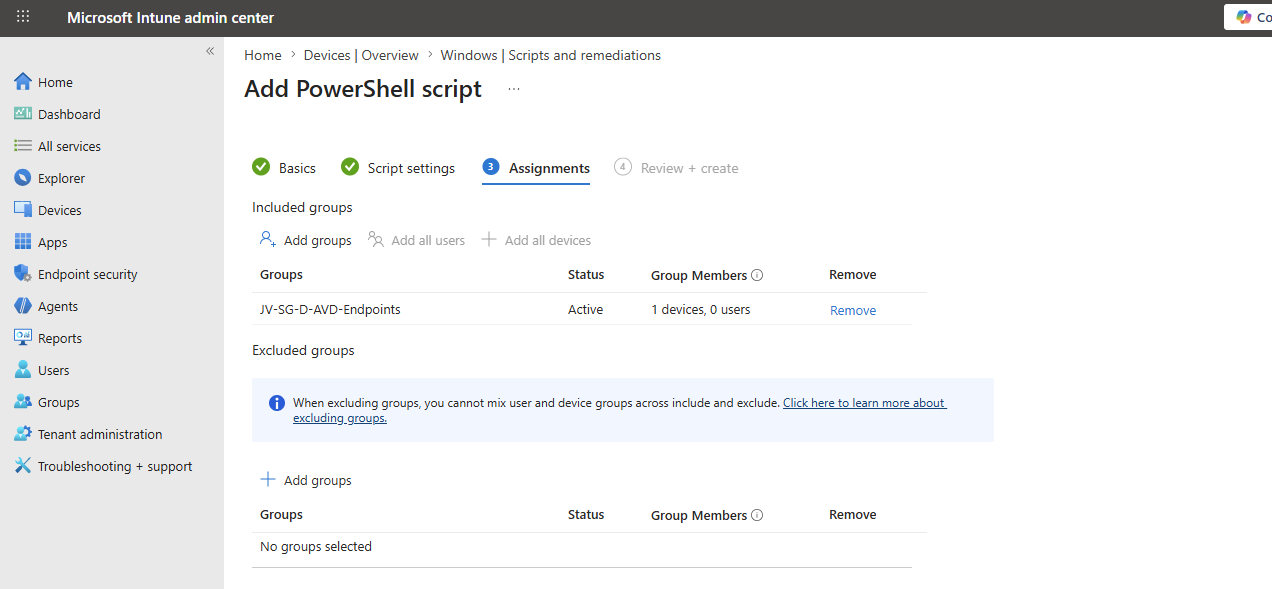
Now the AVD session hosts must now be rebooted to apply this script and to apply the shadowing policy.
Step 4: Using Shadowing with AVD
Now you can setup a shadow session from your management server to your AVD session hosts using this command:
mstsc /v:vm-jv-vm-0 /control /shadow:2 /noconsentpromptYou need to change the /v parameter to your session host name. The /shadow parameter is the session ID which you can find in the Azure Portal under the Hostpool -> Sessions:

Summary
Using Shadow can help you alot when assisting users with possible problems in their AVD sessions without using 3rd party software. You are completely in control who can control those AVD session hosts and sessions with assigning the users to the group.
Thank you for reading this post and I hope it was helpful!
These sources helped me by writing and research for this post;
End of the page 🎉
You have reached the end of the page. You can navigate through other blog posts as well, share this post on X, LinkedIn and Reddit or return to the blog posts collection page. Thank you for visiting this post.
Support the blog
