Solved - ADSync service stopped (Entra Connect Sync)
Sometimes, the ADSync service stops without further notice. You will see that the service has been stopped in the Services panel:

In this guide I will explain how I solved this problem using a simple PowerShell script.
The Check ADSync script
The PowerShell script that fixes this problem is on my GitHub page:
The script simply checks if the service is running, if this is the case the script will be terminated. If the service is not running, the service will be started.
The problem and possible causes
The problem is caused after a server restart, then the service will not start itself automatically, even when this is selected in Windows. This is enabled by defaut by the installation wizard.
In the Event Log there will be these events:
- Event 7000: The Microsoft Azure AD Sync service failed to start due to the following error: The service did not start due to a logon failure.
- Event 7031: The Microsoft Azure AD Sync service terminated unexpectedly. It has done this 1 time(s). The following corrective action will be taken in 0 milliseconds: Restart the service.
The fun part is that it cannot login according to the Entra Connect Sync tool but after some minutes it does.
Running the script
We can run the script manually using the PowerShell ISE application.
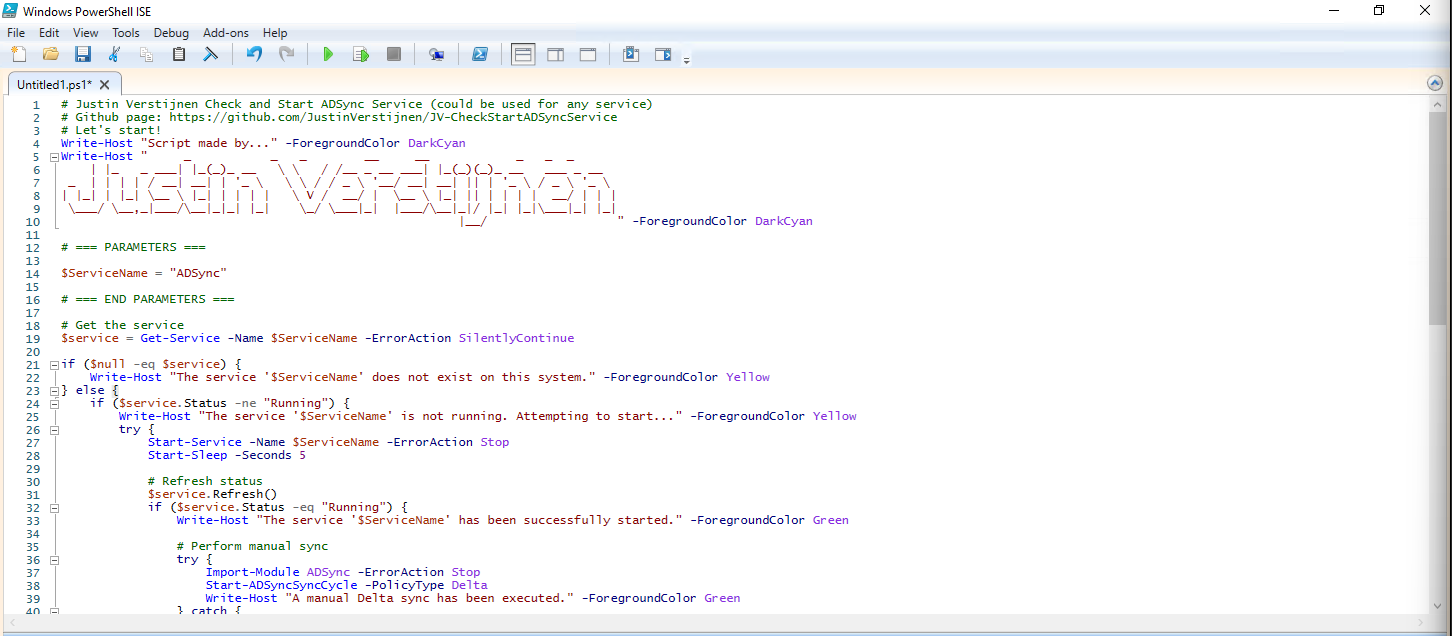
After running the script, the service does run:

Installing the clean script automatically
For installation with Task Scheduler I included an installation script that, by default, configures a task in the Windows Task Scheduler that runs it;
- Every first day of the month
- At hour 03:00
If these settings are great for you, you can leave them as-is.
The Installation script creates a folder in C:\ named “Scripts” if not already there and places the cleaning script there.
Installation
Click on the blue button above. You now are on the Github page of the script.
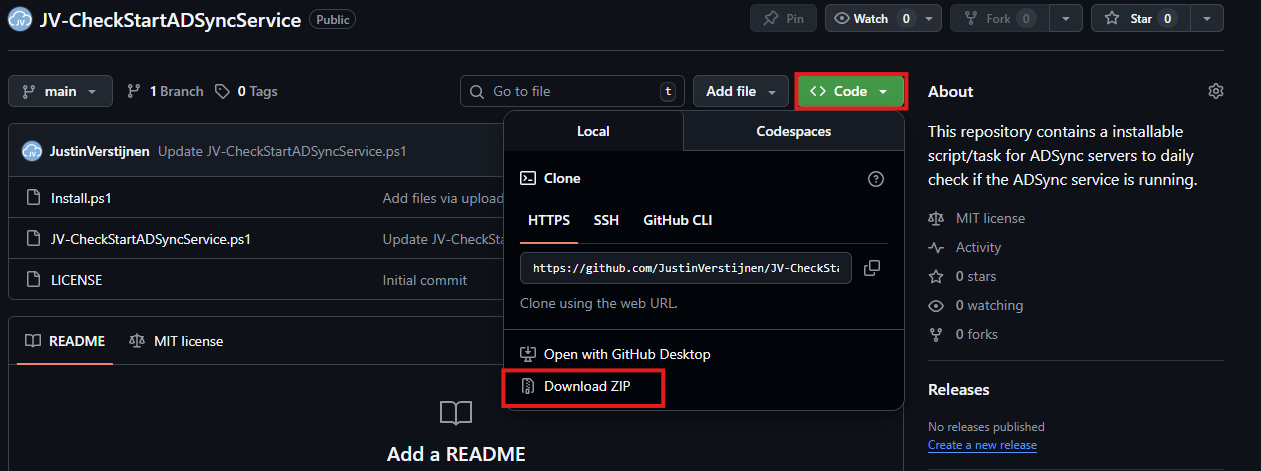
Click on “Code” and then “Download ZIP”.
Then place the files on the server where you want to install the script.
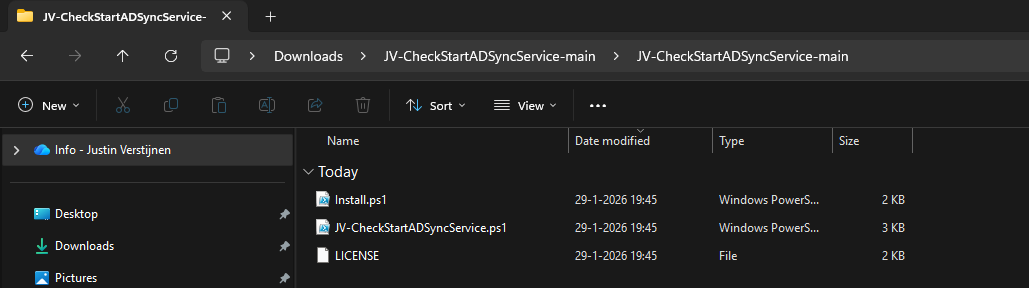
Open Powershell ISE as administrator.
Now open the “Install” script.
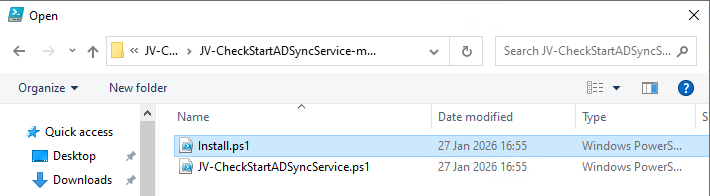
Review it’s default settings and if you feel at home in PowerShell, review the rest of the script to understand what it does.
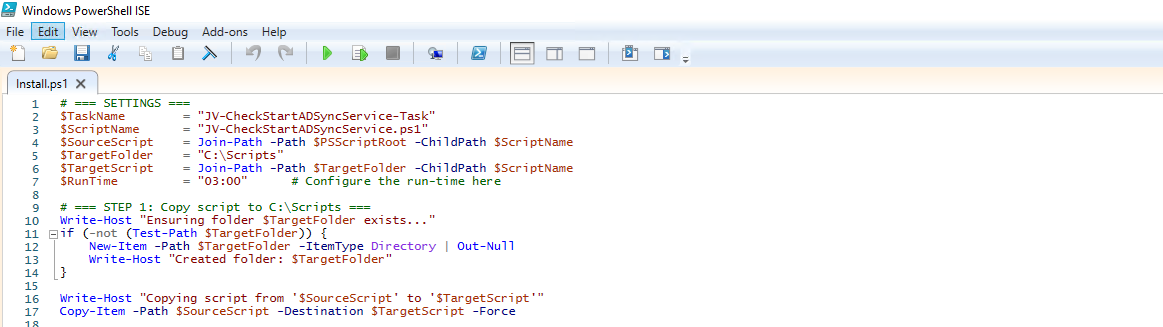
You can change the schedule very easily by changing the runtime: 0:00 till 23:59 and the day of month to specify the day number of the month (1-31).
After your schedule is ready, let’s ensure we temporarily bypass the Execution Policy by typing the command in the blue window below:
Set-ExecutionPolicy Unrestricted -Scope Process -ForceThis way the execution policy stays enabled but for this session only it’s been lowered. When you close the window, you have to type this again before be able to run scripts.
Execute the command, and when prompted to lower the policy, click Yes.
Now execute the Install script by clicking the green “Run” button:
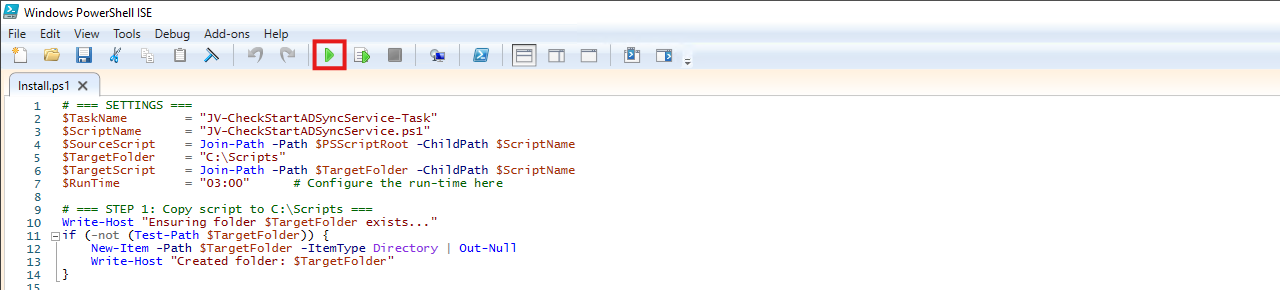
After executing the script, we get the message that the task has been created succesfully:

Let’s check this in the Windows Task Scheduler:
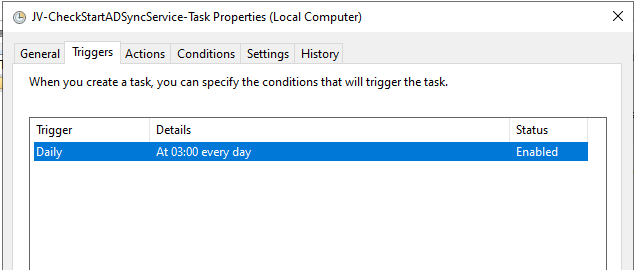
As you can see, the script is succesfully installed to Task Scheduler. This ensures it runs every first of the month at 03:00 (or at your own defined schedule). Also, the script has been placed in C:\Scripts for a good overview of the scripts of the system.
Summary
This simple script resolved me a lot of problems, checking the service automatically and starting it. A Entra Connect Sync not running is very stable. Users can get different types of errors, de-synchronisations and passwords that are not working.
Thank you for visiting this page and I hope it was helpful.
These sources helped me by writing and research for this post;
End of the page 🎉
You have reached the end of the page. You can navigate through other blog posts as well, share this post on X, LinkedIn and Reddit or return to the blog posts collection page. Thank you for visiting this post.
Support the blog
