Configure Start VM on Connect for Azure Virtual Desktop
Categories:
4 minute read
In short, the process works as follows:
- The user initiates a connection to the host pool from Windows App.
- The user completes authentication, which may include multiple authentication factors.
- Azure Virtual Desktop checks whether a suitable session host is available.
- If the required VM is deallocated, Azure Virtual Desktop starts it.
- The user sees a message indicating that the VM is being powered on, and the connection takes slightly longer than usual, typically around 120 seconds.
Let’s dive into how to configure this!
Step 1: Assign the required role
First, we need to give the Azure Virtual Desktop service principal permission to start the VMs. This allows us to grant the service principal only the permissions it needs and follows the principle of least privilege within the Azure RBAC security system.
Open the Azure portal, go to “Subscriptions”, and open the subscription that contains your Azure Virtual Desktop session hosts. Then go to “Access control (IAM)”, select “+ Add”, and choose “Add role assignment”.
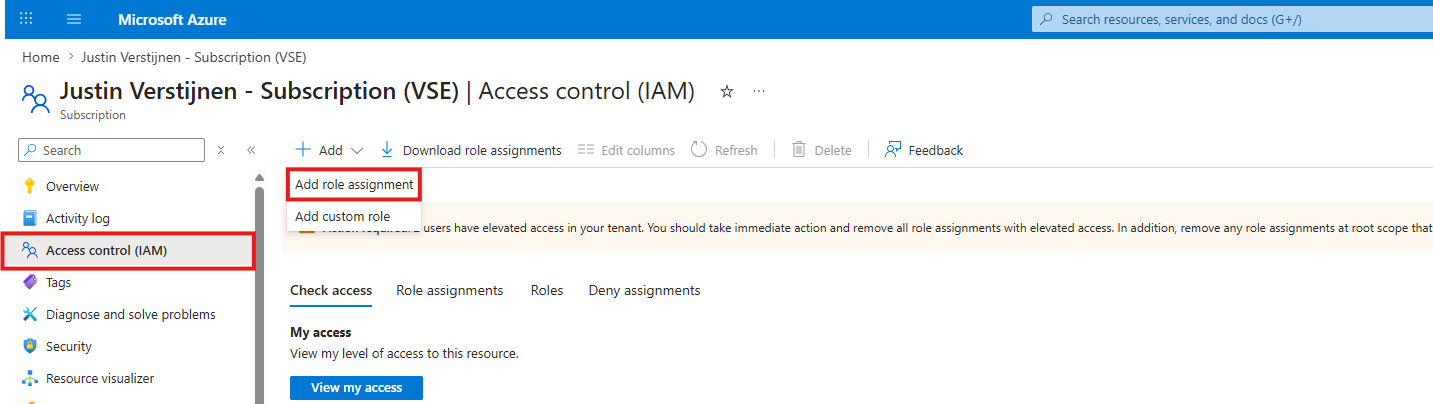
On this screen, select the following role:
- Desktop Virtualization Power On Contributor
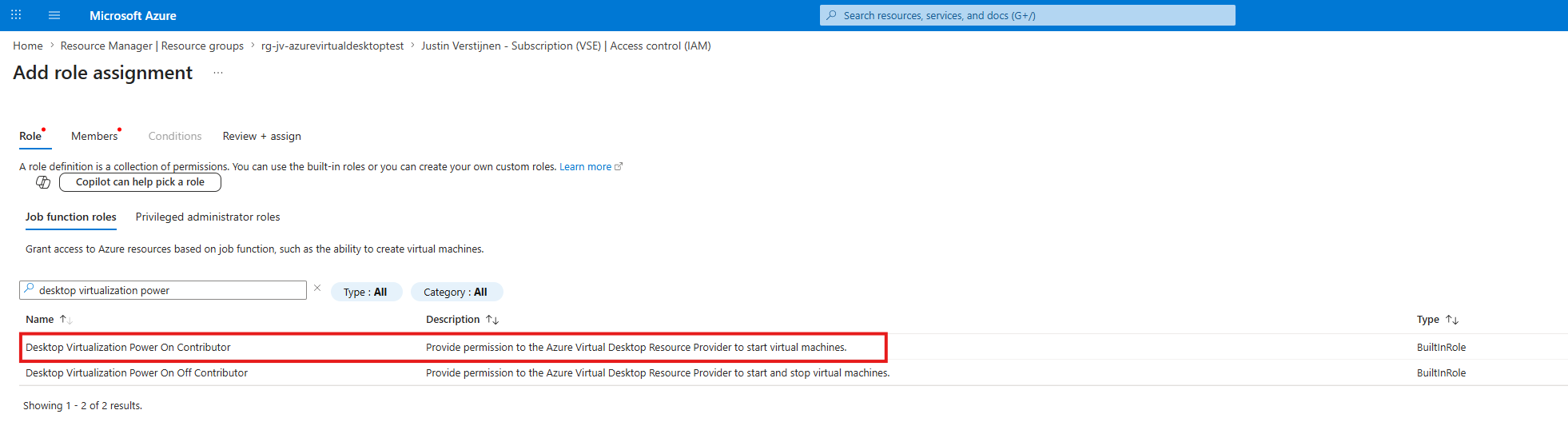
Then click “Next”. Click “+ Select members” and search for:
- Azure Virtual Desktop
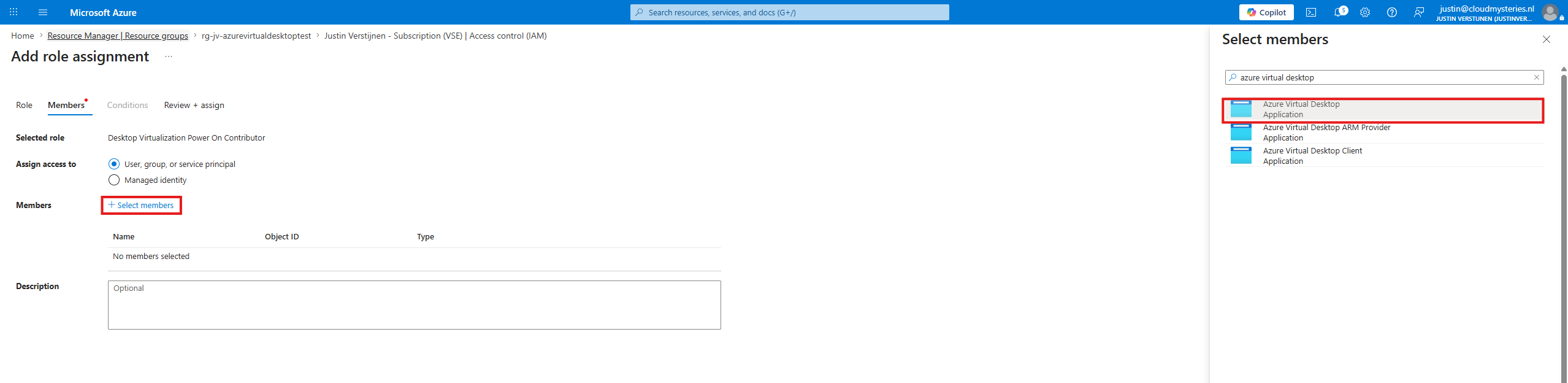
Select the service principal and complete the wizard by clicking “Review + assign”.
If you do not immediately see Azure Virtual Desktop, make sure you are searching for a service principal rather than a user or group. In older environments, you may also find the legacy Windows Virtual Desktop service principal.
Repeat this role assignment for every subscription that contains Azure Virtual Desktop session hosts and/or host pools. This detail is easy to miss when resources are spread across multiple subscriptions.
Step 2: Enable Start VM on Connect
You can now enable the feature on the host pool using a single setting.
Open the Azure portal and go to “Azure Virtual Desktop”. Then select “Host pools”, open your host pool, go to “Properties”, and set “Start VM on Connect” to “On”.
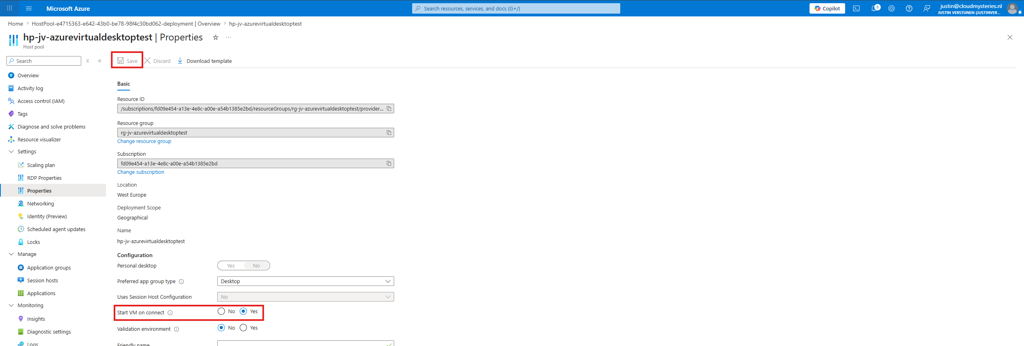
Save the configuration.
This setting is configured per host pool. If you have multiple host pools, repeat this step for each host pool where you want to enable this behavior.
Step 3: Test the result
After saving the configuration, the setting should become active almost immediately.
The easiest way to test it is to first make sure that your session host VMs are deallocated. Then open Windows App or your preferred Azure Virtual Desktop client and sign in as a standard, non-administrator user who has access to the desktop. Start the connection as normal.
If everything is configured correctly, the user should see a message indicating that the VM is being powered on. It looks like this:
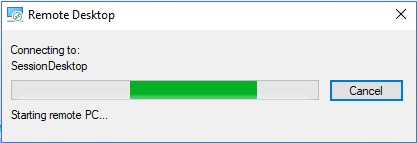
In the Azure portal, you should also see one of the session host VMs changing to a running state.
Keep in mind that the first connection will be slower than usual because the VM needs time to boot. This is expected behavior and usually does not take very long. In my experience, the VM is fully up and running within 120 seconds. Faster than getting a cup of coffee at the start of the workday.
Summary
Start VM on Connect is a small Azure Virtual Desktop setting, but it solves a very real problem. Users can still connect when all session hosts are powered off, while you retain more control over when the machines actually run.
This feature is especially useful when combined with scaling plans because it allows users to connect outside normal working hours. Without this option, the client may display the message “Not enough resources available”, preventing the employee from connecting.
Thank you for reading this post. I hope you found it helpful!
Sources
These sources helped me with the research and writing for this post:
- https://learn.microsoft.com/en-us/azure/virtual-desktop/start-virtual-machine-connect
- https://learn.microsoft.com/en-us/azure/virtual-desktop/service-principal-assign-roles
End of the page 🎉
You have reached the end of the page. You can navigate through other blog posts as well, share this post on X, LinkedIn and Reddit or return to the blog posts collection page. Thank you for visiting this post.
If you find this page and blog very useful and you want to leave a donation, you can use the button below to buy me a beer. Hosting and maintaining a website takes a lot of time and money. Thank you in advance and cheers :)

The terms and conditions apply to this post.