Upload multiple Github repositories into a single Azure Static Web App
In this guide, I will describe how I now host multiple Github applications/tools into one single Static Web App environment in Azure. This mostly captures the simple, single task, tools which can be found on my website:
- https://justinverstijnen.nl/tools or jvapp.nl if you need a shortcut.
Because I started with a single tool, then built another and another and another one, I needed a sort of scalable way of doing this. Each tool means doing the following stuff:
- Creating a repo
- Creating a static web app
- Creating a DNS record
In this guide, I will describe the steps I have taken to accomplish what I’ve built now. A single Static Web App instance with all my tools running.
The GitHub repository topology
To prepare for this setup, we need to have our GitHub repository topology right. I already had all my tools in place. Then I have built my repositories to be as the following diagram:
In every repository I have placed a new YML GitHub Action file, stating that the content of the repository must be mirrored to another repository, instead of pushing it to Azure. All of the repos at the top have this Action in place an they all mirror to the repository at the bottom: “swa-jv-tools” which is my collective repository. This is the only repository connected to Azure.
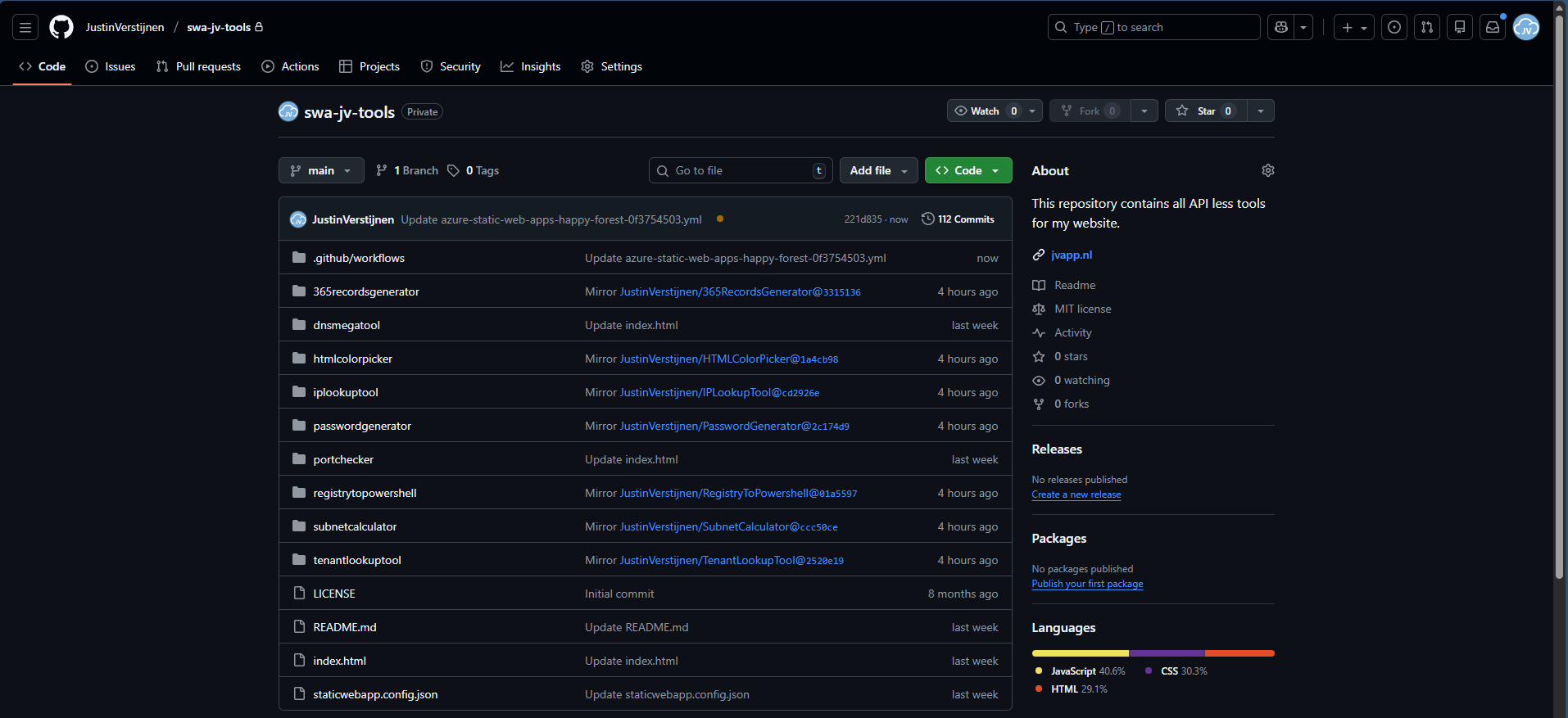
What are GitHub Actions?
GitHub Actions are automated scripts that can run every time a repository is updated or on schedule. It basically has a trigger, and then does an action. This can be mirroring the repository to another or to upload the complete repository to a Static Web App instance on Microsoft Azure.
GitHub Actions are stored in your Repository under the .Github folder and then Workflows:
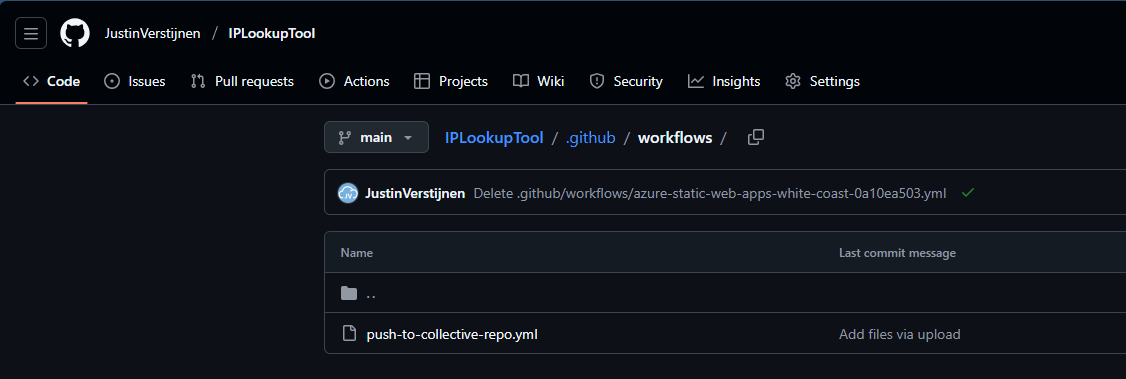
In this guide, I will show you how to create your first GitHub Action.
Step 1: Prepare your collective repository
To configure one Repository to act as a collective repository, we must first prepare our collective repository. The other repos must have access to write to their destination, which we will do with a Personal Access Token (PAT).
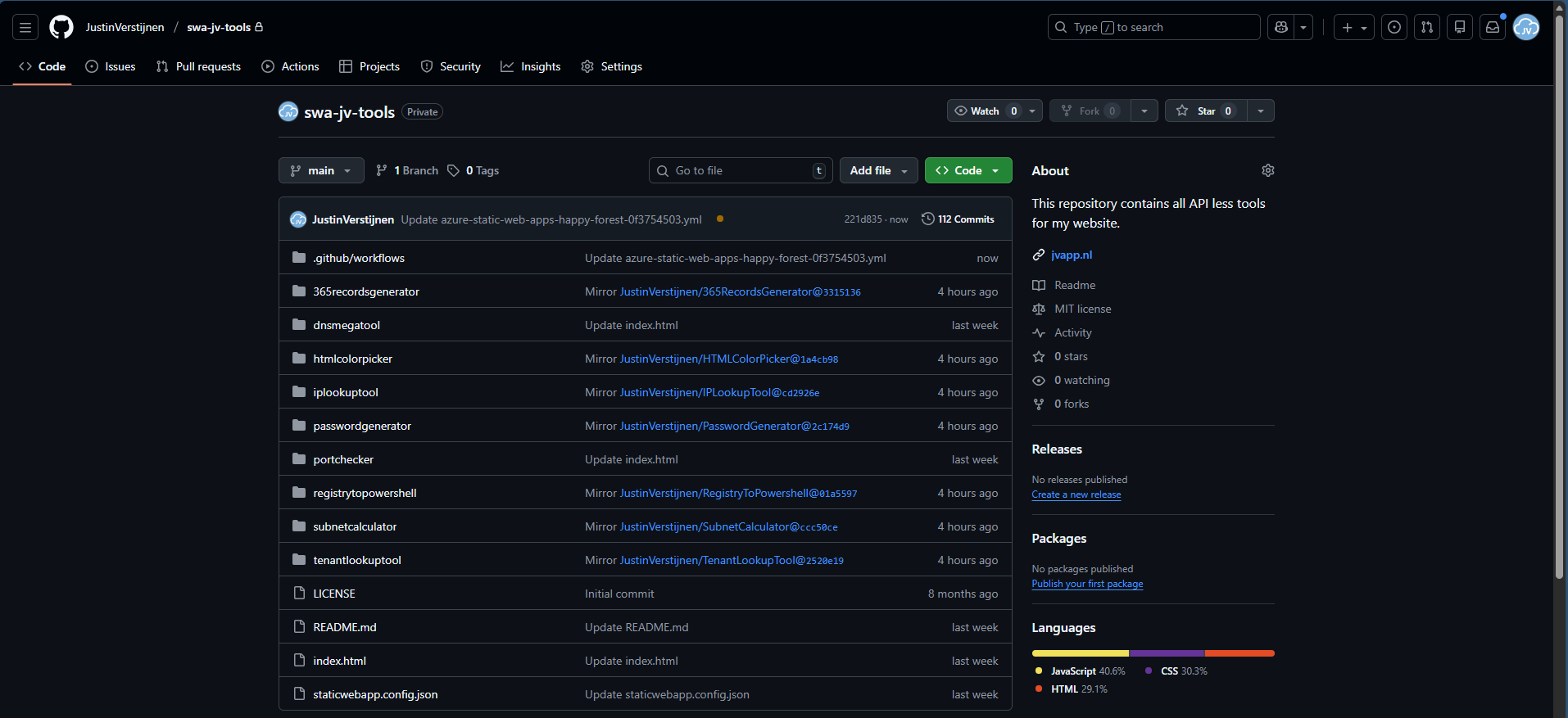
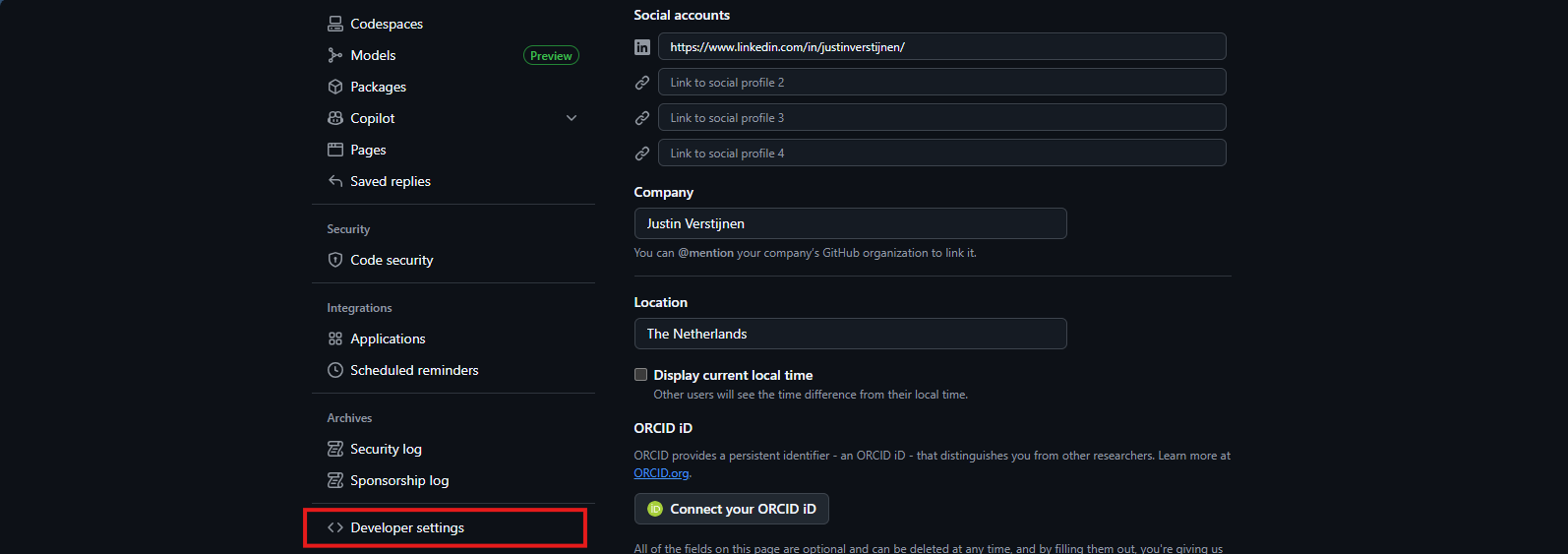
In Github, go to your Settings, and then scroll down to “Developer settings”.
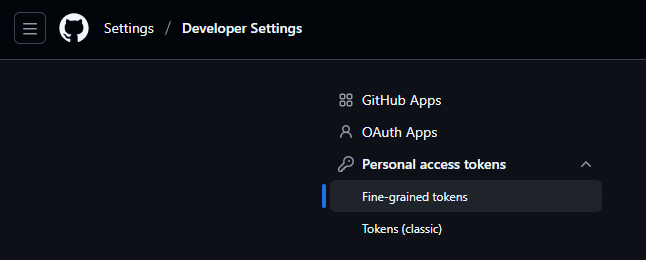
Then on the left, select “Personal access tokens” and then “Fine-grained tokens”.
Click on the “Generate new token” button here to create a new token.
Fill in the details and select the Expiration date as you want.
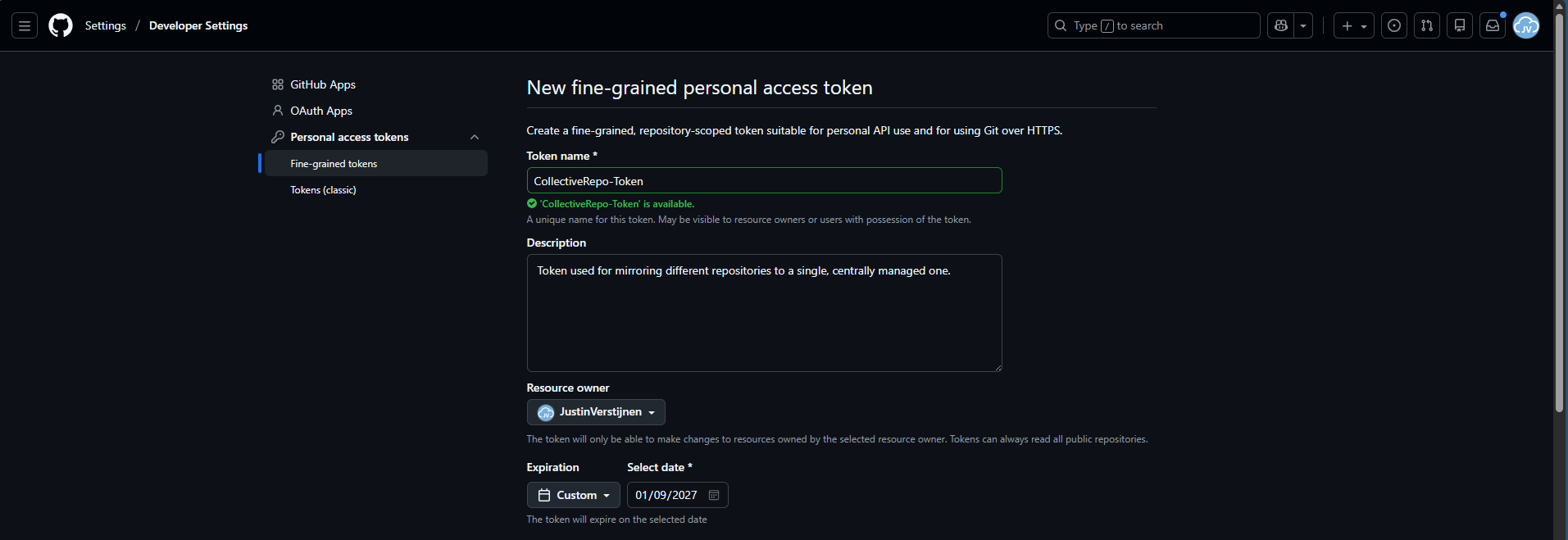
Then scroll down to “Repository access” and select “Only selected repositories”. We will create a token that only writes to a certain repository. We will select our destination repository only.

Under permissions, add the Actions permission and set the access scope to “Read and write”.
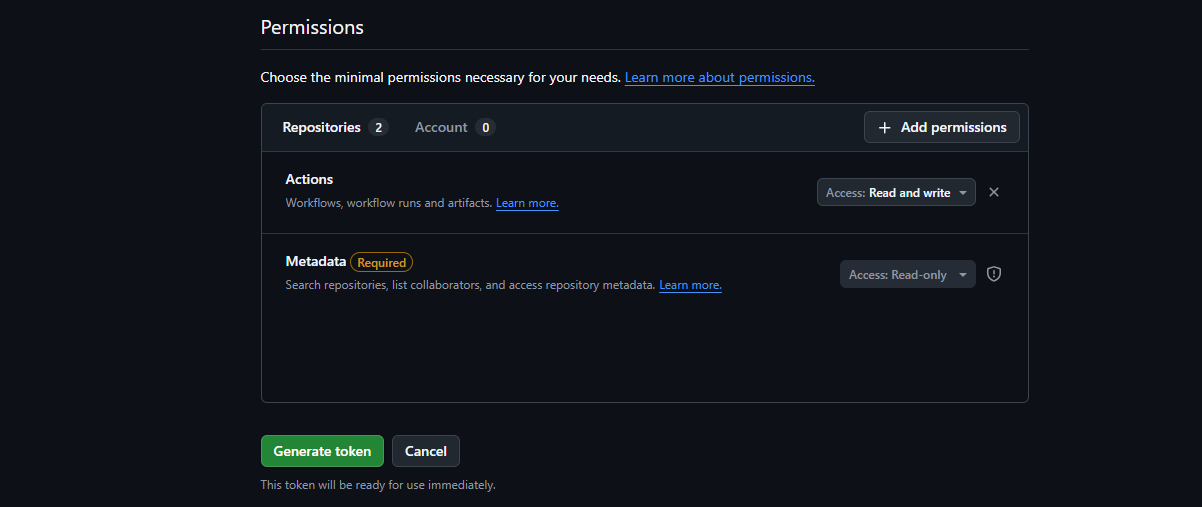
Then create your token and save this in sa safe place (like a password manager).
Step 2: Insert PAT into every source repository
Now that we have our secret/PAT created with permissions on the destination, we will have to give our source repos access by setting this secret.
For every source repository, perform these actions:
In your source repo, go to “Settings” and then “Secrets and variables” and click “Actions”.
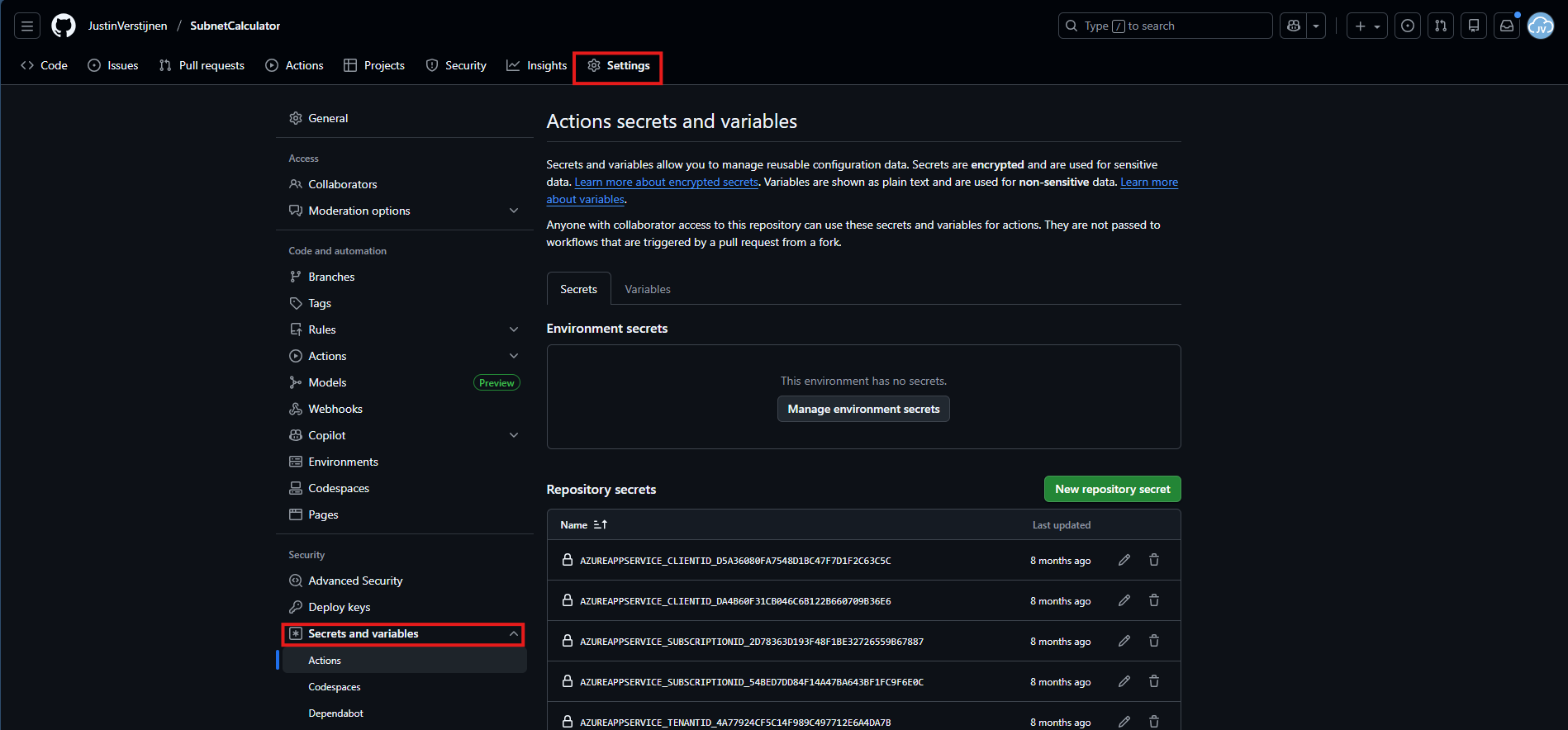
Create a new Repository secret here. I have named all secrets: “COLLECTIVE_TOOLS_REPO” but you can use your own name. It must be set later on in the Github Action in Step 3.
Paste the secret value you have copied during Step 1 and click “Add secret”.
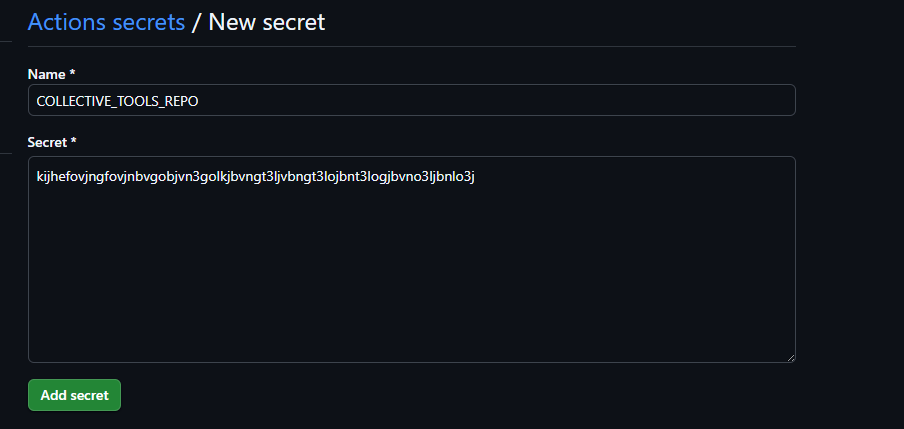
After this is done, go to Step 3.
Step 3: Insert GitHub Actions file
Now the Secret has been added to the repository, we can insert the GitHub Actions file into the repo. Go to the Code tab and create a new file:
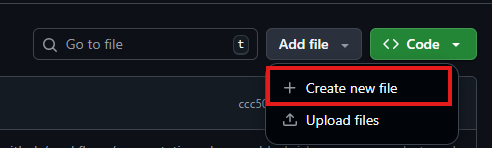
Type in:
- .github/workflows/your-desired-name.yml
Github automatically will put you in the subfolders while typing.
There paste the whole content of this code block:
name: Mirror repo A into subdirectory of repo B

on:
  push:
    branches:
      - main
  workflow_dispatch: {}

permissions:
  contents: read

jobs:
  mirror:
    runs-on: ubuntu-latest

    steps:
      - name: Checkout source repo (repo A)
        uses: actions/checkout@v4
        with:
          fetch-depth: 0

      - name: Checkout target repo (repo B)
        uses: actions/checkout@v4
        with:
          repository: JustinVerstijnen/swa-jv-toolspage
          token: ${{ secrets.COLLECTIVE_TOOLS_REPO }}
          path: target
          ref: main
          fetch-depth: 0

      - name: Sync repo A into subfolder in repo B (lowercase name)
        shell: bash
        run: |
          set -euo pipefail

          # Get name for organization in target repo
          REPO_NAME="${GITHUB_REPOSITORY##*/}"

          # Set lowercase
          REPO_NAME_LOWER="${REPO_NAME,,}"

          TARGET_DIR="target/${REPO_NAME_LOWER}"

          mkdir -p "$TARGET_DIR"

          rsync -a --delete \
            --exclude ".git/" \
            --exclude "target/" \
            --exclude ".github/" \
            ./ "$TARGET_DIR/"

      - name: Commit & push changes to repo B
        shell: bash
        run: |
          set -euo pipefail
          cd target

          if git status --porcelain | grep -q .; then
            git config user.name  "github-actions[bot]"
            git config user.email "github-actions[bot]@users.noreply.github.com"

            git add -A
            git commit -m "Mirror ${GITHUB_REPOSITORY}@${GITHUB_SHA}"
            git push origin HEAD:main
          else
            echo "No changes to push."
          fi
On line 25 and 26, paste the name of your own User/Repository and Secret name. These are just the values I used.
Save the file by commiting and the Action will run for the first time.
On the “Actions” tab, you can check the status:

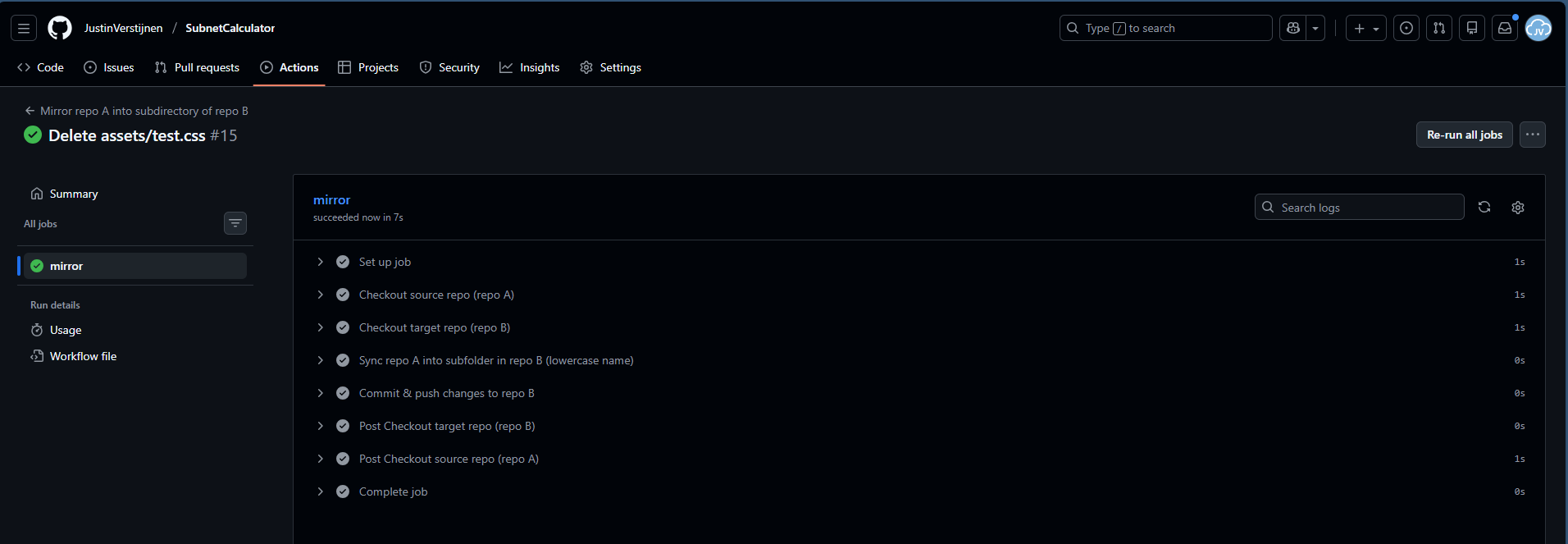
I created a file and deleted it to trigger the action.
You will now see that the folder is mirrored to the collective repository:

Step 4: Linking collective repository to Azure Static Web App
Now we have to head over to Microsoft Azure, to create a Static Web App:
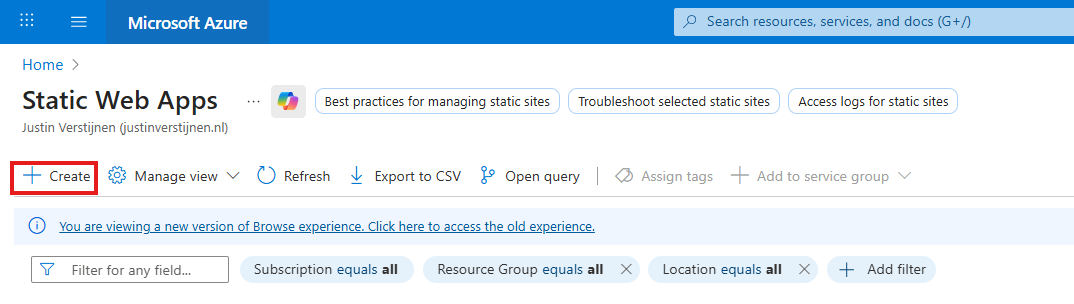
Place it in a resource group of your likings and give it a name:
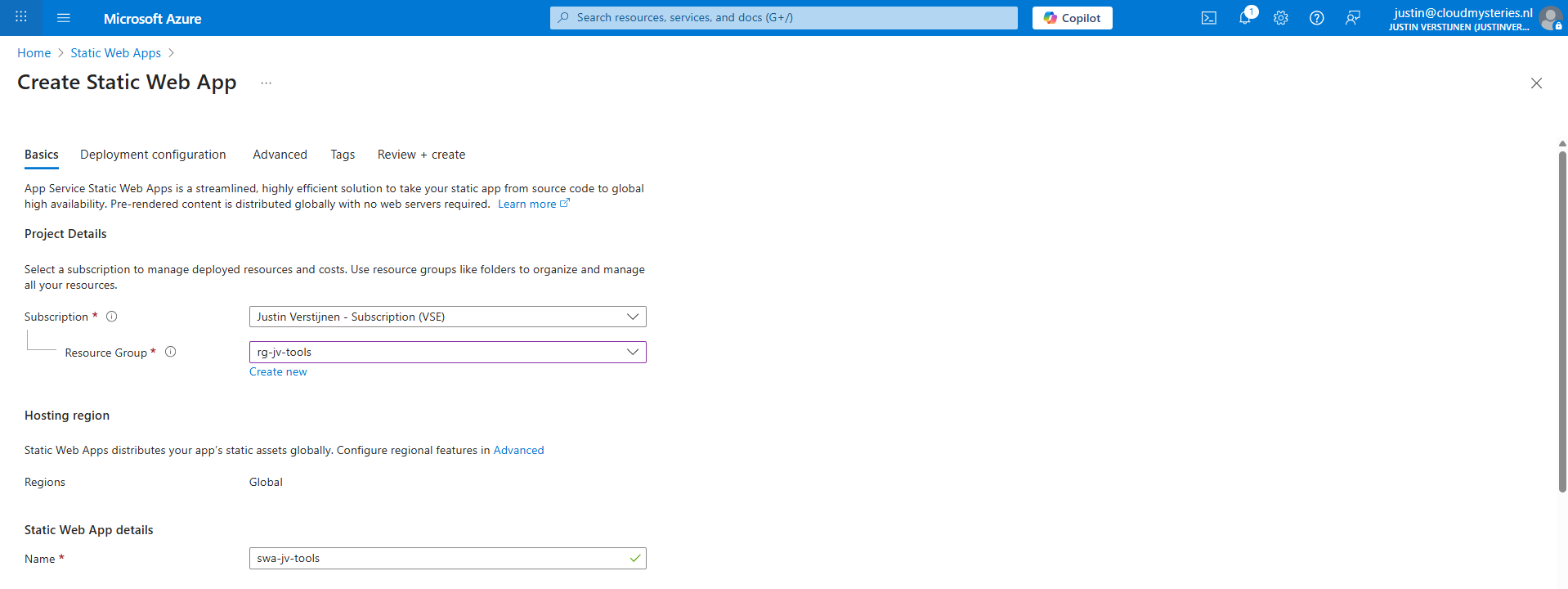
Scroll down to “Deployment details” and here we have to make a connection between GitHub and Azure which is basically logging in and giving permissions.
Then select the right GitHub repository from the list:
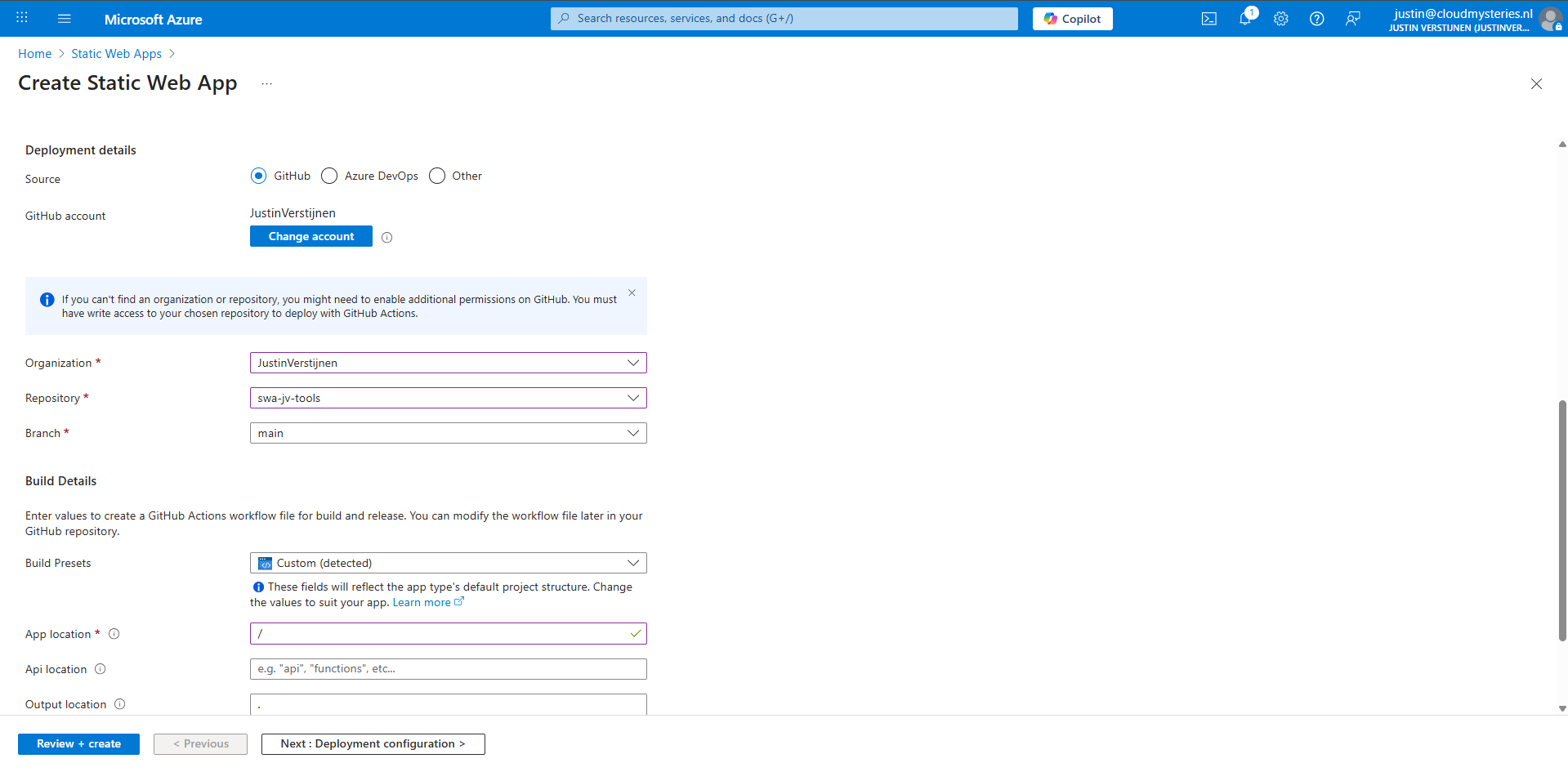
Then in the “Build details” section, I have set “/” as app location, telling Azure that all the required files start in the root of the repository.
Click “Review + create” to create the static web app and that will automatically create a new GitHub action that uploads everything from the repository into the new created Static Web App.

Step 5: Link custom domain name (optional)
An optional step but highly recommended is to add a custom domain name to the Static Web App. So your users can access your great stuff with a nice and whitelabeled URL instead of e.g. happy-bush-0a245ae03.6.azurestaticapps.net.
In the Static Web App go to “Custom Domains”.
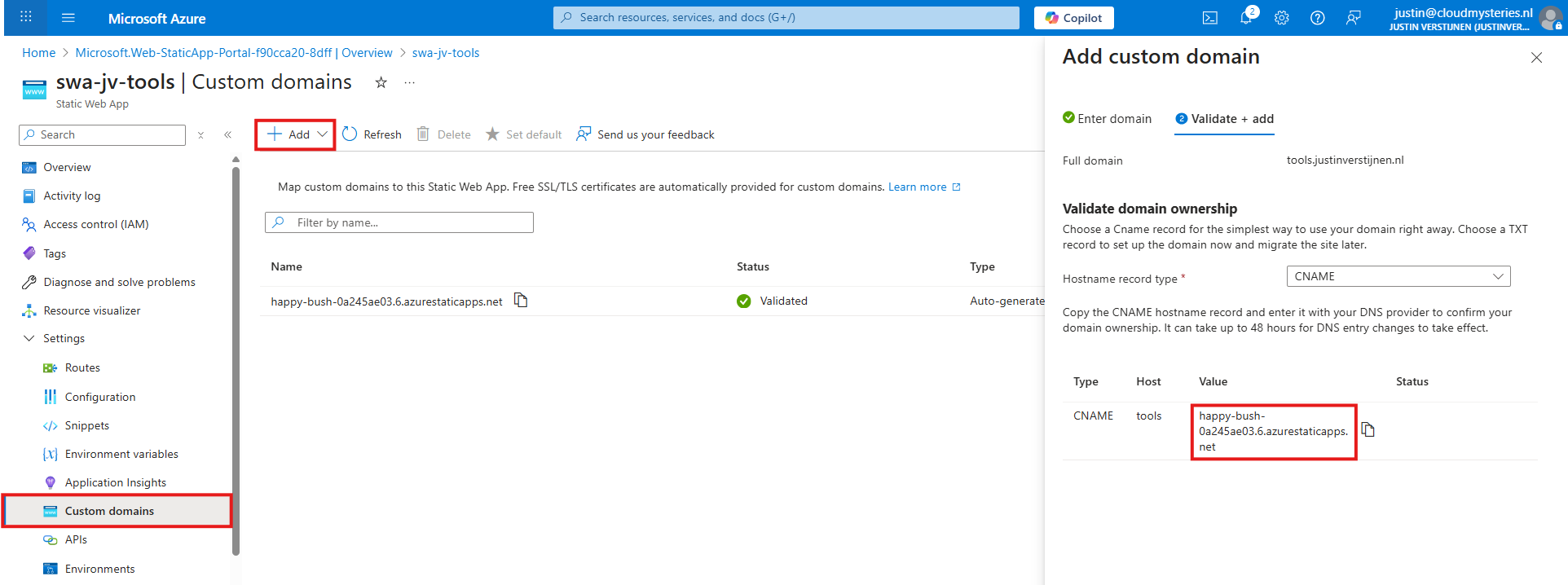
Click on “+ Add” to add a new custom domain you own, and copy the CNAME record. Then head to your DNS hosting company and create this CNAME record to send all traffic to the Static Web App:

Do not forget to add a trailing dot “.” at the end as this is an external hostname.
Then in Azure we can finish the domain verification and the link will now be active.
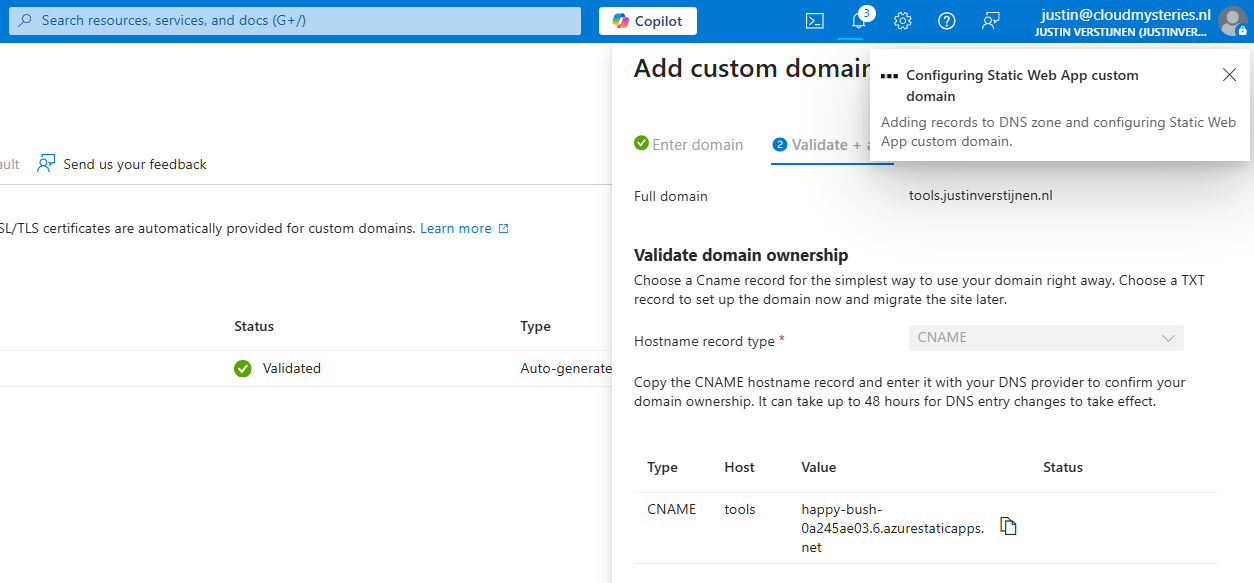
After this step, wait for around 15 minutes for Azure to process everything. It also takes a few minutes before Azure has added a SSL certificate to visit your web application without problems.
Summary
This new setup helps me utilizing Github and Azure Static Web Apps way better in a more scalable way. If I want to add different tools, I have to do less steps to accomplish this, while maintaining overview and a clean Azure environment.
Thank you for reading this post and I hope it was helpful.
These sources helped me by writing and research for this post;
End of the page 🎉
You have reached the end of the page. You can navigate through other blog posts as well, share this post on X, LinkedIn and Reddit or return to the blog posts collection page. Thank you for visiting this post.
Support the blog
