Use Azure Logic Apps to automatically start and stop VMs
Azure Logic Apps
Azure Logic Apps is a solution to automate flows that we can run based on a trigger. After a certain trigger is being met, the Logic App can then perform some certain steps, like;
- Get data from database/SharePoint
- Process data
- Send email
- Start or Stop VM
To keep it simple, such logic app can looks like this:
In Logic Apps there are templates to help you starting out what the possibilities are:
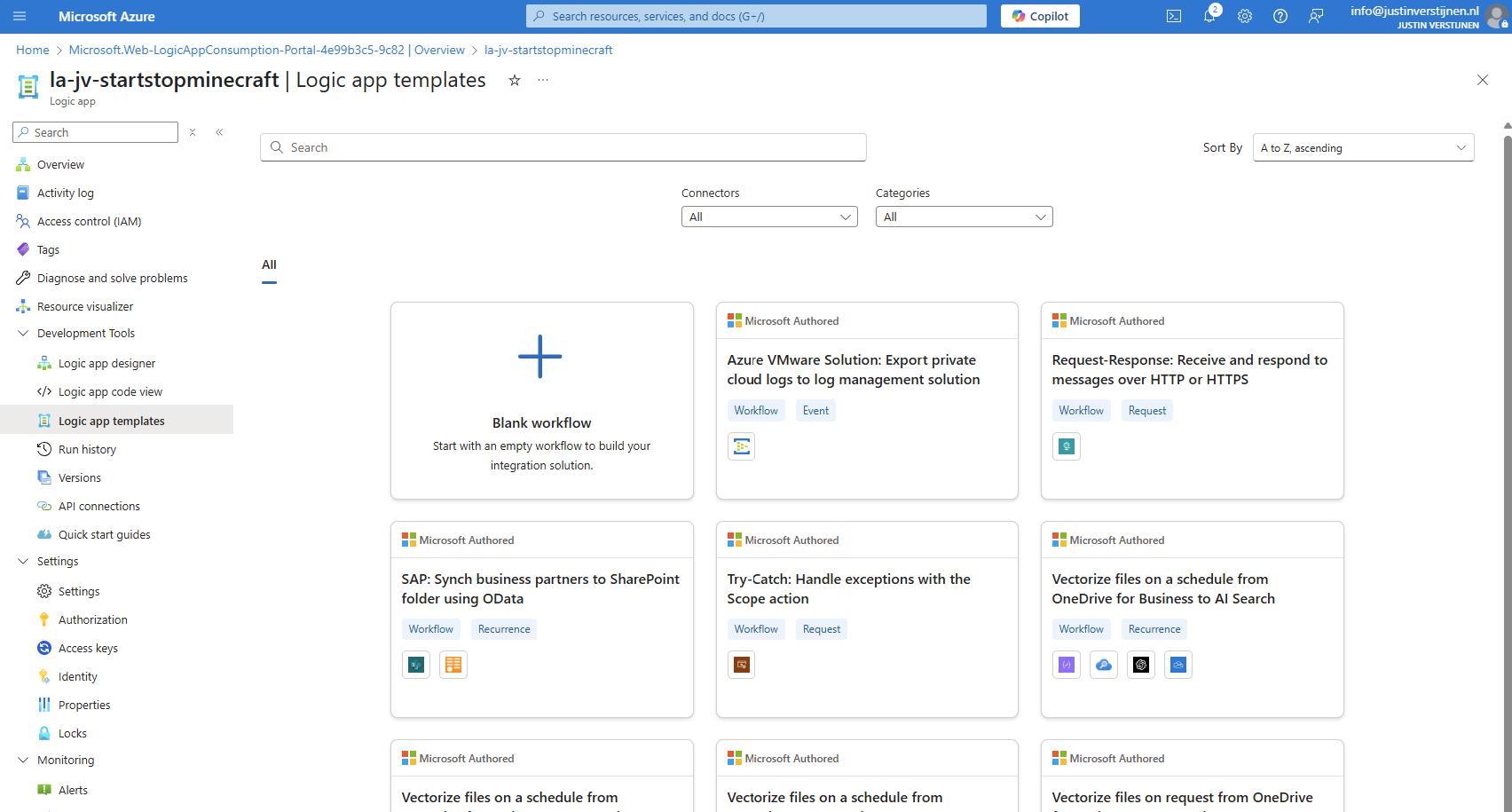
The Logic app to start and stop VMs
In this guide I will use a Logic app to start and stop the Minecraft Server VM from a previous guide. You can use any virtual machine in the Azure Portal with Logic Apps.
I will show some examples:
- Starting the machine at a scheduled time
- Starting the machine at a scheduled time and stop after X hours
- Starting the machine when receiving a certain email message
Creating the Logic App
In the Azure Portal, go to “Logic Apps” and create a new Logic app. I chose the multi-tenant option as this is the least we need and saves on processing costs.
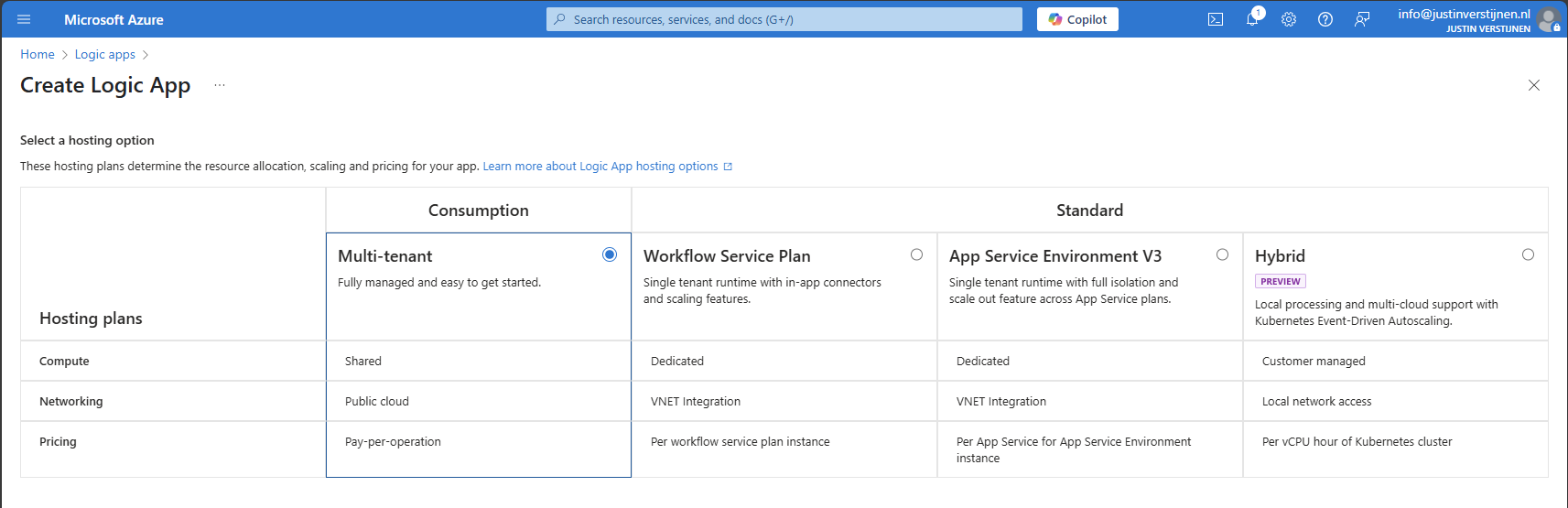
Logic Apps are relatively cheap, most of the time we can save a lot more money on compute costs than the costs of the Logic App.
Advance to the next step.
Create the app by filling in the details and finish the wizard.
After finishing the wizard, we have our Logic App in place, and now we can configure our “flows” and the 3 examples.
The Logic App designer
In every Logic App, we have a graphically designer to design our flow. Every flow has its own Logic App instance. If you need multiple flows, you have to create multiple Logic Apps, each for their own purpose.
When the Logic App is created, you can go to the “Logic App Designer” in your created Logic App to access the flow:
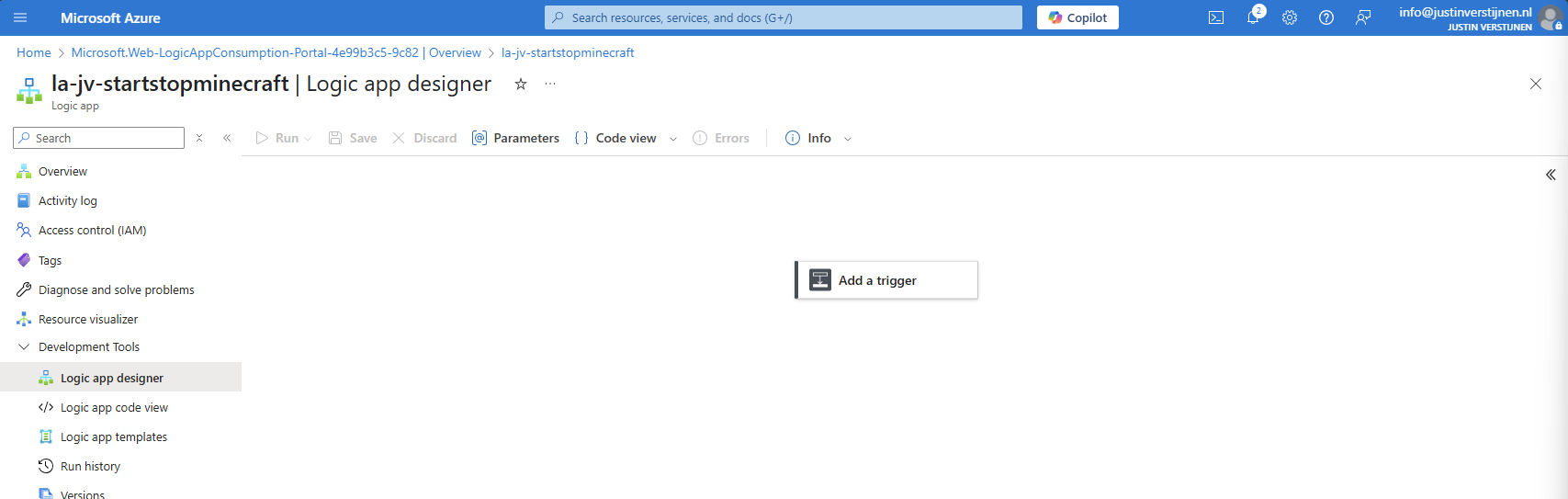
We always start with a trigger, this is the definition of when the flow starts.
Authentication from Logic App to Virtual Machines
We now have a Logic App created, but it cannot do something for us unless we give it permissions. My advice is to do this with a Managed Identity. This is a service-account like Identity that is linked to the Logic App. Then we will give it “Least-privilege” access to our resources.
In the Logic App, go to “Identity” and enable the System-assigned managed identity.
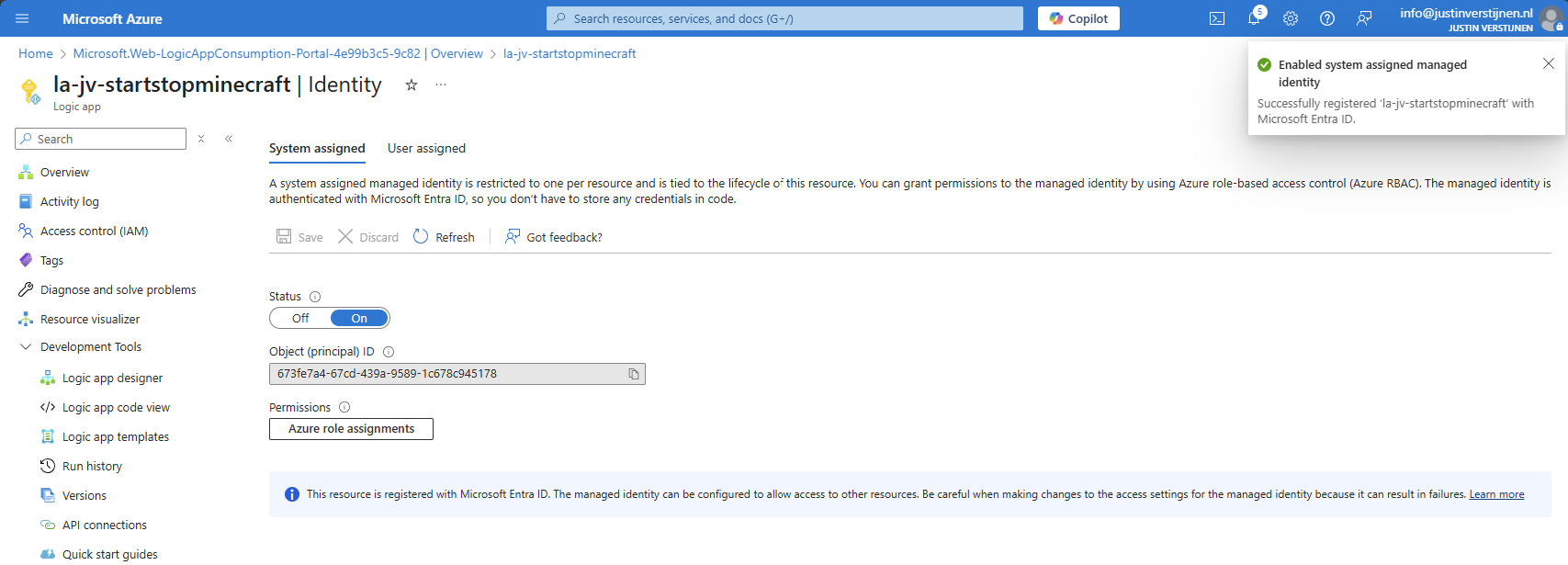
Now we have to give this Managed Identity permissions to a certain scope. Since my Minecraft server is in a specific Resource Group, I can assign the permissions there. If you create flows for one specific machine in a resource group with multiple machines, assign the permissions on the VM level instead.
In my example, I will assign the permissions at Resource Group level.
Go to the Resource group where your Virtual Machine resides, and open the option “Access Control (IAM)”.
Add a new Role assignment here:
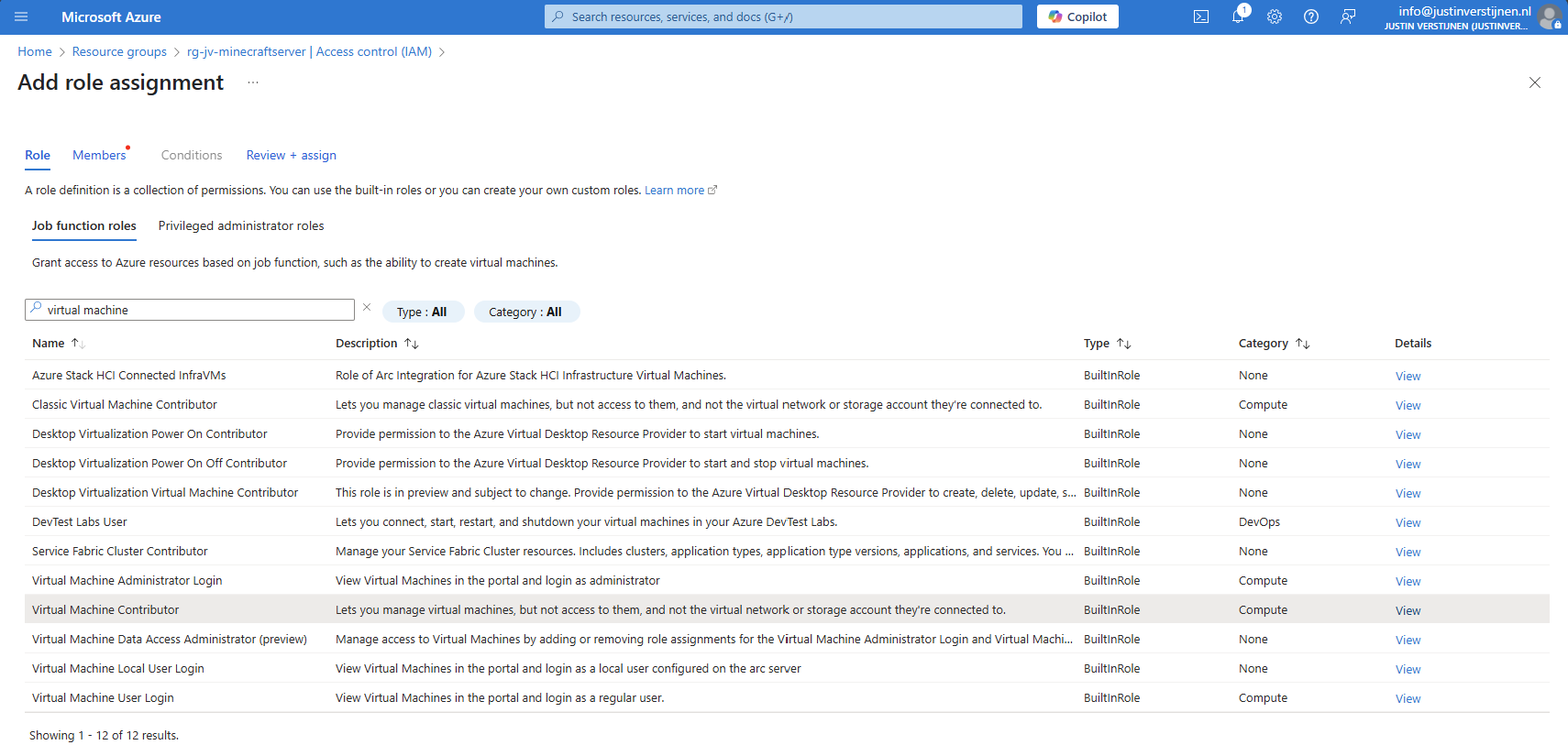
Select the role “Virtual Machine Contributor” or a custom role with the permissions:
- “Microsoft.Compute/*/read”
- “Microsoft.Compute/virtualMachines/start/action”
- “Microsoft.Compute/virtualMachines/deallocate/action”
Click on “Next”.
Select the option “Managed Identity” and select the Logic App identity:
Select the Managed Identity that we created.
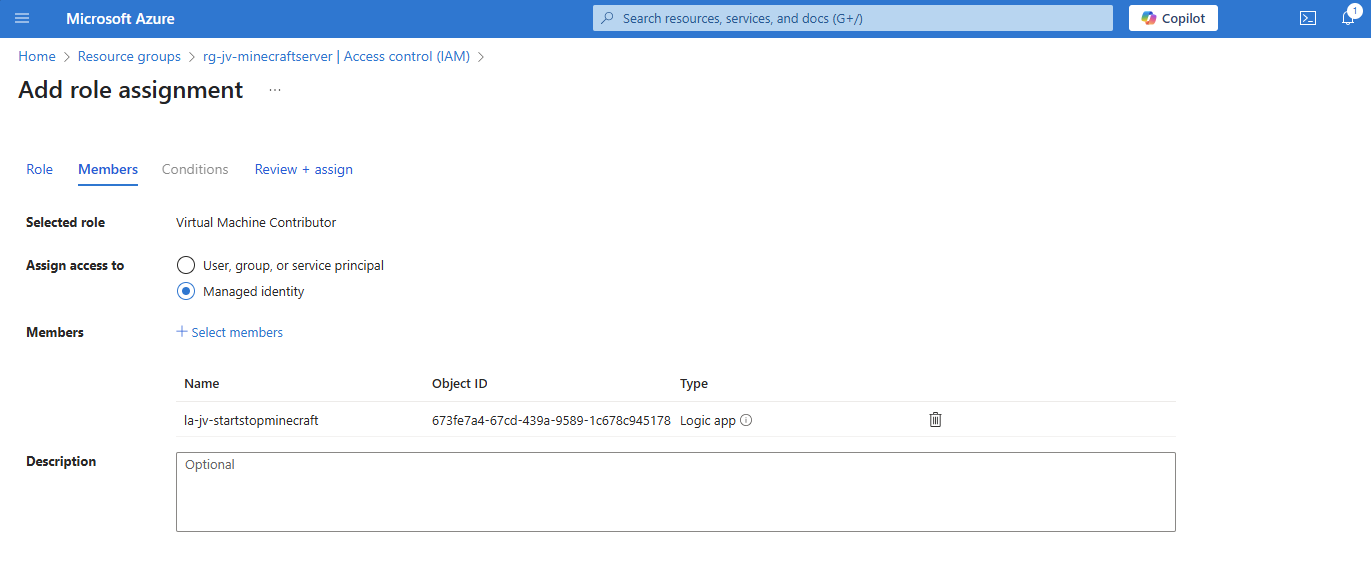
Assign the role and that concludes the permissions-part.
Example 1: Starting a Virtual Machine at a scheduled time
In Example 1, we will create a flow to automatically start one or more defined virtual machines at a scheduled time, without an action to shutdown a machine. You can use this in combination with the “Auto Shutdown” option in Azure.
Go to the Azure Logic App and then to the Designer;
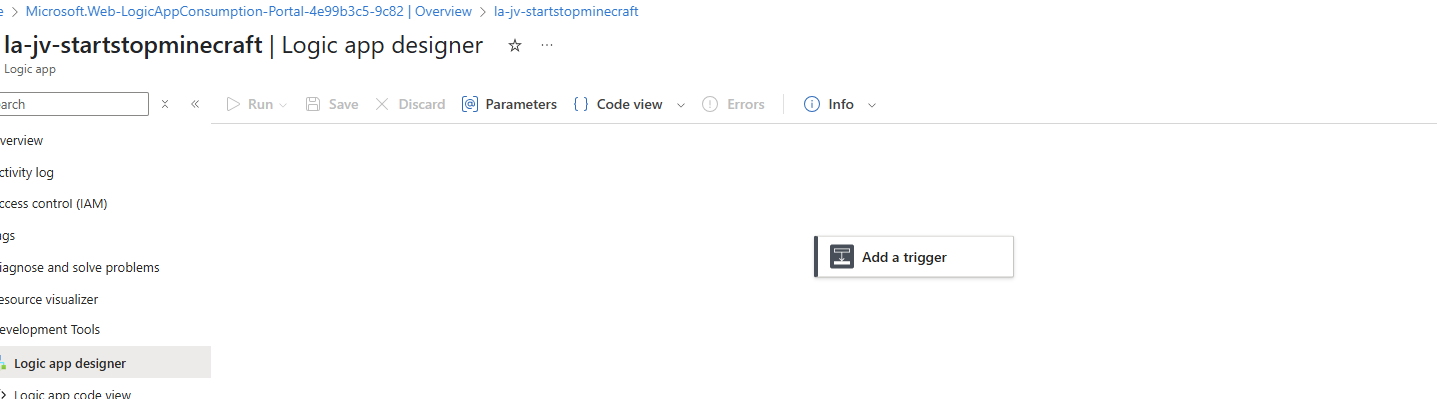
Click on “Add a trigger”.
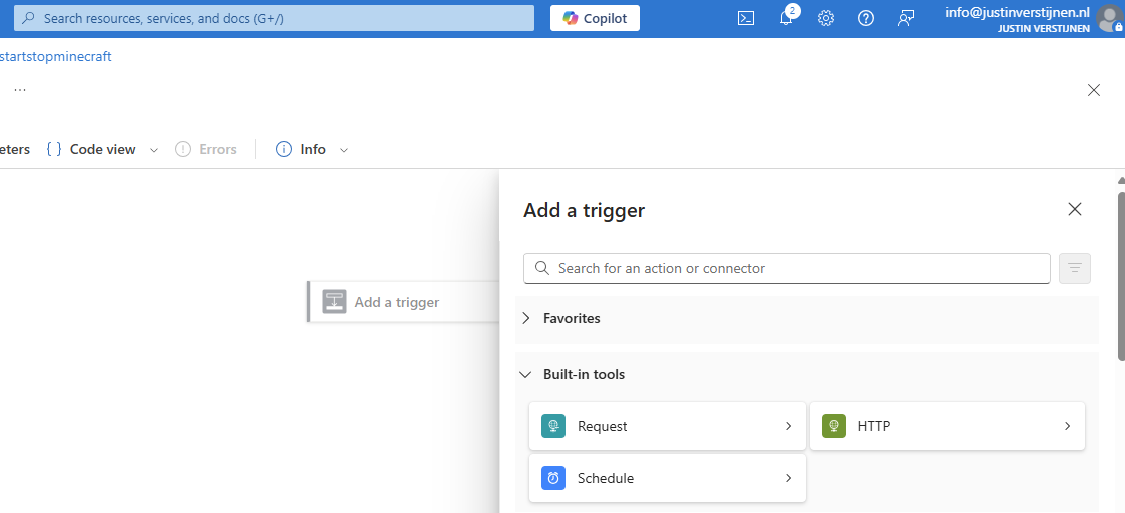
Select the “Schedule” option.
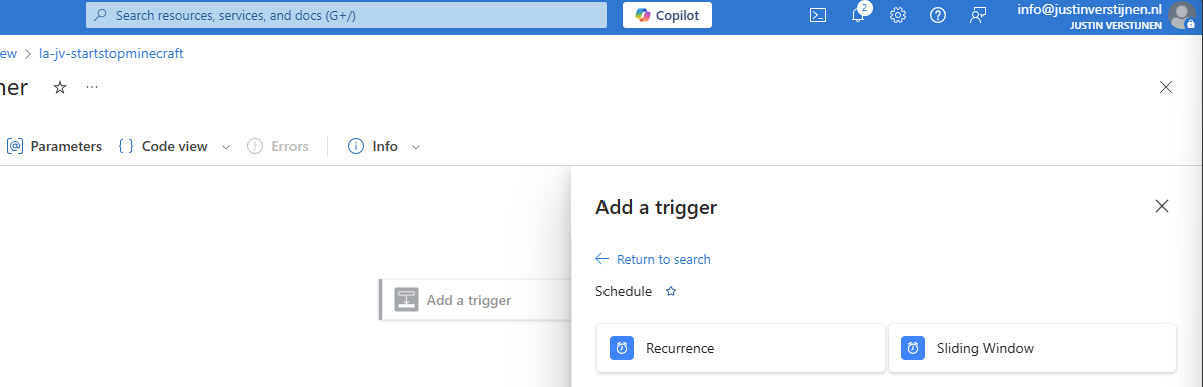
Select the “Recurrence” trigger option to let this task recur every 1 day:
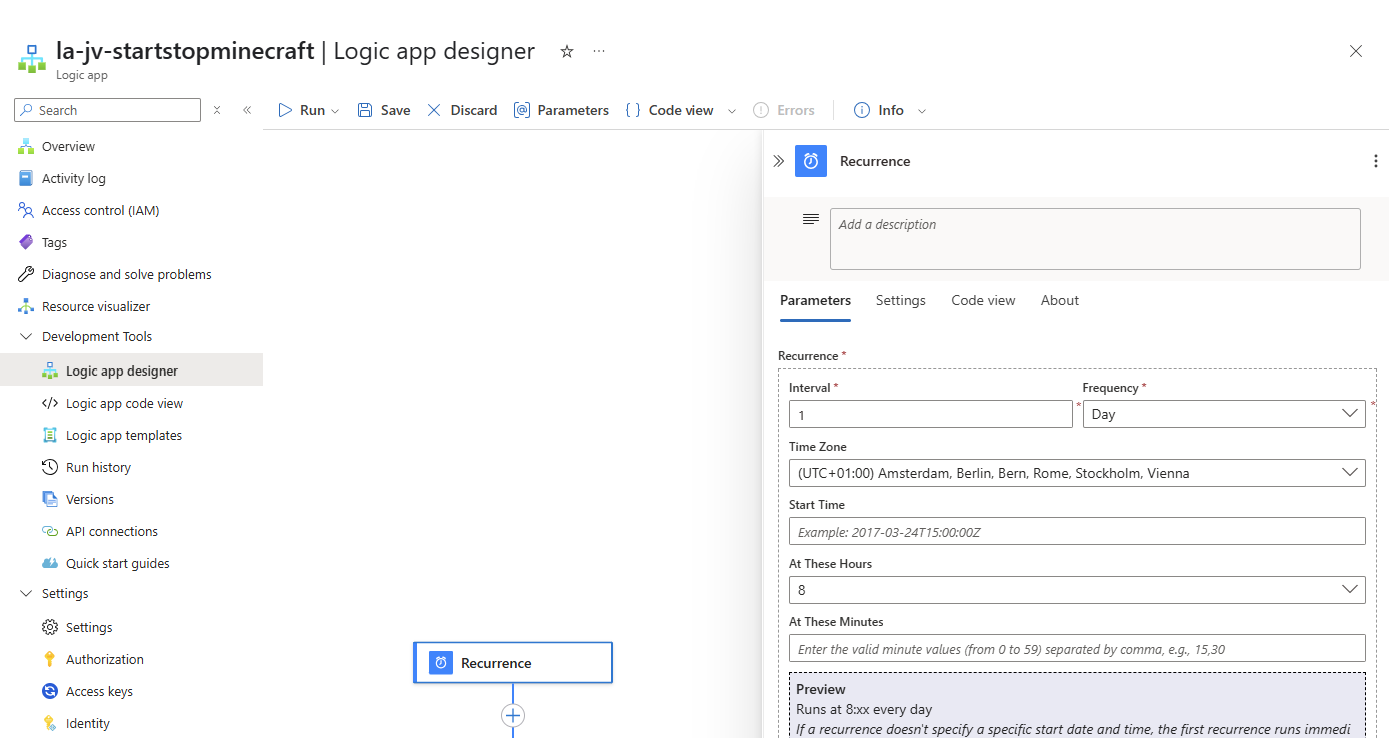
Then define the interval -> when must the task run, the timezone and the “At these Hours” to start the schedule on a set time, for example 8 o’clock. The blue block below it shows exactly when the schedule will run.
Save the trigger and now we have to add actions to perform after the trigger.

Click on the “+” under Recurrence and then “add a task” to link a task to the recurrence.
Search for: “virtual machine”
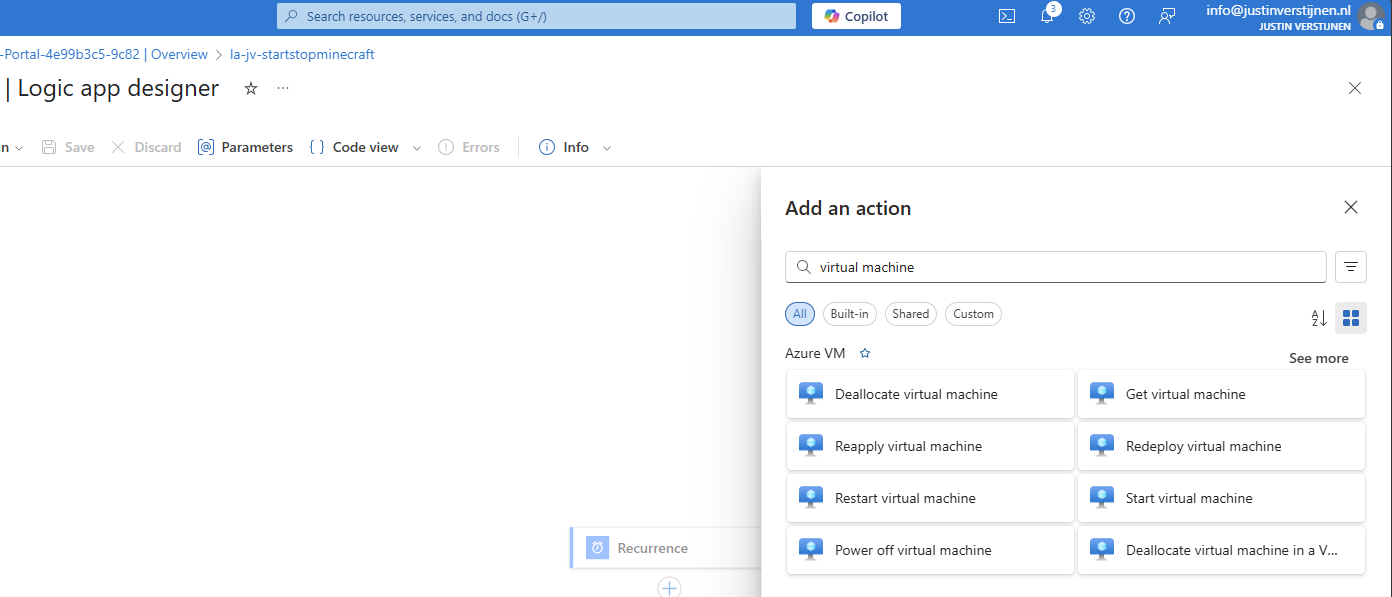
Select the option “Start virtual machine”.
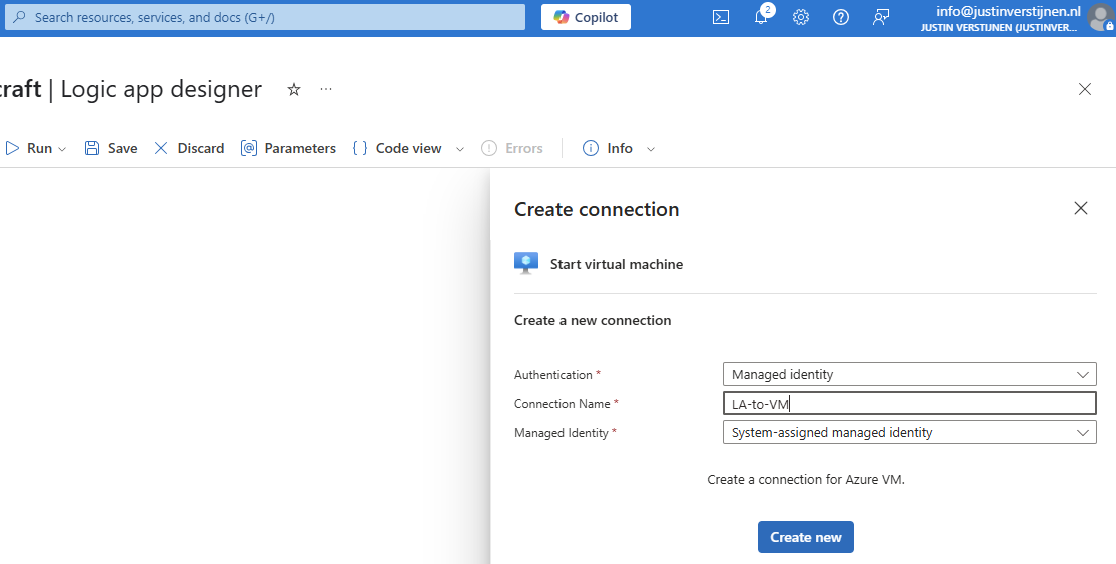
Select the Managed Identity and give the connection a name. Then click on “Create new”.
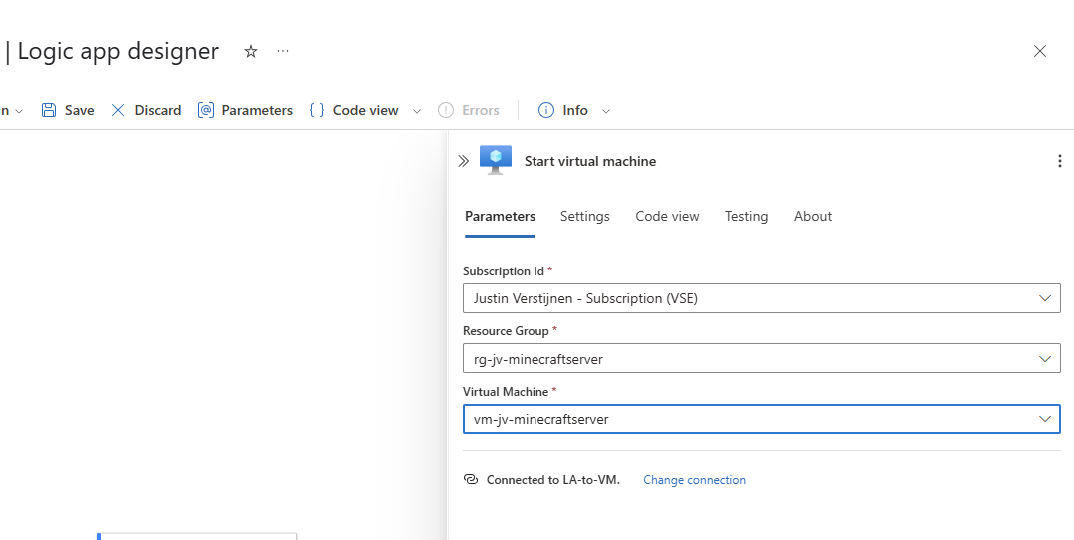
Now select the machine you want to start at your scheduled time:
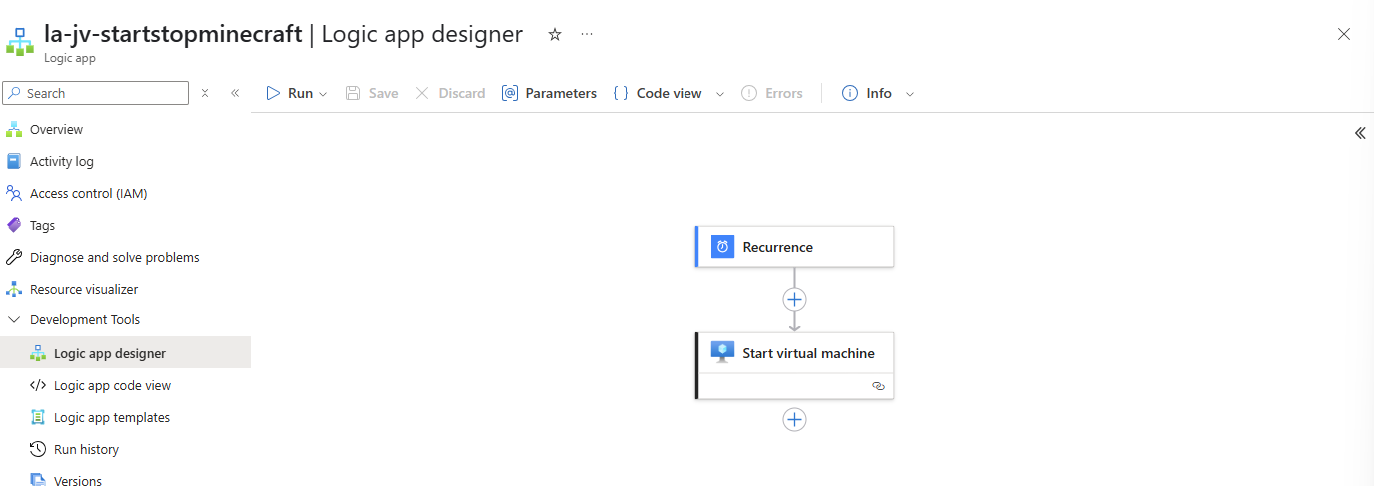
Save the Logic App and it should look like this:
Testing the logic app
You can test in the portal with the “Run” option, or temporarily change the recurrence time to some minutes in the future.
Now we wait till the schedule has reached the defined time, and we will look what happens to the virtual machine:
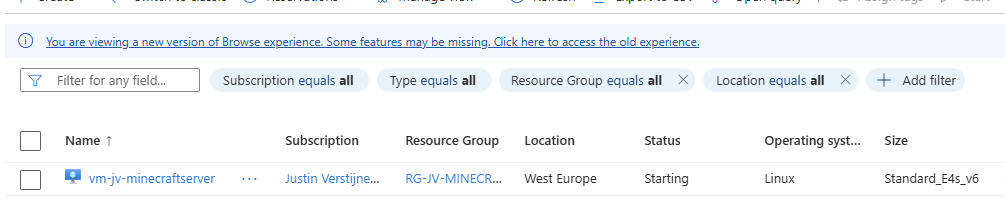
The machine is starting according to our Logic App.
Example 2: Starting a Virtual Machine at a scheduled time and stopping it after X hours
Example 2 is an addition on Example 1, so follow Example 1 and then the steps below for the stop-action.
Go to the Logic app designer:
Under the “Start virtual machine” step, click on the “+” to add an action:
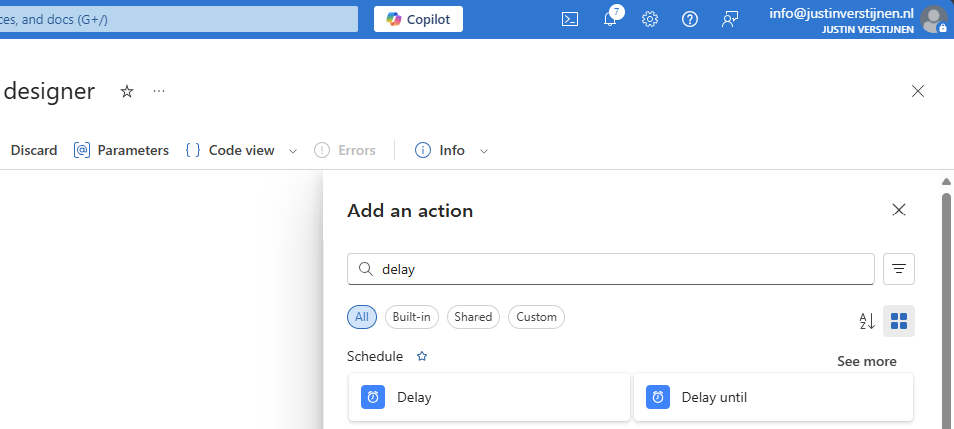
Search for “Delay” to add an delay to the flow.
In my example, I will shutdown the virtual machine after 4 hours:
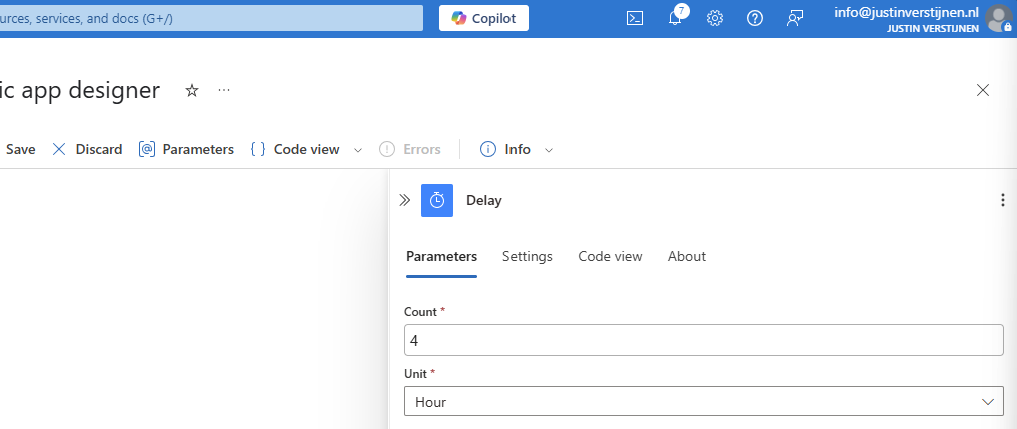
Fill in 4 and select hours or change to your preference.
Add another step under the Delay step:
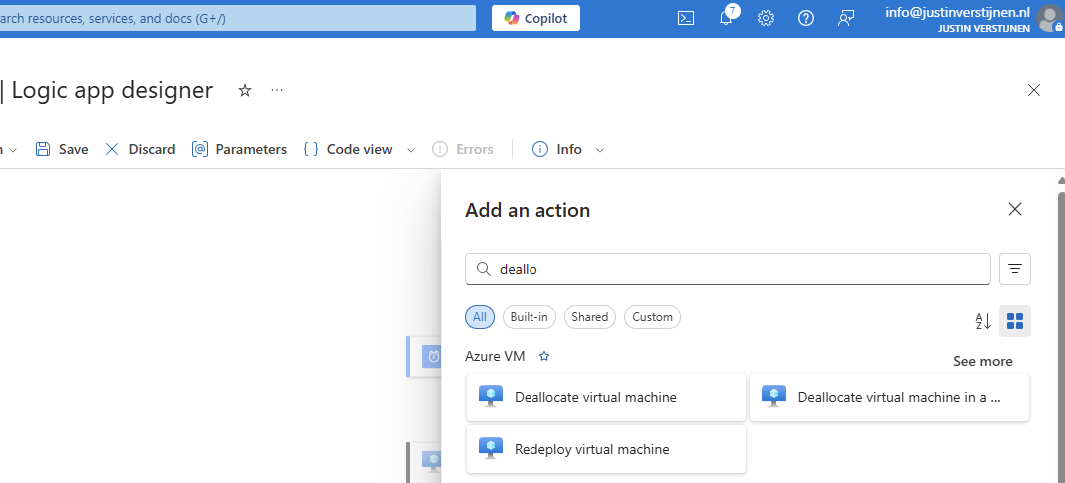
Search for “Deallocate” and select the “Deallocate virtual machine”
Fill in the form to select your virtual machine. It uses the same connection as the “Start” action:
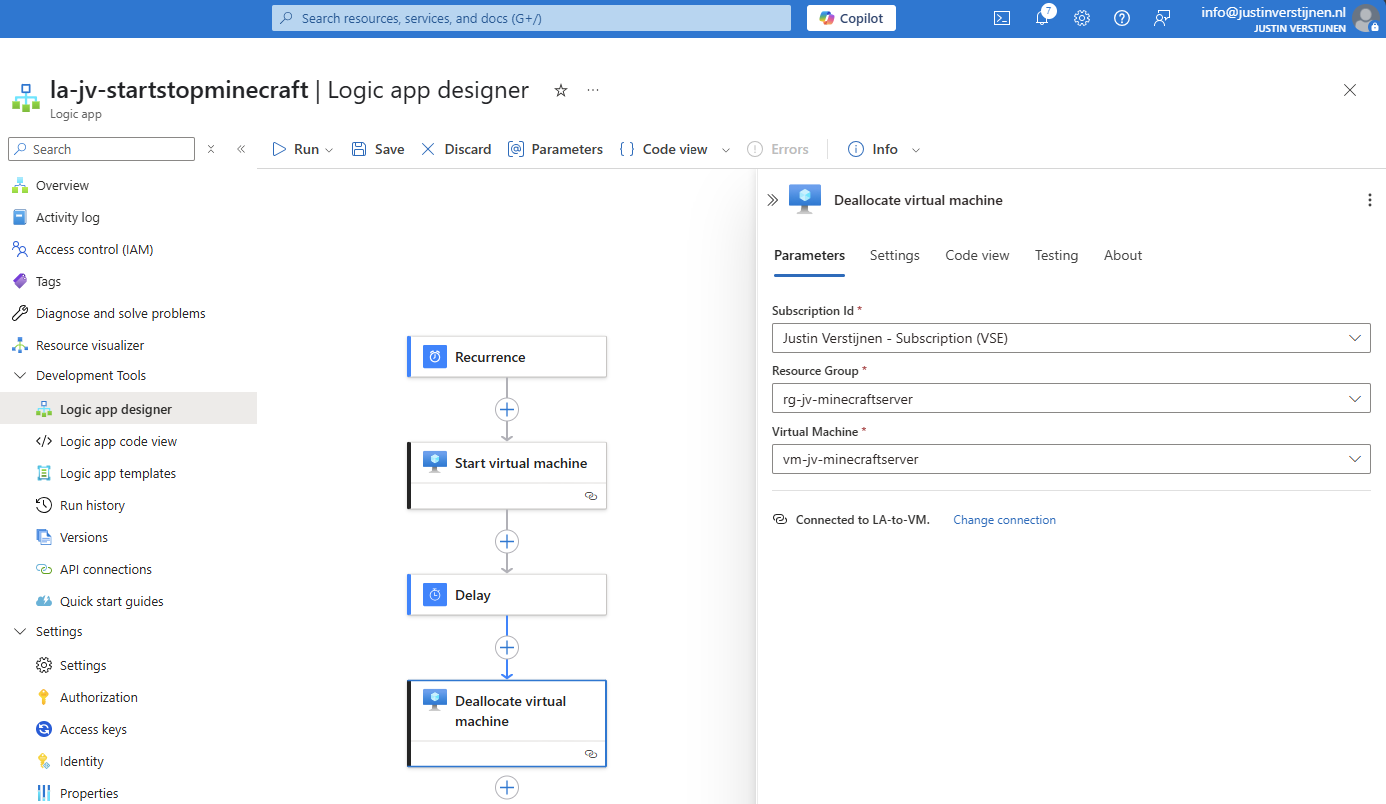
After this save the Logic app. Now the Logic App will start the virtual machine at 8:00 AM and after 4 hours it will stop the machine. I used the “Deallocate” action because this ensures the machine uses minimal costs. Stop will only stop the VM but keeps it allocated which means it still costs money.
Example 3: Start machine after receiving email
For Example 3 we start with a new flow. Add a new trigger:
Now search for “When a new email arrives (V3)” and choose the Office 365 Outlook option:

Now we must create a connection to a certain mailbox, we have to login to the mailbox.
We can define how the mail should look to trigger the events:
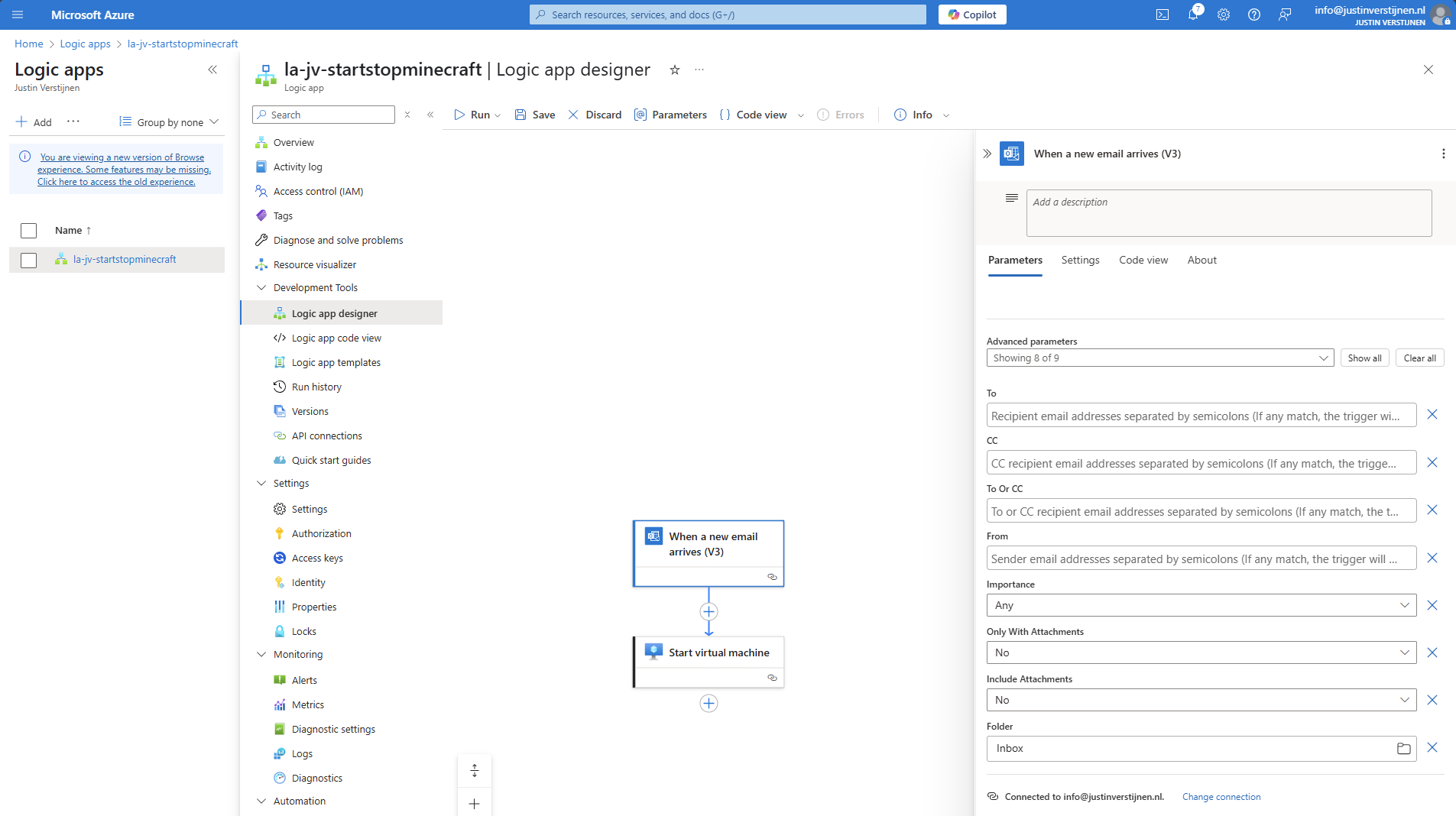
After the incoming email step, we can add an action with the “+” button:
Click on the “+” under Recurrence and then “add a task” to link a task to the recurrence.
Search for: “virtual machine”
Select the option “Start virtual machine”.
Select the Managed Identity and give the connection a name. Then click on “Create new”.
Now select the machine you want to start at your scheduled time:
Save the Logic App and it should look like this:
Now we have finished Example 3 and you can test the flow.
Summary
Azure Logic Apps are an excellent cloud-native way to automate recurring tasks in Azure. It is relatively easy to configure and can help limiting the uptime of virtual machines and so costs.
I hope this guide was very useful and thank you for reading.
End of the page 🎉
You have reached the end of the page. You can navigate through other blog posts as well, share this post on X, LinkedIn and Reddit or return to the blog posts collection page. Thank you for visiting this post.
Support the blog
