Use Microsoft Defender for Endpoint with PowerShell
Requirements
To follow this guide, you need the following things:
- A Windows 11/Server 2022 or 2025 device with Microsoft Defender for Endpoint enabled
- PowerShell running with Administrator privileges
- Basic knowledge of PowerShell
Short introduction to Microsoft Defender for Endpoint
Microsoft Defender for Endpoint is a security solution that protects laptops, desktops, servers, and mobile devices against malicious software and threats. It can detect suspicious activity, help investigate attacks, and helps notifying you of threats happening on your devices. It is part of the broader Microsoft security ecosystem and supports platforms such as Windows, macOS, Linux, iOS, and Android.
Microsoft Defender is installed automatically with Windows today, but we also need to link Defender to our tenant. The user account using the computer also must have a Defender license (P`1/P2) or included with Business Premium and higher.
In coorperation with Microsoft Intune we can manage devices and enforce security policies. When the two are integrated, Defender for Endpoint can share device risk information with Intune in real time. Intune can then use that risk level in compliance policies, for example by marking a device as noncompliant and helping block access to company apps or data until the issue is resolved.
Defender for Endpoint works by default with the defaults of Microsoft, which is very broad and widely compatible. This means it secures your device a bit but we don’t get every penny out of it. This is why you want to create your own configurations with Microsoft Intune which we can do through the Intune Admin center (https://intune.microsoft.com).
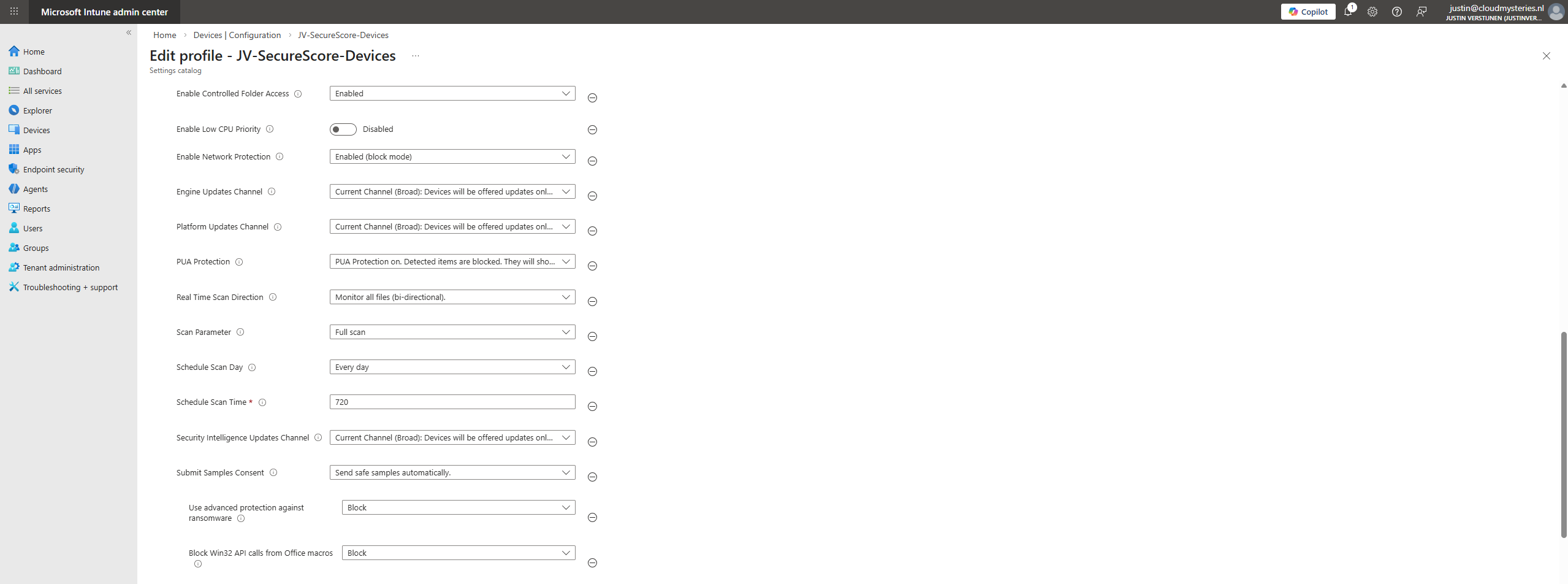
To learn more about configuring Microsoft Defender with Intune, check out this guide: https://justinverstijnen.nl/microsoft-secure-score-devices
Starting out with PowerShell and Microsoft Defender
Now we are ready to use Microsoft Defender on our client device and execute some PowerShell commands. I have collected some PowerShell commands which we will often use for getting information, attacking threats, executing scans, checking the event logs and double check that what we see in the admin centers are aliging with the real scenario.
To start out, go to the client device or use remote PowerShell and start by executing this command to check if everything is ready:
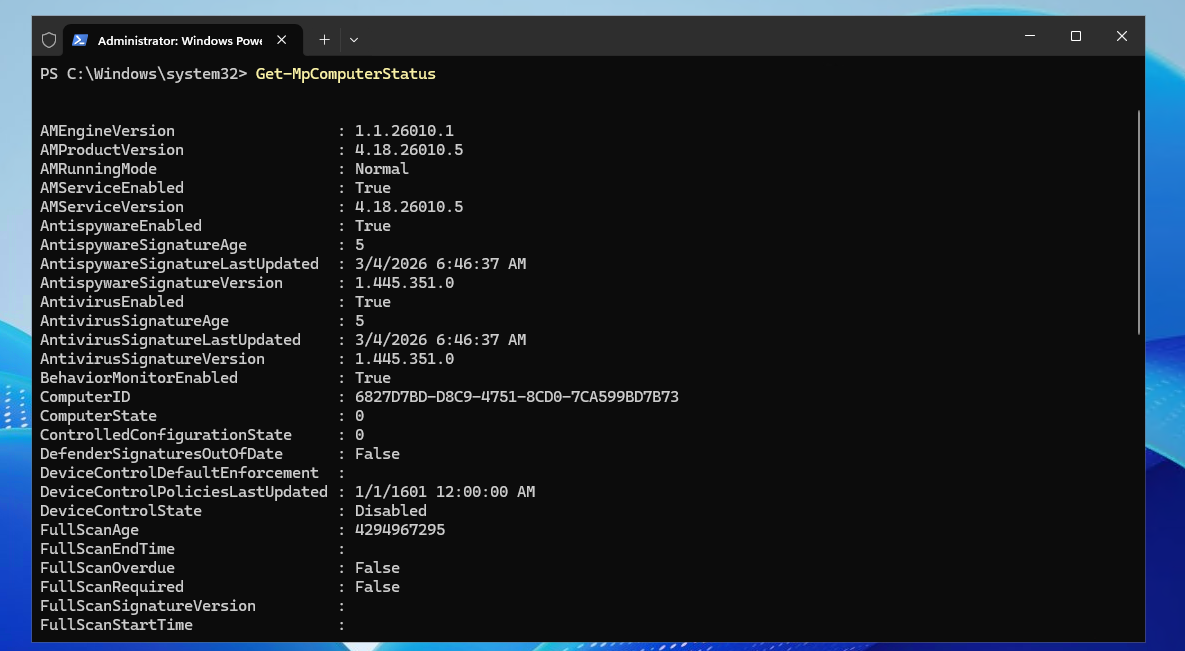
Get-MpComputerStatusThis will give you an overview of all Defender information available on the device like latest signature updates, enabled/disabled status:
If this command doesn’t work, check if the module is imported correctly:
Import-Module Defender
If this doesn’t help anything you can run this command to install the module:
Get-Module -ListAvailable Defender | Install-Module
Microsoft Defender admin center
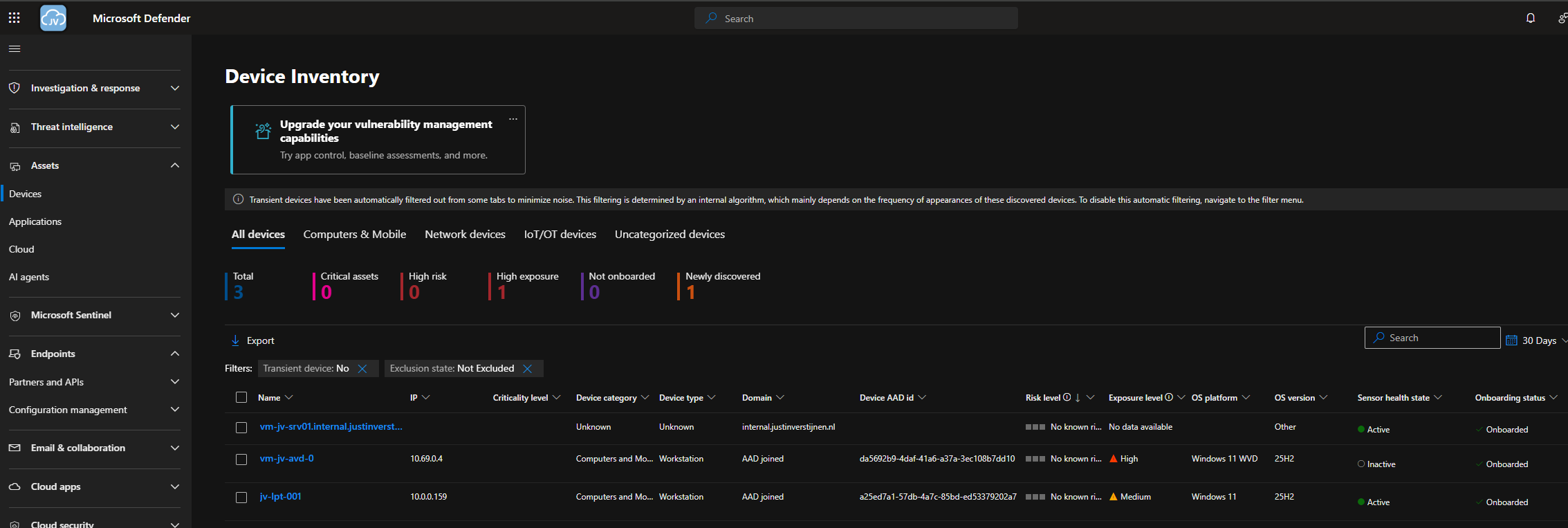
To check out your devices in Microsoft Defender admin center, go to: https://security.microsoft.com/machines
Onboard new devices to Microsoft Defender for Endpoint
To onboard a new device in Microsoft Defender, go to:
https://security.microsoft.com/securitysettings/endpoints/onboarding
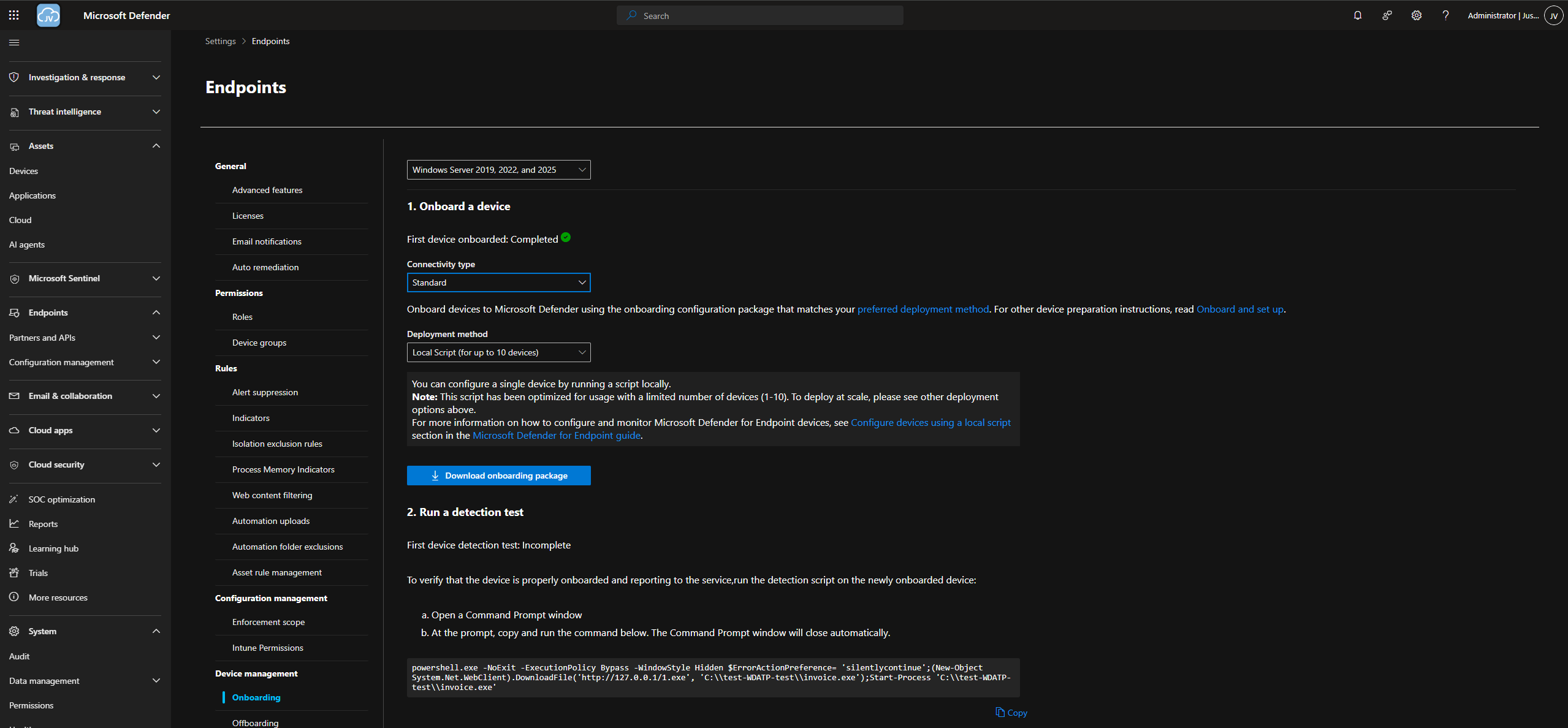
For 1 or 2 devices, the local script option is faster. If having more than 2 devices I would advise to onboard them using Intune or Group Policy.
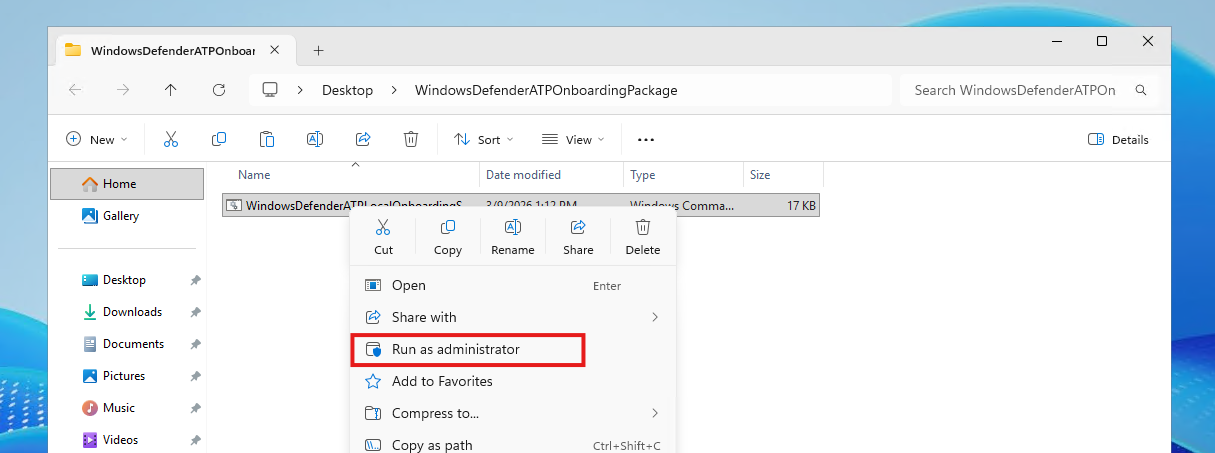
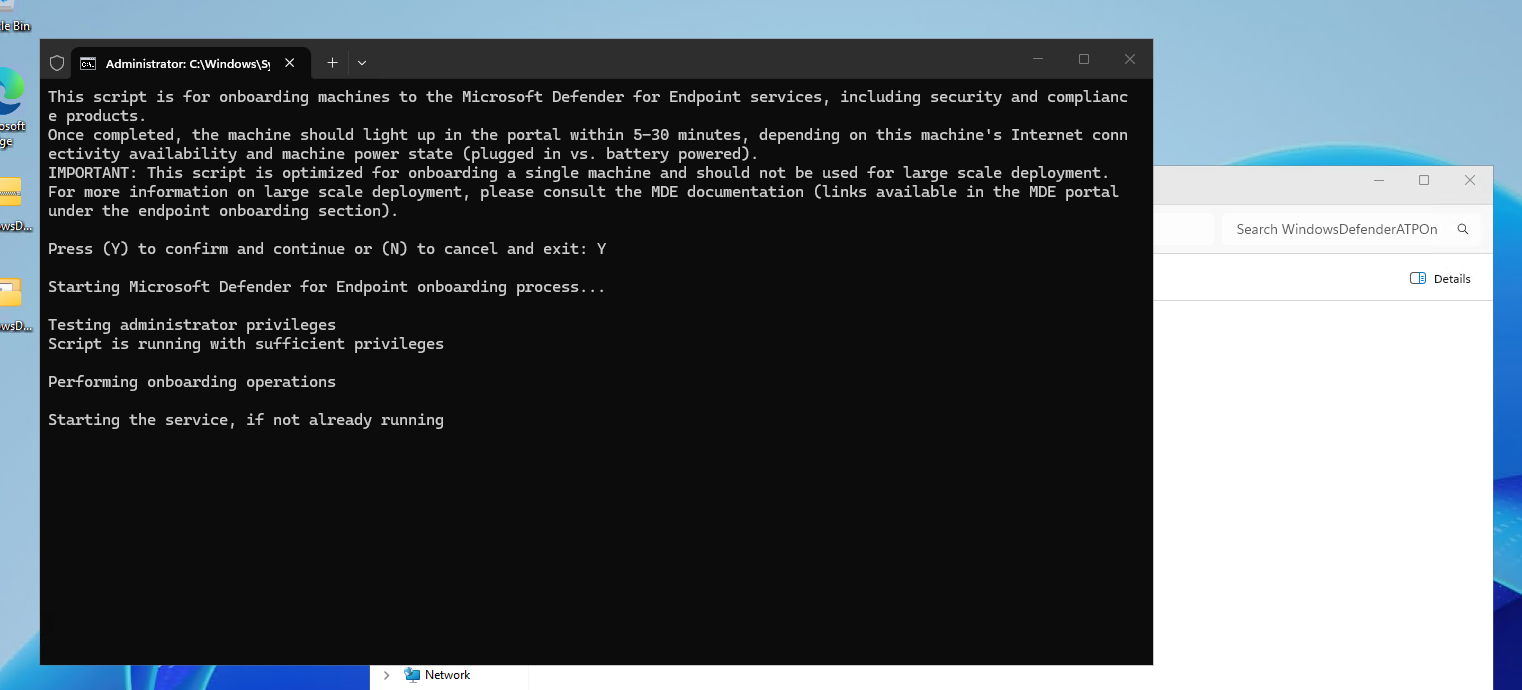
Run the script on the target machine as Administrator to link the local Defender instance with Defender XDR in your Microsoft 365 tenant.
1. Viewing recent Defender events
Assuming you followed the previous steps to test the Defender module in PowerShell, we can now start executing some commands against the local Defender engine.
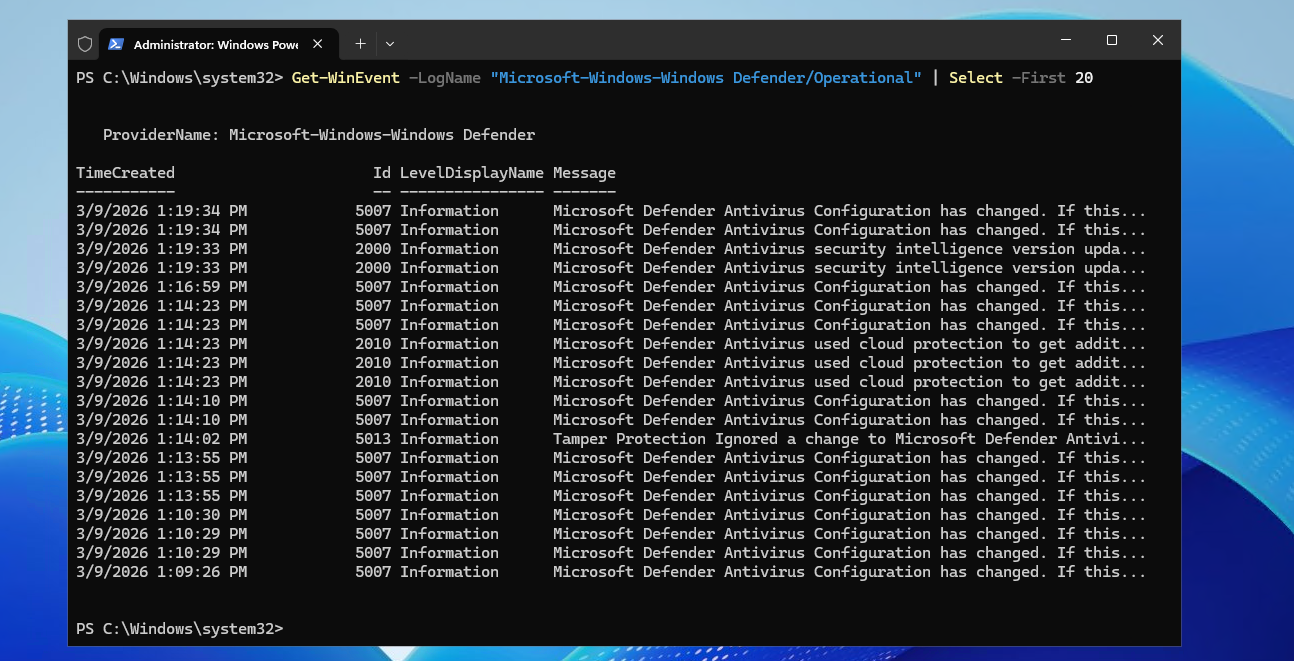
To get an overview of the 20 recent logs of Defender, execute this command:
Get-WinEvent -LogName "Microsoft-Windows-Windows Defender/Operational" | Select -First 20This will give us an overview of the latest logs of the Defender engine. You can also choose other options than 20, like 100 or 500 but this can take a while to retrieve information.
2. Viewing recent scanning events
We can further filter the logs used above to only see scanning events. We can check this way if our scan has happened for troubleshooting and checking purposes.
To filter only on Microsoft Defender scanning events, execute this command:
Get-WinEvent -LogName "Microsoft-Windows-Windows Defender/Operational" |
Where-Object { $_.Id -in 1000,1001,1002 } |
Select TimeCreated, Id, Message -First 20
To focus only on key scan events, filter by event IDs 1000, 1001, and 1002 To give a better understanding why:
- Event ID 1000: Defender scan has started
- Event ID 1001: Defender scan has completed
- Event ID 1002: Defender scan cancelled or interrupted
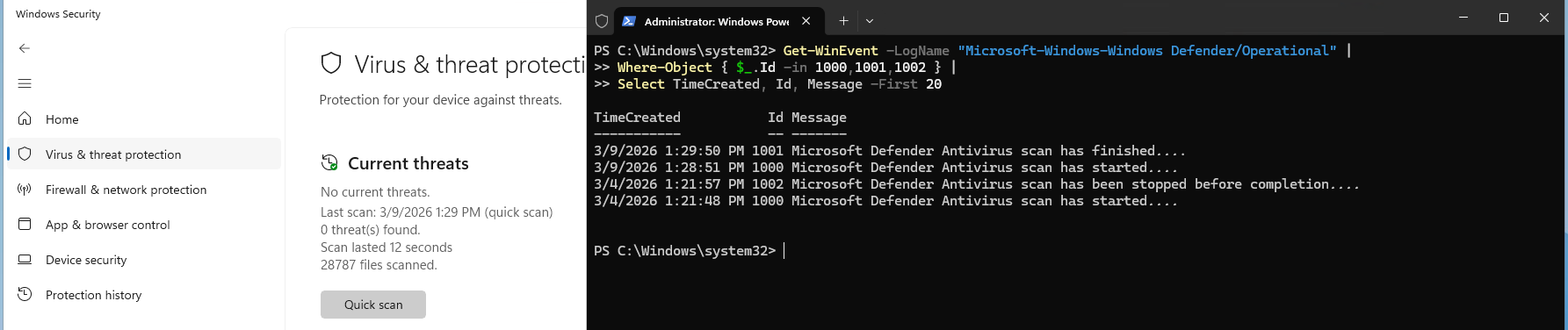
As you can see, this perfectly correspond to what we see in the GUI of Defender.
3. Checking Defender scan status overview
To simply check when the last full and quick Defender scans ran, execute this command:
Get-MpComputerStatus | Select FullScanStartTime, QuickScanStartTime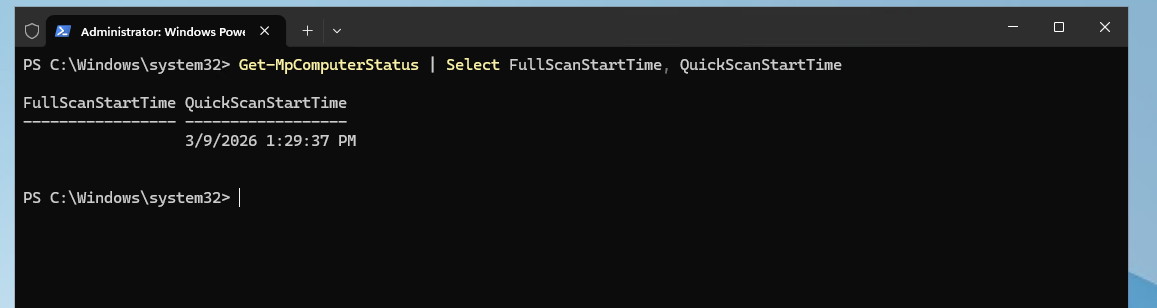
You can use this to get a simple overview of the latest scans executed. This can be used in incident responses or to simply check/troubleshoot your Defender confgiuration.
4. Updating Defender Virus Definitions
Keep Defender up-to-date by downloading the latest virus and malware definitions:
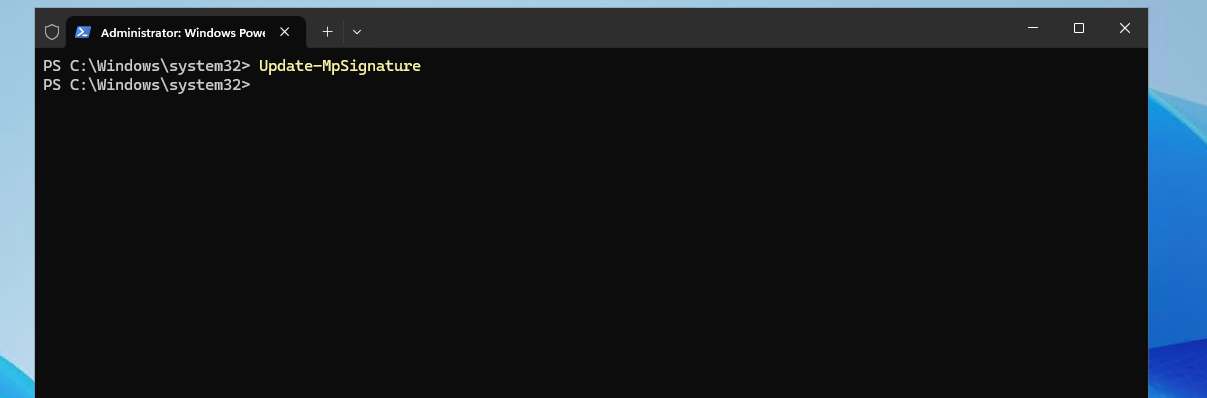
Update-MpSignatureThe signatures/virus definitions are literally hashes/signatures of trending virus files which are known by Microsoft. This way Defender instantly knows new virusses as it knows them in it’s database.
I advise you to always first update these signatures before doing any scans. This way you ensure that we use the latest information available in certain scenarios. The command is almost always done in around 15 seconds.
5. Running Defender scans manually
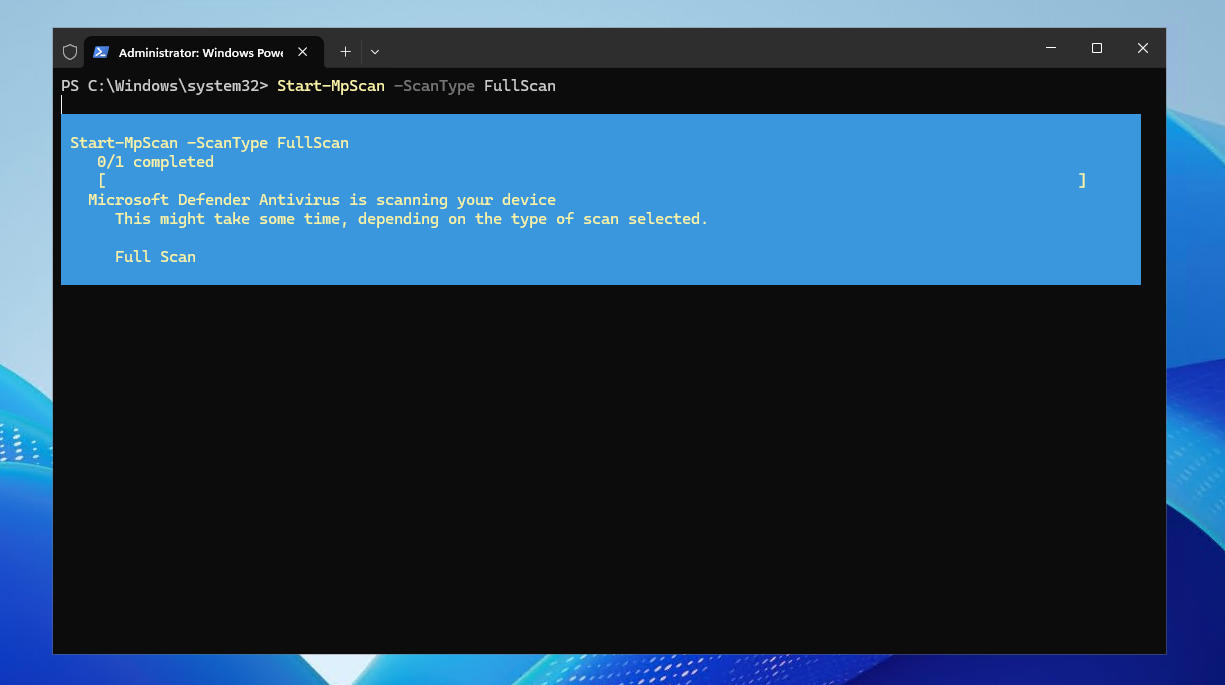
Sometimes we need to execute Defender scans manually. We can do this using 2 separate commands. If doing an incident response, or you expect the endpoint having malicious software -> always do a full scan.
Start-MpScan -ScanType FullScanStart-MpScan -ScanType QuickScanYou can start scans anytime using PowerShell without waiting for Intune/Defender for syncing with your device for a faster incident response.
6. Viewing and managing threats
To view recently detected threats with their details, execute this command:
Get-MpThreatDetection | Select-Object ThreatName, InitialDetectionTime, ActionSuccess, ResourcesTo remove all threats detected on your device, execute this command:
Remove-MpThreat -AllRemove a specific threat by its ID (replace ThreatID with the actual ID), execute this command:
Remove-MpThreat -ThreatID *ThreatID*To remove all detected detected threats instantly, execute this command:
Get-MpThreatDetection | Remove-MpThreat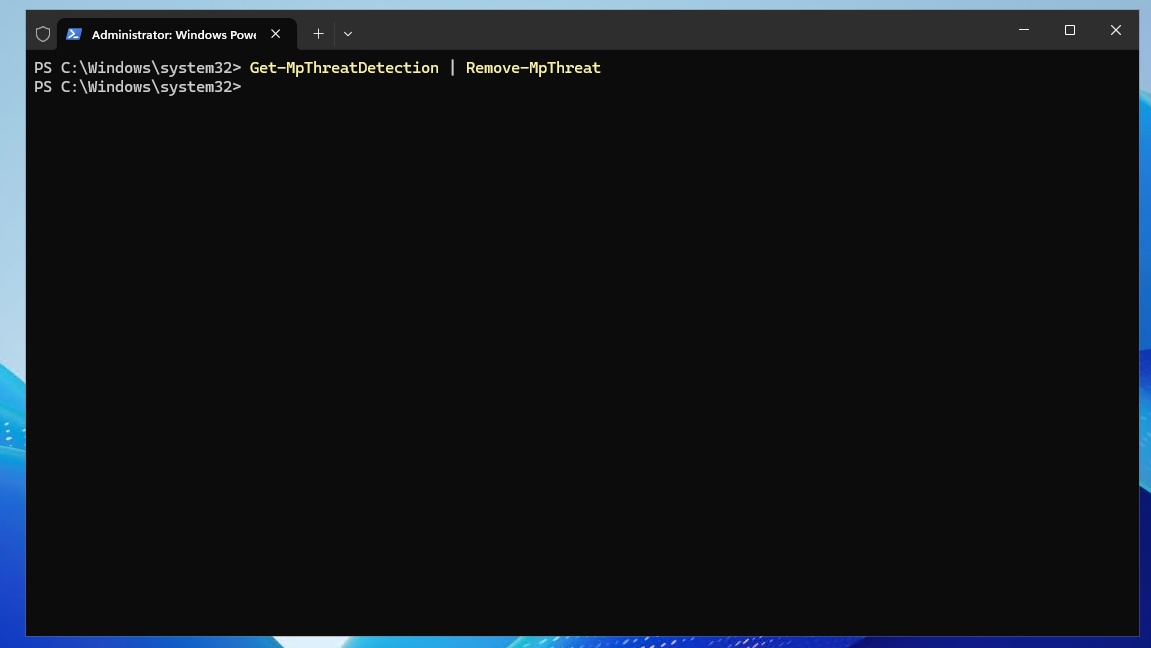
7. Checking Defender settings
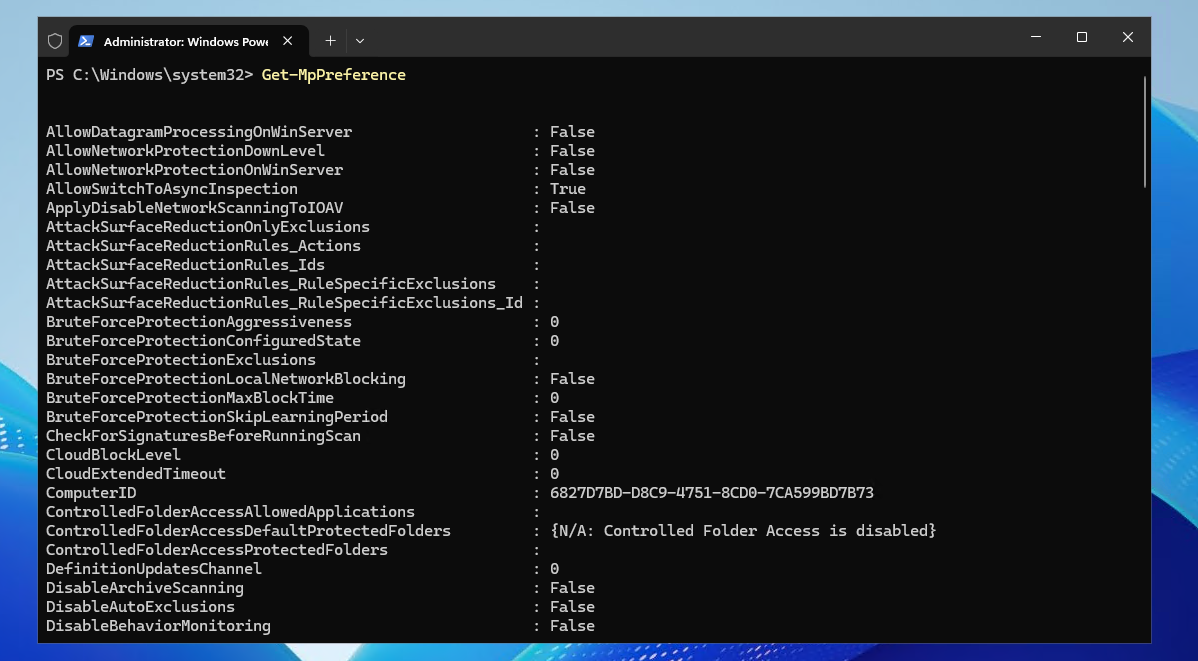
To view Defender’s current settings such as real-time monitoring and scanning preferences, execute this command:
Get-MpPreferenceYou can use this to check any Intune or Group Policy configurations with this command and see the endpoint uses your latest settings.
8. Checking signature items
To get an overview of the current known signatures, execute this command:
Get-MpThreatCatalogThis will give you a list of millions of signature items Microsoft has in its database. You could use this to lookup a single definition in it, rather than executing the command and get the millions of items.
9. Simple full scan script
You could setup a simple script with all commands above that does a definitions update and then do a scan. You can schedule this using the Windows Task Scheduler.
# Latest updates
Update-MpSignature
# Full scan
Start-MpScan -ScanType FullScan
# Delete threat detections
Get-MpThreatDetection | Remove-MpThreat
This can work in smaller environenments of course. If managing environments with more devices and servers I would still advise you tu use Microsoft Intune and or Group Policies to schedule quick and full scans instead.
Knowledge check
This quiz needs JavaScript to show the questions and feedback.
Summary
PowerShell allows easy and powerful management of Microsoft Defender for Endpoint. You can view scan events, start scans manually, update virus definitions, control protection settings, and handle detected threats. Always keep virus definitions updated and be cautious when changing security settings like turning off real-time protection.
I only described the operational commands of using Defender in case of incident response. For the configuration of Defender for Endpoint, I highly advise to use Microsoft Intune for central and mass configuration options. I have a guide on some Defender settings and the Microsft Secure Score here: https://justinverstijnen.nl/microsoft-secure-score-devices
Thank you for reading this guide and I hope it was helpful.
These sources helped me by writing and research for this post;
End of the page 🎉
You have reached the end of the page. You can navigate through other blog posts as well, share this post on X, LinkedIn and Reddit or return to the blog posts collection page. Thank you for visiting this post.
Support the blog
